You want to hide your IP address or access restricted content, but you do not want the significant speed loss that often comes with a heavy VPN encryption tunnel.
To solve this without sacrificing performance, you can turn to a lighter, faster alternative designed specifically for speed: the SOCKS proxy.
This guide will explain exactly what is SOCKS proxy, how the modern SOCKS5 standard works, and when it is the right choice for your specific needs.
Key takeaways:
- Definition: A SOCKS proxy acts as a middleman that routes packets between a client and server.
- Versatility: It handles any type of traffic (TCP/UDP), unlike HTTP proxies which only handle web pages.
- SOCKS5 standard: The latest version supports authentication and faster performance for gaming and torrenting.
- Speed advantage: It often has lower overhead than a VPN because it does not encrypt traffic, which can result in higher speeds in certain scenarios.
- Security limitation: It hides your IP address but does not encrypt your data, making it less secure than a VPN.
1. What is SOCKS proxy?
SOCKS, which stands for Socket Secure, is an internet protocol that exchanges network packets between a client (your device) and a server (the destination) through a proxy server.
In technical terms, it operates at Layer 5 (the Session Layer) of the OSI model. While standard web proxies are often limited to interpreting web browser traffic, a SOCKS proxy is a general-purpose tool.
The concept involves three main parties:
- Your computer (Client): The device sending the request.
- The website (Destination): The server receiving the request.
- The proxy (Intermediary): The server that sits in the middle.
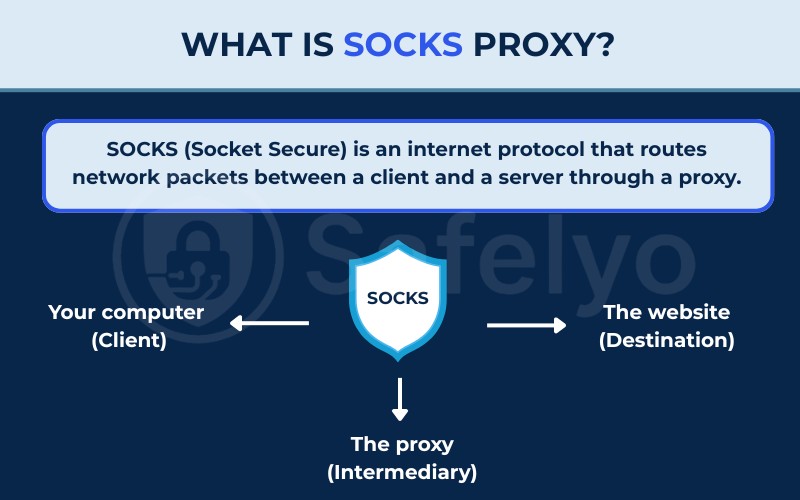
When using a SOCKS proxy, traffic travels from your device to the server first. This intermediary then relays data to the final destination using its own IP address, making it appear as though the request originated from there.
The defining feature of a SOCKS proxy is that it is protocol-agnostic. This means it does not care what kind of traffic you are sending.
Whether you are browsing a website (HTTP), sending an email (SMTP), or downloading a file via FTP, the SOCKS proxy simply establishes a connection and passes the data packets along.
This makes it significantly more flexible than an HTTP proxy, which is designed strictly for interpreting web pages.
2. How does a SOCKS proxy work?
The mechanism behind a SOCKS proxy is built on a direct relay method. It acts as a digital middleman that is lighter and less intrusive than the encrypted tunnels used by VPNs.
To understand the workflow, we can break it down into three simple steps:
- Connection request: Your client (such as a browser, game, or torrent app) sends a request to the SOCKS proxy server instead of connecting directly to the internet.
- Establishing the link: The proxy server accepts your request and opens a connection to the target server (the website or game server) on your behalf using standard protocols like TCP or UDP.
- Data relay: Once the connection is open, the proxy acts as a transparent pipe. It forwards the data from the target back to you without changing it.
Here is the crucial difference that makes SOCKS unique: It does not interpret the data.
What makes SOCKS unique is that it does not read the data it handles. Unlike HTTP proxies, which often inspect the headers of your data packets to optimize web loading or block certain content, a SOCKS proxy operates at a lower level.
It simply takes the data packet from you and pushes it to the destination immediately. Because it does not inspect or modify packet contents, it introduces minimal processing overhead. This allows it to maintain high throughput speeds that are ideal for downloading or streaming.
3. SOCKS4 vs SOCKS5: What is the difference?
If you are looking for a proxy list or configuring software, you will see two main options: SOCKS4 and SOCKS5. While they share the same name, the difference in performance and capability is massive. SOCKS5 is the modern standard, and in almost every case, it is the version you should choose.
Here is a quick comparison of the two versions:
| Feature | SOCKS4 | SOCKS5 |
| Protocol Support | TCP only | TCP and UDP |
| Authentication | None | Login/Password & GSS-API |
| IP Address Support | IPv4 only | IPv4 and IPv6 |
| DNS Resolution | Local (Client-side) | Remote (Proxy-side) |
3.1. What is SOCKS4?
SOCKS4 is the older version of the protocol. Its primary limitation is that it only supports the TCP protocol. TCP (Transmission Control Protocol) is a connection method that guarantees data delivery, which is great for loading web pages or sending emails.
However, SOCKS4 cannot handle UDP (User Datagram Protocol). UDP is the protocol used for real-time applications where speed is more important than perfect accuracy, such as streaming live video or online gaming.
Because SOCKS4 lacks UDP support and has no built-in authentication (meaning anyone can use the proxy if they know the IP), it is largely considered obsolete for modern power users.
3.2. What is SOCKS5?
SOCKS5 is the latest and most robust version of the protocol. It was developed specifically to address the limitations of SOCKS4.
SOCKS5 introduces three critical improvements:
- UDP support: This allows SOCKS5 to work with applications that require fast, real-time data transfer, such as BitTorrent clients, video chat apps (Zoom, Skype), and online multiplayer games.
- Authentication: SOCKS5 servers can be configured to require a username and password. This is a massive security upgrade because it prevents unauthorized users from using your proxy connection.
- Remote DNS resolution: With SOCKS5, the proxy server can handle the domain name resolution (turning “https://www.google.com/” into an IP address). This prevents “DNS leaks,” ensuring your ISP cannot see which websites you are trying to visit.
4. Major benefits of using a SOCKS proxy
Why would you choose a SOCKS proxy over a VPN or a standard web proxy? The answer usually comes down to specific use cases where you need a balance of speed and anonymity.
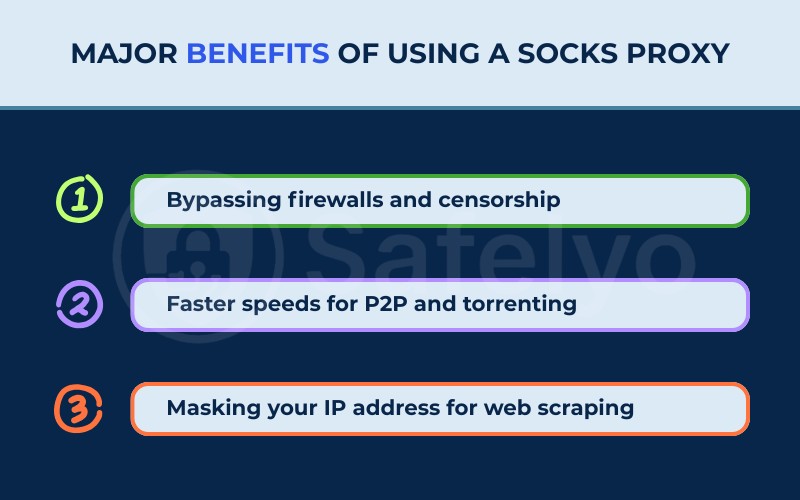
4.1. Bypassing firewalls and censorship
One of the most common uses for a SOCKS proxy is getting around internet restrictions. Since SOCKS proxies act as a relay between you and the destination, they can help bypass basic firewalls and network restrictions, such as those found in schools or workplaces.
For example, if a network administrator has blocked access to social media sites, routing your traffic through a SOCKS5 proxy on a different port can often bypass that filter. Because the firewall sees traffic going to the proxy IP rather than the blocked site, it allows the connection to pass through.
4.2. Faster speeds for P2P and torrenting
For users who frequently download large files via peer-to-peer (P2P) networks, SOCKS5 is often the preferred tool.
The reason is efficiency. VPNs encrypt every single packet of data, which requires processing power and adds extra data overhead to every transmission. This can slow down your download speeds.
A SOCKS5 proxy hides your IP address from other peers in the torrent swarm (providing the necessary privacy) but does not encrypt the data payload. This results in faster transfer speeds while still keeping your identity masked.
4.3. Masking your IP address for web scraping
For developers and data scientists, SOCKS proxies are essential tools for web scraping. When you use a bot to collect data from a website, sending too many requests from a single IP address will get you banned.
By rotating through a pool of residential SOCKS5 proxies, a scraper can make it appear as though requests are coming from thousands of different devices all over the world. Because SOCKS proxies handle all types of traffic and headers accurately, the scraper is less likely to be detected as a “bot” compared to using simpler proxies.
5. SOCKS proxy vs. Other tools (Comparison)
It is easy to get confused between the different privacy tools available. Let’s clarify how SOCKS proxies compare to the other common options.
5.1. SOCKS Proxy vs. HTTP Proxy
The main difference lies in their intelligence and flexibility.
- HTTP Proxies are “smart” but limited. They are designed specifically for the HTTP/HTTPS protocol. They can interpret web traffic, which allows them to strip out ads or compress data to load pages faster. However, if you try to use an HTTP proxy for a video game or a torrent client, it simply won’t work.
- SOCKS Proxies are “dumb” but versatile. They don’t look at the data; they just push it. This means you can use a SOCKS proxy for literally any application that connects to the internet, giving you far more freedom.
5.2. Is a SOCKS proxy better than a VPN?
This is the most frequent question we encounter. The answer depends entirely on your goal: Security vs. Performance.
- VPN (Virtual Private Network): A VPN encrypts all the traffic leaving your device. It creates a secure tunnel for your operating system. Even if a hacker intercepts your data, they cannot read it.
- Pros: High security, full encryption, easy to use (one button).
- Cons: Can be slower due to encryption overhead.
- SOCKS Proxy: A SOCKS proxy changes your IP address but does not encrypt your traffic. If you are on public Wi-Fi and use a SOCKS proxy, a hacker can still theoretically see what you are doing, even if your IP is hidden.
- Pros: Faster speeds, great for specific apps (like torrent clients).
- Cons: No encryption, usually configured app-by-app rather than system-wide.
Use a VPN for privacy and security. Use a SOCKS5 proxy for speed and bypassing simple blocks where encryption is not a priority.
6. How to choose the right SOCKS proxy
Before configuring your software, ensure you are using the right tool for the job. You need to look beyond the server location and verify that the protocol capabilities align specifically with your intended goals.
6.1. When to choose SOCKS over a VPN
The decision comes down to Speed vs. Encryption.
- Choose SOCKS when performance is your priority. It is ideal for downloading large files, streaming, or bypassing simple region locks because it changes your location without the heavy processing power required for encryption.
- Choose a VPN if anonymity and safety are paramount. Because SOCKS proxies do not encrypt data, they leave your activity visible to your ISP. If you are handling sensitive data or banking, the encryption layer of a VPN is non-negotiable.
6.2. Checklist for finding a top-tier SOCKS5 provider
A bad proxy can be worse than no proxy at all. Here are the key factors to verify before buying:
- Large IP pools: You need a provider with thousands of IP addresses to ensure you can rotate them if one gets blocked.
- Proven speed: Look for providers that optimize their servers for low latency and do not throttle bandwidth.
- Security reputation: Only trust reputable companies with a history in cybersecurity. Unreliable or “free” providers may inject malware or spy on your traffic.
- Full SOCKS5 (UDP) support: Ensure the provider explicitly supports UDP. Without it, modern apps like torrent clients and games will not work.
- Customer support: SOCKS setup can be technical. Look for services that offer 24/7 live chat or detailed setup guides.
- Transparent pricing: Avoid free proxy lists as they are often unsafe. Look for reasonably priced services that offer a money-back guarantee so you can test stability first.
7. How to maximize your SOCKS5 speed
Since speed is the main advantage of a SOCKS proxy, you want to ensure your setup is fully optimized. Try these four techniques to improve your connection performance.
- Minimize physical distance
The physical distance between your device and the server directly affects latency. Always pick a server location geographically close to you for the best speeds. You should only choose distant servers if you specifically need to bypass a regional block.
- Prioritize server quality
A lightweight software client is helpful, but the provider’s infrastructure matters most. Ensure you choose a reputable SOCKS5 provider that invests in high-bandwidth servers. You want to avoid overcrowded shared servers to prevent congestion.
- Enable Remote DNS resolution
Local DNS lookups can create delays and expose your activity. Configure your application to use Remote DNS resolution. This forces the proxy to handle the lookup and keeps your traffic flow efficient.
- Manage background bandwidth
Background apps like cloud backups or updates will choke your connection. Close unnecessary applications when you need maximum speed. You can also use the Quality of Service (QoS) feature on your router to prioritize traffic from your specific proxy port.
8. How to set up a SOCKS5 proxy
Setting up a SOCKS proxy is slightly more manual than installing a VPN app. You typically have two options: configuring it for a specific application to keep your other traffic normal, or setting it up for your entire operating system.
8.1. Setting up SOCKS5 on browser (Chrome and Firefox)
Many users prefer this method because it only routes web traffic through the proxy, allowing other apps like games or system updates to run at full speed on your direct connection.
For Mozilla Firefox:
Firefox is excellent for privacy because it has its own built-in network settings that are separate from your computer.
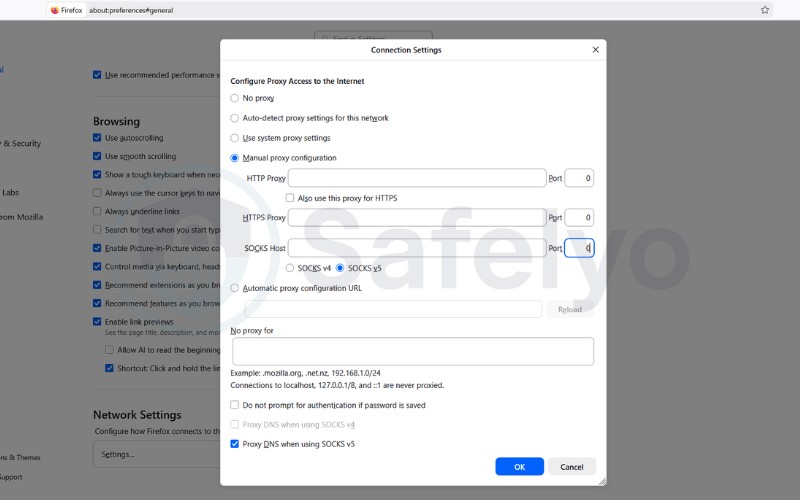
- Open Firefox and go to Settings.
- Scroll to the bottom (or search “Proxy”) and click Network Settings.
- Select Manual proxy configuration.
- Enter your Proxy IP and Port in the SOCKS Host field.
- Select SOCKS v5 and click OK.
For Google Chrome:
Chrome does not have a standalone proxy menu. By default, it uses your computer’s system-wide settings. If you change it in Chrome, you change it for your whole computer.
Alternatively, you can install a free proxy management extension such as Proxy SwitchyOmega or FoxyProxy. These extensions allow you to enter SOCKS5 details specifically for Chrome without affecting your Windows or macOS system settings.
8.2. Setting up SOCKS5 on Windows and macOS
If you want all your computer’s traffic to go through the proxy, you can configure it at the system level.
For Windows:
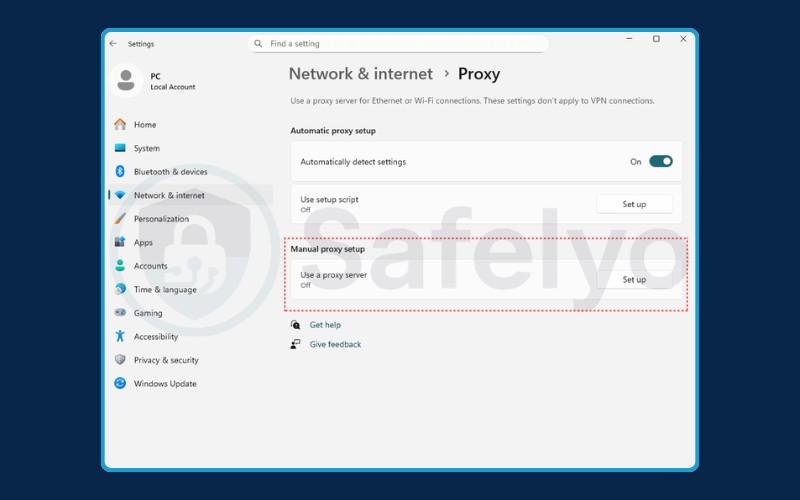
- Go to Settings > Network & Internet > Proxy.
- Find the Manual proxy setup section and click Set up.
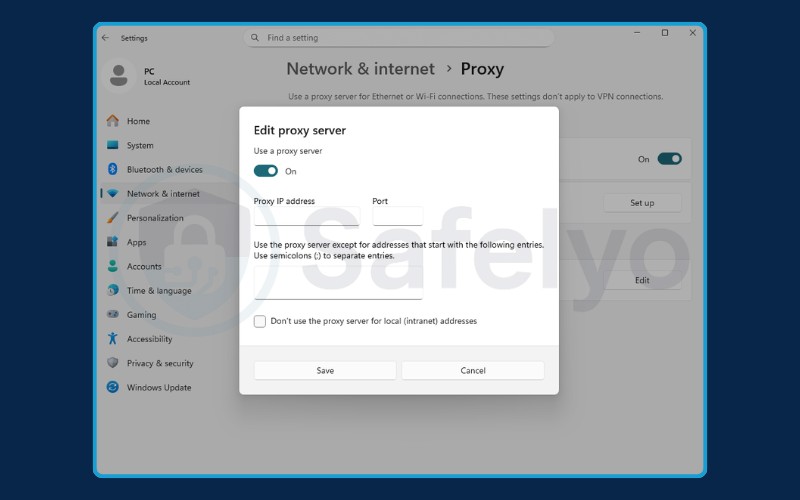
- Toggle “Use a proxy server” to On.
- Enter the Address and Port.
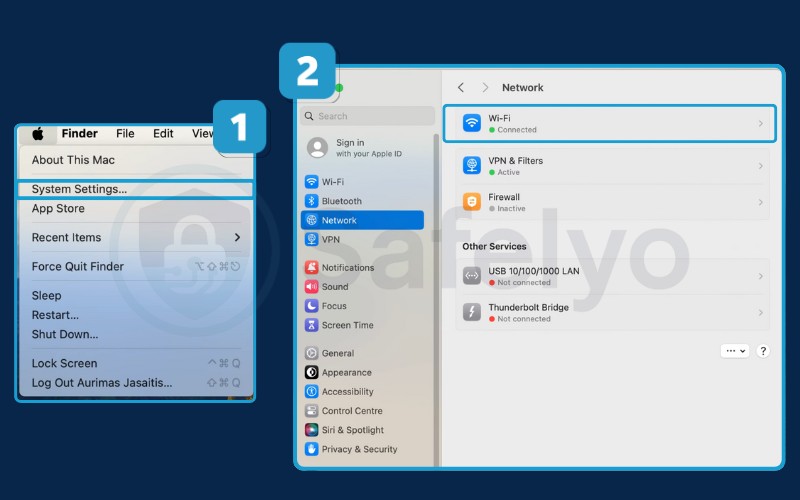
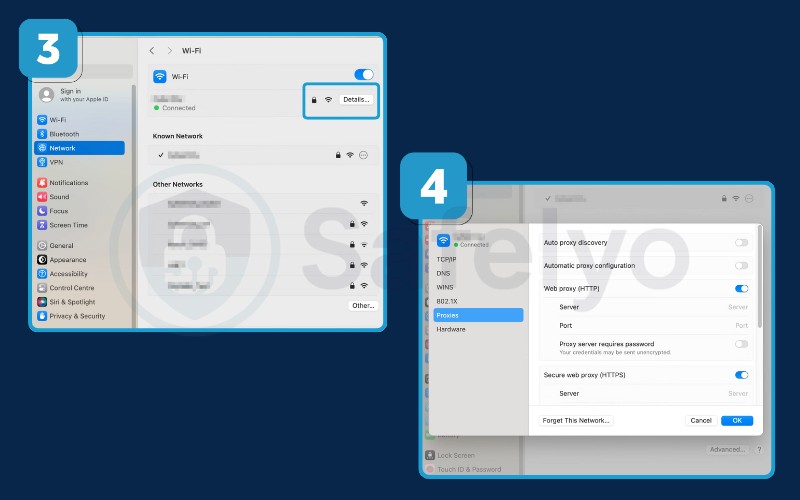
For macOS:
- Go to System Settings > Network.
- Select your active network (Wi-Fi or Ethernet) and click Details.
- Click the Proxies tab on the left.
- Toggle the switch for SOCKS Proxy.
- Enter the server IP, port, and authentication details if required.
- Click OK to save.
8.3. Setting up SOCKS5 on iPhone and Android
You can configure a proxy on mobile, but keep in mind that this typically applies only to Wi-Fi connections. If you switch to mobile data (4G/5G), the proxy usually disconnects.
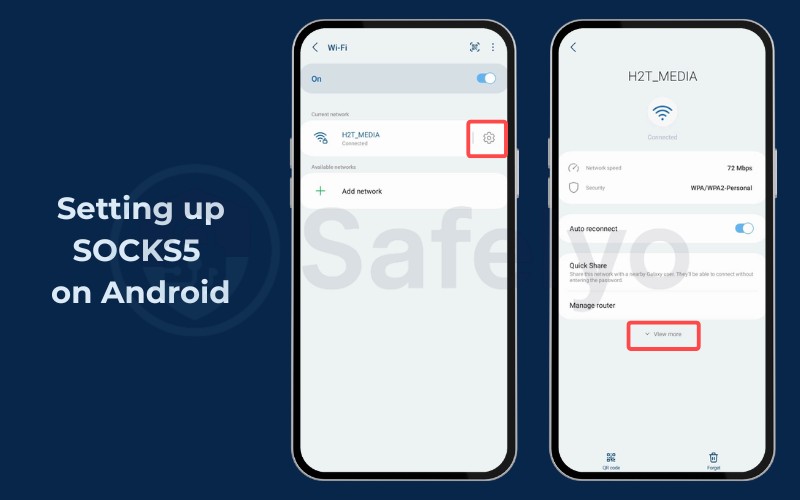
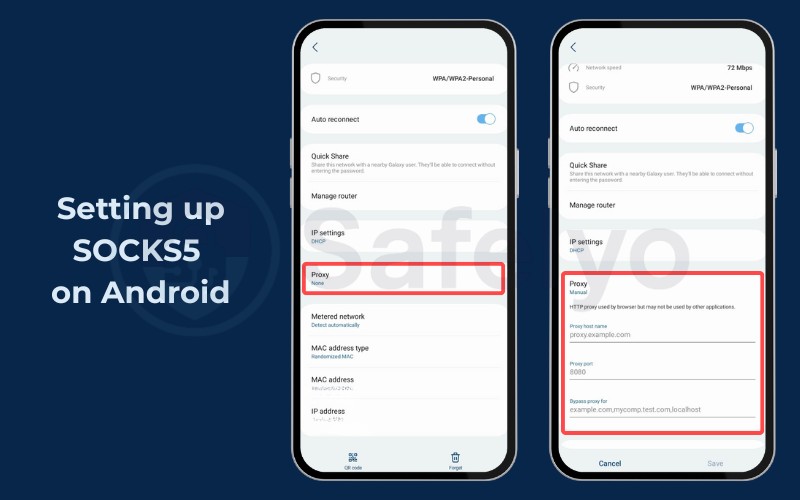
For Android:
- Go to Settings > Wi-Fi.
- Tap the gear icon next to your connected network (or long-press the network name).
- Select Advanced (or View More).
- Under the “Proxy” section, change “None” to Manual.
- Enter the Proxy Host Name (IP) and Proxy Port.
- Tap Save.
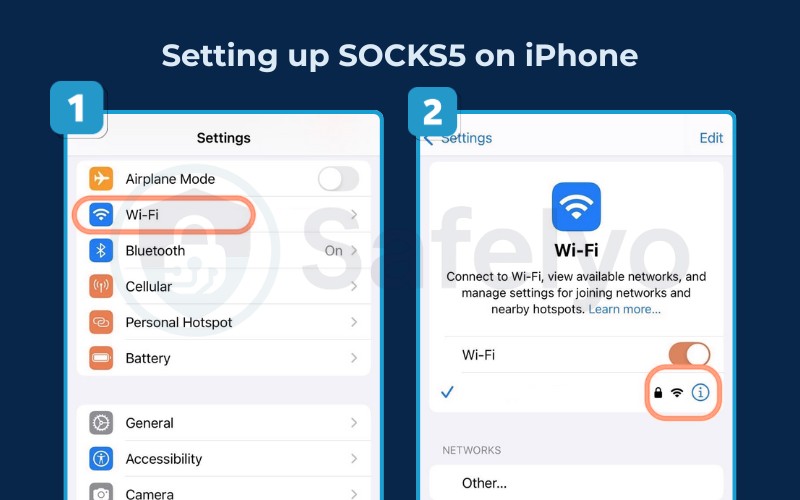
For iPhone (iOS):
- Go to Settings > Wi-Fi.
- Tap the blue (i) icon next to your active network.
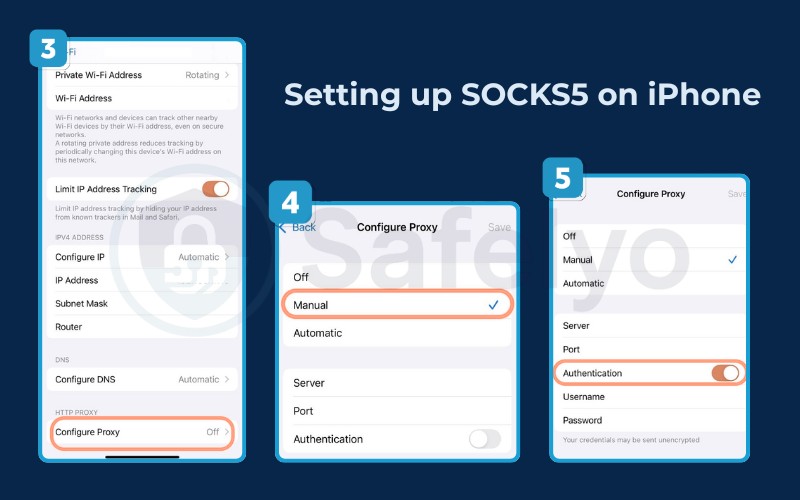
- Scroll down to the bottom and tap Configure Proxy.
- Select Manual.
- Enter the Server (IP) and Port.
- Turn on Authentication if your provider requires a username and password.
- Tap Save.
8.4. How to test if your SOCKS5 proxy is working
Once you have configured the settings, it is crucial to verify the connection before you start browsing.
- Visit a site like WhatIsMyIPAddress.com before turning on the proxy to see your real IP.
- Activate the proxy settings.
- Refresh the page.
If the website displays a different IP address and location corresponding to your proxy server, the setup is successful. If the page fails to load entirely, check for typos in the port number or firewall issues.
9. Are SOCKS proxies safe? (Risks & Warnings)
While a SOCKS5 proxy represents a useful tool, it is not without risks. Using the wrong proxy can actually be more dangerous than using no proxy at all.
9.1. The danger of free SOCKS proxy lists
If you search for “free SOCKS5 proxy list” on Google, you will find thousands of IP addresses available for free. We strongly advise against using these.
Free proxies are notoriously unsafe. Because they are free, the hosts often monetize them in malicious ways. They may inject ads into your browsing, track your activity to sell your data, or even carry malware. Furthermore, free proxies are often overcrowded, resulting in painfully slow speeds and constant disconnections. For reliable privacy, a paid verified provider is essential.
9.2. Lack of encryption risks
It is vital to remember that a SOCKS proxy acts as a mask, not a shield. It hides your location (IP address), but it does not scramble your data.
Consequently, any sensitive information sent over non-secure HTTP connections remains fully visible to the proxy provider and the ISP.
Always ensure you are visiting HTTPS websites (the lock icon in the browser) even when using a proxy to add a layer of encryption to your browsing session.
10. Troubleshooting common SOCKS5 proxy errors
Even the best setups can run into issues. If your connection fails or your IP isn’t hidden, you are likely facing one of these common errors. Here is how to diagnose and fix them.
10.1. Connection timed out
This error usually means the proxy server is taking too long to respond. This can happen if the proxy server itself is offline, or if your local network firewall is blocking the connection.
How to fix:
- Check your internet: Verify that your standard Wi-Fi or Ethernet connection is active.
- Check firewall settings: Ensure an exception is added for the SOCKS5 port (usually 1080) in your Windows Firewall or antivirus software.
- Switch servers: If the issue persists, the specific proxy server might be down. Try entering a different server IP provided by your service.
10.2. Proxy authentication required (Error 407)
This error appears when the server rejects your login details. It is a frequent issue when users copy and paste credentials and accidentally include an empty space at the end.
How to fix:
- Re-enter credentials: Type your username and password manually instead of copy-pasting to ensure no hidden spaces are included.
- Check subscription: Log in to your provider’s dashboard to ensure your subscription is still active.
- Whitelist IP: Some providers require you to “whitelist” your current IP address in their dashboard before you can connect.
10.3. SOCKS host is unreachable
This specific message suggests that your computer cannot find the proxy server at all. It is most often caused by a simple typo in the configuration settings.
How to fix:
- Verify details: Double-check the IP address and Port number you entered (e.g., ensure you didn’t type port 10800 instead of 1080).
- Test the port: Use a command-line tool like netcat or telnet to ping the specific IP and port. If the test fails, the server address is likely incorrect or offline.
10.4. DNS leaks (Real IP visible)
A DNS leak occurs when your internet traffic goes through the proxy tunnel, but your DNS requests (the directory lookups for websites) bypass it and go straight to your ISP. This reveals your browsing history even if your IP is effectively hidden.
How to fix:
- Open app settings: Go to the connection settings of your specific application (e.g., Firefox, qBittorrent).
- Enable remote DNS: Look for a checkbox labeled “Remote DNS”, “Use proxy for hostname lookups”, or “Proxy DNS requests” and check it.
- Retest: Visit a leak test site to confirm your DNS address now matches the proxy location.
10.5. Applications are ignoring the proxy
Some applications, such as games or media players, may bypass your system proxy settings and continue using your real IP.
How to fix:
- Ignore system settings: Do not rely on the general OS network settings for specific tools.
- Configure in-app: Open the Settings/Preferences menu of that specific application.
- Manual setup: Look for the “Network” or “Proxy” section and enter your SOCKS5 details directly into the app.
10.6. Error: UDP protocol not supported
This error typically happens when you try to use a SOCKS proxy for gaming or torrenting, and the connection fails immediately. It usually indicates a protocol mismatch.
How to fix:
- Check protocol version: Ensure you are strictly using a SOCKS5 proxy (SOCKS4 only supports TCP and will fail with UDP traffic).
- Verify provider support: If you are already on SOCKS5, contact your provider or check their FAQ to confirm their servers support “UDP associations.” Some budget providers block UDP to save bandwidth.
11. FAQs about what is SOCKS proxy
What is the difference between socks proxy and HTTP proxy?
An HTTP proxy only works for web pages and interprets the data headers. A SOCKS proxy is lower-level and works for any type of traffic (games, email, files) without looking at the data content, making SOCKS more flexible.
Are SOCKS5 proxies safe?
They are safe if you use a reputable, paid provider. However, they are less secure than VPNs because they do not encrypt your traffic. They simply hide your IP address.
Should my Wi-Fi proxy be on or off?
For most standard users, your proxy settings should be Off. If you have it turned on without meaning to, it might be caused by malware or a leftover configuration from a previous network, which can block your internet access.
Can I get SOCKS5 for free?
Technically yes, but it is dangerous. Free SOCKS5 servers are often slow, unstable, and may log your data or infect your device with malware. It is better to use a cheap paid service.
What is a residential SOCKS5 proxy?
A residential SOCKS5 proxy routes your traffic through a real device (like a home computer or phone) connected to a standard ISP, rather than a data center. This makes your connection look like a regular home user, making it much harder for websites to detect and block you.
12. Conclusion
Understanding “what is SOCKS proxy” opens up a new layer of control over your internet experience. It is a powerful, lightweight tool that sits comfortably between a standard web connection and a heavy-duty VPN.
If your goal is to download files via torrents efficiently or scrape web data without getting blocked, a SOCKS5 proxy is likely the perfect solution.
It offers the speed and flexibility that other protocols simply cannot match. However, if your primary concern is protecting your personal data from hackers on public Wi-Fi, a VPN remains the superior choice due to its encryption capabilities.
Learn more about virtual private networks in our VPN Guides, or visit Safelyo for in-depth reviews.