DNS stands for Domain Name System. It is the protocol responsible for translating human-readable domain names, like google.com, into numerical IP addresses. Because web browsers require precise numerical addresses to locate servers and route traffic, DNS handles this translation behind the scenes.
Whether you encountered a “DNS server not responding” error or just want to learn how the system works, knowing the basics helps you troubleshoot connection issues and configure better network settings.
This guide covers what DNS is, how a DNS lookup works, the types of DNS records and servers, how to choose a public DNS server, and how to fix common errors.
Key takeaways:
- DNS (Domain Name System) is the protocol that translates domain names like google.com into IP addresses that devices use to connect to servers.
- Every standard DNS lookup passes through four specific server types: the recursor, root nameserver, TLD nameserver, and authoritative nameserver.
- Standard DNS queries travel in plain text, meaning your configured DNS resolver can see every domain you query. Protocols like DNS over HTTPS (DoH) encrypt these queries for enhanced privacy.
- Cloudflare 1.1.1.1 averages approximately 14ms latency globally, compared to Google 8.8.8.8 at roughly 20ms and Quad9 at around 23ms.
- “DNS server not responding” is a common error that you can usually resolve by restarting your router or switching to a public DNS resolver.
1. What is DNS?
DNS (Domain Name System) is the protocol that translates human-readable domain names into the numerical IP addresses that computers use to locate and connect to servers on the internet.
When you type google.com into your browser, your device does not inherently know the physical location of Google’s servers. The device sends a DNS query over the network to find the corresponding IP address, for example, 142.250.80.46. Once the device receives that numerical address, it establishes a direct connection and loads the page. This lookup process happens in milliseconds and remains invisible to the user.
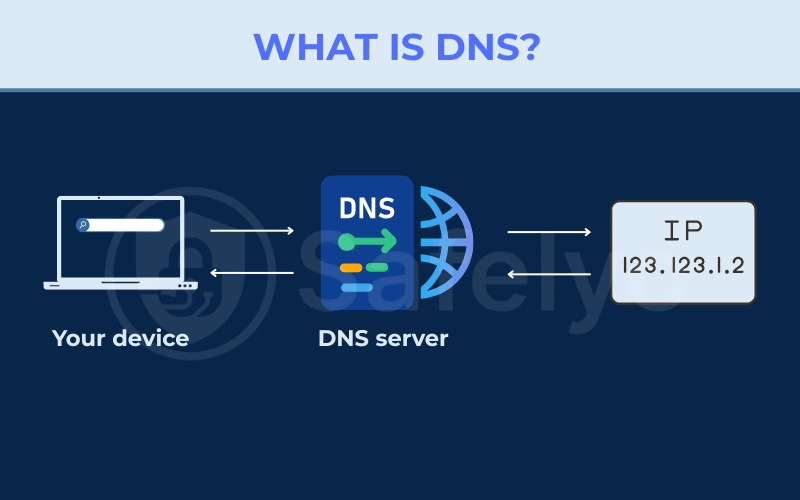
To make this translation happen, the network relies on specialized computers called DNS servers. A DNS server is any server that stores DNS records and responds to incoming queries. There are several different types of DNS servers, and each serves a specific functional role in the lookup process.
The DNS server that a computer or smartphone contacts first is called a DNS resolver (or recursive resolver). By default, most home networks and devices use a DNS resolver automatically provided by the Internet Service Provider (ISP).
However, users can manually change this setting to use a third-party resolver such as Cloudflare 1.1.1.1 or Google 8.8.8.8. The DNS server handles the active query, while the DNS record is the data returned to the user.
Standard DNS queries are sent over port 53 using the User Datagram Protocol (UDP) by default. When the server response is unusually large or when high reliability is required, the system shifts to using the Transmission Control Protocol (TCP) instead.
When DNS works correctly, the process goes unnoticed. However, if a DNS server becomes unreachable or returns incorrect data, websites fail to load entirely, even if your underlying internet connection is functional. Because of this, DNS errors are frequently mistaken for broader network outages.
2. How DNS works: a step-by-step walkthrough
A complete DNS lookup involves multiple specialized servers working together in a fixed sequence. The entire process typically completes in a fraction of a second.
Each server in this chain performs a specific role, passing the request down the line until the final IP address is found. Knowing this sequence helps isolate errors during network troubleshooting.
2.1. The 4 types of DNS servers
The resolution process relies on four distinct server types to successfully translate a domain name into an IP address.
- DNS recursor (recursive resolver): The recursor is the first server a device contacts when it needs to resolve a domain name. It receives the initial query from the user’s computer and is responsible for contacting the other DNS servers in the chain to find the correct answer.
- Root nameserver: The recursor contacts a root nameserver when it does not already have the requested IP address stored in its local cache. Root nameservers do not hold the final IP address of the requested domain. Instead, they know which TLD nameserver to direct the query to next.
- TLD nameserver: The Top-Level Domain (TLD) nameserver manages the domain extension portion of a request, such as .com, .net, or .org. When the recursor contacts the TLD nameserver, the server responds with the network address of the authoritative nameserver responsible for the specific domain being queried.
- Authoritative nameserver: This is the final server in the resolution chain. The authoritative nameserver holds the actual DNS records for a specific domain, including the A record that maps the domain to its IP address. It returns the requested IP address to the recursor, which forwards it to the user’s device.
DNS Query Path Diagram: Device -> Recursor -> Root nameserver -> TLD nameserver -> Authoritative nameserver -> IP address returned to device.
2.2. How a DNS lookup happens
The primary function of DNS is translating a given domain name into the correct IP address. To understand how this system operates, it helps to trace the exact path a query takes from your web browser, through the infrastructure, and back again.
Keep in mind that hardware frequently caches DNS information locally or on remote servers. When a system finds cached data, it skips several steps to accelerate the lookup process.
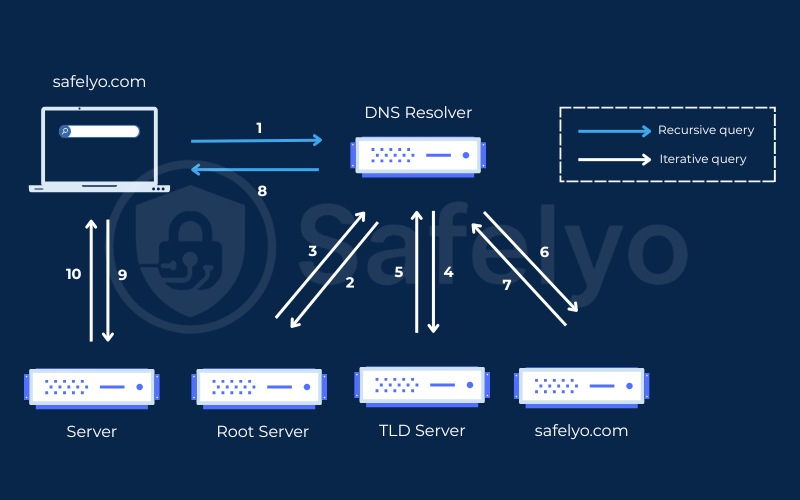
The following sequence, based on the steps outlined by Cloudflare, details a complete lookup assuming no prior data is cached:
- You type a domain name (like safelyo.com) into your web browser. The browser sends this query into the internet, where a DNS recursive resolver receives it.
- The resolver immediately queries a DNS root nameserver (.).
- The root server responds by providing the address of a Top-Level Domain (TLD) server (such as the server managing .com or .net). This server stores the necessary domain extension data.
- The resolver routes a new request directly to that specific .com TLD nameserver.
- The TLD server replies with the IP address of the authoritative nameserver explicitly designated for safelyo.com.
- The recursive resolver sends a final query to this domain’s authoritative nameserver.
- The authoritative nameserver locates the exact IP address for example.com and returns it to the resolver.
- The resolver completes the lookup cycle by delivering this numerical IP address back to your web browser.
Once the DNS resolution steps conclude and the browser receives the IP address for safelyo.com, the actual connection to the webpage begins:
- The browser sends a direct HTTP request to the provided IP address.
- The destination server at that IP address returns the actual webpage data to render and display on your screen.
2.3. What is a DNS resolver?
The DNS resolver acts as the starting point for any lookup process. It handles the initial request generated by the client device. Once triggered, this server initiates the chain of external queries required to convert a URL into a usable IP address.
You must clearly distinguish between a recursive query and a recursive resolver. The query is the actual network request asking for a resolution. The recursive resolver is the physical computer or software that accepts this request and actively hunts down the answer. A standard lookup process usually involves a mix of both recursive and iterative queries.
2.4. What are the types of DNS queries?
To optimize speed and reduce the network distance a request must travel, the resolution system utilizes three distinct types of queries. Combining these query types prevents unnecessary load on root servers.
- Recursive query: The client device demands a definitive answer. The receiving server (typically a recursive resolver) must return either the exact resource record or an official error message stating the record cannot be found.
- Iterative query: The client allows the server to provide the best possible partial answer. If the queried server lacks the exact IP address, it returns a referral pointing to the next authoritative server down the namespace hierarchy. The client then queries that new referral address directly, repeating the process until it finds the record or times out.
- Non-recursive query: This occurs when a client queries a server that already holds the immediate answer. The server returns the record instantly without asking any other machines, either because it acts as the authoritative source or holds the data in its local cache.
2.5. What is DNS caching and where does it occur?
DNS caching temporarily stores resolved data closer to the requesting client. This mechanism significantly improves load times by skipping repetitive lookup steps, reducing both bandwidth and processing consumption across the network infrastructure.
Each cached record relies on a Time-to-Live (TTL) value to determine exactly how long the data remains valid before requiring a fresh lookup. Caching occurs at several distinct stages along the network path:
- Browser DNS caching: Modern web browsers automatically store DNS records locally. When you request a domain, the browser checks its internal cache first to minimize processing time. You can view this internal storage in Google Chrome by visiting chrome://net-internals/#dns.
- Operating system (OS) caching: If the browser cache is empty, the query moves to the operating system’s built-in DNS client, often called a “stub resolver”. This local process checks its own cache before transmitting the query out to your ISP’s recursive resolver.
- Recursive resolver caching: When the query reaches your ISP’s resolver, that server checks its own local persistence layer. Depending on what records it holds, it takes shortcuts. For instance, if it possesses the NS (nameserver) records for a domain, it queries the authoritative nameservers directly, completely skipping the root and TLD servers to accelerate resolution.
3. DNS record types explained: A, AAAA, MX, CNAME, and more
While the lookup process relies on TTL caching to work efficiently, the actual data being cached comes directly from specific files called DNS records.
DNS records are the data stored on authoritative nameservers. Each record type stores a different category of information regarding a specific domain. When a query reaches the authoritative nameserver, the server returns the requested record type, most commonly an A record containing the domain’s IPv4 address.
Familiarity with these record types helps when configuring a domain, migrating web hosts, or troubleshooting email delivery.
Review the following table for the critical DNS record types and their functions:
| Record Type | Full Name | Purpose | Example |
|---|---|---|---|
| A | Address Record | Maps a domain to an IPv4 address | example.com -> 93.184.216.34 |
| AAAA | IPv6 Address Record | Maps a domain to an IPv6 address | example.com -> 2606:2800:21f:cb07:6820:80da:af6b:8b2c |
| MX | Mail Exchange Record | Specifies which server handles email for a domain | mail.example.com |
| CNAME | Canonical Name Record | Creates an alias that points to another domain name | www.example.com -> example.com |
| NS | Name Server Record | Identifies the authoritative nameservers for a domain | ns1.exampledns.com |
| TXT | Text Record | Stores text data; used for domain verification, SPF, and DKIM | v=spf1 include:_spf.google.com ~all |
| SOA | Start of Authority | Contains administrative information about the DNS zone | Serial number, admin email, refresh interval |
| PTR | Pointer Record | Used in reverse DNS lookups (IP address -> domain name) | 34.216.184.93.in-addr.arpa -> example.com |
You must understand the distinct difference between an A record and a CNAME record when configuring a website. An A record directly maps a domain name to a numerical IPv4 address. A CNAME record maps a domain name to another domain name.
That secondary domain name must itself eventually resolve to an IP address through a separate lookup process. A CNAME cannot be applied at the root domain level (such as example.com) because root domains require an A record. Consequently, administrators use CNAME records on subdomains like www.example.com.
MX records also require careful attention. MX records determine which external server receives incoming email directed to a domain. If MX records are missing from the DNS zone or are incorrectly configured, any email sent to that domain will fail to deliver. Misconfigured MX records are a common cause of email delivery problems when individuals set up a new domain or migrate their services.
4. Is your DNS private? Threats, encryption, and what you can do
Standard DNS queries present a privacy issue because they are transmitted as unencrypted plain text over port 53. This lack of encryption means that the DNS resolver receiving those queries can view every domain name a user attempts to visit.
This applies whether you use an ISP server or a third-party resolver. Viewing browsing history at the DNS level remains possible even when the destination websites utilize HTTPS. While HTTPS encrypts the content of the connection (such as passwords and text), it does not encrypt the initial DNS lookup that preceded the connection.
4.1. Who needs to worry about DNS privacy?
Not everyone faces the same level of risk when it comes to unencrypted DNS queries. Your actual exposure depends on your daily internet habits and the networks you connect to.
You should actively secure your DNS if:
- You frequently connect to public Wi-Fi networks at coffee shops, hotels, or airports. Local network observers can easily monitor unencrypted traffic.
- You live in or travel to regions with strict internet censorship and want to keep your browsing history private.
- You handle sensitive information and prefer that your ISP does not build a profile of your daily web habits.
You do not need to worry as much if:
- You browse primarily from a secure home network and trust your local ISP with your casual browsing data.
- You already use a reputable VPN service. When active, a secure VPN automatically encrypts all your DNS queries and routes them through a private tunnel. This action completely hides your DNS lookups from your ISP.
4.2. Common DNS threats
Because traditional resolution occurs in plain text, the system is vulnerable to network-level exploits.
- DNS cache poisoning (DNS spoofing): An attacker transmits fraudulent DNS responses directly to a resolver. This action causes the resolver to cache an incorrect IP address for a legitimate domain. Users who subsequently query that poisoned resolver are directed to a malicious server controlled by the attacker instead of the authentic website. The DNSSEC protocol was developed to prevent this by allowing resolvers to verify that DNS records remain untampered.
- DDoS amplification via DNS: The Domain Name System is frequently exploited in distributed denial-of-service (DDoS) attacks because standard DNS responses are significantly larger than the queries that trigger them. Attackers send small queries utilizing a spoofed source IP address. The responding DNS servers then send large data responses directly to the victim’s IP address, amplifying the volume of traffic directed at the target.
- DNS tunneling: Certain types of malware leverage DNS queries to transmit data out of a network or receive external instructions. Because administrators often configure firewalls to permit standard DNS traffic while blocking other protocols, tunneling serves as a viable channel for hidden communication. Security teams detect DNS tunneling through anomaly monitoring systems rather than basic security settings.
- Typosquatting: Attackers actively register domain names that are visually identical to legitimate domains by replacing specific letters with numbers or adding subtle characters. Users who mistype a URL inside their browser may inadvertently land on a fraudulent webpage. Specific public DNS resolvers equipped with threat-intelligence blocking (such as Quad9) block access to known typosquatting domains.
Note: DNS resolvers log queries by default. Whether and how long an ISP or third-party resolver retains this data depends on its privacy policy and applicable local law. Switching your device to a resolver that publishes a no-logging policy reduces this data exposure, though it does not eliminate DNS-level visibility entirely. The new resolver still receives and processes your unencrypted queries.
4.3. Encrypted DNS: DoH, DoT, and DNSSEC
To combat privacy leaks and tampering, engineers developed several encryption and authentication protocols.
DNS over HTTPS (DoH):
DoH transmits DNS queries hidden inside HTTPS traffic over port 443. Because HTTPS traffic on port 443 handles most web browsing, DoH queries are indistinguishable from regular web traffic at the network level. This masking prevents local network observers from identifying which domains a user queries. DoH has native support in Chrome, Firefox, Windows 11, and macOS.
DNS over TLS (DoT):
DoT encrypts queries using the Transport Layer Security (TLS) protocol on a dedicated port, specifically port 853. While this encryption provides the same privacy protection as DoH, utilizing a distinct port makes DoT traffic easily identifiable as DNS activity.
This visibility makes it simpler for network administrators to monitor or block DoT traffic at the firewall level. DoT serves as the underlying protocol for Android’s “Private DNS” feature on Android 9 and later.
DNSSEC (DNS Security Extensions):
DNSSEC integrates digital signatures directly into DNS records. When a resolver receives a response, it verifies the attached signature to confirm the record genuinely originated from the authoritative nameserver and was not modified in transit.
DNSSEC does not encrypt queries or protect privacy. It authenticates the response data to neutralize DNS spoofing and cache poisoning attacks.
DNS over QUIC (DoQ):
DoQ is an emerging network protocol standardized in 2022 under RFC 9250. It transmits queries over the QUIC transport protocol, reducing connection overhead and latency compared to standard DoT connections. DoQ is in the early stages of adoption and is not yet widely deployed across commercial resolvers.
| Protocol | Encrypts Queries? | Authenticates Records? | Port | Status |
|---|---|---|---|---|
| Standard DNS | No | No | 53 | Universal |
| DNS over HTTPS (DoH) | Yes | No | 443 | Supported in major browsers and OS |
| DNS over TLS (DoT) | Yes | No | 853 | Supported on Android 9+, Linux |
| DNSSEC | No | Yes | 53 | Partial deployment |
| DNS over QUIC (DoQ) | Yes | No | 853 | Early adoption |
You can enable DNS over HTTPS at the application level to secure your traffic. To enable DoH in Google Chrome, navigate to Settings, open Privacy and security, select Security, and toggle on “Use secure DNS.” From there, you can select a privacy-focused provider. This adjustment secures your browser traffic without requiring you to alter network settings at the operating system level.
5. Best public DNS servers in 2026
A device’s DNS resolver configures itself automatically the moment it connects to a new network, typically adopting the default resolver provided by the ISP. However, users can manually override this default assignment and specify a different resolver address directly in their network settings.
Selecting a different resolver impacts query speed, data privacy practices, and the network’s ability to block malicious domains.
5.1. Why use a public DNS server instead of your ISP’s default
Switching to a third-party resolver provides targeted advantages, though it is not necessary for every internet user. Evaluate the following factors to determine if a change benefits your network.
- Query speed. Different DNS resolvers respond at varying speeds depending on their global infrastructure and physical proximity to the user. Based on benchmark data from DNSperf, providers like Cloudflare (14ms), Google (20ms), and Quad9 (23ms) often resolve domains faster than regional ISP servers. The difference in resolution time generally spans tens of milliseconds per query, which becomes noticeable over repeated lookups.
- Privacy practices at the resolver level. Your active DNS resolver receives every domain name your device queries. ISP resolvers log these queries by default. Third-party resolvers like Cloudflare and Quad9 publish explicit no-logging policies. Combining a privacy-oriented resolver with DNS over HTTPS delivers practical privacy protection at the DNS layer.
- Malware and phishing domain blocking. Certain resolvers maintain active blocklists populated with known malicious domains drawn from global threat-intelligence feeds. When your device attempts to query a blocklisted domain, the resolver intentionally returns no result, preventing the browser from connecting to the threat. This security layer operates below the application level, protecting every app and browser on the device.
- Content filtering for specific network use cases. Providers offer specific variants that block adult content alongside standard malware protection. Because this filter applies at the DNS level, it restricts all devices utilizing that resolver on the local network. This setup is effective for smart TVs and gaming consoles that lack individual application-level filtering tools.
- Using a resolver with a clearer uptime and operational record. While ISP DNS servers maintain reliable connections, they are rarely monitored to the same standards as dedicated public services. Dedicated providers publish transparent uptime data and operate globally distributed server networks. If your ISP frequently suffers from micro-outages, moving to a public resolver offers a straightforward remedy.
If your current ISP resolver performs smoothly and masking your query history is not a priority, there is no technical requirement to switch. The performance and security improvements gained from switching address specific pain points rather than delivering a broad network upgrade.
5.2. The top 3 public DNS providers
The major providers operate multiple specialized addresses to serve different user needs. Review the general comparison before exploring each provider’s specific configurations.
| Criteria | Google 8.8.8.8 | Cloudflare 1.1.1.1 | Quad9 9.9.9.9 |
|---|---|---|---|
| Primary DNS | 8.8.8.8 | 1.1.1.1 | 9.9.9.9 |
| Secondary DNS | 8.8.4.4 | 1.0.0.1 | 149.112.112.112 |
| Avg. global latency | ~20ms | ~14ms | ~23ms |
| Query logging | Up to 48 hours (diagnostic data) | No personally identifiable logging | No personally identifiable logging |
| Malware blocking | No (standard variant) | Optional (use 1.1.1.2) | Yes (default on 9.9.9.9) |
| Family/content filter | No | Optional (use 1.1.1.3) | No |
| DNSSEC validation | Yes | Yes | Yes |
| DoH support | Yes | Yes | Yes |
| DoH hostname | dns.google | cloudflare-dns.com | dns.quad9.net |
| Operated by | Google LLC | Cloudflare, Inc. | Quad9 Foundation (non-profit, Switzerland) |
Google Public DNS (8.8.8.8)
Google Public DNS officially launched in December 2009. The service utilizes 8.8.8.8 as its primary address and 8.8.4.4 as the secondary. Google logs the full IP address of the querying client for up to 48 hours for diagnostic purposes, after which the data is anonymized.
Google does not offer a dedicated malware-blocking or content-filtering variant through alternate IP addresses. The provider fully supports DNSSEC validation, and its DoH endpoint is dns.google.
| Variant | Primary | Secondary | Use Case |
|---|---|---|---|
| Standard | 8.8.8.8 | 8.8.4.4 | General DNS resolution |
| DoH | https://dns.google/dns-query | — | Encrypted DNS queries via HTTPS |
Users seeking malware blocking or family filtering alongside Google’s infrastructure must manually configure those restrictions at the router hardware or application level.
Cloudflare DNS (1.1.1.1)
Cloudflare launched its public DNS resolver in April 2018. The platform uses 1.1.1.1 as the primary address and 1.0.0.1 as the secondary. Cloudflare publishes a policy stating it does not log personally identifiable query data.
Cloudflare provides three distinct address pairs serving different purposes: standard rapid resolution, malware blocking, and family-safe filtering. Users activate these features simply by entering the corresponding address pair.
| Variant | Primary | Secondary | Use Case |
|---|---|---|---|
| Standard | 1.1.1.1 | 1.0.0.1 | Fast DNS resolution, no logging |
| Malware blocking | 1.1.1.2 | 1.0.0.2 | Blocks known malware and phishing domains |
| Family filtering (malware + adult content) | 1.1.1.3 | 1.0.0.3 | Blocks malicious and adult-content domains |
| DoH (standard) | https://cloudflare-dns.com/dns-query | — | Encrypted queries via HTTPS |
| DoT hostname (standard) | one.one.one.one | — | Encrypted queries via TLS (Android, Linux) |
| DoT hostname (malware blocking) | security.cloudflare-dns.com | — | Encrypted + malware blocking (Android, Linux) |
| DoT hostname (family filtering) | family.cloudflare-dns.com | — | Encrypted + family filtering (Android, Linux) |
All three Cloudflare address variants operate under the same no-logging framework. The functional difference between them is the presence of the automated domain blocking.
Quad9 DNS (9.9.9.9)
The Quad9 Foundation, a non-profit organization incorporated in Switzerland, launched Quad9 in 2017. The primary standard address is 9.9.9.9, supported by a secondary address of 149.112.112.112. Quad9’s default resolver automatically blocks access to dangerous domains using threat-intelligence feeds.
Quad9 does not log personally identifiable query data. The provider also maintains an unsecured variant (9.9.9.10) for resolution without domain blocking, alongside an EDNS-enabled variant (9.9.9.11) designed to improve routing accuracy.
| Variant | Primary | Secondary | Use Case |
|---|---|---|---|
| Secured (malware blocking on) | 9.9.9.9 | 149.112.112.112 | DNS resolution with automatic malware blocking |
| Unsecured (no blocking) | 9.9.9.10 | 149.112.112.10 | DNS resolution without any domain filtering |
| EDNS-enabled secured | 9.9.9.11 | 149.112.112.11 | Malware blocking + better CDN routing accuracy |
| DoH hostname | https://dns.quad9.net/dns-query | — | Encrypted queries via HTTPS |
| DoT hostname | dns.quad9.net | — | Encrypted queries via TLS |
The 9.9.9.11 EDNS variant transmits a truncated version of your client IP address to the authoritative nameservers. This partial data transfer improves the routing efficiency of Content Delivery Networks (CDNs), which is beneficial for latency-sensitive applications. However, this mechanism requires sharing partial location data.
| Your Priority | Recommended Provider | Specific Address to Use |
|---|---|---|
| Lowest query latency | Cloudflare | 1.1.1.1 / 1.0.0.1 |
| No query logging | Cloudflare or Quad9 | 1.1.1.1 or 9.9.9.9 |
| Automatic malware and phishing blocking | Quad9 (default) or Cloudflare (optional) | 9.9.9.9 or 1.1.1.2 |
| Family-safe content filtering | Cloudflare | 1.1.1.3 / 1.0.0.3 |
| General use, widely recognized provider | 8.8.8.8 / 8.8.4.4 | |
| Encrypted DNS on Android (DoT) | Cloudflare | Hostname: one.one.one.one |
| Malware blocking + better CDN routing | Quad9 EDNS | 9.9.9.11 / 149.112.112.11 |
Once you identify the address that aligns with your performance and privacy needs, you can apply it to your network by following the configuration steps in the next section.
6. DNS problems and how to fix them
When a web browser returns a “DNS server not responding” message, it confirms that your device failed to finalize a query. This error does not necessarily mean your primary internet connection is offline. The underlying network connection to your ISP might be operating normally.
The error indicates that the resolver your device relies on failed to respond, suffered an internal error, or returned unusable data. You can resolve most of these errors on your own without contacting ISP support.
Note: A ‘DNS server not responding’ error does not confirm that your internet connection has failed. It merely indicates that your device could not reach or get a valid response from its assigned DNS resolver. The physical network connection itself may be working normally.
6.1. Step-by-step DNS troubleshooting checklist
Follow these troubleshooting steps to isolate and resolve query failures.
- Restart your router and modem. Power both network devices off, wait 30 seconds, and then power them back on. This reboot clears the router’s local DNS cache, forces a fresh connection to your ISP infrastructure, and often resolves common home network errors.
- Flush the DNS cache on your device. Your computer stores recently resolved domains in a local cache. When a cached record grows stale or corrupt, it prevents the domain from loading even if the remote servers operate normally. On Windows, open the Command Prompt and run ipconfig /flushdns. On macOS, launch the Terminal and run sudo dscacheutil -flushcache; sudo killall -HUP mDNSResponder. On iOS or Android devices, toggling airplane mode on and off clears the internal cache.
- Test in a different browser or on a different device. If a loading error isolates itself to a single browser, clear that application’s internal cache. In Google Chrome, type chrome://net-internals/#dns into the address bar and click “Clear host cache.” If the target domain loads successfully on a smartphone connected to the same Wi-Fi, the issue lies within the original device’s settings.
- Switch to a public DNS resolver temporarily. If you suspect your ISP’s resolver is suffering an outage, navigate to your network settings and configure your device to use a public alternative like Google 8.8.8.8 or Cloudflare 1.1.1.1. If the webpage loads after applying the new address, the fault originated with your ISP’s DNS hardware.
- Disable your VPN or firewall temporarily. Modern VPN clients and firewall configurations frequently intercept and redirect DNS queries in ways that trigger resolution failures. Temporarily deactivating these security tools reveals whether they are responsible for the blockage. If the error vanishes, audit the internal DNS configurations inside your VPN or firewall application.
- Verify the website is not down. Utilize external diagnostic tools such as downforeveryoneorjustme.com to determine whether the target domain remains accessible from external geographic locations. If the diagnostic tool reports the site is down globally, the fault resides with the website’s hosting server, unrelated to your local DNS configuration.
- Contact your ISP. If you execute the previous steps and the error remains, your ISP’s network infrastructure might be enduring a regional outage. Review your ISP’s official service status page and contact their technical support line for a localized update.
6.2. Common DNS error messages explained
Consult this reference table to understand the specific meaning behind frequent browser error codes.
| Error Message | What It Means | Recommended First Step |
|---|---|---|
| DNS server not responding | The device cannot reach its configured DNS resolver | Restart router; try switching to 8.8.8.8 |
| DNS_PROBE_FINISHED_NXDOMAIN | The queried domain name does not exist in DNS | Check the URL for typos; flush local DNS cache |
| ERR_NAME_NOT_RESOLVED | Chrome could not resolve the domain name | Flush DNS cache; try a different DNS resolver |
| Server IP address could not be found | DNS returned no usable result for the domain | Check internet connection; try an alternate DNS |
| Temporary failure in name resolution | DNS query timed out before a response arrived | Restart router; check ISP service status |
7. How to change your DNS server
Modifying your active DNS resolver requires adjusting a network-level setting available natively on all major operating systems. The system applies this modification instantly upon saving, and you generally do not need to restart your device.
Before executing the steps below, write down the IP address you intend to implement. Refer to the use-case table in the public DNS section above to find the exact primary and secondary addresses corresponding to your provider of choice.
7.1. How to change DNS server on Windows 11
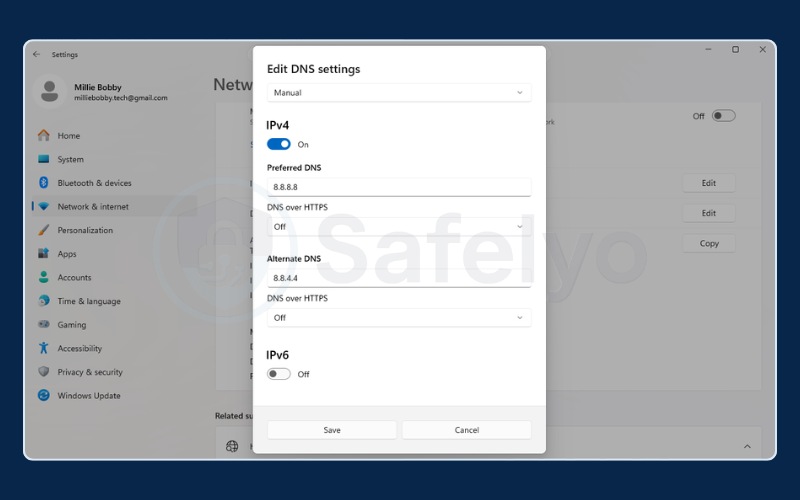
Inside the Edit DNS settings dialog box, you must input values into both the IPv4 Primary and Secondary fields to ensure a stable connection.
Quick steps: Settings -> Network & internet -> Wi-Fi or Ethernet -> [Select connected network] -> DNS server assignment -> click Edit -> select Manual -> toggle IPv4 on -> enter addresses -> Save.
- To use Google: enter primary 8.8.8.8 and secondary 8.8.4.4.
- To use Cloudflare standard: enter primary 1.1.1.1 and secondary 1.0.0.1.
- To use Cloudflare malware blocking: enter primary 1.1.1.2 and secondary 1.0.0.2.
- To use Cloudflare family filtering: enter primary 1.1.1.3 and secondary 1.0.0.3.
- To use Quad9: enter primary 9.9.9.9 and secondary 149.112.112.112.
7.2. How to change DNS server on macOS (Ventura or later)
Apple’s macOS applies DNS settings on a per-network-interface basis. If your computer utilizes both a Wi-Fi and Ethernet connection, you must apply the new addresses to each interface separately.
For encrypted DNS (DoH) integration on macOS, the operating system utilizes a downloadable configuration profile rather than a standard IP entry. Cloudflare supplies an official configuration profile directly at 1.1.1.1 that integrates system-wide DoH support upon installation.
Quick steps: Apple menu -> System Settings -> Network -> Wi-Fi or Ethernet -> click Details next to your network -> DNS tab -> click the plus (+) button to add new IP -> OK.
7.3. How to change DNS server on Android (version 9 and later)
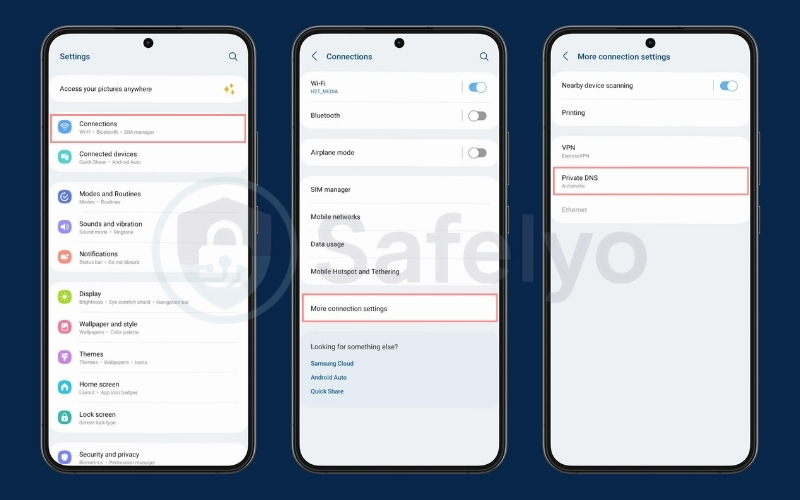
Android’s built-in Private DNS feature utilizes DNS over TLS (DoT). This protocol encrypts your queries at the OS level, keeping them secure regardless of which Wi-Fi network you connect to. You must enter a text-based DoT hostname into this field, not a numerical IP address.
Quick steps: Settings -> Network & internet (or Connections) -> Private DNS (you may need to expand the “Advanced” section or select “More connection settings” first) -> select “Private DNS provider hostname” -> enter the DoT hostname -> Save.
- Cloudflare standard: enter one.one.one.one
- Cloudflare malware blocking: enter security.cloudflare-dns.com
- Cloudflare family filtering: enter family.cloudflare-dns.com
- Quad9 secured: enter dns.quad9.net
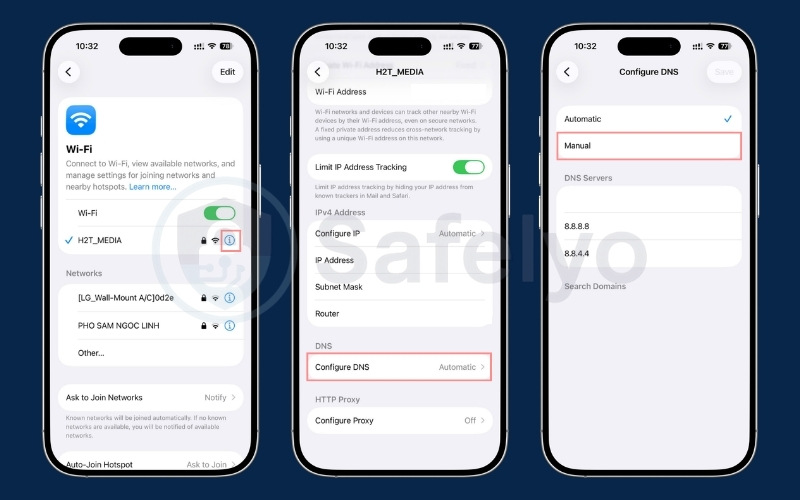
7.4. How to change DNS server on iPhone / iOS (version 14 and later)
On an iOS device, DNS modifications apply exclusively to the specific Wi-Fi network you are connected to. When your iPhone connects to a different Wi-Fi network, it reverts to using that new network’s default resolver unless you modify the settings for that connection as well.
To achieve system-wide DoH on iOS (which covers all Wi-Fi networks and your cellular data connection), install Cloudflare’s 1.1.1.1 app from the App Store. The application features toggles allowing you to switch between standard resolution, malware blocking, and family filtering, routing your traffic via a local VPN profile.
Quick steps: Settings -> Wi-Fi -> tap the (i) icon next to the connected network -> scroll to Configure DNS -> select Manual -> tap Add Server -> enter the new DNS IP -> Save.
- To use Google: enter 8.8.8.8
- To use Cloudflare standard: enter 1.1.1.1
- To use Cloudflare malware blocking: enter 1.1.1.2
- To use Cloudflare family filtering: enter 1.1.1.3
- To use Quad9: enter 9.9.9.9
8. Common mistakes to avoid when changing DNS settings
Manually updating your DNS settings is straightforward, but a minor configuration error will completely disconnect your device from the internet. Through our experience troubleshooting network setups, we frequently see users encounter sudden connection drops simply because of a small typo.
We compiled the most common configuration mistakes below. If your internet stops working immediately after applying a new resolver, review these points before resetting your network entirely.
- Entering the wrong IP format: The most frequent error involves typographical mistakes in the numerical address. Skipping a dot, adding an extra number, or placing an IPv6 address into an IPv4 field will cause the resolution to fail instantly. Always double-check the exact address before saving.
- Forgetting the secondary address: While a primary DNS address (like 8.8.8.8) handles your requests, servers occasionally experience downtime. If you leave the secondary DNS field blank, your device has no backup option. This omission leads to sudden connection drops if the primary server restarts.
- Mixing up DoT hostnames and IP addresses: Android devices require a text-based hostname (like dns.quad9.net) for their Private DNS feature. Users frequently try to input a numerical IP address (like 9.9.9.9) into this specific field. This mismatch prevents the encrypted connection from establishing.
- Expecting network-wide changes from a device setting: Changing the DNS on your iPhone or Windows computer only affects that specific device. If you want every device in your home to use the new public resolver, you must change the DNS settings directly on your Wi-Fi router.
- Ignoring the local DNS cache: Sometimes you apply the correct settings, but a website still fails to load. This happens because your device continues to use old data stored in its local cache. You must flush your DNS cache or restart your device to force the system to use the new resolver.
9. FAQs about what is DNS
What is DNS and why is it used?
DNS stands for Domain Name System. It acts as the protocol that translates human-readable domain names into numerical IP addresses. The internet uses DNS because computers communicate using numerical IP addresses, which are difficult for humans to easily memorize or type.
DNS enables users to enter domain names like youtube.com into a browser, while the underlying network hardware utilizes the translated IP addresses to route the request. Without DNS, users would be forced to manually enter the exact IP address of every single website they wished to visit, such as typing 142.250.80.46 instead of google.com.
How do I fix a DNS server problem?
The most effective first steps are to restart your router and modem, flush the internal DNS cache on your device, and manually switch your network settings to utilize a public DNS resolver like 8.8.8.8 or 1.1.1.1. If switching to a new resolver fixes the connection error, the fault originated with your original DNS server.
If the connection problem persists across multiple resolvers, your underlying internet connection requires deeper inspection. Consult the troubleshooting checklist located earlier in this guide for detailed instructions on executing these steps.
Should I turn DNS on or off?
DNS is not a feature you can turn on or off. It functions as a core component of how hardware devices communicate across the internet. Disabling the DNS process entirely would prevent your device from resolving any domain names, leaving you unable to load standard web pages.
While you cannot turn DNS off, you retain control over which specific DNS resolver your device relies on. Modifying your settings to switch from an ISP’s resolver to a third-party option simply changes which server manages the translation.
Is 8.8.8.8 the fastest DNS?
It is not universally the fastest resolver available. According to widely referenced benchmark data, Cloudflare 1.1.1.1 generally maintains a lower average global latency (roughly 14ms) compared to Google 8.8.8.8 (roughly 20ms).
However, actual DNS resolution speed fluctuates based on the geographic distance between your location and the resolver’s physical servers, real-time network congestion, and local cache availability. The practical speed difference between public resolvers is usually measured in tens of milliseconds per query.
What is DNS in simple words?
DNS is the system that automatically translates the text-based domain name you type into a numerical web address your device uses to connect to the right server. It operates in the background every time you load a website or interact with an internet-connected application.
What is the difference between a DNS resolver and an authoritative nameserver?
A DNS resolver (frequently called a recursive resolver) serves as the intermediary server that accepts an initial query from your device and takes responsibility for tracking down the answer by contacting other servers.
An authoritative nameserver acts as the final destination in that chain. The authoritative server stores the definitive DNS records for a specific domain and provides the final answer when queried. The resolver does the searching, while the authoritative nameserver provides the official data.
What does “DNS_PROBE_FINISHED_NXDOMAIN” mean?
This error code indicates that the DNS system returned an NXDOMAIN response, meaning the queried domain name does not exist within the active DNS registry. The most common triggers for this error include a typographical error in the URL, an expired domain registration, or an outdated local DNS cache entry attempting to reach a domain that no longer resolves.
To correct this, check the URL for typos, clear your local device DNS cache, and use a tool like whois.domaintools.com to verify the domain registration remains active.
Can my ISP see which websites I visit through DNS?
If your device utilizes the default ISP DNS resolver and transmits queries via standard DNS on unencrypted port 53, the ISP possesses the technical capability to view every domain name your device requests. This visibility operates entirely separately from HTTPS encryption.
While HTTPS encrypts the content of your web connection, it fails to hide the initial DNS query that initiates the connection. To prevent DNS queries from remaining readable at the network level, switch to a third-party resolver featuring a no-logging policy and enable the DNS over HTTPS (DoH) protocol on your device. Keep in mind that the newly selected resolver still processes your queries, so review its specific privacy policy.
10. Conclusion
DNS remains the critical backbone that translates familiar domain names into the numerical IP addresses required to navigate the internet. It is a highly efficient process that runs automatically on every connected device. When the system operates correctly, you do not need to interact with it. When errors occur, knowing the lookup sequence and server roles makes troubleshooting straightforward.
If you are dealing with connectivity errors or want to upgrade your network’s efficiency, follow these steps to take action:
- Identify which DNS resolver address best fits your exact priority (whether speed, data privacy, automated malware blocking, or strict family filtering) by reviewing the detailed comparison table in this guide.
- Follow the explicit configuration steps tailored for your operating system (Windows, macOS, Android, or iOS) to manually apply the new DNS address.
- Enable DNS over HTTPS directly inside your web browser or operating system settings to fully encrypt your DNS queries and protect your browsing privacy.
If you are still wondering exactly What is DNS or need deeper insight into securing your network connection, explore our comprehensive VPN Guides on the Safelyo homepage to learn how encryption and secure tunneling protect your daily web traffic.