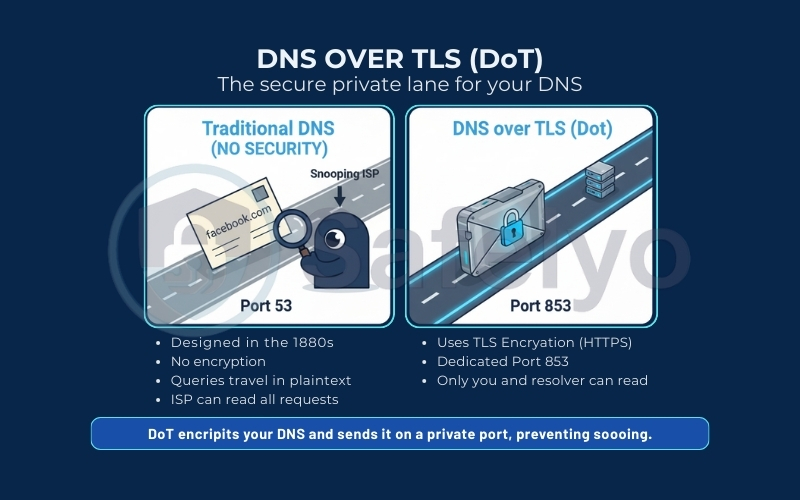
Sending a request via traditional DNS is a lot like mailing a postcard. Anyone along the delivery route, from the mailman to your curious ISP, can read exactly where it is going. DNS over TLS (DoT) solves this privacy gap by sliding that postcard into a locked, steel-reinforced envelope, ensuring no one can snoop on your destination.
Here is the best part: If you are using Android 9 or newer, you already have this power hidden in your settings. That “Private DNS” feature? It is actually DoT.
If you want to quickly understand DNS over TLS and how it protects your privacy, here are the key takeaways:
- What is DNS over TLS (DoT)?
→ It is a protocol that encrypts your DNS queries via a dedicated channel (Port 853) to prevent ISPs from reading them. - Is “Private DNS” the same thing?
→ Yes. If you see “Private DNS” on Android, it is using DoT technology. - DoT vs. DoH: What is the difference?
→ DoT uses a dedicated port (better for network monitoring), while DoH blends into web traffic (better for bypassing censorship). - Does DoT hide my IP address?
→ No. It only hides the domain names you visit. Your ISP can still see the destination IP address. - Do I still need a VPN?
→ Yes. For complete anonymity and to hide your location, you should use both DoT and a VPN.
In this guide, I will explain exactly what DoT is. I will compare it against its rival, DoH. Additionally, I will walk you through enabling it on your phone and router to secure your privacy immediately.
Quick Answer: What Is DNS over TLS?
- What is DoT? A security protocol that encrypts DNS queries using Transport Layer Security (TLS) to prevent spying and tampering.
- Key Feature: It transmits data via the dedicated Port 853, keeping it separate from web traffic.
- Best For: Network-level security settings, including Android Private DNS and secure router configurations.
- Action: If you are an Android user, enabling “Private DNS” is the easiest free way to encrypt your DNS requests.
1. What is DNS over TLS (DoT)?
DNS over TLS (DoT) is the security protocol designed to patch the glaring privacy hole in the traditional Domain Name System. In simple terms, it wraps your DNS queries in a protective layer of Transport Layer Security (TLS) protocol. If you are familiar with the little padlock icon in your browser’s address bar (HTTPS), DoT uses that same robust encryption technology. However, it applies it specifically to your DNS lookups.
Instead of your computer shouting “connect me to facebook.com” in a language anyone can understand, DoT scrambles that request into an indecipherable code. Only your device and the DNS resolver have the keys to unlock and read it.
What truly sets DoT apart, however, is the path it travels. While standard DNS uses Port 53, DNS over TLS operates on a dedicated “private lane” known as Port 853. This is a crucial technical distinction. This unique connection setup ensures that your DNS traffic is established securely before any data transfer begins.
Because DoT traffic is isolated on its own specific TCP port, it remains separate from your regular web browsing data. This separation is highly valued by network administrators and security experts. It makes it easier to monitor legitimate secure DNS traffic and identify potential network issues. This can be done without having to inspect the contents of every data packet.
2. Why does DNS need extra security?
The core issue with traditional DNS is that it was designed in the 1980s – an era when the internet was small, friendly, and largely trusted. By default, standard DNS queries travel over the network (specifically Port 53) in plaintext.
This creates a massive vulnerability. Because there is no encryption, your Internet Service Provider (ISP) can easily read your activity. Government agencies can also access this information. Even a hacker sitting next to you on an unsecured public network can read every website request you make. It is essentially like shouting your destination across a crowded room; anyone listening knows exactly where you are going.
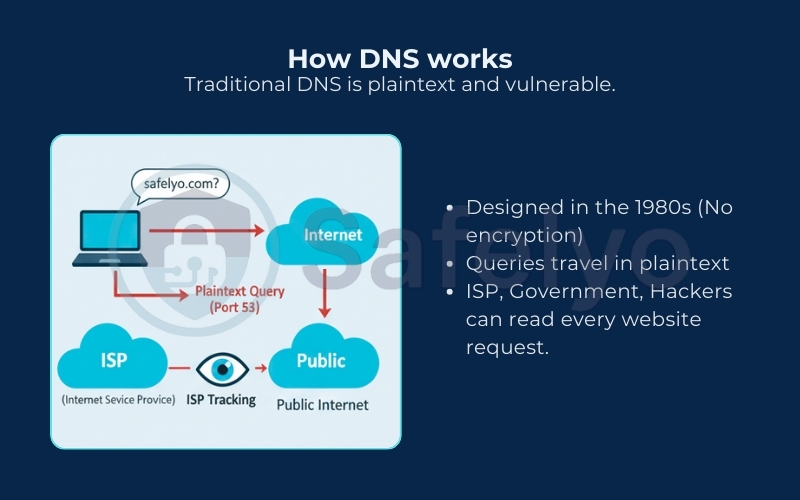
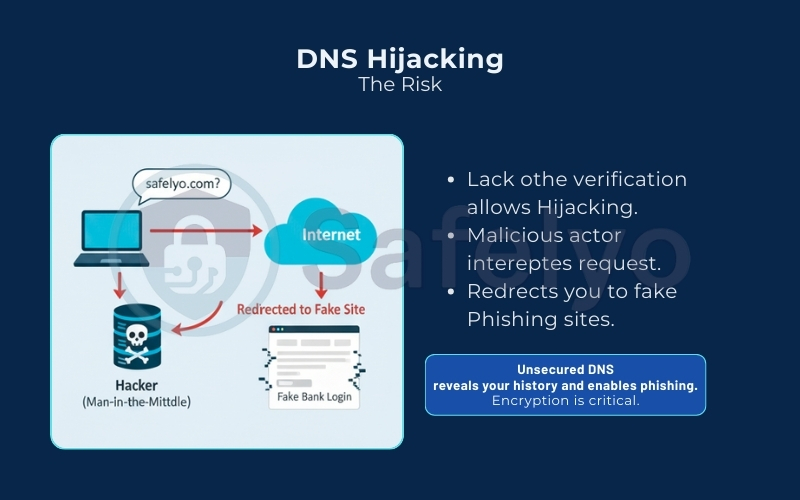
But the risk goes beyond just ISP tracking or snooping. The lack of security also opens the door to DNS Hijacking (or Man-in-the-Middle attacks). Without a secure verification layer, a malicious actor can intercept your request. They can redirect you to a fake phishing site that looks identical to your bank’s login page. This allows them to steal your credentials. To prevent this, we need a layer of security that ensures the only two parties who can read your web traffic are you and your DNS resolver.
3. DoT vs. DoH (DNS over HTTPS)
While DNS over TLS locks your data in a secure envelope traveling on its own dedicated lane, its biggest rival, DNS over HTTPS (DoH), takes a “camouflage” approach. DoH also encrypts your DNS queries. However, instead of using a separate path, it hides them inside the massive stream of regular HTTPS traffic. This is the same standard protocol used for almost all secure websites today.
Because DoH operates at the application layer on Port 443, it is practically indistinguishable from normal web browsing. To an outsider or a firewall, a DoH request looks identical to someone loading a YouTube video or logging into their bank account.
Here is a breakdown of how these two privacy giants compare:
| Feature | DNS over TLS (DoT) | DNS over HTTPS (DoH) |
| Port | Uses the dedicated Port 853. | Uses the shared web Port 443. |
| Visibility | Distinct. Network admins can see that you are using a secure DNS channel (though they cannot read the content). | Stealthy. It blends in perfectly with regular encrypted web traffic. |
| Blockability | Easy to block. A firewall simply needs to close Port 853 to stop it. | Hard to block. Blocking Port 443 would break the entire internet (HTTPS), making DoH very resilient. |
| Best For | System-level security (Routers, Android). It is cleaner and often faster for devices to process. | Bypassing censorship (Browsers). Ideal for getting around strict firewalls. |
The verdict: Which one should you use?
For most users, DoT is the superior choice for daily use. It is the standard for network-level security, meaning when you set it up on your Router or Android phone, it covers every app and device automatically with slightly lower latency.
However, DoH is your go-to weapon for bypassing censorship. If you are on a restrictive public Wi-Fi, such as a school or corporate network that blocks Port 853, DoH is much harder for them to detect and shut down. This is also true if you live in a country with heavy internet surveillance. Furthermore, newer protocols like DNS-over-QUIC are currently emerging, promising even faster speeds and better security than existing standards.
4. How to enable secure DNS on your devices (DoT & DoH)
Now that you understand the technology, it is time to turn it on. While Android makes this incredibly easy with its “Private DNS” feature, other platforms like Windows and iOS have their own specific ways to handle encrypted DNS.
4.1. Before you start: Pick a secure provider
To enable DNS over TLS (DoT), you usually cannot just type in an IP address (like 1.1.1.1). You need a Hostname to verify the security certificate. Before selecting one, it is wise to briefly check the privacy policy of the provider to ensure they do not log your user data. Here are the settings for the most trusted, free providers:
| Provider | DoT Hostname (For Android / Router) | Standard IP (Fallback) | Best For |
|---|---|---|---|
| Cloudflare | 1dot1dot1dot1.cloudflare-dns.com | 1.1.1.1 | Speed & Privacy |
| dns.google | 8.8.8.8 | Reliability | |
| Quad9 | dns.quad9.net | 9.9.9.9 | Malware Blocking |
| AdGuard | dns.adguard.com | 94.140.14.14 | Blocking Ads |
4.2. Android (Private DNS = DNS over TLS)
Target Audience: Most Users
As mentioned earlier, Android has the best implementation of DoT, running it system-wide for every application on your device.
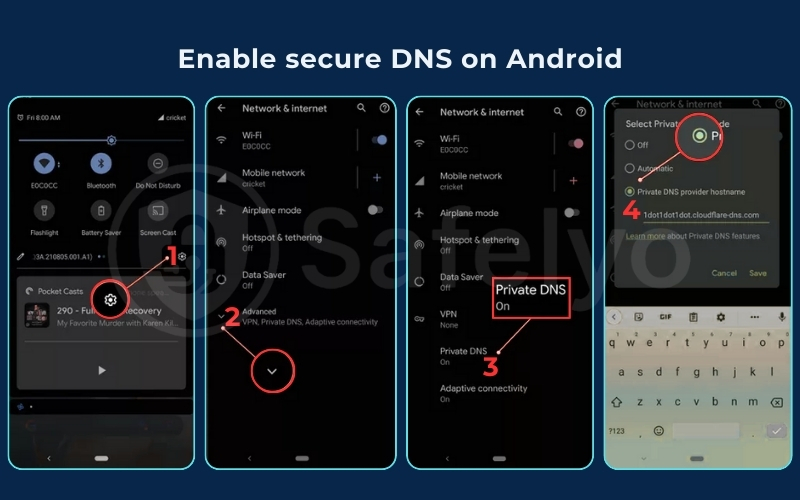
1. Go to Settings > Network & Internet > Advanced > Private DNS.
2. Select the Private DNS provider hostname.
3. Enter the hostname from the table above (e.g., 1dot1dot1dot1.cloudflare-dns.com). Tap Save.
4.3. iOS & macOS (The “Profile” Method)
Target Audience: Apple Users
Here is a common mistake: simply changing your DNS IP to 1.1.1.1 on an iPhone does not enable encryption. It just uses Cloudflare’s standard, unencrypted DNS.
To get true DoT or DoH on Apple devices, you have two options:
A. The App Method (Easiest): Download the official app from your provider (e.g., Cloudflare 1.1.1.1 or AdGuard). These apps install a “Local VPN” profile that intercepts and encrypts DNS traffic.
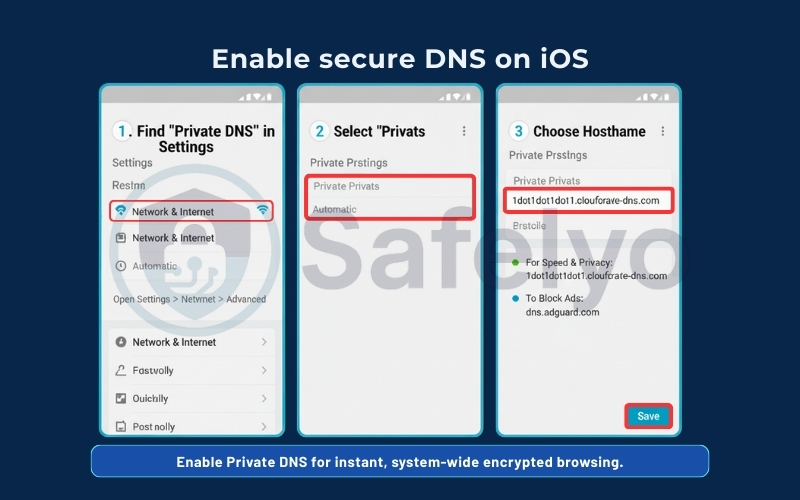
B. The Profile Method (Native): Download a .mobileconfig file (a configuration profile) directly from the provider’s website (like Quad9 or NextDNS).
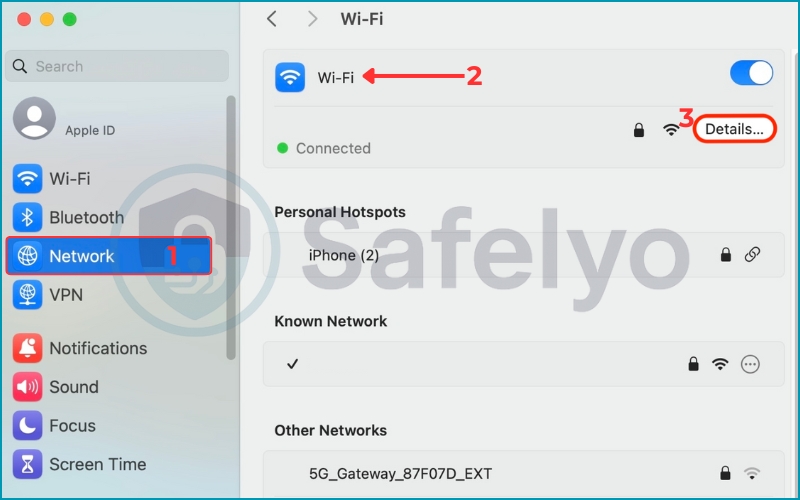
1. Go to the System Settings.
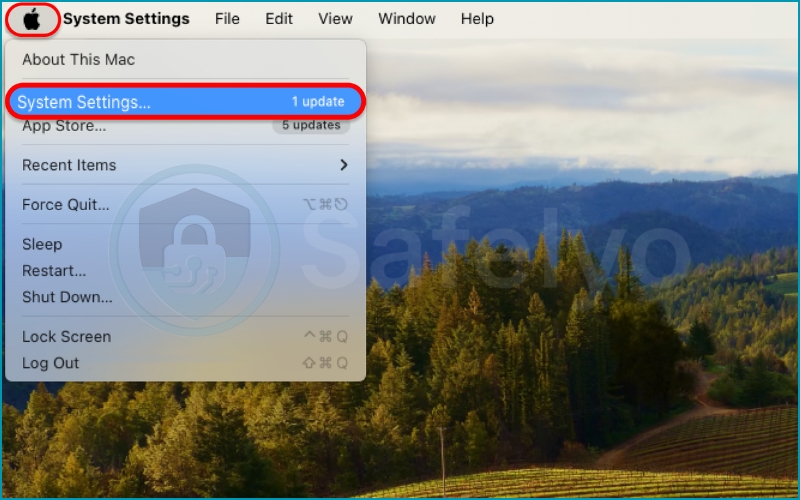
2. Click on Network in the sidebar and open the Wi-Fi tab to edit Details
3. Go to the DNS tab and add your preferred servers. Then click OK.
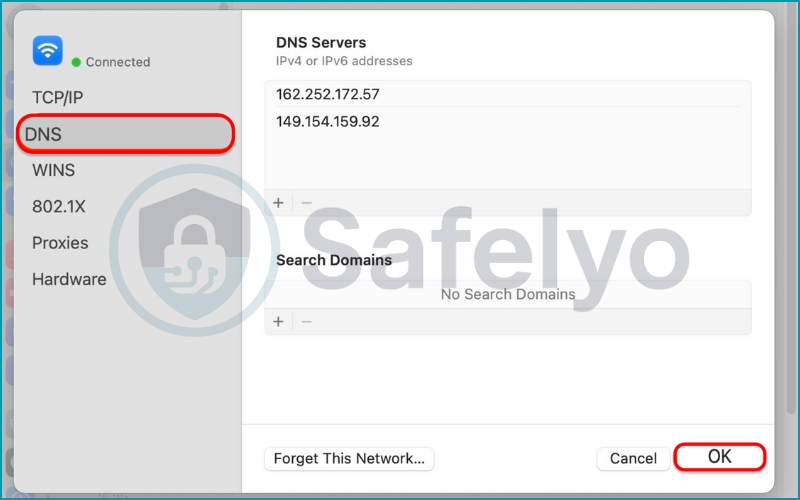
This allows the OS to handle encryption natively without a background app draining your battery.
4.4. Windows 11 (Native Encrypted DNS)
Target Audience: PC Gamers & Office Workers
Windows 11 now supports encrypted DNS natively, but the setup is slightly hidden.
1. Open Settings > Network & Internet.
2. Click on Wi-Fi or Ethernet (whichever you are currently using).
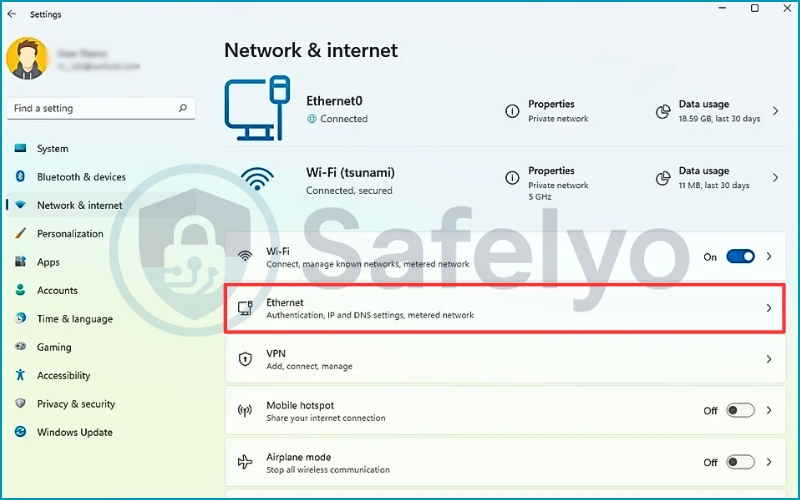
3. Scroll to DNS server assignment and click Edit.
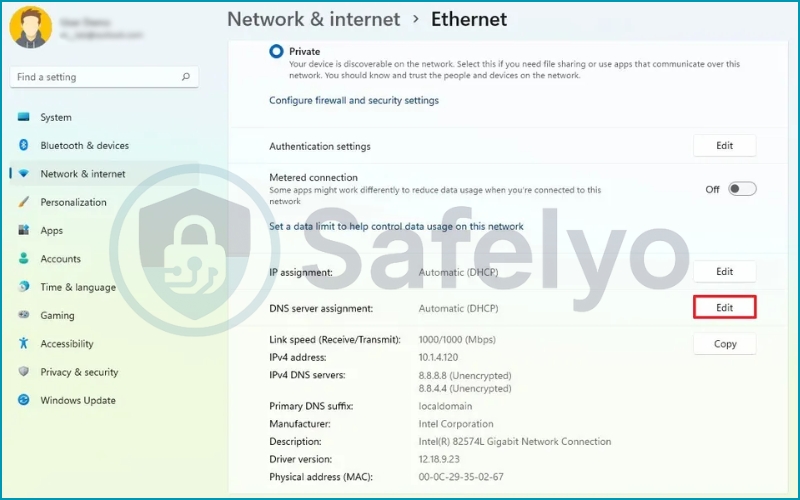
4. Switch to Manual and turn on IPv4.
5. Enter the Preferred DNS (e.g., 1.1.1.1 for Cloudflare).
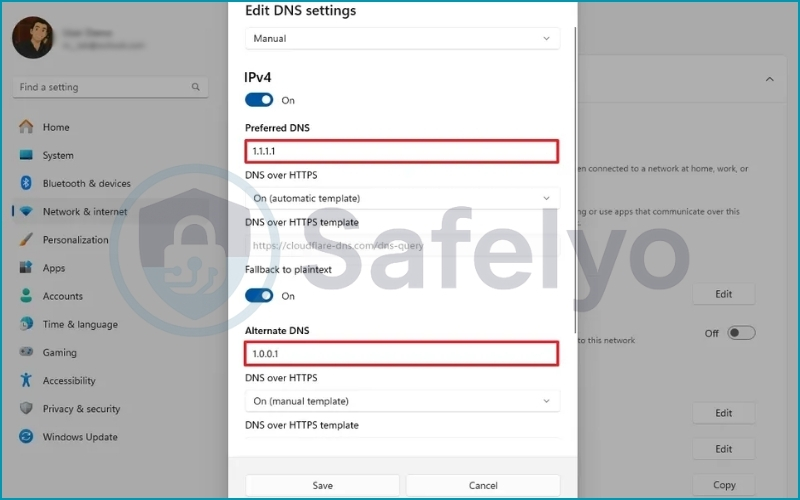
6. Once entered, a new dropdown called DNS-over-HTTPS (or “Encrypted DNS”) will appear. Select On (Automatic).
Note: Windows primarily prioritizes DNS over HTTPS (DoH) in the UI to avoid connection issues if Port 853 is blocked. If you specifically require DoT, you may need to use third-party tools or command-line configurations, but for most users, the native “Encrypted” setting is sufficient.
4.5. Routers (Network-Wide Protection)
Target Audience: Advanced Users & Families
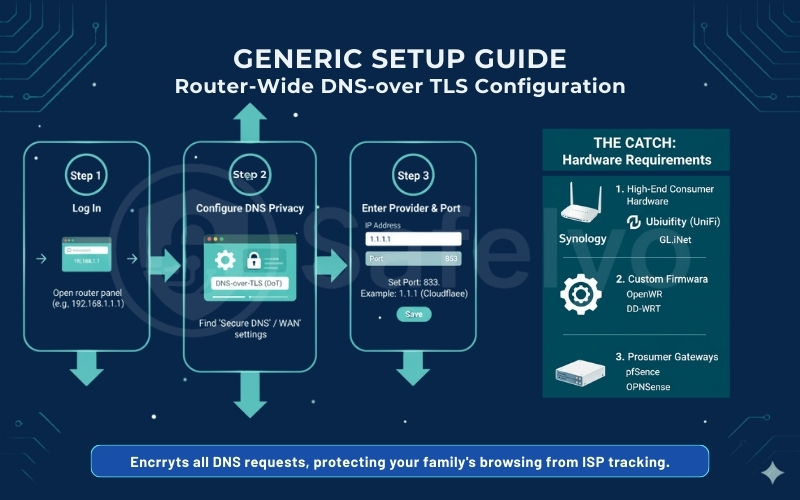
Configuring DoT on your router protects everything in your house, including Smart TVs and consoles that can’t run VPN apps.
- Asus Routers (Asuswrt-Merlin): Go to WAN > DNS Privacy. Set “DNS Privacy Protocol” to DNS-over-TLS.
- pfSense / OPNsense: Navigate to the DNS Resolver settings. Check “Enable SSL/TLS for outgoing DNS Queries” and ensure you are forwarding to a server that supports DoT (Port 853).
- Caveat: Some devices (like Chromecasts) are hard-coded to use Google’s DNS. You may need to set up firewall rules to force them to use your router’s DoT tunnel.
4.6. Linux (Ubuntu / Debian / Fedora)
Target Audience: Developers & Sysadmins
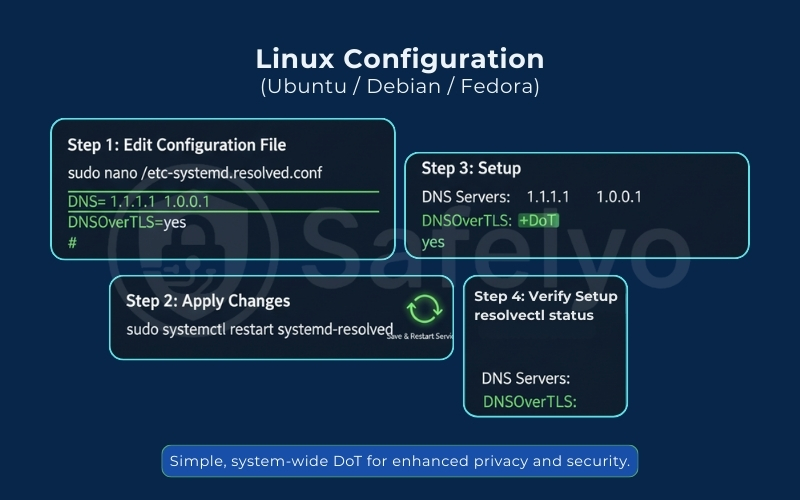
Most modern Linux distributions use systemd-resolved to handle DNS, making it relatively straightforward to enforce DNS over TLS globally.
1. Open your terminal and edit the configuration file:
sudo nano /etc/systemd/resolved.conf2. Uncomment (remove the #) and modify the following lines:
- DNS=1.1.1.1 1.0.0.1 (Or your preferred provider’s IPs)
- DNSOverTLS=yes
3. Save the file (Ctrl+O, Enter) and exit (Ctrl+X).
4. Restart the service to apply changes:
sudo systemctl restart systemd-resolved5. Verify: Run resolvectl status. You should see +DoT listed next to your DNS servers.
4.7. Web Browsers (Chrome, Edge & Firefox)
Target Audience: Users on Work Computers / Restricted Networks
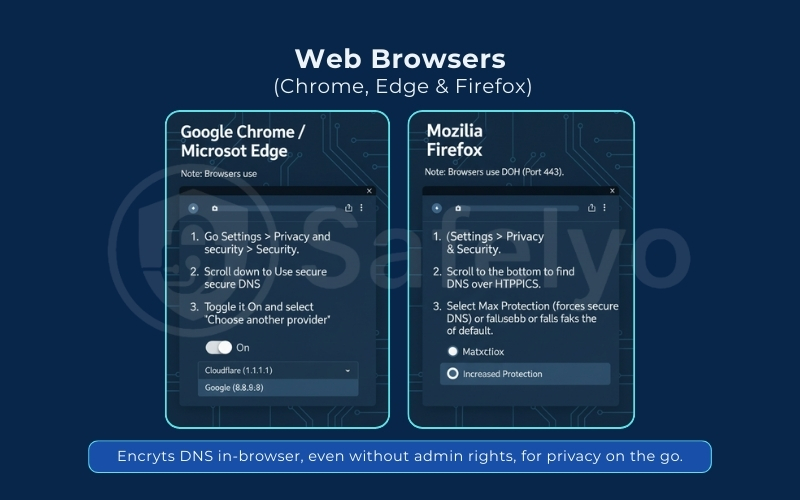
If you are on a corporate laptop where you don’t have admin rights to change system settings, you can still encrypt your DNS traffic inside your browser. Note: Browsers almost exclusively use DNS over HTTPS (DoH) (Port 443) rather than DoT, but the privacy result is the same.
- Google Chrome / Microsoft Edge:
- Go to Settings > Privacy and security > Security.
- Scroll down to Use secure DNS.
- Toggle it On and select “Choose another provider” (e.g., Cloudflare or Google).
- Mozilla Firefox:
- Go to Settings > Privacy & Security.
- Scroll to the bottom to find DNS over HTTPS.
- Select Max Protection (forces secure DNS) or Increased Protection (falls back to default if secure DNS fails).
4.8. How to verify it is working
Don’t just assume you are safe – check it.
- Visit a Test Page: Go to 1.1.1.1/help (if using Cloudflare). Look for “Using DNS over TLS (DoT)” → Yes.
- DNS Leak Test: Visit dnsleaktest.com and run a standard test. If you see your ISP’s name, encryption is OFF. If you see “Cloudflare” or “Google” (and you are not using a VPN), then your Secure DNS is ON.
5. Troubleshooting: When secure DNS (DoT/DoH) doesn’t work
Here is a checklist of the most common issues and how to fix them.
5.1. Device-specific quick fixes
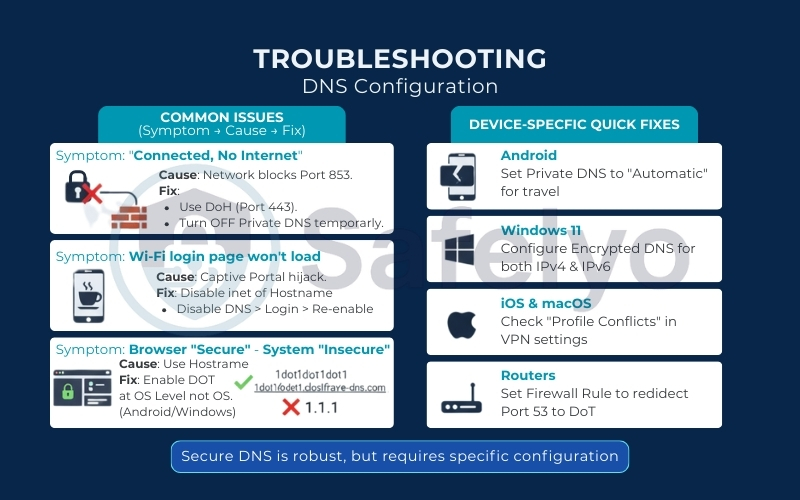
- Android: If you travel often, set Private DNS to “Automatic” instead of a specific hostname. This attempts to use encryption but will silently fall back to standard DNS if Port 853 is blocked, ensuring you don’t lose connectivity.
- Windows 11: If you enabled Encrypted DNS for IPv4 but your internet is still acting weird, check your IPv6 settings. You need to configure the encrypted DNS for both protocols if your ISP uses IPv6.
- iOS & macOS: If you installed a Configuration Profile and cannot browse, check for Profile Conflicts. Go to VPN & Device Management and ensure you don’t have multiple DNS profiles (e.g., NextDNS and Cloudflare) active at the same time.
- Routers: If you set up DoT on your router but ads are still showing on your Smart TV, the TV might be “hardcoded” to use Google DNS (8.8.8.8). You may need to set a firewall rule on the router to force redirect all Port 53 traffic to your internal DoT resolver.
5.2. Common issues (Symptom → Cause → Fix)
1. Symptom: “Connected, No Internet” or Connection Timed Out
- The Cause: You are likely on a restrictive network (corporate office, school, or university) that has a firewall blocking Port 853. They do this to force you to use their monitored DNS.
- The Fix:
- Option A: Switch to DNS over HTTPS (DoH) if your device supports it (Browsers/Windows/iOS). DoH uses Port 443, which is rarely blocked.
- Option B: Temporarily turn “Private DNS” to OFF, connect to the network, and try turning it back on later (or use a VPN).
2. Symptom: Public Wi-Fi Login Page Won’t Load (Captive Portal)
- The Cause: Coffee shops and airports use a “Captive Portal” that hijacks your DNS to show you their Terms of Service/Login page. Secure DNS prevents this hijack, so the page never loads.
- The Fix: Disable Secure DNS > Connect to Wi-Fi > Log in > Re-enable Secure DNS.
3. Symptom: Android Settings Won’t Save / “Could Not Connect”
- The Cause: You entered an IP address (like 1.1.1.1) into the Private DNS field.
- The Fix: Android requires a Hostname.
- Wrong: 1.1.1.1
- Right: 1dot1dot1dot1.cloudflare-dns.com
4. Symptom: Browser Says “Secure” – System Says “Insecure”
- The Cause: You enabled DoH in Chrome/Firefox, but haven’t changed your OS settings.
- The Fix: Decide on a “Source of Truth”. It is best to enable DoT at the OS Level (Android/Windows) so it covers all apps, not just the web browser.
6. DoT vs. DNSSEC: They are not the same
In the world of network security, acronyms often get mixed up. A common misconception is that DNSSEC (Domain Name System Security Extensions) and DoT do the same thing. They do not. In fact, they solve two completely different problems.
Think of DNSSEC as a digital wax seal on an envelope. Its only job is integrity. It cryptographically signs the data to prove that the response actually came from the real website owner and hasn’t been altered by a hacker on the way (preventing cache poisoning). However, DNSSEC does not encrypt anything. The “letter” is sealed, but it is written on transparent paper – anyone can still read it.
DoT, on the other hand, provides privacy. It puts the letter inside a locked, opaque briefcase. It stops people from reading your mail, but it doesn’t necessarily prove who sent it (unless combined with other checks).
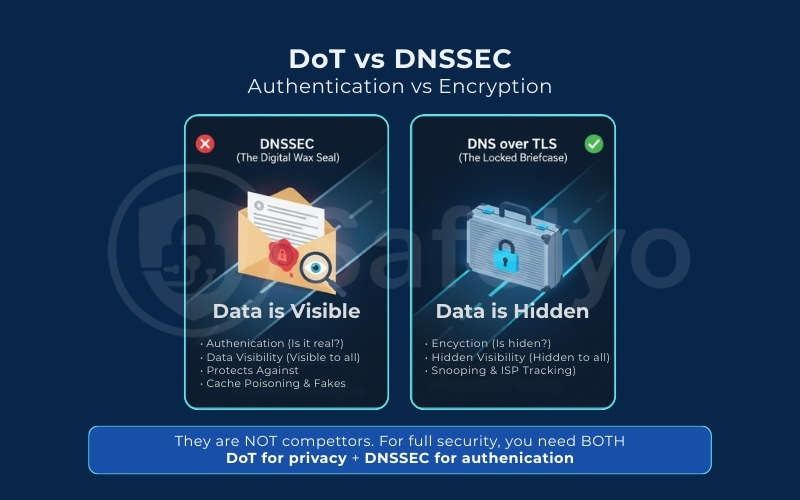
Here is the breakdown:
| Feature | DNSSEC | DNS over TLS (DoT) |
| Main Function | Authentication (Is this data real?) | Encryption (Is this data hidden?) |
| Data Visibility | Visible. Anyone can read the request. | Hidden. Only you and the resolver can see it. |
| Protects Against | Fake websites & Cache Poisoning. | Snooping & ISP Surveillance. |
The Bottom Line: These are not competitors; they are partners. For a truly secure internet experience, you want a connection that uses DoT to hide your data and DNSSEC to verify it is genuine.
7. Pros, Cons & Limitations (What DoT does not hide)
Before you enable DNS over TLS everywhere, it is vital to understand what it can (and cannot) do. It is a powerful privacy tool, but it is not a cloak of invisibility.
7.1. The pros: Speed & security
The biggest advantage of DoT is integrity. It effectively stops ISP snooping and neutralizes Man-in-the-Middle (MitM) attacks where hackers try to alter your DNS results.
Performance-wise, DoT is often faster than its rival, DoH. Because it strips away the extra coding overhead of the HTTPS protocol and communicates directly via TCP – unlike standard DNS, which typically uses UDP – it typically offers lower latency. This makes it the preferred choice for gamers and performance enthusiasts.
7.2. The cons: Easy to block
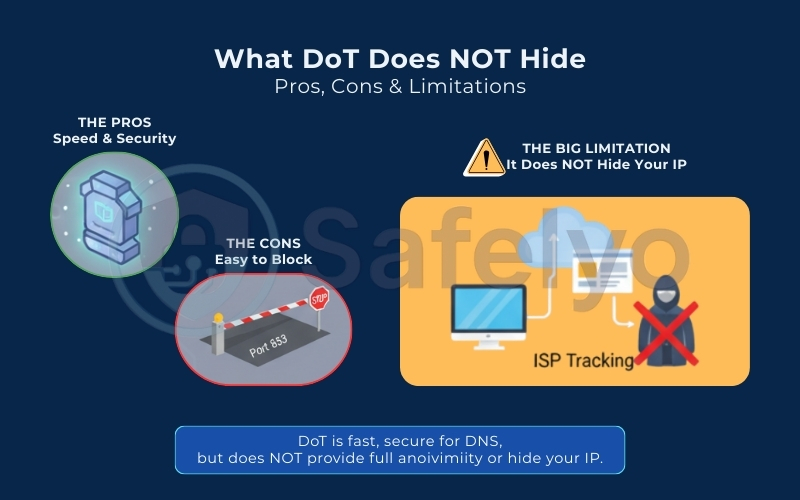
The “private lane” of Port 853 is a double-edged sword. While it separates traffic efficiently, it sticks out like a sore thumb to network administrators. If you are on a restrictive corporate or school network, the IT department can easily block Port 853, instantly disabling your secure DNS connection.
7.3. The big limitation: It does not hide your IP
This is the most common misconception. DoT is NOT a VPN. While DoT encrypts the lookup (asking “Where is google.com?”), it does not encrypt the connection that follows.
Once your device gets the IP address, it connects to that server. Your ISP can still see the destination IP address you are communicating with. They might not know you are on a specific sub-page, but they generally know which website you are visiting.
Quick clarification: The destination IP your ISP sees is a public IP on the internet. It’s different from the private IP your router assigns inside your home Wi-Fi. If you’re unsure about the difference between private and public IPs, see our guide on private IP addresses.
8. DoT vs. VPN: Do you still need a VPN?
If you have enabled Private DNS on your phone, you might wonder: “Do I still need a VPN?” The short answer is yes.
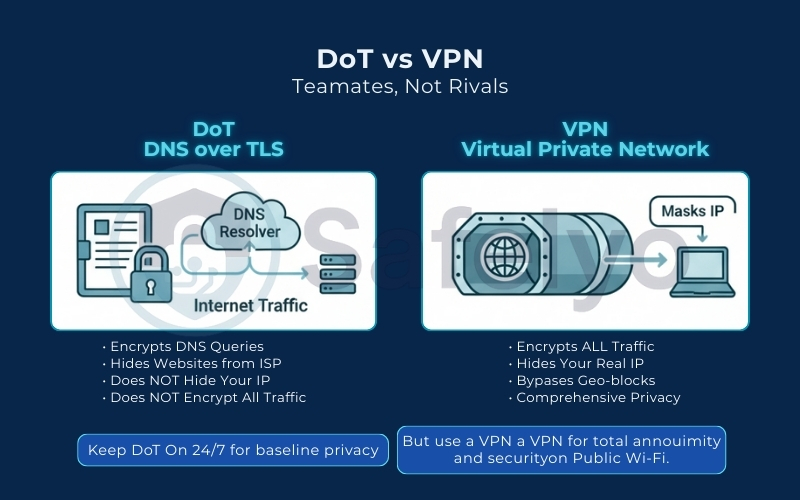
Think of DNS over TLS (DoT) as a privacy shield specifically for your address book. It prevents your ISP from seeing the list of domain names you are looking up. However, once that lookup is finished, your actual data connection and your personal IP address remain exposed to the website you are visiting and potentially your ISP.
A VPN (Virtual Private Network) offers much broader protection. It wraps all your internet traffic – not just DNS queries, but every file, video, and message – in a tunnel of heavy encryption. Crucially, a VPN also masks your real IP address, making you anonymous to the websites you visit.
My expert recommendation:
Treat them as teammates, not rivals. Keep DoT (Private DNS) enabled 24/7 for a baseline layer of security and ad-blocking. But when you connect to risky public Wi-Fi or need complete anonymity to hide your location, turn on your VPN. It is an important layer to achieve total digital invisibility.
9. FAQs about DoT – DNS over TLS
It’s natural to have a few questions when diving into a new technology. Here are quick, direct answers to the most common ones we hear about DNS over TLS.
What is DNS over TLS?
DNS over TLS (DoT), standardised in RFC 7858, is a security protocol that encrypts your DNS queries and responses. It complements DNSSEC by adding privacy to the authentication that DNSSEC provides. It takes your normally public DNS requests and wraps them in a private, secure layer, preventing ISPs, hackers, and network administrators from seeing which websites you visit.
Is DNS over TLS the same as a VPN?
No. DNS-over-TLS only encrypts your DNS queries (the ‘phonebook lookups’). A VPN, on the other hand, provides end-to-end encryption for your entire internet connection, including DNS, web traffic, and all other data. A VPN provides far more comprehensive privacy and security.
Will DoT slow down my internet?
For the vast majority of users, the impact on performance and latency is so small it’s unnoticeable. In some cases, if you’re switching from your ISP’s slower DNS to a high-speed public server like Cloudflare’s, you may notice a slight improvement. This can lead to faster loading times for websites.
So, which one should I use, DoT or DoH?
For most home users, both are excellent privacy upgrades. DoT is a dedicated and straightforward protocol, while DoH is better at bypassing network restrictions by blending in with regular web traffic. The best advice is to simply enable whichever one is easiest for you; the important thing is to use one of them.
Is DNS over TLS the same as DNSCrypt?
No. While both provide DNS encryption, DNSCrypt is an older, non-standardized protocol. DNS over TLS (DoT), as defined in RFC 7858, is an official IETF standard, ensuring wider compatibility and rigorous security review.
Should I use DNS over TLS?
Yes, absolutely. Enabling DNS over TLS is one of the easiest, “set-it-and-forget-it” security upgrades you can make. It prevents your ISP from logging your browsing history via DNS and protects you from Man-in-the-Middle attacks without requiring any technical maintenance.
Is 1.1.1.1 DNS over TLS?
Yes. 1.1.1.1 is the IP address for Cloudflare’s public DNS resolver, which fully supports DNS over TLS. To use it on Android or a router, you typically enter the hostname: 1dot1dot1dot1.cloudflare-dns.com.
Does 8.8.8.8 support DNS over TLS?
Yes. 8.8.8.8 is Google Public DNS, and it supports DoT. When configuring it in your “Private DNS” settings or router, use the hostname: dns.google.
How do I check if I’m using DNS over TLS?
The easiest way is to visit a verification site provided by your DNS service. For example, if you are using Cloudflare, visit 1.1.1.1/help. Look for the “Using DNS over TLS (DoT)” section – it should say “Yes”. Alternatively, sites like dnsleaktest.com should show your DNS provider’s name (e.g., Cloudflare or Google) instead of your local ISP.
Does DoT slow down the internet?
No, the difference is negligible. While encryption technically adds a tiny fraction of processing time, DoT is extremely efficient (running over TCP). In many cases, switching to a fast public resolver like Cloudflare or Google via DoT is actually faster than using your ISP’s slow, unencrypted default DNS servers.
What happens if Port 853 is blocked?
If you are on a strict network (like a corporate office or hotel) that blocks Port 853, your secure DNS connection will fail.
- Result: You won’t be able to load websites.
- On Android: Your phone may show a “Connected, no internet” warning. To fix this, you will need to temporarily turn “Private DNS” to Off or Automatic to fall back to standard DNS.
Is Private DNS free?
Yes. The feature on Android is free to use, and major DNS providers like Cloudflare, Google, and Quad9 offer their encrypted DNS services completely free of charge. You do not need a subscription.
10. Conclusion
DNS over TLS (DoT) is arguably the simplest yet most effective security upgrade available for your mobile device. By simply toggling a switch on your Android phone, you stop your ISP from spying on your web requests and block intrusive tracking, all completely for free.
My advice? Don’t wait. Take a minute right now to enable “Private DNS” using the steps we covered. It is a “set-it-and-forget-it” tool that works silently in the background to keep your browsing data safe.
However, remember that DoT doesn’t mask your location. Want to hide your IP address too? Check out the VPN Guides to the [Best VPNs with DoT Support] from Safelyo for complete privacy.