Learning how to block ads on iPhone is essential for anyone seeking a faster, cleaner, and more secure browsing experience. Advertisements can not only slow down web pages and clutter your screen but also track your online activities, raising privacy concerns. By effectively blocking ads, you can enhance your device’s performance, protect your personal data, and reduce exposure to potentially harmful content.
In this guide, you’ll learn:
- How blocking ads can improve your browsing speed, privacy, and security
- Steps to enable built-in pop-up blockers and configure browser settings
- How to use trusted third-party ad blocker apps for more comprehensive protection
- Advanced techniques such as changing DNS settings and switching to privacy-focused browsers
- Common challenges with ad blocking and practical solutions to overcome them
Read on to discover effective strategies on how to block ads on your iPhone and enjoy a smoother, safer mobile experience.
1. Why block ads on iPhone
Blocking ads on your iPhone does more than just remove annoying banners and pop-ups. It can greatly improve how quickly websites load, protect your privacy, and shield your device from harmful content. Here are the main benefits of blocking ads on your iPhone:
- Faster browsing: Ads consume data and processing power, slowing down page loading times. Blocking them results in a quicker, smoother experience.
- Enhanced privacy: Many ads include trackers that monitor your online activity across sites. Blocking ads limits this tracking and helps protect your personal information.
- Improved security: Some ads can carry malware or lead to phishing sites. Using ad blockers reduces the risk of encountering these threats.
By understanding these advantages, you can see why taking steps to block ads on your iPhone is a smart move for a safer and more enjoyable mobile experience.
>> Discover:
2. How to block ads on iPhone?
Blocking ads on your iPhone can greatly enhance your browsing experience by speeding up page loads, reducing distractions, and protecting your privacy. Below, we’ll guide you through the main methods so you can choose the best option for your needs and enjoy a cleaner, faster, and safer iPhone experience.
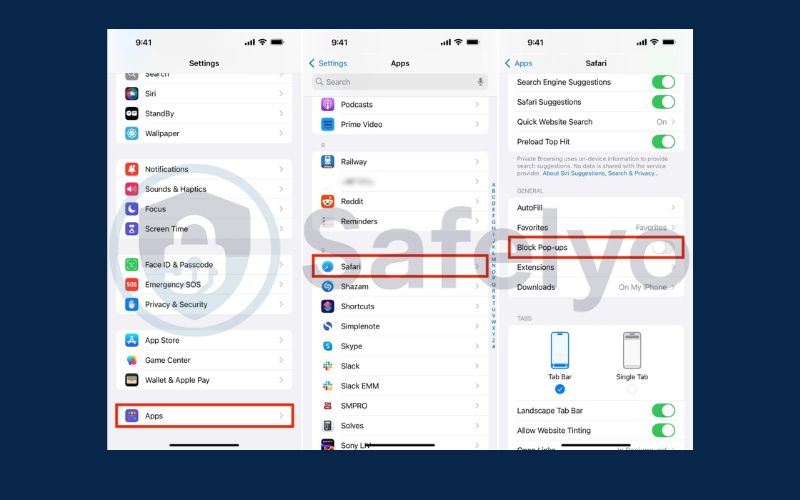
2.1. Enable block pop-ups for Safari
This feature prevents most pop-up ads in Safari, making your browsing smoother.
Steps:
Open the Settings app on your iPhone.
Scroll down and tap Safari.
Toggle on Block Pop-ups.
2.2. Block pop up ads on Chrome
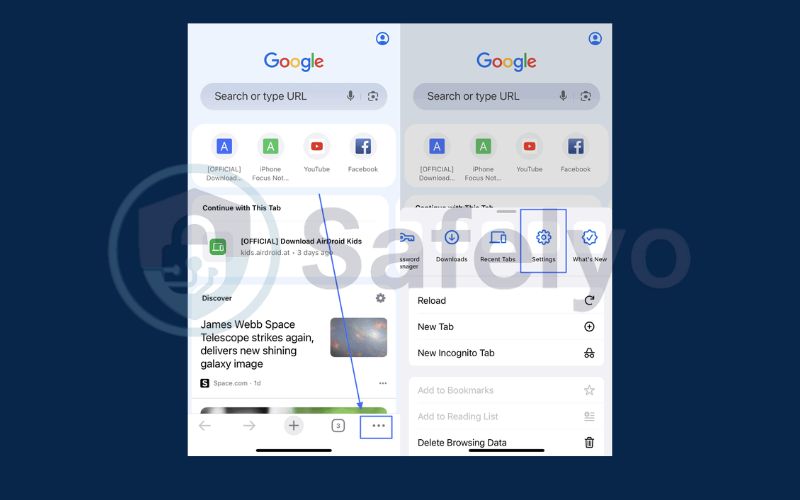
If you use Chrome on iPhone, you can block pop-ups through its settings.
Steps:
Open the Chrome app. Tap the three dots menu in the bottom right corner and select Settings.
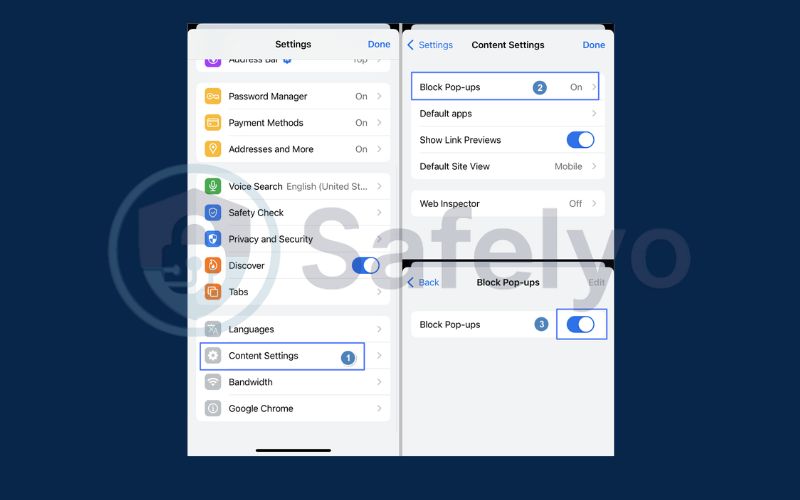
Tap Content Settings. Toggle on Block Pop-ups.
2.3. Use ad blockers for iPhone
Ad blockers like AdGuard can block ads across Safari and other apps.
Steps:
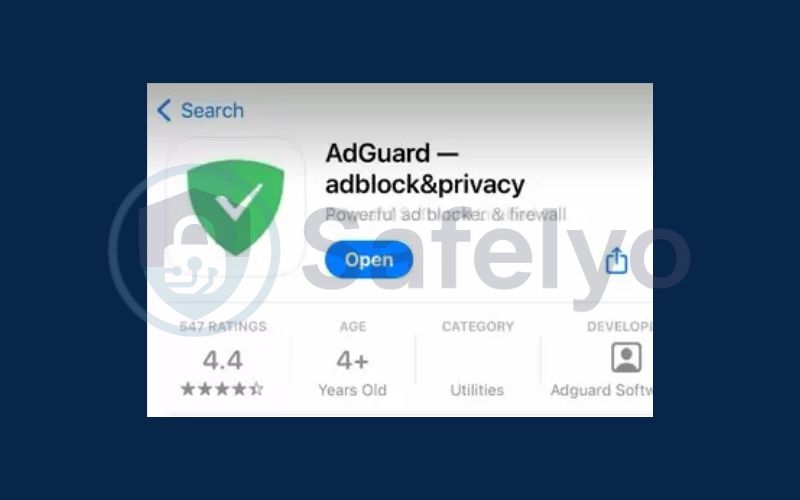
Download and install AdGuard from the App Store.
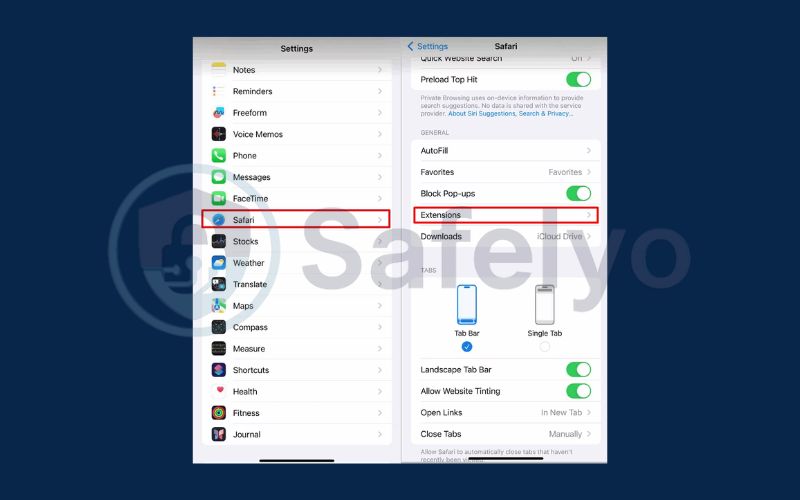
Open Settings > Safari > Extensions.
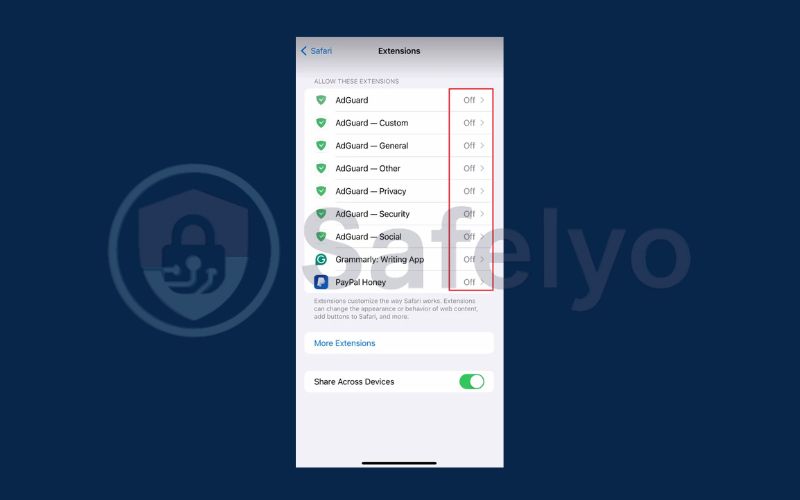
Turn on all AdGuard toggles to enable basic blocking.
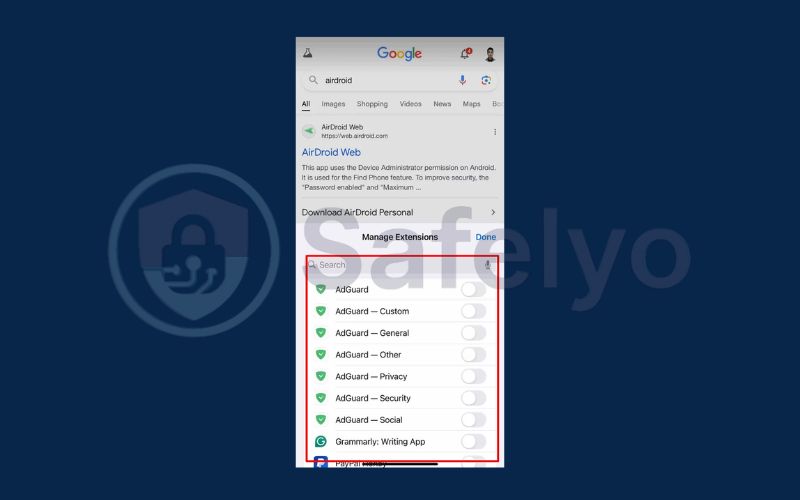
For advanced blocking, open Safari, tap the aA icon next to the address bar, select Manage Extensions, and enable AdGuard.
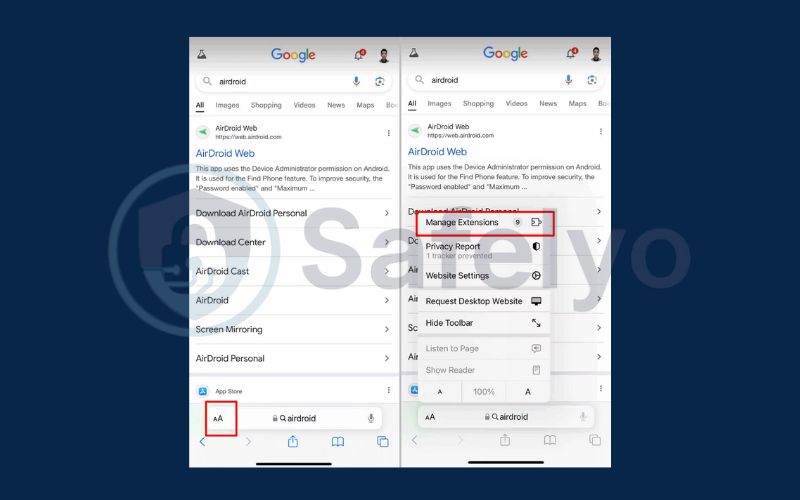
Switch on the AdGuard toggle to activate advanced ad-blocking features.
2.4. Change DNS settings
Using an ad-blocking DNS server filters ads on the network level for all apps and browsers.
Steps:
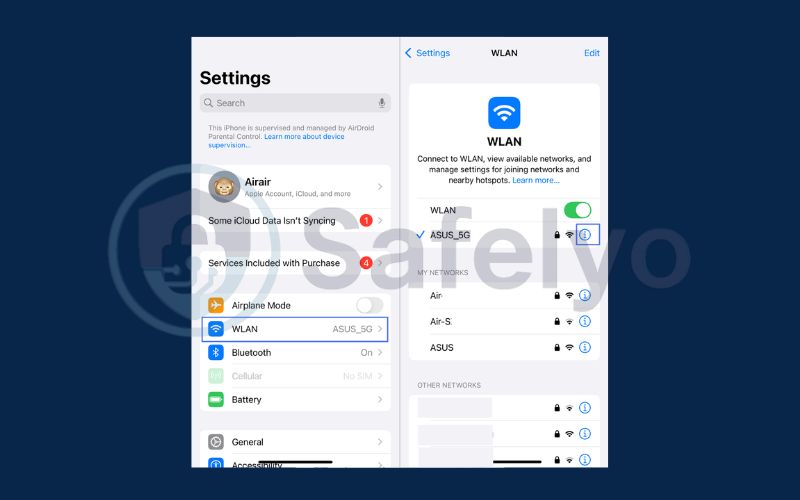
Open Settings > Wi-Fi. Tap the info icon next to your connected network.
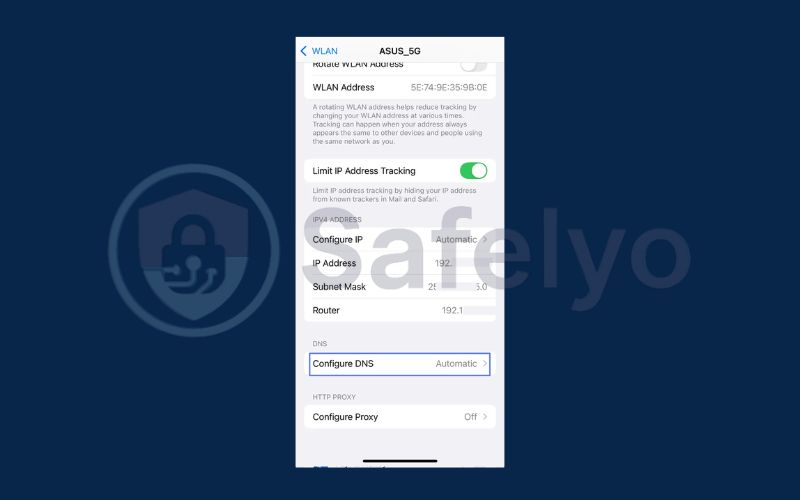
Scroll down to Configure DNS, tap it, and switch to Manual.
Add DNS servers such as AdGuard DNS (94.140.14.14 and 94.140.15.15).
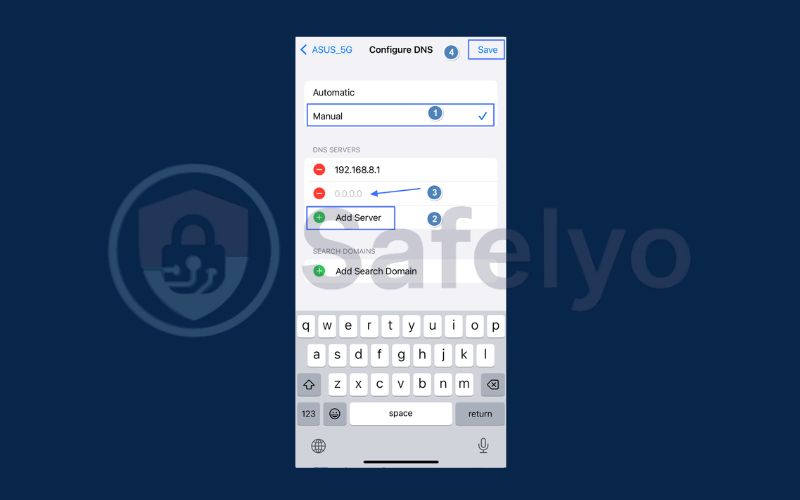
Tap Save.
3. Common issues when blocking ads
While blocking ads improves your browsing, you may encounter some challenges. Here are the common issues and how to address them:
- Ads still appear: Some websites and apps use advanced anti-adblock methods that bypass filters. To fix this, regularly update your ad blocker to the latest version or try switching to a more powerful ad blocker or a privacy-focused browser like Brave.
- Website or app malfunctions: Blocking ads can sometimes interfere with essential scripts, causing missing content or broken features. If this happens, temporarily disable the ad blocker for the affected site or app to restore full functionality.
- Battery drain and performance impact: Continuous ad filtering can slightly reduce battery life or slow down your device. To minimize this, choose lightweight, well-optimized ad blockers and avoid running multiple blockers simultaneously.
By understanding these issues and applying these solutions, you can maintain a smoother, more effective ad-blocking experience on your iPhone.
>> Discover:
4. FAQs about blocking ads on iPhone
If you’re new to ad blocking on iPhone or have some common concerns, these frequently asked questions will help clarify how ad blockers work, their safety, and their impact.
Does the iPhone have a built-in ad blocker?
The iPhone does not come with a full ad blocker by default. However, Safari includes a built-in pop-up blocker to prevent intrusive pop-up windows. Additionally, Safari supports content blocker extensions that you can install to block ads and trackers more comprehensively. While enabling pop-up blocking is simple and built-in, for more effective ad blocking across websites, third-party apps like AdGuard or 1Blocker are recommended. These apps integrate with Safari and provide stronger, customizable ad-blocking features.
Are ad blocker apps safe to use on iPhone?
Yes, ad blocker apps are generally safe as long as you download them from trusted developers via the official Apple App Store. Popular apps like AdGuard, 1Blocker, and Wipr have strong reputations and receive regular updates to maintain security and privacy standards. These apps not only block ads but also help prevent trackers and malicious scripts, contributing to a safer browsing experience. To ensure safety, always check user reviews and permissions before installing any ad blocker.
Can I block YouTube ads on my iPhone?
Blocking ads on YouTube is one of the more challenging tasks because ads are integrated directly into YouTube’s app and website. Most ad blockers cannot remove ads from the official YouTube app. However, you can reduce ads by watching YouTube videos through privacy-focused browsers like Brave or Firefox Focus, which block many ads on the web version of YouTube.
Does ad blocking affect app developers’ revenue?
Yes, blocking ads can impact the revenue of many free apps and websites that rely on advertising to fund their content and services. While ad blockers improve your browsing experience by removing intrusive ads, it’s important to support creators and developers where possible. You can do this by whitelisting trusted sites or using alternative support methods like donations or subscriptions. This balanced approach helps maintain free access to quality content while keeping your device free of unwanted ads.
5. Conclusion
Effectively blocking ads on your iPhone can greatly enhance your browsing experience by speeding up page loads, reducing distractions, and protecting your privacy and security. Learning how to block ads on iPhone, whether by enabling built-in pop-up blockers, installing trusted third-party ad-blocking apps, adjusting DNS settings, or switching to privacy-focused browsers, helps you enjoy a faster, safer, and more seamless mobile experience.
Key points to remember:
- Enable Safari’s built-in pop-up blocker to stop most intrusive pop-ups.
- Use trusted third-party ad blocker apps like AdGuard or 1Blocker for comprehensive ad filtering.
- Modify DNS settings to block ads at the network level across all apps and browsers.
- Consider privacy-focused browsers such as Brave or Firefox Focus for stronger built-in ad blocking.
- Be aware of common issues like occasional site malfunctions or slight battery impact, and apply appropriate solutions.
To explore more about enhancing your online safety and simplifying your digital experience, you might find the Tech How-To Simplified category on Safelyo. They offer practical tips and tools designed to help you navigate the digital world securely and efficiently.