Many popular devices, such as gaming consoles (PS5, Xbox) and Smart TVs, lack native VPN support, leaving them exposed to ISP tracking and content restrictions. You need to know how to share a VPN connection via hotspot to extend digital protection to these gadgets without investing in expensive router hardware.
At Safelyo, we rigorously tested these methods on the latest Windows, Android, and iOS builds to ensure compatibility. This guide covers everything from simple Windows configurations to advanced Android no-root proxies, ensuring your entire home network remains secure and accessible.
-
Connect to your VPN
Open your preferred VPN application and establish a connection to a server
-
Enable mobile hotspot
Navigate to Settings > Network & Internet > Mobile hotspot
-
Configure adapter sharing (CRITICAL STEP)
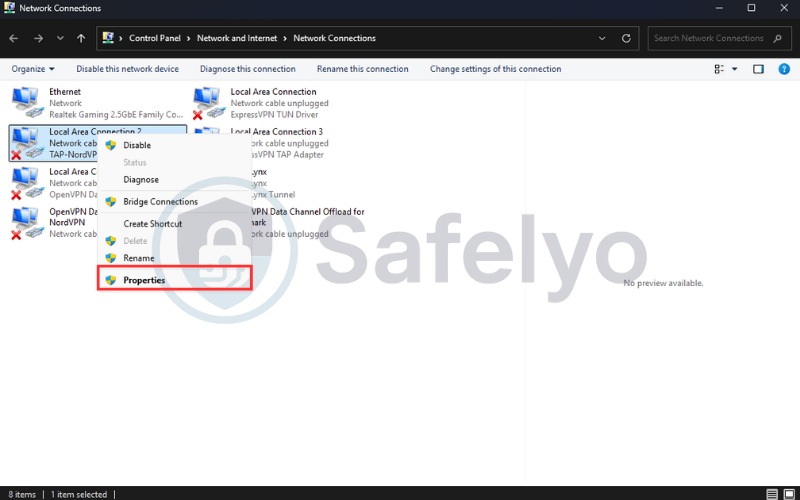
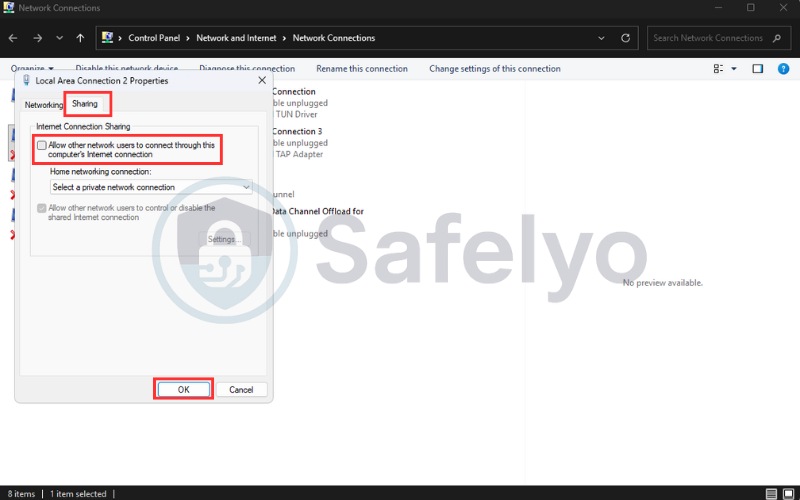
Open the Control Panel and go to Network and Internet > Change adapter settings > Properties > Sharing tab and check the box
-
Connect to device
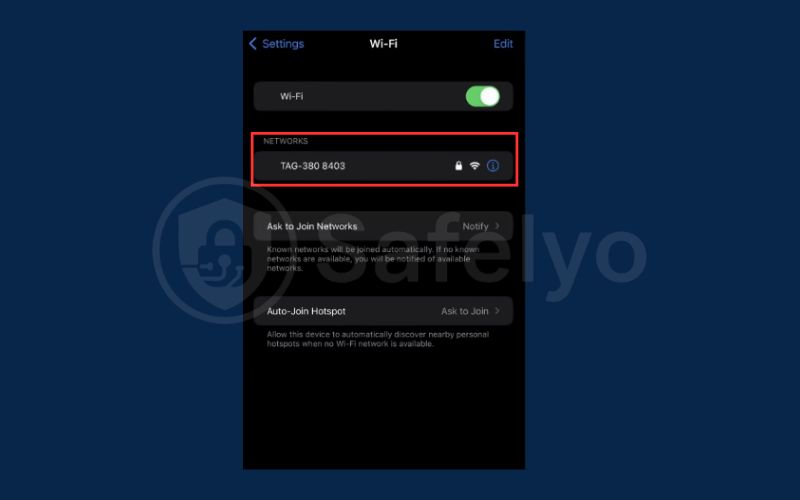
Connect other devices to your PC’s hotspot and they’ll use the VPN.
-
Connect VPN
Open your VPN app and connect to your desired server.
-
Enable Hotspot
Go to Android Settings and turn on your Wi-Fi Hotspot
-
Start Every Proxy app
Download and open Every Proxy and toggle the “HTTP / HTTPS” switch
-
Configure Client Device
Go to Wi-Fi settings, select the hotspot network, and find “Proxy” settings. Enter the IP and Port from Every Proxy
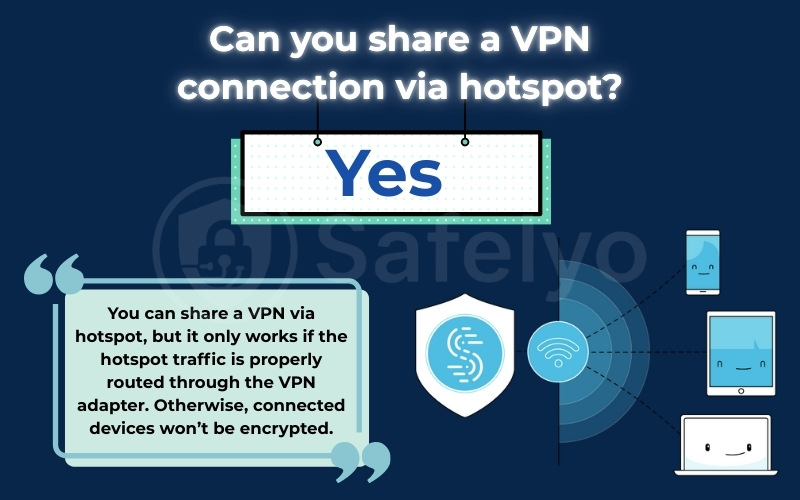
1. Can you share a VPN connection via hotspot?
Yes, sharing a VPN connection is entirely possible, though the specific steps depend heavily on your operating system. A standard mobile hotspot usually bridges the internet connection directly, which often bypasses the VPN tunnel by default.
To successfully share the encryption, you must configure the virtual network adapter settings on a PC or use a proxy server on a mobile device. This forces the hotspot traffic to route through the secure VPN tunnel rather than the open internet. If this configuration is skipped, your connected devices will have internet access, but they will remain unencrypted. This common mistake leads to DNS leaks and exposed IP addresses, defeating the purpose of using a VPN in the first place.
Featured Snippet Table – Quick Comparison
| Platform | Possible | Root Needed | Difficulty | Best Method |
|---|---|---|---|---|
| Windows 10/11 | Yes | No | Easy | Built-in Mobile Hotspot |
| Android | Yes | No (Proxy) / Yes (Tether) | Medium | HTTP Proxy (No-Root) |
| iOS | Limited | No | Hard | Mac / Router workaround |
| macOS | Yes | No | Medium | Ethernet → Wi-Fi Sharing |
2. How to share a VPN connection via hotspot on Windows
Windows remains the best platform for sharing a VPN connection because it supports virtual router capabilities natively. Unlike mobile operating systems, Windows allows you to bridge your secure VPN adapter directly to a Wi-Fi hotspot, extending encryption to any device that connects to your PC.
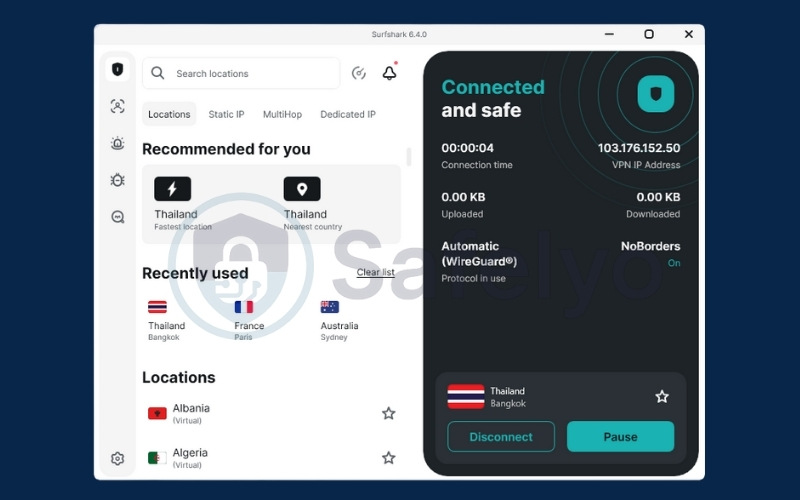
- Step 1: Connect to your VPN
Open your preferred VPN application and establish a connection to a server. For the best balance of speed and stability when tethering, we recommend selecting WireGuard or OpenVPN (UDP) in the protocol settings.
Ensure the application clearly shows a “Connected” status before proceeding. If the VPN is not active during the setup phase, the network adapter may not appear correctly in the control panel later.
- Step 2: Enable mobile hotspot
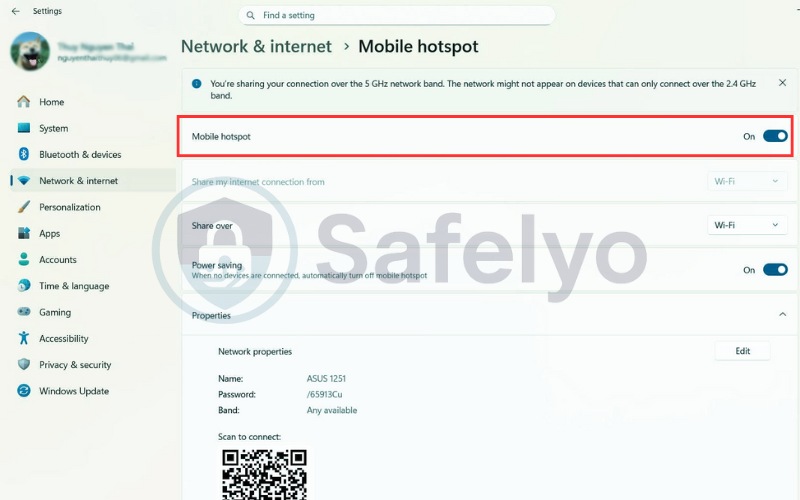
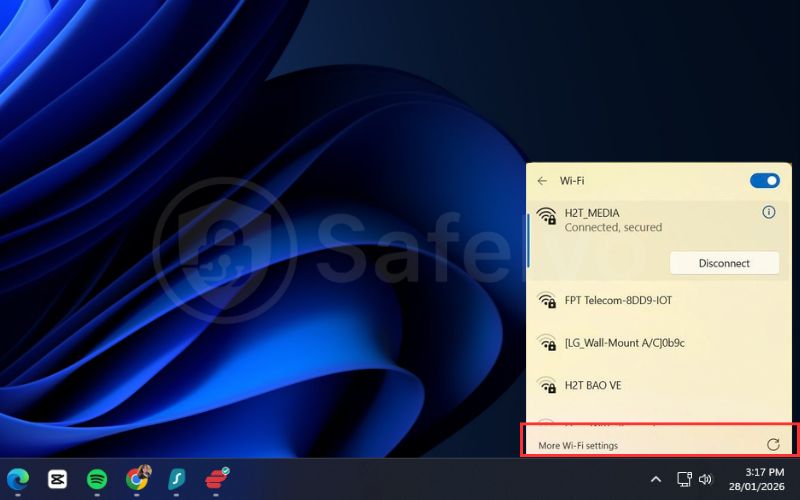
Navigate to Settings > Network & Internet > Mobile hotspot on your Windows 11 or Windows 10 device.
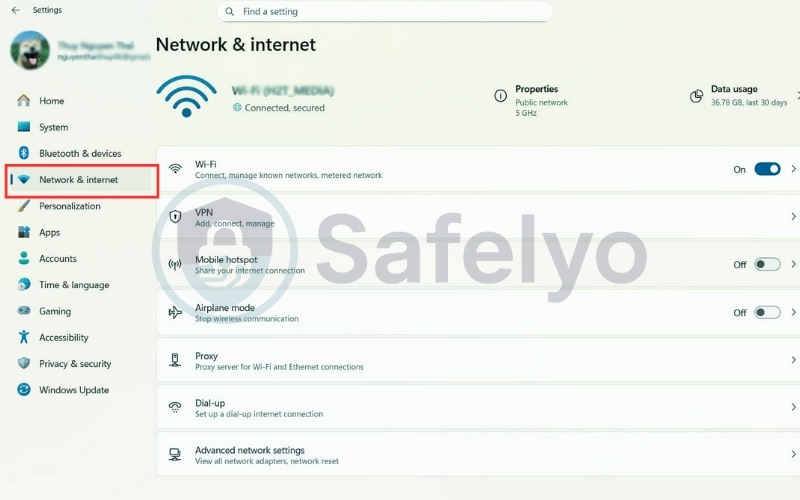
Toggle the switch to “On” and ensure “Share my internet connection from” is set to your active internet source (usually Wi-Fi or Ethernet).
- Step 3: Configure adapter sharing (CRITICAL STEP)
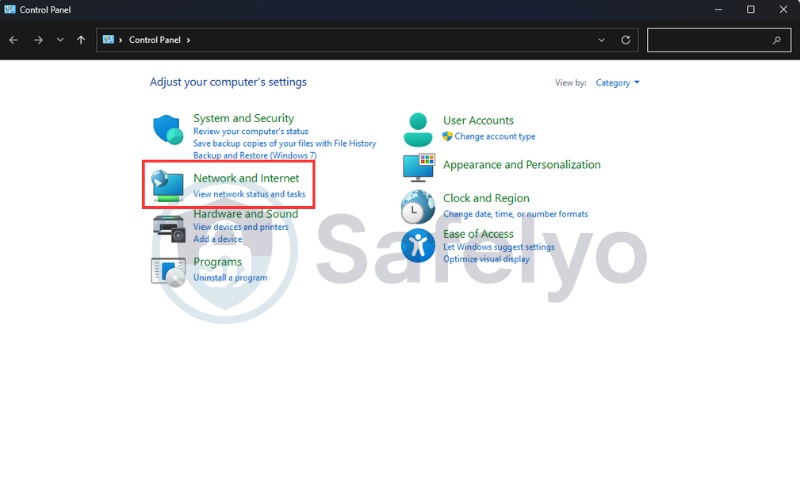
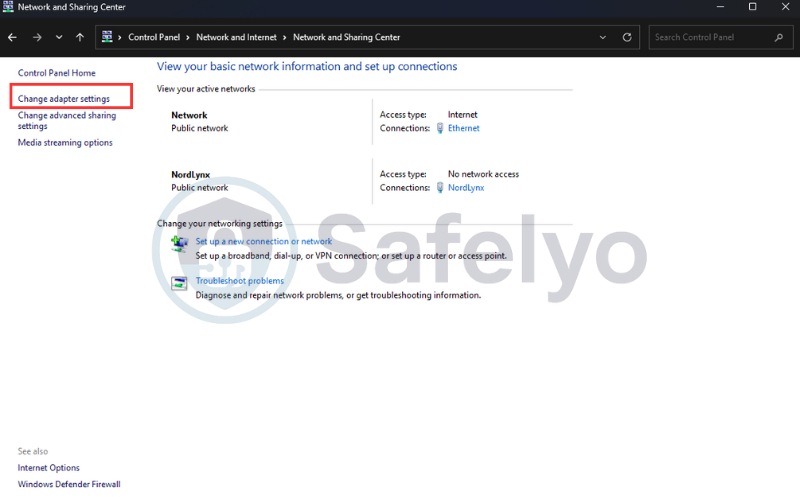
This is the most important step; without it, your hotspot will bypass the VPN. Open the Control Panel and go to Network and Internet > Change adapter settings.
Locate your VPN adapter (often named “TAP-Windows Adapter” or “WireGuard Tunnel”). Right-click it and select Properties. Go to the Sharing tab and check the box that says “Allow other network users to connect through this computer’s Internet connection.”
Under “Home networking connection,” select the adapter created by your hotspot (usually named Local Area Connection**). Click OK to save. Your Windows PC is now acting as a secure, encrypted router.
- Step 4: Connect other devices to your PC’s hotspot and they’ll use the VPN.
Common Windows hotspot errors & fixes
Even with a correct setup, you may encounter connectivity issues due to strict Windows security settings or automatic power-saving configurations. Here are the most frequent glitches users face in 2026 and the exact steps to resolve them quickly.
- Hotspot connected but no internet: You likely shared the wrong adapter. Go back to the Control Panel and ensure you are sharing the VPN adapter, not your main Wi-Fi card. Restarting the VPN connection often forces the new routing table to update.
- VPN works on PC but isn’t shared: If your PC has internet access but connected devices don’t, the Windows Firewall may be blocking the tether. Temporarily disable the firewall to test, or create an inbound rule allowing ICS (Internet Connection Sharing).
- Frequent disconnections: This can occur when the PC enters power-saving mode. Go to your network adapter’s properties, select “Configure,” and under the Power Management tab, uncheck “Allow the computer to turn off this device to save power.”
3. Share VPN via hotspot on Android (No-Root & Root)
Android is a highly flexible platform, but its default hotspot settings usually bypass active VPN connections to prevent routing conflicts. To successfully share a VPN connection on Android, you must choose between using a proxy server (accessible to everyone) or rooting your device for system-level tethering.
3.1. Can you share a VPN hotspot on Android without root?
Yes, absolutely. You can share a VPN connection on unrooted Android devices by combining the standard Wi-Fi hotspot with a local HTTP proxy server. This method creates a “bridge” that forces traffic from connected devices to pass through the VPN tunnel running on your phone.
However, this is not a “plug-and-play” solution like on Windows. The client device (such as your PS5 or laptop) requires manual configuration to recognize the proxy. Without this step, the device will connect to the Wi-Fi but will likely fail to access the internet.
3.2. Android no-root method (RECOMMENDED): Using Every Proxy
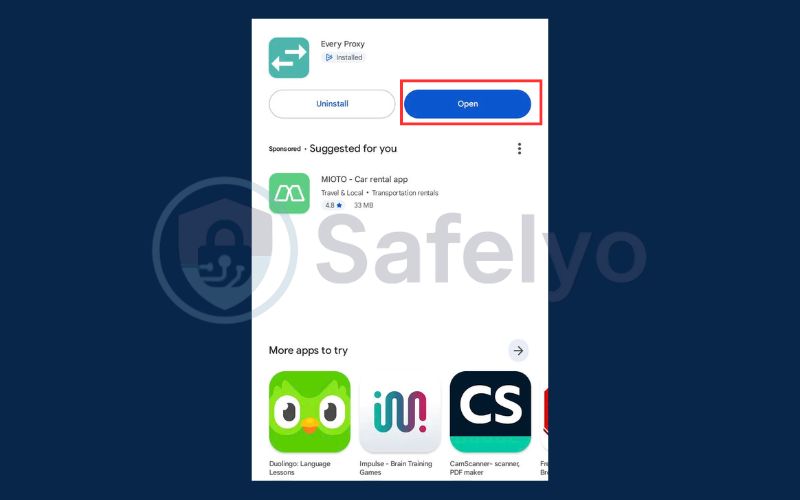
This is the safest method as it does not void your warranty. We recommend using the Every Proxy app, which is lightweight and reliable. Follow these steps to route your encrypted connection to other devices.
Step-by-Step Guide:
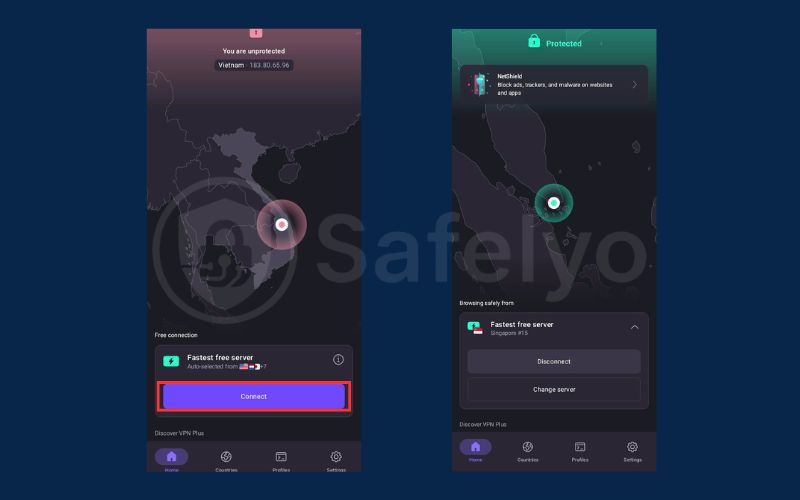
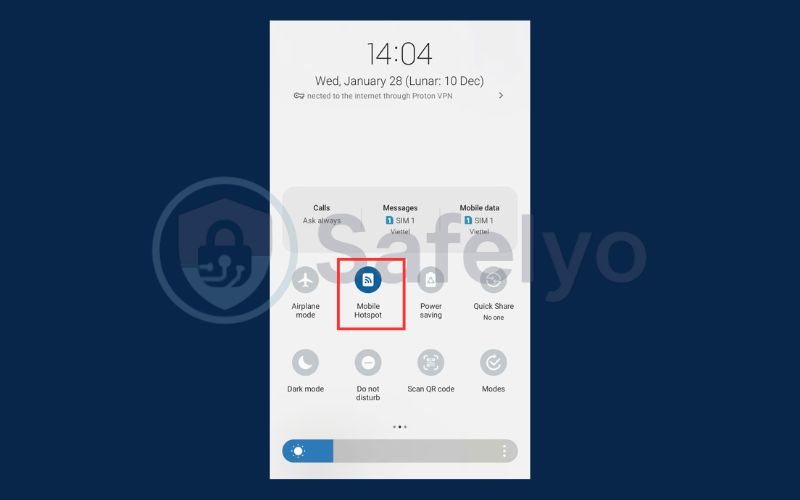
- Connect VPN: Open your VPN app and connect to your desired server.
- Enable Hotspot: Go to Android Settings and turn on your Wi-Fi Hotspot. Connect your second device (e.g., PS5) to this network.
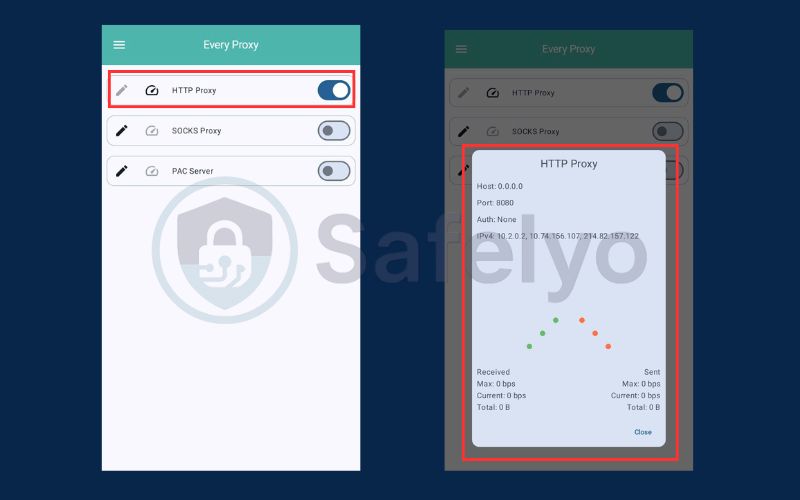
- Start Proxy: Open Every Proxy and toggle the “HTTP / HTTPS” switch. You will see an IP Address (e.g., 192.168.x.x) and a Port Number (usually 8080).
- Configure Client Device: On your connected device (PS5/TV), go to Wi-Fi settings, select the hotspot network, and find “Proxy” settings. Switch it to Manual, then enter the IP and Port from Every Proxy.
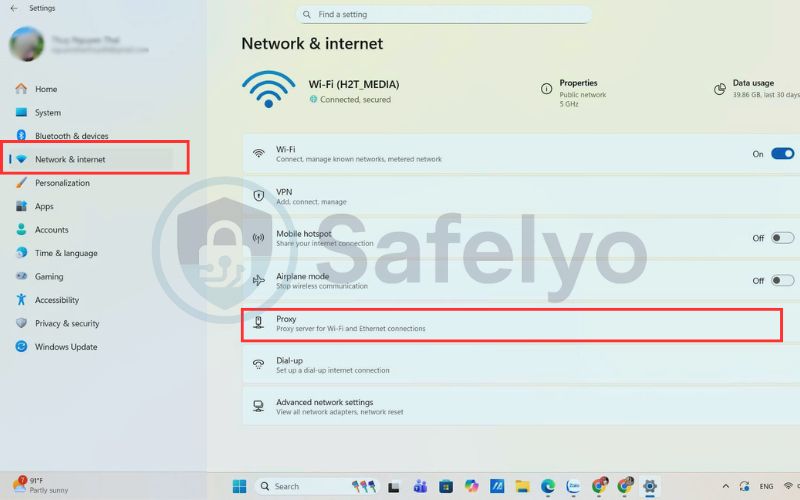
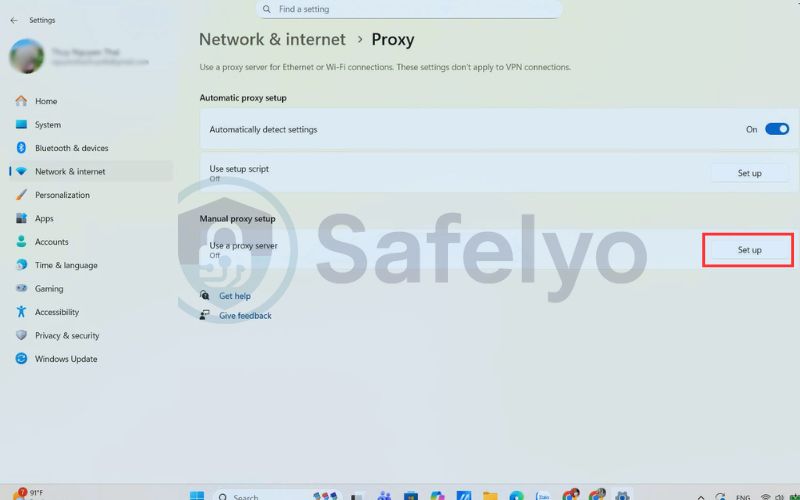
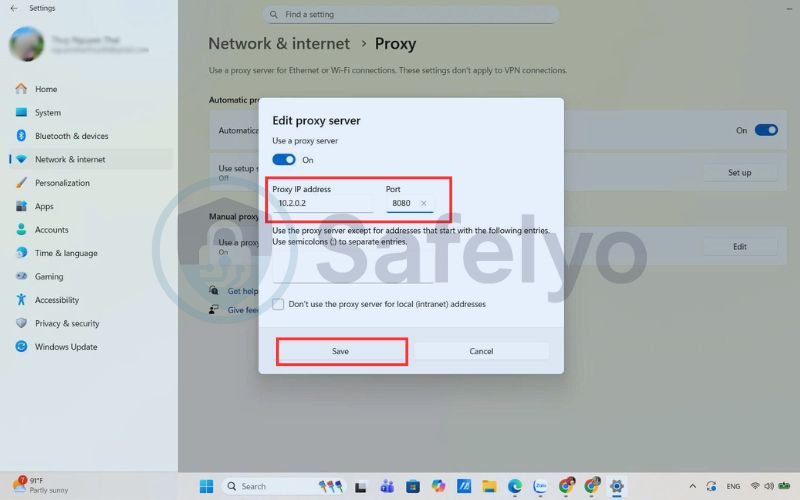
Supported Devices & Limitations:
This method works perfectly for browsing and geo-unblocking on PCs, PlayStations, and Xbox consoles. However, it acts as a proxy, not a full VPN tunnel. Consequently, some apps that strictly enforce non-proxy connections or rely heavily on UDP traffic (like some fast-paced online games) might ignore the settings.
3.3. Android root method (Advanced users only)
For power users who have rooted their phones (via Magisk), using a dedicated VPN tethering app is a superior solution. This method modifies the system’s iptables rules to route all tethered traffic directly through the VPN interface seamlessly.
The main advantage is transparency; connected devices do not need any manual proxy configuration. They simply connect to the Wi-Fi hotspot, and their traffic is automatically encrypted, ensuring higher speeds and better stability for bandwidth-heavy tasks like 4K streaming.
3.4. Comparison table: Android no-root vs root
Choosing the right method depends on your technical comfort level and warranty concerns. The table below outlines the key differences to help you decide.
| Feature | No-Root Proxy | Root Tether |
|---|---|---|
| Root Required | No | Yes |
| Setup Difficulty | Medium (Requires client setup) | Hard (Requires rooting phone) |
| Speed | Medium | High |
| Stability | Medium | High |
| Best For | Consoles, TVs, Temporary use | Power users, Permanent setups |
4. Share VPN connection on macOS
Apple’s macOS includes a native “Internet Sharing” feature, but due to hardware restrictions, it cannot simultaneously receive and broadcast Wi-Fi. Therefore, the most reliable method is to connect your Mac to the internet via an Ethernet cable (or a USB-C dongle) and share the secure tunnel over Wi-Fi.
Step-by-Step Configuration:
- Connect the VPN: Launch your VPN client and connect using a protocol like IKEv2 or L2TP, as these are more likely to appear as shareable adapters in macOS system settings compared to WireGuard.
- Access Sharing Settings: Navigate to System Settings > General > Sharing. Find the “Internet Sharing” option in the list, but do not toggle it on yet; instead, click the “i” (info) button next to it.
- Configure Source and Output: In the “Share your connection from” dropdown, select your active VPN adapter. Under “To computers using,” check the Wi-Fi box.
- Activate Hotspot: Click “Wi-Fi Options” to set a network name and password. Click “Done,” then toggle the main Internet Sharing switch to On. Your Mac is now a secure Wi-Fi base station.
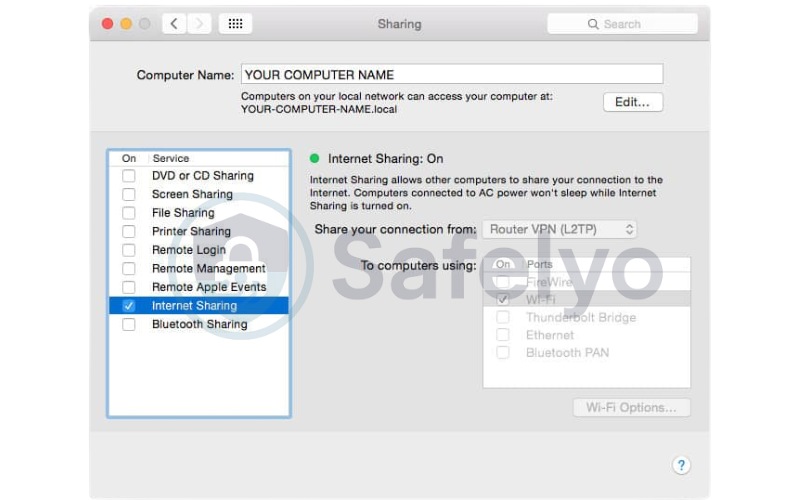
Why this is better than Wi-Fi → Wi-Fi:
Trying to repeat a Wi-Fi signal wirelessly often causes significant packet loss and connection drops. The Ethernet → Wi-Fi method ensures a stable input source, preventing the “bottleneck effect” that slows down gaming consoles or streaming devices connected to the hotspot.
5. Share VPN from iPhone
Unlike Android or Windows, iOS does not natively allow users to share a VPN connection via Personal Hotspot. Apple’s strict security architecture, known as “sandboxing,” prevents third-party VPN apps from modifying the system-level network routing required to encrypt tethered traffic.
5.1. Why iOS makes VPN sharing difficult
The fundamental problem is how the operating system manages packet forwarding during tethering. When you activate Personal Hotspot, iOS creates a direct bridge between your cellular data and the Wi-Fi chip, bypassing any active VPN tunnels running in the background.
- Traffic Bypass: Even if your VPN app shows “Connected,” data from your tethered devices (like a laptop or Switch) flows directly to the carrier unencrypted.
- No Root Access: Unlike Android, you cannot modify iptables or system routing on an iPhone without jailbreaking, which poses significant security risks.
- Carrier Control: Network operators often enforce specific carrier bundles that override custom network settings to track hotspot usage.
5.2. iOS workarounds that actually work
Since a direct software switch is impossible, you must rely on external hardware or specific app pairings to successfully share a VPN connection. Here are the most effective methods tested in 2026:
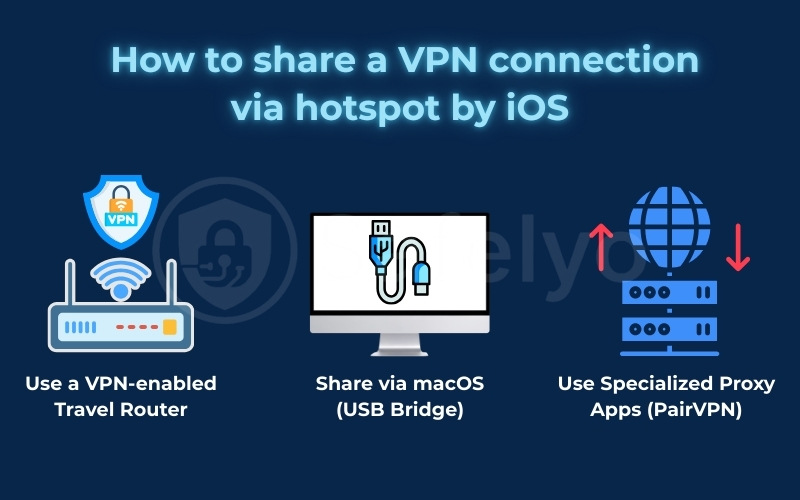
- Use a VPN-enabled Travel Router: Connect your iPhone to a portable router (like GL.iNet) via USB tethering. The router handles the VPN connection and broadcasts a secure Wi-Fi signal to all your devices.
- Share via macOS (USB Bridge): Plug your iPhone into a MacBook via Lightning/USB-C. Connect the Mac to the VPN, then use the “Internet Sharing” feature to broadcast the connection to other gadgets.
- Use Specialized Proxy Apps (PairVPN): Apps like PairVPN allow you to create a secure tunnel between two specific devices (e.g., iPhone to Laptop). However, this requires installing the client app on both devices, making it unusable for gaming consoles or Smart TVs.
6. Why share a VPN connection via hotspot?
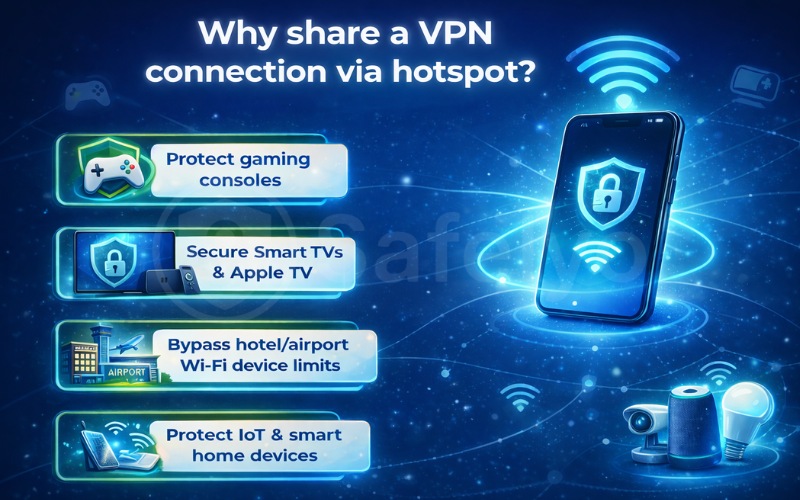
While installing a VPN app directly on a device is ideal, many gadgets simply do not support this software. Sharing a VPN connection bridges this gap, acting as a gateway that extends privacy and encryption to every device in your home without requiring expensive hardware upgrades.
- Protect gaming consoles (PS5, Xbox, Switch)
PlayStation, Xbox, and Nintendo Switch consoles do not natively support VPN applications. By connecting them to a VPN-enabled hotspot, you can hide your real IP address to prevent DDoS attacks during competitive play and access geo-restricted game servers or store regions unavailable in your country.
- Secure Smart TVs & Apple TV
Most smart TV operating systems, such as Samsung Tizen and LG WebOS, lack built-in VPN compatibility. Using a hotspot allows you to bypass geo-blocking on streaming platforms like Netflix or BBC iPlayer, unlocking global content libraries directly on your big screen without complex DNS settings.
- Bypass hotel/airport Wi-Fi device limits
Public Wi-Fi networks in hotels or airports often restrict internet access to a single device per payment or login. By authenticating on your laptop or phone and resharing that connection, you can get your tablet, watch, and console online simultaneously while only paying for one user slot.
- Protect IoT & smart home devices
Internet of Things (IoT) gadgets, such as security cameras and smart thermostats, are notorious for having weak built-in security. Routing their traffic through a secure hotspot ensures their data is encrypted against hackers, preventing them from becoming vulnerable entry points into your home network.
7. Is sharing a VPN via hotspot safe?
Sharing a VPN is generally safe, but the level of protection depends entirely on the setup method you choose. While a properly configured Windows hotspot offers military-grade encryption comparable to a router, mobile proxy workarounds often leave specific gaps in security that users must be aware of to avoid data leaks.
7.1. What traffic is encrypted?
If you use Windows Mobile Hotspot or Rooted Android Tethering, the host device creates a fully encrypted tunnel. In this scenario, all data packets leaving your gaming console, Smart TV, or laptop are encapsulated before they hit the internet, making them completely indecipherable to ISPs and potential hackers.
7.2. What is NOT protected?
The wireless link between your device and the hotspot relies on standard WPA2/WPA3 Wi-Fi security, not the VPN itself. If you set a weak password for your hotspot, local attackers could join your network. Furthermore, without a functional “Kill Switch“ on the host device, a sudden VPN disconnection can instantly expose your real IP address.
7.3. When you should NOT use proxy-based methods
The Android No-Root (HTTP Proxy) method is excellent for bypassing streaming geo-blocks, but is insufficient for privacy. It typically only routes browser-based HTTP traffic, leaving app background data and DNS requests exposed. Consequently, you should never use this specific method for online banking, sensitive transactions, or handling confidential work files.
8. Limitations of sharing a VPN via hotspot
While sharing a VPN via hotspot is a powerful tool for unblocking content, it comes with inherent trade-offs compared to using a dedicated VPN router. Understanding these technical bottlenecks will help you manage expectations regarding performance and privacy.
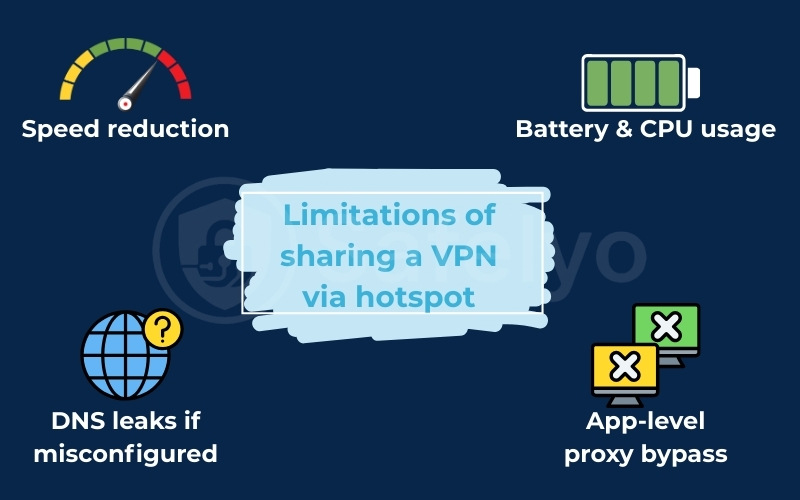
- Speed reduction: You will likely experience a significant drop in internet speed. The host device must decrypt and re-encrypt every packet of data, and transmitting this over Wi-Fi adds further latency, often resulting in slower download speeds and higher ping times for gaming.
- App-level proxy bypass: On Android devices using the no-root method, many applications simply ignore HTTP proxy settings. This means that while your web browser might be secure, specific apps like Netflix or online games may bypass the tunnel entirely and reveal your real location.
- DNS leaks if misconfigured: If the host device’s network adapter settings are not perfectly tuned, it may continue sending DNS requests through your ISP rather than the VPN. This “leak” allows your provider to monitor your browsing history even though the connection appears secure.
- Battery & CPU usage: Running a VPN protocol and a Wi-Fi hotspot simultaneously places a heavy load on the host device’s processor. This causes smartphones and laptops to overheat and drain battery rapidly, making this method unsuitable for long-term use without a power source.
9. Troubleshooting: VPN hotspot not working?
Even with a correct setup, network conflicts can often block internet access on connected devices. Before giving up, try these tested solutions to resolve common errors like “Connected, No Internet” or encryption failures.
9.1. Hotspot connected but no internet
This is the most frequent issue, usually caused by incorrect adapter sharing. On Windows, double-check that you are sharing the VPN adapter (e.g., TAP-Windows or WireGuard), not your main Wi-Fi card. On Android proxy setups, verify that the IP address and Port entered on the client device match exactly what is shown in the proxy app.
9.2. VPN connected but traffic not encrypted
If you can access the internet but your IP address remains unchanged, your device might be ignoring the VPN tunnel. Visit a site like dnsleaktest.com on the connected device. If you see your ISP’s name, disable IPv6 on the host device’s network settings to force all traffic through the secure IPv4 VPN tunnel.
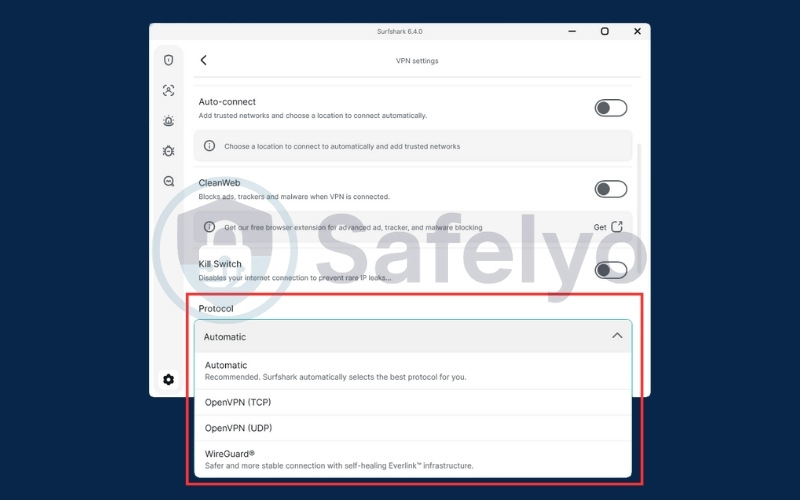
9.3. Switching VPN protocols (WireGuard vs OpenVPN)
Some protocols are less compatible with tethering than others. If you are experiencing instability, try switching from WireGuard to OpenVPN (UDP). While WireGuard is faster, OpenVPN is a more mature standard that often handles network address translation (NAT) and packet forwarding more reliably on older hardware.
9.4. Fixing DNS & IP conflicts
Sometimes, the hotspot assigns an IP address that conflicts with the VPN’s subnet. To fix this, try setting a static DNS (like Google’s 8.8.8.8) on the connected device instead of “Automatic.” Alternatively, restart the host device completely to clear the local routing table and request a fresh IP assignment.
10. Hotspot sharing vs VPN router: Which is better?
Deciding between a VPN hotspot and a dedicated VPN router depends largely on your specific needs and technical environment. While hotspot sharing is an excellent temporary fix for travel or specific tasks, a router offers a “set-and-forget” solution for permanent home security.
| Feature | VPN Hotspot | VPN Router |
|---|---|---|
| Setup Time | Fast (Minutes) No extra hardware needed. | Slow (Hours) Requires flashing firmware. |
| Stability | Medium Prone to disconnects & battery drain. | Excellent Designed for 24/7 uptime. |
| Speed | Medium Bottlenecked by Wi-Fi re-broadcasting. | High Handles encryption efficiently via CPU. |
| Best For | Travel, hotels, & temporary specific tasks. | Home networks, Smart Homes, & 4K streaming. |
The Verdict:
If you need to quickly unblock a Netflix show on your TV or protect a console in a hotel, hotspot sharing is the superior, cost-free choice. However, for a permanent home setup that protects every IoT device without slowing down your connection or draining batteries, investing in a dedicated VPN router is the better long-term strategy.
11. Best VPN features for hotspot sharing
Not all VPN services are capable of handling the high data stress of hotspot sharing. To ensure a lag-free experience for your connected devices, you must look for a provider that explicitly supports P2P and tethering traffic without aggressive firewall restrictions on its servers.
- Allows tethering: Some providers block shared traffic to save bandwidth. Ensure your chosen service officially permits VPN tethering in its terms of service to avoid sudden disconnections or account suspensions during heavy usage.
- No bandwidth throttling: Sharing an internet connection consumes data rapidly. You need a premium service with no bandwidth throttling and unlimited data caps to stream 4K content or download large updates on consoles without hitting artificial speed limits.
- WireGuard support: Speed is critical when re-broadcasting a signal. A VPN with WireGuard support is essential, as its lightweight code reduces latency overhead significantly, making it vital for maintaining low ping in Best VPN for Gaming scenarios.
- High device limit: A high device limit ensures you can keep your host phone protected while also securing other mobile devices independently when not tethered, a key factor when choosing the Best VPN for Android.
12. Frequently asked questions (FAQ)
Does sharing a VPN slow down internet speed?
Yes, sharing will almost always result in slower speeds compared to a direct connection. The host device acts as a middleman, processing encryption and re-broadcasting the signal wirelessly, which creates a natural bottleneck that can reduce bandwidth by 30% to 50%.
Is VPN hotspot sharing legal?
Yes, sharing a VPN connection is perfectly legal in most countries. However, using this method to bypass ISP data caps or engage in illicit activities remains prohibited, and you should always check your mobile carrier’s specific tethering policy to ensure compliance with their terms of service.
Can I share a free VPN connection?
Technically yes, but we strongly advise against it. Free services often impose strict data caps, throttle connection speeds, and block tethering protocols entirely, making them practically useless for bandwidth-heavy tasks like gaming or streaming video on a secondary device.
Does Hotspot VPN work with Netflix?
It depends heavily on the setup method used. A Windows VPN hotspot will successfully unblock Netflix on Smart TVs, but the Android proxy method often fails because streaming apps have advanced detection methods that ignore simple proxy settings to reveal your real location.
Can multiple devices use one VPN hotspot?
Yes, you can connect multiple devices to a single secure hotspot. However, keep in mind that every additional gadget splits the available bandwidth, so connecting too many devices simultaneously will inevitably cause significant buffering, lag, and connection instability for everyone on the network.
13. Conclusion
Mastering how to share a VPN connection via hotspot is the most effective way to secure devices like PS5s and Smart TVs that lack native VPN support. For the best experience, we recommend using the Windows 11 built-in hotspot for stability or the Android proxy method for quick mobile access.
While hotspot sharing is the ultimate travel companion for bypassing hotel restrictions, a dedicated VPN router remains the superior choice for permanent home security. Whichever method you choose, ensure your VPN supports WireGuard to minimize speed loss across your connected devices.
For more step-by-step tutorials, real-world VPN use cases, and practical security tips, explore the VPN Guides section on Safelyo – your go-to hub for smarter, safer internet setups.