Your lunch break is ticking away, but a strict firewall blocks your favorite game. We understand the frustration. You just want to join a server quickly without risking your computer privileges. While administrators restrict gaming sites to save bandwidth and prevent distractions, safely bypassing these filters is often possible.
In this guide, we will explore why the game is blocked, break down the top bypass methods, and share essential safety rules to keep you safe.
-
Play via cloud gaming (no download)
Open your browser, go to a cloud platform, and stream the game directly.
-
Install a free VPN browser extension
Add a safe VPN to Chrome, connect to a server, and bypass the filter.
-
Use a web proxy
Visit a proxy site, enter the Roblox URL, and load the page.
-
Connect to a phone hotspot
Disconnect from school Wi-Fi, turn on your mobile hotspot, and connect your computer.
1. How to unblock Roblox on a school computer
We know you want a fast answer. A quick and generally safe way to bypass the school network without needing administrator rights is using cloud gaming or connecting to your mobile hotspot.
To help you choose, we have compared the methods below:
| Method | Cost | Download Required? | Works on Chromebook? | Detection Risk | Best For |
|---|---|---|---|---|---|
| Cloud gaming | Free | No | Yes | Low | Managed Chromebooks |
| Free VPN extension | Free | Yes (Extension) | Yes (If store is unblocked) | Medium | Bypassing basic filters |
| Web proxy | Free | No | Yes | High | Quick profile checks |
| Phone hotspot | Uses data | No | Yes | Low | Total network bypass |
2. Method 1: Play via cloud gaming (free, no install)
Cloud gaming allows you to play games over the internet without downloading any files. It essentially streams the game video directly to your browser. Because of this, the school’s internet filter only sees a standard secure connection to a website, rather than a direct connection to the game servers.
Quick step:
- Open your Chrome browser.
- Go to a cloud gaming website.
- Search for Roblox.
- Click the Play in Browser button.
- Log in to your account.
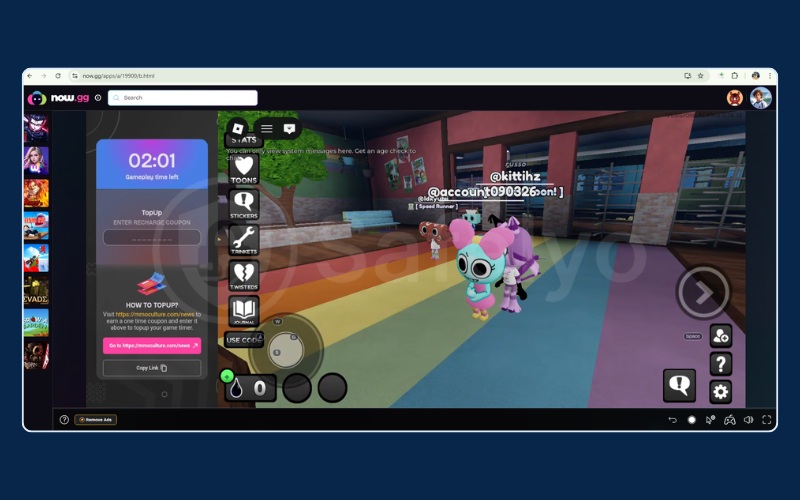
To find the most reliable option, I tested Roblox on four different cloud gaming platforms: now.gg, maddoxcloud, cloudmoon, and easyfun.gg.
Out of these platforms, now.gg is a strong choice, providing a clear image and consistent gameplay speeds.
In contrast, MaddoxCloud was very laggy with a blurry screen, and it frequently interrupted the game with abnormal behavior warnings.

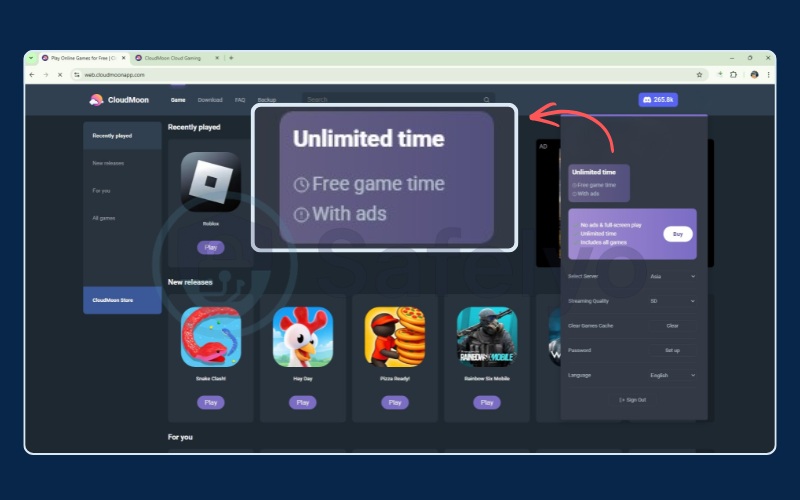
Cloudmoon performed slightly better; it was still a bit laggy, but it offered the benefit of unlimited playtime.

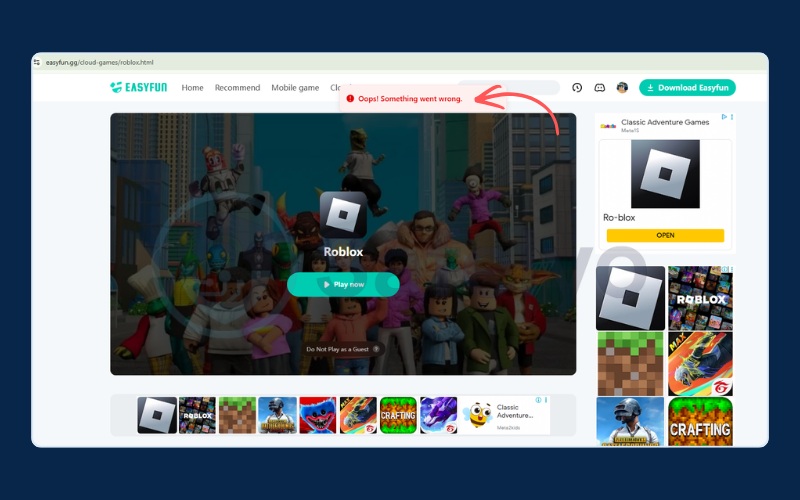
Meanwhile, easyfun.gg failed entirely, as the loading bar reached 100 percent only to display an error message.
While now.gg offers reliable performance, its free version restricts you to five minutes of playtime initially. You will need to watch an advertisement to receive a coupon for an extra 20 minutes of gaming. If you have some extra money, you can purchase nowPremium. This subscription gives you unlimited playtime without any advertisements.
Follow these steps to get your now.gg coupon:
- Click the pink box on the left side of the game screen to open a new tab.
- Select Generate coupon in the box on the right side.
- Wait for the one-minute advertisement to finish playing.
- Copy the generated code and paste it back into the left box on your original game screen.


Here are the pros and cons of using cloud gaming platforms:
| Pros | Cons |
|---|---|
|
|
Ultimately, cloud gaming is a practical and secure option for playing on school computers, as it requires no installation or administrator rights.
3. Method 2: Install a free VPN browser extension
Quick step:
- Search for a trusted free VPN like ProtonVPN on the Chrome Web Store.
- Click Add to Chrome to install the extension.
- Open the extension and, choose create account & select Sign up for free to register an account.
- Log in to your new account and click Connect.
- Navigate to the Roblox website.
Full VPN applications usually require administrator passwords to install. However, Chrome extensions can often bypass this restriction on unmanaged devices. A free VPN extension changes your virtual location and hides your activity from the school network.
We recommend using the free tier of a trusted service like ProtonVPN. It provides good security and maintains a clear privacy policy.


Many school IT departments actively block the Chrome Web Store on managed Chromebooks. If you find that the store is restricted, you will need to switch to Method 1 or Method 4 to play.
Consider these pros and cons before installing a VPN extension:
| Pros | Cons |
|---|---|
|
|
4. Method 3: Use a free web proxy (high risk)
Quick step:
- Go to a free proxy website.
- Locate the URL search bar on the page.
- Type roblox.com into the box.
- Click the Go or Search button.
- Wait for the page to load through the proxy.
Web proxy sites are easy to access, but they come with significant risks. When you type your password into a proxy, the proxy owner can potentially see your login details. This makes your account highly vulnerable to theft.
Additionally, using a free web proxy is often highly unstable. Even if you connect, playing games frequently results in significant lag. We strongly advise against using a proxy for competitive gaming.
I tested this method using Croxy Proxy. I successfully loaded the Roblox homepage, but the site refused my login attempt. Trying to create a new account was also completely unresponsive. This clearly shows that proxy connections can be unreliable and unstable.

Review the pros and cons of using a web proxy:
| Pros | Cons |
|---|---|
|
|
5. Method 4: Connect to a phone hotspot (zero network filter)
Quick step:
- Disconnect your computer from the school Wi-Fi.
- Turn on the Mobile Hotspot on your phone.
- Connect your computer to your phone’s network.
- Open your browser and go to Roblox.
Connecting a school computer to your personal mobile data is a highly effective way to bypass network-level restrictions. Because you are no longer using the school’s internet, their Wi-Fi filters cannot block your access.
However, there is a crucial catch for school-issued devices like managed Chromebooks. Schools often install device management software (MDM) that tracks your screen time, app usage, and browsing history. This tracking works regardless of the network you use, including your private hotspot.
Here are the pros and cons of connecting to a personal hotspot:
| Pros | Cons |
|---|---|
|
|
Below are the steps to activate this feature on different mobile devices.
Step-by-step for iPhone (iOS)
Follow these instructions to share your iPhone data:
- Open the Settings app on your iPhone.
- Tap on Personal Hotspot.
- Toggle the Allow Others to Join switch to the green on position.
- Find the network name on your computer and enter the password.

Step-by-step for Android
Follow these instructions to share your Android data:
- Open the Settings app on your Android phone.
- Tap on Network and Internet.
- Tap Wi-Fi hotspot and turn the switch on.
- Connect your computer using the displayed network name and password.

6. 4 essential safety rules for playing Roblox at school
We want you to have fun, but we also want to protect your accounts and your device privileges. Breaking network rules can lead to trouble if you are not careful.
Keep these four strict rules in mind to stay safe:
- Never use your main account on a web proxy. Sketchy proxy sites can easily steal your login credentials, causing you to lose all your hard-earned items.
- Always log out and clear your cache. If you use a shared Windows lab computer, leaving your account logged in allows the next student to access it.
- Only play during breaks. Teachers visually catching you playing during class is the most common way students get in trouble, not IT network monitoring.
- Never download shady unblocker files. Avoid executable (.exe) files from YouTube tutorials, as they frequently carry malware that will infect the school computer.
7. Why is Roblox blocked in school?
It can be frustrating when you try to load your favorite game during a free period, only to see a block screen. However, school administrators do not block these sites just to ruin your fun. They have specific technical and safety reasons for restricting access to gaming platforms.
Here are the three main reasons why your school network restricts gaming websites:
- Conserving network speed: Many students playing graphical games simultaneously can overload the internet capacity. This slows down the connection for everyone trying to complete classwork.
- Preventing classroom distractions: It is tempting to play games instead of listening to a lecture. Blocking these sites helps keep students focused on their assignments during school hours.
- Maintaining online safety: Schools are often legally required to protect students from unmoderated online spaces. Administrators block open chat features to prevent exposure to inappropriate content.
8. What happens if you get caught unblocking Roblox at school?
Before you try to bypass the network, you should understand what the school IT department can actually see. They might not see exactly what you are playing, but they can see you are using a proxy or a VPN tunnel.
They can also spot unusually high data usage coming from your device. This often alerts them that something unauthorized is happening.
If you get caught, the disciplinary actions can be frustrating. Realistic consequences include device confiscation, losing your Wi-Fi privileges for the semester, or even after-school detention. You should weigh these detection risks carefully before choosing a method.
Read more:
9. FAQs about how to unblock Roblox on a school computer
How to unblock Roblox on a school computer without VPN?
If you cannot install a VPN, you have three common alternatives. You can use a cloud gaming platform directly in your browser. You can also connect to your phone’s mobile hotspot, or use a web proxy like hide.me for quick checks.
Can I use a portable browser on a USB drive to unblock Roblox?
This method is generally ineffective today. School IT departments strictly disable USB port execution on shared Windows computers. Furthermore, USB executable files do not work natively on ChromeOS devices or school Chromebooks.
Is it against school rules to unblock Roblox?
Yes, bypassing network security frequently violates your school’s acceptable use policy. If caught, you could face consequences like losing computer access or receiving detention. You should always consider the risks before attempting to bypass the filters.
Can I use now.gg to play Roblox on a school Chromebook for free?
Yes, using now.gg is free and is a highly recommended method for Chromebooks. It streams the game through your browser, so you do not need to download any apps or bypass administrator blocks.
Will using a VPN or proxy get me banned from Roblox?
Using a standard VPN will not usually get your account banned by Roblox. However, if you use a sketchy proxy or a low-quality free VPN that has been flagged for malicious activity, Roblox might temporarily block that specific IP address.
Why does Roblox keep getting blocked even when I use a VPN?
Schools often use advanced firewalls that detect and block known VPN traffic. Additionally, Roblox itself might ban the IP addresses of popular free VPNs to prevent abuse. If this happens, you will need to try a different server or method.
What’s the safest way to unblock Roblox at school without getting caught?
Connecting to your phone’s mobile hotspot is a very private method because it disconnects you from the school’s Wi-Fi entirely. However, remember that school-issued computers often have internal tracking software installed. On those managed devices, administrators can still see your browsing history even if you use your own cellular data.
10. Conclusion
Learning how to unblock Roblox on a school computer is easy with the right methods. You now have four great free options to bypass strict network filters safely. Choose from cloud gaming, a free VPN extension, a quick web proxy, or a phone hotspot.
If you are on a heavily managed school Chromebook and have no budget, we suggest sticking to the cloud gaming method. It is a practical route that avoids downloading any suspicious files.
However, always keep our essential safety rules in mind. Remember to log out completely when your lunch break is over, clear your browser cache, and never risk your main account credentials on unverified proxy sites. Making smart choices ensures you keep your computer privileges intact while still having fun.
To discover more fascinating tips and useful guides, visit Tech How-To Simplified at Safelyo.