Picture this: You’ve just settled into your hotel room in Paris or a business suite in New York, ready to catch the big NFL game. You fire up the app, and… boom! That dreaded “Outside of Home Area” error hits you. How to watch YouTube TV while traveling?
Here is the reality: Official rules state that domestic travel changes your local lineup, while international travel cuts you off completely. Learning how to watch YouTube TV while traveling effectively requires more than just luck.
If you are rushing to fix your stream before the game starts, here are the fast answers you need:
- Does YouTube TV work internationally?
→ No. Officially, it is blocked outside the US. You need a VPN to bypass the restriction. - Why doesn’t my VPN work on mobile?
→ Phones enforce a GPS location check that most VPNs cannot bypass. - What is the best device for traveling?
→ A Laptop or Fire TV Stick. They lack GPS chips and rely only on IP addresses, making them easy to unlock with a VPN. - How do I fix local channels in the US?
→ Update your “Current Playback Area” in settings. Do not change your “Home Area”. - How do I bypass the 90-day check-in?
→ Use NordVPN Meshnet to route your traffic through your home computer remotely.
Quick Answer: The 60-second decision tree
Confused about why your stream isn’t working? Find your scenario below for the fastest fix:
- Traveling Inside the US?
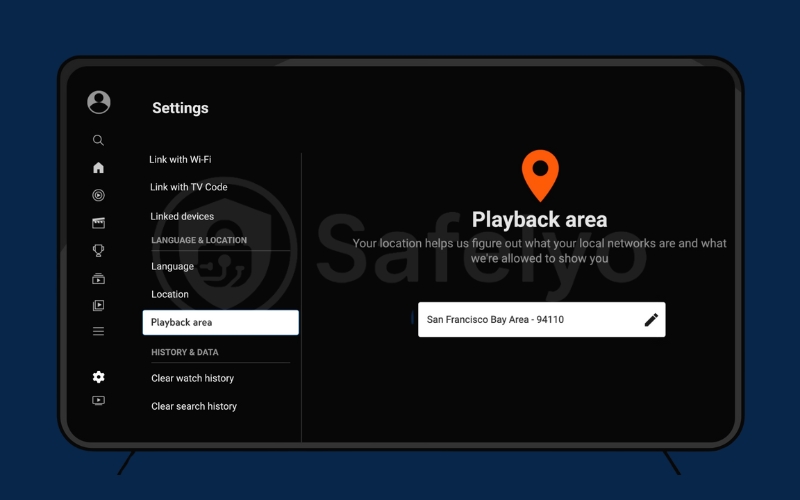
- The Fix: Go to Settings > Location and select Update “Current Playback Area”. This is the official method to access local channels where you are.
- Traveling Internationally?
- The Fix: Officially, the service is unavailable. You will need a reliable VPN to route your traffic back to the US.
- Which Device Are You Using?
- Phone/Tablet: Difficult. The app forces a GPS check that most VPNs cannot bypass. Recommendation: Switch to a laptop.
- Laptop / Fire TV Stick: Easy. These devices only verify your IP address, making them much easier to unblock with a VPN.
In this guide, I’ll walk you through specific fixes for every scenario, help you solve the tricky mobile GPS hurdle, and even show you how to handle the “90-day check-in” remotely. Let’s fix your stream.
1. Why YouTube TV blocks you (The official rules)
Understanding the “why” makes fixing the “how” much easier. YouTube TV isn’t trying to make your vacation difficult on purpose. It is bound by strict licensing agreements with local broadcasting networks (often called Local Affiliates). These contracts dictate exactly where specific content (especially live sports and local news) can be shown.
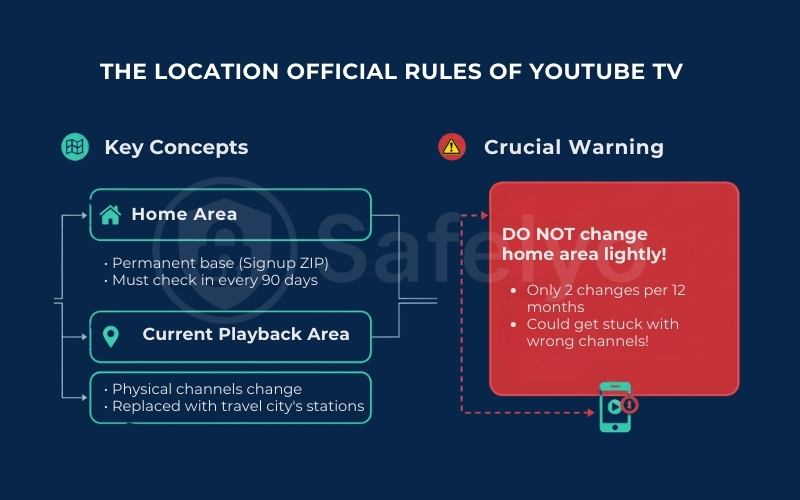
To manage these restrictions, Google splits your location data into two distinct concepts:
- Home Area: This is your permanent base, tied to the zip code where you originally signed up. To keep your account in good standing, you must check in from this location at least once every 3 months (90 days). If you are a sports fan wanting to watch MLB games, the rule is even stricter: You need to log in from home every 30 days to avoid game blackouts.
- Current Playback Area: This is where you physically are right now. When you travel domestically, the app detects your new location. Your “home” local channels (like your specific ABC, NBC, or FOX affiliate) will disappear and be replaced by the local stations of the city you are visiting.
Crucial Warning
When facing an error, you might be tempted to just go into settings and change your “Home Area” to your current location. Do not do this lightly. Google only allows you to change your official Home Area twice per 12-month period. If you use up these changes during a short trip, you could be stuck with the wrong local channels – and no way to switch back – when you return home.
2. How to watch YouTube TV while traveling
2.1. Scenario 1 (Inside the US): Traveling domestically
Traveling within the United States is the easiest scenario because you are technically still within the service’s supported region. However, the experience isn’t seamless, and you will notice changes to your channel lineup immediately.
What still works
The good news is that the bulk of your subscription travels with you. National networks (such as CNN, ESPN, TNT, and FX) remain fully accessible regardless of where you are in the country. Additionally, your DVR library remains intact. You can stream programs you have already recorded without any restrictions.
What changes (The local channel switch)
Here is where users often get confused. Because of the local affiliate rules I mentioned earlier, your live channel lineup will shift to match your physical location.
For example, if you travel from New York to Miami, your “Local” tab will automatically update to show Miami news and weather stations. You cannot watch your home city’s local news broadcast live while you are away.
Pro Tip: If you have set a recording for a program on your home local channel, you can still watch it, but only after the recording has finished. You cannot watch it while it is being recorded live.
How to fix the "Wrong location" error
If you arrive at your hotel and the TV still thinks you are back home (or blocks playback entirely), you need to manually refresh your status.
Step-by-step: Update your current playback area
- Open the YouTube TV app on your TV or streaming device.
- Select your Profile Photo in the top-right corner.
- Navigate to Location > Current Playback Area.
- Click Update.
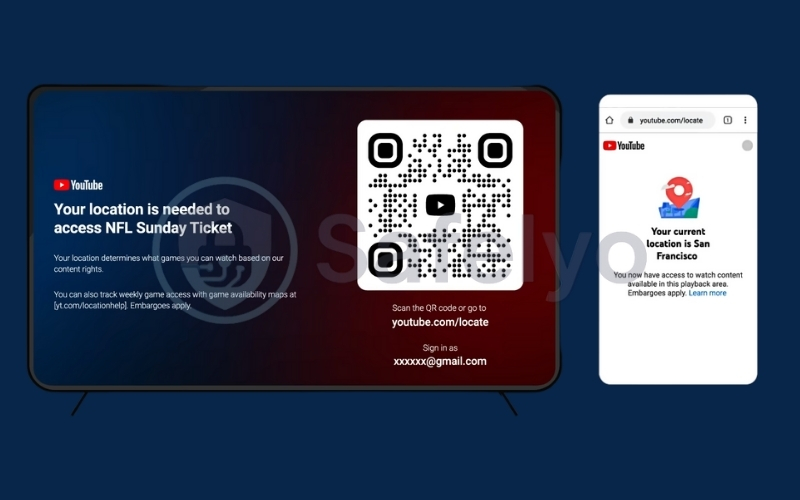
Important: On your smart TV, you will likely be prompted to visit tv.youtube.com/verify on your mobile device. Make sure your phone’s Location Services (GPS) are turned ON so Google can verify your physical presence in the new city.
Once verified, your lineup will refresh with the local channels appropriate for your destination.
2.2. Scenario 2 (Outside the US): Traveling internationally
If you are reading this while sitting in a hotel room in London, Tokyo, or Cabo, you have probably already encountered the digital roadblock. Unlike domestic travel, where your channels just shuffle around, international travel triggers a hard stop.
The official rule: A total blackout
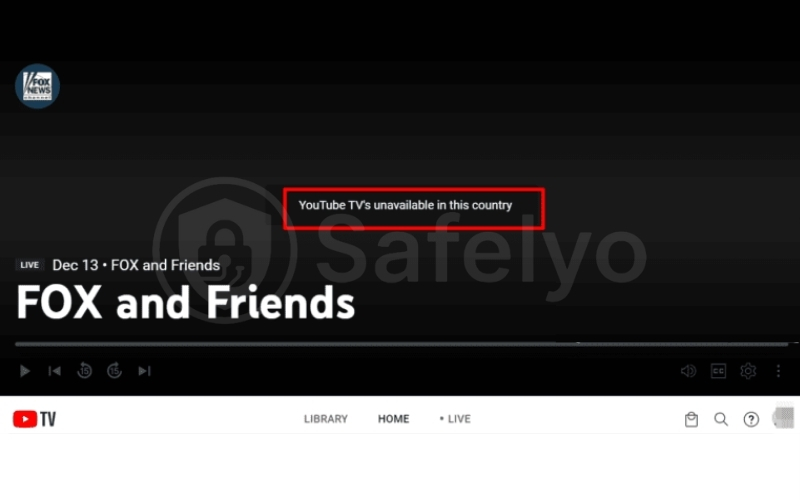
Officially, YouTube TV is a US-only service. The moment your internet connection originates from outside the 50 states, the service cuts you off completely. You won’t just lose local channels; you’ll lose access to the entire app, including your DVR library. The screen simply says: “YouTube TV is unavailable in this country.”
Can you watch YouTube TV recordings abroad?
Short answer: Not online, but there is one important exception.
Officially, YouTube TV does not allow you to stream your Cloud DVR recordings online once you leave the US. However, if you subscribe to the 4K Plus add-on, you can download DVR recordings to your mobile device before traveling and watch them offline anywhere in the world.
How the restriction works: YouTube TV checks your location at the moment of playback, not just at the moment of recording. Even if you recorded a show while sitting in your living room in Chicago, if you try to press “Play” while in Tokyo, the app detects your foreign IP address and blocks the stream immediately. The geo-restriction applies to your entire library, just like live TV.
What about downloaded DVR recordings?
There is one important exception to the international blackout rule that many travelers overlook.
If you subscribe to YouTube TV’s 4K Plus add-on, the service allows you to download DVR recordings and on-demand content to your mobile device before you leave the United States. Once a recording is downloaded, you can watch it offline anywhere in the world, even with Airplane Mode turned on.
Because playback happens locally on your device, YouTube TV does not perform an IP or GPS location check during offline viewing. This means downloaded recordings remain accessible abroad without a VPN and without an internet connection.
However, there are strict limitations to be aware of:
- You must download the content while still in the US. Downloads are not available once you’re already abroad.
- This feature is only available with the 4K Plus add-on.
- Offline viewing works only on supported mobile devices (phones and tablets), not on TVs or streaming sticks.
- Streaming your Cloud DVR online from abroad is still blocked, unless you use a VPN or a remote home-IP setup.
Bottom line: Downloaded DVR recordings are a legitimate, policy-compliant way to watch YouTube TV content abroad – but only for offline viewing and only if you prepare before your trip.
The reality: That said, the mechanism for blocking recordings is the same as blocking live TV. Travelers consistently report that once they successfully mask their location to appear inside the US (using the device setup below), their DVR library becomes accessible again.
The workaround: Virtual teleportation
While Google doesn’t support it, the practical workaround is using a Premium VPN (Virtual Private Network). A VPN masks your actual foreign IP address and replaces it with a US-based one, tricking the service into thinking you are still on American soil. However, not just any setup will work. YouTube’s detection algorithms are aggressive, and this is where most travelers fail.
Reality check: Is using a VPN allowed?
Before you proceed, you should know the official stance. YouTube TV does not officially support or allow the use of VPNs or proxies.
According to their Terms of Service, Google reserves the right to block playback if they detect you are trying to circumvent geographic restrictions. This is why users often encounter the infamous error message: “We’ve detected a proxy or VPN. Please turn it off to watch.”
In practice: While thousands of travelers use VPNs successfully every day, it is a cat-and-mouse game. A VPN server that works today might get flagged tomorrow. This is why using a premium provider (like the ones recommended below) is crucial – they constantly update their IP addresses to stay one step ahead of these blocks. Proceed at your own risk.
My “golden rule” for success: Choose the right device
Through my own testing on various trips, I’ve found that hardware choice is the single most important factor. I strongly recommend watching on a Laptop (via a web browser) or a Fire TV Stick.
Why? It comes down to hardware:
- Laptops and Fire TV Sticks generally do not have built-in GPS chips. Because they lack physical location hardware, YouTube TV has to rely solely on your IP address to guess where you are.
- If your VPN successfully changes your IP to “Chicago”, your laptop has no secondary way to contradict that information. The browser simply accepts that you are in Chicago, and the stream loads.
>> You may also be interested in: 5 best VPN for travelers in 2026 (Domestic & International)
The Strategy:
- Connect your VPN to a US Server (preferably near your actual Home Area if possible).
- Open your browser (Chrome or Edge) or the Fire TV app.
- Log in. Since there is no GPS data to reveal your actual location in Paris or Rome, the system usually grants access immediately.
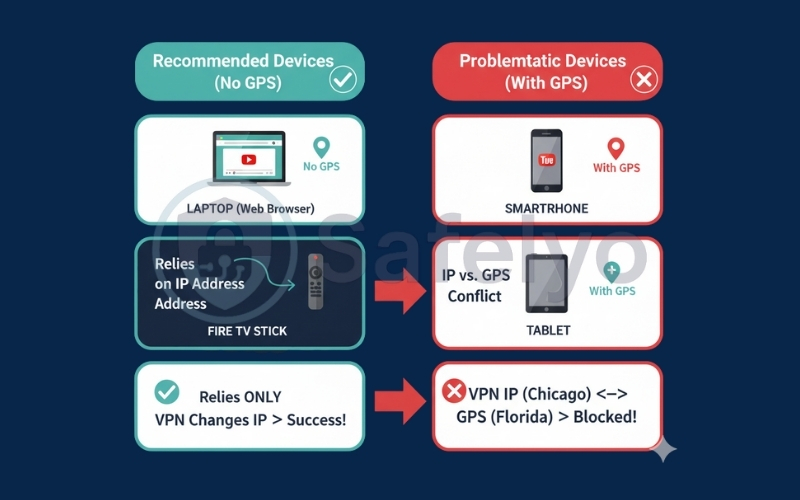
If you try this on a smartphone, you will likely fail. I will explain exactly why in the next section.
3. The mobile GPS hurdle: Why VPN isn’t enough on phones
This is the exact point where most travelers get stuck. You bought the premium VPN, you connected to a US server, and you launched the YouTube TV app on your iPhone or Android… only to see the same error message.
The Conflict: IP Address vs. GPS Coordinates
Here is the technical reality that most “quick fix” guides ignore: YouTube TV’s mobile app is smarter than its desktop counterpart.
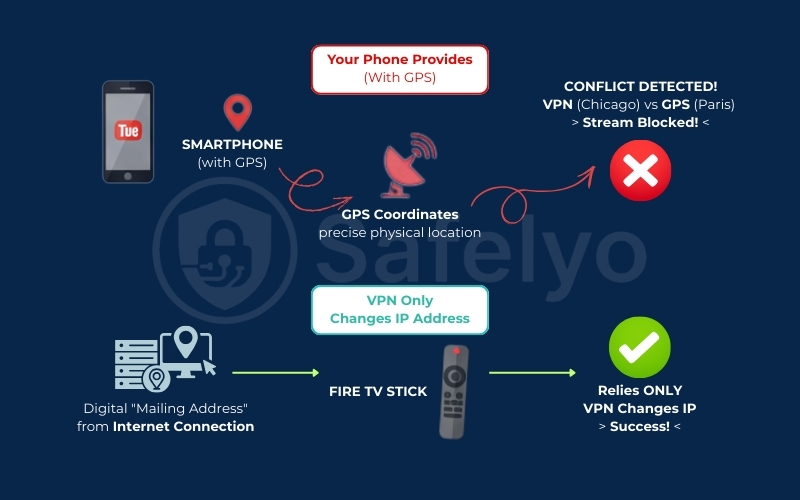
- A VPN only changes your IP Address. This is your digital “mailing address” provided by the internet connection.
- Your phone provides GPS Coordinates. This is your precise physical location derived from satellites and nearby Wi-Fi networks.
When you open the app on iOS or Android, it forces a check of your device’s Location Services. If your VPN says you are in Chicago (IP), but your phone’s GPS chip tells the app you are standing near the Eiffel Tower, the system instantly detects the conflict. It flags your account for using a proxy and blocks the stream.
My honest advice: Skip the phone
Unless you are technically inclined and willing to tinker, I strongly advise against trying to watch YouTube TV on a smartphone while abroad. The frustration usually isn’t worth the effort. The “Path of Least Resistance” is to simply pack a laptop or a Fire TV Stick, which (as mentioned earlier) bypasses this GPS check entirely.
Advanced Fix: GPS Spoofing (Android Only)
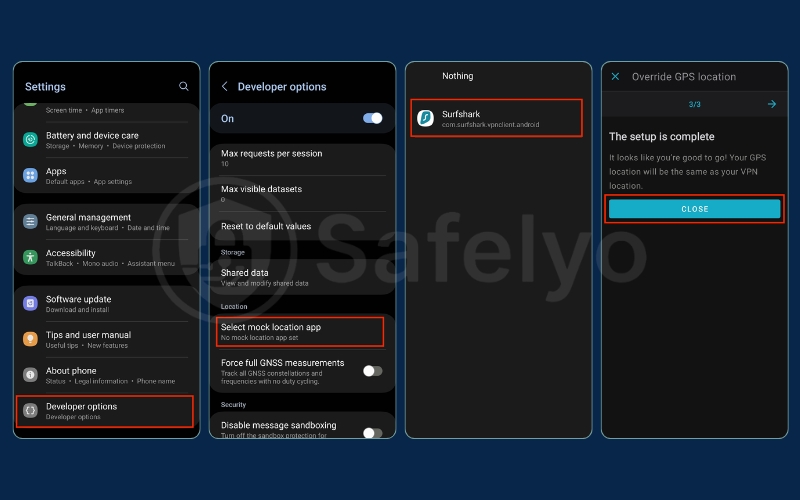
If you absolutely must watch on your mobile device, Android users have a slight loophole called “Mock Locations”. This allows you to force your phone to report a fake GPS location that matches your VPN server.
- Download a Fake GPS app (like “Fake GPS location”).
- Enable Developer Options on your Android phone.
- Select the app as your Mock Location App.
- Set the pin on the map to the exact same city as your VPN server.
Warning: This is complex, unstable, and often breaks with new Android updates. For iPhone users, this is virtually impossible without “jailbreaking” or tethering to a computer. Save your sanity – use your laptop.
4. How to handle the “90-day check-in” rule (For digital nomads)
For snowbirds, digital nomads, and long-term travelers, YouTube TV’s 90-day check-in rule is a ticking time bomb. As mentioned earlier, Google requires you to use the app from your designated “Home Area” at least once every three months. If you fail to do this, your account may be restricted, and you will lose access to your local channels until you return.
So, how do you “return home” without buying a plane ticket?
Option A: The "family assist" (low-tech)
The simplest solution requires human help. If you have family members or roommates still living at your registered address, simply ask them to log in to your YouTube TV account on a Smart TV or computer connected to your home Wi-Fi.
Why it works: Google just needs to see activity on the account originating from that specific zip code. Once they log in and watch a few minutes of TV, the 90-day timer resets, buying you another three months of freedom.
Option B: The tech-savvy route (NordVPN Meshnet)
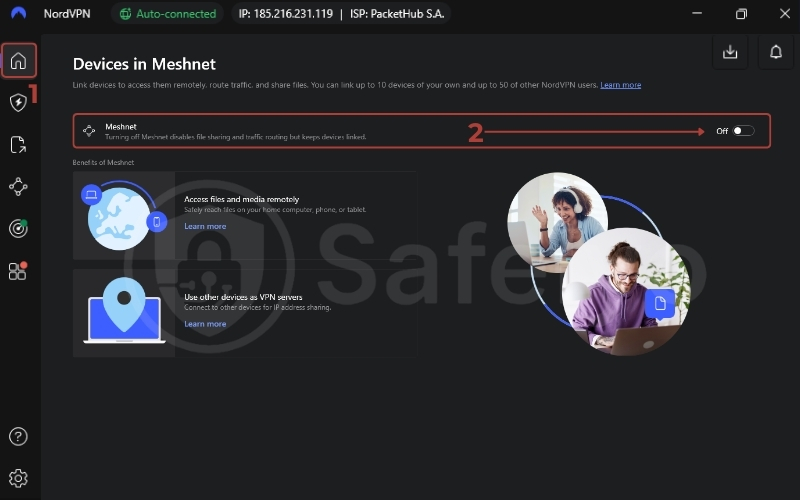
If you live alone or don’t want to bother anyone, the best technical workaround is NordVPN’s Meshnet. Unlike a standard VPN connection that routes you through a server in a random data center, Meshnet allows you to route your traffic through your own device.
- Leave a computer (PC or Mac) turned on and connected to the internet at your home before you leave.
- Install NordVPN on both that home computer and your travel laptop.
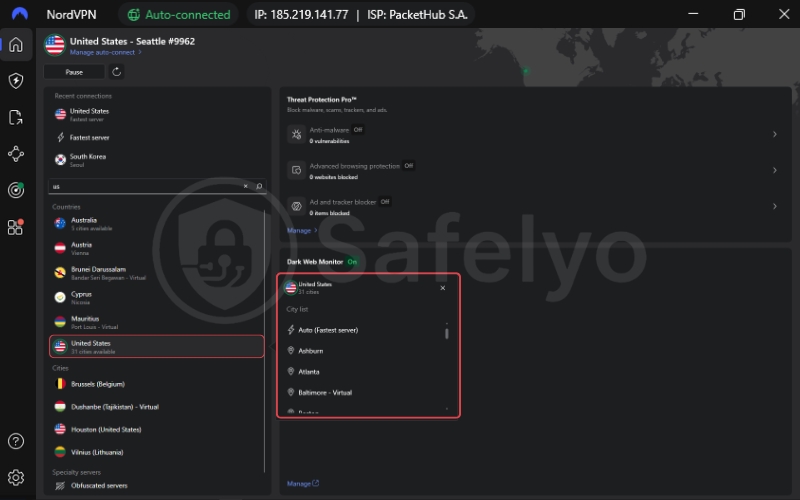
- Enable Meshnet and connect your travel laptop to the home computer.
The result? YouTube TV sees your traffic coming directly from your residential home IP address, not a commercial VPN server. It completely fools the system into thinking you are sitting on your couch, allowing you to perform the check-in from halfway across the world.
5. Best VPNs for YouTube TV in 2026 (Tested)
Not all Virtual Private Networks can outsmart Google’s detection algorithms. After extensive testing specifically for YouTube TV’s aggressive blocking, these three providers stand out for their reliability, speed, and specific features that solve the problems mentioned above.
#1. NordVPN – The Overall Champion
This is my top recommendation for 90% of travelers. NordVPN has the largest network of US servers, meaning if one city gets blocked, you have hundreds of alternatives.
Why it wins: The standout feature is Meshnet. As explained in the “90-day rule” section, this is the only reliable tool that lets you route traffic through your home PC, solving the dreaded home check-in requirement without needing technical skills.
#2. ExpressVPN – Best for Fire TV & Routers
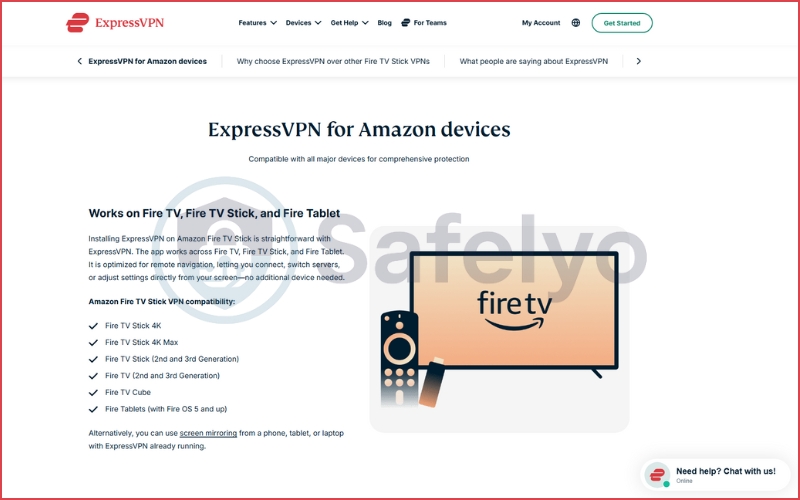
If you prefer watching on a TV screen rather than a laptop, the top-tier VPN for Firestick is ExpressVPN, which is the king of compatibility. Its native app for Amazon Fire TV Stick is incredibly intuitive and remote-control friendly.
Why it wins: It offers a custom firmware for routers (Aircove), allowing you to easily cover every device in your hotel room – even those that don’t support VPN apps natively, like older smart TVs or gaming consoles.
#3. Surfshark – Best Value & Android Users
Don’t let the low price tag fool you; Surfshark is a powerhouse. It allows unlimited device connections, making it perfect for families.
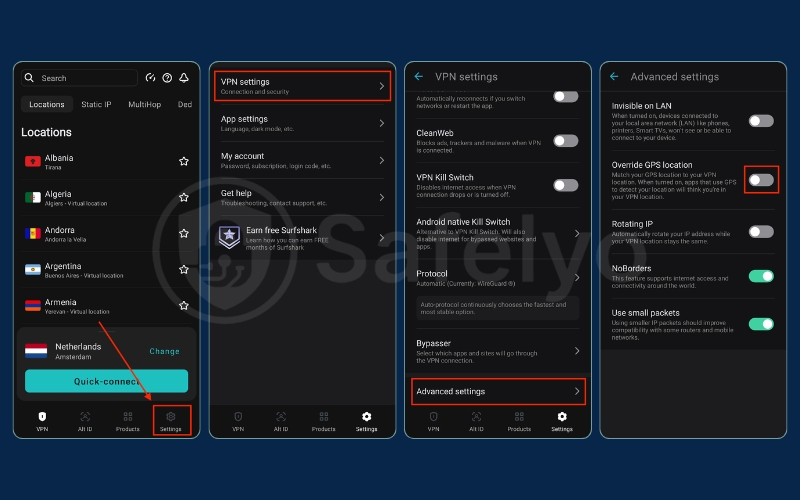
Why it wins: For Android users, this is the only choice. Surfshark has a unique, built-in GPS Override feature. It automatically matches your phone’s GPS location to the VPN server you choose, automating the complex “Mock Location” process I warned you about earlier.
6. Troubleshooting: “YouTube TV Proxy Detected” / Location Errors
Even with the best setup, technology can be temperamental. Google is constantly updating its detection methods, and sometimes a “perfect” connection stops working overnight. If you see an error message, don’t panic – try these fixes in order.
Error 1: "Outside of Home Area"
If you see this message, it usually isn’t a VPN failure; it’s a configuration oversight. The app simply thinks you are trying to access your home local channels from a new location.
- The Fix: As detailed in Scenario 1, go to Settings > Location and click Update Current Playback Area. This tells YouTube TV, “Yes, I know I’m in a new city; please give me the local channels for this area”.
Error 2: "YouTube TV Proxy Detected"
This is the dreaded message: “Audio/Video licensing restrictions” or “You seem to be using a VPN/Proxy.” It means Google has flagged your current VPN IP address. Here is how to scrub your digital footprint:
- Disable IPv6: This is a common technical leak. Most VPNs only mask your IPv4 address. If your customized internet connection uses IPv6, your real location might be leaking through. Go to your device’s network settings and disable IPv6 to ensure 100% of your traffic goes through the VPN tunnel.
- Clear Cache and Cookies: Your browser often holds onto “old” location data even after you turn on a VPN. Clear your browser’s cache and cookies (or open an Incognito/Private window) to force a fresh location check.
- The “Server Hop” Trick: Popular VPN servers (like “New York #1” or “Los Angeles”) get overcrowded and are easily flagged by Google. Disconnect and choose a less popular city – try a server in Salt Lake City, Phoenix, or St. Louis. These servers usually fly under the radar.
7. FAQs about watching YouTube TV while traveling
Can I watch YouTube TV while traveling internationally without a VPN?
No. YouTube TV enforces a strict geo-block. If your IP address originates from outside the 50 United States, the app will load, but the content will be locked with a “Video is not available in this country” error. You must use a VPN to mask your location, or simply stick to your downloaded DVR recordings (offline mode), which work for a limited time.
Why does YouTube TV work on my laptop but not my iPhone when I use a VPN?
This is the most common frustration for travelers. Mobile devices (iOS/Android) require the YouTube TV app to access your GPS coordinates to verify your location. A VPN only changes your IP address, not your GPS data. When the app sees a mismatch (IP says “New York”, GPS says “Paris”), it blocks the stream.
The Fix: Switch to a device that doesn’t have a GPS chip, such as a Laptop (via browser) or a Fire TV Stick. These devices rely solely on IP addresses, making them much easier to unlock with a VPN.
Does YouTube TV work on Fire Stick abroad?
Yes, and it is actually the best method. Because the Fire TV Stick does not have built-in GPS, it verifies your location based solely on your internet connection.
How to do it: Simply download the app for your chosen VPN (like NordVPN or ExpressVPN) directly onto the Fire Stick, connect to a US server, and then open the YouTube TV app. It usually works instantly.
How many times can I change my “Home Area”?
Only twice per year. Be very careful with this setting. Do not change your “Home Area” just because you are on a two-week vacation. If you do, you might get stuck with the wrong local channels when you return.
Correct Action: Instead of changing your Home Area, simply update your “Current Playback Area” in the settings. This is unlimited and designed specifically for travel.
Can I share my YouTube TV account with family living in a different state?
Officially, no. YouTube TV is intended for a single household. However, you can create a Google Family Group (up to 6 members).
The Catch: Each family member must log in from the manager’s “Home Area” (the main house) at least once every 3 months to keep their access active. If your family member lives permanently in another state and never visits, they will eventually be locked out unless they use the NordVPN Meshnet trick mentioned in this guide to digitally “check in” at your house.
Can I watch my YouTube TV recordings while abroad?
Yes, but only in one specific scenario.
If you have the 4K Plus add-on, YouTube TV allows you to download DVR recordings and on-demand content to your mobile device before leaving the US. Once downloaded, you can watch those recordings offline anywhere in the world, without triggering location or IP checks.
However, streaming your Cloud DVR online from abroad is still blocked, unless you use a VPN or remote access workaround.
Is using a VPN allowed on YouTube TV?
Officially no. YouTube TV may block playback if a VPN or proxy is detected.
8. Conclusion
Watching YouTube TV while traveling doesn’t have to be a headache, but it does require the right strategy. If you are traveling domestically, remember to update your Current Playback Area to catch local news. If you are heading abroad, leave the phone in your pocket and rely on your Laptop or Fire TV Stick paired with a robust VPN. Don’t let a “location error” ruin your game night – set up your access before you board the plane.
Ready to secure your stream? Right now, NordVPN is offering a massive discount for travelers. It’s the only tool that solves both the streaming block and the “90-day check-in” problem. Check for more use-case VPN Guides at Safelyo