It is a frustrating moment. You try to log in to your work network, stream a show, or just browse privately on school Wi-Fi, only to be met by a “VPN detected” error message. I have run into this myself. I was trying to use a public library Wi-Fi, and it blocked my VPN access completely until I used one of these methods.
This happens because many networks actively look for and block VPN connections. The good news is that you can almost always get around these blocks.
-
Switch VPN server
Connect to a different server in the same country. This gives you a new IP address that may not be on the network’s blocklist.
-
Change your VPN protocol
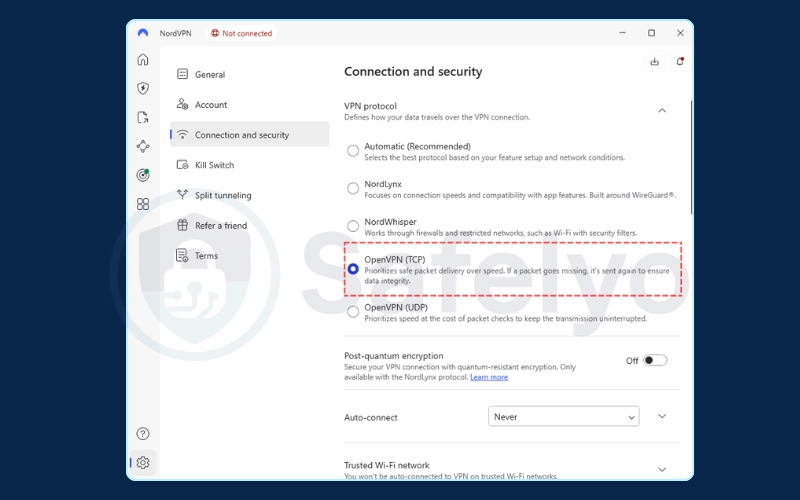
Go into your app’s settings and change the protocol. Switching from “UDP” to “OpenVPN (TCP)” often works.
-
Use obfuscated servers
Find the “Stealth” or “Obfuscation” setting in your app. This disguises your VPN traffic to look like regular web browsing.
-
Get a dedicated IP
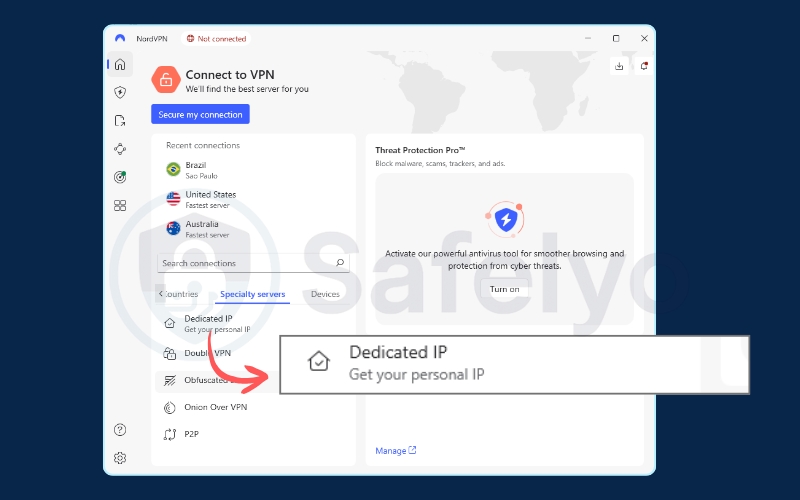
This is an IP address used only by you. It is rarely blacklisted and is the best way to avoid blocks on sensitive sites like banks.
-
Change your connection port
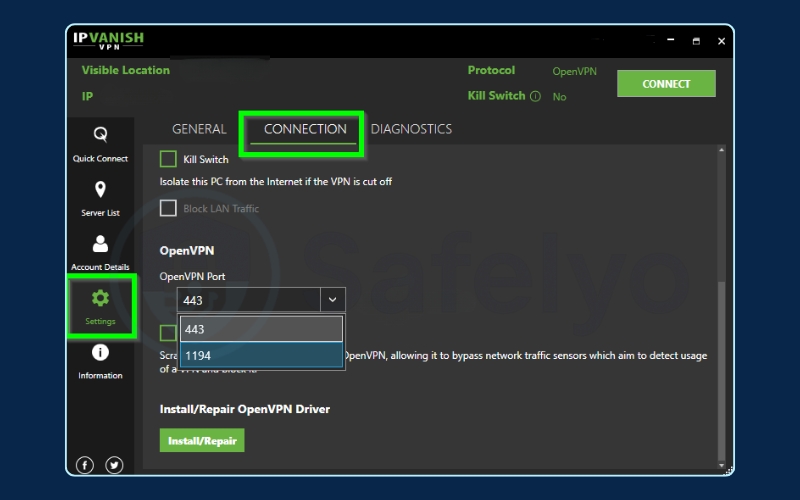
In your app’s advanced settings, change the connection port to 443. This port is used for secure websites and is almost never blocked.
-
Use a proxy (SOCKS5)
This is a simpler, less secure alternative. You can enter proxy details directly into your browser settings to change your location.
-
Route traffic through the Tor network
This “Onion over VPN” (or Tor over VPN) method adds extreme privacy but is very slow. It is only necessary for bypassing extreme censorship.
-
Switch to mobile data
Turn off Wi-Fi and use your phone’s 4G or 5G data. The local network’s rules do not apply to your mobile connection.
1. How to bypass VPN blocker: 8 proven methods
If your VPN is being blocked, the network is likely identifying your traffic in one of three ways: by your IP address, the connection port, or the “shape” of the traffic itself. These methods work by changing one of those three things to help you blend in.
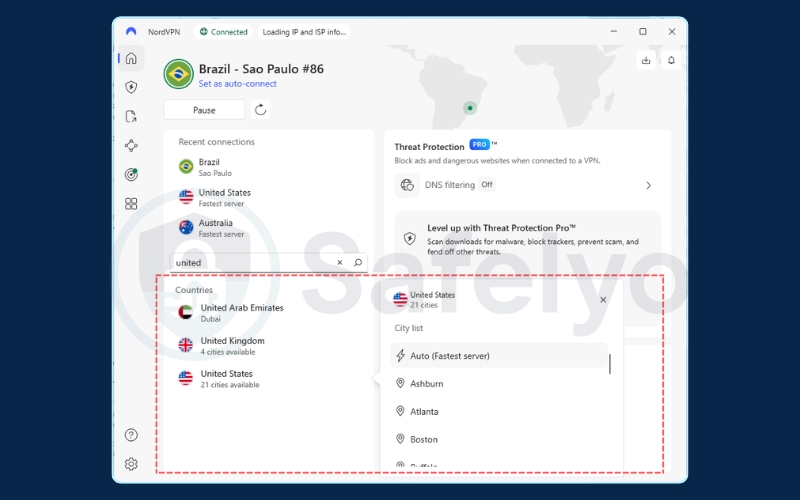
1.1. Method 1: Switch to a different VPN server
This is the fastest and easiest fix to try. Networks often block VPNs by creating a blacklist of known VPN server IP addresses. Since thousands of people use the same server, it is easy for a service like Netflix to spot and block that shared IP.
How to do it:
In your VPN app, just open the server list. If you are connected to “New York – Server #101,” disconnect and try “New York – Server #102” or a server in a different city like “Chicago.”
This gives you a new IP, and there is a good chance this new one is not on the blocklist.
1.2. Method 2: Change your VPN protocol (TCP vs UDP)
Think of protocols as the different “languages” a VPN can use to communicate. The default, UDP, is very fast, which is great for streaming. But it is also very distinct and easy for a network firewall to identify and block.
TCP, on the other hand, is a bit slower but much more reliable. It is like sending a registered letter that requires a signature, versus UDP, which is like sending a postcard.
How to do it:
Go to your VPN app’s settings menu, often found under an “Options,” “Connection,” or “Protocol” tab. The default is usually “Automatic” or “UDP.” Change this setting to OpenVPN (TCP).
This often solves the problem because TCP traffic can be set to use port 443, the same port all secure websites (HTTPS) use.
1.3. Method 3: Use obfuscated servers or stealth mode
This is the most powerful method for bypassing stubborn blocks. Obfuscation (or “stealth”) disguises your VPN traffic. It is like putting a “stealth cloak” on your data. To the network, your connection no longer looks like a VPN. It just looks like regular, boring, secure web browsing.
This method is specifically designed to defeat deep packet inspection (DPI), which is an advanced way networks “look inside” your data to find VPN signatures.
How to do it:
Look in your VPN’s settings for a toggle switch labeled Obfuscation, Stealth Mode, Scramble, or Stealth VPN. You may need to be using the OpenVPN protocol for this option to appear. Once you enable it, reconnect.
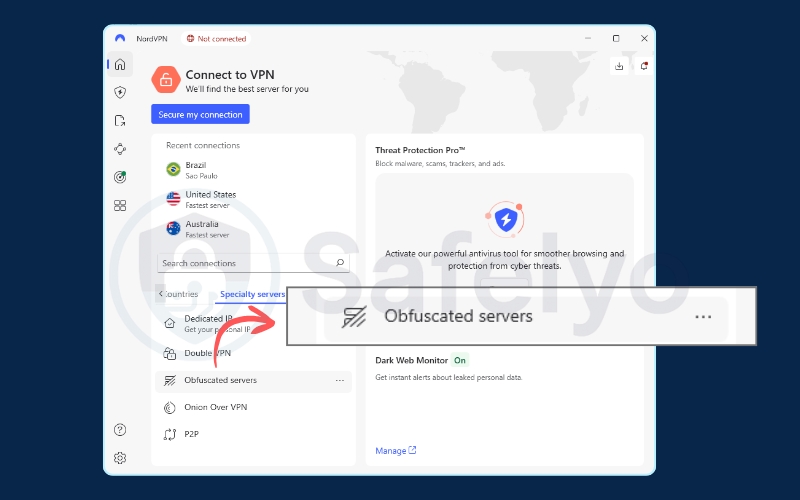
In my own tests, this was the most reliable fix. When I enabled “Stealth” mode, the college Wi-Fi that previously blocked my connection suddenly let it through. It felt like flipping an “invisible” switch.
1.4. Method 4: Get a dedicated IP address
A dedicated IP is an IP address that belongs only to you. It is not shared with thousands of other users. This is the best solution for two problems:
- Streaming: Services like Netflix cannot ban your IP, because it is not a known, shared VPN IP.
- Sensitive sites: Banks and financial sites often flag shared VPN IPs as suspicious, which can get your account locked. I use a dedicated IP to access my online banking when traveling. It never triggers a fraud alert because the bank sees me logging in from the same “home” IP every time.
How to do it:
This is almost always a paid add-on. You buy it from your VPN provider through your account dashboard. They assign you an IP, and you find the “Dedicated IP” server location in your app’s server list.
1.5. Method 5: Change your connection port
Think of internet ports as different “doors” into a building. Networks often block the specific “doors” that VPNs are known to use. For the OpenVPN protocol, the standard port is 1194 (UDP), which is well-known and easy for firewalls to block.
The solution is to switch to a port that is always left open. The standard port for OpenVPN (TCP) is port 443, which is the exact same port used for all secure websites (HTTPS). No school, office, or country can block port 443 without blocking most of the internet.
This is a provider-specific feature. Not all VPN apps let you manually change your port. Many apps, like NordVPN, handle this automatically through their obfuscation settings.
How to do it (Example using IPVanish):
Follow these steps in the IPVanish app (on Windows or macOS):
- Make sure you are disconnected from the VPN.
- Go to the Settings section.
- Click on the “Connection” tab.
- Select “OpenVPN” as your active protocol.
- Change the “Protocol” option from UDP to TCP.
- A “Port” dropdown menu will become active. Choose port 443.
- Return to the main screen and reconnect. Your traffic is now using port 443.
1.6. Method 6: Use a proxy (SOCKS5 or Shadowsocks)
A proxy is a simple “middleman” server. It hides your IP address but does not offer the same strong encryption as a VPN. It is a lightweight way to get around simple geo-blocks. Shadowsocks is a special type of proxy built specifically to bypass censorship.
How to do it:
This setup is more manual. Some VPNs provide SOCKS5 credentials. You do not use the VPN app. Instead, you go into your browser’s settings (like in Firefox) or a download client and enter the proxy server address and login details manually.
Get Credentials: First, get SOCKS5 credentials from your VPN provider.
Example (NordVPN):
- Server/Port: NordVPN provides specific proxy addresses for SOCKS5. For example, a US server address might be us.socks.nordhold.net (or another from their list). The port is always 1080.
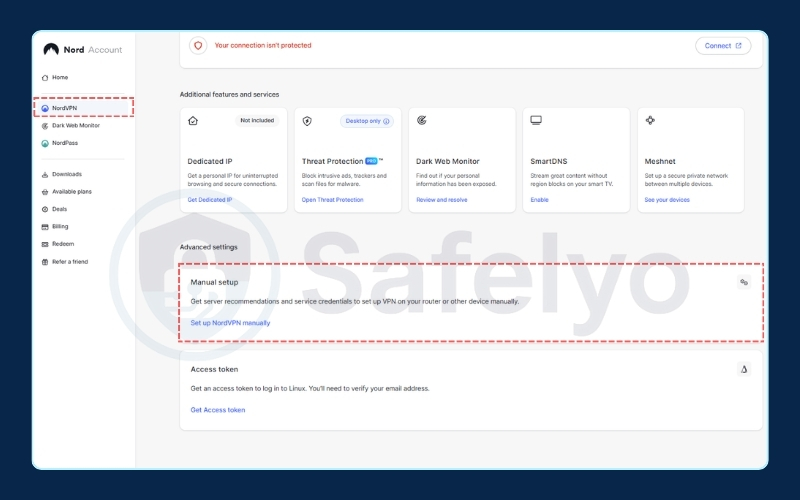
- Credentials: This is the most important step. You cannot use your normal email and password. You must find your service credentials.
- Log in to your Nord Account dashboard on their website.
- Go to the NordVPN service.
- Find the “Manual setup” section. (Under Advanced setting)
- Look for “Service credentials”.
- You will see a long, automatically generated Username and Password. You must copy these exact credentials to use for the proxy.
Example (Firefox Browser):
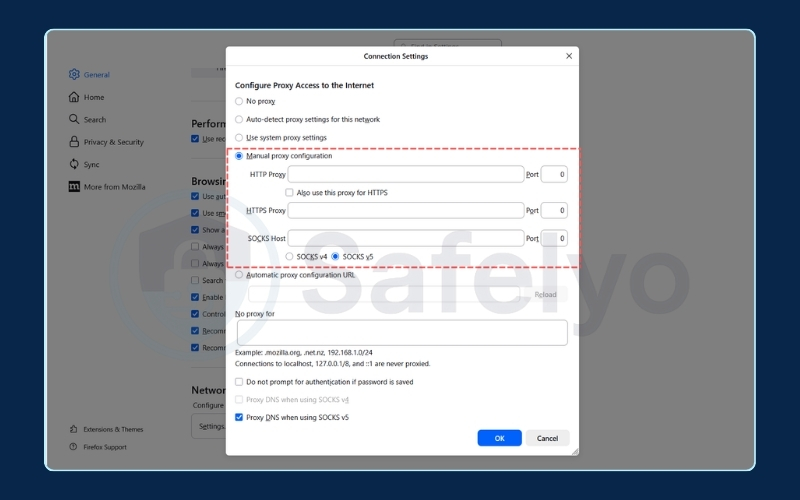
- Open Firefox, go to Settings.
- In the ‘General’ tab, scroll to the bottom to Network Settings and click Settings.
- Select Manual proxy configuration.
- In the SOCKS Host field, enter the server address from your provider.
- In the Port field, enter 1080.
- Make sure SOCKS v5 is selected.
- Crucial Step: Check the box for ‘Proxy DNS when using SOCKS v5’. This prevents your real location from being leaked.
- Click OK. The next time you browse, Firefox will ask for your SOCKS username and password.
1.7. Method 7: Route traffic through the Tor network
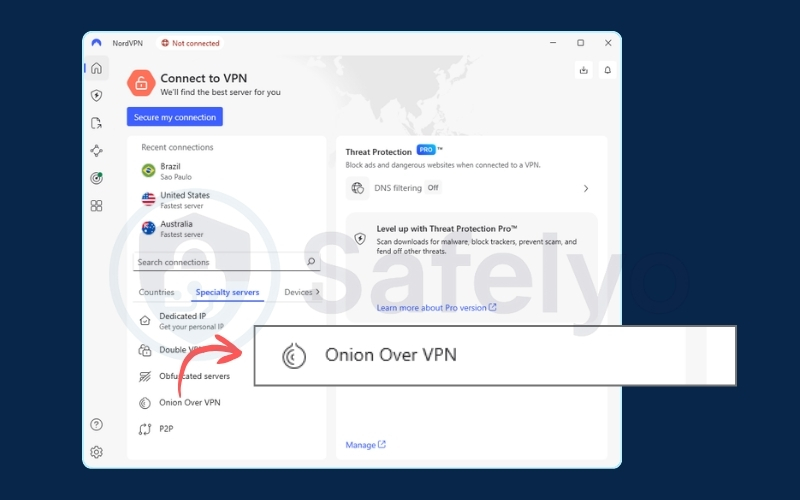
This is an extreme method, sometimes called “Onion over VPN“. It sends your already-encrypted VPN traffic through the Tor network, adding multiple extra layers of anonymity. This is not for streaming or browsing. It is very slow and is only necessary for journalists or activists bypassing extreme government censorship.
How to do it:
A few VPN providers offer this as a simple, one-click feature. You just select the “Onion over VPN” server from the app’s server list.
1.8. Method 8: Switch to mobile data
This is the simplest solution of all. The reason your VPN is blocked is because of the rules on the specific Wi-Fi network you are using. Your phone’s 4G or 5G connection is a completely different network with none of those rules.
How to do it:
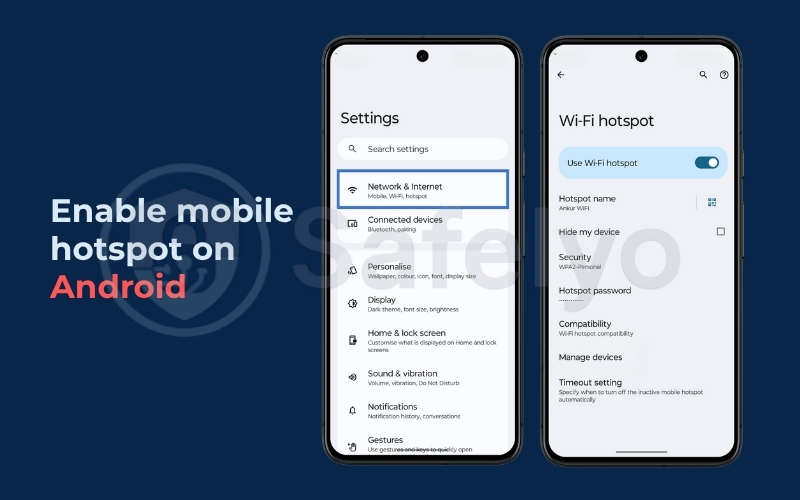
On your phone, simply turn off Wi-Fi. If you need to get your laptop online, turn on the “Personal Hotspot” or “Tethering” feature on your phone.
Then, connect your laptop to your phone’s new Wi-Fi hotspot.
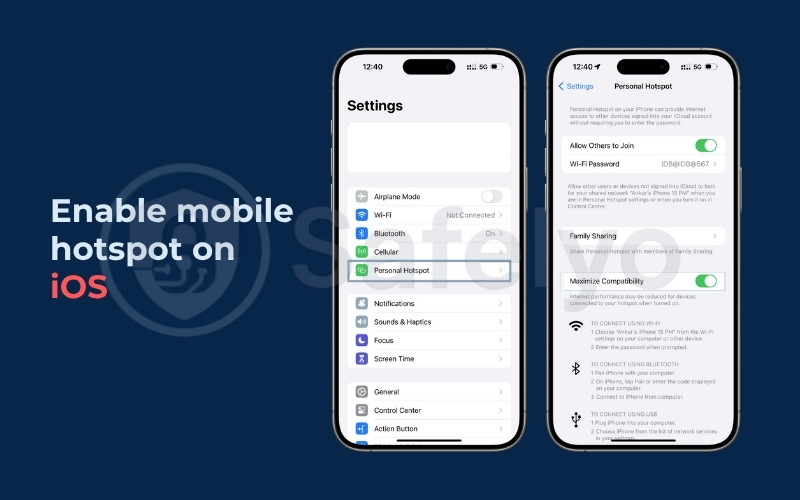
I have used this as a quick fix many times. When a public Wi-Fi is too restrictive, I just use my phone’s hotspot for a few minutes to get the important task done. It is not a permanent solution, but it is reliable in a pinch.
Here is a summary comparing the 8 methods to help you choose the right one:
| Method | Pros | Cons | Difficulty | When to Use |
|---|---|---|---|---|
| 1. Switch Server | Very fast and simple to do. | May not work against advanced blocks. | Easy | This should be the first method you try for any block. |
| 2. Change Protocol | Reliable. Using OpenVPN (TCP) can bypass simple firewalls. | Can be slightly slower than the default (UDP). | Easy | When switching servers fails. Good for most school or office Wi-Fi. |
| 3. Obfuscated Servers | Highly effective. The only way to beat Deep Packet Inspection (DPI). | Not all VPNs offer it. Can slow your connection. | Easy | For stubborn blocks in countries with censorship or on very strict networks. |
| 4. Dedicated IP | Almost never blacklisted. Stable and reliable. | Costs extra. Less anonymous (the IP is tied to you). | Easy | For accessing sensitive sites like banks or to reliably unblock streaming. |
| 5. Change Port (to 443) | Very effective against firewalls that block specific VPN ports. | Can be technical. Requires a VPN that supports this feature. | Medium | When you suspect the network is blocking all ports except standard web traffic. |
| 6. Use a Proxy | Lightweight and simple for some apps. | Much less secure (often no encryption). Easily blocked. | Medium | For simple geo-blocking where security is not a priority. |
| 7. Route through Tor | Provides maximum anonymity by adding multiple layers. | Extremely slow. Not practical for streaming or general browsing. | Easy | For extreme censorship cases where anonymity is more important than speed. |
| 8. Switch to Mobile Data | 100% effective at bypassing the local Wi-Fi block. | Uses your mobile data plan, which can be expensive. | Easy | As a quick, temporary fix when you need to get online immediately. |
2. Why is my VPN being blocked?
Networks block VPNs for several key reasons, ranging from enforcing content policies to protecting against security threats.
2.1. To enforce school or workplace policies
This is about productivity and bandwidth. Through network monitoring, schools block VPNs to prevent students from playing games or accessing social media on the school Wi-Fi. Workplaces do the same to keep employees focused and to prevent them from using up network bandwidth on streaming.
Read more:
2.2. To block geo-restricted content (streaming)
Streaming services like Netflix, Hulu, and BBC iPlayer are required by copyright agreements to show content only in specific countries. They enforce these content restrictions by detecting and blocking VPNs that try to bypass these geo-blocks.
2.3. To comply with government censorship
In some countries, internet service providers (ISPs) are legally required to block access to certain news sites, social media platforms, or political content. They also block the VPNs that people use to get around this censorship in search of online freedom.
2.4. To prevent fraud on financial sites
This is one “good” reason for a VPN block. As a fraud prevention measure, online banking portals and payment sites like PayPal often block known VPN IPs. They do this because criminals use VPNs to hide their location when trying to access stolen accounts.
3. How do networks identify and block VPNs?
A network blocker is like a digital bouncer. It uses three main techniques to spot and stop VPN traffic before it gets through.
3.1. IP address blocking (blacklisting shared VPN IPs)
This is the most common method. The bouncer just has a list of “unwanted guests.” Services like Netflix maintain huge blacklists of all the IP addresses they know belong to VPN providers. When you connect, they check your IP against the list and block you if it matches. This is why switching servers (Method 1) often works.
3.2. Port blocking (filtering common VPN ports)
This is like the bouncer guarding a specific door. Firewalls can be set to block traffic on the specific ports (digital “doors”) commonly used by VPN protocols, like port 1194 for OpenVPN. This is why changing your port to 443 (Method 5) is so effective, as that door is always open.
3.3. Deep packet inspection (DPI)
This is the most advanced method. The bouncer does not just check your ID (your IP); they open your bag (your data packet) to see what is inside. DPI can look at the “shape” and metadata of your traffic and identify the signature of a VPN, even if it is encrypted. This is the technique used by countries and strict networks. The only way to beat it is with obfuscation (Method 3).
4. Key VPN features that defeat blocks
If you are frequently getting blocked, look for a VPN that has these specific tools. They are designed to handle tough network restrictions.
4.1. Obfuscation (stealth technology)
This is the number one feature you need. It makes your VPN traffic invisible to DPI and firewalls. Look for terms like “Obfuscation,” “Stealth,” or “Scramble” in the feature list.
4.2. A large and diverse server network
More servers mean more IP addresses. If one IP gets blacklisted, a good provider will already have thousands of fresh, clean IPs ready for you to switch to.
4.3. Multiple protocol options
A good VPN will not just offer one protocol. It should give you options, including OpenVPN (both TCP and UDP), WireGuard, and IKEv2. This gives you more tools to find a “language” the network is not blocking.
4.4. Dedicated IP availability
This is the best (but often paid) solution for reliability. If you have an IP address that only you use, it will almost never be on a blocklist.
5. Are there risks to bypassing VPN blockers?
It is important to understand the risks. In most Western countries, bypassing a VPN block is not illegal. However, it can have other consequences:
- Violating terms of service: Bypassing a block on school or work Wi-Fi likely violates their “Acceptable Use Policy.” This could lead to a warning, suspension of network privileges, or other disciplinary action.
- Streaming service bans: Bypassing Netflix’s geo-blocks violates their terms of service. While they usually just block the connection, they technically reserve the right to suspend your account.
- Legal risks: In a few countries with heavy censorship (like China, Turkey, or the UAE), actively trying to bypass government firewalls can carry legal risks.
6. FAQs about how to bypass VPN blocker
Is it illegal to bypass a VPN block?
In most countries (like the US, UK, and Canada), no. It is not illegal. But it may violate the terms of service of your school, workplace, or streaming platform, which can have non-legal consequences.
Can Netflix detect and block my VPN?
Yes. Netflix is extremely good at blocking shared VPN IPs. The best way to fix this is to use a VPN that offers a dedicated IP address or one that is known for constantly refreshing its server IPs.
What is the best VPN protocol to avoid blocks?
OpenVPN (TCP) set to use port 443. This combination is very effective because it is designed to look exactly like the normal, secure traffic from any website (HTTPS).
Will a free VPN bypass blockers?
It is very unlikely. Free VPNs have small, overcrowded server networks. Their IPs are almost always the first to be put on a blacklist. They also lack essential features like obfuscation and dedicated IPs.
7. Conclusion
Getting past a VPN block might seem technical, but it is usually about trying a few simple changes to your connection.
This guide on how to bypass VPN blocker gives you 8 different tools to try, from simple (switching servers) to powerful (using obfuscation).
Here are the key takeaways:
- Always start with the easiest fixes: switch your server, then change your VPN protocol to OpenVPN (TCP).
- Use obfuscated servers (stealth mode) to hide your VPN traffic from advanced deep packet inspection (DPI).
- A dedicated IP is the most reliable way to access sensitive sites like banks that block shared IPs.
- As a last resort, use your phone’s mobile data to bypass local Wi-Fi rules completely.
It is a constant back-and-forth. What worked for me last month (like switching to port 443) might be blocked tomorrow. The key is having a VPN with multiple tools, like obfuscation and a large server list, so you always have a backup option.
For more practical VPN tips and step-by-step tutorials, check out our VPN Guides section on Safelyo.