If you’ve ever tried to access a streaming service abroad or wanted to protect your browsing activity on public Wi-Fi, you’ve likely realized the importance of a VPN. NordVPN makes this process simple, but knowing exactly how to log on and change location helps avoid errors and ensures stronger online privacy.
In this guide on how to log on to NordVPN and change location, you’ll learn:
- What to check before logging in to NordVPN
- How to sign in and switch your location in the app
- Device-specific steps for Windows, macOS, iPhone, Android, Linux, and Chrome extension
- How to choose the best server for speed and security
- Fixes for common login or location problems
Let’s begin with the essentials you should verify before signing in.
1. What to check before logging in to NordVPN
Before you log on to NordVPN and change location, it is important to confirm a few essentials. This step helps prevent login errors and makes sure the connection works smoothly.
- Verify your subscription and credentials: Make sure your NordVPN plan is active and that you have your account credentials available. If you use multi-factor authentication, check that your app or email code is accessible.
- Install or update the NordVPN app: Always keep the app updated to the latest version. Download the newest release from the official NordVPN website or your device’s app store.
- Choose between the app or browser extension: The full NordVPN app secures all traffic on your device. The Chrome extension only encrypts browser traffic. Select the option that fits your needs, whether that is full-device security or quick location changes for streaming services.
2. How to log on to NordVPN and change location in the app
Once you have checked your subscription and installed the app, logging in and switching your location is straightforward. The process is the same across most platforms, with only small variations depending on your device.
First, open the NordVPN app and sign in with your Nord Account credentials. If you have enabled multi-factor authentication, you will be asked to enter your verification code.
After logging in, you can pick how you want to connect:
- Use Quick Connect / Secure my connection: The app automatically selects the fastest server based on your location and server load. This is useful if you simply want a secure connection without manually browsing server lists.
- Manually choose a country or city: Use the search bar or scroll through the server list to select a location. For example, you can pick the United States to access American streaming services or a city like London for a UK-based IP address. This is ideal when you want more control over where your IP address appears.
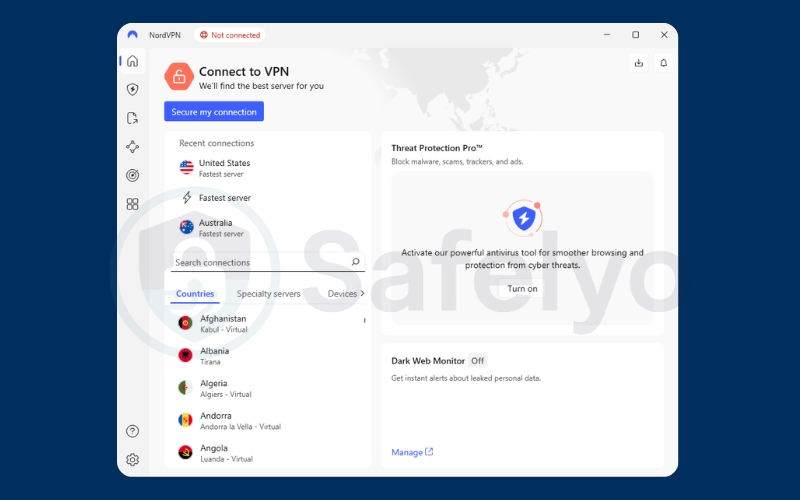
Both methods let you change your virtual location easily. The first gives you speed and convenience, while the second gives you flexibility if you need access to a specific country or service.
3. Device-specific steps to log on and change location with NordVPN
Depending on the device you use, the NordVPN login process and location change steps can look slightly different. Below are instructions for Windows, macOS, smartphones, Linux, and Chrome.
3.1. Windows and macOS
On desktop systems, NordVPN provides a full app with a server map and search function. To log in and change location, follow these steps:
- Open the NordVPN app on your computer.
- Enter your Nord Account credentials and complete multi-factor authentication if required.
- Click Quick Connect / Secure my connection to join the fastest server.
- If you need a specific location, open the server map or type a city name in the search bar.
On macOS, you can also use the top menu bar drop-down for a quick location switch without opening the full app.
3.2. iPhone and iPad
On iOS devices, the NordVPN app integrates directly with the system’s VPN settings. Here is how to log in and switch locations:
- Download the NordVPN app from the App Store.
- Log in with your Nord Account credentials.
- Tap Quick Connect to automatically join a nearby server.
- To choose manually, use the search bar and select a country or city.
When the connection is active, you will see the VPN status icon at the top of the screen.
3.3. Android devices
The Android app provides a map and list view for servers. To log in and change your IP address, follow these steps:
- Install the NordVPN app from Google Play.
- Sign in with your credentials.
- Tap Quick Connect for the best available server.
- To choose a location manually, tap the country list or use the server map.
A VPN key icon will appear in your notification bar once the connection is active.
3.4. Linux command line
Linux users manage NordVPN through the Terminal, which gives full control via commands. To connect and change your location:
- Install the NordVPN package for your Linux distribution.
- Open the Terminal and type nordvpn login, then follow the browser sign-in.
- Use NordVPN Connect for Quick Connect.
- To select a country, type nordvpn connect us (replace with your desired country code).
- For a specific server, use the format nordvpn connect us1234.
This is ideal for advanced users who prefer command-based control.
3.5. Chrome extension
The Chrome extension is a lightweight option for changing your virtual location inside the browser only. To log in and switch servers:
- Add the NordVPN extension from the Chrome Web Store.
- Log in with your Nord Account credentials.
- Click the NordVPN icon in the browser toolbar.
- Choose Quick Connect or select a country from the drop-down menu.
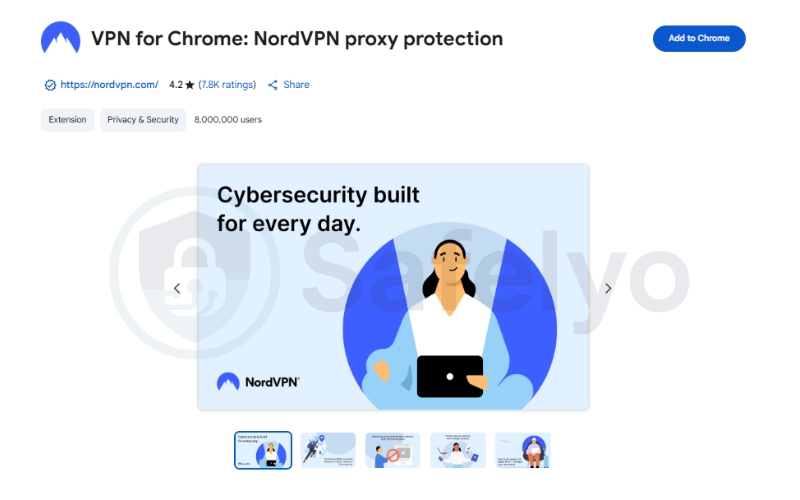
This option is quick for streaming or browsing when you only need browser-level protection.
4. How to choose the best NordVPN server for speed and security
Not all VPN servers perform the same, and your choice can affect both speed and online privacy. NordVPN operates thousands of servers worldwide, so it helps to know how to pick the right one.
- Use Quick Connect for balance: This option automatically finds the fastest server based on your location and server load. It is often the best choice for general browsing or work.
- Pick a nearby country for speed: The closer the server is to your real location, the lower the latency. For example, if you are in Germany, connecting to France or the Netherlands is usually faster than connecting to the United States.
- Select specific servers for security features: NordVPN offers specialized servers such as Double VPN (two layers of encryption) and Onion over VPN (Tor integration). According to ENISA (2023), multi-layer encryption is valuable when handling sensitive data.
- Choose servers optimized for streaming: If your goal is to access platforms like Netflix or BBC iPlayer, look for servers known to bypass geo-restrictions. NordVPN frequently updates its streaming servers to ensure reliable access.
- Avoid overcrowded servers: The app shows server load in percentages. Lower percentages usually mean better speed and stability.
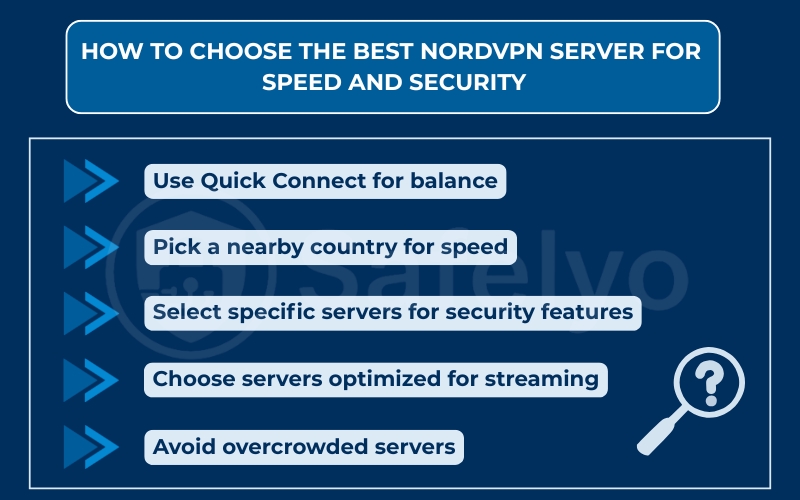
By applying these tips, you can strike the right balance between performance and strong online security.
5. How to fix NordVPN login errors and location problems
Even with a reliable app like NordVPN, you might sometimes face issues logging in or changing your virtual location. Below are the most common problems and how to solve them.
5.1. Common login issues
Sometimes users cannot sign in because of wrong credentials, expired subscriptions, or multi-factor authentication errors. Double-check your Nord Account email and password. If MFA codes are not working, resync your authenticator app or request backup codes from your account dashboard.
5.2. Connection failures
If the app fails to connect to a server, the problem could be outdated software or blocked VPN protocols. Update your NordVPN app to the latest version and try switching between different VPN protocols such as NordLynx or OpenVPN. Restarting your device and router can also resolve temporary network conflicts.
5.3. Incorrect location detection
At times, streaming services or websites might still detect your real region. This usually happens due to cached data, GPS information on mobile, or DNS leaks. To fix this:
- Clear your browser cookies and cache.
- Enable DNS leak protection in the NordVPN app settings.
- On smartphones, turn off location services while connected to NordVPN.
If the problem persists, try reconnecting to a different city or server.
6. FAQs about how to log on to NordVPN and change location
Here are some common questions users often ask when signing in and switching servers with NordVPN.
Do I need a paid plan to change my location in NordVPN?
Yes. You need an active NordVPN subscription to log in and connect to global servers. Free users cannot change their IP address or access secure servers.
Can I pick a city instead of just a country?
Yes. NordVPN lets you choose cities in certain countries, such as the United States, Canada, and the United Kingdom. This is useful if you want a more precise location, for example selecting New York instead of just the U.S.
Is the NordVPN Chrome extension reliable for streaming?
The extension works for changing your IP address in the browser, but it may not always unblock streaming services. For reliable streaming access, the full NordVPN app is recommended since it secures all traffic on your device.
Why does Quick Connect sometimes connect me to another country?
Quick Connect chooses the server with the best speed and lowest load. If your country’s servers are full, the system may connect you to a nearby country for performance reasons. You can always override this by manually selecting your preferred location.
7. Conclusion
Learning how to log on to NordVPN and change location gives you more control over your browsing, streaming, and online privacy. Whether you connect through Windows, macOS, iOS, Android, Linux, or a Chrome extension, the process is straightforward once you know the steps.
Here are the main points to remember:
- Check your subscription status and credentials before logging in.
- Use the latest version of the NordVPN app for stability and security.
- Quick Connect is best for speed, but manual selection lets you choose the exact country or city.
- Specialized servers provide extra protection or streaming access.
- Most login and location errors can be solved by updating the app, clearing the cache, or switching protocols.
When I tested NordVPN on public Wi-Fi at a coffee shop, Quick Connect gave me a nearby server for speed, but I manually switched to a U.S. city to access a streaming service. The change was instant, and encryption kept my browsing secure against network snooping.
By following these steps, you can confidently use NordVPN to manage your IP address, protect your identity, and enjoy access to global content. For more practical tutorials like this, explore the Tech How-To Simplified section at Safelyo.