You turn on your VPN for privacy, but suddenly Google blocks the connection or bombards you with endless “I am not a robot” CAPTCHAs. It is incredibly frustrating to choose between online safety and the ability to search the web efficiently.
We understand this struggle. You are likely seeing “unusual traffic” errors or getting stuck in a verification loop because Google’s security filters have flagged your VPN’s IP address. The good news is that you do not need to turn off your protection to search freely.
-
Switch VPN Server
Select a new location or city → Reconnect to get a fresh IP.
-
Clear Browser Cache
Settings → Privacy and Security → Delete Browsing Data → Cookies & Cached images.
-
Enable Split Tunneling
VPN Settings → Split Tunneling → Exclude Google Chrome/Browser from VPN.
-
Change VPN Protocol
Settings → Connection → Switch from OpenVPN (TCP) to WireGuard.
-
Disable Threat Protection
Turn off ad-blockers or “CleanWeb” features inside the VPN app temporarily.
-
Flush DNS
Open Command Prompt → Type ipconfig /flushdns → Press Enter.
Note: The instructions in this article are general steps. The exact settings or menu names may vary slightly depending on your specific VPN service.
1. Why is Google search not working with VPN?
Before we jump into the technical fixes, it helps to understand why this conflict happens. Google does not hate VPNs, but it is highly suspicious of specific network behaviors.
Most consumer VPNs route thousands of users through the same server IP address. To Google, this looks like one single computer sending thousands of search queries per second. This triggers their anti-bot systems, resulting in the dreaded “Unusual traffic detected” error.
Here are the specific reasons why your connection might be blocked:
The "bad neighbor" effect:
This is the most common cause. If other users sharing your VPN server are spamming or performing suspicious activities, Google blacklists the entire IP address, punishing you for their actions.
Location mismatch:
If your browser cookies indicate you are in one location (e.g., “Vietnam”) but your VPN IP indicates another (e.g., “USA”), Google flags this inconsistency as a security risk.
Free or low-quality VPN services:
Free VPNs often have a small pool of IP addresses shared by millions of users. These IPs are almost always overcrowded and permanently flagged by Google.
Suspicious activity patterns:
If you are searching too quickly or using automated tools (scrapers), Google’s anti-abuse measures will block the connection to prevent server overload.
DNS misconfigurations:
Sometimes the VPN connection is active, but your DNS requests (the translation of domain names) are leaking or failing. This mismatch confuses Google’s servers.
VPN-side misconfigurations:
Incorrect settings within the VPN app itself, such as the wrong MTU (packet size) or an overly aggressive firewall, can physically block the data packets needed to load Google.
CAPTCHA and anti-abuse measures:
Google’s security filters are sensitive. If they detect an encrypted tunnel (VPN) combined with any of the issues above, they will trigger a CAPTCHA loop to verify you are a human.
2. Basic fixes for Google search connection errors
These are the fastest solutions that resolve the majority of cases where you find Google search not working with VPN.
2.1. Switch your VPN server
This is the simplest fix. If your current IP address has been flagged by Google’s security filters, moving to a new one usually solves the problem instantly.
Quick Step:
- Open your VPN application.
- Disconnect from the current server.
- Select a different city or country (e.g., switch from “US – New York” to “US – Miami”).
- Reconnect and refresh Google.
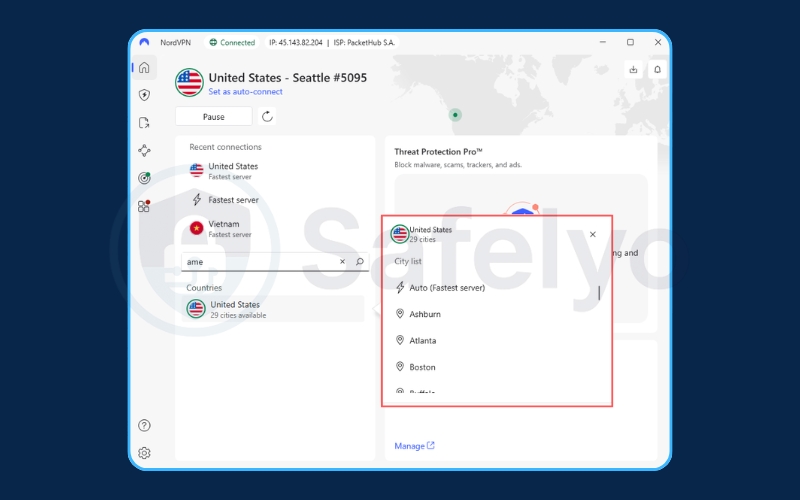
During our tests, we noticed that switching countries isn’t always necessary. Often, simply choosing a different city within the same country provides a clean IP address that Google hasn’t blacklisted yet.
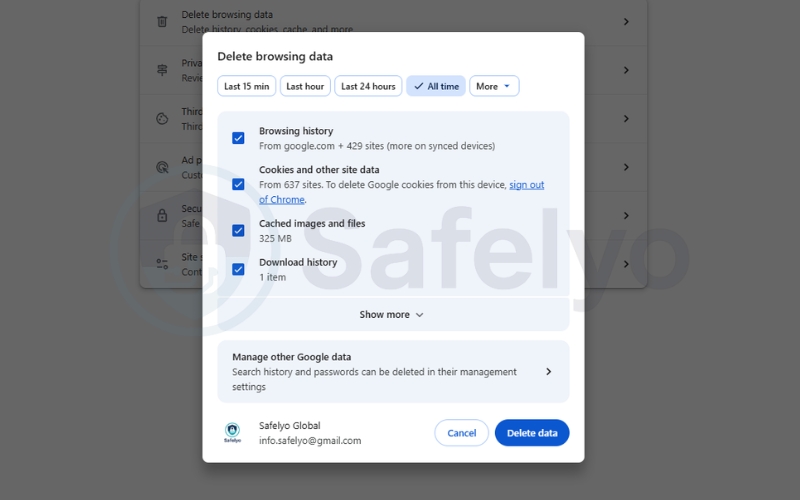
2.2. Clear browser cache and cookies
Sometimes the issue isn’t the VPN connection itself, but conflicting data stored in your browser. Old location data (Cookies) can clash with your new VPN IP address, causing Google to block the request.
Quick Step:
- Open Chrome and press Ctrl + Shift + Delete (Windows) or Cmd + Shift + Delete (Mac).
- Set the Time range to All time.
- Check Cookies and other site data and Cached images and files.
- Click “Delete data”.
You may also be interested in these articles:
2.3. Check for DNS & IPv6 leaks
Sometimes your VPN says “Connected,” but your computer secretly sends search queries through your regular internet service provider.
This creates a suspicious mismatch where your connection appears to come from the VPN location (e.g., USA), but your requests come from your real location. Google’s security systems flag this inconsistency as potential bot behavior and trigger immediate blocks.
Note on IPv6: Some VPNs secure only IPv4 traffic. If your computer uses IPv6, this traffic can bypass the VPN tunnel and expose your real IP address, creating the location mismatch that Google flags.
Quick Step:
- Test for leaks: Visit dnsleaktest.com. If the result shows your real ISP or location, you have a leak.
- Enable protection: Go to your VPN Settings > Connection/Privacy and ensure DNS Leak Protection is toggled ON.
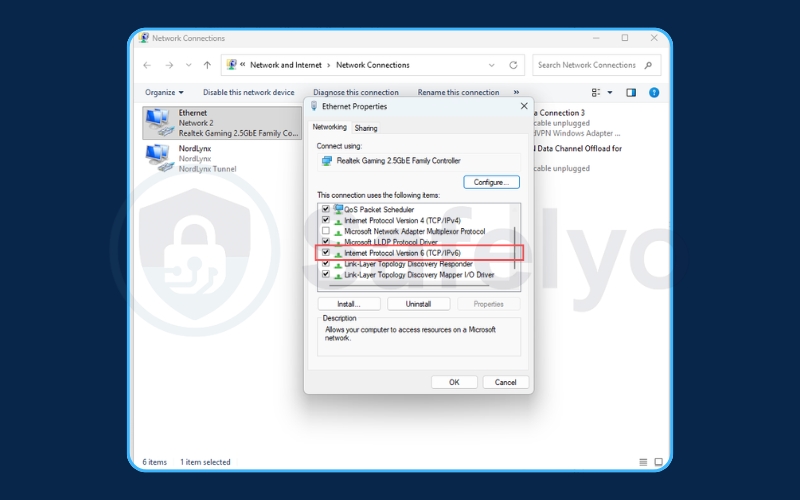
- Disable IPv6:
- Windows: Open Start > Type “ncpa.cpl” and press Enter > Right-click your Wi-Fi/Ethernet > Properties > Uncheck Internet Protocol Version 6 (TCP/IPv6).
- Mac: System Settings > Network > Wi-Fi > Details > TCP/IP > Change Configure IPv6 to Link-local only.
Note: Some apps like NordVPN or ExpressVPN enable this by default, so you may not see a visible toggle.
3. VPN settings to stop Google Captchas & blocks
If the basic fixes didn’t work, we need to adjust how your VPN handles traffic.
3.1. Disable VPN Ad-blockers
Many modern VPNs come with built-in ad-blockers, such as NordVPN’s “Threat Protection” or Surfshark’s “CleanWeb.” While useful, these features can sometimes be too aggressive.
We have observed instances where these security tools mistakenly block Google’s own scripts or authentication frames, preventing the search page from loading. Try turning this feature off temporarily to see if the error disappears.
3.2. Enable split tunneling (Recommended)
This is often the best long-term solution. Split Tunneling allows you to route specific apps (like Google Chrome) through your regular, high-speed internet connection while keeping the rest of your device protected by the VPN.
Quick Step:
- Go to your VPN Settings.
- Find Split Tunneling.
- Select “Bypass VPN for selected apps”.
- Add your web browser (Chrome, Edge, Firefox) to the list.
From our perspective, this offers the best balance. You avoid the “Bad Neighbor” effect entirely on Google Search because you are using your own home IP. Meanwhile, your background apps (like torrent clients or chat apps) remain secure inside the encrypted tunnel.
3.3. Use a dedicated IP address
If you use a VPN daily for work and cannot deal with constant CAPTCHAs, consider purchasing a Dedicated IP.
A Dedicated IP is a unique address assigned only to you. Since you are not sharing it with thousands of other users, you eliminate the risk of being blocked due to someone else’s suspicious behavior. This effectively stops the “unusual traffic” warnings permanently.
3.4. Change VPN protocols
Sometimes the issue isn’t a Google block, but simply an unstable connection causing timeouts. Switching your VPN protocol can help stabilize the connection and might resolve the error.
Quick Step:
- Go to VPN Settings > Connection and security > VPN Protocol.
- If using OpenVPN (TCP/UDP), try switching to WireGuard or IKEv2.
- Reconnect and test.
While changing protocols won’t unblock a blacklisted IP address, it can solve stability issues. OpenVPN is secure but can sometimes be heavier and slower.
Switching to WireGuard or IKEv2 often provides a faster, more resilient connection. A stable connection prevents frequent drop-outs and retries, which helps your browsing session look more natural to Google’s servers.
4. System & browser troubleshooting
If your VPN works fine on other devices but Google fails on your computer, the issue might be system-specific.
4.1. Google Chrome not working with VPN
Important note: Apply this fix ONLY if Google fails to load completely (e.g., a blank page or “Connection Failed” error). If you are seeing CAPTCHAs (“I am not a robot”), skip this step, as disabling QUIC will not fix IP reputation issues.
Chrome uses a protocol called “QUIC” to speed up browsing. However, QUIC attempts to send data over UDP, which some VPN firewalls or network configurations might block or mishandle. This results in the page failing to load even though your internet is working.
Quick Step:
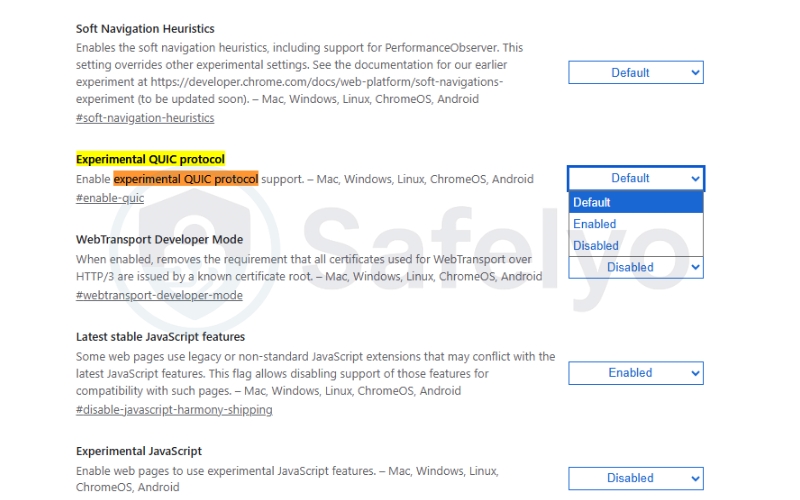
- Type chrome://flags in the address bar.
- Search for Experimental QUIC protocol.
- Change the setting to Disabled.
- Relaunch Chrome.
Additionally, check your extensions. Location spoofers or strict privacy extensions can conflict with the VPN’s routing. Disable them one by one to find the culprit.
4.2. Firefox and Edge Proxy settings
Your browser should automatically detect the VPN connection. However, sometimes manual proxy settings get stuck.
Ensure your browser’s Network Settings are set to “Use System Proxy Settings” (or “Auto-detect”). If it is set to a manual configuration that doesn’t match your VPN port, Google will not load.
For Mozilla Firefox:
- Go to Settings > General.
- Scroll down to Network Settings and click the Settings… button.
- Select Use system proxy settings and click OK.
For Microsoft Edge:
- Go to Settings and search for “Proxy”.
- Click Open your computer’s proxy settings.
- Toggle Automatically detect settings to ON.
- Ensure Use a proxy server (Manual setup) is OFF.
4.3. Flush DNS Cache
Your computer stores a cache of IP addresses to load websites faster. If this cache contains old data from before you connected to the VPN, it can cause a conflict.
Quick Step:
- Open the Start menu and type cmd.
- Right-click Command Prompt and select Run as administrator.
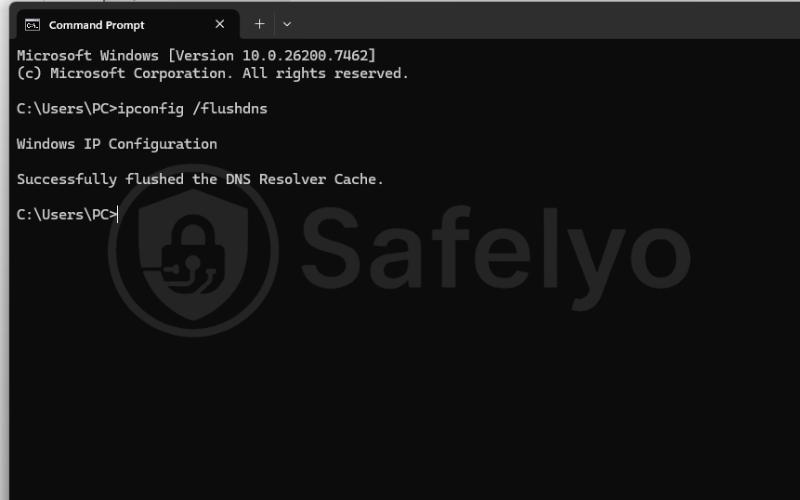
- Type ipconfig /flushdns and press Enter.
- You should see a message saying “Successfully flushed the DNS Resolver Cache.”
4.4. Adjust Google region settings
If your VPN is set to Japan but your Google Search settings are locked to the US, the mismatch can flag your account.
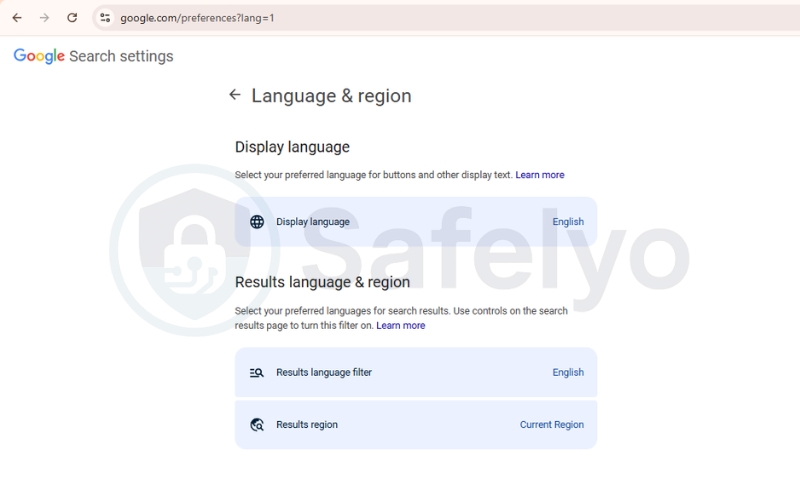
Go to Google Search Settings (https://www.google.com/preferences?lang=1) and set “Result region” to “Current Region”. This tells Google to adapt results based on your IP address (the VPN location), reducing the chance of a security flag.
5. Try another VPN provider
If you have tried every fix on this list, such as switching servers or clearing cache, and Google still blocks you, the problem is likely your VPN service itself.
Some VPN providers, especially lower-quality free VPNs, have limited server options. If you test all available servers and still face blocks, you cannot access the services you need. At that point, changing your settings will not resolve the issue.
In that case, you might need to opt for a different VPN provider. We recommend that you always opt for a free trial first to test how the connection of your new VPN works with Google Search before committing.
If you are unsure where to start, checking a list of the Best VPN services is a helpful first step. This allows you to find a provider with a large, clean server network that avoids these issues entirely.
6. FAQs about Google search not working with VPN
Does Google block VPNs intentionally?
No, Google does not ban VPN usage outright.
However, it blocks suspicious behavior. When thousands of people search from a single shared IP address, Google’s automated systems flag it as a potential “botnet” attack. This is why you see the CAPTCHA check; it is Google asking, “Are you a human or a program?”
Does Google work with VPN normally?
Absolutely. Millions of people use Google through a VPN every day without issues. Problems only arise when the specific server IP you are using has a poor reputation or is overcrowded with traffic.
Why is Express VPN not working with Google?
If you find Express VPN not working with Google, it is likely because that specific server IP is blacklisted. ExpressVPN has a huge server fleet. Try using the “Smart Location” feature or manually selecting a less popular server location to get a fresh IP address.
How to fix Google not working with NordVPN?
To fix Google not working with NordVPN, try switching the protocol to NordLynx (based on WireGuard). Also, check if “Threat Protection” is enabled, as this can sometimes block Google scripts. If all else fails, use their “Obfuscated Servers” list.
Why do I keep getting CAPTCHAs loop?
This is a “security loop.” If you solve the CAPTCHA but it reappears immediately, your browser is likely storing a “flagged” cookie. Clear your browser cookies entirely or switch to a different browser to break the loop.
Does VPN affect Google Search results?
Yes. Google provides results based on your IP location. If you connect to a VPN server in France, Google will show you French search results and local ads. You can override this by changing the region manually in Google settings.
Why is VPN blocking Google?
It is rare for the VPN to block Google directly. However, this can happen if the ‘MTU size’ is incorrect or if a firewall setting is too strict. Resetting your VPN settings to default usually fixes this internal blocking issue.
7. Conclusion
You do not have to accept “Google search not working with VPN” as a permanent annoyance. In most cases, the issue is simply a crowded server or a browser cache conflict.
Key Takeaways:
- Switch servers: This is the fastest way to get a clean IP.
- Clear cache: Remove old location data that conflicts with the VPN.
- Use split tunneling: If you are tired of CAPTCHAs, this allows you to search normally while keeping other apps secure.
If you frequently encounter this error, we recommend setting up Split Tunneling immediately. It is the most effective “set it and forget it” solution that balances your need for privacy with the convenience of instant search results.
For more guides like this, explore our Privacy & Security Basics category at Safelyo.