
What is split tunneling VPN? It is a VPN feature that divides your internet traffic into two separate paths. Some of your traffic goes through an encrypted VPN tunnel, while the rest connects directly to the internet without VPN protection. That single capability solves several of the most common frustrations that drive people to turn their VPN off entirely.
A standard VPN encrypts all your traffic, which often slows down streaming, blocks local printers, and triggers banking alerts. Split tunneling eliminates these exact trade-offs.
This guide covers how the feature works, the four setup types, real security risks, and a safe configuration checklist.
Key takeaways:
- VPN split tunneling creates two paths: one encrypted (via VPN) and one direct to the internet.
- It effectively resolves the trade-off between strict security and network speed.
- It is highly recommended for gaming, streaming, or accessing local network devices like printers.
- App-based, URL-based, and Inverse split tunneling are the most common configuration types.
- Always use a full tunnel (disable split tunneling) to ensure maximum safety when on unsecured public Wi-Fi.
1. What is split tunneling and how does it actually work?
Split tunneling is a VPN configuration that creates two simultaneous traffic paths from your device. Traffic you designate as sensitive travels through the encrypted VPN tunnel, where it is protected by the VPN’s encryption and masked by the VPN server’s IP address. All other traffic bypasses the tunnel and connects to the internet directly, at full speed, as if no VPN were active.
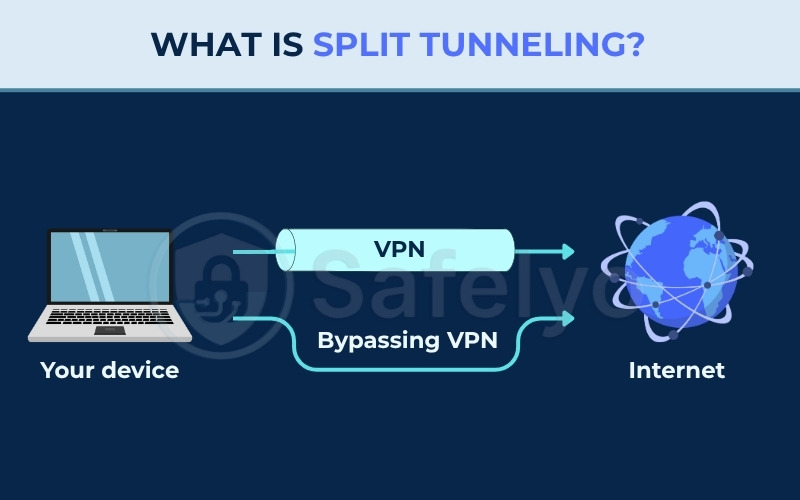
Here are the four key ways this capability affects your connection:
- Dual traffic routing: The VPN client sorts every outbound packet according to your configured rules and assigns each packet to either the encrypted tunnel or the direct internet path.
- Performance benefits: Bandwidth-heavy applications such as streaming services and online games bypass the VPN, preventing the speed drops that come with routing large data volumes through a remote server.
- Local access: Devices on your local area network (LAN), such as printers and NAS drives, remain reachable even while the VPN is active, because local traffic is excluded from the tunnel.
- Bypass restrictions: Services that block connections from VPN IP addresses, such as some banking apps and regional streaming libraries, can be accessed by routing only that specific traffic outside the VPN.
How the mechanism works at a packet level:
When you generate network traffic, the VPN client intercepts each packet before it leaves your device. The client checks the packet’s source and destination against your routing rules.
For packets matched to the VPN tunnel, the client encrypts the data payload and wraps the original packet inside a new header, a process called encryption encapsulation. This conceals both the packet’s content and your real IP address.
The encapsulated packet then travels through the encrypted tunnel to the VPN server, which decrypts it and forwards it to its final destination. Packets that do not match the tunnel rules are sent directly to the internet through your regular connection, with no encryption and your real IP address visible.
The table below shows how split tunneling compares to a full tunnel VPN across the most common decision criteria:
| Criteria | Full tunnel VPN | Split tunnel VPN |
|---|---|---|
| Traffic encrypted | 100% of all traffic | Only designated traffic |
| Speed | Reduced (all traffic routed through VPN server) | Optimal (data-heavy apps bypass VPN) |
| Local device access | Blocked (all traffic goes to VPN server) | Available (local traffic bypasses tunnel) |
| Best for | Maximum security, public Wi-Fi, sensitive data work | Remote workers balancing security and performance |
2. When you actually need VPN split tunneling
Theory is one thing, but where does split tunneling truly make a difference in your daily online life? Below are practical scenarios where this feature goes from a “nice-to-have” to a clear necessity.
2.1. Boosting speed for streaming and gaming
Suppose you want to watch a show exclusive to the US library of Netflix, requiring a connection to a VPN server in New York. At the same time, you want to join an online game hosted on a local server.
Without split tunneling, you face a dilemma. Keeping the VPN on routes your gaming connection to New York and back, causing severe lag and high ping. Turning it off costs you access to the streaming show.
This is the perfect scenario for split tunneling. You can configure the VPN to route only the streaming app’s traffic through the US server. Meanwhile, your game connects directly to the internet, maintaining the low latency needed for competitive play.
2.2. Accessing local network devices like printers and servers
Many remote workers are required to stay connected to a corporate VPN all day to access sensitive files on company servers. However, this often creates a frustrating problem: the computer suddenly cannot find the wireless printer sitting just a few feet away in the same room.
Why does this happen? A standard “full tunnel” VPN sends all network traffic directly to the company’s servers. This completely isolates your device from your own local home network, blocking access to nearby hardware.
We have seen many users frantically disconnect from their secure work VPN just to print one page, which creates an unnecessary security risk. With split tunneling, you can simply configure the VPN to exclude traffic going to your local network devices. This allows you to stay securely connected to the work server while seamlessly printing documents, accessing a personal NAS drive, or streaming media from a local server.
2.3. Using services that block VPN connections
Have you ever been browsing securely with your VPN on, only to be blocked when you try to log into your online banking website? This is incredibly common. Many financial institutions and some government services see logins from unfamiliar, distant IP addresses (like those from a VPN server) as a potential security threat and will deny access.
Instead of turning off your VPN entirely and exposing all your other browsing activity, you can use split tunneling. Simply add your banking app or the bank’s website URL to the exclusion list.
This way, your bank sees your regular, trusted IP address and lets you in, while the rest of your internet activity, including your research, social media, and general browsing, remains safely encrypted behind the VPN.
You may also be interested in: Is VPN safe for online banking?
2.4. Conserving bandwidth on metered connections
This is a practical benefit for anyone using a connection with a data cap, such as a mobile hotspot or a limited home internet plan. VPN encryption adds a small amount of data overhead to your traffic. While it is usually negligible on an unlimited connection, it can add up quickly on a metered one.
Consider a scenario where you are working while traveling and using your phone as a hotspot. You want to protect your sensitive work emails and messages, but you do not want to waste your precious gigabytes encrypting a high-definition YouTube video you are watching during your break.
With split tunneling, you can configure your VPN to only route the essential, low-data apps (like Outlook and Slack) through the encrypted tunnel. You can let the data-heavy apps (like YouTube and TikTok) use the standard, unencrypted connection, ensuring you protect what matters without draining your data plan.
3. Types of VPN split tunneling: 4 methods explained
Understanding the different types of split tunneling helps you choose the method that fits your workflow. Most consumer VPN clients offer one or two of these options, while enterprise-grade solutions may support all four.
3.1. App-based split tunneling
This is the most common and user-friendly version available. As the name suggests, app-based split tunneling lets you choose which specific applications will use the VPN tunnel, while all other apps connect directly to the internet.
For example, you could set your BitTorrent client and web browser to always route through the VPN for privacy, while allowing your online game launcher and Spotify to connect directly for maximum speed. It is straightforward and covers the needs of most personal users.
Different VPN providers use their own names for this feature. NordVPN calls it “App Split Tunneling” and supports it on Windows, Android, macOS, and Android TV clients. Surfshark calls the same feature “Bypasser,” available on Windows, Android, and with macOS. Knowing these naming conventions helps you locate the setting in your specific VPN app.
3.2. URL-based (domain-based) split tunneling
This type offers a more granular level of control. Instead of routing an entire application, you can choose which specific websites or domains go through the VPN. This is also sometimes implemented through a browser extension rather than the main VPN client.
For example, you could configure your browser so that only netflix.com and bbc.co.uk are routed through the VPN to unblock geo-restricted content, while every other site you visit, like Google or YouTube, uses your regular, faster connection.
The precision of URL-based rules is genuinely useful for targeted unblocking, though maintaining a long list of URLs manually can become tedious.
3.3. Inverse split tunneling
This works in the opposite direction. Instead of choosing what goes inside the VPN tunnel, you choose what stays outside. With inverse split tunneling, all your internet traffic is routed through the VPN by default, except for the specific apps or websites you add to an exclusion list.
We find this approach works best for users who want maximum protection by default and only need to make exceptions for a few trusted services with known compatibility issues, such as a banking app or a local network printer. The configuration logic is simpler: you build a short exclusion list rather than an ever-growing inclusion list.
For most users, app-based split tunneling offers the best balance of simplicity and control. URL-based rules are powerful but can be tedious to maintain across many sites. Inverse split tunneling is the right default for anyone whose primary concern is security, since it keeps everything encrypted unless you explicitly opt out.
3.4. Dynamic split tunneling
Dynamic split tunneling is the most sophisticated type, and it operates differently from the three static methods above. Instead of relying on manually configured access control lists (ACLs) that specify individual apps or IP addresses, dynamic split tunneling uses DNS protocol to automatically classify and route traffic based on domain category rules.
In practice, an IT administrator might define a rule such as: any traffic bound for domains in the financial, healthcare, or legal categories automatically routes through the VPN tunnel.
The system resolves the destination domain’s category at the time of each connection and applies the appropriate routing decision, without requiring the admin to list every individual app or URL by hand. When a user installs a new SaaS tool that falls under a protected domain category, it is automatically protected by the tunnel without any manual rule update.
This approach is particularly valuable in corporate environments with BYOD (bring your own device) policies or large numbers of SaaS applications. IT teams can maintain consistent security policies across the entire organization without chasing individual app updates or building exhaustive exclusion lists. Dynamic split tunneling is primarily an enterprise feature and is less commonly found in consumer VPN clients.
The table below compares all four types side by side:
| Type | How it works | Control level | Best for |
|---|---|---|---|
| App-based | You select which apps use the VPN | Good | General use, balancing security and speed for specific apps |
| URL-based | You select which websites/domains use the VPN | Very precise | Unblocking specific streaming sites or news sources |
| Inverse | All traffic uses the VPN except what you explicitly exclude | High security by default | Users who want maximum security and only need a few exceptions |
| Dynamic | DNS automatically classifies and routes traffic by domain category | Automatic and flexible | IT administrators, corporate environments, BYOD policies |
A note on unintended split tunneling:
There is another scenario that functions like split tunneling but is not intentional. If your device has both an IPv4 and an IPv6 address (a dual-stack networking configuration) and your VPN only tunnels IPv4 traffic, all IPv6 traffic will exit to the internet unencrypted without any indication that this is happening.
This is not a feature; it is a security gap. The solution is to choose a VPN that provides full dual-stack tunneling covering both IPv4 and IPv6, and to verify this by running an IPv6 leak test after connecting.
4. Pros and cons of VPN split tunneling
The trade-offs of split tunneling are worth reviewing clearly before you configure anything. Below is a direct summary of the benefits and the risks.
Pros
- Simultaneous access: You can access foreign content (such as a geo-restricted streaming library) and local services (such as a home printer) at the same time, without switching between VPN modes.
- Optimized speed: Routing data-heavy activities like gaming or large file downloads outside the VPN removes the performance overhead of the tunnel for those specific tasks.
- Bandwidth conservation: Only encrypting essential traffic reduces data usage on metered connections such as mobile hotspots.
- Bypass VPN blocks: Services that routinely block VPN IP addresses, such as online banking portals, become accessible because they see your real IP address rather than the VPN server’s.
- Local network access: Devices on your LAN, including printers, NAS drives, and local media servers, remain reachable while the VPN is active.
Cons
- Unencrypted traffic visible to your ISP: Any traffic routed outside the VPN tunnel is fully visible to your internet service provider, including the destinations you connect to, the timing, and the volume.
- Public Wi-Fi vulnerability: On an untrusted network, unencrypted traffic is exposed to potential man-in-the-middle (MITM) attacks from other users on the same network.
- DNS leak risk: A misconfigured split tunneling setup can allow DNS requests to escape the tunnel even when data traffic is correctly routed, revealing your browsing activity to your ISP.
- Malware command-and-control evasion: If a device is compromised, malware can use the unencrypted traffic path outside the tunnel to communicate with a command-and-control server, bypassing corporate firewalls and endpoint security tools.
- Misconfiguration risk: Rules that are not carefully planned can create unintended security gaps, for example, setting a browser to bypass the VPN for speed and then using that same browser to access sensitive company applications.
5. Is split tunneling safe? Real risks and best practices
So, is split tunneling safe? The short answer is: It depends entirely on how you configure it.
5.1. The real security risks
The risks below represent the most significant consequences of a poorly configured split tunneling setup. Understanding how they work helps you make safer configuration decisions.
- ISP visibility: When you route traffic outside the VPN, it travels without encryption. This means your internet service provider (ISP) can see your destination, timing, and data volume. On a trusted home network, this is usually an acceptable trade-off. However, on a public network, this exposure carries real risk.
- Public Wi-Fi and MITM attacks: This visibility becomes a direct threat on unsecured networks. When you connect to public Wi-Fi at a café or airport, attackers can easily intercept unencrypted traffic using man-in-the-middle (MITM) attacks. Any data you send outside the split tunnel is completely vulnerable.
- DNS leaks: Even when your data correctly routes through the VPN, DNS requests can sometimes escape the tunnel. If this happens, your ISP can still see which websites you visit, even if they cannot read the content. This is a common misconfiguration risk that you should test for.
- Malware command-and-control (C&C) evasion: For corporate networks, if a device is infected, malware can use the unencrypted path to communicate with its servers. By bypassing the corporate VPN gateway, the malware dodges firewall inspections. This is why many IT teams strictly disable split tunneling on company devices.
- Misconfiguration gaps: Human error is the most common cause of actual breaches. For example, you might set a browser to bypass the VPN for faster streaming, but then mistakenly use that same browser to access sensitive company portals.
5.2. Real-world security incidents
These are not theoretical risks. The following documented incidents demonstrate that split tunneling misconfigurations have caused real security failures in well-established VPN products.
The TunnelVision attack (May 2024):
Disclosed by researchers at Leviathan Security Group, this technique affects most VPN users by manipulating DHCP option 121. It forcefully pushes traffic outside the tunnel, regardless of your split tunneling settings.
By operating a malicious DHCP server on the same network, an attacker can inject fake routes to defeat the encryption without your knowledge. The attack is largely transparent and affects most VPN implementations that do not guard against DHCP-level route manipulation.
VPN misconfiguration and ransomware:
According to the Coalition Cyber Threat Index 2025, 58% of analyzed ransomware incidents were associated with vulnerabilities in perimeter security appliances, including VPNs and firewalls.
While not all of those cases involve split tunneling specifically, the pattern reinforces a critical point: improperly configured VPN routing is a consistent and dangerous vector for attackers to gain access to a network.
5.3. Safe configuration checklist
Following a structured set of rules substantially reduces the risks described above. Use this checklist to ensure you encrypt what matters while safely excluding low-risk traffic.
- Always protect corporate data: Keep work email clients, document tools, and company resources inside the encrypted tunnel. Never exclude these applications for the sake of convenience or speed.
- Prefer inverse split tunneling: If your VPN client supports it, configure it so all traffic uses the VPN by default. Then, build a short, manageable exclusion list for low-risk traffic only.
- Keep your configuration simple: If your routing rules are too complex to explain in under a minute, they are likely too hard to audit. Simpler setups leave much less room for human error.
- Test after every change: Run an IP address test and a DNS leak test each time you modify your routing rules. This easily verifies that your traffic is actually routing exactly as intended.
- Disable on public Wi-Fi: At cafés, airports, or hotels, always switch back to full-tunnel mode. There are absolutely no exceptions to this rule when using an untrusted network.
Note on banking apps: We often use split tunneling to bypass strict fraud filters on banking websites. This is perfectly safe on your secure home network. However, if you are on public Wi-Fi, you must keep financial traffic inside the encrypted tunnel to prevent data interception.
6. How to enable and configure split tunneling
Getting split tunneling running is typically straightforward. The steps below cover the general process, the naming conventions across major VPN providers, how to verify your configuration is working, and how to resolve common issues.
6.1. Step-by-step instructions
Here is a general guide that applies to most major VPN applications that offer this feature:
- Open your VPN application and make sure you are logged in.
- Find the Settings or Preferences menu. Look for the universal gear icon (⚙️) or a menu icon (≡).
- Locate the split tunneling feature. It may be listed under a “Connection,” “General,” or “Advanced” tab. Some providers use proprietary names: NordVPN calls it “App Split Tunneling” and Surfshark calls it “Bypasser.”
- Enable the feature using the toggle switch provided.
- Choose your split tunneling mode. The app will ask you to define your rule. The most common options are:
- Route only selected apps through the VPN (standard app-based mode).
- Route all apps through the VPN except for selected ones (inverse mode).
- Select your apps. A list of your device’s installed applications will appear. Check the boxes for the apps you want to apply the rule to.
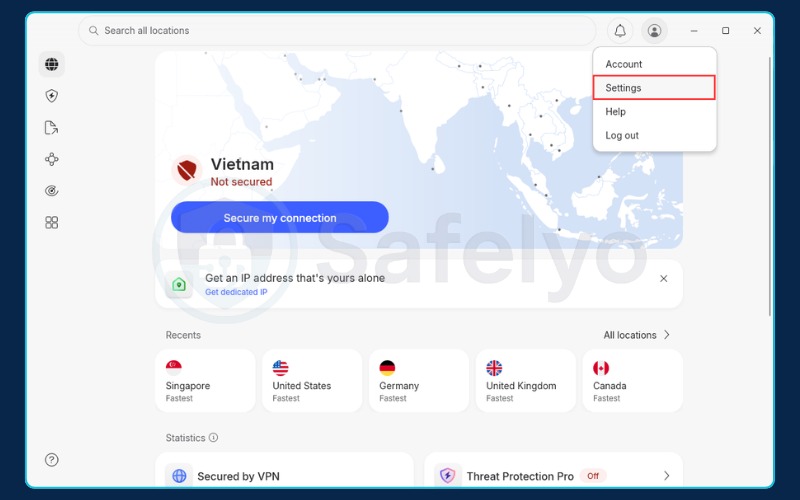
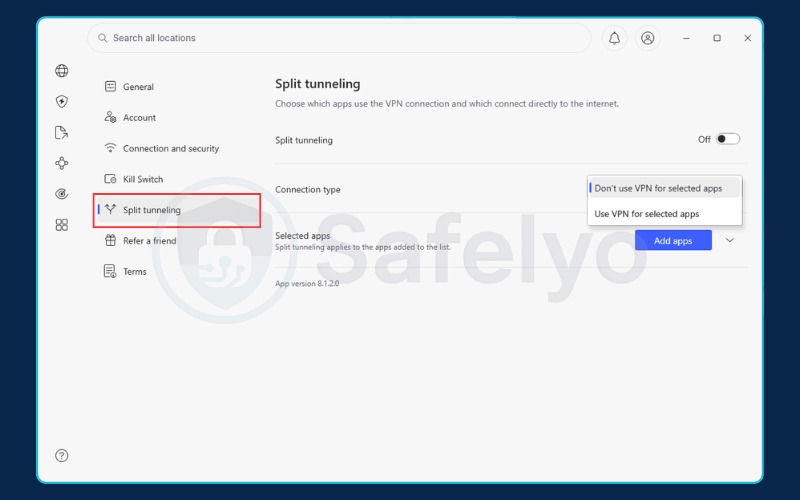
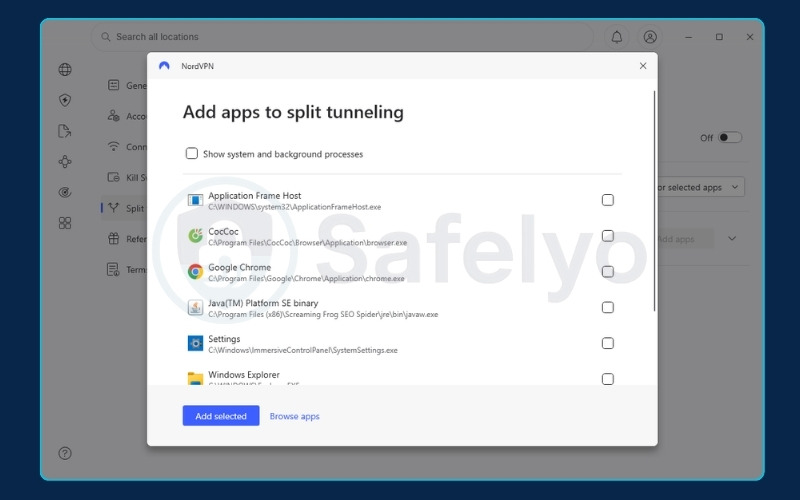
Once configured, the changes take effect on your next VPN connection, routing your traffic according to your updated rules.
6.2. VPN naming conventions and OS availability
Before searching for the split tunneling setting, it helps to know what your VPN provider calls it. The table below lists naming conventions and platform availability for two of the most widely used services:
| VPN provider | Feature name | Supported platforms |
|---|---|---|
| NordVPN | App Split Tunneling | Windows, Android, Android TV |
| Surfshark | Bypasser | Windows, Android, macOS |
Windows and Android offer the most complete split tunneling support across the industry. Virtually all major VPN providers with this feature deliver a stable, full-featured implementation on both platforms. Windows 11 introduced no architectural changes that negatively affect split tunneling compared to Windows 10; any provider that supported it on Windows 10 continues to work on Windows 11.
MacOS and iOS have significantly more restricted support due to Apple’s strict sandboxing framework, which limits how VPN clients can intercept and redirect network traffic. A few providers offer partial workarounds on macOS, but these may come with limitations or require specific configurations. If split tunneling on Apple devices is a firm requirement, verify availability with your VPN provider before subscribing.
Linux support exists but typically requires command-line configuration rather than a graphical interface. Users comfortable with terminal-based tools can implement split tunneling on Linux, but the process is more hands-on than on Windows or Android.
6.3. How to test if split tunneling is working correctly
After configuring split tunneling, testing the setup verifies that traffic is actually routing where your rules intend. We recommend running these four checks in sequence:
- IP address test: Open two different browsers on the same device. Configure one browser (or a profile within it) to use the VPN, and assign the other to bypass the VPN. In both browsers, visit a site like whatismyip.com. If split tunneling is working correctly, you should see two different IP addresses: the VPN server’s IP in the VPN-routed browser, and your real IP in the bypass browser.
- DNS leak test: Visit dnsleaktest.com or ipleak.net in the browser or app configured to use the VPN. Confirm that the DNS servers listed in the results belong to your VPN provider, not your ISP. If you see your ISP’s DNS servers, your DNS requests are leaking outside the tunnel.
- App-specific speed comparison: Compare download speed in an app configured to bypass the VPN against download speed in an app routed through the VPN. The bypass app should consistently show speeds closer to your baseline internet speed, confirming that routing rules are applied correctly.
- Timing for tests: Run this full sequence immediately after initial configuration, after each VPN client update, and after each major operating system upgrade. Updates from both VPN providers and operating systems have been known to silently reset split tunneling rules.
6.4. Troubleshooting common split tunneling issues
The following are the most frequent problems users encounter when configuring split tunneling, along with the steps most likely to resolve each one:
- Apps failing to connect: Check your routing rules for typos in app names or URLs. Even a single character difference can cause a rule to fail. Toggle the VPN connection off and back on to force the client to reload its rules. Also confirm that the VPN application has the necessary network permissions on your device.
- Sensitive traffic leaking outside the tunnel: Audit your rules carefully to confirm that all sensitive apps are listed for inclusion, not exclusion. If the audit is inconclusive, switch to inverse split tunneling so all traffic defaults to the encrypted path, then build a minimal exclusion list from scratch. Follow up with a DNS leak test.
- Split tunneling setting not appearing in the app: Confirm your VPN client is updated to the latest available version. Check OS compatibility, since this is the most common cause on macOS and iOS devices where the feature may be absent or hidden in older client versions.
- Rules resetting after updates: Many VPN clients reset split tunneling configurations after a client update without any warning. After every VPN app update, re-verify your full configuration using the testing steps in section 6.3 before resuming sensitive work.
7. Who should (and shouldn’t) use split tunneling?
After covering all the technical details, the practical question is whether this feature fits your specific situation. The answer depends on both how you use the internet and what network environments you routinely connect from.
7.1. A quick guide to choosing the right mode
The two lists below provide a direct framework for deciding whether split tunneling is appropriate for your workflow.
You should use split tunneling if you are:
- A remote worker who needs simultaneous access to secure corporate resources through a VPN and local network devices such as a home printer or NAS drive.
- A gamer or streamer who wants to unblock geo-restricted content while maintaining the lowest possible ping for competitive play or uninterrupted streaming.
- A user on a limited data plan, such as a mobile hotspot, who needs to conserve bandwidth by encrypting only the most essential applications.
- A power user who wants precise, deliberate control over exactly which traffic receives VPN protection and which does not.
You should stick to a full tunnel if you are:
- A journalist, activist, legal professional, or anyone handling highly sensitive information. In these situations, the risk of even a brief data exposure outweighs any benefit from speed or convenience. Maximum security should be the default.
- Someone who frequently connects from unsecured public Wi-Fi at airports, cafés, or hotels. These networks are high-risk environments, and encrypting 100% of your traffic is the correct posture.
- A user who prioritizes simplicity above all else. If you do not encounter the common VPN frustrations like blocked banking apps or inaccessible printers, the always-on protection of a full tunnel provides excellent security with no configuration required.
7.2. When to avoid split tunneling entirely
In certain situations, enabling split tunneling goes beyond personal risk and actually violates strict security rules. There are specific environments where you must keep this feature turned off entirely.
If your job involves handling highly sensitive data like healthcare records or government information, privacy laws usually mandate that all internet traffic remains inside a secure network. Routing any data outside the VPN in these scenarios is a direct compliance violation.
Similarly, corporate IT departments tightly control the VPN configurations on company-issued devices. Modifying these settings yourself often breaks corporate security policies. You should always consult your IT team before altering your VPN routing.
The golden rule is straightforward. If you are ever unsure whether your current network or device is safe for split tunneling, always default to a full and encrypted tunnel.
8. FAQ about split tunneling VPN
What is the difference between full tunneling and split tunneling?
Full tunneling routes 100% of your internet traffic through the encrypted VPN server, offering maximum security with no exceptions. Split tunneling is more flexible and lets you choose which apps or websites use the VPN, while the rest connect directly.
What is the main advantage of using a split tunnel VPN configuration?
The main advantage is flexibility. Split tunneling lets you maintain high security for sensitive activities while keeping maximum speed and local network access for everything else. You do not have to choose between protecting your data and maintaining a practical, functional internet connection.
Is VPN split tunneling good or bad?
Split tunneling is neither inherently good nor bad. It is appropriate when configured carefully on a trusted network to balance security and performance. It becomes a liability when used carelessly, particularly on public Wi-Fi, or when sensitive applications are mistakenly excluded from the tunnel. The configuration quality determines the outcome, not the feature itself.
Should I have split tunneling on or off?
Turn split tunneling on when you are connected to a trusted network (such as your home or office) and you need to balance VPN security with performance or local device access.
Turn it off and switch to full-tunnel mode when you are on public Wi-Fi, when you are handling highly sensitive work files, or when your organization’s compliance requirements prohibit it. If you are uncertain whether your current situation warrants split tunneling, the safer default is always full-tunnel mode.
Why disable split tunneling?
Disable split tunneling whenever maximum security is your top priority. The clearest cases are public Wi-Fi connections (cafés, airports, hotels), sessions where you are handling sensitive personal or professional data, and any situation covered by a compliance framework that requires full-tunnel routing.
Disabling split tunneling removes all unencrypted traffic paths and reduces your exposure to ISP tracking, MITM attacks, and DNS leaks.
Is split tunneling the same as a VPN kill switch?
No. A VPN kill switch is a separate safety mechanism that automatically disconnects your internet access if the VPN connection drops unexpectedly. Its purpose is to prevent any traffic from leaking outside the VPN during a connection failure.
Split tunneling is a deliberate, active feature that intentionally routes some traffic outside the VPN tunnel while it is running normally. The two features address different problems and operate independently. Most VPN clients allow both to be active at the same time, and using them together provides both traffic control and failure protection.
Do all VPNs have split tunneling?
No, it is typically considered a premium feature. Most high-quality paid VPN services offer it, but you are unlikely to find it in free or basic VPN products.
Can split tunneling make my internet slower?
Quite the opposite. The traffic you route outside the VPN runs at your normal, full internet speed. By offloading bandwidth-heavy applications from the VPN server, split tunneling generally improves your overall connection performance compared to a full-tunnel setup where all traffic competes for the same encrypted path.
9. Conclusion
To simply answer what is split tunneling VPN, it is a practical feature that gives you the best of both worlds. It lets you secure your private data without slowing down your everyday browsing or blocking your local printer.
The key to a practical setup is straightforward. Route your streaming apps through the VPN to bypass geo-restrictions and keep your sensitive data inside the encrypted tunnel.
Then, use the exclusion list for everyday apps that do not need a new IP address, or services that naturally block VPN connections. As long as you are on a trusted home network, this completely removes the frustration of leaving your VPN turned on.
For more simple tutorials on protecting your privacy, explore our VPN Guides category or visit the Safelyo homepage for the latest tips.