It is the ultimate streaming nightmare. You have your popcorn ready, you have picked the perfect movie, and you settle in for a relaxing Friday night. But instead of the opening credits, you are hit with a black screen and the dreaded message: “You seem to be using an unblocker or proxy.“
First, take a deep breath. You are not alone, and you haven’t necessarily wasted your money. Even though Netflix identifies VPN traffic aggressively, most of these blocks are temporary. You can usually bypass them without buying a new subscription if you know the right tricks.
Here are the most effective solutions when you find your Netflix VPN not working, helping you get back to your stream immediately.
-
Method 1: Connect to a different server
Open VPN → Choose a different city → Connect.
-
Method 2: Clear your browser cache and cookies
Browser Settings → Privacy → Clear Browsing Data (Cookies/Cache).
-
Method 3: Check for DNS leaks & disable 'Web protection'
Visit ipleak.net → Check if real IP shows → Disable ‘CleanWeb’/’Threat Protection’.
-
Method 4: Disable IPv6 on your device
Network Settings → Properties → Uncheck Internet Protocol Version 6.
-
Method 5: Use a dedicated IP address
Get Dedicated IP → Connect → Avoid shared traffic.
-
Method 6: Change your VPN protocol
Settings → Protocol → Select WireGuard or OpenVPN (TCP).
-
Method 7: Change your DNS servers
Settings → Custom DNS → Enter 8.8.8.8 → Save.
-
Method 8: Contact customer support
Open Live Chat → Ask for specific server ID → Connect.
-
Method 9: Troubleshooting Netflix on smart TVs and consoles
Unplug TV for 60 seconds / Check Router / Use HDMI/Cast.
-
Method 10: Switch to a VPN proven to unblock Netflix
Sign up for a Tier-1 provider → Install & stream.
1. Why your Netflix VPN not working (and how to fix it)
Your Netflix VPN not working issue usually happens because Netflix has detected and blocklisted the IP address assigned to you by your VPN server.
Netflix identifies VPN users by monitoring the number of connections coming from a single IP address. Standard VPN servers assign the same IP address to thousands of users simultaneously. Netflix detects this abnormal traffic pattern and blocks the IP to prevent access.
The good news is that Netflix does not ban your actual account. They only block that specific IP address. Once you switch to a “clean” IP that hasn’t been flagged yet, you can walk right in.
A note for EU residents
If you are traveling within the European Union, you might notice that your content library doesn’t change even when you connect to a different country. This is not a VPN failure. Under EU portability regulations, Netflix is legally required to show you your home country’s content for a limited time while you are in another EU member state.
2. Netflix error code decoder (2026 update)
Understanding the specific error code on your screen can save you twenty minutes of guessing. Here is what the most common codes actually mean.
| Error Code | Meaning | Immediate fix |
|---|---|---|
| m7111-5059 | Proxy Detected. Netflix knows you are using a VPN. Note: This often appears as a longer string like m7111-1331-5059. | Switch server / Clear cache. |
| NW-2-5 | Connectivity Issue. Your internet or VPN connection has dropped. | Check Wi-Fi / Change protocol. |
| UI-800-3 | Device Data Corruption. Old cache data is conflicting with the app. | Reinstall app / Restart device. |
| Missing Content | Geo-location mismatch. Netflix thinks you are somewhere else. | Check for DNS leaks. |
3. 30-second quick fixes (try these first)
Start with this rapid checklist. These simple actions often resolve the issue immediately. If they don’t work, don’t worry because we explain the detailed steps for these solutions and provide several additional methods to fix the error in the sections below.
- Disconnect and reconnect: This forces your VPN to assign you a fresh IP address from its pool.
- Use incognito mode: Open a private window (Incognito) in your browser. This ensures that old cookies aren’t revealing your true location to Netflix.
- Switch to a PC browser: If you are on a mobile or tablet, try using a laptop browser instead. Mobile apps often use GPS data and hard-coded device IDs that are very difficult to mask, even with a VPN. Browsers are much easier to “spoof.”
- Check network restrictions: If you are using Wi-Fi at a school or office, the Network Administrator may have blocked Netflix directly. Disconnect from Wi-Fi and use your mobile data to test. If it works on mobile data, the issue is the network restrictions, not your VPN.
- Update your app: Netflix updates its blocklist constantly. If your VPN app is outdated, it might lack the latest security patches needed to bypass these checks.
4. Method 1: Connect to a different server
Netflix bans IP addresses in batches. If the server in “New York” is blocked, the server in “Los Angeles” or “Miami” might still work perfectly.
Quick step:
- Open your VPN app.
- Disconnect from the current location.
- Search for a different city in the same country (e.g., switch from NY to LA).
- Connect and refresh Netflix.
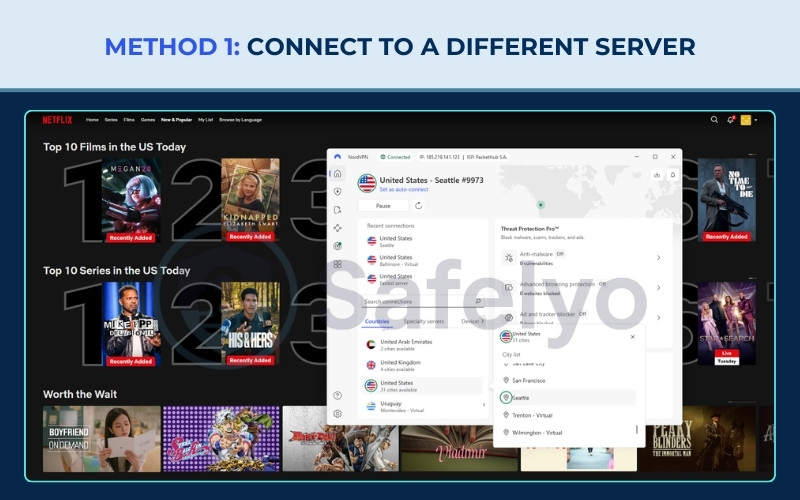
Moving to a new server assigns your device a completely different IP address that Netflix has not yet identified or blocked. This is the statistically most probable fix.
If your VPN provider offers them, always look for servers labeled “Streaming Optimized.” These servers are refreshed more frequently to stay ahead of Netflix’s bans.
5. Method 2: Clear your browser cache and cookies
Sometimes your VPN is working perfectly, but your browser is betraying you. It stores cookies (small data files) that contain your old location data. If Netflix sees a cookie that says “Location: France” while your VPN says “Location: USA,” it will block you immediately.
If clearing the cache (steps below) does not solve the issue, the browser itself might be the problem. We recommend installing and testing with Brave, Chrome, or Firefox to see if a fresh browser environment resolves the error.
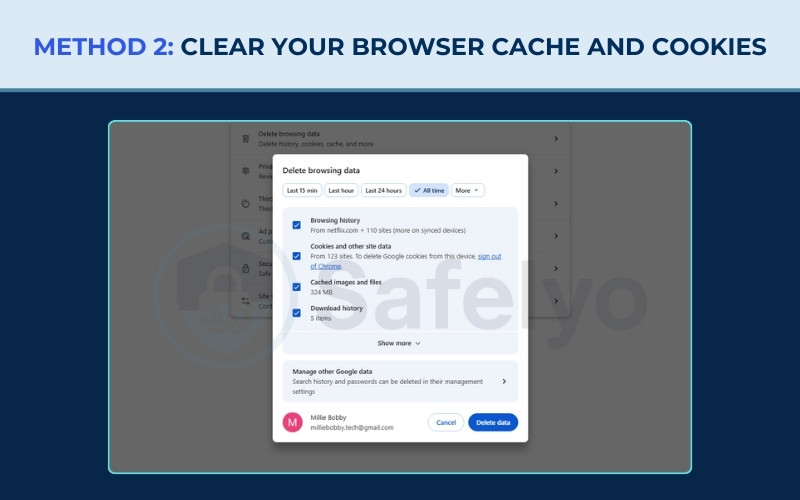
Quick step:
- Press Ctrl + Shift + Delete (Windows) or Cmd + Shift + Delete (Mac).
- Select “Cached images” and “Cookies”.
- Set the Time range to “All time”.
- Click “Clear data”.
Specific steps for Android users
Cleaning cache on Android is more complex than on a browser. You must go to Settings > Apps > Netflix > Storage > Clear Cache. This ensures that the app forgets your previous location data completely.
Important for iOS users
If you are on an iPhone or iPad, you cannot clear the app cache through settings. You must uninstall the Netflix app completely and reinstall it. This is the only way to wipe the old location data on iOS.
6. Method 3: Check for DNS leaks & disable ‘Web protection’
A DNS leak occurs when your secure VPN tunnel has a tiny hole in it. Your traffic goes through the VPN, but your request to visit “Netflix.com” bypasses the tunnel and goes through your regular Internet Service Provider (ISP). This instantly reveals your real location.
Quick step:
- Connect to your VPN.
- Visit a site like ipleak.net.
- Check the “IP Address” and “DNS Address” sections.
- If you see your real location (e.g., you are in France but seeing a French IP while connected to the US), you have a leak.
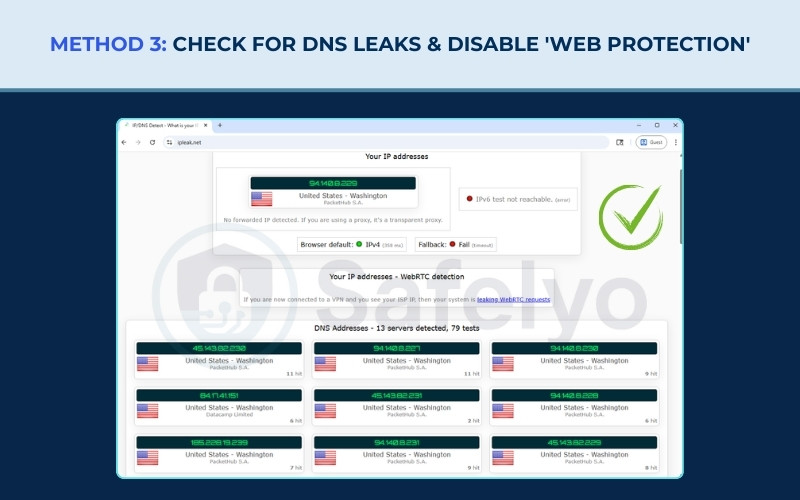
If you are leaking, go to your VPN settings and ensure the Kill Switch and DNS Leak Protection are enabled.
Crucial conflict check:
Many modern VPNs come with extra features like “Threat Protection” (NordVPN) or “CleanWeb” (Surfshark). While good for security, these ad-blockers inspect your traffic and can accidentally trigger Netflix’s detection systems. Disable these “Web protection” features temporarily when streaming.
7. Method 4: Disable IPv6 on your device
Most VPNs focus on protecting IPv4 traffic (the standard internet address system). However, many modern networks use IPv6. If your VPN doesn’t tunnel IPv6 traffic, your device might try to connect to Netflix using your unprotected IPv6 address, exposing your real home location.
Quick step (Windows 11):
- Go to Settings > Network & internet > Advanced network settings.
- Select More network adapter options.
- Right-click your active adapter (Wi-Fi or Ethernet) and select Properties.
- Uncheck “Internet Protocol Version 6 (TCP/IPv6)” and click OK.
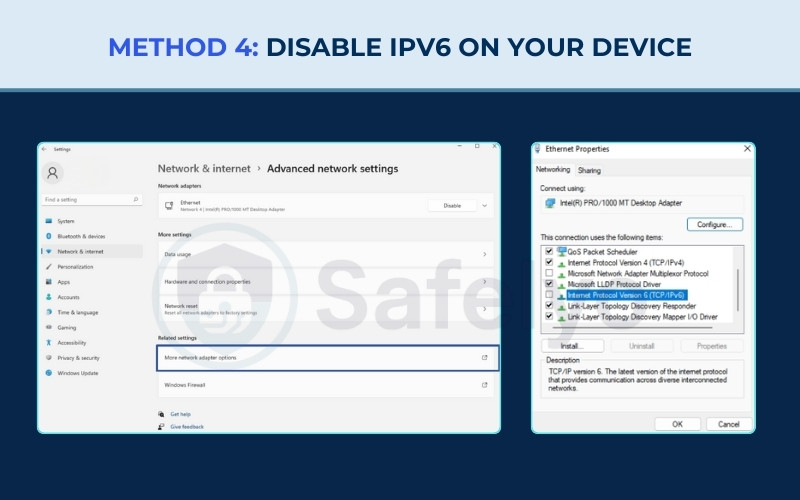
By disabling this, you force your computer to use IPv4, which your VPN can handle and encrypt perfectly.
8. Method 5: Use a dedicated IP address
If you are tired of playing the “cat and mouse” game with shared servers, a Dedicated IP is a powerful solution.
Quick step:
- Log in to your VPN user panel.
- Purchase or Select the “Dedicated IP” add-on.
- Connect to your unique static IP.
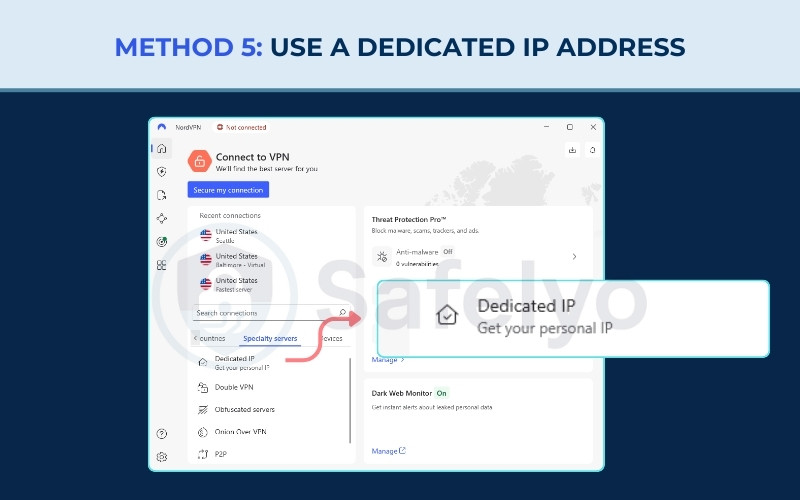
Unlike shared IPs used by thousands of people simultaneously, a Dedicated IP is unique to your account. Since only you are using this address, it does not trigger Netflix’s automated security systems that flag high-volume traffic coming from a single source as suspicious.
Pro tip: NordVPN Meshnet feature
Another option is utilizing a feature like NordVPN Meshnet, which allows you to route your online traffic through a specific device (like your home computer) to gain its IP address. Arguably, this method is preferable for many users because, unlike purchasing a Dedicated IP, this feature is completely free.
9. Method 6: Change your VPN protocol
The VPN protocol is the set of rules your VPN uses to talk to the server. Some protocols are faster, while others are more secure. Netflix’s filters can sometimes recognize the “fingerprint” of specific protocols.
Quick step:
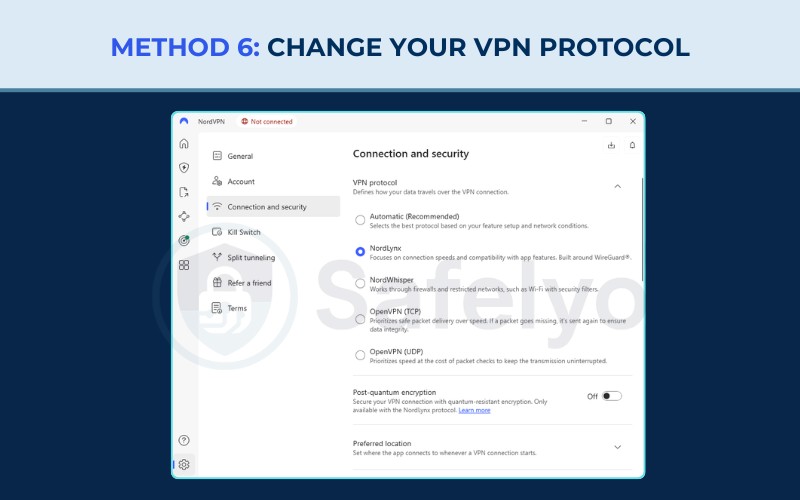
WireGuard is the modern standard for speed. However, if it fails, OpenVPN (TCP) is a great backup. It is slower, but it is much more stable and harder for automated filters to detect.
10. Method 7: Change your DNS servers
If your VPN’s default DNS servers are blocked, you can try forcing your connection to use a different resolution system.
Quick step (Windows 11):
- Go to Settings > Network & internet > Wi-Fi (or Ethernet).
- Click Edit next to DNS server assignment.
- Select Manual, toggle IPv4, and enter 8.8.8.8 (Google) or 1.1.1.1 (Cloudflare).
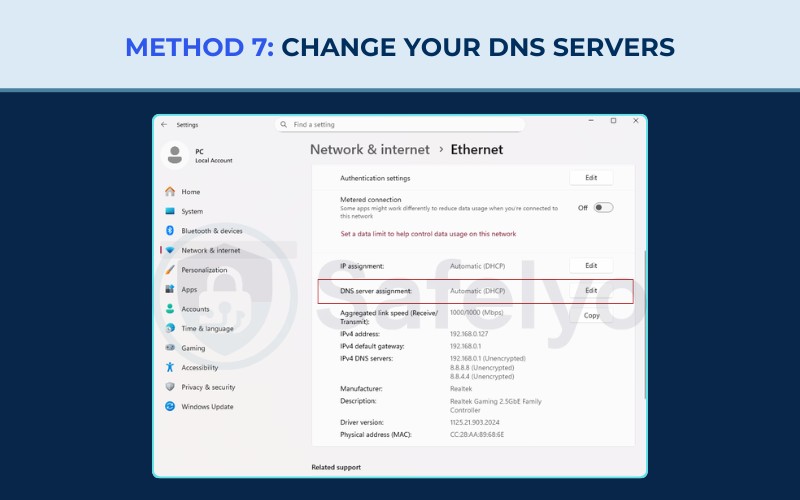
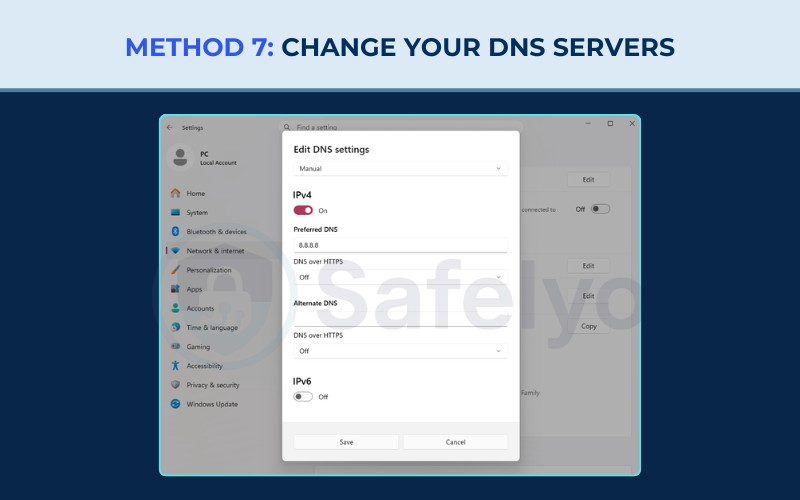
Warning: Using public DNS services can sometimes break geo-unblocking because they might not align with your VPN’s routing logic. However, it is worth a try if the VPN’s internal DNS is completely non-responsive.
11. Method 8: Contact customer support
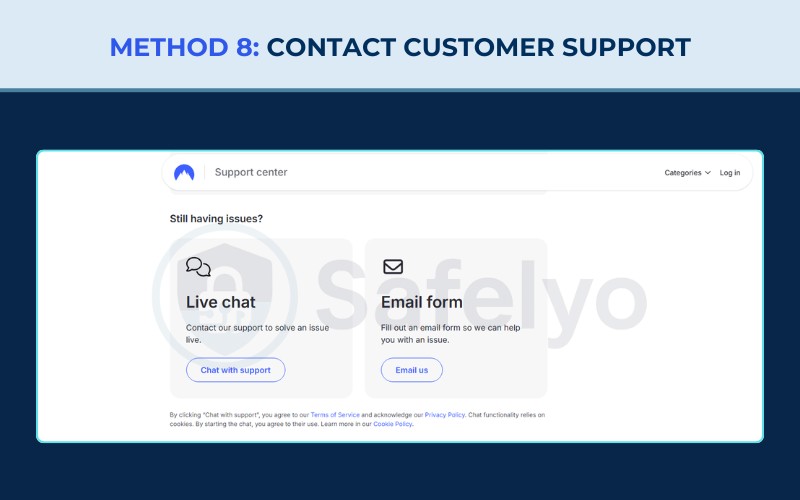
Sometimes the best hack is simply asking for help. Support agents have access to real-time internal lists of working servers that are not made public.
Quick step:
- Open the VPN website live chat.
- Ask: “Which US server is currently working for Netflix?”
- Connect to the specific server ID they provide.
This saves you the hassle of testing twenty different servers manually.
12. Method 9: Troubleshooting Netflix on smart TVs and consoles
Watching on a TV is harder because Smart TVs (Samsung, LG) and consoles (PS5, Xbox) generally do not support native VPN apps.
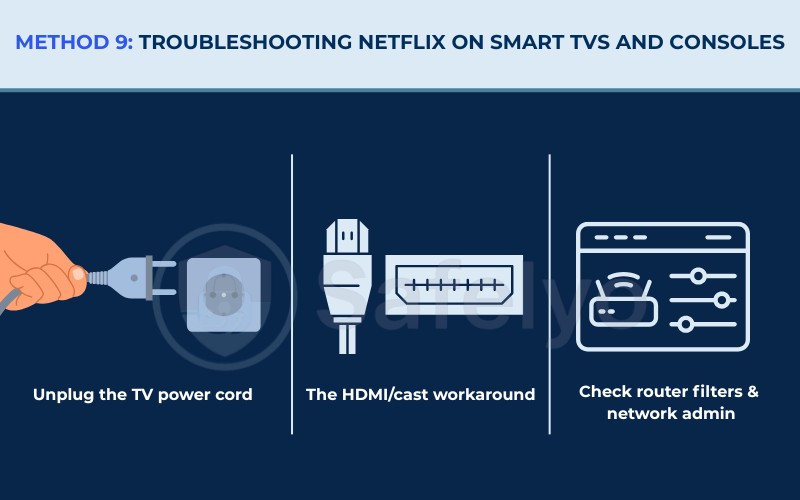
Power cycle your TV (crucially important)
Simply turning your TV off with the remote puts it in “Sleep Mode,” which preserves the memory cache. To fix streaming errors, you must clear this cache.
The fix: Unplug the TV power cord from the wall. Wait at least 60 seconds. Plug it back in. This forces a cold reboot and clears the corrupt location data.
The HDMI/cast workaround
If fixing the app on the TV directly is too difficult, use a practical shortcut. Connect your VPN on a laptop (where VPN apps work reliably) and then Cast the content to your TV using Chromecast or simply plug it in via an HDMI cable. This bypasses the TV’s strict app limitations entirely and is often the fastest way to start watching.
Check router filters & network admin
If you configured the VPN on your router, check for settings like “Parental Controls” or “Safe Browsing” provided by your ISP. These filters can interfere with the VPN tunnel and cause Netflix errors on every device in your house.
Important note: If you are trying to watch from a school or office, the Network Administrator may have blocked streaming services directly. Try disconnecting from Wi-Fi and using 4G/5G mobile data to verify if the local network is the real problem.
13. Method 10: Switch to a VPN proven to unblock Netflix
If you have tried fixes 1 through 9 and still see the error, your VPN provider has likely given up on Netflix. Free VPNs and budget providers simply cannot afford the expensive process of constantly refreshing their IP addresses.
Quick step:
- Sign up for a Tier-1 provider (like NordVPN or Surfshark).
- Install and stream to see if the error is resolved.
We recommend utilizing their money-back guarantee or free trial to test if it works for you.
Here is a quick look at the providers that are successfully unblocking Netflix in 2026 tests.
| Provider | Best for |
|---|---|
| NordVPN | Overall winner. Fastest speeds and massive server network. |
| Surfshark | Households. Unlimited devices and great budget pricing. |
| ExpressVPN | Reliability. Consistent unblocking and high speeds. |
14. Smart DNS: The alternative when VPNs fail
If standard VPN encryption slows down your stream or gets blocked constantly, Smart DNS is a powerful alternative.
A VPN encrypts all your traffic and changes your IP. Smart DNS only reroutes the specific data that reveals your location. It does not encrypt your data.
This lack of encryption makes Smart DNS much faster than a VPN. It eliminates the buffering often caused by heavy security protocols.
It is also the best solution for devices that do not support native VPN apps. This includes Apple TV, older Smart TVs, and gaming consoles like Xbox or PlayStation. Most top-tier VPN providers (like NordVPN or Surfshark) include a Smart DNS feature for free with your subscription.
Read more:
15. FAQs about Netflix VPN not working
Why isn’t my VPN working on Netflix?
It usually means Netflix has identified your VPN IP address and blocked it. Alternatively, your browser cookies might be leaking your old location.
Is Netflix blocking VPNs?
Yes. Netflix blocks VPNs to enforce licensing agreements. However, premium VPNs fight back by constantly adding new IP addresses that Netflix hasn’t blocked yet.
Will Netflix ban you for using a VPN?
No. Netflix will not ban or suspend your account for using a VPN. They simply show you an error message and block the video stream until you turn the VPN off.
Which VPN is not blocked by Netflix?
No VPN is 100% unblocked forever, but NordVPN, ExpressVPN, and Surfshark are the most consistent at bypassing these blocks in 2026.
How to turn off VPN on Netflix?
If you just want to watch your local country’s content, open your VPN app and click “Disconnect.” You may need to refresh the page or restart the Netflix app for the change to take effect.
If you’re using an iPhone and your VPN reconnects automatically after you tap Disconnect, see our guide on how to turn off VPN on iPhone.
16. Conclusion
Seeing the Netflix VPN not working error is annoying, but it is rarely permanent. In most cases, it is a simple IP conflict that you can solve by switching servers or clearing your browser cache. The key is to remain patient and try a fresh connection.
If you have tried fixes 1-9 and still see the error, your VPN provider has likely lost the battle against Netflix’s detection systems. We recommend switching to another VPN for the most reliable streaming experience.
If you want to explore more VPN guides regarding streaming issues, keep following Safelyo for the latest updates.