Using a VPN is one of the best ways to protect your online privacy and security. However, knowing how to check if my VPN is working is just as important to ensure that your connection is truly secure. This guide will help you understand how to verify your VPN’s performance and safety with easy-to-follow steps.
Here’s what you’ll learn:
- How to check for IP, DNS, and WebRTC leaks that could expose your real location
- How to test your VPN’s speed and connection stability
- Ways to confirm your VPN isn’t blocked by websites or services
Continue reading to learn straightforward and effective ways to verify your VPN’s protection, ensuring your personal information stays secure and your online activities remain private.
1. How to check if my VPN is working?
It’s important to regularly verify that your VPN is functioning properly to protect your online privacy. Sometimes VPNs can leak your real IP or DNS information without you realizing it. Here are simple, step-by-step checks to ensure your VPN is working as it should.
1.1. Check for IP address leaks
Ensuring your VPN hides your real IP address is crucial for online anonymity. Here’s how to quickly verify if your IP is properly masked.
Disconnect your VPN and visit an IP checker website to note your real IP and location.
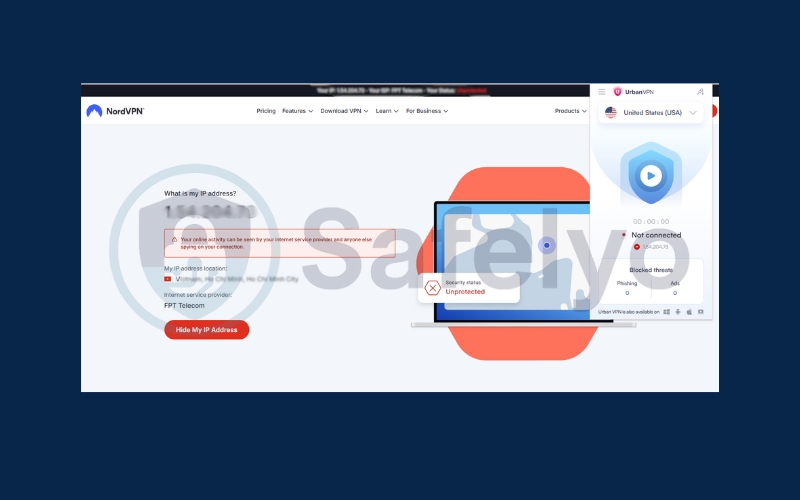
Connect to a VPN server in another country and refresh the IP checker.
Verify that your VPN IP address and location have changed to match the VPN server.
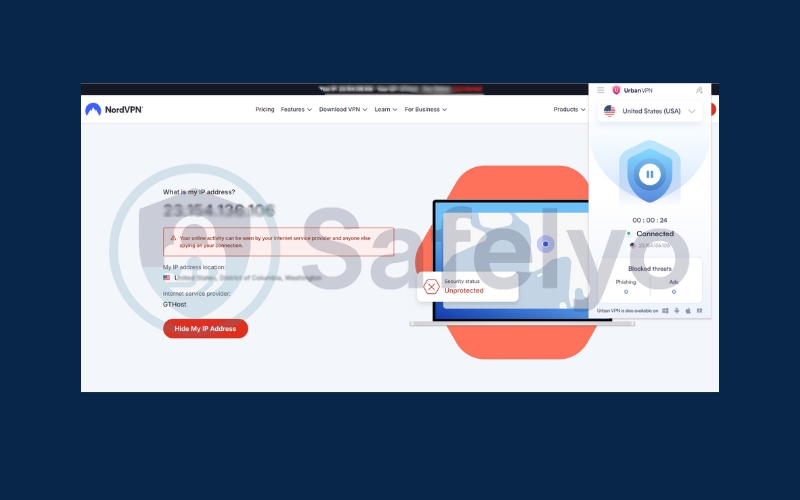
Test multiple servers to ensure consistency. If your real IP still shows, an IP leak is detected, and your VPN is working.
1.2. Check for DNS leaks
DNS leaks can expose your browsing activity even when connected to a VPN. Use this simple method to confirm your DNS requests are secure.
Go to ipleak.net in your browser. Wait for the test to run automatically.
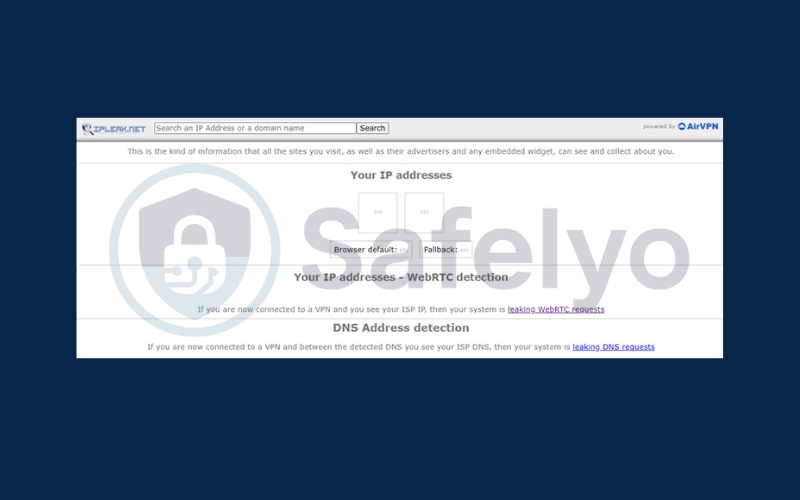
If your real IP and location appear while using a VPN, you have a DNS leak.
If the VPN’s IP shows instead, there is no DNS leak and your VPN is working effectively.

1.3. Check for WebRTC leaks
WebRTC leaks may reveal your true IP through your browser despite VPN protection. Follow these steps to identify if a leak exists.
- Connect to your VPN server.
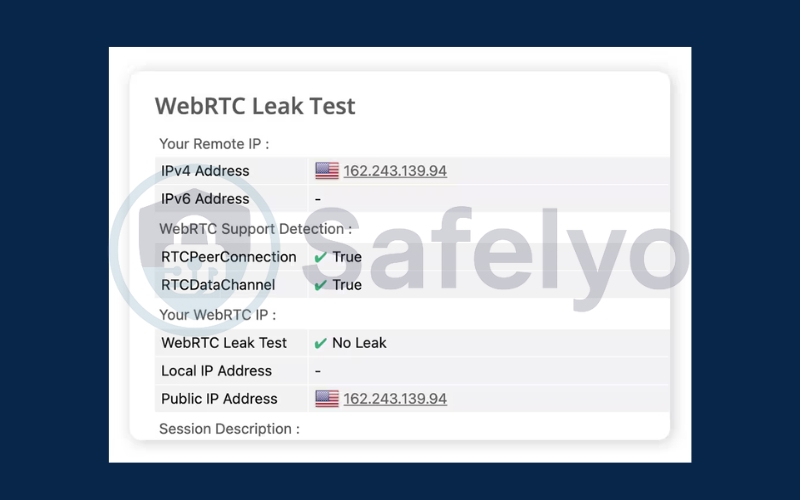
- Open a WebRTC leak test page like browserleaks.com/webrtc.
- Look at the IPs displayed – only your VPN IP should be visible.
- If your real IP shows up, your browser is leaking via WebRTC.
1.4. Test VPN speed
A VPN slows down the internet, but extreme speed loss signals a problem. Here’s how to assess your VPN’s speed performance.
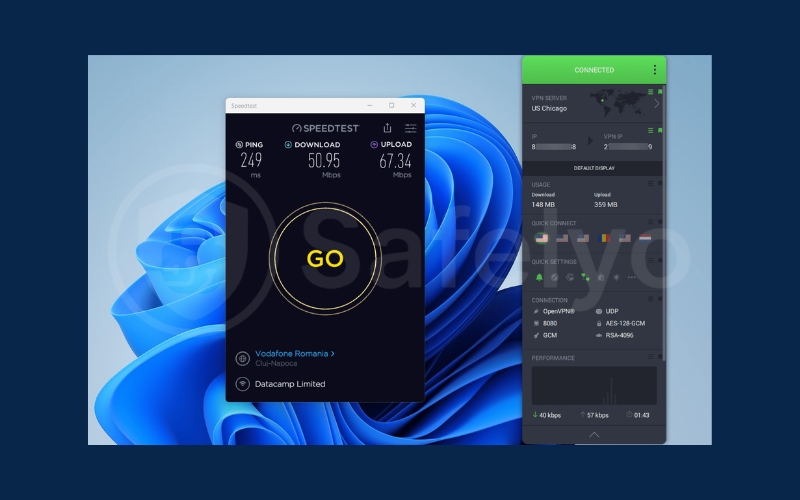
- Connect to your VPN server.
- Visit a speed test site like speedtest.net or fast.com.
- Run the test and note the speeds.
- Disconnect the VPN and test again to compare.
- Minor speed drops are normal – large drops indicate issues.
1.5. Verify if the VPN connection is being blocked
Some sites block VPN traffic to restrict access. This quick check helps you know if your VPN is being blocked.
- Connect your VPN.
- Try accessing geo-blocking or VPN-blocked websites.
- If the sites work only when the VPN is on, your VPN is working.
- If not, your VPN may be blocked. Try switching servers or changing to another VPN protocol.
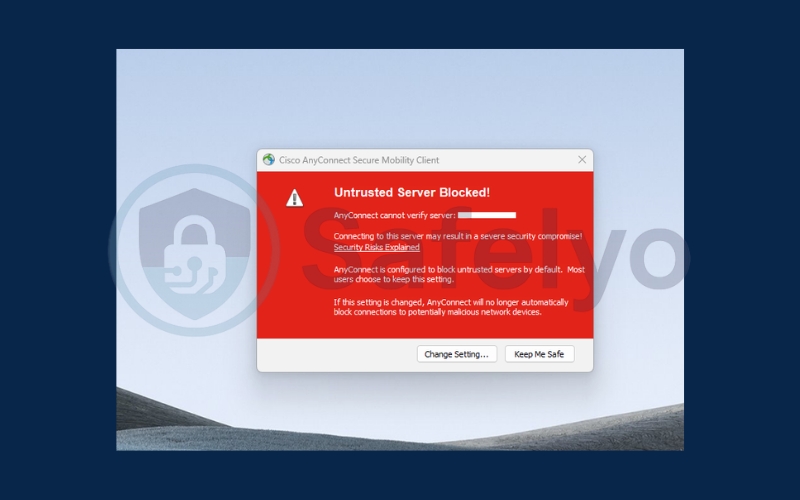
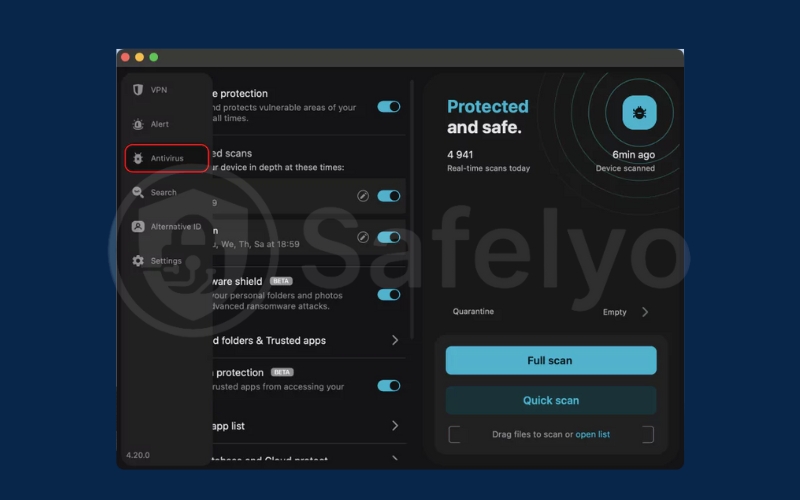
1.6. Scan for malware in your VPN app
A safe VPN app protects your device from threats. Use these steps to ensure your VPN app is malware-free.
- Download your VPN only from official sources.
- Use antivirus or anti-malware software to scan the VPN app.
- Scan regularly to detect any malware or tampering.
- If malware is found, uninstall and switch to a trusted VPN.
>> Read more:
2. Why should you check if your VPN is working?
Regularly verifying your VPN’s functionality is crucial to ensure it effectively safeguards your online privacy and delivers a seamless browsing experience. Without proper checks, you risk exposing sensitive data or losing access to important content. Here are the main reasons why it’s important to check if your VPN is working:
- Protecting your privacy by hiding your real IP address: A working VPN masks your true location and prevents websites, advertisers, and ISPs from tracking your online activities.
- Preventing data leaks through IP, DNS, or WebRTC: Even small leaks can reveal your identity or browsing habits, weakening the protection your VPN provides.
- Maintaining access to blocked content: A functional VPN bypasses geo-restrictions, allowing you to access streaming platforms and websites from anywhere.
- Keeping a stable and secure internet connection: A reliable VPN ensures encryption and connection consistency, avoiding sudden drops that could expose your data.
3. Tips to keep your VPN working properly
Using a VPN effectively requires more than just installing the app – it’s essential to maintain and manage it properly to ensure continuous protection and optimal performance. By following some simple but important tips, you can avoid common pitfalls, enhance your online security, and enjoy a faster, more stable VPN connection every time you go online.
- Choose a reliable and trusted VPN provider with a strong privacy policy: Select a VPN service that clearly states it does not keep logs and uses strong encryption methods to keep your data private and secure.
- Keep your VPN app updated to the latest version: VPN providers frequently release updates that fix security vulnerabilities and improve connection stability, so updating promptly ensures optimal protection.
- Use secure VPN protocols like OpenVPN or WireGuard: These protocols offer advanced encryption and faster speeds, providing a better balance of security and performance than older protocols.
- Enable the kill switch feature if available: This feature automatically blocks your internet connection if the VPN disconnects unexpectedly, preventing accidental exposure of your real IP address and data.
- Avoid using free or suspicious VPN apps: Many free VPNs lack proper security, may log or sell your data, and can include intrusive ads, so opting for a reputable paid VPN is safer and more reliable.
>> Read more:
4. FAQs about checking if VPN is working
If you’re new to VPNs or want to deepen your understanding, it’s natural to have questions about how to verify your VPN’s effectiveness. This FAQ section addresses some of the most common concerns and provides clear answers to help you confidently manage your VPN and ensure your online privacy remains intact.
How often should I check if my VPN is working?
Regular testing is recommended, especially after app updates or if you notice connection issues, to keep your privacy intact.
Can a VPN leak my real IP address without me knowing?
Yes, leaks such as DNS or WebRTC leaks can happen silently, which is why routine checks are important.
Will a slow internet speed always mean my VPN isn’t working?
Not necessarily. VPNs can slightly slow speeds due to encryption, but significant slowdowns may point to problems.
What should I do if my VPN is blocked by a website?
Switch to a different server or protocol, or contact your VPN provider for help bypassing restrictions.
Is it safe to use free VPNs for privacy?
Many free VPNs lack strong security and may sell your data. Paid, reputable VPNs are safer options.
5. Conclusion
Regularly checking how to check if my VPN is working is essential to ensure my online privacy and security remain intact. By performing simple tests like verifying your IP address, DNS, and WebRTC leaks, you can quickly spot vulnerabilities before they expose your real location or browsing activity. Monitoring your VPN speed and confirming it’s not blocked by websites helps maintain a smooth, uninterrupted connection. Additionally, keeping your VPN app safe from malware guarantees your device stays protected.
To recap the key points:
- Check for IP, DNS, and WebRTC leaks to ensure your data is not exposed.
- Test your VPN speed and connection stability for optimal performance.
- Verify your VPN isn’t blocked by restricted websites or services.
- Scan your VPN app for malware to avoid security risks.
Following these steps will give you confidence that your VPN is functioning as it should, keeping your data secure and your internet experience private. For more practical guides and tips, be sure to explore the Tech How-To Simplified category on Safelyo.