At Safelyo, one of the most common SOS messages we receive from readers is about the dreaded “VPN loop”. It means you toggle the settings switch to gray, but within seconds, it stubbornly flips right back to green. If you are stuck in this frustrating cycle of rapid battery drain and blocked local banking apps, figuring out how to turn off VPN on iPhone becomes an urgent priority.
Through our recent 2026 hands-on tests, our cybersecurity team confirmed that this isn’t a random bug but rather an aggressive iOS security protocol that forces the tunnel to stay open. Since simply tapping the main settings toggle often isn’t enough to override it, we will walk you through 3 proven methods to break this loop for good.
-
Open Settings
Open the Settings app on your home screen.
-
Find VPN
Scroll down and tap VPN under Personal Hotspot.
-
Turn off VPN
Tap the green switch to turn it gray to disconnect.
-
Open your VPN app
Locate and launch your VPN app (e.g., NordVPN or ExpressVPN).
-
Find the disconnect button
Look for the large Power or Disconnect button on the main dashboard.
-
Turn off the VPN
Tap the button and wait until the status shows “Not Protected.”
-
Find the VPN app
Locate the VPN app on your Home Screen or search for it in the App Library.
-
Open the remove menu
Long-press the app icon, then tap Remove App.
-
Delete the app
Select Delete App and confirm to uninstall it and remove the VPN profile.
1. How to turn off VPN on iPhone (3 working methods)
There isn’t just one switch; you might need to dig deeper if the connection persists. Below are 3 proven methods, ranging from the standard settings toggle to removing stubborn configuration profiles entirely.
1.1. Toggle VPN off in the main settings menu
The fastest way to disconnect is through the main iOS settings menu. This works perfectly for temporary pauses when you need to access a local network or a specific website quickly.
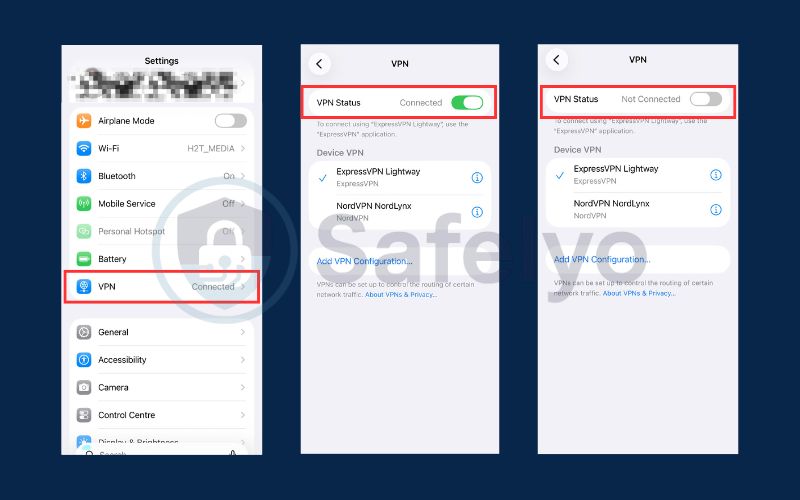
- Step 1: Open the Settings app on your home screen.
- Step 2: Scroll down to find the VPN option, located directly under Personal Hotspot.
- Step 3: Tap the green switch to turn it gray, indicating the connection is off.
Safelyo Pro Tip:
If you toggle this switch and it turns green again after 2 seconds, your VPN app or iOS is forcing a reconnection. Don’t panic – skip straight to Method 1.3 below to fix this specific ‘Connect on Demand’ loop.
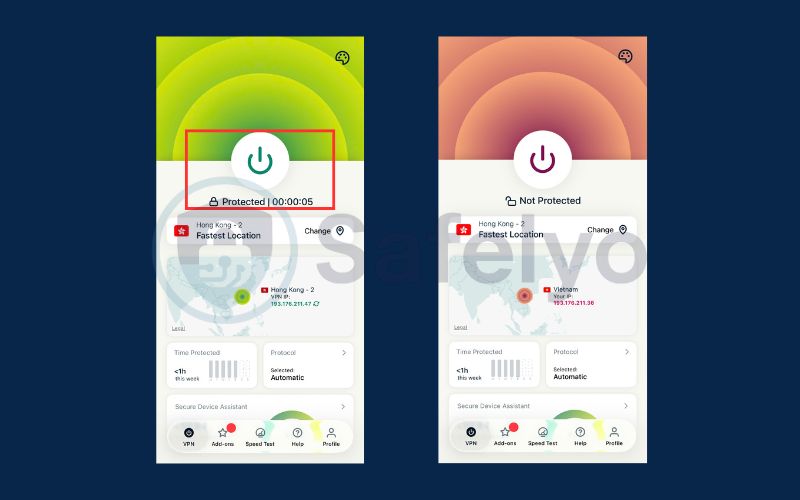
1.2. Disconnect using your VPN provider’s app
Sometimes, using the system toggle fails because the VPN app forces a reconnection immediately. To stop this loop, you must disable the connection directly from the provider’s interface.
- Step 1: Locate and open your specific VPN app (e.g., NordVPN, ExpressVPN).
- Step 2: Find the large Power or Disconnect button on the dashboard.
- Step 3: Tap it and wait for the status to change to “Not Protected.”
1.3. Delete the VPN app from your iPhone
Sometimes, a glitchy app or a corrupted setting prevents the VPN from disconnecting, no matter what you try. Deleting the application is the “nuclear option” that forces iOS to remove the associated VPN configurations and stop the connection immediately.
- Step 1: Locate the VPN app icon on your Home Screen or search for it in the App Library.
- Step 2: Long-press the icon until a quick action menu appears, then tap Remove App (written in red).
- Step 3: Select Delete App and confirm again. This action uninstalls the software and automatically wipes the active VPN profile from your system settings.
If your current VPN app keeps causing reconnect loops or other iOS issues, see our guide to the best VPN for iPhone to find a more reliable alternative.
2. Why your VPN won’t turn off on iPhone
If you have already tried the methods above but your VPN still reconnects automatically, the problem may be due to deeper system-level restrictions rather than a simple settings toggle. During Safelyo’s 2026 hands-on testing across multiple iPhone models, we found that persistent VPN connections usually fall into one of the following scenarios.
In most cases, this happens because Auto-Connect, Connect on Demand, or a management profile is forcing the VPN to reconnect automatically.
2.1. Auto-Connect is enabled inside your VPN app
Many VPN providers include an Auto-Connect feature that reconnects your VPN whenever your device detects internet activity. This helps prevent accidental exposure of your real IP address, but it can make it seem like the VPN toggle is not working.
How to fix it
- Open your VPN app
- Go to Settings or Connection preferences
- Turn off Auto-Connect, Launch on startup, or similar options
- Return to the main screen and tap Disconnect again
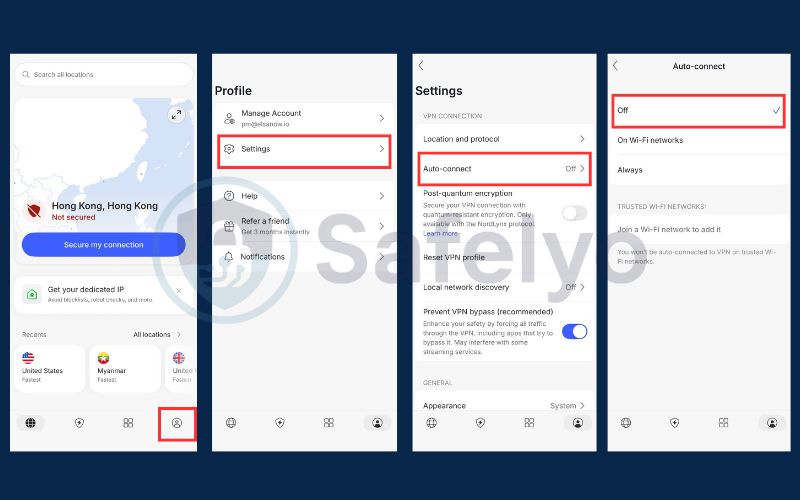
Once Auto-Connect is disabled, the VPN should remain off normally.
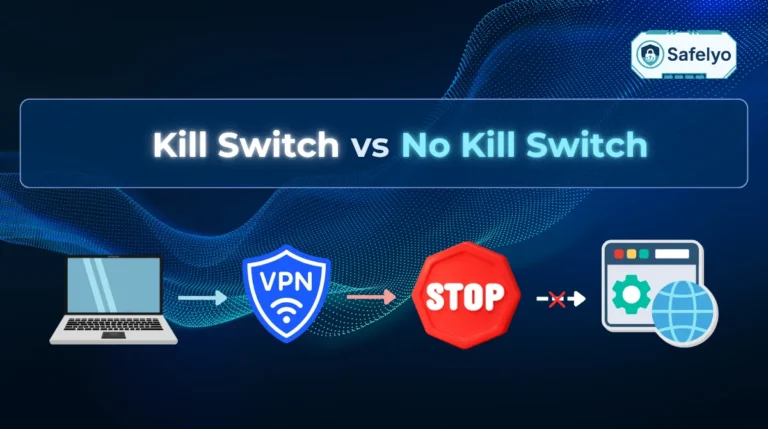
2.2. Kill Switch is forcing reconnection
On iPhone, some VPN apps include a Kill Switch that blocks all internet traffic if the VPN connection drops. This feature is designed to prevent your real IP address from being exposed.
With apps like NordVPN on iOS, the Kill Switch works differently from desktop versions:
- It is enabled by default
- It operates at the system level
- There is no manual toggle to turn it off
When the VPN connection is interrupted (for example, due to a weak network or switching between Wi-Fi and mobile data), the system may block internet access and trigger the app to reconnect automatically. This can make it seem like your VPN cannot be turned off.
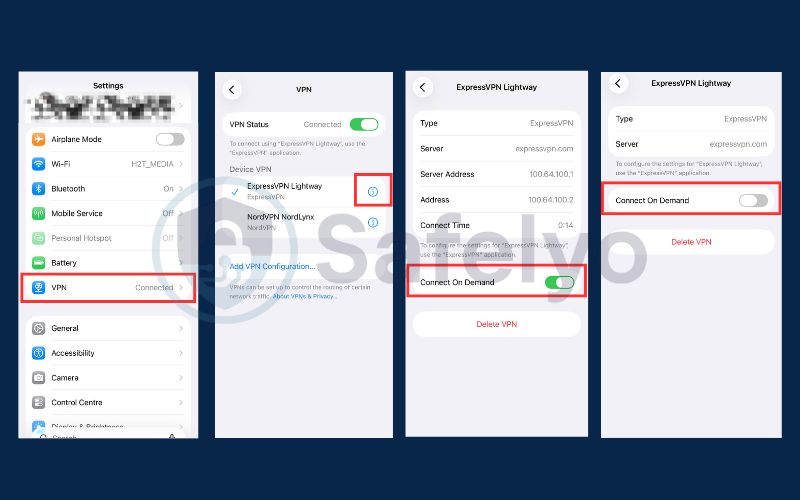
2.3. Connect on Demand is enabled in iOS settings
Connect on Demand is a built-in iOS feature that automatically reconnects a VPN whenever your device sends network traffic. This is one of the most common reasons a VPN keeps turning back on.
How to fix it
- Open Settings
- Tap VPN
- Select the active VPN profile
- Turn off Connect on Demand
After disabling this option, your VPN should stop reconnecting automatically.
- Always-On VPN is active on your device
Some VPN configurations use Always-On VPN, which forces all traffic through the VPN tunnel at all times. When this feature is enabled, the connection may restart immediately after you turn it off.
How to fix it
- Open Settings
- Tap VPN
- Check whether Always-On protection is enabled
- Disable it if the option is available
If the setting cannot be changed, your VPN may be controlled by a configuration profile or administrator policy.
- Your iPhone is managed by a work or school profile
Many corporate or school devices are configured with a Mobile Device Management (MDM) profile. This security policy forces all internet traffic through a company VPN to protect internal data.
How to check
- Open Settings
- Tap General
- Select VPN & Device Management
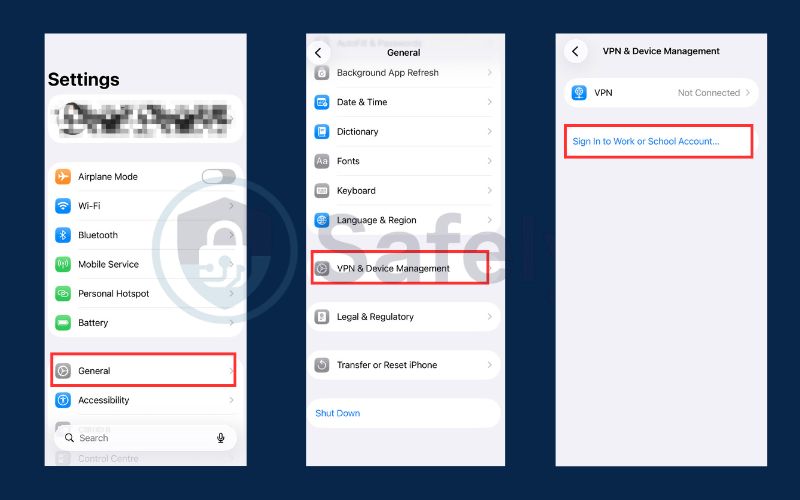
If a management profile appears, the VPN settings are controlled by your organization. Only the administrator can remove or modify the VPN requirement.
- Your VPN provider enforces organization-level restrictions
Some privacy-focused VPN services automatically reconnect to prevent accidental exposure of your real IP address. If the provider applies connection persistence rules at the account or app level, the connection may return even after you disconnect it. In this case, check the security settings inside the VPN app or contact the provider’s support team for guidance.
- A leftover VPN profile is still installed on your iPhone
Sometimes a VPN configuration profile remains on your device even after you uninstall the VPN app. This leftover profile can continue reconnecting automatically in the background, making it appear as if the VPN will not turn off.
This situation is more common if the VPN was installed manually, configured using a third-party setup guide, or added via a configuration file, rather than only through the App Store version of the app. These profiles are sometimes created when installing a VPN manually using L2TP, IKEv2, or enterprise setup instructions.
How to fix it
- Open Settings
- Tap General
- Select VPN & Device Management
- Look for unused or unfamiliar VPN configuration profiles
- Tap the profile and choose Remove VPN or Delete Profile
- After removing the leftover profile, return to the VPN settings page and confirm the connection no longer reconnects automatically.
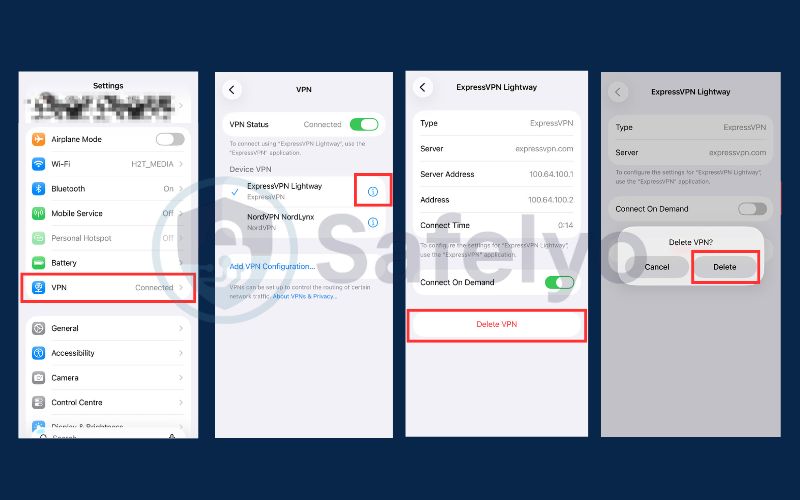
Tip: If you do not see any removable VPN profiles but the connection still turns back on, the VPN may instead be controlled by a management profile or Always-On VPN configuration described in the sections above.
- Network settings became corrupted after an update
Occasionally, iOS updates or app conflicts can cause network configuration errors. This may result in VPN connections behaving unpredictably.
How to fix
- Open Settings
- Go to General
- Tap Transfer or Reset iPhone
- Select Reset and choose Reset Network Settings
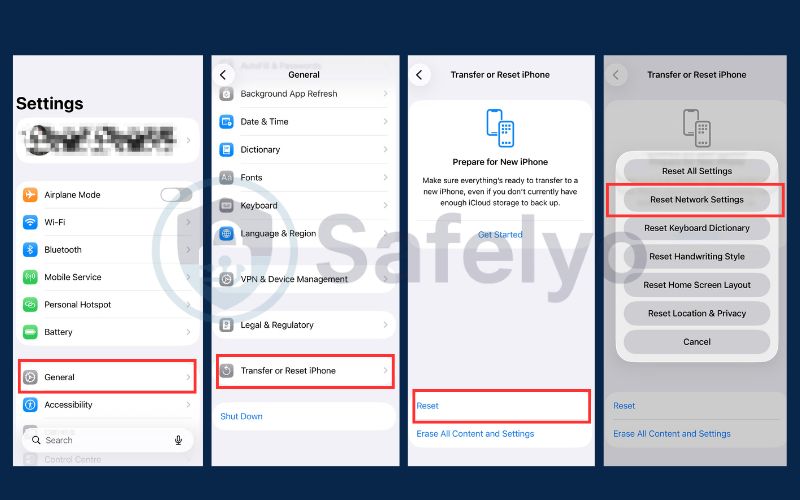
Note: This will remove saved Wi-Fi networks and passwords.
3. When should you turn off VPN on your iPhone?
While privacy is vital, sometimes the encrypted tunnel interferes with daily digital tasks. There are valid scenarios where turning off your protection is the only effective way to resolve connectivity glitches or access specific location-based services.
3.1. Fixing slow internet or Wi-Fi connection issues
Encryption adds overhead to your data, which can significantly drop your connection speed. If you are experiencing slow internet or buffering during a critical video call, disabling the VPN eliminates this bottleneck and restores your full bandwidth immediately.
3.2. Accessing local banking apps and services
Financial institutions employ ultra-strict fraud-detection systems. In our experience, trying to log into apps like Chase, Bank of America, or Revolut while connected to a foreign VPN server will almost certainly trigger a security lockdown or endless CAPTCHA loops. Even using a domestic VPN server can sometimes flag your login as a ‘new unrecognized device’. Turning off the VPN temporarily ensures you appear with your standard home ISP, allowing smooth access.
3.3. Troubleshooting smart home devices
Many IoT gadgets, like Chromecast, Sonos speakers, or Apple TV, rely on local network discovery to function. A VPN tunnel often hides your iPhone from these local peers, so you must disable the connection to cast media or control smart home appliances effectively.
Read more:
4. Is it safe to turn off VPN on iPhone? (Risks explained)
Turning off your VPN might resolve connectivity issues, but at Safelyo, we emphasize understanding the trade-offs. Disabling the encryption tunnel immediately strips away the protective layer between your iPhone and the open internet, leaving your digital footprint completely visible to third parties.
- Your real IP address and location are exposed
Without the VPN mask, every website you visit can instantly log your real IP address. This unique identifier reveals your precise physical location and ISP details to advertisers, data brokers, and potentially malicious actors looking to track your online movements.
How to reduce this risk
- Re-enable your VPN as soon as you finish using the app that required it to be turned off
- Use private browsing modes in Safari or other browsers
- Limit app tracking permissions in iOS settings
These measures help reduce tracking but do not fully replace the protection of a VPN.
- Your internet service provider can see your browsing history
Your Internet Service Provider (ISP) gains full visibility into your browsing history and DNS requests the moment encryption stops. In many regions, ISPs are legally allowed to record this metadata and sell your personal profile to marketing agencies without your explicit consent.
How to reduce this risk
- Avoid accessing sensitive accounts when the VPN is off
- Use HTTPS websites whenever possible
- Consider using encrypted DNS services such as Cloudflare or Quad9
Encrypted DNS can help reduce visibility of domain requests, although it does not provide full anonymity.
- Public Wi-Fi networks become a major security threat
Connecting to unsecured networks at cafes or airports without protection makes you vulnerable to Man-in-the-Middle attacks. Hackers on the same Wi-Fi can easily intercept unencrypted traffic to steal passwords, so you must remember to re-enable your VPN before conducting sensitive transactions in public.
How to reduce this risk
- Avoid using public Wi-Fi when your VPN is disabled
- Use your mobile data connection instead
- Only access sensitive accounts after reconnecting to the VPN
Using cellular data is often much safer than relying on unsecured public networks.
5. Alternatives to turning off your VPN on iPhone
In many cases, completely disabling your VPN is not the best solution. You may still want privacy protection while resolving compatibility issues with certain apps or services.
Below are safer alternatives that allow you to keep most of your traffic protected.
5.1. Switch to a local VPN server
Instead of disconnecting entirely, try connecting to a server located in your own country. This often resolves problems with banking apps, streaming services, and location-based platforms while keeping your traffic encrypted. This approach balances security with convenience.
5.2. Use a trusted network instead of public Wi-Fi
If you must disable your VPN temporarily, it is much safer to do so on a trusted home or private network. Public Wi-Fi networks in airports, cafes, and hotels are far more vulnerable to data interception and cyberattacks.
5.3. Enable additional privacy protections in iOS
Even when your VPN is off, you can still improve your privacy by enabling built-in iPhone protections such as:
- Private Browsing mode in Safari
- App Tracking Transparency controls
- Limited location access for apps
These settings cannot replace a VPN, but they help reduce unnecessary tracking.
Discover:
6. FAQs on how to turn off VPN on iPhone
Does the iPhone have a built-in VPN?
No, iPhones do not come with a full VPN service pre-installed. They feature a built-in VPN client that allows for manual configuration, but you must still subscribe to a third-party provider. Apple’s iCloud Private Relay offers similar privacy protections within Safari, but it does not encrypt traffic from other apps like a true VPN.
Is it safe to leave a VPN on all the time?
Yes, keeping your VPN active 24/7 is generally recommended for maximum security, especially when connecting to public Wi-Fi networks. However, leaving it on constantly can slightly drain your battery faster and may reduce internet speeds, so you might want to disable it when using trusted home networks to conserve power.
How do I know if the VPN is active on my iPhone?
On iPhones with a Face ID notch or Dynamic Island, swipe down from the top-right corner to open the Control Center. If the VPN is active, you will see a small “VPN” icon next to your battery percentage. On older models with a Home button, this icon appears directly in the top status bar whenever you are connected.
Why can’t I turn off the VPN on my work iPhone?
If the toggle immediately turns back on or is grayed out, your device is likely managed by a Mobile Device Management (MDM) profile from your employer or school. These strict security policies force the VPN to stay active to protect corporate data, and you cannot disable it without administrator permission.
Will turning off the VPN save my battery life?
Yes, significantly. Maintaining an encrypted tunnel requires constant CPU processing and keeps your device’s radio active, which consumes power. Turning off the VPN when you are not using the internet or are on a secure connection can help extend your iPhone’s battery life throughout the day.
Do I really need a VPN on my secure home Wi-Fi?
While your home Wi-Fi is safer than public networks, your Internet Service Provider (ISP) can still track and sell your browsing data. If privacy is your priority, keep the VPN on; if speed is more important for gaming or streaming on a trusted network, it is safe to turn it off temporarily.
7. Conclusion
Knowing how to turn off VPN on iPhone correctly is a vital skill, especially when dealing with persistent connection loops or battery drain. Whether you simply toggle the settings menu or dig deeper to disable the specific “Connect On Demand” feature, taking control of your network ensures you can access local apps and banking services without interference.
However, leaving your device unprotected exposes your personal data to ISPs and hackers, particularly on public Wi-Fi. Always remember to re-enable your protection after troubleshooting, and for more expert tips on optimizing your mobile security, explore our comprehensive VPN Guides at Safelyo to navigate the digital world with confidence.