You’re at the airport, waiting for your flight, or killing time at your favorite coffee shop. That “Free_Public_WiFi” network pops up, and connecting is almost a reflex. But this convenience comes with a hidden cost: Your digital privacy and security are left wide open. Connecting without protection is like leaving your front door unlocked in a crowded street.
With over years of hands-on experience in cybersecurity, I’ve personally demonstrated how easy it is to snatch unencrypted data from a public Wi-Fi network. It’s a frighteningly simple process that puts everyday users at risk. The best VPN for public Wi-Fi isn’t a luxury; it’s the most critical line of defense for anyone using the internet outside their home.
If you want to secure your data on risky public networks, here are the fast answers you need:
- Which is the best VPN for public Wi-Fi?
→ NordVPN is the #1 overall pick for its “set-and-forget” automatic protection and advanced threat blocking. - Why is a VPN necessary?
→ Public Wi-Fi is often unsecured, allowing hackers to steal passwords and credit card details via “Evil Twin” or “Man-in-the-Middle” attacks. - What is the most important feature?
→ Automatic Wi-Fi Protection. Look for a VPN that detects untrusted networks and connects instantly without you lifting a finger. - Are free VPNs safe to use?
→ No. Most free apps sell your browsing data to advertisers; strictly use reputable paid options with audited no-logs policies. - How to ensure total safety?
→ Always verify the official network name with staff and enable your VPN’s Kill Switch to prevent data leaks if the connection drops.
Don’t wait for a security alert from your bank to take this seriously. Let me show you how to lock down your connection and browse with complete peace of mind, starting now.
1. The best VPNs for public Wi-Fi
If you need a quick answer, you’ve come to the right place. I’ve focused my testing on the non-negotiable features for public Wi-Fi safety: Flawless automatic connection capabilities, a rock-solid kill switch, and independently audited privacy policies. Here is a quick comparison of the VPNs that perform best in these critical areas.
Quick note: don’t choose a VPN just because it’s popular or heavily promoted online. If you’re curious, here’s what VPN Joe Rogan uses and what to consider before following any sponsorship.
| VPN | Safelyo Security Score | Automatic Wi-Fi Protection? | Kill Switch Type | Audited No-Logs Policy? |
|---|---|---|---|---|
| #1 NordVPN Best overall | 9.8 / 10 | Yes (Highly customizable) | System-level | Yes (Multiple audits) |
| #2 Surfshark Best value | 9.6 / 10 | Yes (Easy to configure) | System-level | Yes |
| #3 ExpressVPN Best for reliability | 9.5 / 10 | Yes (Simple setup) | System-level (Network Lock) | Yes (Multiple audits) |
| #4 CyberGhost Best for beginners | 9.2 / 10 | Yes (Via “Smart Rules”) | System-level | Yes |
| #5 Private Internet Access Best for customization | 9.1 / 10 | Yes (Custom automation rules) | System-level | Yes |
2. Why you need a VPN for public Wi-Fi (Real risks explained)
That free “Airport_WiFi” or “Cafe_Guest” network might seem like a lifesaver, but it’s a digital minefield. On these unencrypted networks, data interception is a common practice that can lead to serious data breaches and the risk of identity theft. The convenience masks significant security vulnerabilities that cybercriminals exploit every day. These aren’t complex, Hollywood-style hacks. They are common, easy-to-launch attacks that can compromise your most sensitive data.
2.1. The most common dangers of public Wi-Fi
Hackers use a handful of proven methods to steal data on unsecured networks. Here’s a quick overview of the most prevalent threats.
| Threat type | What it does |
| Evil Twin Hotspot | A fake Wi-Fi network that impersonates a legitimate one to trick you. |
| Man-in-the-Middle | An attack that secretly intercepts and reads your data in transit. |
| Packet Sniffing | Eavesdropping on unencrypted data traffic flowing across the network. |
| Device-to-Device Attack | Directly targeting your device from another computer on the same Wi-Fi. |
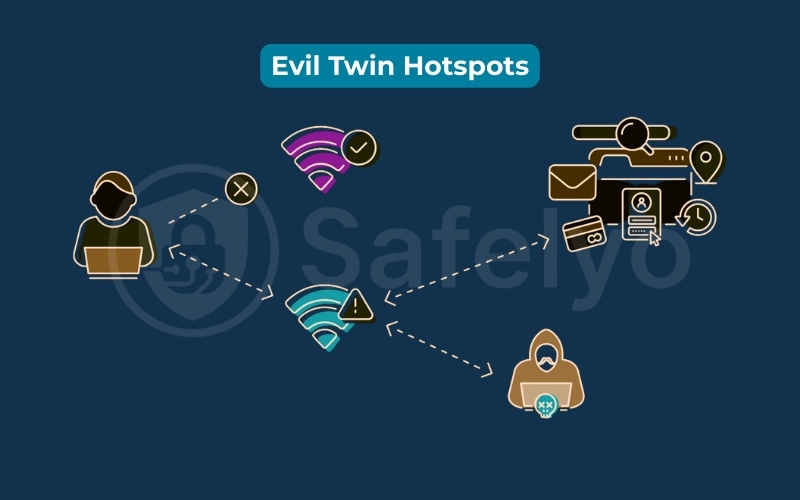
Rogue hotspots, often known as Evil Twin Hotspots, are a classic imposter trick. A hacker sets up a rogue Wi-Fi hotspot with a convincing name, like “Starbucks Free WiFi” instead of the legitimate “Starbucks_WiFi”. Your phone, seeking a familiar network, connects automatically. The moment it does, you’re on the hacker’s network, not the coffee shop’s. I once saw three nearly identical Wi-Fi network names at a conference hotel. Choosing the wrong one meant handing over all my data.
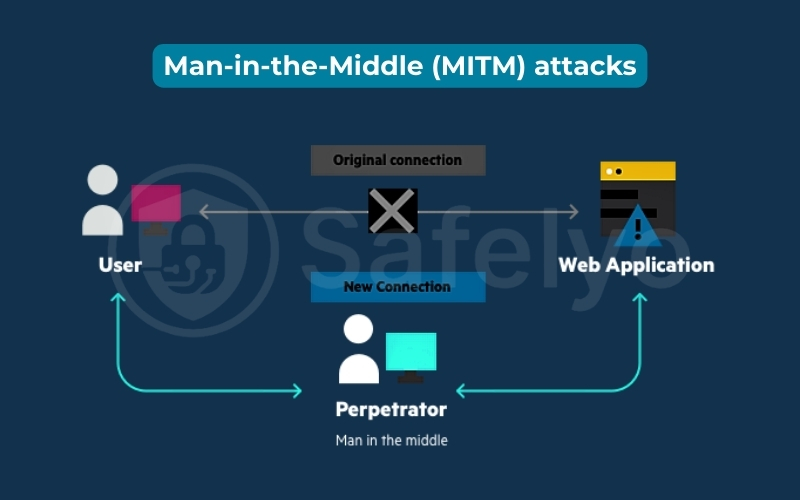
Man-in-the-Middle attacks (MITM), often executed through ARP spoofing, involve a hacker placing their device between you and the router. Their machine essentially tells your device, “I’m the router”, and tells the router, “I’m that user’s device”. This funnels all your internet traffic directly through their machine, allowing them to intercept passwords, emails, and credit card numbers.
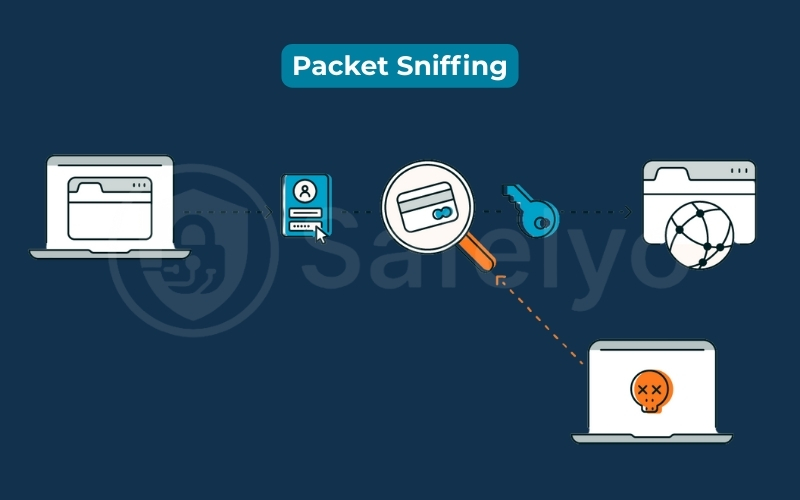
Packet Sniffing is the act of digital eavesdropping. Once a hacker can see your traffic (via an Evil Twin or MITM attack), they use “sniffer” tools to read it. If your data isn’t encrypted by a VPN, it’s like they’re listening to your conversation in plain English, easily recording your login details and browsing history.
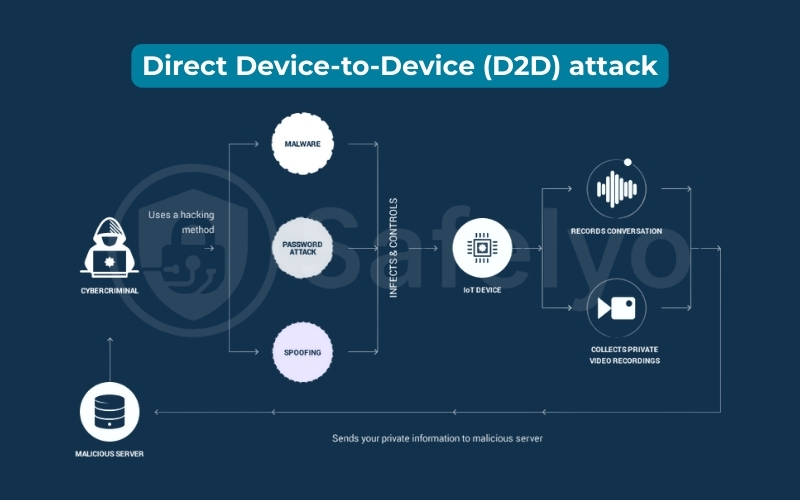
Direct Device-to-Device Attacks are possible because your device is often “discoverable” on public networks. This allows a malicious actor to scan your device for vulnerabilities. They often target outdated software that lacks the latest security patches. Their goal is to access shared folders or inject malware directly. This is why having a personal firewall enabled on your operating system is another critical layer of defense, as it helps block these unsolicited incoming connection attempts.
2.2. So, what can a hacker actually see?
When facing these online threats without protection, a snooper can easily capture your sensitive information, including:
- The websites you visit: They’ll see you connected to yourbank.com, yourcompany-email.com, or any other site.
- Your search queries: The things you type into Google are sent in the clear.
- Login credentials: Any username and password sent over an unencrypted (HTTP) connection are completely exposed.
- Unencrypted app data: Many apps beyond your web browser communicate without full encryption, leaking valuable information.
2.3. But isn’t HTTPS enough protection?
The little padlock icon (secured HTTP) in your browser is essential. It encrypts the connection between your browser and the specific website you’re visiting. It’s like putting your letter in a locked box.
However, HTTPS is not a complete shield on public Wi-Fi. A snooper can still see the domains you visit (your DNS requests), revealing your browsing habits. More importantly, it offers zero protection if you’ve already connected to an Evil Twin hotspot, as the hacker controls the entire network environment. A VPN encrypts all traffic from your device, regardless of the app or website, making your connection a black box to eavesdroppers.
3. Key features to look for in a public Wi-Fi VPN
Not all VPNs are created equal, especially when facing the high-stakes environment of public Wi-Fi. When I test these services, I’m not just looking at a feature list. I’m looking at how those features perform in the real world to provide seamless, ironclad protection. Here are the critical components that separate a great public Wi-Fi VPN from a mediocre one.
3.1. Automatic Wi-Fi protection
This is the single most important feature. You shouldn’t have to remember to turn on your VPN every time you walk into a café or airport. The best VPNs offer a “set-and-forget” function that automatically detects when you’ve joined an unsecured or unknown Wi-Fi network and instantly establishes a secure connection. Look for services like NordVPN or CyberGhost that offer customizable rules, allowing you to “trust” your home network while automatically securing you everywhere else.
3.2. A reliable kill switch (system-level is best)
A kill switch is your ultimate safety net. If your VPN connection drops for even a split second, which is common on spotty public Wi-Fi, the kill switch instantly blocks all internet traffic. This continues until the secure connection is restored. This prevents any of your unencrypted data from leaking out. System-level kill switches, found in services like NordVPN and ExpressVPN, are superior because they cut the connection at the operating system level, leaving no room for error.
3.3. Strong encryption & modern protocols
This is the core of what a VPN does. Your data should be protected by AES-256 encryption, the same standard used by banks and militaries. Just as important are the VPN protocols – the VPN tunnels your data travels. Look for modern options like WireGuard (and its proprietary versions like NordVPN’s NordLynx and ExpressVPN’s Lightway). These protocols are not only incredibly secure but also lightweight and fast, minimizing the speed loss that can make slow public Wi-Fi unusable.
3.4. Independently audited no-logs policy
A VPN is pointless if it just transfers your trust from your ISP to the VPN provider. A strict no-logs policy means the VPN company does not record, store, or monitor what you do online. But don’t just take their word for it. The most trustworthy providers, including all the top picks on our list, regularly hire independent auditing firms like PwC or Deloitte to verify their no-logs claims. This is proof, not just a promise.
3.5. RAM-only servers & threat blocking
Top-tier VPNs are moving to RAM-only server infrastructures (like ExpressVPN’s TrustedServer technology). This means data is never written to a physical hard drive and is wiped clean with every reboot, making it physically impossible to store logs. Additionally, look for built-in threat blocking features (like NordVPN’s Threat Protection or Surfshark’s CleanWeb). These act like a filter, blocking malicious websites, trackers, and malware-infected files before they can ever reach your device – an essential extra layer of defense on hostile networks.
3.6. Excellent speed & server quality
Security shouldn’t bring your internet to a crawl. A VPN will always have some impact on your speed, but the best ones minimize it to a point where it’s barely noticeable. High-quality server networks and efficient protocols like WireGuard are key. During my tests, I always look for a speed drop of less than 20% on local servers. This ensures you can still stream, browse, and take video calls, even on a slow café connection.
>> You may also be interested in: Does VPN slow down the internet? YES, but here’s why & 10 ways to fix it!
4. Detailed reviews: Best VPNs for public Wi-Fi (2026)
Connecting to a public network should give you access, not anxiety. The VPNs in this list are our top choices because they master the art of “set-and-forget” security. We focused on how well they can automatically shield you, so you’re protected even when you’re in a rush and forget to flip the switch yourself.
4.1. #1 – NordVPN
NordVPN earns our top spot because it goes beyond what a traditional VPN does. It’s not just a privacy tool; it’s a comprehensive security suite designed for hostile environments like public Wi-Fi.
| Security Score | 9.8/10 |
| Key Wi-Fi Feature | Fully customizable automatic protection |
| Standout Extra | Threat Protection (blocks malware & trackers) |
| Kill Switch | System-level |
| Logging Policy | Independently audited no-logs |
| Simultaneous Connections | 10 devices |
| Average Speed Drop | ~12% (Excellent) |
NordVPN is a mobile security fortress. Its combination of threat blocking, intelligent auto-connect features, and blazing-fast speeds makes it the undisputed champion for anyone who frequently relies on outside networks. If you want the most powerful and automated protection in one package, this is the one to get.
Security spotlight
This feature is a cornerstone of NordVPN’s cybersecurity suite, acting like a combination of an advanced firewall and antivirus software. A strong firewall filters malicious traffic, and its Threat Protection is designed to block malware and dangerous websites, creating a layered defense for your device. Think of it as a dedicated security guard for your internet connection that works even when the VPN isn’t connected to a server. It actively scans files you download for malware and blocks dangerous sites and trackers before they can even load.
This is a huge advantage over other VPNs, which only protect you when the connection is active. Its system-level Kill Switch is also the best safety net you can have. If the VPN connection ever drops, it instantly cuts off all internet access, ensuring not a single packet of your data leaks out. And, of course, its strict no-logs policy has been independently audited multiple times, so they don’t just promise privacy – they prove it.
Automatic Wi-Fi protection feature
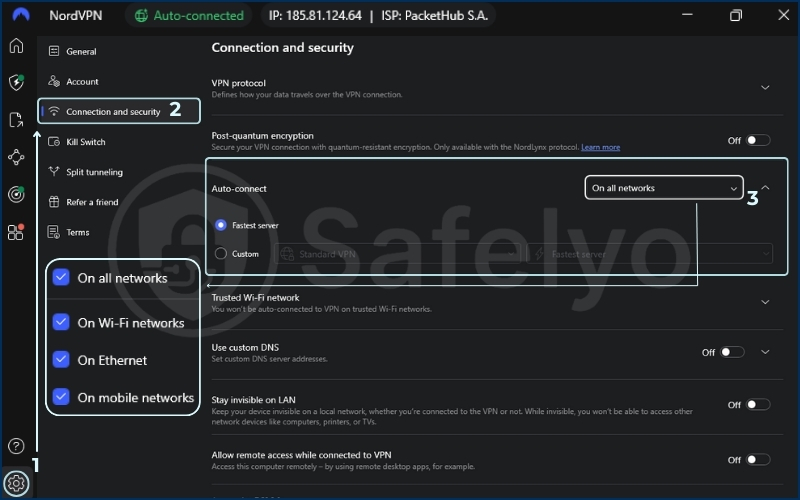
This is where NordVPN truly shines for public Wi-Fi users. Its auto-connect feature is incredibly smart and customizable. I found it simple to configure in the settings menu. You can tell NordVPN to:
- Always connect automatically on any Wi-Fi network.
- Only connect on unsecure networks, which is my preferred setting.
- Create a list of “trusted networks” (like your home and office Wi-Fi) where it won’t auto-connect.
This means I can walk into a coffee shop, and by the time I’ve ordered, my phone is already secured without me doing a thing. It’s seamless. To set it up, you just go to Settings > Connection and toggle on “Auto-connect on Wi-Fi”. It’s that easy.
Performance
Security is useless if it grinds your internet to a halt. Public Wi-Fi is often slow to begin with. The last thing you want is a VPN making it worse. Thanks to its modern NordLynx protocol (a variation of WireGuard), NordVPN is consistently one of the fastest VPNs I’ve ever tested. During my trial at a busy airport terminal, I was able to stream video and take a video call with the VPN on, experiencing virtually no lag. You get maximum security with minimal slowdown.
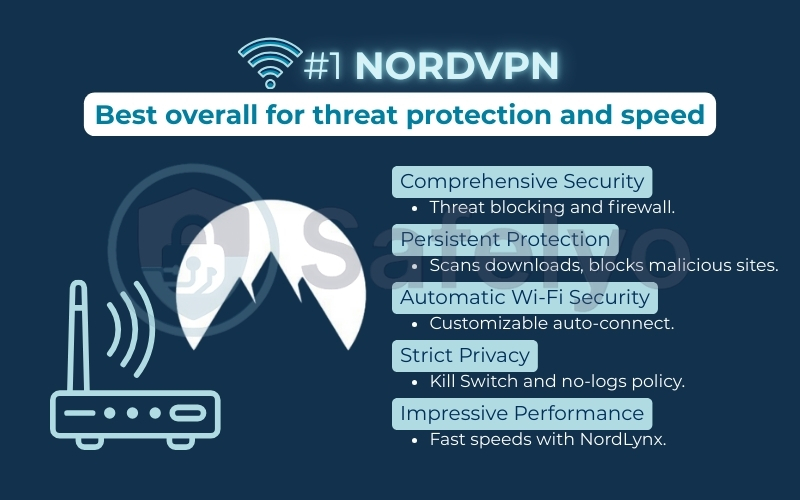
NordVPN: Best overall for threat protection and speed
Best for: Users who want the strongest, most automated security fortress.
>> For a complete breakdown of its security features and speed test results, read our full NordVPN review.
4.2. #2 – Surfshark
Surfshark is the answer for anyone who thinks top-tier security has to be expensive. It packs premium features into a budget-friendly package and, most importantly, lets you protect every single device you own simultaneously.
| Security Score | 9.6 / 10 |
| Key Wi-Fi Feature | Simple and effective automatic protection |
| Standout Extra | Rotating IP & CleanWeb (ad/malware blocker) |
| Kill Switch | System-level |
| Logging Policy | Independently audited no-logs |
| Simultaneous Connections | Unlimited |
| Average Speed Drop | ~15-20% (Great) |
Surfshark delivers unbeatable value. You get robust, automated security, advanced privacy features like Rotating IP, and the freedom to protect all your devices under one subscription. If you want comprehensive security for yourself and your family on public Wi-Fi without the premium price tag, Surfshark is the smartest choice.
Security spotlight
Surfshark’s security toolkit is impressive, acting as a personal firewall for your device. CleanWeb works in the background to block annoying ads, trackers, and sites known to host malware, cleaning up your browsing experience and adding a layer of protection. But for public Wi-Fi, the Rotating IP feature is a game-changer for the privacy-conscious.
It automatically changes your IP address every few minutes without disconnecting your VPN. Think of it as constantly changing your car’s license plate while driving – it makes you an incredibly difficult target for anyone trying to track your activity.
Automatic Wi-Fi protection feature
Similar to NordVPN, Surfshark makes automatic protection effortless. In the settings, you can configure the app to auto-connect whenever you join an unknown or insecure network. During my tests at a local library, I set it up once on my laptop and phone. The next day, when I returned, both devices reconnected to the library’s Wi-Fi and were instantly protected by the VPN without me lifting a finger. It just works.
Performance
Surfshark offers excellent speeds that are more than capable of handling streaming, browsing, and even light gaming on public Wi-Fi. Its WireGuard protocol implementation ensures a fast and stable connection. The best part? Because you have unlimited connections, I was able to connect my laptop, tablet, and smartphone all at the same time in a cafe. All three devices maintained a speedy and secure connection without any noticeable slowdown.
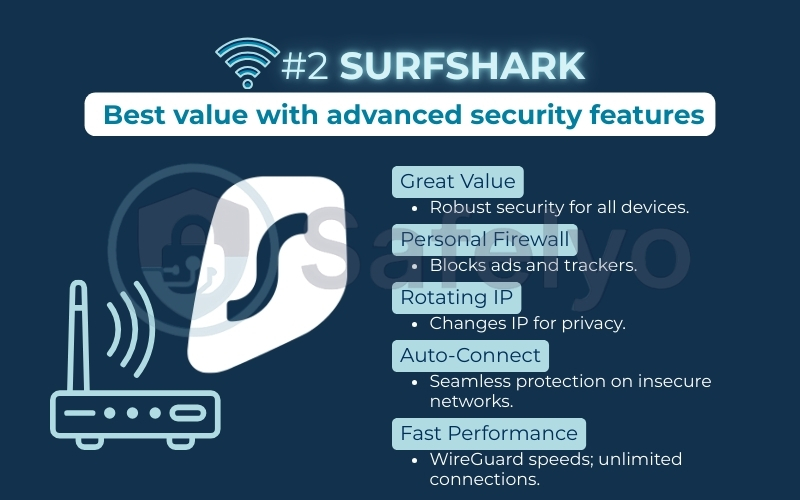
Surfshark: Best value with advanced security features
Best for: Users with multiple personal devices or families wanting to secure everything without breaking the bank.
>> To see how it performed in all our tests, check out our detailed Surfshark review.
4.3. #3 – ExpressVPN
ExpressVPN has built its reputation on one thing: rock-solid reliability. It’s the “it just works” VPN. For users who don’t want to mess with settings and demand a flawless, stable connection every time, ExpressVPN is worth the premium.
| Security Score | 9.5 / 10 |
| Key Wi-Fi Feature | Simple “join untrusted networks” auto-connect |
| Standout Extra | TrustedServer Technology (RAM-only servers) |
| Kill Switch | System-level (Network Lock) |
| Logging Policy | Independently audited no-logs |
| Simultaneous Connections | 8 devices |
| Average Speed Drop | ~10-15% (Excellent) |
ExpressVPN is the premium, plug-and-play choice. While it costs more than some competitors, you’re paying for unparalleled reliability and peace of mind. If you’re a business traveler, a remote worker, or simply someone who wants their security tool to be invisible and flawless, ExpressVPN is the gold standard.
Security spotlight
ExpressVPN’s core security is built on its TrustedServer technology. This means their VPN servers run only on RAM (volatile memory). It’s like writing on a whiteboard that gets wiped clean every time it’s unplugged. All data is erased with every reboot, making it physically impossible to store any connection logs. Their Kill Switch, branded as Network Lock, is equally robust, sealing off your internet traffic instantly if the connection flickers.
Automatic Wi-Fi protection feature
ExpressVPN embodies simplicity. Its auto-connect feature doesn’t have a dozen options, and that’s a good thing. You simply check a box that says “Connect automatically when joining unsecured networks”. That’s it. There’s no complex configuration. I tested this during a layover at a busy airport. ExpressVPN connected in under 5 seconds and stayed stable for the entire 2-hour wait without a single drop, protecting my data seamlessly while I worked.
Performance
Consistency is the name of the game for ExpressVPN. While other VPNs might fight for the top spot on a speed test, ExpressVPN delivers incredibly stable and fast speeds across its entire network. Its proprietary Lightway protocol is lightweight and efficient, which is perfect for often-unreliable public Wi-Fi networks. You won’t notice it’s there, which is the highest praise for a VPN’s performance.
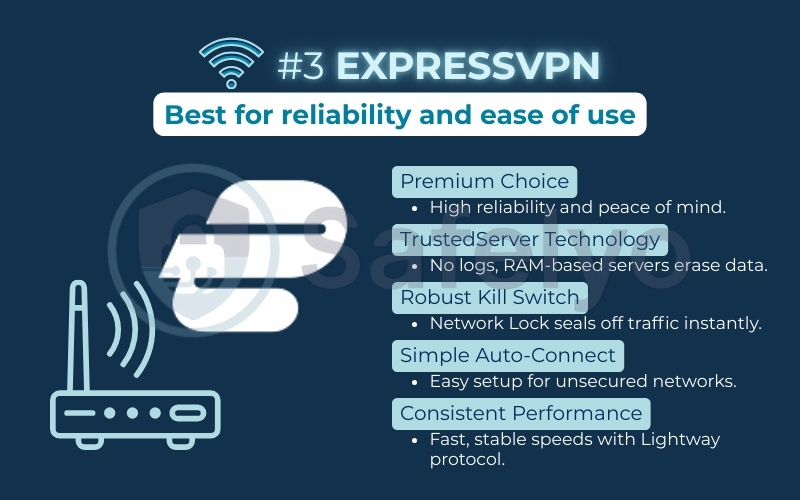
ExpressVPN: Best for reliability and ease of use
Best for: Users who prioritize simplicity, stability, and want a completely hassle-free experience.
>> Dive deeper into its unique technology in our full ExpressVPN review.
4.4. #4 – CyberGhost
CyberGhost strikes a perfect balance between being incredibly user-friendly for beginners and offering surprisingly powerful automation for those who want a bit more control. Its interface is clean and welcoming, making security feel less intimidating.
| Security Score | 9.2 / 10 |
| Key Wi-Fi Feature | “Smart Rules” for custom Wi-Fi automation |
| Standout Extra | Dedicated servers for specific activities |
| Kill Switch | System-level, always-on |
| Logging Policy | Independently audited no-logs |
| Simultaneous Connections | 7 devices |
| Average Speed Drop | ~20-25% (Good) |
CyberGhost is the perfect choice for users who are new to VPNs but want powerful features under the hood. Its Smart Rules offer a degree of automation that goes beyond most competitors, allowing you to build a security setup that fits you perfectly. It’s a smart, friendly, and powerful digital bodyguard.
Security spotlight
CyberGhost comes with all the essential security features, including strong encryption and an automatic Kill Switch. But its real power for public Wi-Fi users lies in Smart Rules. This isn’t just a simple on/off toggle – it’s a customization engine. You can create “recipes” for your security. For example, I created a rule that said: “When my laptop connects to any new Wi-Fi network, automatically connect the VPN to the fastest server”. This level of personalized automation is fantastic.
Automatic Wi-Fi protection feature
The “Smart Rules” feature is your command center for Wi-Fi protection. You can tell CyberGhost exactly how to behave. You can set it to auto-connect on specific networks, ignore others, and even launch a specific app (like a secure browser) after the VPN connects. It takes a few minutes to set up, but the payoff is a security system that is perfectly tailored to your habits.
Performance
CyberGhost provides solid, reliable speeds suitable for most online activities. While it may not always be the absolute fastest in raw speed tests, it’s more than capable of handling browsing, email, and social media on public networks without frustrating delays. Its massive server network also means you can almost always find an uncrowded server nearby for a better connection.
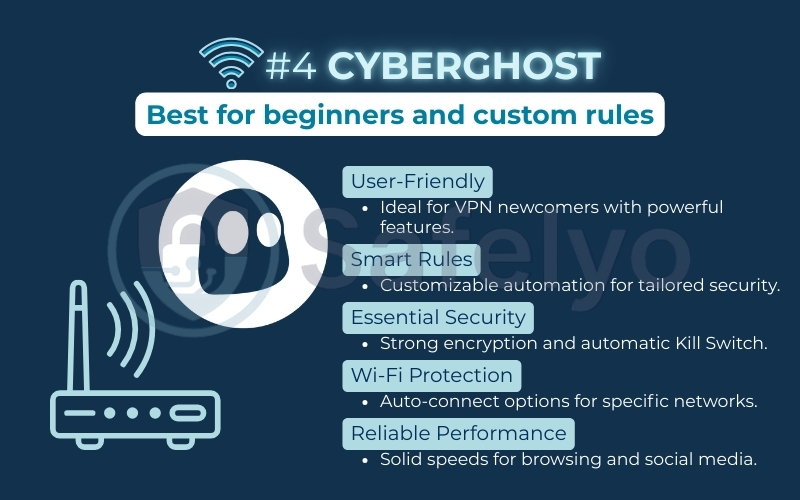
CyberGhost: Best for beginners and custom rules
Best for: New VPN users and those who want to create custom “if-then” security rules.
>> Learn how to create your own custom rules in our complete CyberGhost review.
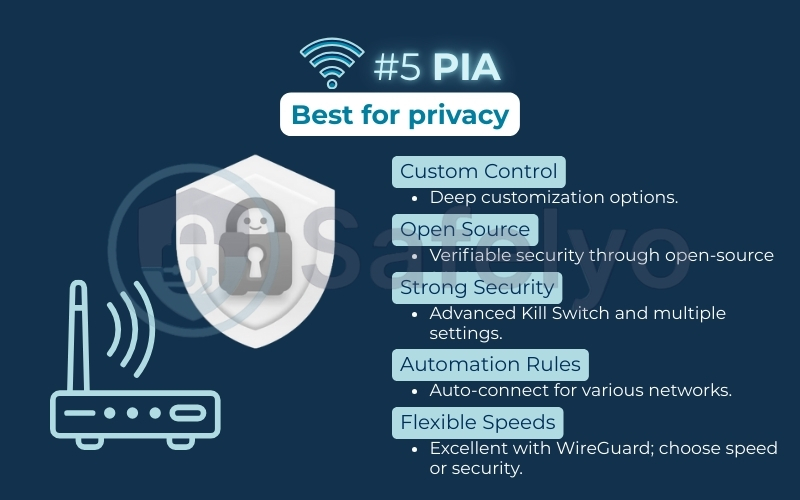
4.5. #5 – Private Internet Access (PIA)
Private Internet Access (PIA) has long been a favorite among privacy advocates, and for good reason. It offers an incredible number of settings to tinker with and, most importantly, proves its trustworthiness by making its app code open source.
| Security Score | 9.1 / 10 |
| Key Wi-Fi Feature | Advanced connection automation rules |
| Standout Extra | Open-source apps and adjustable settings |
| Kill Switch | Advanced, system-level |
| Logging Policy | Audited and court-proven no-logs |
| Simultaneous Connections | Unlimited |
| Average Speed Drop | ~15-30% (Depends on settings) |
Private Internet Access is the choice for the user who wants to be in the driver’s seat. Its open-source transparency, court-proven privacy policy, and deep customization options are unmatched. If you love to fine-tune your software and demand verifiable security, PIA is an outstanding and trustworthy option.
Security spotlight
PIA’s commitment to transparency is its biggest strength. Its apps are 100% open source, meaning anyone can inspect the code to verify it’s secure and has no hidden backdoors. This is the ultimate sign of confidence. It also offers an advanced Kill Switch and more security settings than almost any other VPN. I could switch from AES-256 to AES-128 for a small speed boost on slow hotel Wi-Fi. Few VPNs offer that level of control.
Automatic Wi-Fi protection feature
PIA features a powerful “Connection Automation” ruleset. You can create rules to auto-connect or disconnect on open Wi-Fi, encrypted Wi-Fi, or wired networks. It’s highly granular. It may feel complex for beginners. But users who understand network types gain exceptional control over how and when the VPN activates.
Performance
PIA’s performance is highly flexible. Using the fast WireGuard protocol, its speeds are generally excellent. However, because you can adjust so many settings (like encryption and packet size), you can choose to prioritize either maximum speed or maximum security. This flexibility is a huge plus for power users who want to adapt their connection to the network they’re on.
Private Internet Access (PIA): Best for privacy
Best for: Tech-savvy users and privacy purists who want maximum control over their connection.
>> Explore all its advanced settings in our in-depth Private Internet Access review.
5. Free VPN vs Paid VPN for public Wi-Fi
The temptation of a “free” security tool is strong, but when it comes to your privacy, there’s a saying to live by: If you aren’t paying for the product, you are the product. While paid VPNs operate on a clear subscription model, free VPNs have to make money somehow, and it’s often at the expense of your safety and privacy.
5.1. Why most free VPNs are dangerous on public Wi-Fi
Using a questionable free VPN on an already insecure public network can be even more dangerous than using no VPN at all. You’re not just exposing your data to hackers in the coffee shop. You’re actively funneling it through a service that may have malicious intent.
Here’s the business model for most free VPNs:
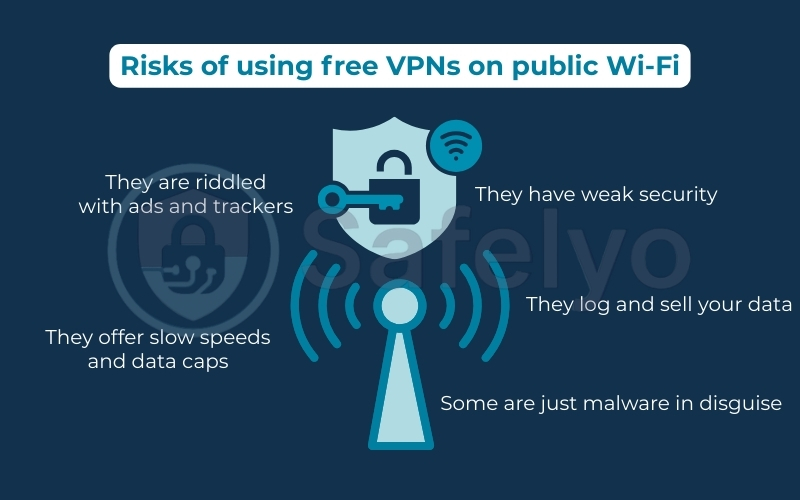
- They log and sell your data: Many free providers log your browsing history, connection times, and device information, then sell this data to advertisers and data brokers. Your data becomes their revenue stream.
- They have weak security: Maintaining secure servers and modern encryption protocols is expensive. Free services often cut corners, using outdated protocols that can be easily breached.
- They are riddled with ads and trackers: To generate income, free VPN apps often inject their own ads and tracking software into your browsing, defeating the entire purpose of using a VPN for privacy.
- They offer slow speeds and data caps: Free services typically have a small number of overcrowded servers, resulting in painfully slow speeds. Most also impose strict daily or monthly data limits, making them useless for anything beyond checking a single email.
- Some are just malware in disguise: The most sinister free VPNs are nothing more than vehicles to infect your device with malware or spyware.
5.2. When are free VPNs acceptable?
There is a small exception: “Freemium” VPNs offered by reputable, privacy-focused companies. Proton VPN is the best example of this.
Proton’s business model is to provide a limited but secure free version to encourage users to upgrade to their paid plans. Their free service is funded by their paying customers, not by selling your data. It offers:
- Strong, verified no-logs privacy.
- Good security and encryption.
- No data caps.
However, the limitations are significant. The free version offers access to servers in only a few countries, speeds are much slower than their paid plans, and advanced features are locked.
5.3. Should you ever use a free VPN in airports or hotels?
Here is my direct advice:
- For the vast majority of free VPNs found in the app store, the answer is an emphatic no. You are better off relying on HTTPS and practicing safe browsing than channeling your data through a provider that is likely selling it.
- If your only option is a trusted freemium service like ProtonVPN’s free tier, then yes, it is better than nothing for quick, essential tasks. It will encrypt your connection and hide your activity from local snoopers on the Wi-Fi network.
However, for anyone who regularly uses public Wi-Fi, the limitations in speed and server choice will quickly become frustrating. For the price of a cup of coffee per month, a premium service like NordVPN or Surfshark offers a vastly superior experience. This includes automated protection, lightning-fast speeds, and complete peace of mind. It’s a small investment for an essential digital security tool.
6. How to configure your VPN for maximum safety on public Wi-Fi
Simply installing a VPN isn’t enough; you need to ensure its key safety features are activated. Taking a few minutes to configure your VPN app correctly will provide a “set-and-forget” shield that protects you automatically every time you connect to a public network. Taking a few minutes to review the connection settings in your app can provide automated, powerful protection. Here are the essential steps.
6.1. Enable automatic Wi-Fi protection
This is your first line of defense. Instead of manually connecting each time, you can instruct your VPN to engage automatically the moment your device joins an untrusted network.
Here’s how to find the setting in our top recommended VPNs:
- On NordVPN: Go to Settings (cog icon) > Connection. Toggle on “Auto-connect on Wi-Fi” and select the option “On unsecured networks”. You can also add trusted networks (like your home Wi-Fi) to an exception list.
- On Surfshark: Navigate to Settings > VPN Settings. Find the “Auto-connect” option and configure it to activate whenever you join a new network.
- On ExpressVPN: Go to Options > Settings. Under the “Network Lock” tab, simply check the box that says “Connect automatically when joining unsecured networks“.
Activating this feature means your device is protected from the very first second it connects, even before you’ve opened your browser.
6.2. Turn on the kill switch
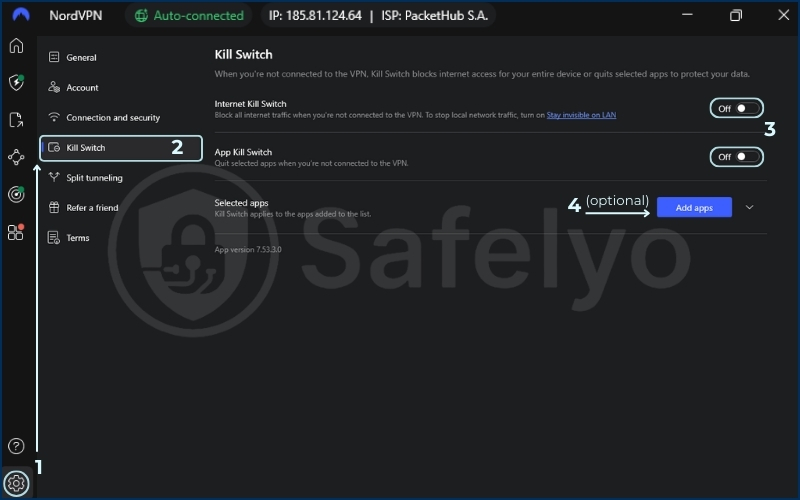
A kill switch is a non-negotiable safety feature. It acts as an emergency stop, instantly cutting all internet access if your VPN connection flickers. This ensures that no unencrypted data can accidentally leak out while the VPN reconnects. In most top-tier VPNs, this feature is found in the main Settings or Connection menu. Make sure it is toggled ON at all times.
6.3. Choose the safest and fastest protocol
VPN protocols determine how your data is encrypted and transmitted. While some VPNs offer many options, you should stick to the most modern and secure choices for the best balance of speed and safety.
- Your best option: Look for WireGuard in your VPN’s protocol list. It’s the current industry gold standard for speed and security.
- Excellent proprietary versions: NordLynx (in NordVPN) and Lightway (in ExpressVPN) are custom-built protocols based on the principles of WireGuard. They are both incredibly fast, stable, and secure.
Typically, you can find this setting under Settings > Connection > Protocol. Setting it to “Automatic” is usually fine, as it will default to one of these modern options.
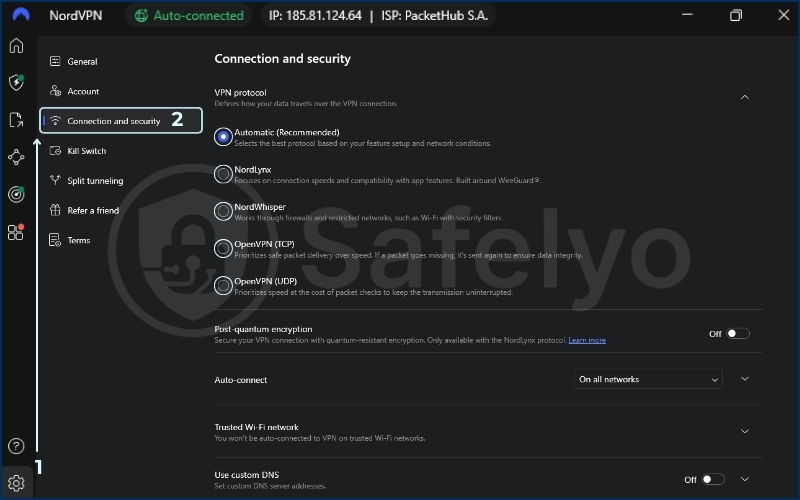
6.4. Enable threat and malware blocking
Many premium VPNs now include an extra layer of defense that functions like an ad-blocker and anti-malware filter combined. This is incredibly useful on public Wi-Fi, where you’re more likely to encounter sketchy websites or pop-ups.
- In NordVPN, this is called Threat Protection.
- In Surfshark, it’s called CleanWeb.
Find this feature in your VPN’s settings and switch it on. It will block malicious domains, trackers, and intrusive ads before they can even load, cleaning up your browsing and protecting you from fraudulent attempts.
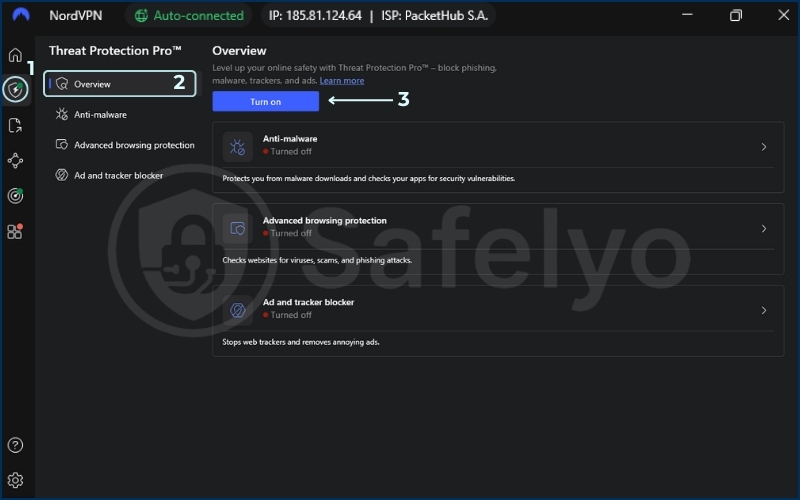
6.5. Prevent device discovery on your computer
When you connect to a new network on a Windows or macOS computer, you are often prompted to decide. You must choose if you want your PC to be discoverable by other devices on the network.
Always choose “No” or select the “Public Network” profile.
This prevents other users on the same Wi-Fi from seeing your device, which shuts down the possibility of direct device-to-device attacks. On Windows, you can ensure this is set correctly by going to Settings > Network & Internet > Wi-Fi. Click on the network you are connected to and check that the network profile type is set to Public.
7. Best VPN settings for Airports, Hotels & Cafés
While the core principles of VPN security remain the same everywhere, different public Wi-Fi environments carry unique risks. Tailoring your VPN and device settings for each scenario provides an even higher level of security. Here’s my expert advice for the three places you’re most likely to connect.
7.1. Airport Wi-Fi (High-Risk Environment)
Airports are a prime target for cybercriminals due to the sheer volume of users and the often-urgent need for people to connect. Assume this is a hostile network environment.
Your action plan:
- Automatic Wi-Fi protection is mandatory: Before you even leave for the airport, ensure your VPN is set to auto-connect to any unsecured network. You might be rushing to find your gate and connect without thinking.
- Verify the Network Name: Hackers love creating “Evil Twin” networks like “Airport Free WiFi”. Look for official signs or ask an information desk for the exact, correct network name (SSID).
- Ensure Kill Switch is ON: Airport Wi-Fi can be notoriously unstable. A kill switch will protect your data during any momentary connection drops as you walk through the terminal.
- Use the fastest protocol: Select WireGuard, NordLynx, or Lightway. These protocols are best at handling network congestion and providing fast, stable connections.
7.2. Hotel Wi-Fi (Low Encryption & Device-to-Device Risks)
Hotel networks are often large, shared networks with hundreds of users. The primary risks here are weak or non-existent encryption between you and the router, and the potential for other guests on the network to see and attack your device.
Your action plan:
- Set network profile to “Public”: This is the first and most critical step on a laptop. When you first connect, your computer will ask if the network is public or private. Always select “Public” to make your device invisible to others on the hotel network.
- Enable Threat Protection: Activate features like NordVPN’s Threat Protection or Surfshark’s CleanWeb. This will help block any malicious pop-ups or phishing attempts from the hotel’s captive portal login page.
- Auto-Connect is still your best friend: Your VPN should still be set to connect automatically. You may connect with multiple devices (phone, laptop, tablet), and it’s easy to forget to activate the VPN on one of them.
7.3. Café & Coworking Space Wi-Fi (MITM & Evil Twin Risks)
These smaller, more intimate settings can give a false sense of security. However, they are hotspots for Man-in-the-Middle (MITM) and Evil Twin attacks because a hacker can easily operate from a few tables away.
Your action plan:
- Double-Check the SSID: Just like at the airport, ask the barista for the official Wi-Fi name. Don’t just connect to the one that looks most obvious.
- Rely on automatic protection: Your VPN’s auto-connect feature is essential. It will secure your connection before any data is transmitted.
- Disable “Auto-Join” for open networks: On your smartphone, consider disabling the feature that automatically connects to known or open Wi-Fi networks. This prevents your phone from accidentally connecting to a spoofed “Evil Twin” of a café you’ve visited before.
- Keep your kill switch enabled: Even in a small café, the connection can be unreliable. The kill switch ensures you’re always protected.
8. Best public Wi-Fi VPN for each use case
While all of our top-rated VPNs provide excellent security for public Wi-Fi, they each have unique strengths. To help you make the perfect choice, this table matches the best VPN to the most common user priorities.
| Best for… | Our recommendation |
| The strongest automatic protection | NordVPN |
| The most reliable kill switch | ExpressVPN |
| The fastest speeds on public Wi-Fi | NordVPN |
| The best overall value | Surfshark |
| The easiest for beginners | CyberGhost |
| The best for privacy purists | Private Internet Access (PIA) |
>> Read more:
9. Public Wi-Fi safety checklist
Using a great VPN is the most important step, but it works best as part of a smart security routine. Think of it like this: your VPN is the high-tech lock on your door, but it still helps to close the windows.
| Action Step | Check | Why It’s Important | How to Do It |
|---|---|---|---|
| Activate your VPN first | 🗹 | It ensures your entire session is encrypted from the very first moment, leaving no window of vulnerability. | Open your VPN app and connect before opening your browser. For best results, enable the “automatic Wi-Fi protection” feature in the settings. |
| Verify the network name | 🗹 | This prevents you from connecting to a hacker’s fake “Evil Twin” network, which is designed to steal your data. | Ask an employee at the cafe, hotel, or airport for the exact, official Wi-Fi network name. Don’t guess. |
| Turn off file sharing | 🗹 | This makes your device invisible to other users on the network, preventing them from trying to access your files or computer. | Go to your system settings (“Network & Internet” on Windows or “Sharing” on macOS) and turn OFF all file and printer sharing options. |
| Stick to HTTPS sites | 🗹 | This provides a direct, extra layer of encryption between your browser and the website, protecting sensitive data fields. | Always look for the padlock icon in your browser’s address bar, especially before entering strong passwords or payment details. |
| Log out when done | 🗹 | Closing a tab may not end your session, leaving it potentially open to hijacking. Logging out securely terminates it. | When you’re finished with sensitive sites (banking, email), actively click the “Log Out” button instead of just closing the window. |
Here is a simple, five-step plan I personally follow every single time I connect to a network I don’t manage. You can use this as a mental checklist to turn good security into a habit.
1. Activate your VPN first
Before you even open your browser or check your email, make sure your VPN is connected. Better yet, use the automatic Wi-Fi protection feature we’ve discussed. Set it up once so your VPN acts as your automatic digital bodyguard, connecting you to a secure server the moment you join a new network.
2. Verify the network name
Hackers love creating “Evil Twin” networks with names like “Airport Free WiFi” (the real one might be “Airport_WiFi_Official”). If you’re at a hotel, cafe, or airport, ask an employee for the exact, official Wi-Fi network name. This simple question can save you from connecting to a hacker’s trap.
3. Turn off sharing
Your laptop has settings that can make it “discoverable” for file or printer sharing. While this is useful at home, it poses risks in public. Navigate to your system settings (“Network & Internet” on Windows or “Sharing” on macOS) and make sure that file sharing, printer sharing, and network discovery are all turned OFF.
4. Stick to HTTPS sites
Even with a VPN, it’s good practice to prioritize secure websites. Look for the padlock icon and “https://” in your browser’s address bar, especially when entering any sensitive information. This provides an extra layer of encryption directly between your browser and the site.
5. Log out when you're done
When you’ve finished checking your bank account, email, or social media, actively log out of the website. Don’t just close the tab. This kills the active session and prevents a rare but possible type of attack where someone could hijack your logged-in session.
6. Use strong passwords and Two-Factor Authentication
Always use unique, complex passwords for your accounts. More importantly, enable 2FA wherever possible. 2FA provides a critical security layer that can protect your account even if your password is stolen.
7. Keep your software updated
Hackers often exploit known vulnerabilities in software. Regular updates contain essential security patches that close these loopholes. Ensure your operating system and applications are set to update automatically.
>> See also:
10. FAQ about the best VPN for public Wi-Fi
We get a lot of questions about staying safe on public Wi-Fi. It’s a topic with a lot of confusion, so we’ve compiled direct answers to some of the most common inquiries we receive at Safelyo.
Do I really need a VPN for public Wi-Fi?
Absolutely. These unsecured networks are a prime target for hackers looking to steal data. A VPN encrypts your entire connection, making your information unreadable to anyone snooping on the network. It’s the single most important tool for public Wi-Fi security.
Can I use a VPN on a public WiFi?
Yes, and you absolutely should. All modern smartphones, laptops, and tablets are designed to work seamlessly with VPNs. Using a VPN on a public network is the intended use case for these services, allowing you to create your own private, secure connection on top of an insecure one.
Which VPN is best for public WiFi?
For the best overall protection, speed, and automated features, NordVPN is our top pick. However, services like Surfshark (for value) and ExpressVPN (for reliability) are also outstanding choices. The best one for you depends on your specific needs, but all the VPNs on our list excel at public Wi-Fi security.
Does NordVPN protect on public WiFi?
Yes, it provides exceptional protection. NordVPN combines Threat Protection, a Kill Switch, and customizable Wi-Fi protection. Together, they make it one of the strongest tools for public network security.
Is it safe to use hotel Wi-Fi with VPN?
Yes, it is safe. Hotel Wi-Fi is just another form of public Wi-Fi and carries the same risks. A reputable VPN encrypts your data before it leaves your device. This keeps browsing, work, and sensitive tasks safe on hotel networks.
Is it safe to do banking on public Wi-Fi with a VPN?
Yes, using a high-quality VPN from our list makes it safe. These VPNs create a heavily encrypted tunnel for your data, protecting it from eavesdroppers. This makes it secure to access your bank account, enter credit card information, or manage other financial details.
What is the best free VPN for public Wi-Fi?
We generally advise against free VPNs due to their privacy risks, data limits, and slow speeds. However, if you absolutely must use one, Proton VPN’s free plan is a decent option. It has a strict no-logs policy and good security, but you’ll face limitations on server locations and speed.
How does a kill switch work, and why is it important?
A Kill Switch is your digital safety net. It automatically blocks all internet traffic if your VPN connection ever drops unexpectedly. This is crucial on public networks because it prevents your real IP address from being exposed due to suspicious activity or an unstable connection, even for a split second.
Are there any specific VPNs I should avoid for public Wi-Fi?
Yes. We strongly recommend avoiding VPNs with a history of logging or selling user data (like Hola VPN or Betternet). You should also avoid any VPN that lacks a reliable Kill Switch, as this is a non-negotiable safety feature for use on unsecured networks.
How do I use a VPN with a Wi-Fi network that has a login page (captive portal)?
This is a common scenario in airports and hotels. The process is simple:
- Connect to the public Wi-Fi network first with your VPN turned off.
If you’re using an iPhone and your VPN keeps reconnecting before the login page appears, see our guide on how to turn off VPN on iPhone. - Your browser should automatically open the captive portal or login page. Enter the required information (like your room number or an email address) to gain internet access.
- As soon as you are connected, immediately turn on your VPN. Your connection will be secure from that point forward.
What’s the best VPN for public Wi-Fi on an iPhone or Android?
All of our top recommendations – NordVPN, Surfshark, ExpressVPN, CyberGhost, and PIA – have excellent, user-friendly apps for both iOS and Android. They all include the critical automatic Wi-Fi protection feature, ensuring your mobile device is protected seamlessly whenever you’re on the go. The “best” one comes down to your personal preference for interface and features, but NordVPN and Surfshark are often praised for their intuitive and feature-rich mobile experiences.
Will a VPN make a slow public Wi-Fi connection even slower?
A VPN will always cause a minor speed reduction due to the encryption process. However, with a premium VPN that uses modern protocols like WireGuard, NordLynx, or Lightway, this slowdown is often unnoticeable for browsing, emailing, and even streaming. In some rare cases, a VPN can even improve your speed if the public Wi-Fi provider is throttling certain types of traffic.
11. Conclusion
Public Wi-Fi is a modern-day double-edged sword: It offers incredible convenience but exposes you to significant security risks. As we’ve shown, connecting without a shield is a gamble you shouldn’t take with your personal data. A powerful security tool is no longer an optional accessory; it’s an essential part of maintaining your digital security and ensuring your online safety.
Ultimately, your digital safety is in your hands, but choosing the right tool makes all the difference. At Safelyo, we’ve tested and analyzed the options to make your decision easier. Protect your devices today by selecting a service from our Best VPN guide and browse with confidence and freedom, wherever you go.