You rely on a VPN to stay anonymous, yet your true identity might still be completely exposed online.
Many privacy-conscious users are shocked to discover that a default communication feature built directly into browsers like Chrome and Firefox can actively bypass their encrypted tunnel. This vulnerability forces your device to hand over your real IP address to tracking scripts, effectively neutralizing your VPN.
This hidden flaw is driven by a built-in browser technology called WebRTC. Since it operates entirely in the background, understanding exactly what is a WebRTC leak is the critical first step to stopping this silent privacy violation.
In this guide, we will explain how this technical flaw operates and provide a straightforward action plan to secure your connection.
Key takeaways:
- A WebRTC leak reveals your true public IP address even while your VPN is actively connected.
- The most reliable fix involves using a premium VPN that automatically manages and blocks these requests.
- You can easily verify your browser security by running a quick, free online leak test.
- Manually disabling the feature in your settings is possible but often breaks popular web applications.
1. What is WebRTC? What is a WebRTC leak?
To understand how this vulnerability exposes your identity, we first need to look at the underlying technology and how it interacts with your browser.
1.1. What is WebRTC?
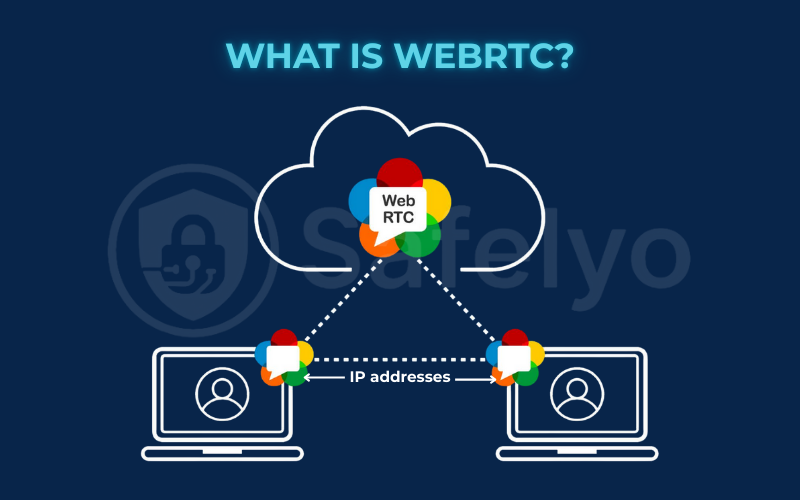
WebRTC stands for Web Real-Time Communication. It is an open-source framework integrated directly into modern web browsers like Google Chrome, Mozilla Firefox, Safari, and Microsoft Edge. Its primary function is to allow two devices to communicate directly with each other in real-time.
Instead of routing your video or audio data through a central server, WebRTC creates a direct peer-to-peer connection. This direct link significantly reduces network lag and improves data transfer speeds.
It is the exact technology that allows you to join video conferences on Google Meet, use voice channels on Discord, or share large files directly from your browser. You get all these benefits seamlessly, without needing to install any third-party plugins or external software.
1.2. What is a WebRTC leak?
For WebRTC to establish that fast, direct connection, the two communicating devices need to know exactly how to find each other on the internet. To make this happen, WebRTC requires access to your true public IP address.
Normally, a VPN routes all your standard web traffic through an encrypted connection, effectively hiding your real IP address from the websites you visit. However, WebRTC requests operate on a completely different, specialized communication pathway.
A website or hidden tracking script can execute a few lines of basic JavaScript code to request your IP address via WebRTC. Because this specific request can bypass the standard VPN routing, your browser may unwittingly hand over your real, physical IP address directly to the website.
This technical exposure is known as a WebRTC leak. It means that even if your VPN app shows a “Connected” status, third parties can still track your exact geographic location and identify your Internet Service Provider (ISP).
To prevent this from happening, a high-quality VPN actively monitors your browser and forces WebRTC to report the VPN’s server IP address instead of your personal one.
2. The 3-step action plan to fix a WebRTC leak
Finding and fixing a WebRTC leak is incredibly easy. Over years of guiding users through this, I’ve refined the process into a simple, logical sequence. Follow these three steps in order.
For 99% of people, Step 1 is the only one you will ever need.
- Step 1 (The 99% Solution): Use a high-quality VPN. The best VPNs have this protection built in, making it the easiest and most reliable fix.
- Step 2: Test to be sure. We’ll show you how to quickly verify your connection is secure and that your VPN is doing its job.
- Step 3 (The Advanced Option): Manual browser fixes. Only use these if your VPN doesn’t offer protection or if you’re not using a VPN at all.
2.1. Step 1: Use a VPN with built-in WebRTC leak protection
The easiest, most effective, and “set it and forget it” way to prevent WebRTC leaks is to use a VPN that handles it for you. In the past, this was a niche feature, but today, all top-tier VPN providers include WebRTC leak protection in their apps and, crucially, their browser extensions.
How it works
These VPNs automatically intercept and manage WebRTC requests. They either block the traffic or route it through the secure VPN tunnel. This ensures that the only IP address a website can see is that of the VPN server, not your real IP address. The best part is that you don’t have to do anything; the protection is active the moment you connect.
Our top recommendations for a leak-proof experience
Based on my hands-on testing, these providers offer excellent, out-of-the-box protection:
- ExpressVPN: Its browser extension is especially robust. It has a dedicated “Prevent WebRTC leak” checkbox that is enabled by default, giving you both powerful protection and clear visual confirmation.
- NordVPN: Provides automatic WebRTC leak protection across all its apps and browser extensions. I’ve found it to be consistently reliable in testing, with no manual configuration needed.
- Surfshark: Its CleanWeb 2.0 feature, available in the browser extension, is excellent at blocking WebRTC requests as part of a broader ad and tracker-blocking suite.
Choosing a VPN with WebRTC leak protection like these is the definitive answer to the question, “Does VPN hide WebRTC?” Yes, but only if you choose a quality one.
2.2. Step 2: Perform a WebRTC leak test
Even with the best VPN, the core principle in cybersecurity is “trust, but verify”. A quick WebRTC leak test gives you that peace of mind, confirming your VPN’s “smart curtain” is working perfectly. I make it a habit to run this test whenever I’m evaluating a new VPN service or after a major software update.
It only takes 30 seconds.
- Connect your VPN to a server. For a clear result, choose a server in a different country from your own.
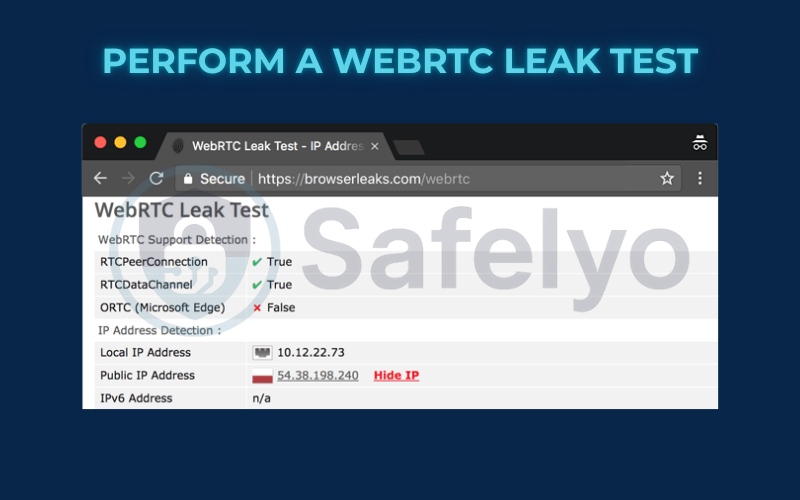
- Open a new browser tab and go to a trusted testing site like BrowserLeaks.com/WebRTC.
- Scroll down to the “WebRTC IP Address Detection” section and look at the “Public IP Address” result.
Interpreting the results:
- You are secure: The IP address shown is the same as your VPN’s IP address. You might see one or more IP addresses listed, but they all belong to the VPN server. This is the result you want.
- You have a WebRTC Leak: You see your real, public IP address listed in this section, which is different from your VPN’s IP address. Sometimes it will appear alongside the VPN’s IP. If your home IP is visible here at all, it’s a leak.
If your actual IP address is visible, there’s no need to be concerned. It simply means your current solution isn’t working as expected. Proceed to Step 3 for manual fixes. But for most users with a quality VPN, you’ll see a green light here.
2.3. Step 3: Manual fixes for your browser
Please read this carefully!
Only use these methods if you are not using a VPN or if your quality VPN is somehow failing the leak test.
I always advise against this step for most users because manually disabling WebRTC is a blunt tool. To use our analogy, instead of just drawing the curtain, you’re ripping the entire window frame out of the wall. This is an effective way to stop someone from peeking in, but it can also break things. Many popular web services like Google Meet, Discord, and Facebook Messenger rely on WebRTC to function in your browser. Disabling it will likely cause them to stop working correctly.
With that warning in mind, here are the manual options, starting with the least disruptive.
The easy manual fix: Use a browser extension
If you’re not using a full VPN app but still want protection, the best option is a specialized WebRTC block extension. These are lightweight add-ons that focus specifically on managing WebRTC requests.
Recommended Extensions:
My go-to recommendation is uBlock Origin. While it’s known as an ad blocker, its advanced settings have a feature to “Prevent WebRTC from leaking local IP addresses.” Other dedicated extensions like “WebRTC Leak Prevent” also work well. Of course, your VPN’s own browser extension (like ExpressVPN’s or NordVPN’s) is often the best-integrated choice.
The hard manual fix: Disable WebRTC in settings
This involves changing your browser’s core configuration. This is the answer to “how to disable WebRTC” in the most literal sense.
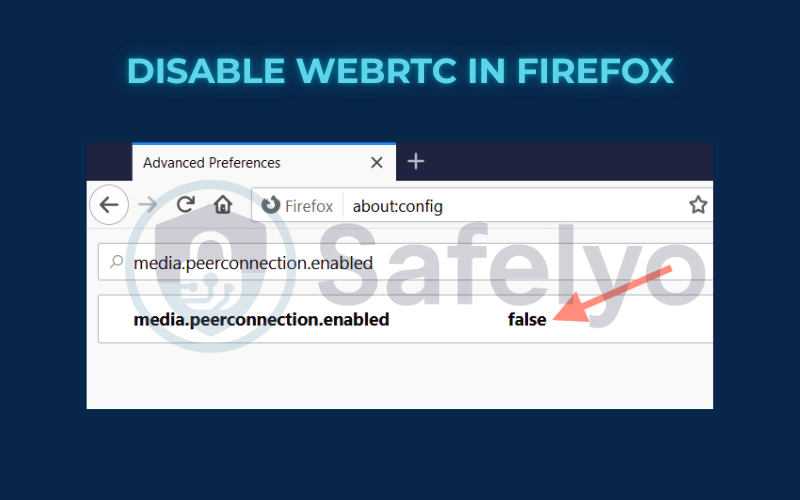
To disable WebRTC in Firefox:
Firefox is one of the few browsers that gives you a direct switch.
- Type
about:configin the address bar and press Enter. Accept the warning message. - In the search bar that appears, type media.peerconnection.enabled.
- The entry should appear with a value of true. Double-click the setting to change its value to false. That’s all you need to do; WebRTC is now disabled.
To disable WebRTC in Edge and Chrome:
Unlike Firefox, Chrome, and other Chromium-based browsers, they do not offer a simple built-in switch to disable WebRTC. They consider it a core part of the browser’s functionality. Your only reliable option is to use a dedicated extension, as I described above.
To disable WebRTC in Safari:
Apple takes a more privacy-focused approach. In my tests, Safari has robust WebRTC leak protection enabled by default and does not typically leak. No extra action is usually needed for Safari users.
3. Comparison of WebRTC leak solutions
We’ve covered three distinct ways to tackle WebRTC leaks, each with its own pros and cons. To help you make the best choice, I’ve broken them down into this simple comparison table. It’s the same logic I use when advising friends: start with what’s easiest and most effective.
| Method | Ease of Use | Effectiveness | Side Effects | Best For |
|---|---|---|---|---|
| Premium VPN | ⭐⭐⭐⭐⭐ Very Easy |
⭐⭐⭐⭐⭐ Excellent |
None. A good VPN protects you without breaking websites. |
Everyone. This is the simplest, safest, and most comprehensive solution for your overall privacy. |
| Browser Extension | ⭐⭐⭐⭐ Easy |
⭐⭐⭐⭐ Good to Very Good |
Minimal. Most extensions are well-behaved, but a poorly coded one could slow your browser. |
Users on a tight budget or those who only need protection on a single browser. |
| Manual Disable (Firefox) | ⭐ Hard |
⭐⭐⭐⭐⭐ Excellent |
High. This modification may interfere with popular websites and services that depend on WebRTC, like Google Meet. |
Advanced users only. This should be considered a last resort for specific, non-standard situations. |
As you can see, there’s a clear winner. While manual methods offer granular control, they come with significant trade-offs. For a hassle-free, reliable, and comprehensive privacy solution, nothing beats a high-quality VPN. It’s the only method that effectively draws the “curtain” over the “side window” without forcing you to board it up completely.
Read more:
4. FAQ about WebRTC leak
We’ve covered the core concepts and fixes, but you might still have a few specific questions. Here are the quick, direct answers to the most common queries I see about this common browser vulnerability.
What is a WebRTC leak?
A WebRTC leak is a common issue in browsers that can expose your real IP address, even when you’re connected to a VPN. It happens because the WebRTC protocol, used for real-time communication, can create connections that bypass the VPN’s encrypted tunnel, revealing your true location.
Is WebRTC a security risk?
It’s a serious privacy risk. While a WebRTC leak doesn’t directly expose you to malware, it completely undermines the primary purpose of using a VPN – to hide your real IP address. It allows websites, advertisers, and other third parties to identify your true location and track your activity.
What is WebRTC used for?
WebRTC is a very useful technology. It enables fast, efficient, browser-to-browser communication for services like video chats (Google Meet), voice calls (Discord), live streaming, and file sharing – all without needing external plugins. The leak is an unintended side effect of how it establishes these direct connections.
Can WebRTC leaks expose my real IP address?
Yes, absolutely. This is the primary danger of a WebRTC leak. It allows a website to see your true public IP address, bypassing the protection your VPN is supposed to provide.
What does WebRTC leak protection do?
WebRTC leak protection, typically a feature in a quality VPN or browser extension, acts as a “smart curtain.” It intelligently blocks or reroutes WebRTC requests to ensure that any IP address shared with a website is the VPN’s IP, not your real one.
Does incognito or private mode stop WebRTC leaks?
No, it does not. Incognito or private browsing mode only prevents your browser from saving your history, cookies, and site data locally on your device. It does nothing to hide your IP address or stop how WebRTC functions at a network level.
I’ve disabled WebRTC. Why can’t I use Google Meet anymore?
Services like Google Meet, Discord, and Facebook Messenger rely on WebRTC to function in a browser. By completely disabling it, you have broken their core technology. This is why using a VPN with built-in protection is the superior method – it allows these services to work while still protecting you from leaks.
Is it easy to fix a WebRTC leak?
Yes. The fastest and most reliable way to fix it is by connecting to a premium VPN that has automatic leak protection built in.
Can WebRTC leaks happen on mobile devices?
Yes, they absolutely can. Mobile browsers, especially those on Android devices, are highly susceptible to these vulnerabilities. Using a dedicated mobile VPN app is the best defense.
Which browsers are most vulnerable to WebRTC leaks?
Browsers that have WebRTC enabled by default are the most vulnerable. This includes popular choices like Google Chrome, Mozilla Firefox, Microsoft Edge, and Opera.
Safari is generally safer out of the box because of its strict privacy settings, but it can still leak your IP address if you give a website permission to use your camera or microphone. Using a VPN browser extension is the best way to secure any of these browsers.
5. Conclusion
A WebRTC leak is a sneaky but solvable problem. While the technology itself is useful, its potential to expose your IP address is a risk no privacy-conscious user should ignore. Thankfully, protecting yourself doesn’t require complex technical changes.
- A WebRTC leak can disclose your true IP address, even if you’re connected to a VPN.
- The easiest and best solution is to use a premium VPN that has WebRTC leak protection built in.
- You can easily test for leaks using a free online tool like BrowserLeaks.com.
- Disabling WebRTC manually is a last resort, as it can break popular web applications.
Don’t let a browser loophole undermine your entire privacy setup. Choose a VPN that takes WebRTC seriously, and you can browse with confidence, knowing all your “windows” are secure.
A leak-proof connection is essential for maintaining your digital privacy. To understand more about how secure tunnels operate and how to protect your network against similar vulnerabilities, explore the comprehensive VPN guides provided by Safelyo to master your online security.