Does Firefox have a VPN? Yes, Firefox offers two different VPN products.
This can be confusing, as one is a full, paid subscription called “Mozilla VPN”. The other is a “free Firefox VPN” that was released on March 24, 2026, alongside Firefox 149. It is built directly into the browser.
This article will clarify the two distinct VPN products Mozilla offers and their key differences.
Key takeaways:
- Mozilla offers a paid, full-device “Mozilla VPN” for all your apps.
- Mozilla also provides a free Firefox VPN that only protects your browser traffic.
- The paid version offers full features, while the free version is a basic tool.
1. Does Firefox have a VPN? The short answer
Yes, Mozilla, the company behind the Firefox browser, provides two distinct VPN services.
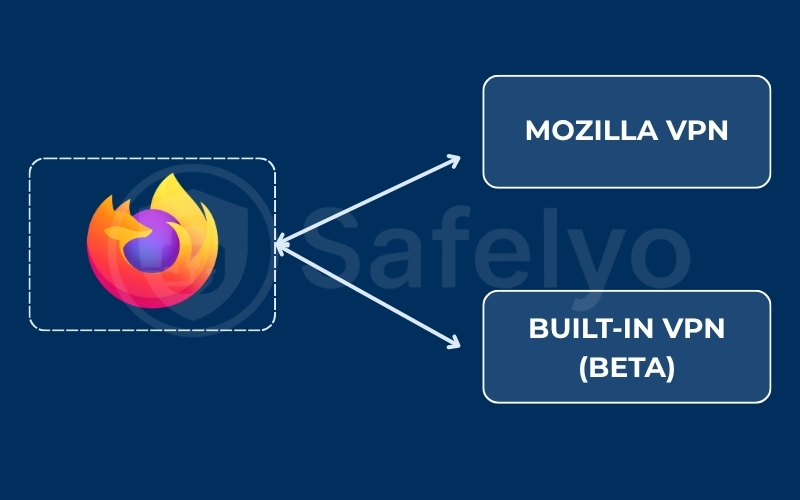
Many people are confused about whether Firefox includes a built-in privacy tool or requires a separate download. The reality is that Mozilla offers both options, depending on the level of security you require.
The first option is Mozilla VPN. This is a premium, subscription-based service. It operates as a standalone application that you install on your computer or smartphone. This tool protects your entire device, meaning it encrypts internet traffic from all your apps, games, and browsers simultaneously.
The second option is the free Firefox VPN. Launched on March 24, 2026, alongside the Firefox 149 update, this is a built-in browser feature. Unlike the premium version, this service only protects the traffic from your Firefox browser. It is a basic tool designed for casual privacy, such as hiding your IP address while reading an article on public Wi-Fi.
2. What is Mozilla VPN (The paid service)?
Let’s first explore Mozilla’s premium, standalone service: Mozilla VPN. This is their full-featured, subscription-based product designed for comprehensive security.
2.1. How it protects your entire device
The main benefit of Mozilla VPN is its full-device protection. The app secures all internet traffic from your device, not just your browser.
When you connect, it creates an encrypted tunnel for everything. This includes other browsers like Chrome, your email app, gaming clients, and even background system updates. This systemic approach secures your entire digital footprint.
2.2. What are the main features and costs?
The Mozilla VPN service includes several premium features designed for strong security and ease of use. Here is a quick breakdown of what to expect:
- WireGuard protocol: Technically, the service is built using WireGuard. This is a modern, fast protocol widely used in the cybersecurity industry for its strong performance.
- Strict no-logs policy: Regarding its privacy, Mozilla markets the service with a strict no-logs policy. This is the company’s stated promise that it does not track or store records of your online activity.
- Five Eyes jurisdiction: It is crucial to understand that Mozilla is based in the United States. The US is a core member of the Five Eyes intelligence-sharing alliance. While the company has a no-logs policy, its location means it operates under laws that could potentially compel it to provide user data to government agencies.
- Multi-device support: The service secures up to five simultaneous devices on a single subscription.
- Flexible pricing: The Mozilla VPN cost depends on the plan you choose, offering both monthly and discounted annual payment options.
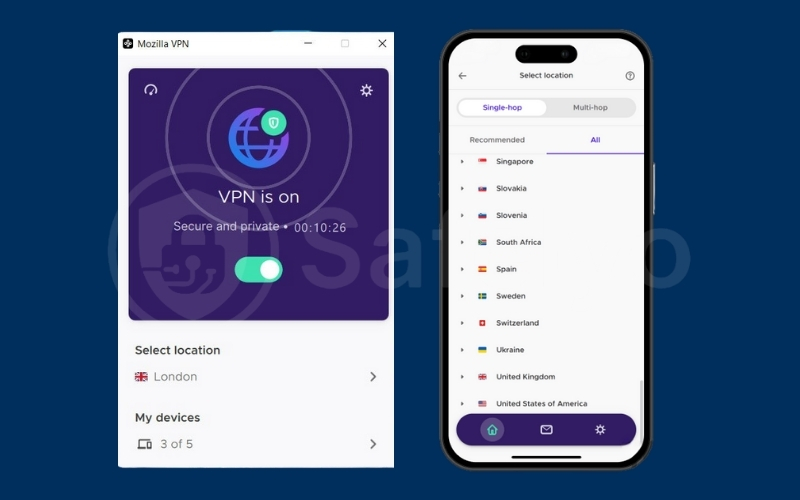
2.3. What devices does Mozilla VPN support?
As a standalone application, Mozilla VPN supports all major operating systems. You can install it on:
- Windows
- macOS
- Linux
- Android
- iOS
Here is a quick overview of the pros and cons of the paid Mozilla VPN:
Pros
- Provides full-device protection for all apps
- Built on the fast and secure WireGuard protocol
- Secures up to five simultaneous devices
- Backed by a strict no-logs policy
Cons
- Requires a paid subscription
- Based in the US (a Five Eyes jurisdiction)
- Not specifically optimized for streaming unblocks
- Lacks some advanced features of top-tier rivals
3. What is the free Firefox VPN (Browser-only)?
Now, let’s look at the second service, the free Firefox VPN. This is a newer, browser-based tool. It launched on March 24, 2026, alongside the Firefox 149 update.
During this initial phase, the feature is only available to users in the United States, France, Germany, and the United Kingdom. Mozilla plans to expand to additional countries over the next several releases.
3.1. What does “browser-only” protection mean?
The most important distinction is its browser-only scope. This service is designed to protect only the data you send and receive within the Firefox browser.
Every time you visit a website, your IP address is shared automatically. Websites can use this to estimate your geographic location, link your browsing behavior across multiple sites, and log your online activity. On public Wi-Fi networks in coffee shops, hotels, or dorms, others on the same network can potentially see what websites you are visiting.
Mozilla officially calls this new tool an “IP protection feature”. It uses IP masking via a proxy network instead of a full VPN tunnel. Firefox routes your traffic through a proxy, so the destination website only sees the proxy’s IP address, not your real one.
Because Firefox already secures your traffic with HTTPS, this built-in VPN adds an extra layer of defense by hiding your IP address. You can mask the URLs you are visiting from anyone spying on your network traffic on public Wi-Fi, like while enjoying a coffee at your favorite café.
However, it leaves all other applications on your device unprotected. Your email client, cloud storage app, and other browsers will still use your regular, unencrypted connection.
3.2. Data limits and service restrictions
This service has clear limitations. It is important to understand that it is not a replacement for a full VPN. Here is what you need to know about its restrictions:
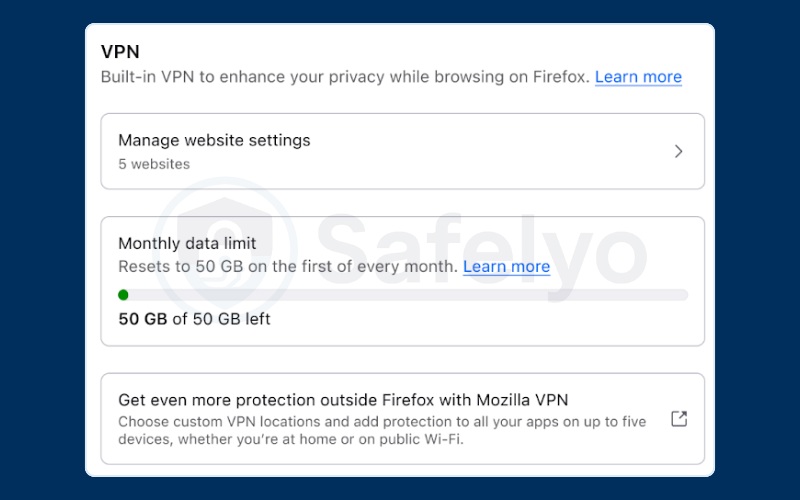
- Strict data limit: The free Firefox VPN provides exactly 50 gigabytes of protected data per month.
- Transparent pause mechanism: When you reach this monthly limit, the IP protection feature pauses until your next billing cycle. Firefox will notify you before you reach the limit and requires you to confirm before continuing unprotected.
- Privacy-first freemium model: The built-in VPN does not sell your browsing data and does not inject advertisements into your web traffic. Mozilla provides basic protection for free to introduce users to their privacy tools, hoping some will eventually upgrade to the premium Mozilla VPN.
- Simplified user experience: You can turn the protection on or off with a single click directly inside the browser. It requires no additional app installations or complex setups.
- Restricted server choice: The service offers a limited selection of server locations. It is designed as a basic privacy feature for light browsing, rather than a robust tool for bypassing global geo-blocks.
Here is a summary of the pros and cons of the free Firefox VPN feature:
Pros
- Built directly into the Firefox browser
- Completely free without injected ads
- Easy one-click activation
- Does not sell your browsing data
Cons
- Only protects Firefox browser traffic
- Strict 50 GB monthly data limit
- Limited selection of server locations
- Not a full, device-wide VPN tunnel
4. How to use the built-in VPN in Firefox
If you decide to try this new feature, getting started with the built-in VPN is simple. You can manage everything directly from your browser without installing any extra software.
4.1. How to check if you have the feature
Because this feature is being introduced through a progressive rollout, it might not be available to everyone immediately. Follow these steps to check your status:
- Update your browser: Ensure you are running Firefox version 149 or newer by checking your “About Firefox” menu (Help -> About Firefox).
- Look for the icon: Check the top-right corner of your Firefox toolbar for a new shield or “VPN” icon prompt.
- Wait for the rollout: If your browser is fully updated and you still do not see the prompt, your region or account has not received the feature yet.
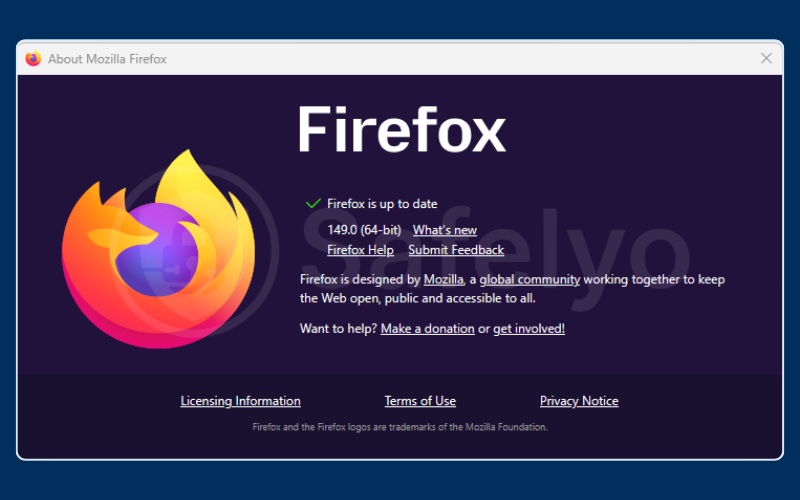
4.2. Turning the VPN on and off
Once you have access to the feature, you must activate it using a Mozilla account. Follow this exact process to get started:
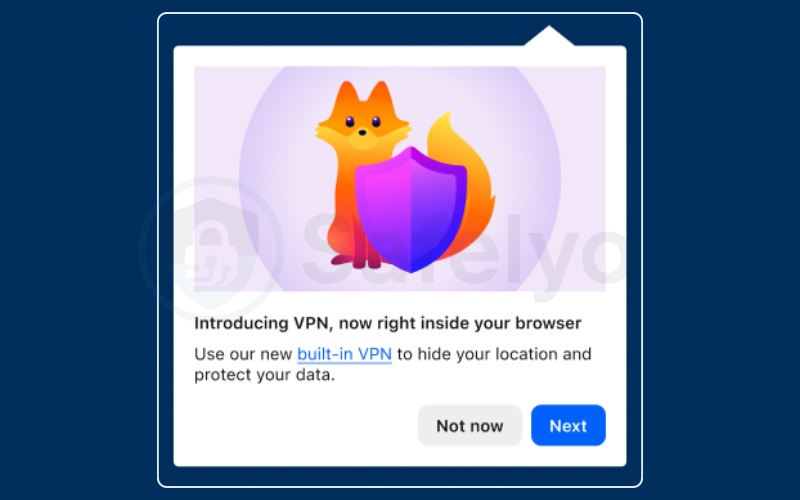
- Find the prompt: Click the VPN setup prompt or the shield icon in the top-right corner of your Firefox toolbar, then click Next to begin.
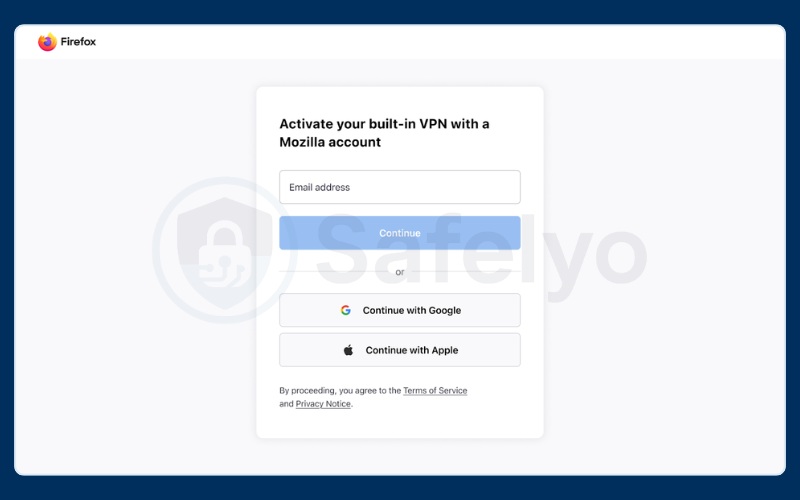
- Sign in: The browser will open a new tab prompting you to authenticate. Create or log into your free Mozilla account.
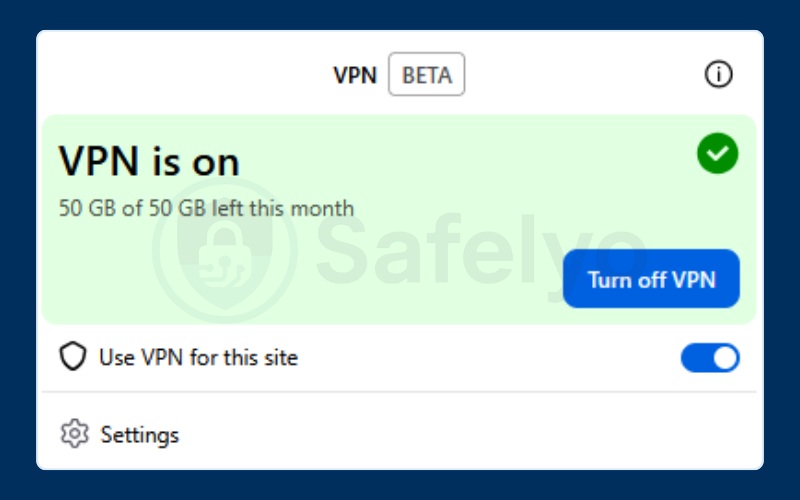
- Toggle the switch: Once you are signed in, the VPN panel will appear. Simply click the toggle switch to turn the VPN on. Firefox will automatically route your web traffic through the best available server.
- Disable the VPN: If you want to turn the feature off completely, open the VPN panel from the toolbar and click the Turn off VPN button.
4.3. Managing website exceptions
If you do not want to use the VPN for certain trusted websites, you can easily add them to an exception list. This allows your normal, unencrypted connection to access those specific sites:
- Open settings: Click the Firefox menu (the three horizontal lines) and select Settings (or Preferences on macOS).
- Find the VPN section: Navigate to the Privacy and Security tab on the left menu and scroll down until you see the VPN section.
- Add exceptions: Click the Manage website settings button. From here, you can type in the specific URLs of the websites you want to exclude and click Save Changes.
- Remove exceptions: If you change your mind later, open the same menu, select the website from your list, and click the Remove website button.
5. Key differences: Mozilla VPN vs. Free Firefox VPN
To help you decide which service is right for you based on the features discussed above, let’s look at a direct comparison.
Here is a simple table showing their main differences:
| Feature | Mozilla VPN (Paid) | Free Firefox VPN |
|---|---|---|
| Cost | Paid subscription | Free |
| Scope | Full-Device (All apps) | Browser-Only (Firefox) |
| Features | Full-featured, server choice | Basic protection, limited servers |
| Protection Method | Full VPN tunnel (WireGuard) | IP masking via proxy network |
| Activation | Separate app required | One click in browser, no install |
| Infrastructure | Mullvad’s network | Mozilla’s proxy network |
| Security | Strong (WireGuard protocol) | IP masking (hides IP address); HTTPS handles data encryption |
| Data limit | Unlimited | 50 GB/month |
| When limit reached | N/A | Paused; user must confirm to continue |
6. Who should use the free Firefox VPN?
This depends entirely on your daily internet habits:
- Who should use the free version: You should use this if you only need basic privacy for light browsing. It is a great tool for occasional use, like protecting your browser traffic on public Wi-Fi, without paying a monthly fee.
- Who should use the paid version: If you need reliable, comprehensive security today, you need a full VPN. The built-in version is only designed to protect browser traffic. If you need protection for all your apps, unlimited data, or the ability to choose specific server locations, you should opt for the paid Mozilla VPN or another established provider like NordVPN or Surfshark.
Read more:
7. What about other third-party VPN add-ons?
When you search the Firefox Add-on store, you will see hundreds of “VPNs”. You must be very careful with these third-party tools.
7.1. Are third-party VPN extensions safe?
Many third-party VPN extensions are not safe. A large number of them are not true VPNs. They are simple proxies that offer weak protection. Some are dangerous, logging your private data and selling it to advertisers.
This is precisely why Mozilla’s built-in VPN stands out. It does not sell your data, does not inject ads, and is built by the same company that makes the browser itself.
7.2. How to spot a dangerous or fake VPN add-on
You can look for several clear warning signs to avoid a fake VPN add-on:
- It has a vague or non-existent privacy policy.
- It requests excessive permissions (like access to your browsing history).
- There is no clear company or developer listed.
- It claims to be 100% free and unlimited with no clear business model.
8. FAQs about does Firefox have a VPN
Here are quick answers to other common questions about Firefox’s VPN services.
Is the Firefox VPN a real VPN or just a proxy?
The paid Mozilla VPN is a real, full-featured VPN. It uses top security protocols like WireGuard. The free, browser-based beta functions more like a secure, encrypted proxy for your browser.
How much does the paid Mozilla VPN cost
The Mozilla VPN cost varies by plan. It typically offers a monthly subscription and a discounted annual subscription. Prices are subject to change, so check their official website.
Does Mozilla VPN keep logs?
No. The paid Mozilla VPN has a strict, independently audited no-logs policy. This means they do not track, collect, or store your browsing activity or connection data.
Can I use the Firefox VPN to unblock Netflix?
The paid Mozilla VPN may work for unblocking some streaming content. However, it is not optimized for streaming. The free Firefox VPN (beta) is highly unlikely to work for unblocking geo-restricted services like Netflix.
9. Conclusion
The answer to “Does Firefox have a VPN?” is a clear yes. Mozilla provides two very different tools for its users.
Mozilla VPN is a premium, full-device solution designed for comprehensive security. It encrypts traffic from all the apps on your device and is ideal if you need unrestricted data or specific server locations.
The free Firefox VPN is a newly launched, browser-only feature. It provides a 50 GB monthly data limit and uses IP masking to protect your web traffic. This makes it a highly relevant and useful tool for basic privacy needs, such as browsing safely on public Wi-Fi.
Ultimately, you should use the free Firefox VPN for casual, light browsing on public Wi-Fi, and choose the paid Mozilla VPN if you need full-device protection and unlimited data.
For more in-depth guides on internet safety and privacy tools, explore the VPN Guides section at Safelyo.