Clicking send on an email only to notice a major typo, an empty attachment, or the wrong recipient is a universal office nightmare. Fortunately, learning how do you unsend an email in Gmail is a simple process that can save you from immediate professional embarrassment.
Our cybersecurity experts have tested the limits of this system feature across various devices and network conditions. This practical guide reveals the exact steps to retract your messages, how to maximize your safety window, and the hidden technical traps that can cause the feature to fail.
Key takeaways
- A temporary delay: Gmail does not actually retrieve a delivered message; it simply holds your email in an outgoing queue for a specified duration.
- Thirty-second maximum: You can customize your safety window from five seconds up to a maximum of thirty seconds in your account settings.
- The closed tab trap: Closing your browser tab or losing your internet connection instantly cancels the recall option and sends the message immediately.
- Third-party limitations: Using external email software such as Outlook or Apple Mail bypasses this security delay entirely, sending messages instantly.
1. Can you really unsend an email in Gmail?
Many users assume that clicking the cancellation button pulls a delivered message back from the recipient’s personal inbox. However, this is a major technical misconception that can lead to costly communication mistakes. Unlike Microsoft Exchange, which can sometimes recall internally sent messages on corporate servers, Gmail operates on a completely different system. It has no ability to retrieve an email once the data has left Google’s network.
Instead, the feature works by implementing a local outbound queue delay directly on Google’s mail servers. When you click send, your browser simply holds your message in a temporary staging area for a few seconds before releasing it. Because of this specific architecture, the cancellation window is highly fragile. If you close your browser tab immediately after clicking send, the countdown is aborted, and the email is dispatched to the recipient instantly with no way to undo it.
2. How do you unsend an email in Gmail (On desktop and mobile)
Retrieving a sent message is highly straightforward once you know where the temporary cancellation button appears. The user interface differs slightly depending on whether you are drafting on a computer or a smartphone.
2.1. For desktop (Web browser)
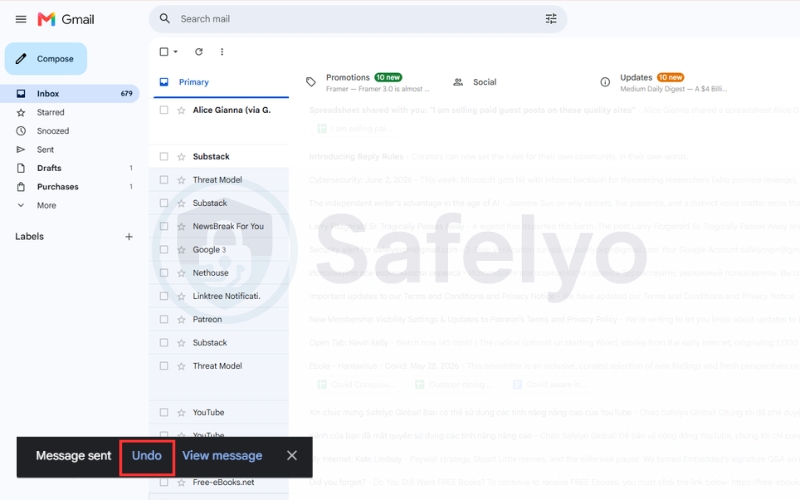
When using the web interface on your laptop or computer, you must act quickly within the bottom notification area.
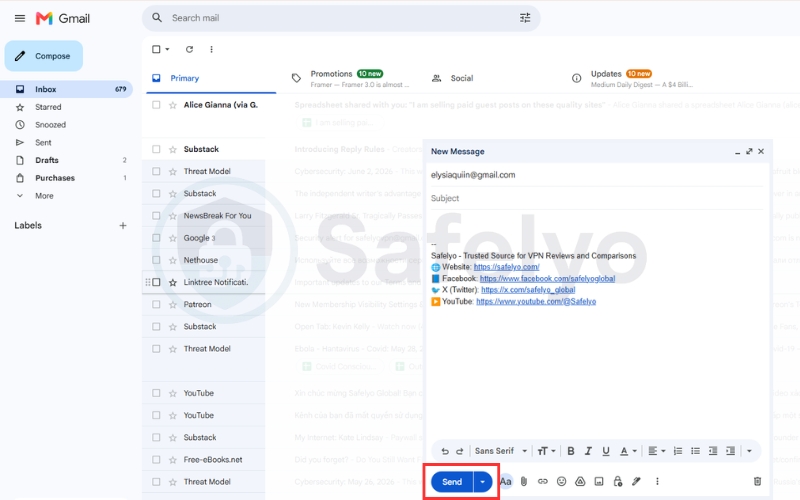
- Step 1: Compose your message and click the blue Send button at the bottom of the window as usual.
- Step 2: Immediately look at the bottom left corner of your screen for a black notification box saying “Message sent”.
- Step 3: Click the Undo link located inside that box before your designated timer completely runs out.
2.2. For mobile app (Android & iOS)
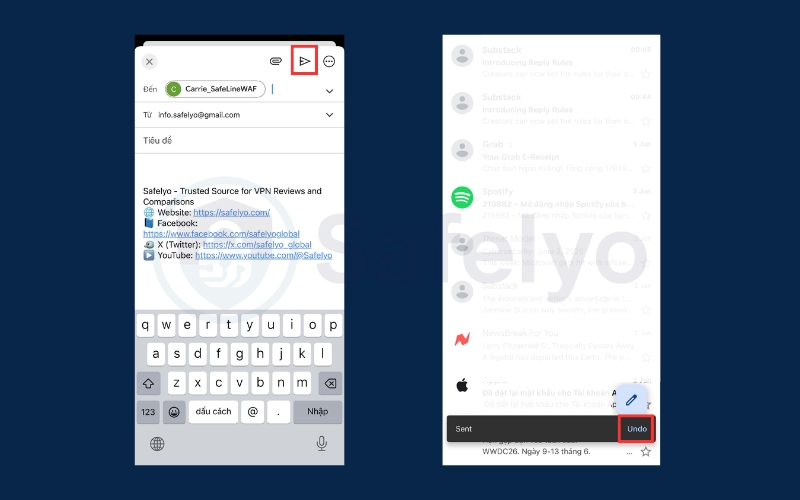
The mobile application operates on the exact same delay system but places the notification bar in a slightly different spot.
- Step 1: Tap the send arrow icon in your mobile app to dispatch your drafted message to the network.
- Step 2: Look at the very bottom of your phone screen for a dark notification bar stating your message was sent.
- Step 3: Tap the Undo button on the right side of this specific bar before the prompt vanishes.
3. How to extend the Gmail unsend time limit
By default, Gmail only gives you five seconds to cancel a sent message, which is barely enough time to notice a mistake. Fortunately, you can easily increase this holding window to thirty seconds to give yourself a much safer buffer.
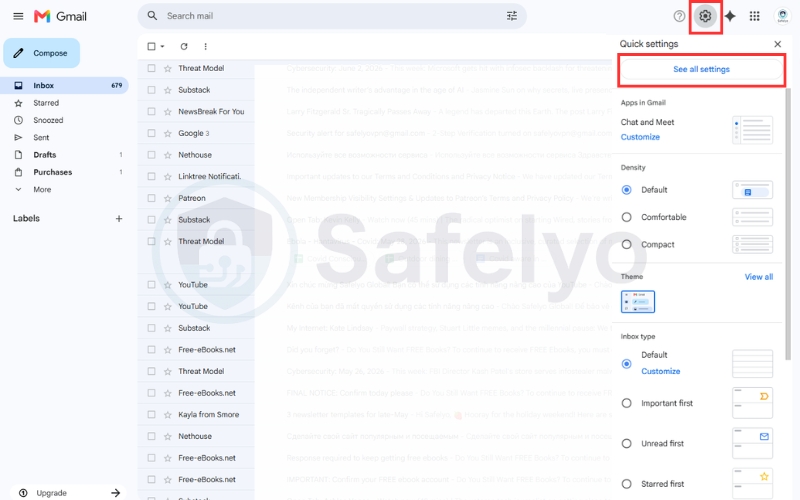
Follow these steps on your computer to adjust your safety settings immediately:
- Step 1: Access settings. Open Gmail on your computer browser, click the gear icon in the top right corner, and select “See all settings” from the menu.
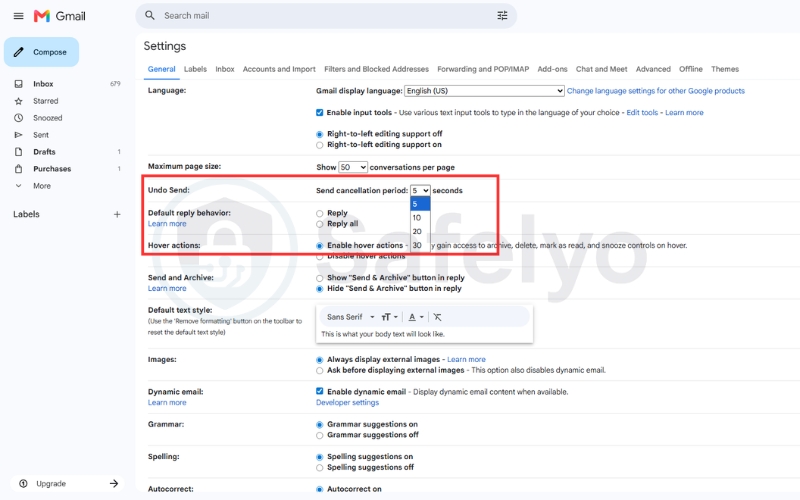
- Step 2: Locate Undo Send. Under the General tab, scroll down the list of preferences until you find the section labeled Undo Send.
- Step 3: Adjust the cancellation period. Click the drop-down menu next to “Send cancellation period” and change it from five seconds to thirty seconds.
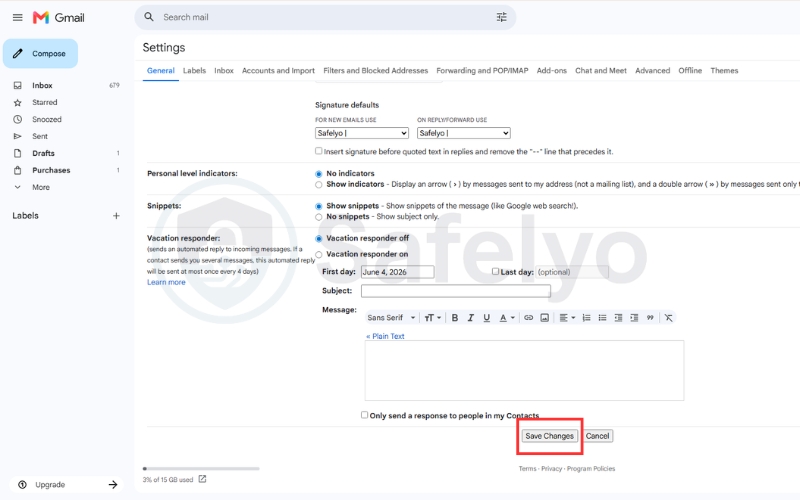
- Step 4: Save your changes. Scroll to the very bottom of the page and click the Save Changes button to apply the new timeout to your account.
4. Critical limitations of Gmail’s unsend feature
While the cancellation queue is incredibly helpful, it is not a perfect shield against communication mistakes. You must understand its strict technical boundaries to prevent your private emails from being accidentally sent to recipients without warning.
4.1. The third-party client bypass
If you access your Google account through external desktop software like Apple Mail or Microsoft Outlook, this safety net is bypassed. These third-party clients use direct SMTP and IMAP protocols to dispatch data to the network.
Because these external applications send your emails to the servers instantly, Gmail’s web-based delay setting cannot intercept the transaction. Any message sent from these clients is delivered immediately to the recipient with no option to undo.
4.2. Network dropouts and offline sending
The secure holding queue requires a stable, active internet connection on your device to successfully process the cancellation command. If your local network drops in the middle of the thirty-second countdown, your browser cannot send the undo signal to Google.
When this connection failure occurs, the server-side timer continues to run. Once the time expires, Google’s systems will automatically release the message, delivering it to the recipient despite your offline attempts to cancel it.
Read more:
5. Frequently asked questions
Can I edit an email after the undo window closes?
No, you cannot. Once the set cancellation window expires, the message is fully delivered to the recipient’s inbox. At that point, the data is completely out of Google’s local queue, and your only option is to send a corrected follow-up email to address any mistakes.
Does the recipient know I unsent an email?
No, they will never know. Because the delayed sending feature simply holds the physical delivery of your message, the email never actually leaves Google’s servers. The recipient receives no notifications or alerts showing that you drafted and canceled a message.
Does this feature work on enterprise Google Workspace accounts?
Yes, it does. The delayed sending feature is available on both personal free accounts and corporate Google Workspace profiles. However, your company IT administrator has the power to globally disable or limit the countdown timer to meet corporate security compliance rules.
Can I unsend an email if the recipient has already opened it?
No, because they cannot open it while the timer is running. During the active countdown, the email remains safely in your outgoing queue. If the recipient actually receives and opens the message, it means your safety window has already expired, making retraction completely impossible.
How do I unsend a scheduled email in Gmail?
Scheduled emails do not rely on the brief thirty-second timer. You can cancel, edit, or delete any scheduled message at any time before its planned delivery date by simply navigating to your Scheduled folder and selecting the message.
Does “Undo Send” work when using a Gmail alias?
Yes, it does. If you have configured a custom alias to send messages from a different domain, Gmail still routes the mail through its servers. As long as you send the email from the web platform or official mobile app, the cancellation delay is fully active.
6. Conclusion
Mastering on How do you unsend an email in Gmail is the ultimate safety net for any busy professional. While the system does not actually recall messages after they land in a recipient’s inbox, the thirty-second delay is more than enough to catch major errors and edit drafts before they become permanent.
Always make it a habit to maximize your cancellation window in your account settings immediately. To explore more advanced email management tips, security tutorials, and practical productivity guides, visit our comprehensive Tech How-To Simplified category on Safelyo to secure your digital workflow today.