Are you frustrated because your PC shows the wrong weather, or you cannot access region-locked apps? You are certainly not alone. Many users constantly ask us how to change my location on my computer to bypass these annoying digital restrictions.
At Safelyo, our tech experts regularly test operating systems and privacy software to find the safest workarounds. Whether you need to tweak local time zones or completely mask your internet traffic, we will help you take full control of your digital footprint.
Key takeaways:
- Identify Your Goal: Change System Settings to fix local UI (weather, time, news); use a VPN to bypass internet geo-blocks (Netflix, unblocking websites).
- Windows Quick Path: Navigate to Settings > Time & language > Language & region to update your Country or region.
- Mac Quick Path: Use System Settings > Location Services for system data and update your Apple ID to change your App Store region.
- VPN is Essential for IP Privacy: A premium VPN is the only way to mask your IP address, allowing you to appear in a different country to websites and streaming services.
- Browser-Level Spoofing: For testing or privacy without system changes, use F12 (DevTools) > Sensors in Chrome or Edge to input GPS coordinates manually.
1. System location vs. IP address: What do you need to change?
Before diving into the setup process, you must understand which type of location data you actually need to modify. Your machine broadcasts two completely different types of geographic signals to the outside world, and changing the wrong one won’t solve your problem.
| Your Goal | What to Change | Best Method |
|---|---|---|
| Fix wrong time/weather | System Location | Windows/Mac Settings |
| Download foreign apps | App Store Region | Microsoft Store/Apple ID |
| Watch blocked Netflix shows | IP Address | Use a Premium VPN |
| Test website features | Browser Geolocation | Chrome Developer Tools |
- When to change the OS system settings
Use this method if your desktop clock is wrong or your local news widgets display the incorrect city. Adjusting your OS settings also allows you to switch your Microsoft Store or Apple ID region. This is essential if you want to download software that is only officially released in specific countries.
- When to use a VPN
Simply changing your Windows or Mac settings will not trick websites like Netflix, Hulu, or online banking portals. These platforms track your physical whereabouts through your internet connection. To successfully bypass strict geo-blocks and hide your real IP address, you must use a premium VPN service.
2. How to change my location on my computer?
Modifying your digital whereabouts requires different approaches depending on whether you are adjusting internal settings or hiding your network traffic. Based on our extensive testing at Safelyo, we have outlined the most secure and effective techniques below.
2.1. Method 1: Change system location and region settings
This method modifies the data your operating system uses to display local weather, news, and time zones. It is the exact process our team uses to switch regional app stores safely without using third-party software.
On a Windows PC:
Changing your location on Windows 11 involves adjusting both your physical privacy settings and your regional formats. This allows you to set a manual default city for desktop widgets and update your Microsoft Store catalog to download foreign apps.
- Step 1: Go to Settings > Privacy & security > Location to ensure your location services are enabled.
- Step 2: Under “Default location,” click Set default to open the Maps app and manually drop a pin on your preferred city.
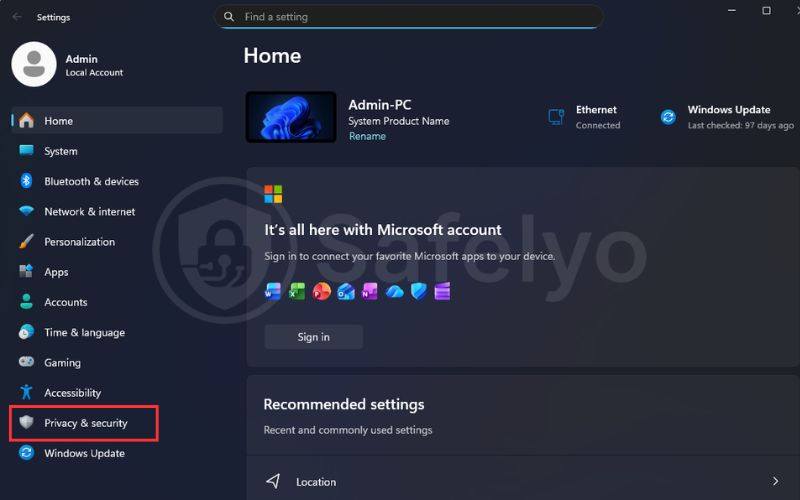
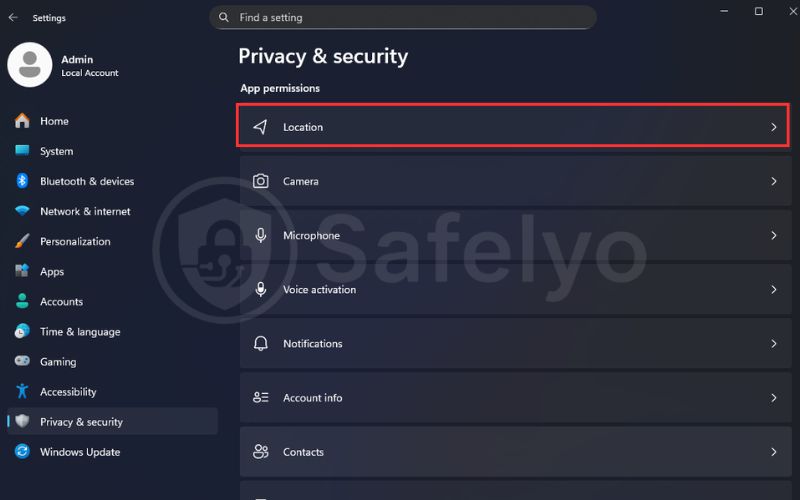
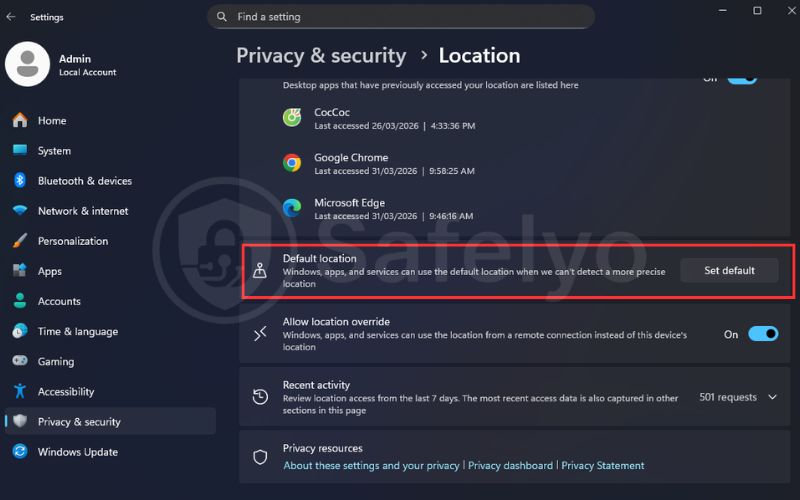
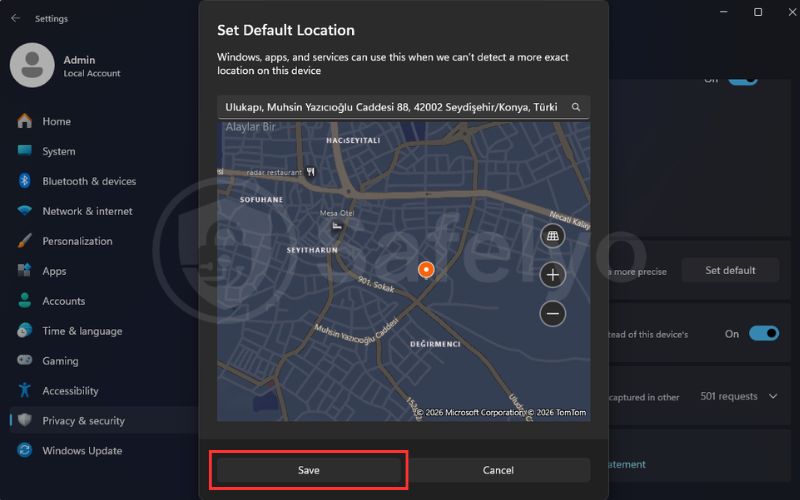
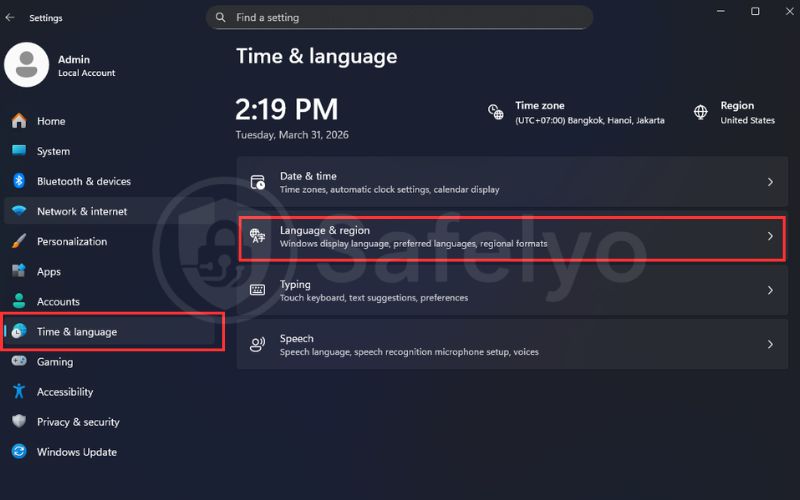
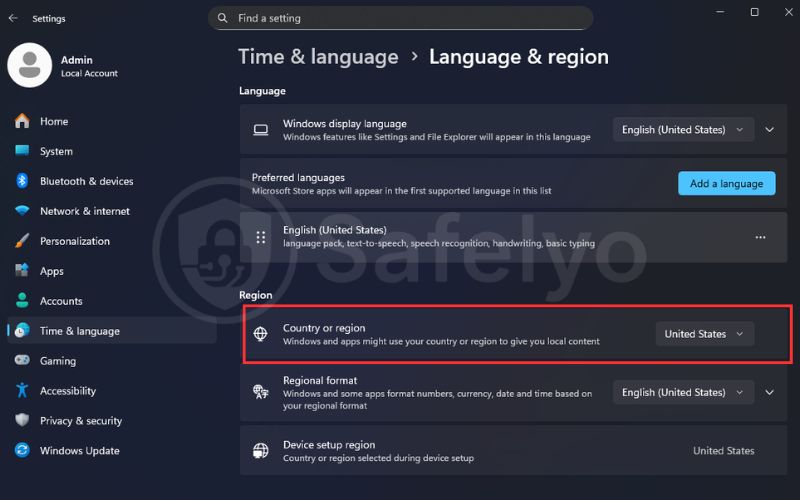
- Step 3: To change your software marketplace, navigate to Settings > Time & language > Language & region.
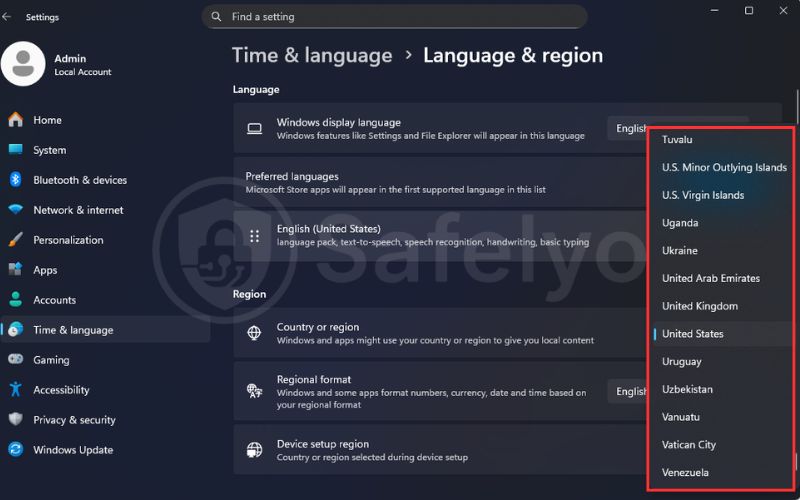
- Step 4: Use the dropdown menu next to “Country or region” to select a new location, which instantly updates your Microsoft Store catalog.
On a Mac:
Apple requires a slightly different approach, separating hardware location services from your Apple ID account region. You must update both settings to ensure your weather apps work correctly and your App Store displays the desired international content.
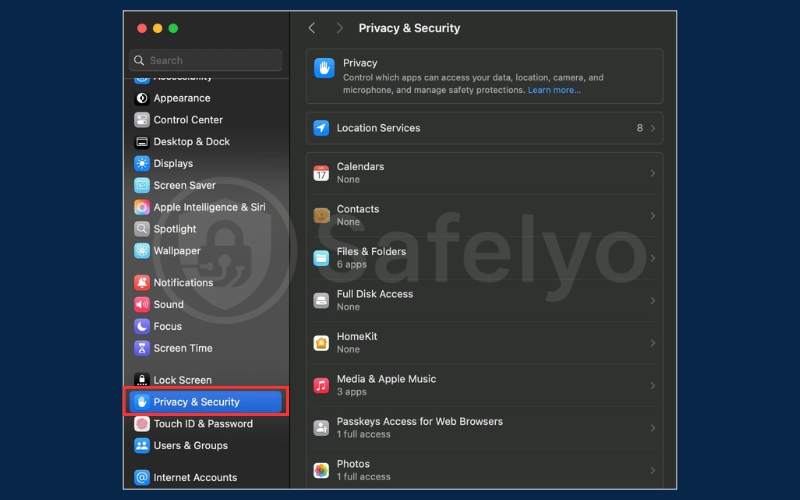
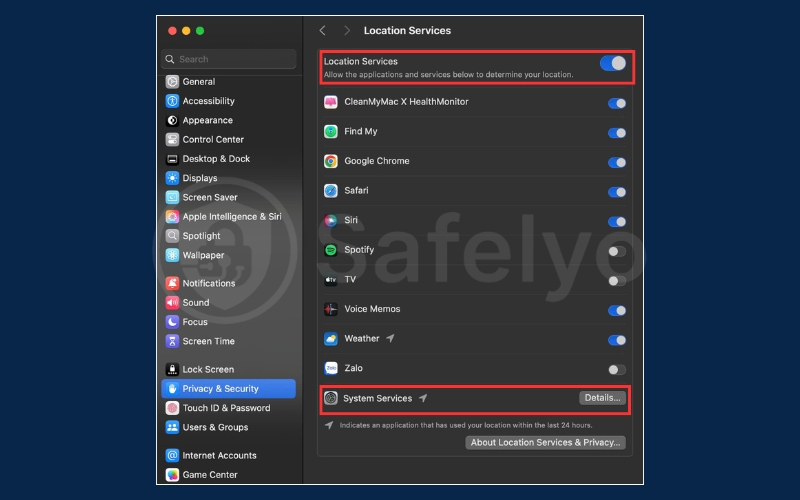
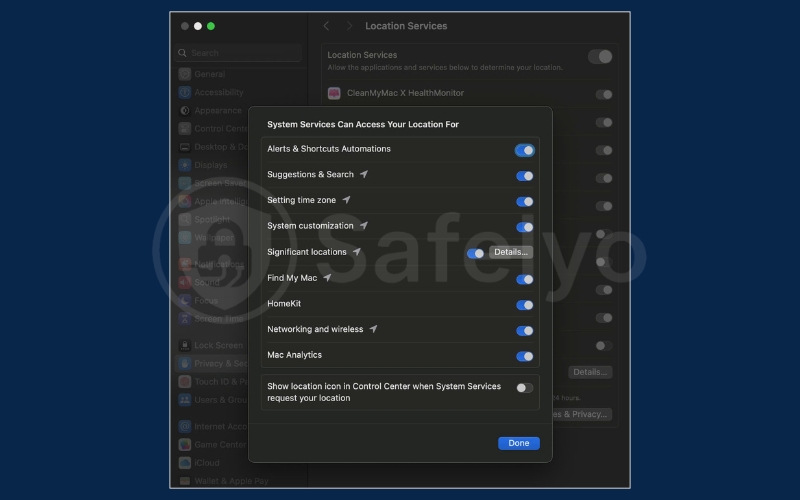
- Step 1: Open System Settings > Privacy & Security > Location Services and ensure the main toggle is turned on.
- Step 2: Scroll down to “System Services” and click Details to customize exactly how macOS uses Wi-Fi to pinpoint you.
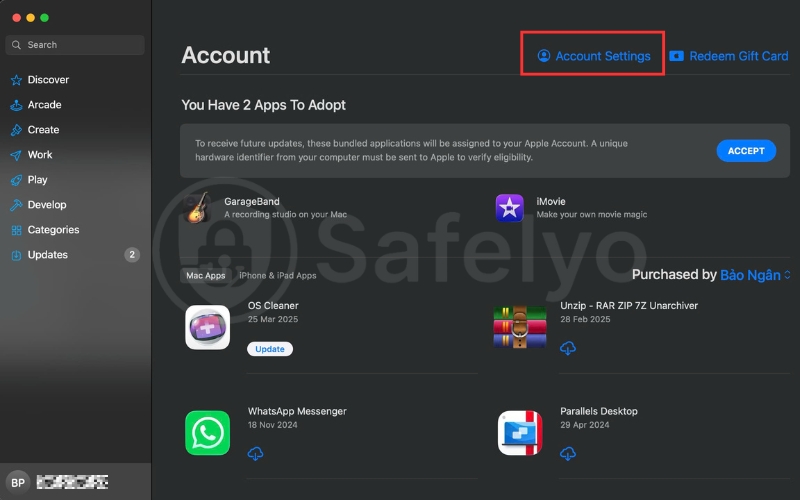
- Step 3: To switch your Apple ID country, open the App Store, click your profile name, and select Account Settings.
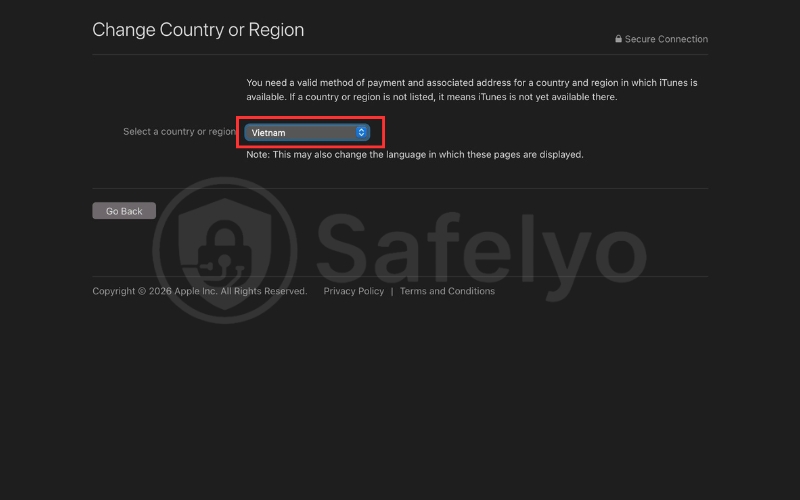
- Step 4: Click Change Country or Region and follow the prompts to enter a valid payment method for that specific new area.
2.2. Method 2: Change your computer’s IP location using a VPN
For true privacy and unrestricted internet access, altering your system settings is never enough. A Virtual Private Network (VPN) encrypts your data and routes it through a remote server, completely masking your real IP address from your internet service provider.
How a desktop VPN changes your virtual location:
When you connect to a VPN, websites only see the IP address of the secure server, not your home network. Our cybersecurity experts consider this the only foolproof way to bypass strict geo-blocks and protect your data on public Wi-Fi.
Steps to spoof your location:
- Step 1: Download a premium, highly-rated VPN application specifically designed for your Windows or Mac desktop.
- Step 2: Launch the application and sign in with your secure account credentials.
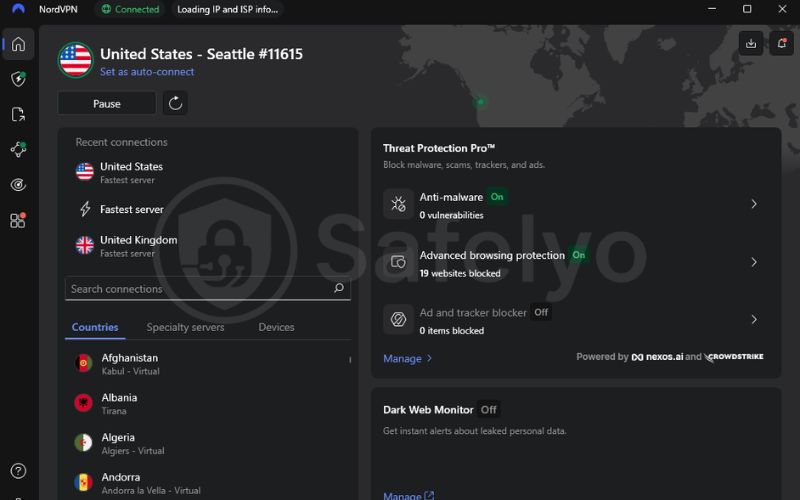
- Step 3: Browse the server list, select the specific country or city you wish to appear from, and click connect.
2.3. Method 3: Spoof your HTML5 geolocation in web browsers
If you are testing a website or avoiding specific location prompts, you can fake your coordinates directly within your browser. We frequently use this trick at Safelyo to verify regional search results without changing system-wide settings.
2.3.1. Override location using Developer Tools:
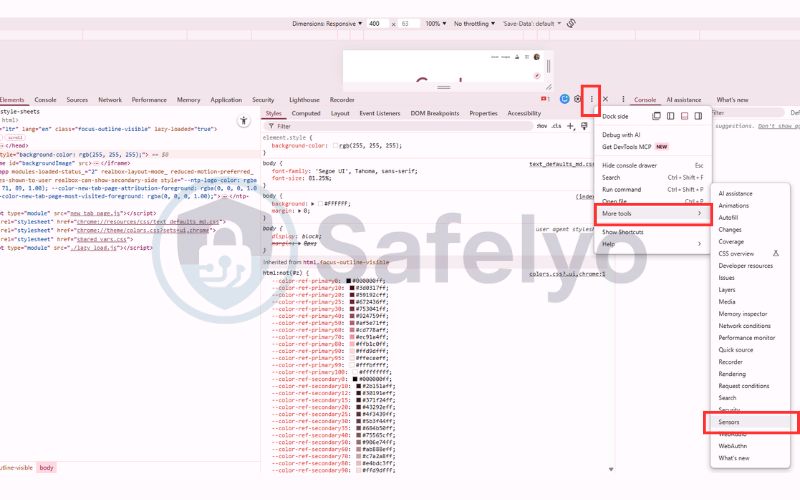
- Step 1: In Google Chrome or Microsoft Edge, press F12 to open the Developer Tools panel on the right side of your screen.
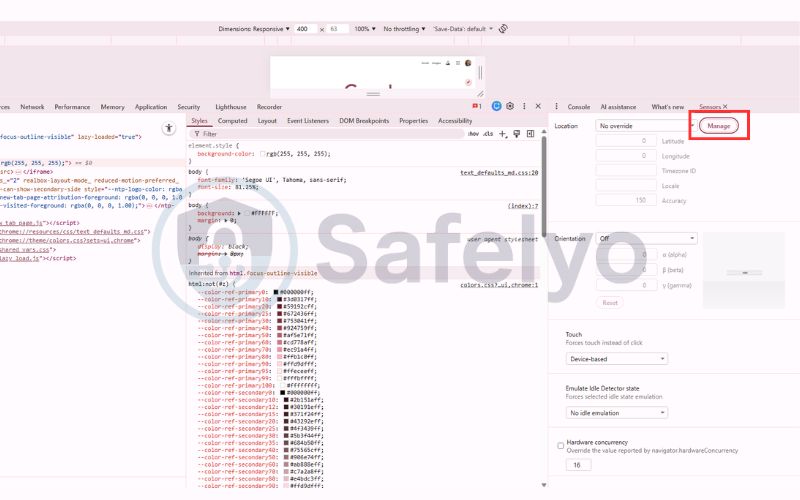
- Step 2: Click the three-dot menu icon, select More tools, and then click on Sensors.
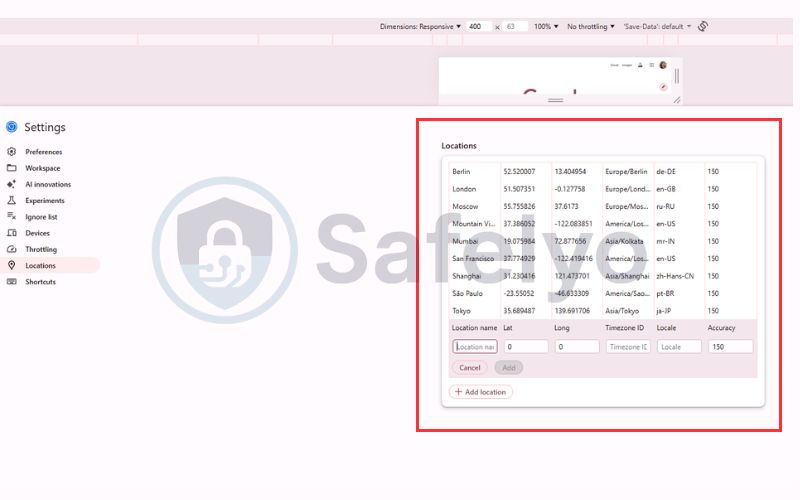
- Step 3: In the Geolocation dropdown, select Custom location and input any precise latitude and longitude coordinates you want to simulate.
2.3.2. Use location spoofing extensions:
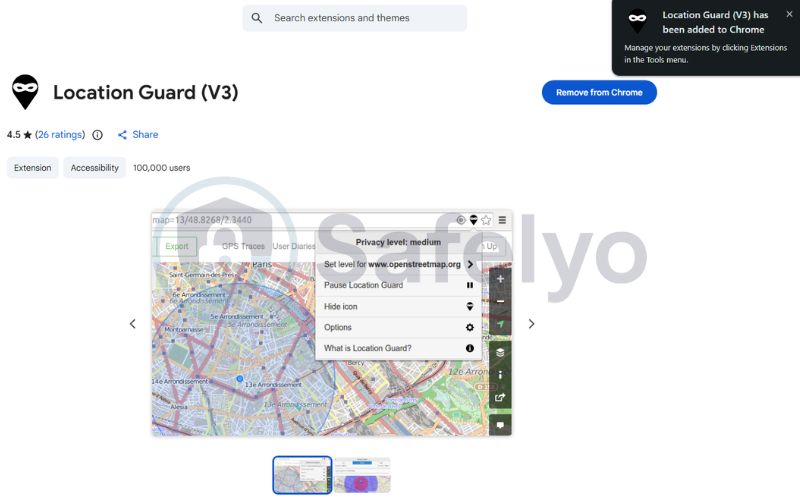
For a much less technical approach, our team highly recommends installing a reputable browser extension, such as Location Guard.
- Step 1: Download the add-on from the Chrome Web Store or Edge Add-ons marketplace.
- Step 2: Open the extension options menu and drop a pin anywhere on the provided global map.
- Step 3: This setup automatically feeds those fake coordinates to any website that requests your HTML5 location access.
3. Top 3 VPNs for changing location on my computer
Selecting a high-quality service is the most critical step to ensure your virtual presence remains stable and undetected. We have rigorously tested over 30 desktop clients in our lab to identify which providers offer the best balance of speed and unblocking power.
3.1. NordVPN
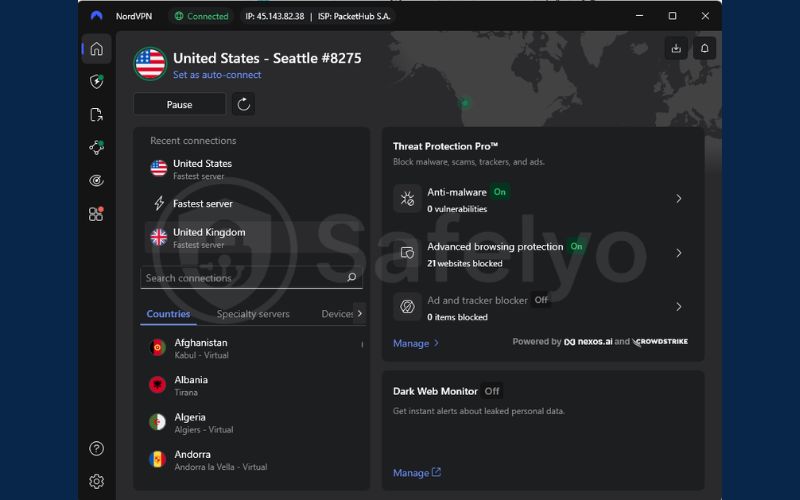
NordVPN is our top recommendation for desktop users due to its massive network of over 6,000 global servers. During our performance evaluations, its proprietary NordLynx protocol delivered the highest speeds, making it perfect for both Windows gaming rigs and macOS workstations.
- Successfully bypasses the strictest streaming geo-blocks on Netflix and Hulu.
- Provides a dedicated “Double VPN” feature for users requiring an extra layer of privacy.
- Features an intuitive map interface that makes selecting a specific city effortless.
3.2. ExpressVPN
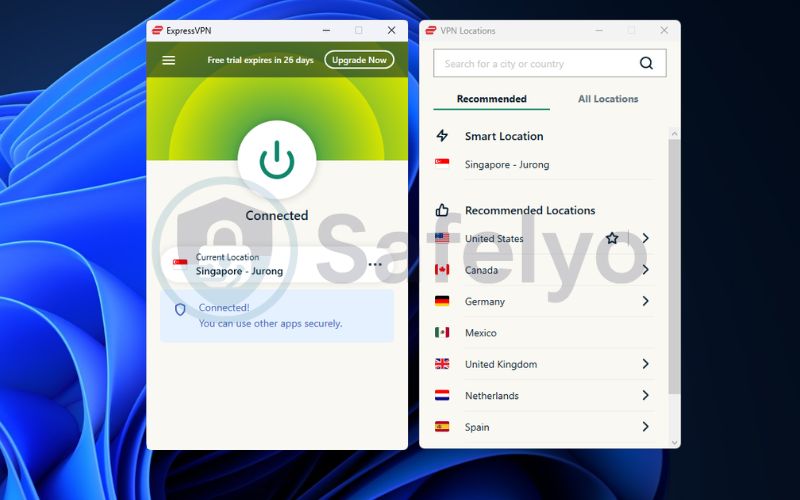
If you prioritize stability and a seamless user experience, ExpressVPN is an unmatched choice in the current market. Its custom-built Lightway protocol ensures your machine connects to a new country in under two seconds, effectively avoiding the “proxy detected” errors common on budget services.
- Maintains a reliable presence in over 105 countries worldwide.
- Utilizes military-grade encryption to prevent your ISP from monitoring your activity.
- Offers a polished desktop app that requires zero technical configuration to use.
3.3. Surfshark
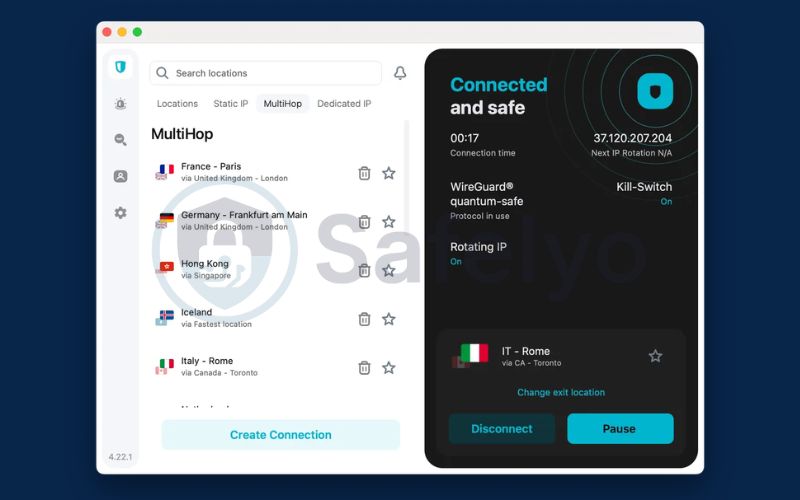
Surfshark offers incredible value, particularly for large households with multiple computers. It is the only premium provider on our list that allows you to change your virtual location on an unlimited number of devices simultaneously under a single affordable subscription.
- Includes a specialized “NoBorders” mode to penetrate restricted office or school networks.
- Provides an integrated CleanWeb feature to block intrusive desktop ads and trackers.
- Offers competitive long-term pricing without compromising on connection security.
4. Troubleshooting: Why is my computer showing the wrong location?
Even after following the correct steps, your PC may still display your previous city. Our diagnostic tests at Safelyo show that this is rarely a hardware failure and usually stems from lingering data in your network cache or conflicting background services that override your new settings.
4.1. Location based on Wi-Fi positioning vs. IP address
Desktop computers and laptops use different methods to determine your physical spot, often leading to conflicting results. During our cross-device testing, we observed that high-accuracy tracking often relies on environmental signals that a standard VPN might not hide.
- Wi-Fi Positioning (BSSID): Laptops use nearby Wi-Fi signals to triangulate your position through a global database. Even with a VPN, these surrounding signals can reveal your true whereabouts to Google Maps unless you disable Wi-Fi or browser permissions.
- IP-Based Location: Desktop PCs using a wired Ethernet connection rely almost entirely on their IP address. In our experience, a VPN is significantly more effective at changing the location on a stationary desktop than on a mobile laptop with active Wi-Fi.
4.2. How to reset network settings and flush DNS cache
Your computer stores a “map” of internet addresses called a DNS cache, which can sometimes get stuck on old location data. In our security audits, we find that flushing this cache is the most effective way to force the operating system to recognize your new virtual coordinates immediately.
- On Windows: Open the Command Prompt as an administrator, type ipconfig /flushdns, and press Enter. This clears the network pathway and helps your VPN override the previous system state.
- On Mac: Open the Terminal and enter sudo dscacheutil -flushcache; sudo killall -HUP mDNSResponder. This command resets the Apple network daemon, ensuring that location-based websites see your updated IP address.
4.3. Disable conflicting proxy connections
If you are using a computer from work or school, there may already be a proxy server configured in your settings. Based on our experience with managed enterprise devices, these legacy connections often conflict with new VPN tunnels, causing your location to flip-flop or show errors.
- Step 1: Go to your system’s network settings and find the Proxy tab.
- Step 2: Ensure “Automatically detect settings” is turned OFF to prevent the system from bypassing your new encrypted location.
- Step 3: Restart your web browser to ensure all previous session data is cleared and the new settings take full effect across all applications.
5. Frequently asked questions (FAQs)
Does changing my computer location affect all apps?
Changing your system settings affects apps that rely on local OS data, such as weather, news, and the Microsoft or Apple Store. However, websites and streaming services that track your IP address will only be affected if you use a VPN to mask your internet connection.
Can websites still detect my real location if I use a VPN?
Yes, some advanced websites can still see your true position if you have browser cookies from a previous session or if you have granted the site HTML5 geolocation permissions. To stay anonymous, always clear your cache and use an incognito window after connecting to your VPN.
Why does my computer location reset automatically?
Your machine may reset its location if you have “Set time zone automatically” enabled in your settings. Laptops frequently use nearby Wi-Fi signals to verify your spot, so your computer might override your manual entry if it detects a conflict with local network data.
Is changing my region the same as changing the GPS location?
No, changing your region only modifies content formatting and store availability. GPS location (or geolocation) refers to your precise physical coordinates; you must use browser developer tools or specific spoofing software to alter this data without physically moving.
Can I change my computer location without a VPN?
You can change your system’s regional settings and browser coordinates without a VPN, which helps fix time zones or test websites. However, these methods will not change your IP address, meaning you cannot use them to bypass streaming geo-blocks or hide your activity from your ISP.
6. Conclusion
Mastering how to change my location on my computer depends entirely on your specific goals. While Windows and Mac system settings are perfect for fixing local time zones or switching app store regions, a premium VPN is the only reliable way to mask your IP address and bypass strict streaming geo-blocks.
Ultimately, combining system-level tweaks with a secure, encrypted tunnel provides the most comprehensive control over your virtual presence in 2026. To discover the best tools for your privacy needs and explore more technical tutorials, visit our VPN Guides at Safelyo to secure your digital footprint today.