
Few things ruin movie night faster than settling in for a new show only to run into an annoying proxy error or a buffering wheel. CyberGhost streaming-optimized servers are designed to resolve these connection issues, giving you steady access to popular streaming platforms and supporting smooth 4K playback.
To see if they actually work, we tested them across seven major platforms to evaluate their unblocking reliability and connection speeds. The short answer is yes, they reliably unblock popular libraries while maintaining more than enough speed for high-definition streaming.
Below, you will find our real-world speed benchmarks, test results across services like Netflix and BBC iPlayer, and quick setup guides for your devices.
Key takeaways:
- Reliable unblocking: Streaming-optimized servers accessed all seven tested platforms, including Netflix US, BBC iPlayer, and Max, without triggering proxy warnings.
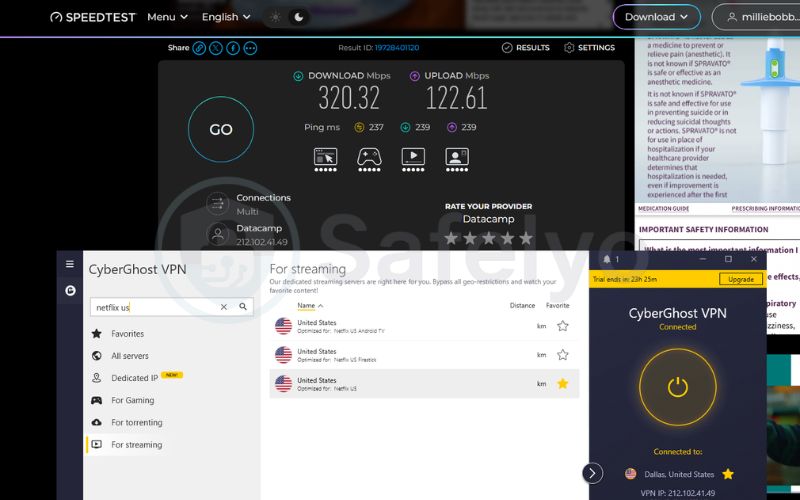
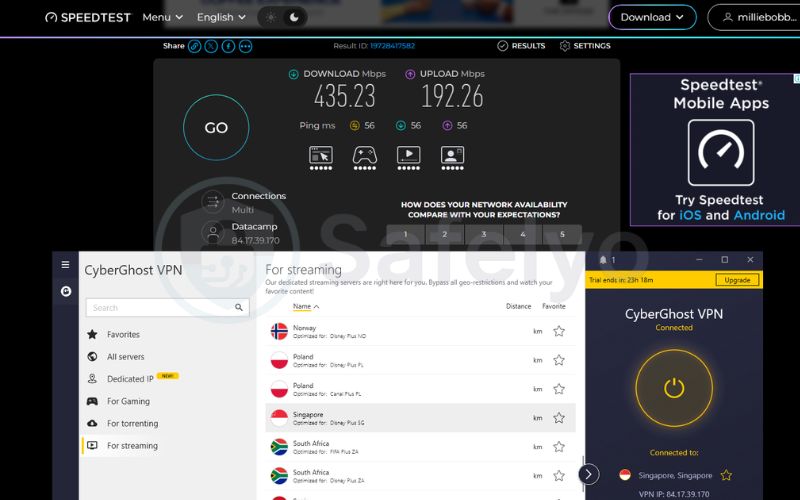
- High-speed throughput: The servers delivered 320.32 Mbps on US connections and 435.23 Mbps on Singapore routes, easily exceeding the 25 Mbps needed for 4K video.
- Server stability: CyberGhost equips these nodes with 10-Gbps connections and restricts heavy file sharing, keeping bandwidth open for smooth playback during peak hours.
- Broad device support: Native apps for Android TV, Fire TV Stick, and Apple TV let you connect directly from your television remote without manual network configuration.
Note: VPN regulations and streaming platform policies vary by region. Always check your local laws and the platform’s Terms of Service before streaming.
1. How CyberGhost streaming-optimized servers work
Streaming platforms continually update automated detection systems to prevent viewers from accessing catalogs outside their physical regions. CyberGhost manages this challenge through clean IP address management, dedicated streaming servers, and active server maintenance.
1.1. Platform-specific IP pools to avoid proxy detection
Streaming platforms frequently block VPN connections by identifying and blacklisting shared datacenter IP addresses. When you connect through a standard server, your traffic shares an IP address with users browsing the web and downloading files, making that address easier for streaming platforms to identify and block.
CyberGhost addresses this in the For Streaming tab by assigning IP addresses designated for specific platforms, such as Netflix US or BBC iPlayer. These servers are reserved for streaming traffic rather than general web browsing.
To help prevent IP bans, CyberGhost tests its streaming servers daily to confirm they maintain working connections to target platforms. This allows you to select your streaming service and connect directly, without having to manually test different standard servers to find an unblocked connection.
1.2. High-capacity 10-Gbps ports to handle peak traffic
CyberGhost equips its streaming-optimized servers with high-capacity 10-Gbps connections. This bandwidth headroom allows the host servers to absorb heavy traffic during busy evening hours, when millions of people stream television shows or live sports at the same time.
Because CyberGhost restricts torrenting and heavy peer-to-peer file sharing on these streaming nodes, the server’s bandwidth is reserved entirely for video playback. This prevents the server congestion that typically causes buffering or sudden drops in video quality during busy hours.
2. Speed test results: Streaming vs. standard servers
CyberGhost streaming servers deliver fast, stable throughput across nearby and long-distance connections, providing more than enough speed for smooth 4K playback. Our testing revealed virtually identical downstream speeds between streaming-optimized servers and standard servers.
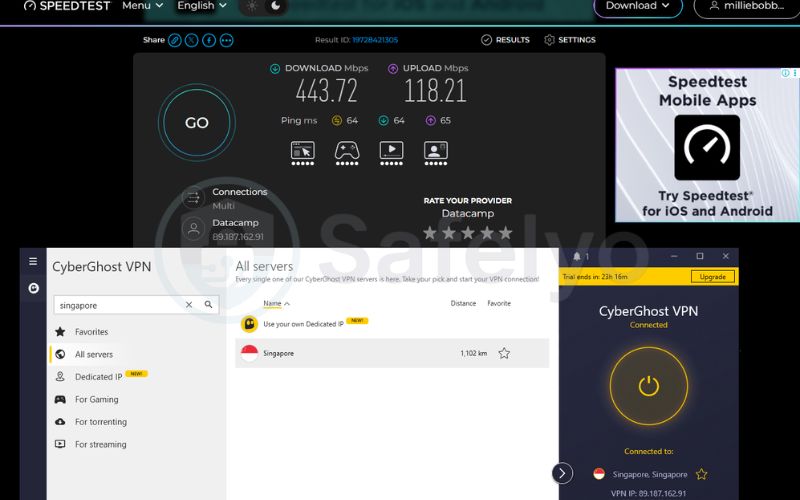
We tested real-world performance on a Windows 11 PC in Vietnam. Before connecting to the VPN, our baseline connection measured around 800 Mbps download. All benchmarks used the WireGuard protocol and Ookla Speedtest to compare streaming-optimized servers directly against standard servers in the United States and Singapore.
| Server Location & Type | Download (Mbps) | Upload (Mbps) | Ping (ms) | Speed Retention Rate (%) |
|---|---|---|---|---|
| US (Streaming server) | 320.32 | 122.61 | 237 | ~40.0% |
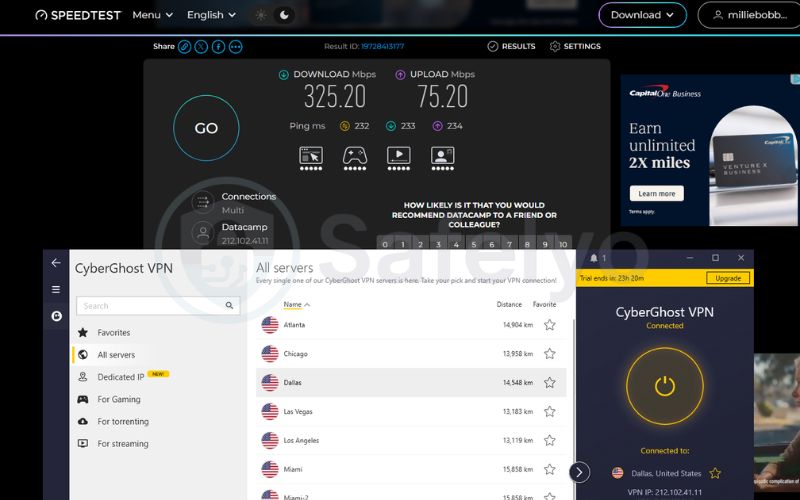
| US (Standard server) | 325.20 | 75.20 | 232 | ~40.6% |
| Singapore (Streaming server) | 435.23 | 192.26 | 56 | ~54.4% |
| Singapore (Standard server) | 443.72 | 118.21 | 64 | ~55.5% |
Both locations delivered fast throughput with less than a 2% variance between streaming-optimized and standard servers. The nearby Singapore streaming connection reached 435.23 Mbps with a responsive 56 ms ping, keeping app navigation smooth.
Even on the long-distance US route, download speeds held strong at 320.32 Mbps. Although latency reached 237 ms due to the long physical distance to the US, video streams started in seconds and maintained crisp 4K quality without buffering.
Upload speeds reached 122.61 Mbps on the US link and 192.26 Mbps on Singapore servers. Because services like Netflix and Amazon Prime Video only require 25 Mbps for 4K video, this bandwidth easily supports several people streaming high-definition content simultaneously across different screens in your home.
3. Which streaming services CyberGhost actually unblocks
In our hands-on tests, CyberGhost’s streaming-optimized servers accessed all seven streaming platforms we evaluated. While standard servers often trigger proxy errors or restrict catalogs, these streaming profiles connected without displaying regional restrictions.
- Netflix US: The specialized streaming server unlocked the American library, allowing us to search, load, and play licensed titles in crisp 4K.
- Amazon Prime Video (United States): The dedicated US streaming profile bypassed geo-blocks, streaming video directly without proxy errors.
- Disney+ (United States): Successfully loaded the US library without displaying regional restrictions.
- Hulu (United States): Loaded US programming smoothly, avoiding the proxy errors common on standard servers.
- Max / HBO (United States): The streaming profile bypassed regional restrictions and opened access to the US catalog without location pop-ups.
- BBC iPlayer (United Kingdom): The UK streaming server loaded the iPlayer dashboard and played British broadcasts without triggering proxy errors.
- DAZN (Canada): Bypassed regional restrictions to access Canadian live sports feeds without being flagged as a VPN connection.
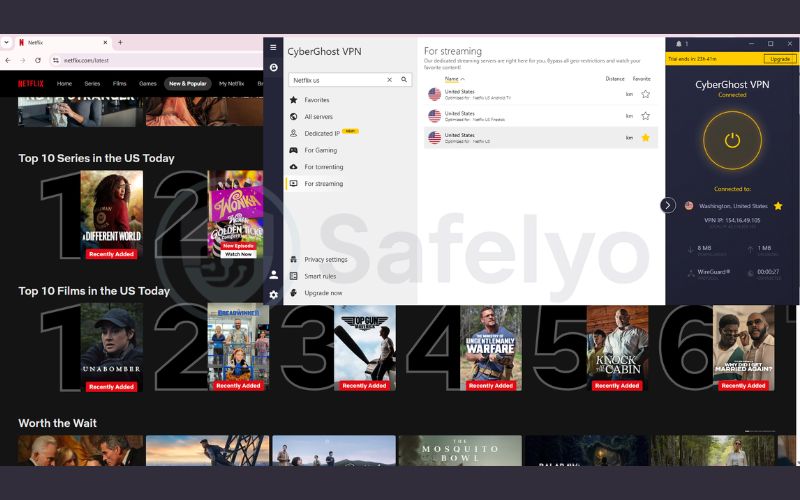
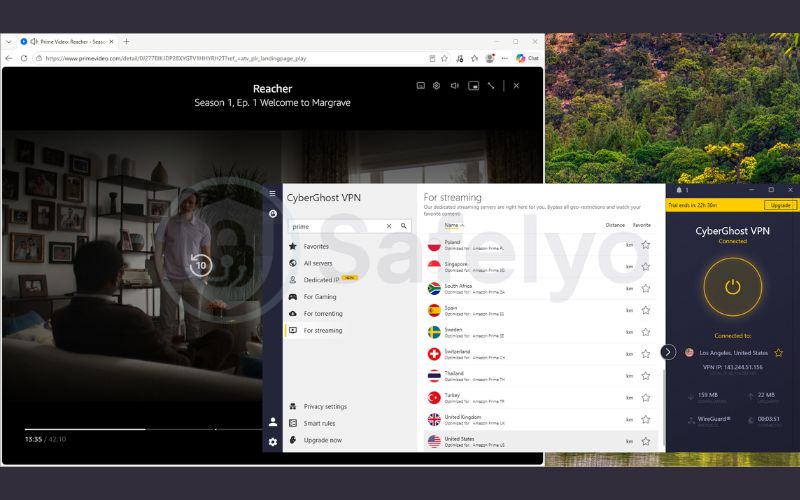
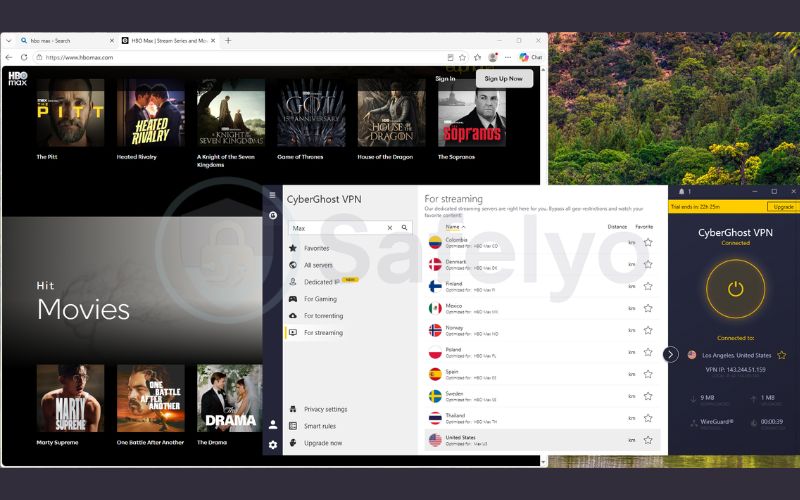
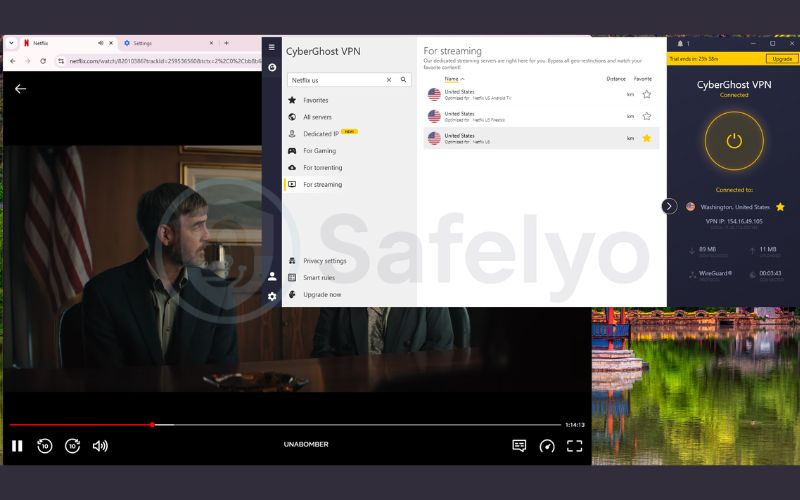
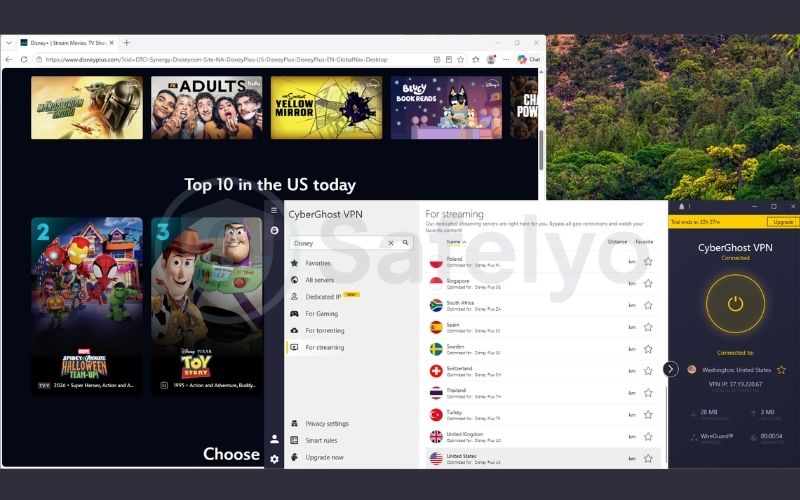
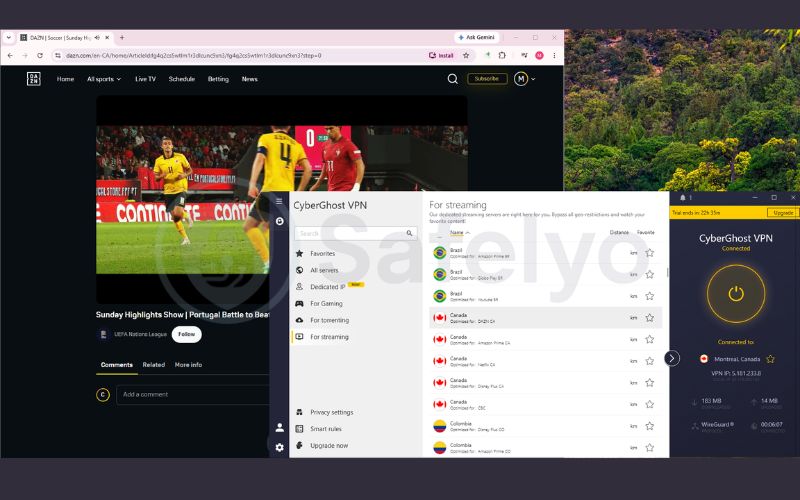
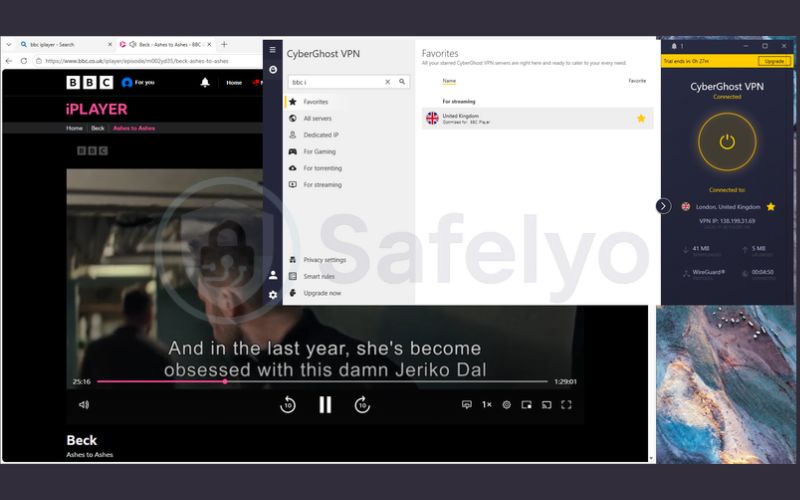
We also tested CyberGhost’s standard servers to see if general connections could access these same services, and the results were unsuccessful across the board.
On Netflix, for example, connecting to a standard US server quietly restricted the catalog to globally available Netflix Originals rather than unlocking the licensed American catalog. Standard servers in the United Kingdom and Canada triggered similar restrictions on BBC iPlayer and DAZN.
For the most reliable playback, you should always select servers from CyberGhost’s organized streaming category rather than connecting to standard city servers.
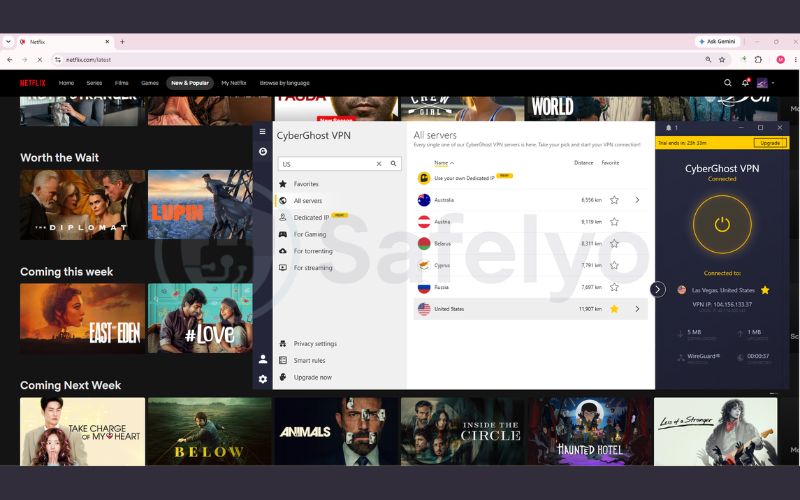
PRO TIP: Close your streaming app or browser completely before turning on the VPN. This clears stored location cookies that could otherwise reveal your actual region.
4. How to connect to streaming servers on your devices
CyberGhost organizes its streaming servers into dedicated lists across desktop apps, mobile devices, TV platforms, and Smart DNS configurations. You can connect using native apps on most devices or set up Smart DNS on hardware that lacks VPN software support.
4.1. On Windows and macOS desktop computers
The desktop apps for Windows and macOS feature an expandable navigation panel that makes finding streaming servers simple.
- Open CyberGhost VPN on your computer and click the arrow icon to expand the server selection menu on the left side.
- Click the For Streaming tab in the server category list.
- Scroll through the available services or use the search bar to find your target platform (for example, type “Netflix” to locate the Netflix US profile).
- Double-click the server entry, or highlight it and click the large circular Power Button to connect.
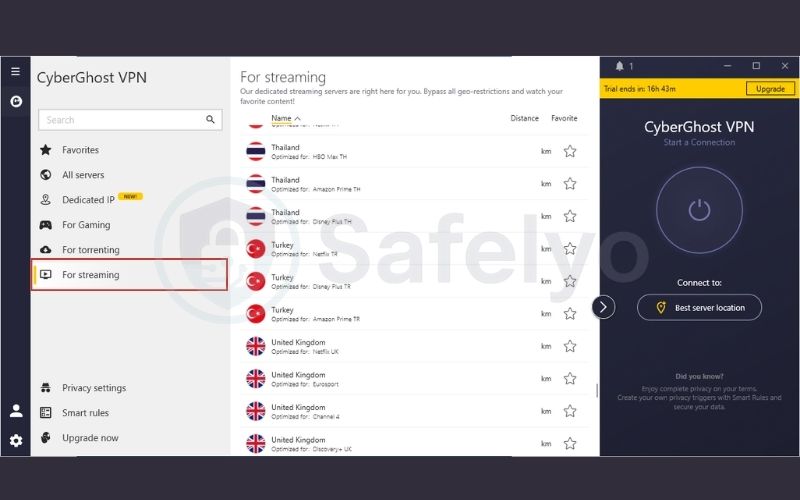
To save time later, click the star icon next to your favorite streaming servers. This moves them into your Favorites tab for one-click access whenever you want to watch.
4.2. On iOS and Android mobile devices
The CyberGhost mobile apps offer a clean interface designed for touchscreens, making it easy to protect your streaming sessions while traveling.
- Install the official CyberGhost VPN app from the Apple App Store (iOS) or Google Play Store (Android).
- Open the app, sign in to your account, and tap Best Location.
- Switch to the Streaming tab to view the list of streaming servers.
- Tap your target platform (such as Netflix US or BBC iPlayer UK) to establish the connection.
4.3. On Android TV, Fire TV Stick, and Apple TV
Home television devices running Android TV, Amazon Fire TV Stick, and Apple TV (tvOS 17 or newer) support official native CyberGhost apps, so you do not need to configure any network settings manually.
- Download CyberGhost VPN from your device’s app store (Google Play Store, Amazon Appstore, or Apple App Store).
- Open the app, log in, and grant the required system permissions to set up the VPN profile.
- On the main screen, select the Best Location button beneath the power icon to open the full server menu.
- Navigate to the Streaming tab.
- Select the streaming-optimized server designed for your desired platform and region.
- Press the Select button on your remote to establish the connection. Once connected, the app will redirect you back to the main dashboard showing your active status.
4.4. On smart TVs (Samsung Tizen, LG webOS) and consoles using Smart DNS
Smart TVs running proprietary systems (like Samsung Tizen and LG webOS) and gaming consoles do not support native VPN apps. For these devices, CyberGhost offers Smart DNS. This feature reroutes location requests without encrypting full network traffic, keeping speeds fast for select platforms like Netflix US and Hulu US.
To set up Smart DNS on your smart TV or console:
- Sign in to your CyberGhost account in a web browser, open the Smart DNS tab, and whitelist your home IP address.
- Note the DNS IP address provided for your chosen region.
- Open Network Settings on your TV or console, change your DNS setting from Automatic to Manual, and enter the assigned IP.
Tip: If you need full VPN encryption or want to unblock platforms that Smart DNS does not support on Samsung or LG TVs, consider plugging in a Fire TV Stick or installing CyberGhost on your Wi-Fi router.
5. How to fix streaming errors and proxy blocks
If a streaming platform displays a proxy error or regional restrictions while connected to CyberGhost, you can resolve the issue using three straightforward troubleshooting steps.
5.1. Clear browser cache and cookies
Web browsers store location cookies from earlier unencrypted sessions, causing conflicts with your new VPN IP address.
- Open your browser settings and navigate to the privacy or history management screen.
- Select the option to clear browsing data and set the time range to All time.
- Check both Cookies and other site data and Cached images and files.
- Confirm the deletion and restart your browser.
PRO TIP: Open an Incognito Window (or Private Browsing window) after connecting to the VPN. This provides a fresh session without old cookies, quickly confirming whether stored browser cache caused the issue.
5.2. Restart your streaming app or browser
Streaming applications often maintain background sessions that lock onto your physical location.
- Close the streaming application completely on your device (force-close on mobile or TV).
- If using a web browser, quit all active windows and tabs.
- Verify that your CyberGhost streaming server connection is active.
- Relaunch the streaming app or browser to initiate a clean session.
5.3. Disconnect and reconnect to cycle the IP address
Occasionally, an individual IP address in a streaming pool gets temporarily flagged by a provider’s automated filters.
- Click the Disconnect button inside the CyberGhost app.
- Wait roughly five seconds to let the session close completely.
- Click Connect on the exact same streaming server profile to receive a fresh IP address from the pool.
- If issues persist, open the 24/7 Live Chat on CyberGhost’s website to check server statuses with a support agent.
6. CyberGhost subscription pricing and money-back guarantee
CyberGhost offers three subscription tiers, with the longest plan delivering the lowest monthly rate and an extended refund window.
| Plan Duration | Monthly Cost | Billing Details | Money-Back Guarantee |
|---|---|---|---|
| 2 Years + 2 Months | $2.19/mo | Billed $56.94 for the first 26 months | 45 days (fully refundable) |
| 6 Months | $6.99/mo | Billed $41.94 every 6 months | 45 days (fully refundable) |
| 1 Month | $12.99/mo | Billed $12.99 monthly | 14 days |
The best-value plan costs $2.19/mo (2 years + 2 months), billed as an upfront payment of $56.94 for the first 26 months. After the initial 26-month period, the subscription renews annually at the standard rate listed in your account dashboard. The month-to-month option costs $12.99 monthly and includes a 14-day refund window.
Plans of six months or longer include a 45-day money-back guarantee. This gives you a month and a half to test 4K streaming performance and unblocking reliability on your home setup. If the service does not meet your needs, you can request a complete refund through the 24/7 live chat support team.
Every account allows up to 7 simultaneous connections, letting you protect desktop computers, smartphones, and streaming TV devices under a single subscription.
To see how the provider performs beyond streaming, check out our in-depth CyberGhost review for a complete breakdown of its security suite, privacy policy, and torrenting speeds.
7. FAQs
What is the difference between CyberGhost streaming servers and regular servers?
CyberGhost streaming servers use dedicated IP pools that are tested daily to avoid proxy blacklists, while standard servers share IP addresses across all types of general web browsing. Streaming servers also restrict heavy file sharing on high-capacity 10-Gbps connections, preventing the slowdowns that happen during peak evening hours.
Which CyberGhost server location is best for streaming?
The best location depends entirely on the catalog you want to watch. Always select the server profile labeled with the specific platform and country (such as Netflix US for American libraries or BBC iPlayer UK for British shows) rather than choosing a standard server, as specialized profiles connect you through verified streaming IP addresses.
Does CyberGhost support 4K streaming without buffering?
CyberGhost handles 4K streaming without buffering, delivering download speeds between 320 Mbps and 435 Mbps during our performance tests. These speeds far exceed the 25 Mbps bandwidth required for ultra-high-definition video on Netflix and Amazon Prime Video when connecting through the WireGuard protocol.
Can I use CyberGhost Smart DNS on Samsung or LG Smart TVs?
You can set up Smart DNS on Samsung Tizen and LG webOS televisions, but it is primarily optimized for select US catalogs like Netflix US and Hulu US. Smart DNS does not include full VPN encryption or leak protection, so strictly protected platforms like BBC iPlayer and DAZN generally require a native VPN app on a Fire TV Stick, Apple TV, or compatible router.
8. Conclusion
CyberGhost’s streaming-optimized servers deliver an effective, practical solution for everyday streaming. In our tests, they reliably unblocked major platforms without proxy errors while maintaining over 320 Mbps, showing less than a 2% speed difference compared to standard servers. This provides more than enough bandwidth for smooth 4K playback across multiple household screens.
Ready to stream your favorite shows without proxy errors or annoying buffering wheels? Grab CyberGhost’s 2-year plan for just $2.19/month and take advantage of the generous 45-day money-back guarantee to test it completely risk-free.