
You are watching the intense climax of your favorite anime when a long unskippable commercial suddenly ruins the entire experience. Knowing how to block ads on Crunchyroll is the ultimate way to reclaim uninterrupted viewing time and enjoy media peacefully.
This guide compares the safest and most practical options for desktop browsers, mobile devices, smart TVs, and consoles. At Safelyo, our security team evaluates the most effective tools to keep your devices secure from malware while bypassing aggressive streaming interruptions.
Key takeaways
- Crunchyroll ended its free ad-supported streaming model for new releases, making Premium the primary official ad-free solution.
- uBlock Origin remains the most effective free browser extension for desktop users.
- App-based ads on mobile and Smart TVs are incredibly difficult to block without a premium account.
- VPNs and DNS blockers only filter ads at the network level and cannot guarantee the complete removal of in-stream video ads.
- Avoid cracked APKs and unofficial browser extensions due to severe malware risks.
1. Why does Crunchyroll show ads, and what changed
Crunchyroll is a licensed streaming service, meaning it pays for distribution rights and partnerships with Japanese production studios. Ads were historically used to support free viewing for fans who did not want to pay for a monthly subscription.
That model has changed significantly, as the platform is now far more focused on Premium access for its main on-demand experience. This is exactly why many older “free Crunchyroll ad-blocker” tutorials are completely outdated and inaccurate in 2026.
To understand which ad-blocking methods still make sense, you must separate three different viewing experiences. These include the main website, the dedicated mobile or TV app, and the separate free Crunchyroll channel available on selected smart platforms.
1.1. The end of the old free ad-supported experience
In the past, free users could often watch new anime episodes with commercial breaks after waiting for a short one-week delay. However, the company phased out this free-with-ads model starting with the Spring 2022 anime season.
Today, new and continuing simulcasts strictly require a Premium subscription. While free access may still appear in limited forms depending on your region or promotional events, users should not expect the old free model to work the same way it once did.
There is also a separate Crunchyroll channel that serves as a free 24/7 linear broadcast on select smart platforms. This works more like a scheduled TV channel and serves as a sampler for new viewers, rather than a replacement for full-on-demand access.
1.2. Why premium users might still see ads
If you pay for Crunchyroll Premium and still experience regular commercial breaks, verify your active login details. Many frustrating ad problems occur because the user is accidentally logged into a different free account instead of their upgraded profile.
Payment processing delays can also cause your paid access to disappear temporarily. If you purchased your membership through a third-party platform like Apple, Google Play, Roku, or PlayStation, your account status may fail to sync as expected.
Occasional promotional trailers for upcoming anime should not be confused with normal ad breaks. However, if standard commercials keep interrupting your episodes, follow this quick troubleshooting flow to fix the issue:
- Log out of Crunchyroll completely on all your connected devices.
- Log back in using the exact email address linked to your Premium purchase.
- Check your Membership page to confirm that your payment was fully accepted.
- Update the Crunchyroll app if you are watching on a mobile phone, TV, or console.
- Contact support if Premium is active but regular commercial breaks still appear.
2. How to block ads on Crunchyroll
The best way to stop commercials depends entirely on the device you use for streaming. Desktop browsers give you the most control because they support deep content filters, while smart televisions remain the hardest to customize safely.
Before choosing a method, you must avoid cracked software and unknown extensions from random websites. These fake tools often promise free Crunchyroll viewing but usually expose your device to malware, account theft, or severe privacy risks.
| Your device | Recommended method | Realistic effectiveness |
|---|---|---|
| Desktop browser on PC or Mac | uBlock Origin or uBlock Origin Lite | High to very high |
| Mobile browser on iOS or Android | Brave browser or Safari Content Blocker | Medium |
| Official mobile app | Crunchyroll Premium | Very high |
| Smart TVs and consoles | Crunchyroll Premium | Very high |
| Router-level blocking | Pi-hole or DNS filtering | Low to medium for video ads |
2.1. How to block ads on desktop browsers
A desktop browser is usually the most practical place to filter out streaming commercials. Browser extensions can intercept tracking scripts and media elements before they load, which gives you much more control than mobile applications.
uBlock Origin is one of the most trusted open-source content blockers for desktop users. If you use Firefox, the full version of this extension is currently the strongest option for blocking in-stream video ads on Crunchyroll.
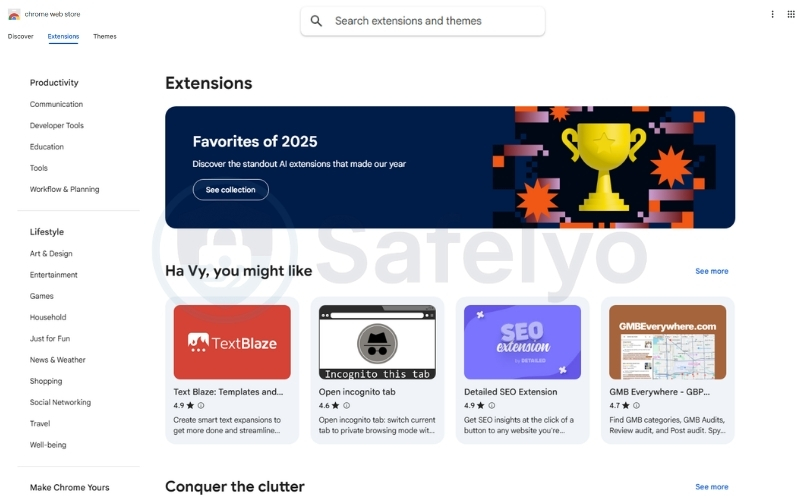
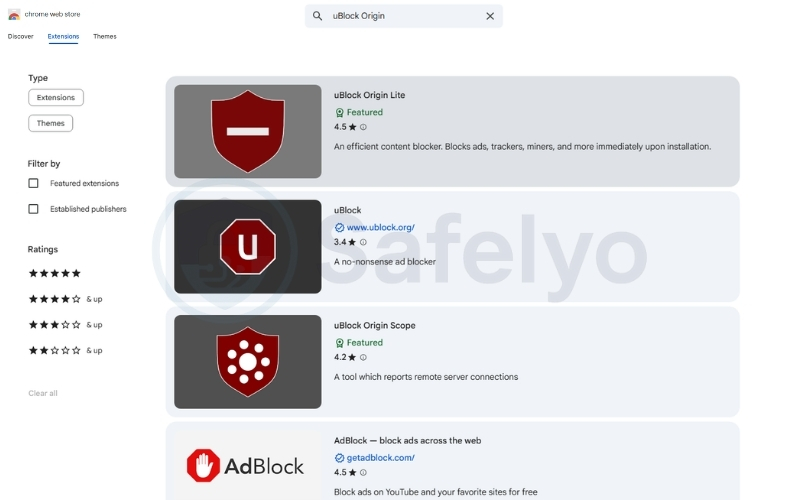
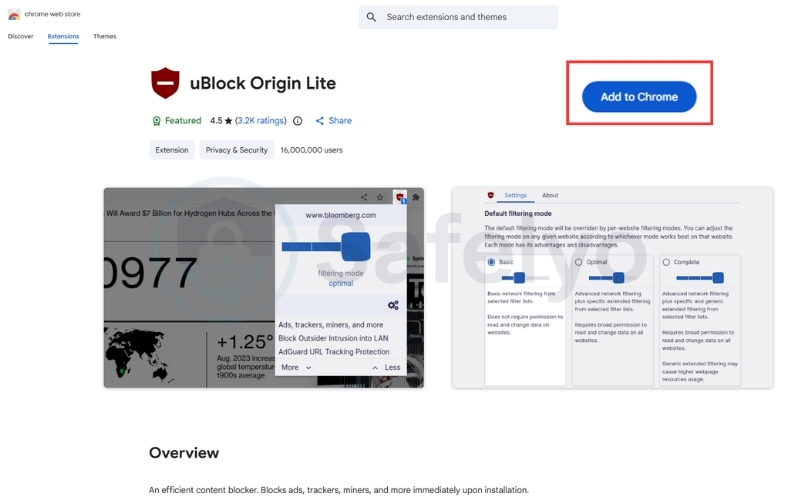
Chrome users must be more careful due to recent browser updates. Because Chrome moved toward Manifest V3 extensions, the classic version may not work the same way it used to. You should use uBlock Origin Lite or another trusted content blocker from the official web store.
To set it up safely:
- Step 1: Open your browser’s official extension store.
- Step 2: Search for uBlock Origin if you use Firefox, or uBlock Origin Lite if you use Chrome.
- Step 3: Check the developer name carefully to ensure it is the official version before installing.
- Step 4: Click “Add to Chrome” and keep all the default filter lists enabled.
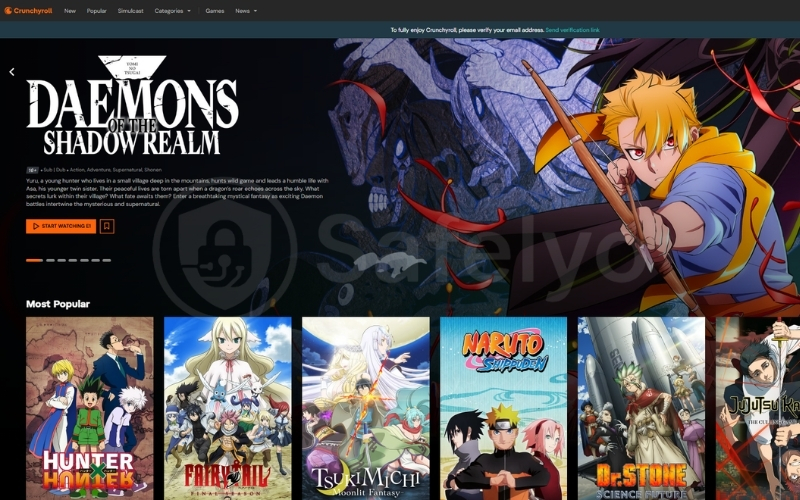
- Step 5: Open Crunchyroll.com in the same browser and test the anime video playback.
- Step 6: If the Crunchyroll video player breaks, you should disable extra custom filters first instead of turning off the entire extension.
2.2. How to block ads on mobile devices
Stopping commercials on mobile is much harder than on a desktop computer. The official iOS and Android apps run in a controlled environment, so normal browser extensions cannot change how media loads inside the Crunchyroll application.
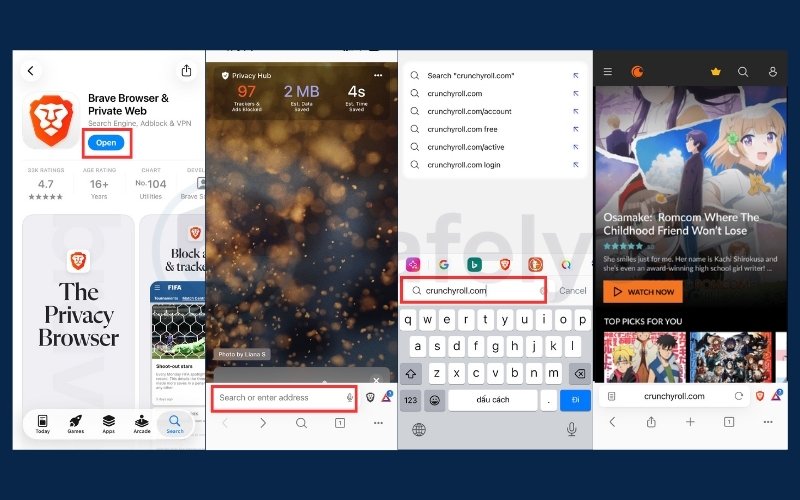
A safer workaround is to watch your shows through a privacy-focused mobile browser instead of the official application. This method is not perfect, but it is infinitely safer than downloading third-party modified files or unofficial software. The Brave browser is a highly practical option because it includes built-in shields for blocking trackers and unwanted web elements. This can significantly reduce website-based interruptions without requiring complex manual setup.
To try Brave on mobile:
- Step 1: Install Brave from the official App Store or Google Play Store.
- Step 2: Open Crunchyroll.com directly in Brave instead of launching the native app.
- Step 3: Ensure the Brave Shields feature is fully enabled for the site.
- Step 4: Sign in to your Crunchyroll account and test whether the video playback works normally.
- Step 5: If the Crunchyroll player fails to load, simply lower the blocking level for that specific site.
For iPhone and iPad users, Safari content blockers like AdGuard can also help reduce trackers when streaming through Safari. However, these tools only work inside the browser and do not remove commercials from the official mobile application.
To use a Safari content blocker:
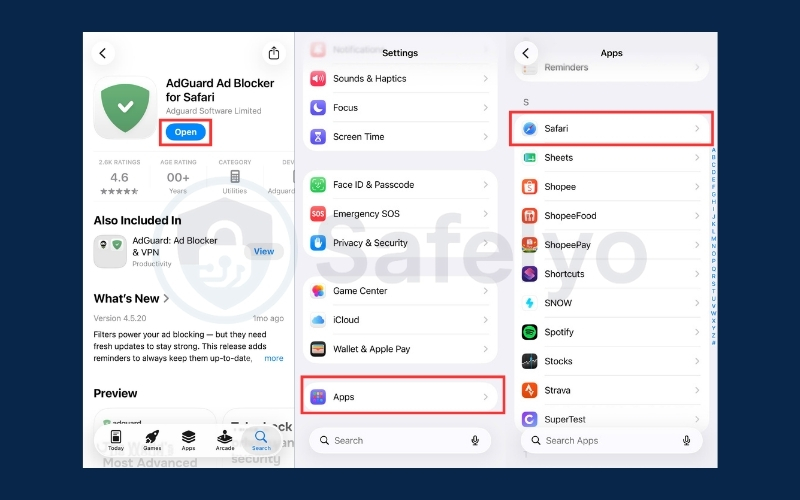
- Step 1: Download a highly rated Safari extension like AdGuard from the Apple App Store, then launch the app once to complete its initial setup.
- Step 2: Close the app, open the main Settings on your iPhone or iPad, scroll down, and tap on Safari.
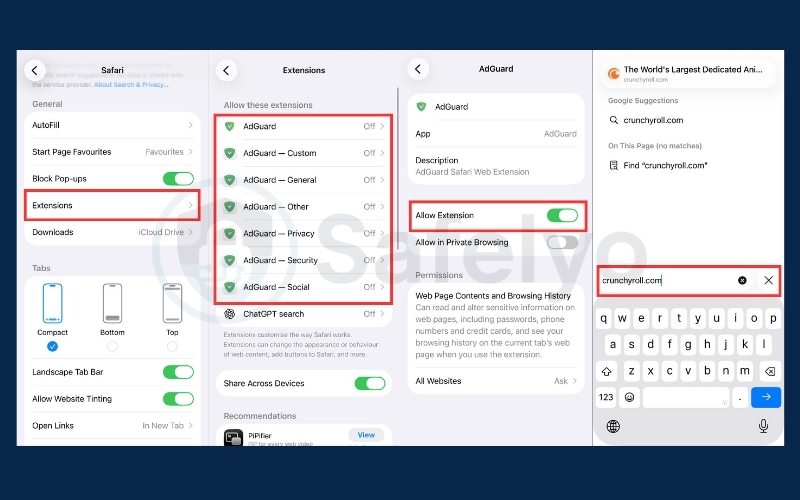
- Step 3: Under the General section, tap on Extensions (this is sometimes labeled as Content Blockers on older iOS versions).
- Step 4: You will see a list of filters associated with your downloaded blocker. Toggle all the switches to ON (green) to grant the app permission to filter websites.
- Step 5: Open the Safari browser, navigate directly to Crunchyroll.com, and start an episode to verify that the video player loads without commercial interruptions.
2.3. How to stop ads on smart TVs and consoles
Smart televisions, PlayStation, Xbox, and Apple TV are much harder to customize than desktop browsers. These platforms rely on the official native application, which completely blocks normal browser filtering extensions. Network-wide blockers such as a Pi-hole or DNS filters may reduce basic tracking domains, but they often fail against video commercials. This happens because Crunchyroll delivers its ads using server-side insertion directly from its media servers.
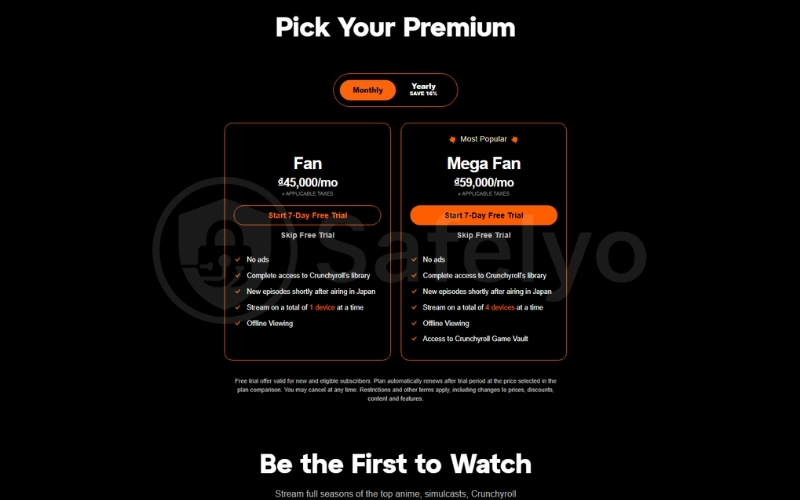
For living room setups, upgrading to Crunchyroll Premium is the safest and most reliable option. It removes regular episode breaks at the account level and works across all supported smart devices without requiring unverified network workarounds.
To resolve ad issues on smart TVs and consoles:
- Step 1: Use only the official Crunchyroll app from your device’s app store.
- Step 2: Sign in with the exact email account linked to your Premium subscription.
- Step 3: Confirm on the Crunchyroll website that your membership billing is currently active.
- Step 4: Keep the Crunchyroll application updated to the latest software version.
- Step 5: Restart the device completely if your ad-free benefits do not appear immediately.
3. Can a VPN or DNS blocker remove Crunchyroll ads?
Many viewers try VPNs or DNS blockers because these tools often include built-in anti-tracking technology. While excellent for general privacy and blocking traditional banners, they are not a guaranteed solution for anime streaming.
The main limitation lies in how modern video commercials are fundamentally delivered to your screen. A simple browser banner is much easier to block than a high-definition commercial deeply embedded inside a streaming player.
3.1. How network-level ad blocking works
Premium security tools often include features that block known malware and phishing domains. Excellent examples include NordVPN Threat Protection and Surfshark CleanWeb, which filter harmful network requests automatically.
When your device tries to contact an advertising domain, the blocker stops that request before it loads. This is highly effective for stopping pop-ups, reducing background tracking scripts, and improving your overall browsing privacy.
However, DNS-based blocking is entirely different from a full desktop browser extension. It cannot inspect specific page elements, modify the actual video player, or separate ad requests from the main stream.
3.2. The limits of DNS filtering on streaming ads
DNS filtering struggles heavily with streaming platforms because it operates exclusively at the domain level. It can block an entire server, but it cannot understand the difference between a commercial and an actual anime episode.
Modern platforms increasingly use server-side ad insertion, delivering commercials from the same media infrastructure as the show. In this situation, the DNS blocker faces a difficult choice that usually ruins your viewing experience.
If it allows the media server, the commercial will play normally. If it blocks the server, you will experience endless loading screens, broken subtitles, or a completely black screen during the broadcast.
3.3. Can a VPN help you save on Crunchyroll Premium? Risks to know first
Some users try using a VPN to change their apparent location and buy Premium from a cheaper region. This is highly risky because streaming services enforce strict regional pricing and billing verification systems.
If your VPN location, account region, and credit card details do not perfectly match, your payment will fail. Repeated failed transactions can trigger temporary security blocks, locking you out of the platform entirely.
Using a VPN to bypass licensing rights also strictly violates the platform’s terms of service. Instead of risking an account ban, we highly recommend using official money-saving options to safely upgrade your viewing experience:
- Step 1: Check the official Premium page and select annual billing to secure a long-term discount.
- Step 2: Look for official seasonal promotions during major anime conventions or holiday sales.
- Step 3: Use official membership gift cards purchased only from verified local retailers.
- Step 4: Keep your billing region and payment method perfectly consistent to avoid sync errors.
- Step 5: Completely avoid third-party sellers offering shady “cheap Premium accounts” to prevent data theft.
4. What to do if your ad blocker is not working on Crunchyroll
Seeing a continuous black screen or an endless loading wheel is the most common frustration when using content filters. This usually happens when the streaming platform updates its ad-delivery scripts to outsmart your current browser extension.
If your video player suddenly breaks, you do not need to panic or uninstall your software. We recommend following these three specific troubleshooting methods to fix playback errors and restore your uninterrupted anime streams.
4.1. Update your filter lists and purge caches
Streaming platforms constantly change their background code to force commercials through your browser’s defenses. If your extension relies on outdated filter lists, it will likely break the video player, resulting in the dreaded black screen error.
Tools like uBlock Origin allow you to manually force an update to grab the latest community-tested scripts. This process quickly teaches the extension how to handle the platform’s newest anti-blocking measures.
For uBlock Origin on Firefox:
- Step 1: Click the uBlock Origin icon in your browser toolbar.
- Step 2: Open the Dashboard by clicking the gear icon.
- Step 3: Go to the Filter lists tab.
- Step 4: Click the clock icon next to any outdated filter list.
- Step 5: If the Update now button appears, click it and wait for the lists to refresh.
- Step 6: Refresh Crunchyroll.com and test the same episode again.
For uBlock Origin Lite on Chrome:
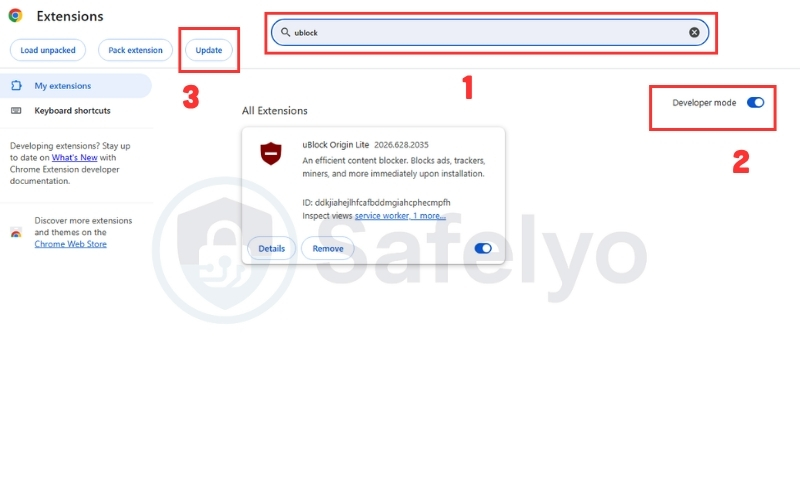
- Step 1: Open Chrome and type chrome://extensions into the address bar.
- Step 2: Find uBlock Origin Lite in your extensions list.
- Step 3: Make sure the extension is enabled.
- Step 4: Turn on Developer mode in the top-right corner.
- Step 5: Click the Update button at the top of the extensions page to force Chrome to check for extension updates.
- Step 6: Reopen Crunchyroll.com and test video playback again.
- Step 7: If Crunchyroll still shows ads or breaks, try disabling extra filter lists inside uBlock Origin Lite and keep only the default rule sets enabled.
4.2. Disable conflicting extensions and acceptable ads settings
Running multiple ad-blockers simultaneously does not increase your overall protection. In reality, these extensions will aggressively conflict with each other, causing the streaming website to crash or fail to load media files properly.
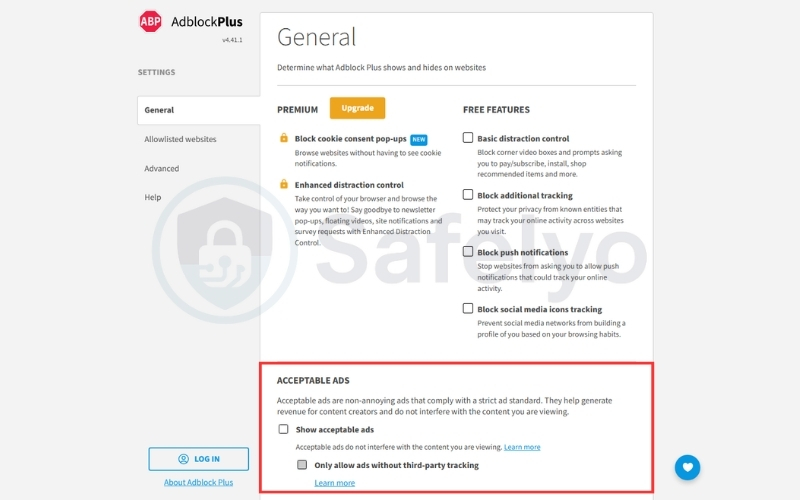
Furthermore, mainstream extensions like AdBlock Plus have a controversial feature called Acceptable Ads turned on by default. This setting intentionally allows certain “non-intrusive” promotional videos to pass through the filter and play on your screen.
- Step 1: Install the official Adblock Plus extension from the Chrome Web Store.
- Step 2: Click the Adblock Plus icon in your browser toolbar.
- Step 3: Open the extension settings by clicking the gear icon.
- Step 4: Go to the General tab.
- Step 5: Find the Acceptable Ads section.
- Step 6: Turn off Allow Acceptable Ads.
- Step 7: Refresh Crunchyroll.com and test the same episode again.
4.3. Clear browser cookies and verify account status
Sometimes the issue lies within the browser’s stored data rather than your security extensions. Corrupted cookies can trap your profile in a continuous commercial loop or cause the site to incorrectly read your account tier.
Clearing your specific site data forces the platform to establish a fresh connection with its media servers. This simple reset often resolves stubborn playback glitches and annoying account synchronization errors immediately.
- Step 1: Click the padlock or site information icon next to the URL in your browser’s address bar.
- Step 2: Select Cookies and site data, then click Manage on-device site data.
- Step 3: Delete all stored data and cookies related specifically to the Crunchyroll domain.
- Step 4: Log back into your account and verify that your video player loads without interruption.
5. Dangerous methods you should avoid
Desperation to avoid commercials often leads viewers down dangerous digital paths. At Safelyo, we frequently see users compromise their personal devices by installing malicious software disguised as “free premium” workarounds or magical ad-blocking tools.
Protecting your digital identity is far more important than skipping a three-minute anime commercial. You must absolutely avoid the following methods, as they carry severe risks ranging from simple account bans to devastating financial theft.
5.1. Cracked premium applications and modded files
Many unofficial forums and third-party websites offer downloadable “Mod APKs” promising free, unlocked Premium access for Android devices. Installing these files requires you to disable your phone’s built-in security, leaving your entire system exposed.
These cracked applications are frequently injected with aggressive malware and keyloggers. Once installed, they can silently harvest your contact lists, steal your passwords, and compromise your sensitive mobile banking applications in the background.
Furthermore, streaming platforms actively monitor their networks for these modified applications. If the system detects you are using unauthorized software, your account will be permanently banned, destroying your watchlist and saved anime history.
5.2. Unknown browser extensions and shady scripts
The Chrome Web Store is flooded with generic extensions claiming to block all streaming commercials instantly. If an extension lacks a strong reputation or a verified open-source background, it is likely a data-harvesting trap.
Shady ad-blockers often monetize their free services by secretly injecting their own intrusive advertisements into the web pages you visit. Even worse, some malicious extensions actively record your browsing history and sell your personal data to aggressive third-party marketing companies.
Always stick to trusted, community-vetted tools like uBlock Origin. If an obscure extension demands sweeping permissions to “read and change all your data on the websites you visit,” you should immediately decline and uninstall it to protect your privacy.
6. How we evaluated these ad-blocking methods
We refuse to recommend tools based purely on marketing claims. Safelyo’s cybersecurity team rigorously tested dozens of popular extensions and applications to ensure they actually work safely against modern streaming platforms in 2026.
We focused heavily on real-world performance and strict data privacy. Our evaluation process ensures that every method we suggest provides a flawless anime viewing experience without compromising your device’s security.
6.1. Testing criteria for speed and video playback
A good content filter should never negatively impact your stream’s performance. We evaluated each tool based on its overall page load speed and its ability to maintain high-definition video quality during intense action scenes.
We strictly disqualified any extension that caused the video player to lag, constantly buffer, or trigger the notorious black screen error. The recommended tools seamlessly filter out commercial breaks while keeping the actual anime episode running perfectly smoothly.
6.2. Security and privacy audit of recommended tools
Your digital safety is our absolute highest priority. We conducted a deep technical audit to ensure our recommended tools do not contain hidden trackers, keyloggers, or malicious background scripts.
We heavily favored open-source software because independent security researchers can publicly verify its underlying code. We also ensured that the developers have a sterling reputation and absolutely no history of selling user data to third-party advertisers.
7. Frequently asked questions
Is it legal to use an ad blocker on Crunchyroll?
Yes, using content filtering software on your personal computer is entirely legal. You have the right to control what scripts and media elements load on your screen. However, bypassing commercials violates the platform’s Terms of Service, which means the platform reserves the right to restrict your access.
Does uBlock Origin work on Crunchyroll?
Yes, uBlock Origin is highly effective on this specific platform. Because its open source community constantly updates the filtering lists, it reliably bypasses the anti-adblock scripts. This ensures a smooth and uninterrupted viewing experience on desktop browsers.
Can Crunchyroll ban my account for using an ad blocker?
While it is technically possible for them to ban users who violate their policies, it is incredibly rare. The platform typically focuses on banning users who distribute pirated content or use cracked mobile files rather than punishing those who use standard browser extensions.
Why does my screen go black when using AdBlock on Crunchyroll?
This black screen error occurs when your extension blocks the commercial video file, but the streaming player still expects it to play. To fix this frustrating glitch, you must purge your extension caches and update your filter lists to ensure it handles the newest video scripts correctly.
How do I block Crunchyroll ads on an iPhone?
The official iOS application does not allow third-party filtering tools to operate inside it. To stop commercials on your iPhone, you must use the Safari browser paired with a dedicated content blocker like AdGuard. Alternatively, you can install the Brave browser to filter unwanted media automatically.
How do I block Crunchyroll ads on Android?
Android users cannot block commercials inside the native application without risking severe malware from modified installation files. The most reliable method is to watch your anime using the Brave browser for Android, which includes built-in security shields to stop video interruptions completely.
What is the safest way to watch Crunchyroll without ads?
The absolute safest and most reliable method is upgrading to an official Premium subscription. This guarantees a flawless viewing experience across your smartphone, desktop, and smart television without risking your account status or exposing your device to dangerous unauthorized software.
8. Conclusion
Knowing how to block ads on Crunchyroll ensures your favorite anime episodes remain intense, emotional, and completely uninterrupted. For desktop viewers, utilizing a dynamic, open-source extension like uBlock Origin is the most effective and secure way to filter out intrusive commercials safely.
However, if you primarily watch anime on a smartphone, smart TV, or gaming console, technical workarounds often fail against server-side ads. Upgrading to a Premium subscription remains the only guaranteed, frustration-free method to secure a flawless cinematic experience in your living room.
By applying these methods thoughtfully, you can enjoy Crunchyroll with fewer ads and a more immersive anime experience while supporting the platform and anime creators. For more expert tips on streaming and digital entertainment, be sure to explore our Tech How-To Simplified category on Safelyo.