Many users realize that turning on a VPN doesn’t fool apps like Pokémon GO or Tinder because they rely on GPS data, not just IP addresses. If you need to know how to change iPhone location without VPN, you must alter the device’s internal geolocation coordinates directly.
At Safelyo, we have tested the latest iOS 18-compatible methods to help you spoof your position safely. This guide covers everything from modifying Apple ID settings for App Store access to using desktop tools for precise movement simulation.
-
Open your account settings
Open Settings and tap your name at the top.
Select Media & Purchases → View Account
-
Choose a new country or region
Tap Country/Region → Change Country or Region.
Select the country you want to switch to
-
Review terms and update billing details
Agree to Apple’s terms and conditions for the new region.
You will then be asked to provide payment and billing information
-
Connect your device
Plug your iPhone into your PC or Mac using a USB cable.
Unlock the screen and tap “Trust”
-
Select Teleport Mode
Launch your chosen software and click on the “Virtual Location” or “Teleport” icon
-
Modify location
Enter an address or GPS coordinates into the search bar, then click “Move Here”
-
Create a project
-
Add GPX file
Go to File > New > File and select “GPX File”
-
Simulate location
Connect your iPhone, select it as the deployment target, and run the empty app
go to the Debug menu > Simulate Location on your Mac and select your custom GPX file
-
Connect the device.
Turn on the spoofer and pair via Bluetooth or plug it into the Lightning/USB-C port.
-
Set a fake location
Open the companion app, pick a spot on the map, and tap Set/Apply.
-
Confirm it works
-
Method 1: Turn off “Significant Locations & Routes“
Navigate to Settings > Privacy & Security > Location Services > System Services, then tap Significant Locations & Routes and toggle it off
-
Method 2: Freeze location via “Find My”
Open the Find My app on that stationary device, turn on “Find My iPhone”
-
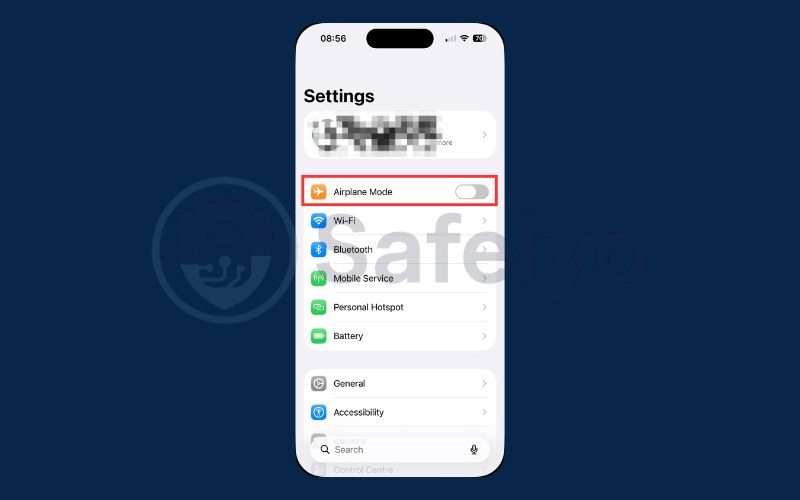
Method 3: The “Airplane Mode” trick
Enabling Airplane Mode effectively “freezes” your position on shared maps
1. Which method should you choose?
Choosing the right method depends entirely on whether you want to download a foreign app, play a location-based game, or simply hide your whereabouts on “Find My.” The table below compares the most effective solutions available in 2026.
| Method | Difficulty | PC Needed? | Best Purpose | Safety Score |
|---|---|---|---|---|
| Apple ID Region Change | Medium | No | Accessing foreign App Stores | 10/10 (Official) |
| Desktop Software | Medium | Yes | Gaming (Pokémon GO) & Social | 8/10 (Reliable) |
| Xcode Simulation | Hard | Yes (Mac) | Temporary testing & Devs | 9/10 (Clean) |
| Hardware Dongle | Easy | No | Permanent location shift | 9/10 (Secure) |
| “Find My” Device Swap | Easy | No | Hiding from family/friends | 10/10 (Native) |
- For App Downloads: If you need to install an app not available in your country, changing your Apple ID region is the only method that works for the App Store.
- For Gaming & Social: If you want to “teleport” in games or change your dating profile location, desktop GPS spoofing software is the best choice for precision and joystick control.
2. Understanding the difference: IP location vs. GPS location
Many users assume a VPN completely hides their real-world location. In reality, a VPN only masks your IP address, your virtual location on the internet. It does not change the physical location data generated by your iPhone’s internal GPS and other positioning systems used for navigation and tracking.
A VPN is effective for privacy and bypassing geo-restrictions online, but it cannot alter the coordinates your device reports to location-based apps.
2.1. Why VPNs do not work for GPS-based apps
Apps such as Tinder, Pokémon GO, and Find My rely on Apple’s Core Location framework, which determines your position using a combination of:
- GPS satellite signals
- Cell tower triangulation
- Wi-Fi network databases
- On-device sensor data
Because these apps prioritize hardware-based location data, they do not depend on your IP address to determine where you are. This is why using a VPN alone cannot fake your GPS location for gaming, dating, or device tracking apps.
If a VPN isn’t the right tool for what you’re trying to do and you simply want to disable it on your iPhone, see our guide on how to turn off VPN on iPhone.
2.2. What actually works: GPS spoofing
To change your reported location, you need tools that simulate or override the GPS data your iPhone shares with iOS. This process is commonly called GPS spoofing.
Instead of modifying your internet connection, spoofing tools feed alternate coordinates to the operating system. As a result, apps that request location data receive the simulated position rather than your real one. It is important to note that some apps, especially AR games, use anti-spoofing detection, so results are not guaranteed in every scenario.
2.3. The role of Developer Mode on iOS
Starting with iOS 16, Apple introduced Developer Mode as a security feature to control deeper system-level access. This mode is primarily intended for developers testing apps and system functions.
Developer Mode is:
- Required for official location simulation through Xcode
- Needed for certain advanced spoofing methods
- Not always required for every third-party spoofing tool
Some commercial GPS tools work through trusted computer connections and other methods without requiring Developer Mode. Requirements vary depending on the software and iOS version.
2.4. How to enable Developer Mode
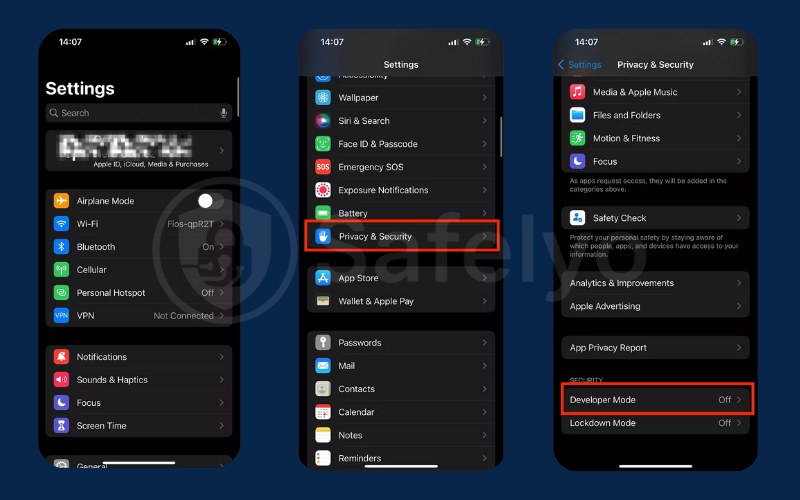
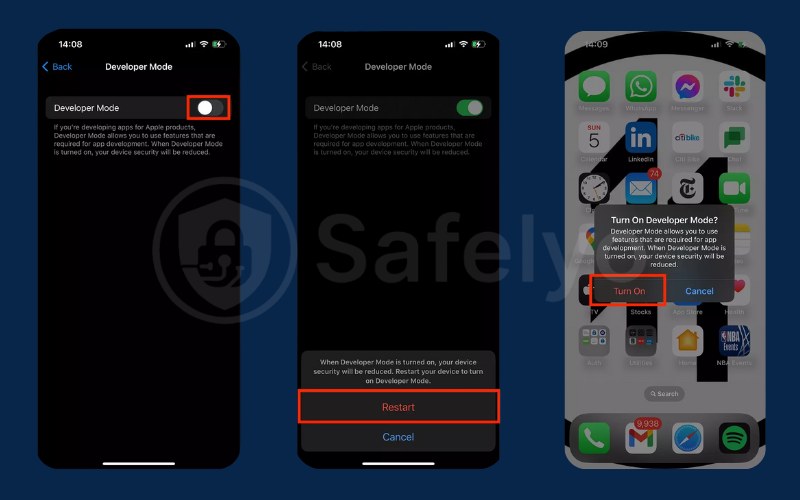
Method 1: Enable Developer Mode Directly in Settings
Step 1: Open Settings on your iPhone.
Step 2: Go to Privacy & Security.
Step 3: Scroll down and tap Developer Mode.
Step 4: Toggle Developer Mode On (or Off to disable).
Step 5: Confirm and restart your iPhone if prompted. After reboot, tap Turn On to finalize.
Method 2: Enable Developer Mode Using Xcode (Mac)
If you can’t find or enable Developer Mode directly in Settings, you can activate it using Xcode on a Mac. This method forces iOS to reveal the Developer Mode option after your device connects to Apple’s developer tools.
Requirements
- iPhone running iOS 16 or later
- MacBook running macOS Ventura 13.3 or later
- A compatible USB cable
- Xcode is installed on Mac
Step-by-step
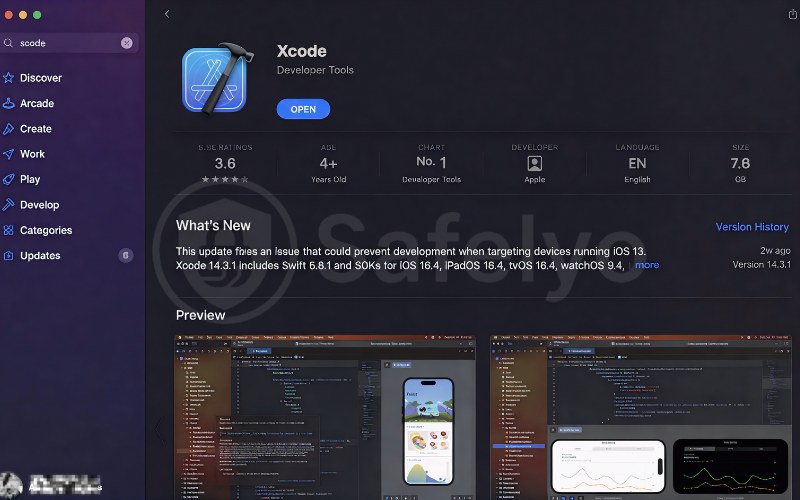
Step 1: Install Xcode
- Open the App Store on your Mac.
- Search for Xcode and download it (free).
- Launch Xcode, accept the terms, and enter your Mac password if required.
- Complete any additional component installation.
Step 2: Connect iPhone to Mac
- Connect your iPhone to the Mac using a cable.
- If prompted on iPhone, tap Trust This Computer.
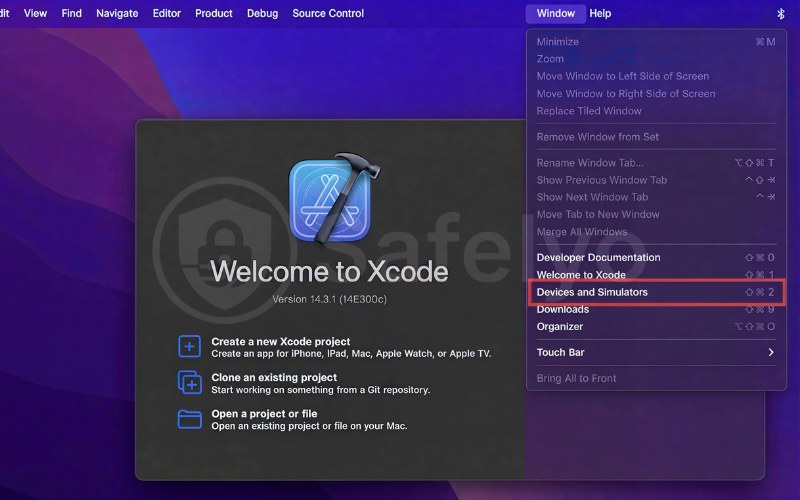
Step 3: Open Devices Window in Xcode
- In Xcode’s top menu, click Window → Devices and Simulators.
- Select your iPhone from the device list.
Step 4: Turn On Developer Mode on iPhone
- On your iPhone, go to Settings → Privacy & Security → Developer Mode.
- Toggle Developer Mode On.
- Restart the iPhone if prompted and confirm enabling after reboot.
After this process, the Developer Mode option will remain available on your iPhone even after disconnecting from the Mac.
3. How to change iPhone location without VPN
A VPN doesn’t always change your iPhone’s real location because many apps use GPS, not just your IP address. If you need to access region-locked apps, simulate a different place, or protect your privacy, you’ll need other solutions. Below are practical methods to change or control your iPhone location without using a VPN, depending on your goal and comfort level.
3.1. Change your Apple ID country or region
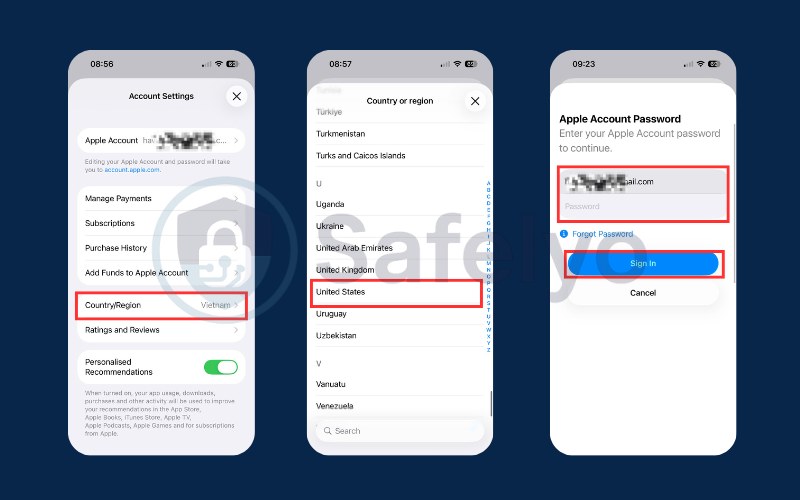
If your goal is to download apps, games, or digital content that are unavailable in your current country, you do not need to spoof your GPS. Instead, you can change the country or region linked to your Apple ID. This setting controls what you see in the App Store, iTunes Store, and certain Apple services.
Changing your Apple ID region affects store availability and billing, but it does not change your physical GPS location.
Step-by-step guide to changing Apple ID region
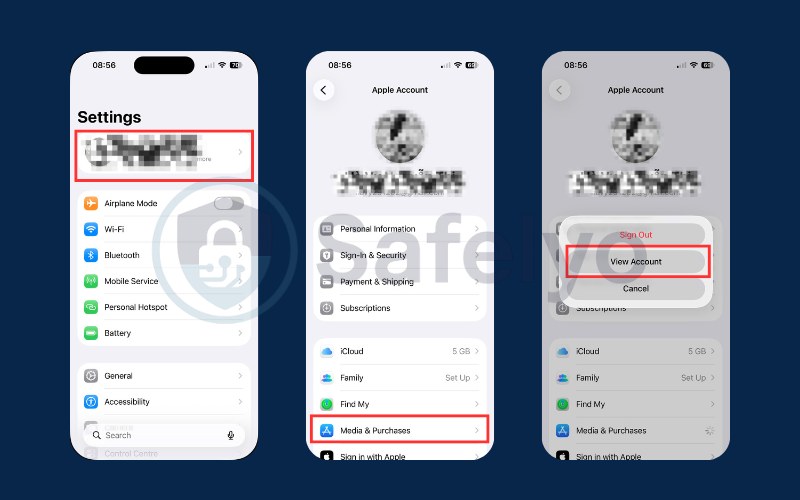
- Step 1: Open your account settings
On your iPhone, open Settings and tap your name at the top.
Select Media & Purchases → View Account, then authenticate with Face ID, Touch ID, or your passcode.
- Step 2: Choose a new country or region
Tap Country/Region → Change Country or Region.
Select the country you want to switch to (for example, the United States or Japan).
- Step 3: Review terms and update billing details
Agree to Apple’s terms and conditions for the new region.
You will then be asked to provide payment and billing information.
- In some countries, you may be able to select “None” as the payment method.
- In other regions, Apple may require a valid local payment method.
You must also enter a billing address and phone number that match the selected country (format-wise).
Important checklist before switching regions
Apple requires your account to be in good standing before allowing a region change. Make sure you complete the following:
- Use up your store credit: Your Apple ID balance must be zero. Even a small remaining credit can block the change.
- Cancel active subscriptions: All subscriptions (such as Apple Music, Apple TV+, or third-party app subscriptions) must be canceled and fully expired.
- Leave Family Sharing: If you are part of a Family Sharing group, you must leave it before changing regions.
- Check pre-orders and rentals: Active pre-orders, movie rentals, or season passes may also prevent a region switch.
Pro tip: Use a secondary Apple ID
Changing the region on your primary Apple ID can be inconvenient, especially if you frequently use local subscriptions or payment methods. A practical alternative is to create a secondary Apple ID for the target country.
Many users:
- Keep their main Apple ID for iCloud, backups, and purchases
- Sign out of the App Store only
- Sign in with the secondary Apple ID to download region-locked apps
This allows you to access foreign apps without disrupting your main account’s ecosystem.
3.2. Use desktop GPS spoofing software
Desktop software is the most reliable way to change iPhone location because it injects specific coordinates directly into the iOS developer framework. This forces every app, from Google Maps to Tinder, to accept your fake position as reality without needing a jailbreak.
Unlike VPNs that only mask IP addresses, these tools modify the actual GPS data at the system level. By connecting your phone to a computer, the software creates a virtual bridge that overrides the signal received from satellites, allowing for precise movement control down to the meter.
Top tool recommendations
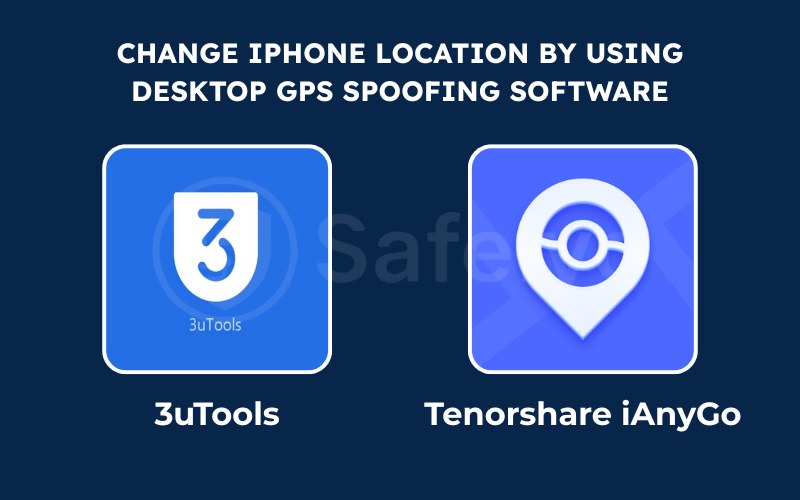
- 3uTools (Free): The best cost-free option for Windows users. Its “VirtualLocation” feature is somewhat basic but effective for static location changes.
- Tenorshare iAnyGo / iToolab AnyGo (Paid): These premium tools offer advanced features like Joystick control and multi-spot movement, making them essential for gamers who need to simulate walking routes naturally.
Step-by-step guide
- Step 1: Connect your device.
Plug your iPhone into your PC or Mac using a USB cable. Unlock the screen and tap “Trust” to allow the computer to communicate with your device settings.
- Step 2: Select Teleport Mode.
Launch your chosen software and click on the “Virtual Location” or “Teleport” icon. This mode allows you to jump instantly to a specific point on the map.
- Step 3: Modify location.
Enter an address or GPS coordinates into the search bar, then click “Move Here”. Your iPhone’s location will instantly update, and checking Apple Maps on your phone should confirm the new spot.
Expert advice: The "Cool-down" rule
When playing location-based games like Pokémon GO or Monster Hunter Now, you must respect the “Cool-down” rule. If you teleport long distances (e.g., New York to Tokyo), wait at least 2 hours before interacting with the game to avoid soft bans or account termination.
3.3. Simulate location via Xcode
Xcode is Apple’s integrated development environment (IDE) used to build iOS apps. It includes a native simulation location feature designed for testing, allowing you to feed custom GPX files to your connected iPhone without jailbreaking.
This is the only method officially supported by Apple, making it incredibly safe and reliable. By using the Debug menu, developers can force the iPhone to report a specific set of coordinates to test how their applications behave in different cities.
Quick steps
- Step 1: Create a project.
Launch Xcode on your Mac and select “Create a new Xcode project.” Choose “App” under the iOS tab, click Next, and enter a generic product name (e.g., “LocationTest”) to proceed.
- Step 2: Add GPX file.
Go to File > New > File and select “GPX File.” This simple XML file holds the specific latitude and longitude data you want to simulate on your device.
- Step 3: Simulate location.
Connect your iPhone, select it as the deployment target, and run the empty app. Once the screen goes white on your phone, go to the Debug menu > Simulate Location on your Mac and select your custom GPX file.
3.4. Use a hardware GPS spoofer
For users seeking the absolute safest method to fake their location, especially for competitive gaming, a dedicated hardware device is the gold standard. Gadgets like iToolsBT or Gfaker connect to your iPhone via Bluetooth or the Lightning/USB-C port to override internal sensors.
What are hardware spoofers?
These are small, portable dongles that trick your iPhone into believing it is connected to an external GPS accessory. Instead of modifying system files via software, the dongle feeds consistent synthetic GPS signals directly to the iOS Core Location framework.
Why are they safer?
Since these devices operate outside the operating system, apps cannot detect any “developer mode” or “mock location” flags. This makes hardware spoofers virtually undetectable by strict anti-cheat algorithms used in Pokémon GO and Monster Hunter Now, significantly reducing the risk of bans compared to desktop software.
Cost vs. benefit analysis
The primary downside is the price, with reliable units costing between $60 and $80. However, the investment offers a “plug-and-play” experience that works anywhere without needing a computer, making it the superior choice for serious gamers who prioritize account safety over cost.
Quick steps
- Step 1: Connect the device.
Turn on the GPS spoofer and connect it to your iPhone via Bluetooth or plug it into the Lightning/USB-C port.
- Step 2: Set a fake location.
Open the companion app (if required), choose a location on the map, and tap Set/Apply.
- Step 3: Confirm it works.
Open Apple Maps or your target app to verify the new location.
Read more:
3.5. System settings & privacy tweaks
If you do not need to teleport to a new city but simply want to hide your real movements from tracking algorithms or family members, iOS offers built-in privacy controls to manage your digital footprint without external software.
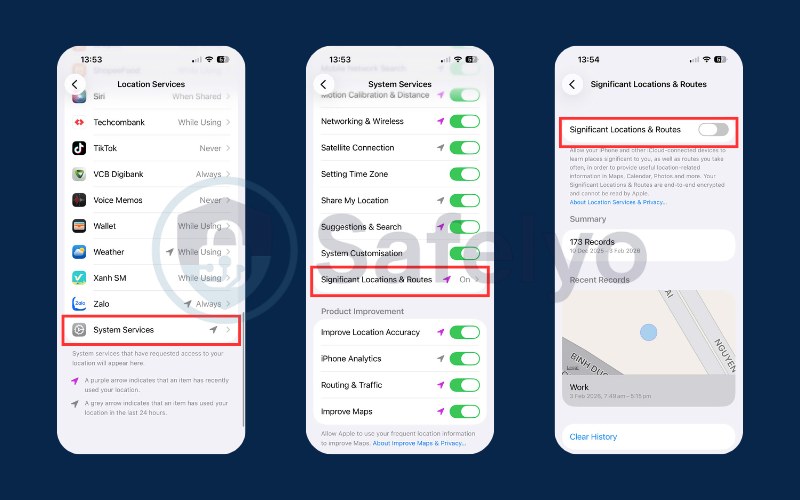
- Turn off “Significant Locations & Routes“
Your iPhone automatically logs places you visit frequently to improve Maps suggestions and photo memories. To stop this history recording, navigate to Settings > Privacy & Security > Location Services > System Services, then tap Significant Locations & Routes and toggle it off to keep your routine private.
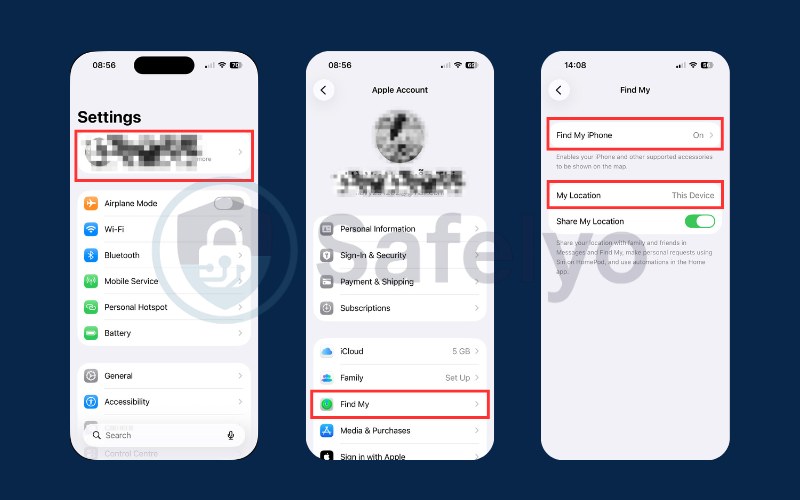
- Freeze location via “Find My”
The most effective native method involves using a secondary Apple device, like an iPad, left at home. Open the Find My app on that stationary device, turn on “Find My iPhone” to show you are “home” while you go out with your main phone.
- The “Airplane Mode” trick
For a temporary and immediate solution, enabling Airplane Mode effectively “freezes” your position on shared maps. By cutting off cellular and Wi-Fi connections, your GPS coordinates stop updating, leaving your icon stuck at the last known spot until you reconnect to the internet.
4. Risks & legal considerations
While changing your iPhone location offers freedom, it introduces significant security vulnerabilities and potential consequences for your digital accounts. You must weigh the benefits against the risks of malware, account suspensions, and real-world safety compromises.
- Security risks
Downloading modified apps (.IPA files) or “cracked” spoofing tools from unofficial sources exposes your device to malware and spyware. These files often bypass Apple’s strict App Store security sandbox, potentially stealing personal data, iCloud photos, or banking login credentials.
- Account bans
Game developers like Niantic enforce strict Terms of Service (ToS) against GPS manipulation to maintain fair play. Using detected tools in games like Pokémon GO can trigger a “three-strike” discipline policy, leading to temporary suspensions (soft bans) or permanent account termination.
- Privacy warning
Altering your GPS coordinates affects critical system functions, including Emergency SOS and “Find My.” In a real crisis, emergency dispatchers may receive your fake location instead of your actual position, significantly delaying life-saving assistance when you need it most.
5. FAQs
Can I change the iPhone location without a computer?
Changing your GPS coordinates directly on an iPhone without a computer is extremely difficult due to strict iOS sandboxing. Most “Fake GPS” apps found on the App Store are deceptive; they usually function as basic VPNs or compass tools and cannot alter your system location for gaming or dating apps.
Does jailbreaking allow GPS spoofing?
Jailbreaking removes Apple’s software restrictions, allowing you to install powerful tweaks like “Relocate Reborn” directly on the device without external hardware. However, this voids your warranty and exposes your phone to severe security vulnerabilities, making it a high-risk choice for casual users.
Will changing my location delete my data?
Using desktop software or hardware dongles is a temporary process that does not erase photos, messages, or apps. However, if you use Method 1 to change your Apple ID region, you must cancel active subscriptions and spend all store credit, which might restrict access to your previous purchase history.
Does location spoofing work on iOS 18?
Yes, location spoofing continues to work on iOS 18, but Apple has tightened security by making Developer Mode a requirement for most tools. You must manually activate this feature in your Privacy & Security settings and restart your device before any desktop software can successfully modify your coordinates.
6. Conclusion
Mastering how to change iPhone location without VPN is the only reliable way to bypass strict GPS restrictions in 2026. While switching your Apple ID region is the official method for accessing foreign App Stores, using desktop spoofing software remains the superior choice for gamers who need precise joystick control and movement simulation.
However, altering system coordinates carries certain risks, so always follow safety protocols such as enabling Developer Mode securely and relying only on trusted tools. To learn more about protecting your privacy and choosing reliable security solutions, explore our Tech How-To Simplified section at Safelyo and optimize your mobile experience with confidence.