
Learning how to watch Netflix with a VPN takes more than opening the app and hitting connect. Netflix can detect or restrict VPN and proxy connections, so getting a VPN to work with Netflix depends on the server you connect to, your network configuration, and how Netflix identifies the connection. Choosing a suitable server, checking your DNS and IP settings, and restarting Netflix after connecting can help you access regional content more reliably.
Key Takeaways
- Close Netflix before connecting to the VPN, then relaunch the app once the VPN connection is established.
- Netflix currently documents its VPN/proxy warning as Error E106, while older troubleshooting guides may reference different codes like M7111-5059.
- If Netflix connects but shows a limited catalog, you may only be seeing titles with worldwide licensing rather than the full regional catalog. Switching servers and clearing cached data can help restore full access.
- Netflix’s ad-supported experience doesn’t support VPN connections, no matter how well the VPN performs.
- Using a VPN is legal in the United States and most countries, and watching Netflix through one doesn’t break the law there either, though it does go against Netflix’s own terms of service.
1. How to watch Netflix with a VPN in 5 simple steps
The order you follow matters more than the VPN you pick. Connecting to a VPN after opening Netflix, or leaving the app running in the background, is the single biggest reason people fail to change their region.
Here’s how to watch Netflix with a VPN in five steps that apply to any device with a native VPN app:
- Step 1: Choose a VPN with dedicated streaming servers.
VPN providers route traffic through data center IP ranges, and some of those addresses can become associated with VPN or proxy traffic over time. Providers that actively maintain and rotate their IP pools are generally better positioned to keep streaming access available.
- Step 2: Fully close Netflix and clear any background processes.
Force-quit the app rather than just minimizing it. Fully closing Netflix first gives the app a clean session once it reopens, instead of reconnecting on top of an existing one.
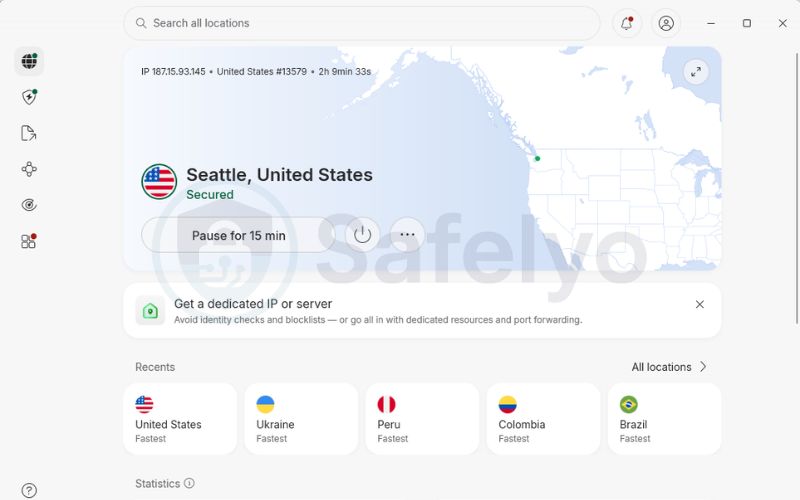
- Step 3: Open your VPN app and connect to a server in your target country.
Pick a server labeled for streaming when available (for example, US to New York, UK to London, or Japan to Tokyo) rather than a general-purpose server.
- Step 4: Turn on DNS and IPv6 leak protection.
This setting, usually found in the VPN app’s connection or security menu, helps keep domain lookups routed through the VPN instead of leaking out through your regular ISP connection.
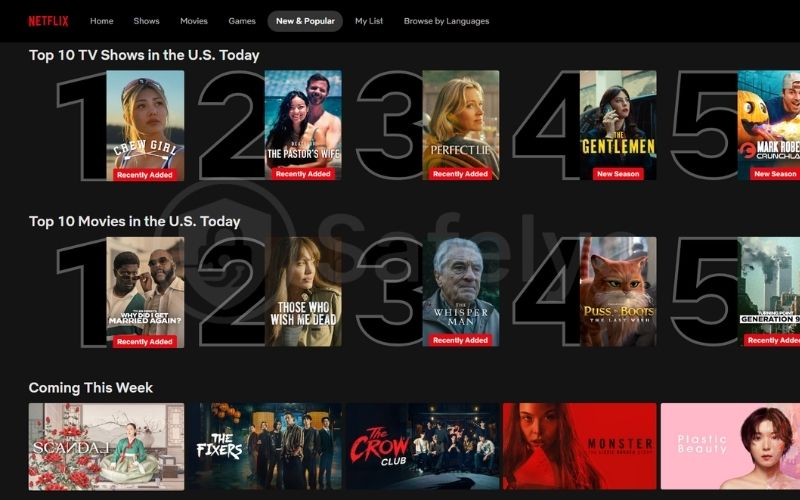
- Step 5: Relaunch Netflix and check the local catalog.
Search for a title that’s exclusive to the region you connected to, not a Netflix Original, to confirm the region change actually worked.
Confirm your connection is working
Before assuming the VPN failed, verify it’s actually configured correctly. Run an IP leak test at ipleak.net or browserleaks.com to confirm your displayed IP matches your target country and that DNS or WebRTC isn’t leaking your real location. It also helps to use a Netflix region checker tool to confirm the current catalog matches the region you connected to.
Netflix's ad-supported experience doesn't support VPN use
Netflix has confirmed that VPN use isn’t supported on its ad-supported experience or when watching live events. If you’re on an ad-supported plan, you’ll need to switch to an ad-free experience to use a VPN.
2. Step-by-step setup for different devices
Not every device handles a VPN connection the same way. Phones, computers, and streaming sticks can run a VPN app directly, but many smart TVs and game consoles can’t install one at all. Knowing which category your device falls into saves you from troubleshooting a problem that a different setup method would have avoided.
2.1. Native apps: Windows, macOS, Android, iOS, and Firestick
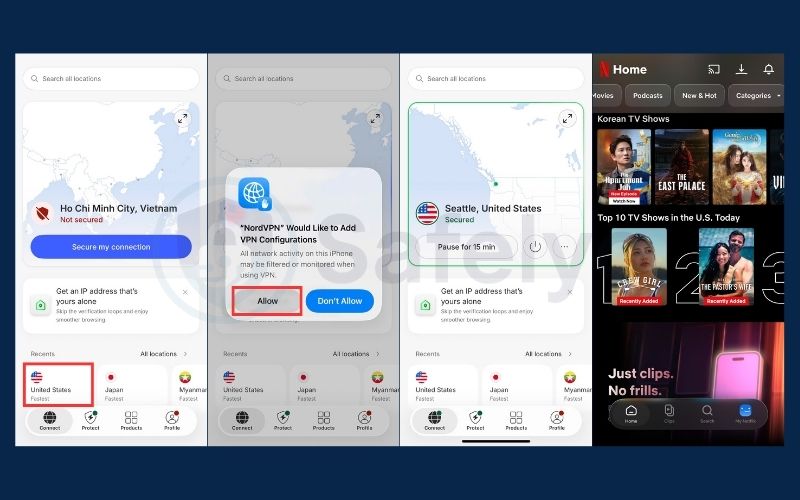
These operating systems support installing a VPN client directly from an app store, whether that’s the Play Store, App Store, or Amazon Appstore. The setup itself is simple, but a couple of details determine whether it actually works with Netflix.
- Download the VPN app and permit it to configure a VPN profile. Most operating systems will ask you to approve this once during the first connection.
- Close Netflix completely before turning on the VPN. This is the same process termination rule from step 2 above. Restarting the app after connecting gives Netflix a fresh session on the new network connection, rather than carrying over one that started before the VPN was active.
- Turn off location services on mobile devices if the region still looks wrong. Industry reports suggest Netflix’s app may check GPS location as a secondary signal alongside your VPN’s IP address, so if these don’t match, it can interfere with the connection. Check your VPN’s IP and DNS settings and confirm the reported country through Fast.com if the issue continues.
2.2. Non-native devices: smart TVs, Apple TV, and game consoles
Samsung TVs (Tizen), LG TVs (webOS), older Apple TV models, and consoles like PlayStation and Xbox don’t support installing a VPN app directly. For these devices, you need one of two workarounds.
Option 1: Set up Smart DNS
Many VPN providers offer a Smart DNS or MediaStreamer feature. Register your home network’s IP address on the VPN provider’s website, then enter the DNS addresses they give you into your TV’s network settings manually. This approach doesn’t slow down your connection since it only redirects DNS requests, but it doesn’t encrypt your traffic the way a full VPN connection does.
Option 2: Install the VPN on your router or share it through a hotspot
Setting up a VPN client directly on a compatible router (routers running AsusWRT or DD-WRT support this) routes every device on your home network through the VPN automatically. This is the more reliable option if you want your smart TV, console, and other devices covered without configuring each one individually. You can also share a VPN connection from a laptop or phone as a Wi-Fi hotspot if a router-level setup isn’t practical.
3. Why does Netflix block VPNs?
Netflix’s catalog varies by country because streaming rights are often licensed region by region. When you connect through a VPN, Netflix may see your connection as coming from a different country and restrict access to regional content. Netflix confirms that VPN use can also trigger its E106 proxy/VPN error.
This approach is not unique to Netflix. Many platforms face the same licensing constraints, which explains why streaming services block VPNs as a broader industry practice.
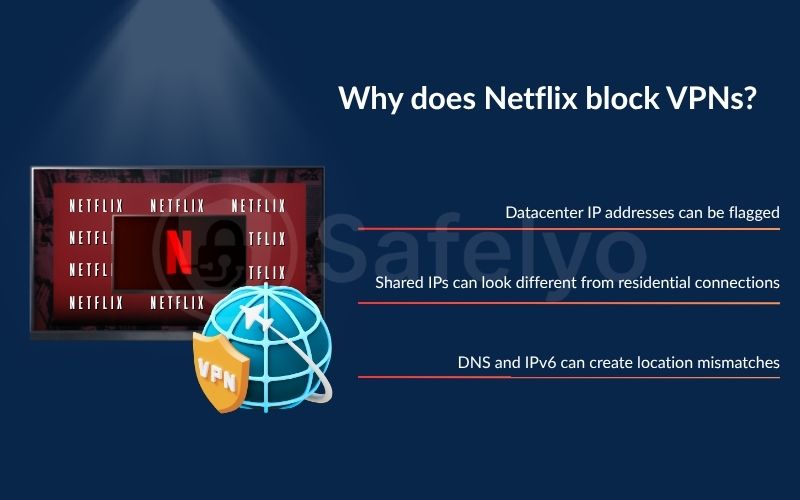
3.1. Datacenter IP addresses can be flagged
Most commercial VPNs route traffic through servers hosted in data centers. Their public IP addresses can therefore be classified as hosting, proxy, or VPN infrastructure rather than typical residential connections.
Netflix does not publicly disclose the exact IP databases or ASN rules it uses, but a VPN exit IP can become blocked or associated with VPN traffic. This is one reason switching to another VPN server can sometimes restore Netflix access.
3.2. Shared IPs can look different from residential connections
A shared VPN IP can be used by hundreds or even thousands of subscribers over time, while a typical residential IP represents a much smaller group of devices. That makes shared VPN infrastructure easier to distinguish from an ordinary home connection.
Netflix has not published a specific number of users, streams, or requests that triggers a block. However, an exit IP with a strong VPN or proxy reputation may become increasingly unreliable for accessing Netflix.
3.3. DNS and IPv6 can create location mismatches
Your VPN may show a US IP address while DNS or IPv6 traffic follows a different network path. This can create inconsistent location information, potentially causing Netflix to show the wrong catalog or trigger a proxy error.
Netflix recommends checking your reported country and IP through Fast.com when troubleshooting VPN-related location problems. Its troubleshooting steps for this error also include restarting your router and confirming your IP and location with your ISP if the issue continues.
4. How to fix Netflix proxy errors and missing shows
The “You seem to be using a VPN or proxy” message is currently documented in Netflix’s Help Center as error E106. Older troubleshooting guides may also reference codes such as M7111-5059 or M7111-1331-5059 for a similar issue. Whichever version you see, the fixes below follow the same general troubleshooting path.
4.1. How to fix Netflix error E106
This error usually comes down to one of a few causes: a flagged IP address, leftover cached data, a network routing issue, or a plan restriction. Rather than guessing, work through the steps below in order.
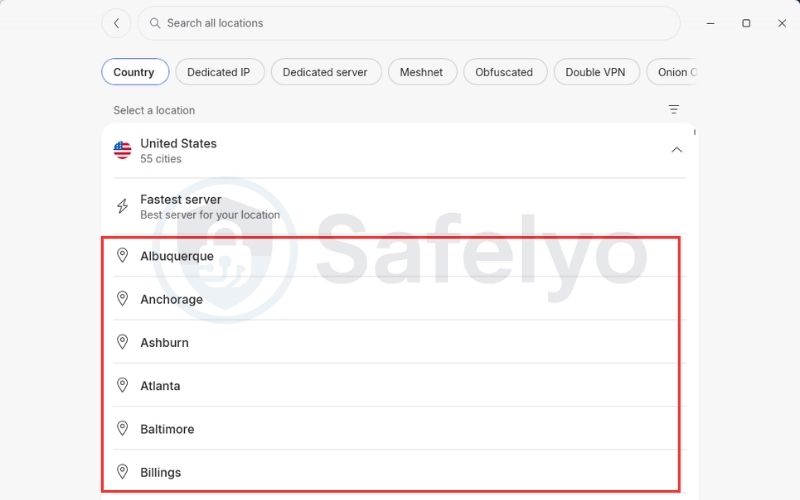
- Step 1: Switch to a different server in the same country.
This gives you a different exit IP, which may work if the current one has already been blocked. Choose a server labeled for streaming if your provider offers one, as these are maintained specifically for streaming.
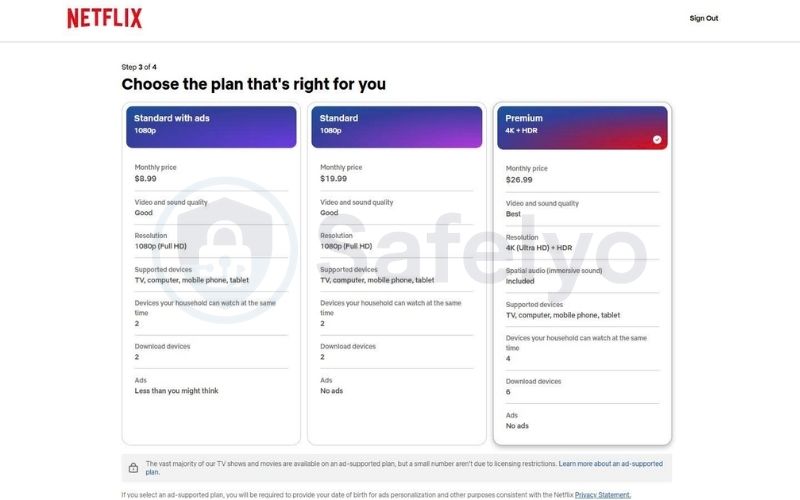
- Step 2: Check your Netflix plan.
VPN connections aren’t supported on an ad-supported Netflix experience or when watching live events. If you’re on an ad-supported plan, switching servers or changing VPN settings won’t enable VPN use on that plan. You’ll need to switch to an ad-free experience instead.
- Step 3: Restart Netflix and clear cached data.
Force-close the app rather than minimizing it, then clear cookies and site data in a browser, or clear the app’s stored data through your device settings on Android TV, Fire TV, or similar devices. This removes any old location data that might still be attached to your session.
- Step 4: Check DNS and IPv6 routing.
If your VPN offers DNS or IPv6 leak protection, turn it on. If IPv6 traffic isn’t being routed correctly through the VPN, temporarily disabling IPv6 in your network adapter settings can be a useful troubleshooting step.
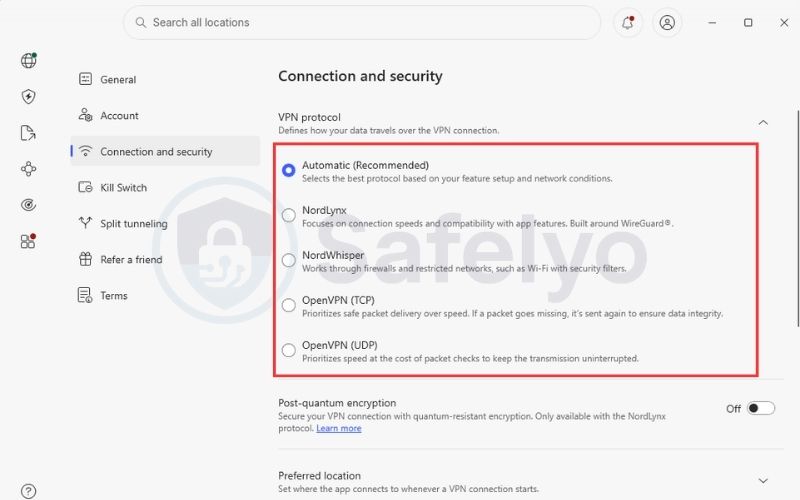
- Step 5: Try a different VPN protocol if your provider offers one.
Switching protocols changes how your connection is routed and can resolve compatibility issues on some networks.
- Step 6: Test another network if the problem persists.
This helps rule out a network-level issue rather than a problem with the VPN server itself.
If you’ve gone through all six steps and still aren’t sure which one applies to your situation, use this table to match what you’re seeing with the most likely cause:
| Possible cause | What you may notice | What to try |
|---|---|---|
| The VPN server’s IP is already blocked | E106 appears right after connecting to a specific server | Switch to another server in the same country |
| DNS or IPv6 routing issue | Your VPN location looks correct, but Netflix still shows the wrong region or an error | Check DNS and IPv6 leak protection settings |
| Cached app or browser data | The problem persists even after changing servers | Restart Netflix and clear the cache or cookies |
| Ad-supported experience | VPN remains blocked no matter which server you use | Switch to an ad-free Netflix experience |
| Network-specific issue | The same VPN server works on one network but not another | Test the same server on a different network |
If none of the above resolves it and you’re on a shared network, such as a school, office, or public Wi-Fi, another device on that network running its own VPN or proxy could be affecting the connection. Testing on a different network can help confirm this.
4.2. Why Netflix only shows a limited catalog
Sometimes the VPN connects without any error message, but many regional titles disappear while a smaller set of titles, like Stranger Things or Squid Game, remain available.
Netflix confirms this directly: when it detects a VPN, you may only be shown titles it has worldwide licensing for, since those aren’t subject to the regional restrictions that apply to titles licensed for specific countries. Some VPN guides refer to this as a “soft block,” but that’s a community and provider term, not one Netflix uses in its own Help Center.
If this happens, avoid refreshing the page right away. Instead, disconnect the VPN, clear your browser or app cache, reconnect to a server labeled for streaming if your provider offers one, and confirm your location through Fast.com before logging back in.
5. Will Netflix ban your account for using a VPN?
A VPN block is not the same as an account ban. Netflix generally treats VPN use as a playback and catalog restriction to manage, rather than grounds for suspending an account.
- What Netflix’s Terms of Use say
Netflix’s Terms of Use explain that content availability can vary by location and note that Netflix may use technology to verify your geographic location. In practice, Netflix’s own Help Center documents VPN detection primarily as an access and playback issue, guiding users to turn off the VPN rather than describing account-level consequences.
There’s no indication in Netflix’s public-facing guidance that detecting a VPN connection solely leads to account suspension or termination.
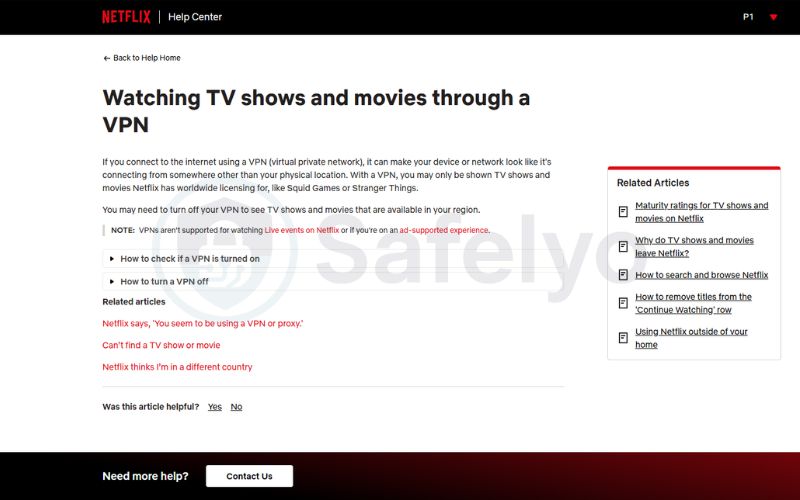
- What actually happens when Netflix detects a VPN
The realistic consequence is technical: you’ll see the proxy error or a catalog limited to titles Netflix holds worldwide rights to. Turning off the VPN can restore normal access, though you may need to restart the app or your network connection for it to take effect.
Across Netflix’s own documentation and independent VPN troubleshooting guides, the consistent pattern is the same: Netflix’s response to VPN use is to block or limit streaming, not to suspend accounts.
- Is it legal to use a VPN for Netflix?
Using a VPN itself is legal in the United States and in most countries. Watching Netflix through one doesn’t break any law there, even though it goes against Netflix’s own terms of service.
VPN laws vary significantly outside of that, though. Some countries restrict which VPN services can legally operate, require providers to follow local regulations, or penalize specific unauthorized uses, while a smaller number, such as Turkmenistan, Belarus, and North Korea, impose much broader restrictions on VPN access as part of wider internet controls.
If you’re traveling to a country with strict internet regulations, check current local rules directly rather than relying on general guidance, since these laws change frequently.
6. What to look for in a Netflix VPN
Most VPN marketing claims to work with Netflix, but very few actually hold up over time. Instead of relying on ads or star ratings, look at a handful of concrete criteria that determine whether a VPN can reliably unblock Netflix and keep working after the honeymoon period.
- IP pool management. A provider needs enough server capacity and IP addresses to maintain access when some exit IPs stop working with Netflix. A broader or more actively maintained IP pool generally means better odds of staying unblocked over time.
- Smart DNS support. This is useful for smart TVs and streaming devices that don’t support a full VPN app. Smart DNS changes how DNS requests are handled rather than creating an encrypted tunnel, so check that the provider specifically supports your device and use case.
- Uncapped bandwidth and a modern protocol. Netflix recommends at least 15 Mbps for 4K streaming, so look for a VPN with no data caps and support for a protocol like WireGuard, which generally delivers faster connections than older protocols.
- A recent, independent no-logs audit. This won’t make Netflix more likely to accept the connection, but it matters if privacy is part of why you’re using a VPN in the first place, not just region-switching.
- Enough simultaneous device connections. If you’re covering both a TV and a phone or laptop, check how many devices the plan supports at once before you buy.
The reality of free VPNs
Free VPNs come with real trade-offs. Limited server capacity and smaller IP pools mean the same few addresses serve a large user base, making them easier to flag and less consistent for Netflix over time. Data allowances also vary widely, from a couple of gigabytes a month to unlimited, so check the limits before counting on one.
Independent testing shows some free VPNs can unblock Netflix, but results vary by provider and shift over time. A free VPN works fine for a short test or one-off unblock, but set realistic expectations if you plan to stream regularly.
Which Netflix region should you connect to?
Netflix libraries vary by country and change constantly as licensing deals expire or renew. Total catalog size matters less than whether the specific title you want is actually available there. Third-party library trackers often disagree on exact numbers since they use different methodologies, which makes precise counts unreliable for decision-making.
A more practical approach is to check a few things directly instead of chasing a “biggest library” region:
| What you care about | What to check |
|---|---|
| A specific movie or show | Whether the title is currently available in that country’s catalog |
| Overall variety | The types of content commonly available in that country’s catalog, such as anime or documentaries |
| Streaming quality | The VPN server’s speed and current load |
| TV or console streaming | Whether the provider supports your specific device |
| Long-term reliability | Recent, independent test results rather than marketing claims |
7. FAQ: How to watch Netflix with a VPN
Can I use a free VPN to watch Netflix?
You can try, but free VPNs tend to be less reliable for streaming due to smaller server pools and limited data allowances. Some can unblock Netflix some of the time, but consistent, long-term access is more realistic with a paid provider that actively maintains its server infrastructure.
Which Netflix library has the largest selection of movies?
This changes constantly as licensing deals expire and new ones are signed, and third-party trackers often disagree on exact numbers. Rather than chasing the “biggest” library, it’s more useful to check whether the specific title you want is available in a given country.
Why does Netflix block VPNs if users still pay a subscription?
Netflix licenses many titles on a country-by-country basis. Restricting access based on location helps it enforce those regional availability agreements, regardless of whether the subscriber is paying.
How can I change my Netflix region on a Samsung Smart TV?
Samsung TVs don’t support installing a VPN app directly, so you’ll need to set up Smart DNS through your VPN provider or connect your TV to a router running the VPN. Both methods let the TV pick up a different region without a native app.
Is it illegal to use a VPN to watch Netflix?
No, using a VPN is legal in the United States and most countries, and watching Netflix through one doesn’t break the law there. It does go against Netflix’s own terms of service, though, so the realistic consequence is a blocked connection rather than a legal issue.
Can I use Netflix on a Smart TV without installing a VPN app?
Yes. Smart DNS lets you change your Netflix region without a full VPN app, which works well for TVs and consoles that don’t support one. Keep in mind it redirects DNS requests only and doesn’t encrypt your traffic the way a full VPN connection does.
Why does my VPN work for Netflix sometimes but not always?
This usually comes down to your current server’s IP reputation with Netflix, which can change over time as addresses get flagged and providers rotate them. Switching to a different server, ideally one labeled for streaming, is the first thing to try when a previously working connection stops.
Does Netflix look different when traveling abroad?
Yes. Netflix’s available catalog can change when you travel because content availability varies by country, so titles available at home may not show up while you’re away, and vice versa. This is the same underlying reason a VPN can change what you see, since it makes your connection appear to come from a different location.
8. Conclusion
Watching Netflix through a VPN comes down to a simple trade-off. Netflix’s systems can flag VPN and proxy traffic, while a VPN’s ability to unblock content depends on factors like server availability, IP reputation, clean DNS routing, and enough IP capacity to stay usable over time.
Learning how to watch Netflix with a VPN really just means working through these fixes when they come up: check your DNS and IPv6 settings, confirm your plan supports VPN use, and rule out network problems before assuming the VPN has failed. For more on choosing a VPN for streaming or everyday privacy, see Safelyo‘s VPN guides.