
Streaming platforms block VPNs primarily because copyright contracts require them to enforce regional viewing boundaries, and their automated systems flag the shared server addresses that commercial VPNs use.
This legal requirement answers a common question: Why do streaming services block VPNs even when paying subscribers simply travel abroad, relocate temporarily, or want to protect their online privacy on personal devices? Because an encrypted tunnel hides your physical location, platforms block the connection by default to avoid severe contract penalties.
This guide explains why these distribution boundaries exist, details how streaming systems detect VPN connections, and provides practical troubleshooting steps to restore video playback.
Key takeaways:
- Streaming platforms restrict VPNs to comply with regional copyright contracts and territorial broadcasting rights.
- Firewalls spot VPNs by checking commercial hosting registries, tracking high traffic volume from shared servers, and identifying device-level GPS or DNS discrepancies.
- Platforms rarely ban subscriber accounts; instead, they serve proxy errors (like Netflix Error M7111-5059 or Error E114) or temporarily restrict the catalog to global originals.
- Most playback blocks can be resolved by switching to an alternate server, clearing your browser cache, or adjusting connection protocols.
This article is for informational purposes only. Please use VPNs responsibly and legally.
1. Why do streaming services block VPNs on their platforms
Streaming services restrict encrypted connections because copyright agreements legally require territorial boundaries. Studios license television shows and movies regionally rather than selling universal global distribution rights.
For instance, a studio may sell exclusive rights to one provider in the United States and another broadcaster in the United Kingdom. Allowing an overseas subscriber to access that foreign stream damages exclusive local licensing deals. Platforms use automated detection systems to protect these multi-million-dollar contracts from breach penalties.
1.1. Territorial licensing agreements and distribution contracts
Media companies structure their revenue around territorial licensing agreements, selling broadcast rights separately in each international market. Studios maximize profits by auctioning these broadcast rights to the highest regional bidder.
Contract terms legally require platforms to enforce geographic access limits. When Sony licenses Seinfeld to a specific regional provider, that contract requires the service to block outside viewers. If a platform fails to restrict access from IP addresses abroad, copyright owners can file legal contract disputes, demand financial penalties, or license their catalogs to competing services.
1.2. Global catalog and library differences between countries
Content catalogs differ significantly between countries because local broadcasters hold prior rights to popular titles. A service might stream a hit series in one region while a local cable channel owns exclusive broadcast rights elsewhere.
Subscribers paying similar monthly fees across different countries often receive different library sizes. Content libraries in markets like the United States or the United Kingdom frequently contain thousands more licensed movies and episodes than libraries in smaller international regions.
These territorial splits create noticeable differences in content availability across borders:
- Major studio franchises remain exclusive to local cable streaming apps in some countries while streaming on general platforms elsewhere.
- Popular syndicated comedies stream on different regional providers depending on which local network bought the initial rerun rights.
- Viewers in smaller international regions frequently see delayed release dates for major movie releases compared to North American audiences.
Subscribers frequently turn to VPNs for catalog hopping to access the complete catalog that their monthly subscription fees justify. While subscribers consider this practice fair compensation for their subscription cost, platforms treat it as an unauthorized bypass of copyright boundaries.
1.3. Regional sports blackout restrictions and local exclusivity
Live sports streaming faces aggressive geographic blocking because regional television networks purchase exclusive rights to televise local games. Sports leagues divide broadcast rights between national streaming services and regional cable channels.
Streaming platforms must block local subscribers from watching online feeds to protect cable television viewership and local advertising revenue. Because live sports broadcast rights are exceptionally valuable, platforms enforce geographic filtering much more strictly during live matches than for on-demand movies.
1.4. Household password sharing checks and home location rules
Recent platform policies aimed at eliminating password sharing have made connection verification much stricter. Platforms like Disney+ and Hulu monitor household network consistency, charging extra member fees ranging from $6.99 to $9.99 per month for authorized users outside the primary residence.
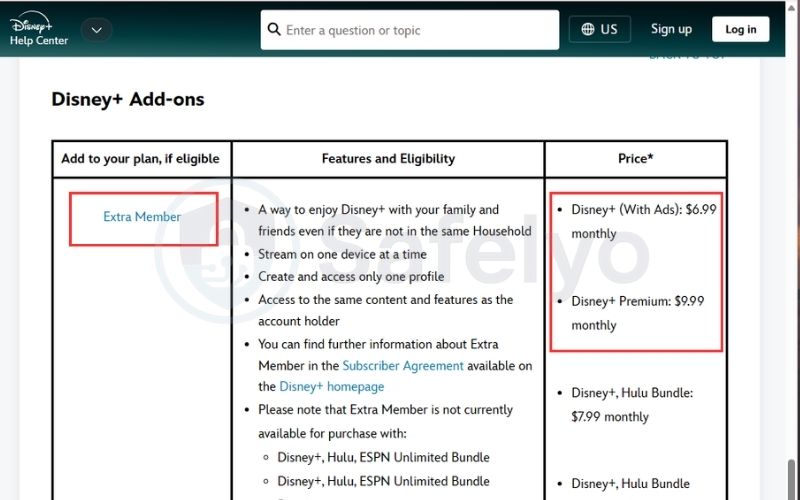
When you turn on a VPN, your traffic suddenly routes through an external server. Even if you are sitting on your own living room couch, the platform interprets this unfamiliar network address as an unauthorized login outside your household, prompting security verification screens or temporary playback halts.
2. How streaming platforms detect your VPN connection
Streaming platforms use automated network filters to identify VPN connections. A VPN encrypts your traffic to protect it from local observation, but it cannot hide the public server IP address where your connection exits onto the internet. In addition, applications installed on your device can check local system settings.
Platforms evaluate several technical signals to determine whether an incoming connection comes from a standard home network or a VPN service:
| Detection Layer | Data Evaluated | Indicator of VPN Usage |
|---|---|---|
| IP Classification | Commercial IP and ASN registries | IP belongs to a cloud hosting datacenter rather than a residential internet provider |
| Traffic Volume | Active streams per IP address | Unusually high numbers of concurrent video streams originating from a single IP address |
| Device Location | GPS sensors and local Wi-Fi data | Physical hardware coordinates conflict with the geographic location of the IP address |
| Network Routing | DNS queries and WebRTC requests | Requests bypass the VPN tunnel, revealing the subscriber’s domestic internet provider |
| System & Packets | Network adapters and packet sizes | The presence of virtual network interfaces or lower TCP MSS values caused by tunnel encapsulation |
2.1. Datacenter IP identification and registry databases
Streaming platforms detect commercial VPNs primarily by comparing incoming IP addresses against public and commercial IP databases. Companies such as MaxMind, IPinfo, and GeoGuard maintain registries that catalog public IP ranges.
These databases classify IP addresses by their Autonomous System Number (ASN), owner, and network type:
- Residential: Assigned to domestic internet service providers (ISPs) such as Comcast, AT&T, or BT.
- Datacenter or Hosting: Assigned to server companies and cloud providers such as AWS, DigitalOcean, Hetzner, or OVH.
Most home subscribers connect to the internet through residential internet providers. Because consumers do not stream content directly from commercial datacenters, streaming firewalls flag traffic from hosting IP ranges as proxy traffic and restrict access to licensed titles.
2.2. High traffic volume on shared IP addresses
Platforms identify shared VPN servers by monitoring the number of simultaneous connections coming from the same IP address.
Commercial VPN services typically route many subscribers through a single shared public IP address to lower operational costs. A normal household rarely runs more than a few video streams at the same time. In contrast, a shared VPN server can generate dozens or hundreds of concurrent playback requests to the same streaming network.
When automated monitoring systems detect an unusually high number of individual user accounts streaming video from one IP address, the platform flags that address as a shared proxy node and blocks further video playback.
2.3. Mobile GPS tracking and hardware location checks
On mobile devices running iOS or Android, streaming applications can check physical location through hardware sensors rather than relying only on IP addresses:
- GPS Coordinates: Mobile apps can request access to location services to read exact coordinates from the device GPS.
- Wi-Fi and Cellular Data: Apps can identify nearby Wi-Fi network names (BSSIDs) and cellular towers to estimate location.
- System Timezone: The app checks whether the device clock and timezone match the region associated with the IP address.
If the VPN IP address indicates a location in the United Kingdom, but the phone GPS registers coordinates in the United States, the application detects this difference and stops playback.
2.4. DNS and WebRTC leaks
Configuration errors can allow network requests to travel outside the encrypted VPN tunnel, exposing your real location to the streaming service:
- DNS Leaks: When you open a website, your device translates domain names into IP addresses. If your operating system sends these requests to your local internet provider instead of the VPN private DNS servers, the platform sees two conflicting locations. The video stream comes from the VPN server, but the domain requests come from your domestic home provider.
- WebRTC Leaks: WebRTC is a browser technology used for real-time voice and video communication. WebRTC APIs can execute commands that cause the browser to reveal your real public and local IP addresses, even while a VPN connection is active.
2.5. App-level network interface detection and packet size differences
Streaming edge servers do not inspect raw VPN protocols (such as OpenVPN or WireGuard) directly. The VPN protocol is processed and terminated at the VPN provider exit server, so traffic arriving at the streaming platform looks like regular HTTPS web traffic.
Instead, platforms identify VPN activity through client-side checks and packet characteristics:
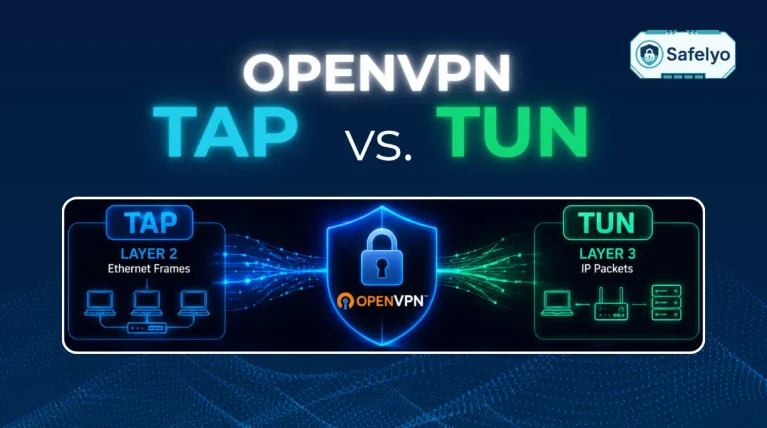
- Virtual Network Adapters: Native streaming apps installed on phones, computers, and smart TVs can query the operating system for active network interfaces. If the application detects virtual adapters (such as tun, tap, or the standard VPN service flag on Android), it recognizes that a VPN application is active on the device.
- Packet Encapsulation and MTU Size: Standard Ethernet connections use a Maximum Transmission Unit (MTU) of 1,500 bytes. Adding encryption headers inside a VPN tunnel reduces the available packet size to around 1,360 to 1,420 bytes. Streaming servers can observe the reduced TCP Maximum Segment Size (MSS) during initial connection handshakes, which indicates that the traffic is traveling through an encapsulated network tunnel.
3. How VPNs fight back against streaming blocks
VPN providers and streaming security systems engage in continuous technical adjustments. When platforms blacklist known server ranges, VPN engineers set up new servers, disguise protocol data, and offer residential routing options to maintain customer access.
The three technical methods below illustrate how modern VPN services bypass platform detection.
3.1. Rotating IP address pools
VPN providers counter server blacklists by continuously leasing and cycling through fresh IP address pools. Engineering teams monitor server uptime and success rates across popular streaming services around the clock.
When a cluster of IP addresses gets blacklisted, providers acquire or lease new IP blocks that have not yet been cataloged in IP intelligence databases like MaxMind or IPinfo. Because these new addresses lack historical abuse records or proxy tags, incoming video requests pass through platform verification checks without issue.
A freshly deployed server often works reliably for days or weeks before detection algorithms register its growing volume and add it to the blacklist. Once that server gets flagged, the VPN provider replaces the address, restarting the cycle.
3.2. Traffic obfuscation and port switching
Traffic obfuscation modifies VPN data to look like regular HTTPS web browsing. Often labeled as stealth mode, obfuscated servers, or scrambling, this feature hides recognizable VPN protocol markers and directs traffic over TCP Port 443, the standard port used by secure websites.
By default, obfuscation is designed to bypass local network firewalls, school or workplace filters, and internet provider restrictions that block VPN connections. However, many users find that switching to obfuscated servers also helps them resolve stubborn streaming errors when standard servers fail.
3.3. Dedicated residential IP addresses
Dedicated residential IPs bypass traffic density filters by assigning a clean, private IP address that originates from a domestic consumer internet provider. Because only one subscriber uses that specific address, automated security systems never detect hundreds of simultaneous video streams coming from it.
These addresses appear in registries as standard domestic broadband lines rather than commercial server datacenters. When a streaming service checks the IP against hosting registries, the connection registers as a normal home connection.
However, dedicated residential IPs require an additional monthly fee, restrict you to a single static location, and lack the shared anonymity of public server pools.
Furthermore, a dedicated IP does not guarantee 100% immunity from proxy errors, nor does it guarantee unblocking every streaming platform if the service flags the IP through other behavioral or DNS checks.
If you want a service that actively maintains these bypass technologies and refreshes its server network, check out our tested recommendations in our guide to the best VPNs for streaming.
4. How to fix streaming VPN blocks and proxy errors
Resolving a streaming proxy error usually requires a structured sequence of simple troubleshooting adjustments. Misleading workarounds like using URL shorteners (such as Bitly) or typing random port numbers into client settings fail because web firewalls evaluate IP origins and remote servers do not listen on arbitrary ports.
The table below lists proven troubleshooting adjustments organized from immediate toggles to deeper network configurations.
| Troubleshooting Step | Action Type | Time Required | Issue Resolved |
|---|---|---|---|
| Switch Server Region | Quick Toggle | 10 seconds | Bypasses flagged server IP addresses |
| Clear Cache & Cookies | Quick Toggle | 1 minute | Removes stored cookies containing real location |
| Adjust Mobile GPS | Quick Toggle | 1 minute | Fixes location sensor mismatches |
| Enable Obfuscation | Quick Toggle | 2 minutes | Provides an alternate connection route if standard servers fail |
| Select OpenVPN TCP | Advanced Setting | 2 minutes | Bypasses restricted VPN ports |
| Check for Leaks | Advanced Setting | 3 minutes | Identifies DNS and WebRTC leaks |
4.1. Switch to a different regional server
Switching to a different server within the same country is the fastest way to bypass a blacklisted IP address. Streaming blacklists target individual server IP addresses rather than an entire VPN network.
Disconnect from your current location, choose another server in the same country (such as switching from New York to Chicago or Dallas), and reload your streaming page.
Always look for specialized servers labeled Streaming or Media within your VPN application, as providers optimize these nodes for video delivery. These dedicated servers typically receive fresh IP allocations more frequently than standard privacy nodes.
4.2. Clear browser cache and cookies
Clearing browser cache files and cookies prevents streaming platforms from reading saved location tracking data. Even when your VPN assigns you a new overseas IP, your browser stores cookies that preserve your previous location history.
Follow these steps to clear your browser data:
- Open your browser Settings and select Privacy and security.
- Click on Clear browsing data.
- Check the boxes for Cookies and other site data and Cached images and files.
- Select a time range of All time and click Clear data.
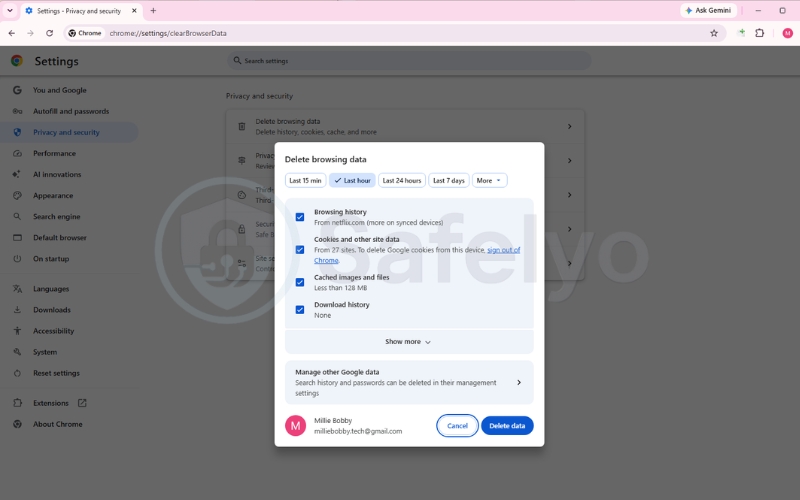
Alternatively, open a new Incognito Window or Private Window to test playback without removing your saved logins. Private browsing sessions ignore existing tracking cookies and force the site to read your current VPN location.
4.3. Disable mobile device location permissions
Disabling location permissions forces mobile streaming apps to determine your location solely from your VPN connection rather than your phone’s GPS hardware.
Follow these steps for Android devices:
- Open Settings on your phone.
- Tap Apps, select your streaming app, and tap Permissions.
- Select Location and choose Don’t allow.
Follow these steps for Apple iOS devices:
- Open Settings and tap Privacy & Security.
- Select Location Services and find your streaming app.
- Set the access permission to Never.
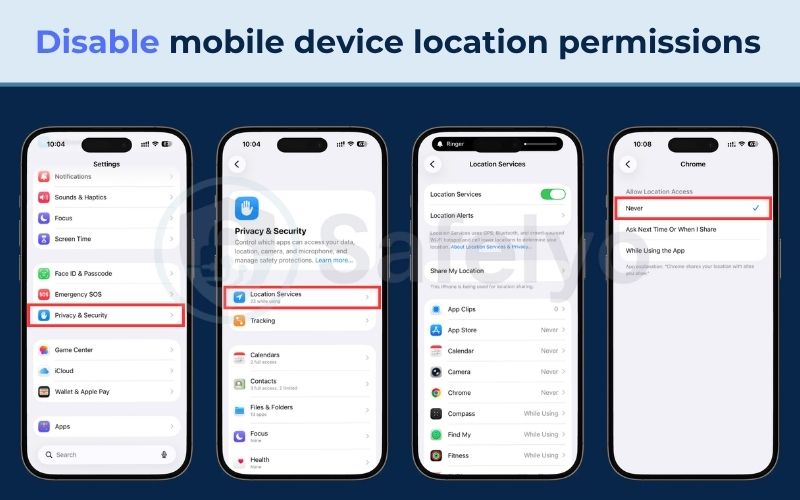
Adjust your phone’s clock in Date & time settings to match the local timezone of your chosen VPN server.
Keep in mind that while disabling GPS works for on-demand apps like Netflix and Disney+, live TV streaming services and regional sports networks often require active GPS and will show an error if location access is denied.
In those cases, watching through a laptop web browser provides a much more reliable experience because computers lack onboard GPS hardware.
4.4. Switch to OpenVPN TCP protocol
Switching your VPN protocol to OpenVPN TCP routes your video traffic through universal web ports that firewalls rarely block. While WireGuard offers fast download speeds, its default packet structures are relatively easy for restrictive firewalls to identify.
Routing OpenVPN over TCP across Port 443 formats your data packets to match standard HTTPS web browsing, allowing your stream to slip past restrictive firewalls.
To change this, follow these steps:
- Open your VPN app Settings.
- Navigate to the Connection or Protocol tab.
- Select OpenVPN (TCP).
Commercial VPN applications automatically route OpenVPN TCP over standard web ports like Port 443 without requiring manual port entry.
Proprietary VPN protocols also improve connection reliability on restrictive networks. For example, NordVPN offers NordWhisper to mask protocol signatures, while ExpressVPN provides a TCP variation of its custom Lightway protocol to maintain stable connections through restricted ports.
4.5. Enable obfuscation or stealth mode features
You can try enabling obfuscation (also labeled as stealth mode or scramble) in your VPN app settings.
Although obfuscation is primarily designed to bypass local network firewalls and internet provider restrictions, many users report that turning it on has helped them resolve stubborn streaming errors when standard servers failed. Enabling this feature can sometimes route your connection through an alternate server path or network configuration that the streaming platform has not yet restricted.
To enable this feature, follow these steps:
- Open your VPN app’s Advanced Settings menu.
- Activate the toggle labeled Obfuscated Servers, Stealth Mode, or Scramble.
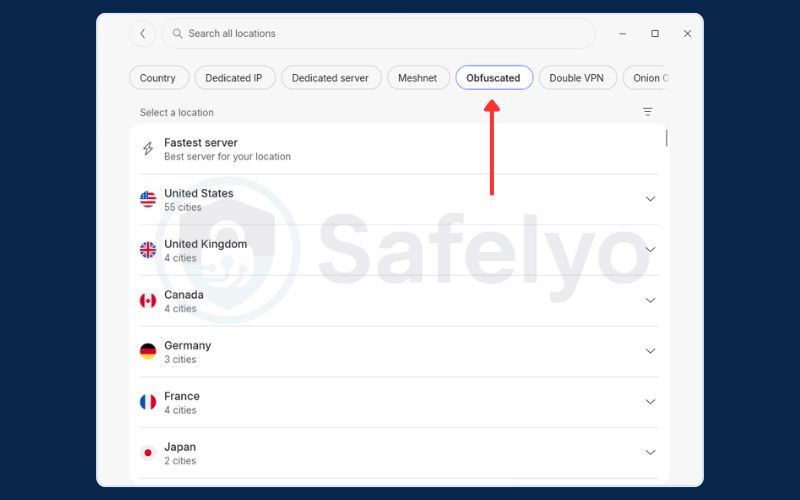
Because obfuscation adds minor encryption processing overhead, verify that your baseline connection remains fast enough to stream video smoothly. If your connection drops too low, you may experience video buffering during playback.
4.6. Test your connection for DNS and WebRTC leaks
Running online leak tests confirms whether your actual IP address or home internet provider leaks past your VPN tunnel.
To check for DNS leaks, follow these steps:
- Connect to your desired VPN server and open an independent leak testing tool like dnsleaktest.com.
- Run an Extended Test to check all incoming resolver requests.
- Check the reported IP addresses and ISPs to ensure your VPN’s IP is displayed.
If your domestic home provider appears instead of the VPN server, enable DNS Leak Protection in your VPN settings or reconnect to a different server location.
To test for WebRTC leaks, follow these steps:
- Open a browser test page such as browserleaks.com/webrtc while keeping your VPN connected.
- Inspect the Public IP Address field under the WebRTC diagnostics section.
- If your actual domestic IP appears, disable WebRTC in your browser settings (such as setting media.peerconnection.enabled to false in Firefox) or install a reputable WebRTC blocking browser extension.
Resolving these leaks prevents your browser from exposing your true physical location while streaming.
5. How different platforms respond to VPN connections
Streaming services enforce VPN restrictions using distinct methods, ranging from subtle catalog filtering to immediate login rejections. Platforms adapt their defenses based on their specific content contracts, business models, and subscriber verification requirements.
The table below compares how major streaming services handle detected VPN traffic:
| Platform | Primary Blocking Method | Common Error Signature | Immediate User Impact |
|---|---|---|---|
| Netflix | Catalog Reduction & Stream Errors | Error M7111-5059 / Error E114 | Licensed titles hidden; stream stops on flagged IPs |
| Disney Plus | Strict IP Blacklisting & GPS Check | Error 73 / Error 93 | Video player blocked; regional access denied |
| Hulu | Upfront Login Blocks | “Anonymous proxy tool detected” | Access denied at the account login screen |
| BBC iPlayer | Commercial IP & License Filtering | “BBC iPlayer only works in the UK” | Playback refused on commercial hosting IP addresses |
Netflix applies a dual detection strategy that separates user access from content availability. Instead of blocking your account at the front door, Netflix allows you to sign in normally. If the system detects a commercial server address, it silently shrinks your available catalog, hiding regionally licensed movies and displaying only worldwide productions like Netflix Originals.
When you attempt to play a flagged licensed stream on a web browser, the media player halts with Error M7111-5059 (“You seem to be using an unblocker or proxy”). If the platform detects that your account’s billing origin or registration country conflicts with your current location, it triggers Error E114 (“Your account can’t be used in this location”), restricting playback until you disconnect from the foreign server.
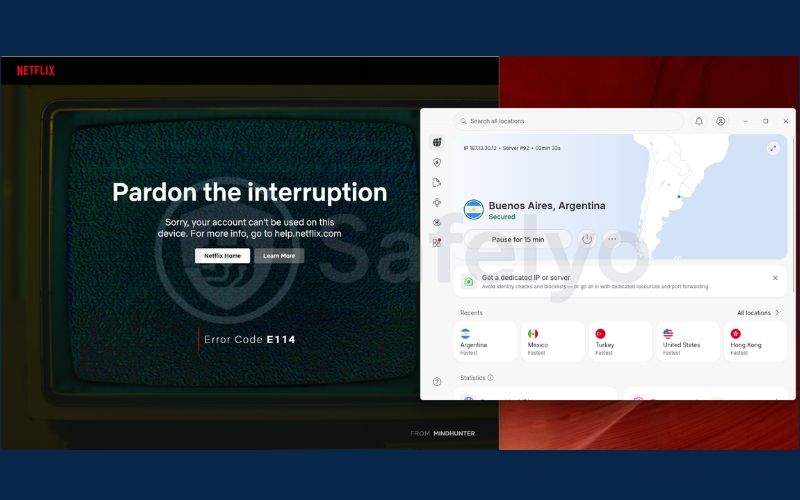
In contrast, services like Disney+, Hulu, and BBC iPlayer enforce strict access barriers upfront. Disney+ checks both server IP reputation and mobile GPS coordinates, returning Error 73 for geographic mismatches or Error 93 when account verification fails.
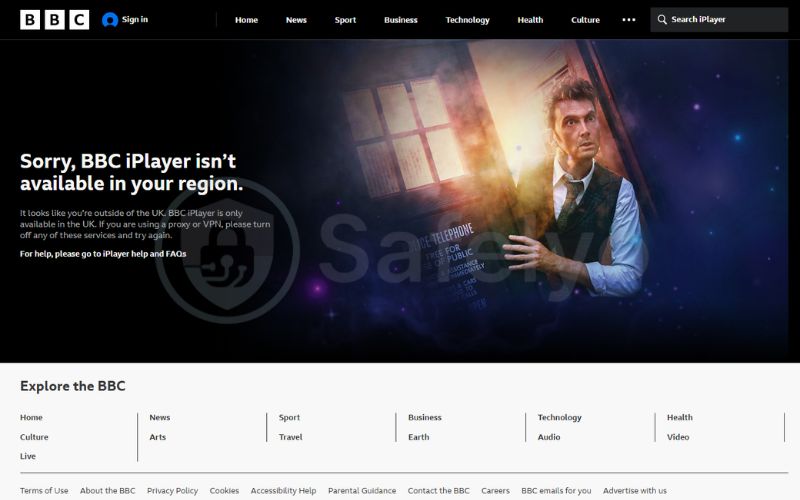

Hulu blocks flagged proxy IP addresses directly at the login screen, pairing IP filtering with strict domestic billing requirements.
BBC iPlayer cross-references incoming requests against commercial hosting registries to protect content funded directly by UK television license fees, refusing video playback whenever it detects a non-residential British IP address.
6. Performance trade-offs, account risks, and legal realities
Streaming with a VPN introduces measurable performance and privacy trade-offs that every subscriber should understand. Using an encrypted connection affects data routing, device performance, and account security.
The matrix below addresses common assumptions regarding streaming performance, account penalties, and free unblocking tools:
| User Concern | Common Myth | Technical Reality & Facts |
|---|---|---|
| Bandwidth & Latency | “A VPN speeds up streaming by stopping ISP throttling” | A VPN can prevent selective ISP throttling, but encryption overhead and distance usually lower baseline speeds. |
| Account Safety | “Streaming platforms will ban my paid account” | Platforms show temporary proxy errors to meet copyright rules; bans are strictly reserved for billing or payment fraud. |
| Free VPN Privacy | “Free VPNs unblock streaming libraries safely” | A Zimperium study revealed that many free VPNs leak user data, contain security vulnerabilities, and track user activity. |
While speed loss and temporary proxy errors are common when routing through distant servers, streaming platforms protect their licensing deals by blocking the flagged connection rather than terminating paying accounts. Account bans are strictly reserved for payment fraud, such as using foreign IPs to buy cheaper subscriptions with mismatched regional billing.
However, you should avoid untrusted free VPN apps to bypass these blocks. Because running global server networks requires substantial capital, free providers routinely monetize user traffic through embedded tracking libraries and ad-injecting proxies.
7. FAQs: Why streaming services block VPNs
Can streaming services terminate your paid account?
Streaming services almost never terminate paid accounts simply for using a VPN to stream movies. While using an unblocker technically breaches platform terms of service, providers fulfill their legal licensing duties by blocking the VPN’s IP address or serving a proxy error.
Because platforms depend on recurring subscriber revenue, account terminations are generally reserved for billing fraud or purchasing subscriptions with mismatched regional currencies.
Why does Netflix block VPNs while traveling?
Netflix blocks VPN connections during travel because automated firewalls cannot distinguish between a traveling subscriber and someone spoofing their location from abroad. Both types of users connect through commercial datacenter IP addresses that trigger automated security filters.
To resolve this, switch to streaming-optimized servers or use split-tunneling to route Netflix through your local connection while keeping sensitive data encrypted.
Why are worldwide original titles still visible?
You can still see original shows because the streaming platform owns those productions globally, meaning their broadcast violates no third-party copyright agreements.
When detection systems spot a probable VPN address, they enter a safe viewing mode that hides third-party licensed media restricted to specific countries while keeping global original titles visible. If regional movies vanish while originals remain, your VPN connection has been flagged.
Do VPNs slow down 4K video playback?
Yes, a VPN can cause buffering or lower your resolution if connection overhead drops your speed below the 25 Mbps required for smooth 4K Ultra HD video. Physical distance to the server and encryption processing naturally increase latency.
To maintain 4K playback, connect to the closest server in your target region and select fast, lightweight modern protocols like WireGuard.
Why does streaming fail on mobile apps?
Mobile streaming apps enforce stricter blocks because smartphones contain physical GPS hardware that reports your genuine geographic location regardless of your VPN address. Unlike desktop browsers that rely primarily on IP addresses and cookies, mobile apps cross-reference hardware sensors and local network names.
Revoking location permissions in your mobile operating system settings and matching your system clock to the server region usually fixes the issue.
Is streaming with a VPN legally permitted?
Yes, streaming with a VPN is entirely legal in the vast majority of countries, including the United States, Canada, the United Kingdom, and throughout Europe. While using an unblocker may violate a platform’s commercial terms of service, it is not a criminal offense in these jurisdictions.
However, countries with heavy internet censorship (such as China, Russia, or Iran) enforce strict national laws restricting unapproved VPN software.
Can SmartDNS fix streaming proxy errors on smart TVs?
Yes, SmartDNS often resolves proxy errors on devices that lack native VPN support, such as Samsung (Tizen) or LG (webOS) televisions. Instead of routing traffic through a commercial VPN tunnel, SmartDNS redirects only geographic verification queries while streaming the actual video over your trusted home residential IP address, bypassing datacenter blacklists.
However, it provides zero data encryption and can still fail if platforms enforce deep DRM checks or query hardcoded Google DNS addresses (8.8.8.8).
8. Conclusion
Knowing the real answer to the question, “Why do streaming services block VPNs?“, helps you troubleshoot connection errors without unnecessary frustration.
Platforms enforce regional content boundaries because studio licensing agreements require them to protect exclusive broadcast rights across different territories. Because detection systems continuously monitor hosting databases, traffic density, and protocol signatures, staying connected simply requires a few quick adjustments when an error pops up.
By selecting VPN providers that regularly cycle clean IP addresses, using obfuscated protocols, and clearing stored browser cache data, you can reliably resolve proxy errors and maintain smooth video playback.
Explore the VPN Guides category on Safelyo for verified setup walk-throughs, protocol optimization advice, and streaming evaluations.