
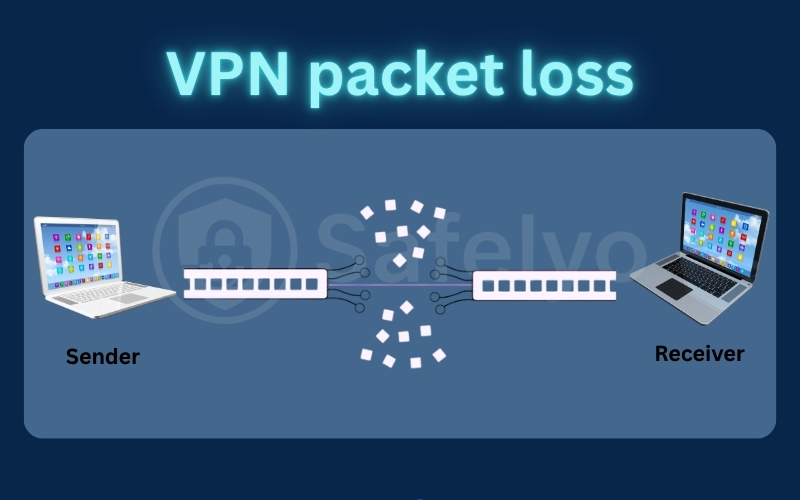
VPN packet loss occurs when network packets fail to reach their destination before, during, or after traveling through a VPN tunnel. While users often blame the application immediately, the issue frequently originates from the local network, the internet service provider, or the device hardware itself.
At Safelyo, we regularly test VPN performance and troubleshoot connection issues across multiple operating systems. This guide combines those observations with networking best practices to help you identify the exact failure point and resolve the drops systematically.
Key takeaways
- VPN packet loss: VPN packet loss occurs when data packets are dropped before, during, or after traveling through an encrypted VPN tunnel, resulting in lag, buffering, unstable connections, or interrupted downloads.
- Diagnosis comes first: Always test your internet connection without the VPN first to determine whether the packet loss originates from your local network, ISP, or the VPN itself.
- Common VPN-related causes: Server overload, incompatible VPN protocols, and MTU mismatches are the most common tunnel-specific causes of packet loss. Switching servers, changing protocols, or adjusting the MTU often resolves the issue.
1. What is VPN packet loss?
To fix dropped connections, you must understand how data travels across networks. Information on the internet does not move as a single continuous stream; instead, your device breaks files and messages into tiny digital pieces.
1.1. What is packet loss?
A packet is a small, formatted unit of data routed between an origin and a destination. Packet loss happens when one or more of these network packets fail to reach their intended target.
Depending on the protocol being used, missing packets may be retransmitted or simply lost, causing delays, degraded quality, or interruptions. File downloads using TCP may just take longer to complete, while real-time UDP activities such as competitive gaming or video calls can become completely unusable.
1.2. How VPN packet loss is different from normal packet loss
The key difference is the route each packet follows. Without a VPN, traffic follows the ISP’s default routing path:
Device → Local Router → ISP Routing → Destination Server.
A VPN adds a routing layer between your device and the destination server:
Device → Local Router → ISP Routing → VPN Tunnel/Server → Destination Server.
| Connection type | Possible packet loss points |
|---|---|
| Regular connection | Local network, ISP routing, destination server |
| VPN connection | Local network, ISP routing, VPN tunnel/server, destination server |
The encryption process also changes the size and structure of the packets. If the encrypted packet exceeds the maximum transmission unit (MTU) supported along the route, it may be fragmented or dropped when path MTU discovery fails.
These failures can increase latency and, in some network environments, directly contribute to severe packet loss.
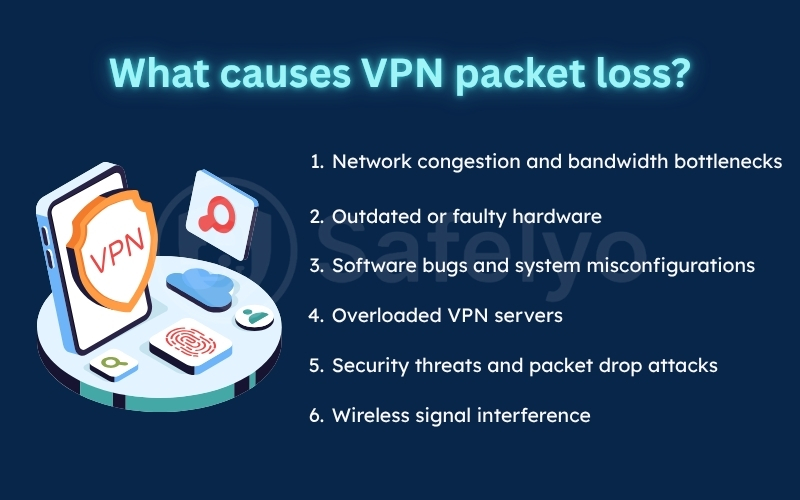
2. What causes VPN packet loss?
Not all packet loss is caused by your VPN software. Because your data passes through multiple network checkpoints, packets can be lost at any point along the route. Identifying where the failure occurs is the first step toward choosing the right fix.
| Where packets are lost | Common cause | Is the VPN responsible? |
|---|---|---|
| Local device | High CPU, outdated drivers | Usually not |
| Home router | Weak Wi-Fi, failing power supply, faulty cables | No |
| ISP network | Congestion, routing issues | No |
| VPN tunnel | MTU mismatch, protocol-related issues | Often |
| VPN server | Server overload, DDoS attacks | Yes |
- Network congestion and bandwidth bottlenecks
Congestion is the most common cause of data drops. When internet traffic reaches peak capacity, routers must place packets in a holding queue, occasionally dropping them entirely when the system cannot keep up with the queue overflow.
Bandwidth bottlenecks can also occur if a single slow link in your ISP’s routing chain becomes a choke point. This causes data to pile up faster than it can be cleared, leading to severe latency and dropped packets under heavy traffic demands.
- Outdated or faulty hardware
Faulty network equipment, such as old routers, switches, or modems, can interrupt data flow. Physical damage like frayed Ethernet cables or loose ports will also cause random signal drops before your traffic reaches the internet.
An overlooked physical issue is a failing router power supply. As hardware ages, power adapters deliver uneven voltage. When you run encrypted VPN traffic, the router’s processor spikes its power draw, causing the hardware to drop longer packets mid-transfer.
- Software bugs and system misconfigurations
Incorrect settings or outdated firmware create chaos in packet transmission, disrupting normal data flow. On computers and smartphones, outdated network drivers can conflict with how your operating system packages and transmits data.
MTU mismatches are a prime example of configuration errors. When the packet size exceeds the maximum transmission unit supported along the route, the packets are fragmented or dropped when path MTU discovery fails, leading to connection instability.
- Overloaded VPN servers
If your local network is completely stable, the problem likely originates inside the VPN connection itself. A major cause of this is server overload, where too many users connect to the same server simultaneously.
When a server’s bandwidth or CPU resources are exhausted, it cannot process incoming packets fast enough. The hardware is forced to drop packets, resulting in slower speeds and unstable connections.
- Security threats and packet drop attacks
Packet loss can also result from a deliberate security breach. Cybercriminals often target VPN servers with distributed denial-of-service (DDoS) attacks, forcing them to drop legitimate traffic.
Your connection can also fall victim to packet drop attacks (also known as black hole attacks). In this scenario, a hacker compromises a public router and instructs it to discard your data packets to disrupt your connection.
- Wireless signal interference
Data traveling over a Wi-Fi connection suffers from packet loss much more frequently than that via a wired connection. Wireless signals are inherently prone to interference from walls and nearby electronic devices.
When running a VPN, this wireless instability is compounded by encryption overhead. Switching from Wi-Fi to a wired Ethernet connection is often the fastest way to eliminate these local transmission errors.
3. What are the signs of VPN packet loss?
Packet loss does not always announce itself with an explicit error message; instead, it degrades your daily internet activities in very specific ways. Recognizing these symptoms helps you distinguish between general slow speeds and actual dropped data packets.
3.1. Gaming: Rubberbanding, lag spikes, and disconnections
In fast-paced online games, packet loss is immediately noticeable. You will often experience rubberbanding, where your character suddenly warps backward to a previous position because the game server missed your movement data. You will also notice sudden, massive lag spikes while your ping remains otherwise normal. If the packet loss rate becomes too high, the game server will assume your connection has completely timed out, resulting in an abrupt disconnection mid-match.
3.2. Video calls: Frozen video, choppy audio, and delayed voice
Video conferencing applications like Zoom or Microsoft Teams rely on real-time UDP data streams. Because these streams do not wait for dropped packets to retransmit, even minor packet loss causes choppy, robotic audio and broken sentences. You will also experience frozen video frames while the audio continues or vice versa. In severe cases, the call will drop entirely or suffer from significant voice delays, making natural conversation impossible.
3.3. Streaming: Buffering, reduced quality, and playback interruptions
Modern streaming platforms like Netflix or YouTube use adaptive bitrate streaming to handle network issues. When packet loss occurs, the player will automatically downgrade your video resolution to 480p or lower to prevent the stream from stopping entirely. If the packet loss is severe, the player’s buffer will exhaust itself, resulting in frequent buffering wheels and sudden playback interruptions while the application struggles to retrieve the missing video segments.
3.4. Web browsing: Slow page loading, timeout errors, and failed downloads
Standard web browsing uses TCP, which automatically requests retransmission for any lost packets. While this prevents data corruption, it causes web pages to load incredibly slowly, sometimes resulting in connection timeout errors. Large file downloads will also suffer. If a single packet is lost and cannot be recovered during a direct download, the entire file transfer may fail near the end, forcing you to restart the download from scratch.
4. How to diagnose VPN packet loss
To fix network drops permanently, you must first isolate where the packets are actually being lost. We recommend following these diagnostic steps to identify the root cause before changing your system configurations.
4.1. Step 1: Check whether packet loss happens without the VPN
The easiest way to find out whether your VPN is causing packet loss is to test your internet connection before turning the VPN on.
- Step 1: Disconnect your VPN.
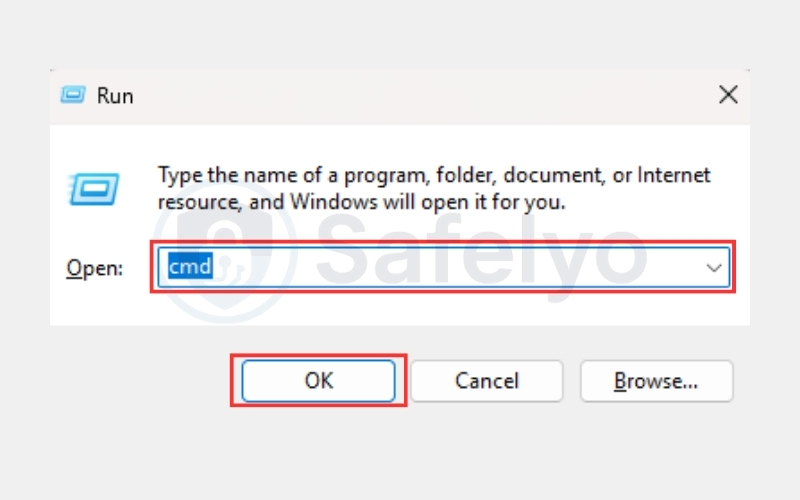
- Step 2: Open Command Prompt on Windows or Terminal on macOS.
Windows
Press Windows + R, type cmd, and press Enter
macOS
Open Spotlight (Command + Space), type Terminal, and press Return.
- Step 3: Run one of the commands below:
Windows
ping 1.1.1.1 -n 100macOS
ping -c 100 1.1.1.1- Step 4: When the test finishes, look for the Lost or Packet loss value.
For example:
Packets: Sent = 100, Received = 100, Lost = 0 (0% loss)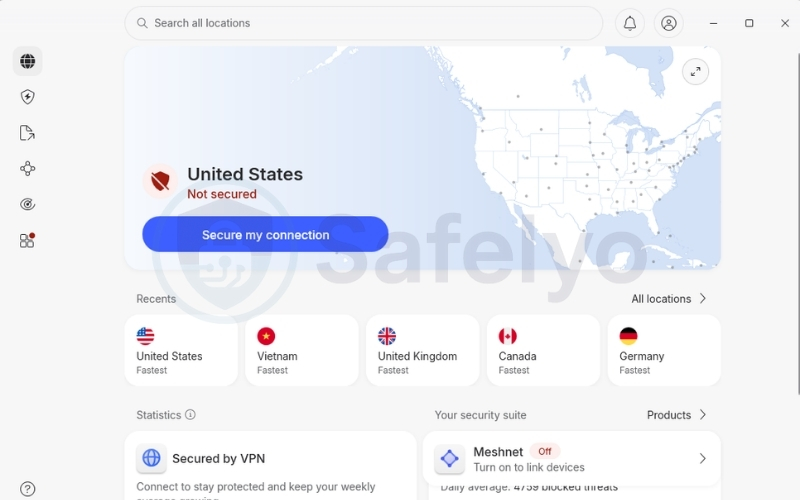
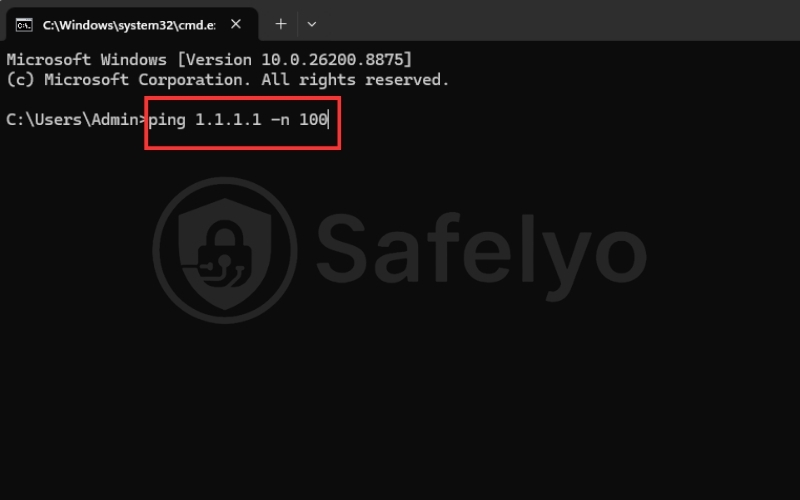
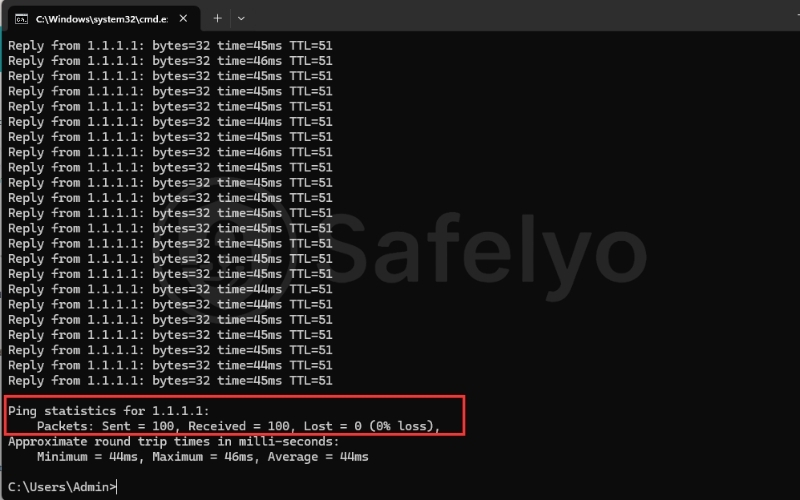
A result of 0% loss means your internet connection is healthy. If you only experience packet loss after connecting to the VPN, the VPN server, protocol, or tunnel settings are more likely to be responsible.
4.2. Step 2: Test another VPN server
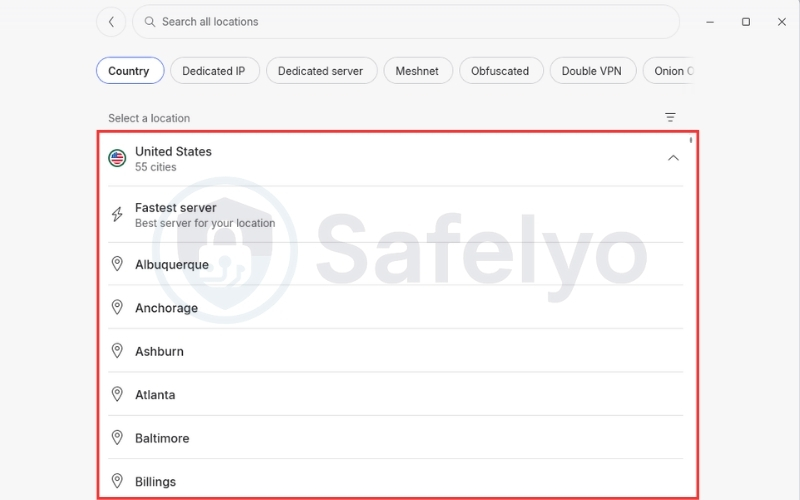
If your internet connection works normally without the VPN, the current VPN server may be overloaded or experiencing temporary issues. Connecting to another server is one of the quickest ways to determine whether the server is causing the packet loss.
- Step 1: Open your VPN app and disconnect from your current server.
- Step 2: Connect to a different server. If possible, choose a nearby location or another city in the same country.
- Step 3: Repeat the ping test using the same command as before.
Windows
ping 1.1.1.1 -n 100macOS
ping -c 100 1.1.1.1- Step 4: Compare the new results with your previous test.
- Packet loss disappears or decreases: The original VPN server was likely overloaded or experiencing network issues.
- Packet loss remains the same: Continue to the next troubleshooting step, as the issue may be related to the VPN protocol or your network configuration.
4.3. Step 3: Change the VPN protocol
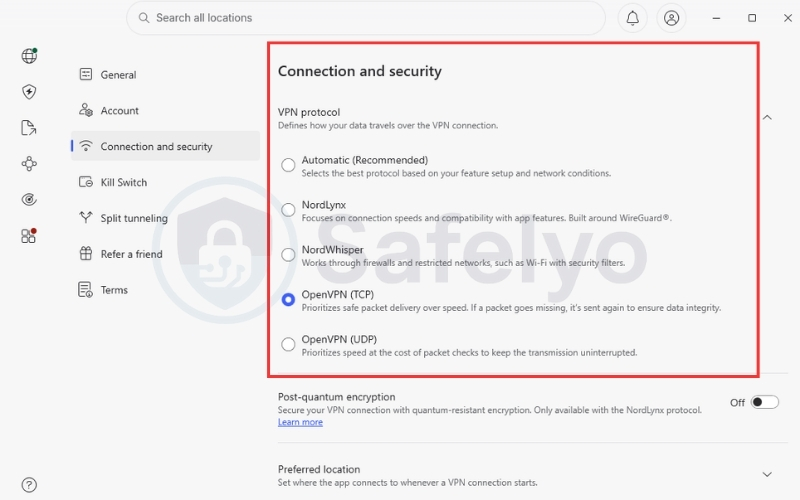
Different encryption protocols package data and communicate with networks in completely different ways. Some VPN protocols are more prone to packet drops on restrictive or unstable Wi-Fi networks.
- Step 1: Open your VPN app settings and locate the connection protocol menu.
- Step 2: Switch from your current protocol (such as WireGuard) to OpenVPN TCP.
- Step 3: Test the connection again; OpenVPN TCP’s packet delivery verification often bypasses local network blocks that drop UDP packets.
4.4. Step 4: Run a ping, traceroute, or pathping test
Command-line diagnostic tools are invaluable for identifying the exact network hop where your packets are dropping. Understanding which tool to use will help you isolate failures at the local, ISP, or VPN level.
| Tool | Best for |
|---|---|
| Ping | Quick testing of overall packet loss and latency |
| Traceroute (tracert) | Identifying the exact network hop where latency spikes or drops occur |
| Pathping | Advanced combined testing that measures packet loss at individual hops over time |
- Step 1: Make sure your VPN is connected.
- Step 2: Open Command Prompt on Windows or Terminal on macOS.
- Windows: Press Windows + R, type cmd, and press Enter.
- macOS: Open Spotlight (Command + Space), type Terminal, and press Return.
- Step 3: Run the appropriate command.
Windows (Pathping)
pathping 1.1.1.1macOS (Traceroute)
traceroute 1.1.1.1- Step 4: Review the results to find where the connection starts failing.
- Problems at the first hop may indicate issues with your device or home router.
- Problems within your ISP’s network may suggest routing or congestion issues.
- Problems near the VPN server may indicate VPN-related issues.
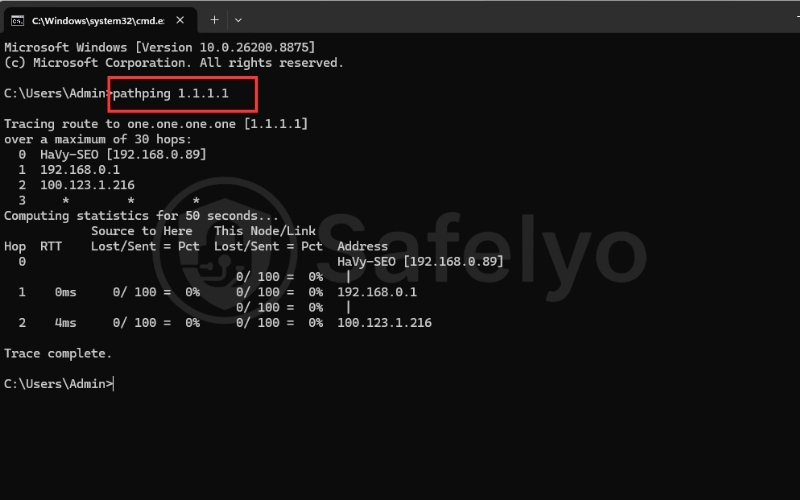
In this example, the first two hops show 0% packet loss, indicating that the local computer, home router, and the initial ISP connection are functioning normally. The asterisks (*) at later hops do not necessarily indicate packet loss; many routers and VPN providers simply block ICMP responses used by pathping.
4.5. Step 5: Test the MTU
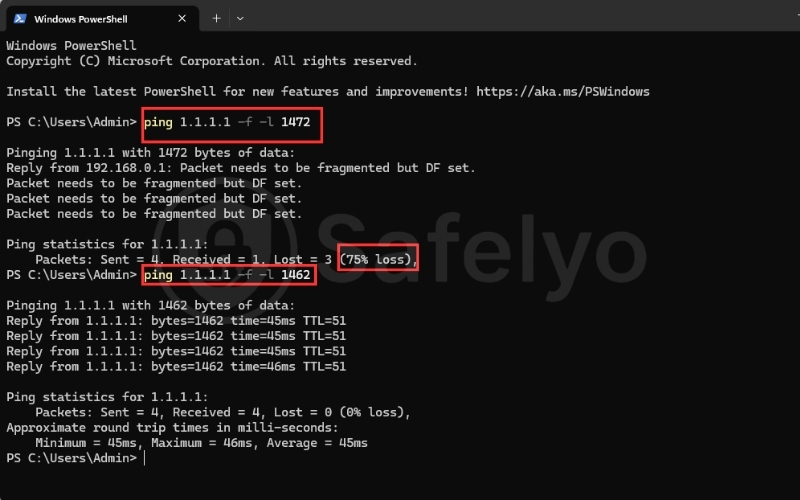
An incorrect Maximum Transmission Unit (MTU) setting can cause packets to be fragmented or dropped, resulting in packet loss over a VPN connection. Testing your MTU helps determine whether packet size is contributing to the problem.
Step 1: Open Command Prompt on Windows. Press Windows + R, type “cmd” then press Enter.
Step 2: Run the following command:
ping 1.1.1.1 -f -l 1472-fprevents packets from being fragmented.-l 1472sets the packet size to 1472 bytes.
Step 3: Check the result.
If you see a message similar to the following:
Packet needs to be fragmented but DF set.Your current MTU is too large.
If you receive normal replies, such as:
Reply from 1.1.1.1: bytes=1472 time=45ms TTL=52The packet size is supported.
Step 4: If fragmentation occurs, reduce the packet size by 10 bytes and test again.
For example:
ping 1.1.1.1 -f -l 1462Repeat until the ping succeeds without fragmentation.
Step 5: Use the largest packet size that works without fragmentation as a reference when adjusting your VPN’s MTU setting.
5. How to fix VPN packet loss
Once you identify where packets are being dropped, you can apply targeted fixes to improve connection stability and minimize packet loss.
- Improve your network connection
Closing background applications, pausing active downloads, and limiting the number of connected devices frees up local bandwidth. This reduces queue overflow on your router, allowing your VPN packets to traverse the network without waiting. Apply this fix if your baseline ping test (with the VPN disabled) already shows packet loss or highly unstable latency.
- Switch to a nearby VPN server
Connecting to a geographically closer server minimizes the physical routing distance. This reduces the number of intermediate routers your data must pass through, lowering the mathematical probability of packets dropping. Use this solution if your local internet is healthy, but connecting to a distant VPN server causes your latency to spike.
- Try another VPN protocol
Switching protocols changes how your data is packaged and sent over the web. Changing from UDP to OpenVPN TCP over port 443 makes your VPN traffic look like normal HTTPS, preventing strict firewalls from dropping the packets. Use this fix if you are connecting from a restrictive corporate, school, or hotel network.
- Adjust the MTU size
Lowering your VPN’s MTU setting ensures all packets fit within the network’s maximum allowed size. This prevents forced packet fragmentation and stops intermediate routers from dropping packets when Path MTU Discovery (PMTUD) fails. Apply this advanced fix if your diagnostic ping tests with the “do not fragment” flag show packet drops.
- Restart your hardware and operating systems
Power-cycling your computer, router, and modem clears temporary cache, applies pending firmware updates, and frees up critical system memory. This simple action resets your local network drivers and resolves many persistent handshake errors. It is an ideal first step if packet loss occurs across all devices in your household.
- Update your operating system and VPN app
Installing the latest updates replaces corrupted driver files and applies critical software patches. Leaning on the ongoing updates from developers at Microsoft, Apple, and your VPN provider ensures your network drivers run efficiently. Use this fix if you experience unexpected application crashes or packet drops shortly after launching the VPN client.
- Configure Quality of Service (QoS) settings
Enabling Quality of Service (QoS) rules in your router admin panel organizes your network resources. It instructs your router to prioritize latency-sensitive data, such as VoIP and gaming packets, over standard web browsing. This prevents high-volume downloads from crowding out your real-time secure VPN tunnel.
- Switch from Wi-Fi to a wired Ethernet connection
A physical Ethernet cable provides a dedicated, shielded pathway for your data, eliminating environmental wireless interference from walls or surrounding networks. This stabilizes your ping and prevents local packet loss. We highly recommend this setup whenever you are gaming, making video calls, or downloading large files.
- Strengthen your router’s security configuration
Securing your router’s admin panel, turning on encryption, and changing your default passwords regularly blocks unauthorized access. This prevents cyberattackers from hijacking your router and launching malicious packet-drop attacks. It is an essential preventive measure if you notice sudden, extremely high packet loss across your entire network.
- Contact your internet service provider
Informing your ISP allows their technicians to check your physical line quality or re-route your traffic around congested nodes. They can identify if an aging hardware switch on their end is dropping your packets. Use this as a final step if you experience high packet loss on a wired connection even when your VPN is disabled.
6. Can a VPN reduce packet loss?
Before answering whether a VPN can reduce packet loss, it’s worth addressing another common question: Does a VPN slow down the Internet? The answer depends on your server location, protocol, and network conditions. A VPN may reduce raw download speed because of encryption overhead and rerouting traffic through a remote server, but slower internet speed does not necessarily mean packet loss is occurring.
A VPN can significantly reduce packet loss if your ISP is using poorly optimized routing paths or intentionally throttling high-bandwidth traffic. By encrypting your data, the VPN prevents the ISP from identifying your traffic type, which can allow your packets to travel through a cleaner and more efficient route.
Conversely, a VPN can increase packet loss if you connect to an overloaded server or choose a location that is geographically too far away. In addition, devices with limited processing power may struggle to handle encryption efficiently, creating a bottleneck that causes packets to be delayed or dropped before they reach your router.
7. VPN packet loss vs latency vs jitter
To diagnose network performance accurately, you must distinguish between the three primary metrics that govern connection quality. While they are closely related, they represent completely different types of transmission failures.
The table below outlines how these metrics differ and how they physically impact your daily internet browsing.
| Metric | Meaning | User experience |
|---|---|---|
| Packet loss | The percentage of sent data packets that fail to reach their destination | Abrupt disconnects, frozen video frames, and completely broken audio |
| Latency (Ping) | The time it takes for a data packet to travel to the server and back | Delays in real-time actions, slow website response, and heavy lag |
| Jitter | The variance or fluctuation in packet arrival times over a network connection | Stuttering performance and highly inconsistent audio or video quality |
In our network audits, we find that high jitter is often a precursor to packet loss. When the timing of incoming packets becomes too erratic, your operating system’s temporary holding buffer overflows, forcing the device to drop packets to catch up with the stream.
8. How much packet loss is acceptable?
While the ideal network experiences absolutely zero dropped data, some level of packet loss is expected on modern public connections. The exact threshold of what is tolerable depends entirely on your daily online activities and the transport protocols they use.
The table below outlines the acceptable packet loss thresholds and their typical impact on different internet applications.
| Packet Loss % | Status | Typical Impact |
|---|---|---|
| Below 1% | Good / Normal | Negligible impact on all activities; standard browsing, gaming, and 4K streaming remain smooth. |
| 1% to 2% | Acceptable | Mild impact; subtle voice stutters during VoIP calls, but general browsing and file downloads are unaffected. |
| 2% to 5% | Unacceptable for Real-Time | Severe lag and rubberbanding in online games; choppy audio and frozen frames during video calls. |
| Above 5% | Critical Failure | Constant disconnections, failed downloads near completion, and completely unusable network services. |
TCP-based applications like web browsers or email clients handle up to 5% packet loss relatively well because they automatically retransmit lost data. However, UDP-based real-time services like gaming or video calls degrade severely the moment packet loss exceeds 1%, as they do not wait to recover lost packets.
9. When to suspect the VPN is the problem
Isolating whether your VPN or your local network is causing the drops can prevent you from performing unnecessary system resets. Follow this step-by-step diagnostic sequence to identify the root cause of your connection issues immediately.
- Step 1: Test your connection without the VPN. Disconnect your VPN completely and run a baseline ping test to verify your local network’s raw health.
- Step 2: Isolate your local connection. If the packet loss remains active with the VPN disabled, the issue lies with your local Wi-Fi, home router, or ISP.
- Step 3: Test different server locations. If the packet loss disappears when the VPN is off, reconnect and manually switch to a different, geographically closer server.
- Step 4: Adjust your protocol and MTU settings. If the drops persist across multiple servers, change your protocol to OpenVPN TCP or adjust your MTU size.
This diagnostic process helps ensure you do not waste time resetting physical network adapters when a simple server switch or protocol change would resolve the issue. If the drops disappear entirely when the VPN is off, focus your troubleshooting efforts on your VPN application settings.
10. How to prevent VPN packet loss
While knowing how to fix active drops is crucial, implementing long-term preventive measures is the best way to maintain a highly stable connection. Regular system maintenance and smart network habits can stop packet loss before it starts.
- Select geographically close servers: Always prioritize servers with low latency and low user load to reduce the physical hops your data must make.
- Default to the WireGuard protocol: Use WireGuard or proprietary equivalents like Lightway to minimize cryptographic CPU overhead and reduce packet fragmentation.
- Prioritize a wired Ethernet connection: Connect your high-priority devices directly to your router with a high-quality Ethernet cable to eliminate Wi-Fi interference.
- Keep your system software updated: Set your operating system, network drivers, and VPN application to update automatically to patch known connectivity bugs.
- Monitor your local hardware resources: Check your device’s task manager to ensure background applications are not overloading your CPU and causing data processing bottlenecks.
11. Frequently asked questions
Can a VPN cause packet loss?
Yes, a VPN can cause packet loss if you connect to an overloaded server or if there is an MTU mismatch between your device and the VPN tunnel. However, it often simply exposes or worsens an underlying issue on your local network.
Is some packet loss normal?
On standard residential internet connections, a minor packet loss of under 1% is completely normal and usually unnoticeable during web browsing. However, even this small percentage can cause stuttering or rubberbanding during real-time multiplayer gaming.
Which VPN protocol is best for minimizing packet loss?
WireGuard is generally the best protocol because its lightweight codebase and low cryptographic overhead minimize processing strain. If you are on a restricted network, switching to OpenVPN TCP over port 443 provides the best compatibility to bypass blocks.
Why does packet loss only happen when I turn on my VPN?
This typically indicates that the VPN server is congested or that the encryption overhead is causing packets to exceed your local MTU size. It can also happen if your local security software is mistakenly blocking VPN traffic.
Can Wi-Fi cause VPN packet loss?
Yes, Wi-Fi is highly prone to packet loss due to environmental physical barriers, thick walls, and signal interference from neighboring wireless routers. The processing demands of VPN encryption often magnify this instability.
12. Conclusion
Experiencing VPN packet loss is frustrating, but the most important takeaway is that your security application is not always the culprit. Isolating the root cause of these network drops through a systematic diagnostic process is far more effective than randomly changing your settings.
Starting with simple fixes like restarting your hardware or switching servers can resolve most connection drops. To deepen your understanding of optimizing your secure tunnel, explore our VPN Guide at Safelyo today.