
A VPN kill switch instantly cuts your internet access if your secure tunnel drops, preventing your real IP address and unencrypted web activity from leaking to the local network.
When comparing kill switch vs no kill switch, running a VPN without this fail-safe means your device quietly defaults to your regular internet provider in milliseconds the moment a connection drops. This creates silent exposure, leaving your real IP address visible to your internet service provider, or exposed to packet sniffers if you happen to be on an unsecured public hotspot.
In this guide, we explore how sudden VPN drops impact your privacy with and without a kill switch. You will also learn the differences between system-level and strict modes, alongside proven methods to test your connection.
Key takeaways:
- A kill switch prevents silent IP exposure by cutting internet access the moment a secure connection drops.
- System-level switches protect the entire device, while app-level switches target specific software like torrent clients.
- Soft switches activate only during accidental drops, whereas strict modes block all traffic whenever the VPN is offline.
- You can configure a native, operating system-level kill switch on mobile devices using Android settings.
Network privacy and kill switch behavior depend on your operating system and VPN configuration. This article is for informational purposes only. Please use VPNs responsibly and legally.
1. Kill switch vs no kill switch: A side-by-side comparison
When a VPN tunnel disconnects, your device automatically tries to keep you online by routing traffic through your regular internet. A kill switch prevents this unencrypted fallback by freezing all traffic until the secure connection recovers.
Here is how your connection behaves under both setups:
| Feature / Scenario | With a kill switch | Without a kill switch |
|---|---|---|
| Connection drop behavior | Instant network block | Silent exposure in milliseconds |
| Data security | No leaks (IP or DNS) | Data trail left for ISPs and snoopers |
| Network safety | Immediate traffic block on public Wi-Fi | Uninterrupted but unprotected browsing |
| Reconnection process | Auto-resumes the secure tunnel | Quietly defaults to the local provider |
(Note: ISPs refers to your local Internet Service Provider, while DNS leaks reveal the actual websites you are trying to visit.)
Without a kill switch, your device trades privacy for uninterrupted access, quietly routing your traffic to the local provider with no warning that encryption has failed. In contrast, an active kill switch immediately freezes outgoing data to keep your connection details private.
2. Why VPNs disconnect and what happens next
VPN connections often drop from simple issues like weak Wi-Fi or background software tasks. When this happens, your operating system automatically falls back to an unencrypted connection, instantly exposing your data.
The most common causes of unexpected VPN drops include:
- Network switching: Moving between Wi-Fi access points or transitioning from home Wi-Fi to a mobile data network.
- ISP interference and router firewalls: Network-level packet inspection or brief router resets that disrupt persistent UDP or TCP connections.
- The Sleep/Wake cycle: Laptops waking from sleep mode frequently restore basic Wi-Fi links seconds before the VPN client can re-establish its tunnel.
- Server overloads and timeouts: Routine server maintenance, sudden capacity spikes, or routing handshakes that time out.
- Antivirus software conflicts: Overly strict third-party antivirus software identifying encrypted tunnels as unauthorized network changes and blocking them.
- Weak physical signals: Walking too far from a wireless router, which causes packet loss and drops the handshake.
When any of these events happen without a kill switch running, your computer immediately routes all traffic through your standard internet service provider.
This transition happens so quickly that an active download or background sync task will expose your real IP address to local network observers before you notice the VPN icon disappear from your system tray.
3. How a kill switch protects your data when your VPN drops
Instead of allowing your system to fall back to an open connection, a kill switch manages your device’s native routing tables and firewall rules (such as the Windows Filtering Platform).
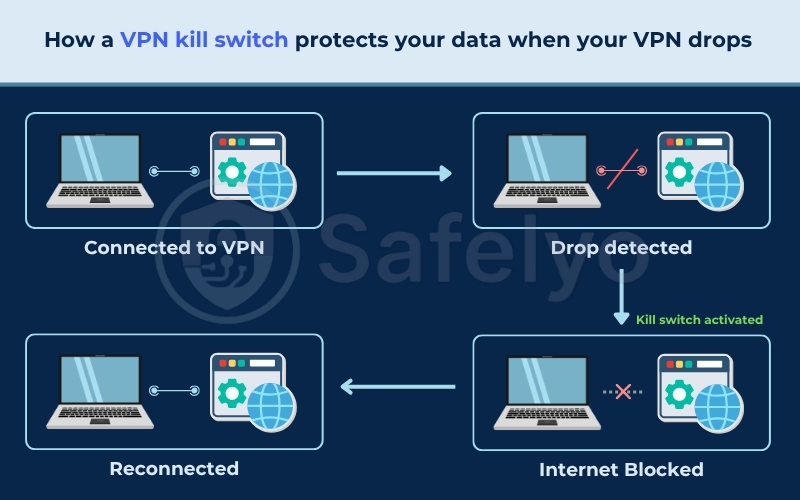
When a disconnect occurs, the software immediately commands your operating system to discard all outgoing packets. This prevents unencrypted web traffic, DNS queries, and background application data from leaving your network adapter until a secure handshake with the VPN server is restored.
For example, imagine you are downloading a large work file while connected to public coffee shop Wi-Fi, and your VPN tunnel unexpectedly crashes due to server congestion. Instead of letting your laptop quietly fall back to the open coffee shop network and expose your real IP address to local snoopers, the kill switch instantly severs all network traffic until your encrypted tunnel is restored.
If you frequently connect to cafe or airport hotspots, read our guide on the best VPNs for public Wi-Fi to find options with reliable kill switch protection.
4. System-level vs app-level: Which do you need?
Kill switches protect your traffic in two ways: across your entire operating system (system-level) or for selected applications only (app-level).
A system-level kill switch shuts down all internet connectivity across your entire operating system if the VPN fails. This means background services like email synchronizations, cloud storage backups, and automated operating system updates cannot send unencrypted data until the secure tunnel recovers.
An app-level kill switch applies restrictions only to specific executable programs you choose, such as a browser or a torrent client. If the VPN connection drops, the software closes or halts traffic for those chosen apps while the rest of your computer stays connected to the local internet.
If you look at popular providers, many give you the option to choose between both methods. NordVPN, for example, clearly separates these functions in its desktop settings. Inside the client, you can turn on an Internet Kill Switch for comprehensive system-level blocking, or configure an App Kill Switch that shuts down specific applications if the tunnel drops.
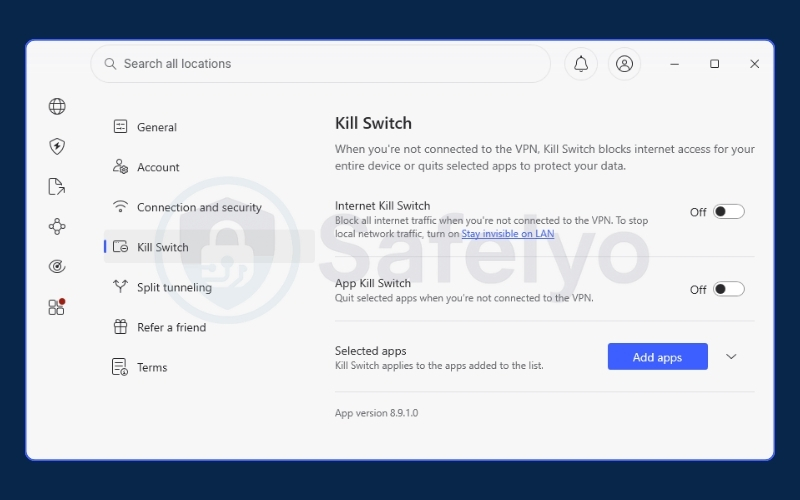
For general privacy, system-level configurations provide the most reliable safeguard against background data leaks.
5. Understanding soft vs. strict kill switch modes
Kill switches also operate in two distinct modes, which determine how the software behaves during manual disconnects vs accidental drops:
- Soft Kill Switch (Standard Mode): Activates only when the VPN disconnects unexpectedly due to network errors. If you manually click the disconnect button inside the app, the software removes the block and lets your device use the local network normally.
- Strict Kill Switch (Permanent Mode): Blocks all internet traffic unconditionally whenever the VPN tunnel is inactive. If you shut down the application, exit the client, or reboot your machine, your network adapter remains blocked until you launch the VPN and connect to a server.
Because VPN providers rarely use the academic terms ‘soft’ or ‘strict’ in their settings, seeing how a real provider implements them makes this distinction much easier to follow.
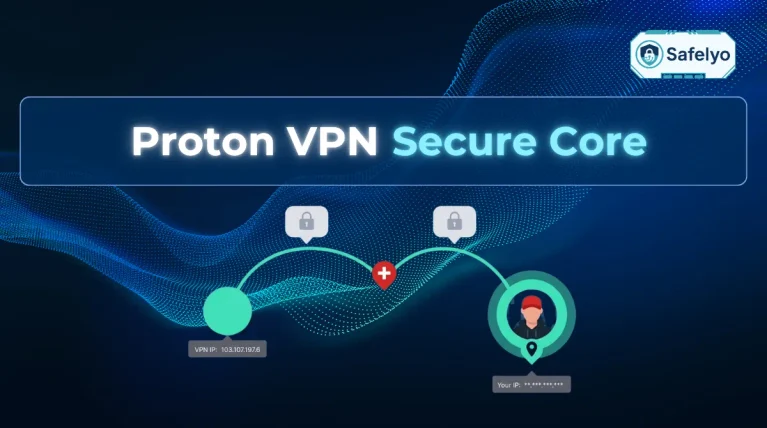
Proton VPN offers a great practical example of this setup. Its regular Kill switch serves as the standard soft mode, protecting against sudden network drops without interfering when you disconnect on purpose. On the other hand, its Advanced Kill Switch enforces strict protection, ensuring your device cannot access the internet unless an active server connection is running.
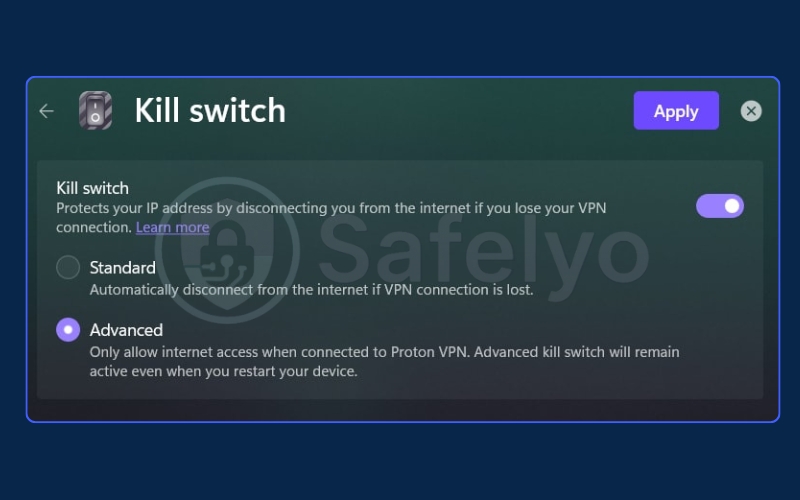
Warning: If your web browser suddenly refuses to load pages after you start your computer, check your VPN application before calling your internet provider. A strict kill switch blocks all internet traffic until the VPN software opens and connects to a server.
6. How to test your kill switch and alternative setups
Never assume a kill switch is working without testing it first. If your VPN software behaves inconsistently, you can verify its fail-safe protection or configure built-in operating system settings as a backup.
6.1. How to test your kill switch safely
Clicking the disconnect button inside your VPN app does not accurately test fail-safe protection, as soft kill switches are programmed to cleanly restore normal internet access during manual disconnections.
To properly simulate a sudden tunnel failure while your physical internet stays active, follow these steps:
- Open your browser and go to an IP verification tool like ipleak.net to confirm your VPN IP is active.
- Disable your active VPN tunnel interface:
- On Windows: Press Win + R, type ncpa.cpl, and press Enter. Locate the VPN adapter (labeled with the VPN name, WireGuard, or TAP/TUN), right-click it, and select Disable.
- On macOS: Open Terminal and enter sudo ifconfig utun3 down (replace utun3 with your active VPN tunnel interface), or toggle off the specific VPN profile under System Settings > Network.
- Immediately open a new browser tab and try visiting any website.
- Pass: The page fails to load and displays a network error. This confirms the kill switch successfully blocked unencrypted fallback traffic.
- Fail: The page loads normally and reveals your real IP address and ISP, indicating your fail-safe did not engage.
(Alternative app-crash test: You can also test process resilience by opening Task Manager / Activity Monitor and force-closing the VPN’s background service to verify whether its system-level firewall rules remain active.)
6.2. Enabling Android always-on VPN
If you use an Android device, you can use the operating system’s native network controls as an alternative to third-party app toggles. This operating system feature locks all data transmission to the VPN adapter directly.
To configure this on standard Android devices, follow these steps:
- Open your phone settings and navigate to Settings > Network & internet > VPN.
- Tap the Gear Icon located next to your active VPN application.
- Toggle the switch for Always-on VPN to the active position.
- Toggle the switch for Block connections without VPN to turn on strict operating system-level blocking.
If you use a Samsung Galaxy device, the settings menu uses a slightly different path:
- Open your device settings and go to Settings > Connections > More connection settings > VPN.
- Tap the Settings Gear next to your installed VPN app.
- Toggle the switch for Always-on VPN.
- Toggle the switch for Block connections without VPN to enforce strict system-level blocking.
Once enabled, Android freezes all incoming and outgoing mobile data and Wi-Fi traffic whenever the VPN connection is inactive. Your phone will not allow background app updates, messaging notifications, or web browsing to transmit a single packet over your carrier or local router until the encrypted VPN tunnel is fully connected.
7. FAQs about kill switch vs no kill switch
7.1. Should you always have your kill switch on?
It is highly recommended when handling sensitive information or browsing on public networks. However, for casual home browsing or online gaming, some users choose to leave it off to prevent brief network glitches from interrupting their connection.
7.2. Do VPN providers use different names for a kill switch?
Yes. While most services simply call it a Kill Switch, several major providers use proprietary branding or specific labels for different modes:
- ExpressVPN: Calls its kill switch Network Lock.
- NordVPN: Splits the feature into Internet Kill Switch (system-wide) and App Kill Switch (specific programs only).
- Proton VPN: Offers a standard Kill Switch alongside an Advanced Kill Switch (permanent lockdown mode).
7.3. Is a kill switch really necessary for everyday browsing?
For basic tasks like streaming videos or reading the news on your home Wi-Fi, a kill switch is not strictly necessary since a brief disconnection carries minimal risk.
However, if you download torrents, connect to public hotspots, or handle sensitive financial accounts, keeping this fail-safe active is essential to prevent accidental data leaks.
7.4. Can network monitors see your activity if the connection drops?
If your VPN drops without an active kill switch, your real IP address and unencrypted data requests instantly route through your standard internet provider. Any entity monitoring your local connection or Wi-Fi router can see the websites you visit from that moment on.
8. Conclusion
Choosing between kill switch vs no kill switch comes down to how much risk you are willing to take when your connection drops.
While a VPN keeps your data private during normal use, you cannot always predict server glitches or weak Wi-Fi signals. Leaving your VPN without a kill switch means you accept the chance of sudden IP leaks at the worst possible times.
For most everyday users, keeping a standard system-level kill switch turned on gives you the best mix of simple browsing and full leak protection. Take a moment right now to check your VPN app or mobile settings, turn on your kill switch, and run a quick test to make sure your private information stays protected.
Explore our extensive VPN Guides on Safelyo for more in-depth privacy tutorials and security reviews.