You finally settled on the couch, popcorn in hand, ready to binge that new show everyone is talking about, only to see the dreaded message: “This title is not available in your location.“
Or perhaps you have noticed your stream buffering constantly every evening, suspecting your Internet Service Provider (ISP) is throttling your speed.
Learning how to use VPN on Firestick is the single most effective way to solve both problems instantly.
In this guide, you’ll learn the proven ways to use a VPN on Firestick, followed by essential troubleshooting tips to keep your streaming smooth and buffer-free.
-
Method 1: Install via Amazon Appstore
Search for your VPN provider → Click Download/Get → Open App → Log in and Connect.
-
Method 2: Sideload via Downloader (APK)
Enable Developer Options → Open Downloader App → Enter Direct APK URL → Install manually.
-
Method 3: Router installation
Check Router Firmware for VPN Client → Configure → Connect Firestick to Wi-Fi.
-
Method 4: Screen mirroring (backup)
Connect VPN on Android/Windows → Enable Display Mirroring on Fire TV → Cast screen to TV.
1. Why use a VPN on Fire TV Stick?
A VPN hides your location to unlock global content and encrypts your connection. Beyond just streaming, it provides critical privacy protections:
- Stop ISP snooping: Prevents your ISP from tracking your viewing habits and selling that data to advertisers.
- Public Wi-Fi safety: Secures your connection against hackers if you use your Fire TV Stick in hotels or Airbnbs.
- Avoid throttling: Stops ISPs from intentionally slowing down your speed when they detect high-bandwidth streaming.
2. Preparation steps: Before you start
Before you dive into the installation, we need to make sure your equipment is ready. Skipping this step is why many users fail on their first attempt.
2.1. Check your Firestick generation
First, you must verify if your device supports VPNs directly. First-generation Fire Sticks (the ones without Alexa voice remotes) possess processors that are too slow to run modern VPN apps efficiently.
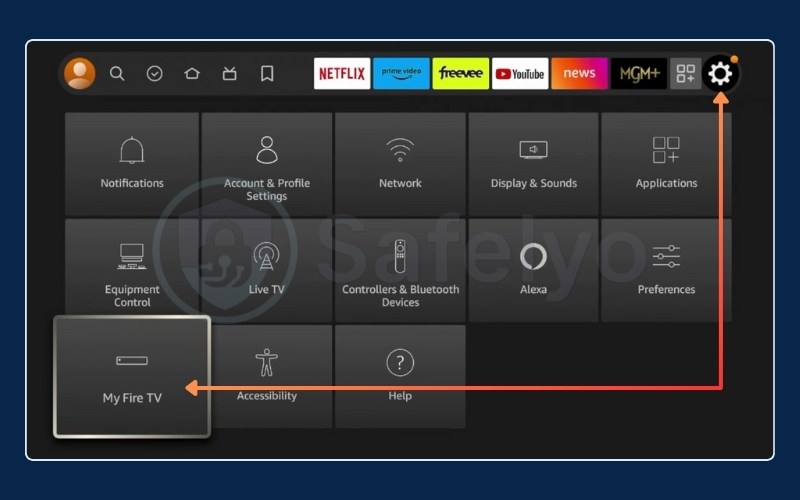
To check your model, navigate to Settings > My Fire TV (or Device & Software) > About.
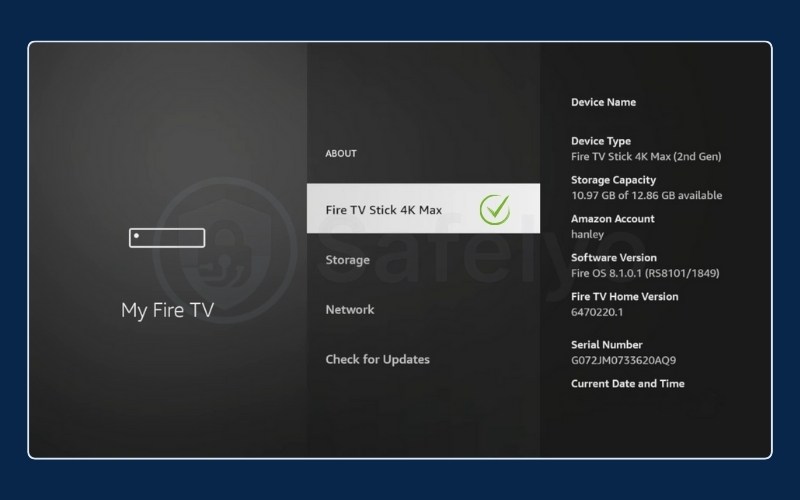
Compatible devices (supported):
- Fire TV Stick (2nd Gen and later)
- Fire TV Stick 4K and 4K Max
- Fire TV Cube (1st and 2nd Gen)
- Fire TV Stick Lite
Incompatible devices (not supported):
- Fire TV Stick (1st Gen): Usually has a smaller remote without a voice button.
- Fire TV (1st Gen box): The flat, square console box style.
Why? These older devices use 32-bit architecture that modern VPN apps no longer support. If you own one of these, skip directly to Method 3 (Router installation).
2.2. The Vega OS warning
Amazon is slowly rolling out a new operating system called Vega OS (Linux-based) to replace the Android-based Fire OS on newer devices.
While most current Fire Sticks still run Fire OS, if you have a brand-new device that does not support Android apps, native VPN apps might be limited. However, for the vast majority of users in 2026, the methods below work perfectly on Fire OS.
2.3. Check your baseline speed
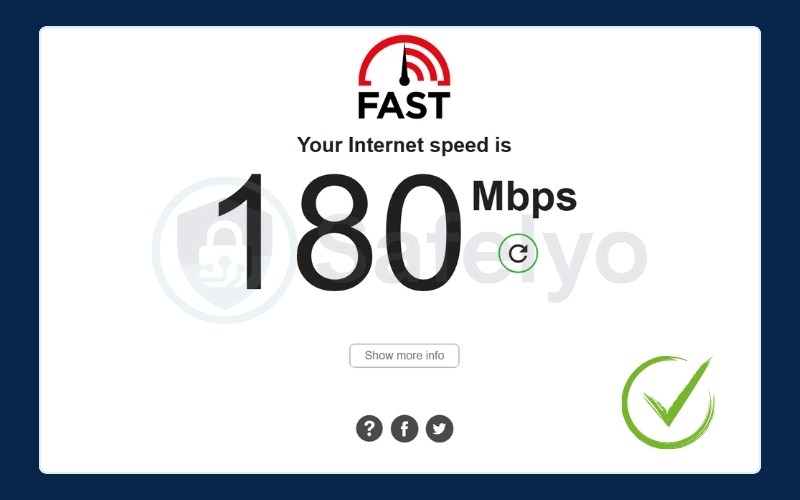
A VPN will slightly slow down your internet due to encryption overhead. To ensure you can stream 4K content without buffering, run a quick speed test before connecting.
- Open the Silk Browser on your Firestick.
- Go to fast.com.
- If your speed is above 25 Mbps, you have enough bandwidth for 4K streaming even with a VPN connected.
2.4. Have your VPN account ready
You cannot sign up for a VPN easily inside the Fire TV interface. It is much faster to purchase your subscription (like NordVPN or Surfshark) on your phone or computer first. Keep your username and password handy, or have your phone ready for a QR code login.
3. Method 1: How to install VPN on Firestick via Amazon Appstore
This is the standard method and works for major providers like NordVPN, ExpressVPN, and Surfshark. It is as simple as downloading a game.
Quick step:
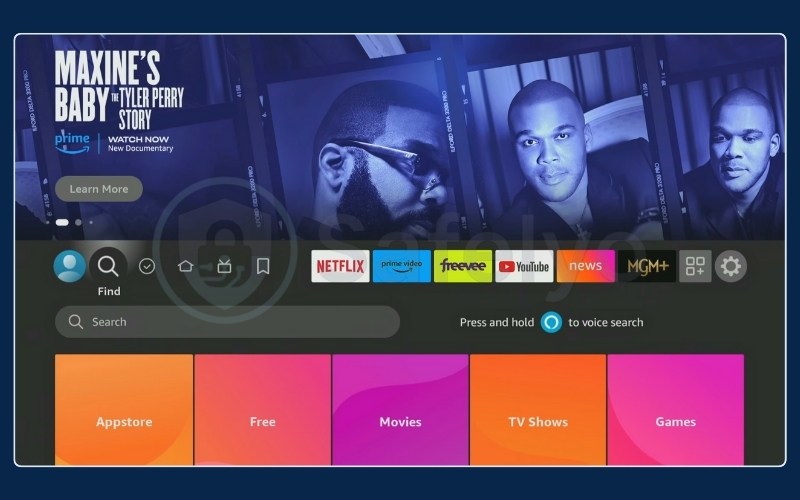
- Go to Find (Magnifying Glass icon).
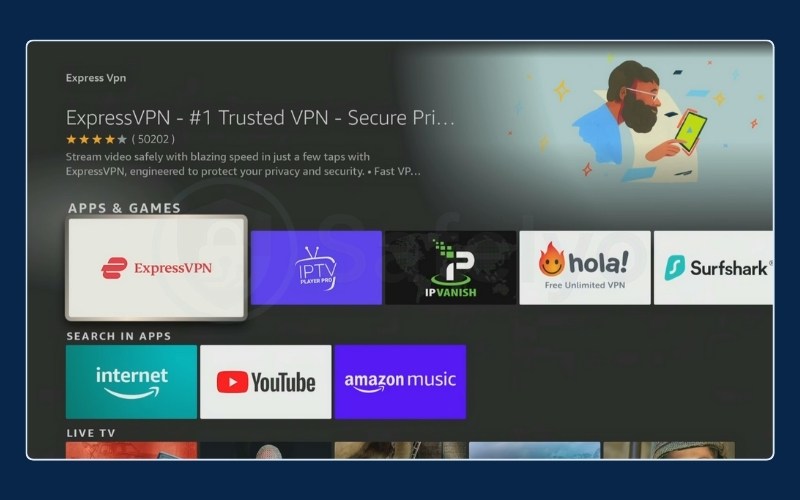
- Type your VPN name (e.g., “NordVPN”, “ExpressVPN”).
- Select the VPN you need from the search results page.
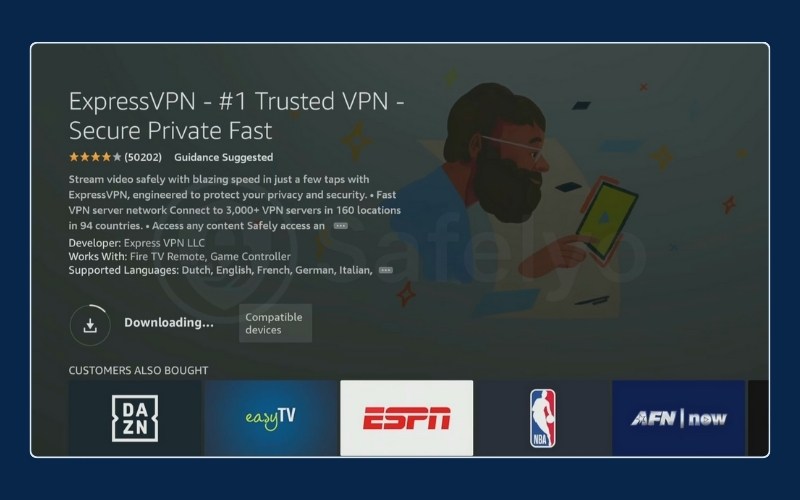
- Click Get or Download.
- Open the app and Log in.
3.1. Finding and downloading the app
Grab your remote and navigate to the Find menu on the home screen. You can save time by holding the Alexa voice button and saying “NordVPN” (or your chosen provider). Select the app from the results under “Apps & Games“.
Click the Get (or Download) button. You might see a “Queued” message for a few seconds before the download starts. Once it finishes, the button will change to Open.
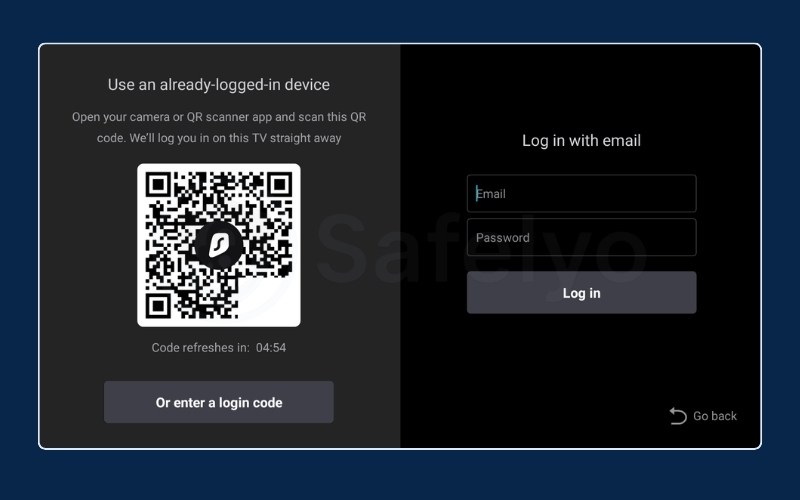
3.2. Logging in without typing
Typing a complex email and password with a TV remote is a painful experience. We strongly recommend looking for a “Log in with QR Code” or “Log in with Code” option on the TV screen.
- Select Log in with code.
- Scan the QR code with your smartphone camera.
- Confirm the login on your phone. The TV app will automatically refresh and log you in.
3.3. The connection request
When you click Connect for the first time, a system pop-up will appear saying “Connection Request.” This is a standard Android security warning asking for permission to set up a VPN connection. You must click OK to proceed. If you click Cancel, the VPN will not work.
4. Do you need to change Amazon region to download apps?
A common point of confusion happens when users successfully install a VPN but still cannot find foreign apps (like BBC iPlayer or HBO Max) in the Appstore.
4.1. IP address vs. store region
A VPN changes your IP address, which allows you to watch content. However, the apps available for download are determined by your Amazon account region. Even if your VPN is set to the UK, your Amazon Appstore will still show US apps if your Amazon account is registered in the US.
4.2. How to change your store region
If you need to download an app that is not available in your country:
- Go to the Amazon website on a computer.
- Click the flag icon on the toolbar.
- Select Change country/region.
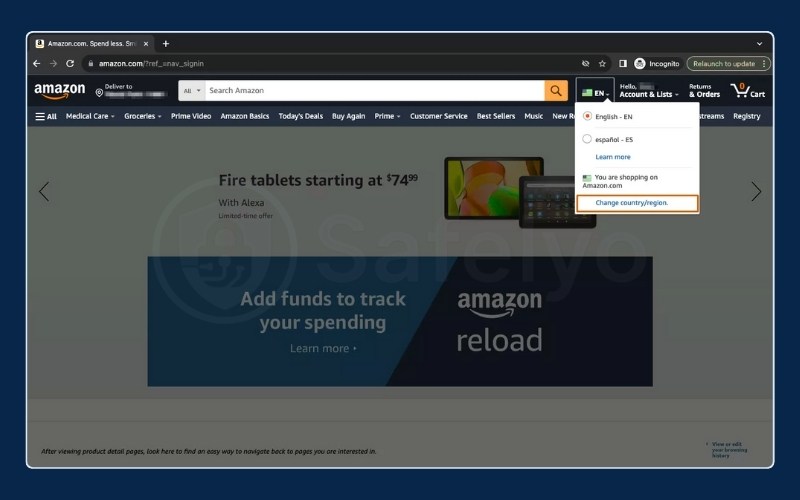
Warning: Changing your region might affect your current subscriptions (like Prime Video) or payment methods. Many users prefer to create a separate, secondary Amazon account dedicated to the specific region they want to access.
5. Method 2: How to sideload a VPN on Firestick (APK method)
If your VPN provider is not listed in the Amazon Appstore, or if you want to use a specific version of an app, you will need to “sideload” it. This sounds technical, but it just means installing an app manually.
Quick step:
- Enable Developer options (Click ‘About’ 7 times).
- Install the Downloader app.
- Enter the APK URL.
- Click Install.
5.1. Unlocking Developer Options & enabling permissions
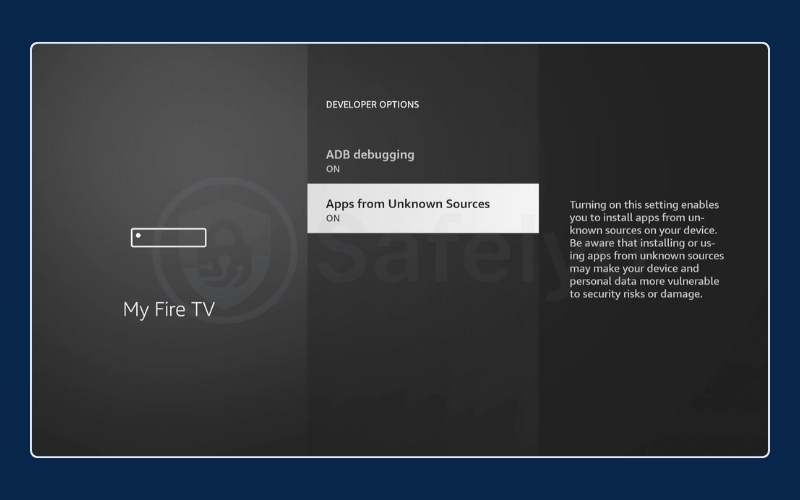
Amazon hides the ability to install unofficial apps by default. You need to unlock Developer Options and allow unknown sources before you can proceed.
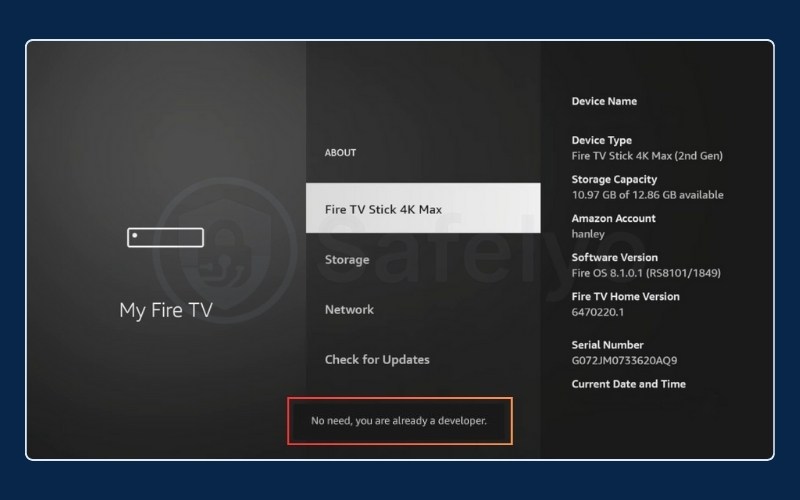
- Go to Settings > My Fire TV > About.
- Highlight the name of your device (e.g., Fire TV Stick 4K).
- Press the Select (center) button on your remote 7 times rapidly. You will see a notification: “No need, you are already a developer.”
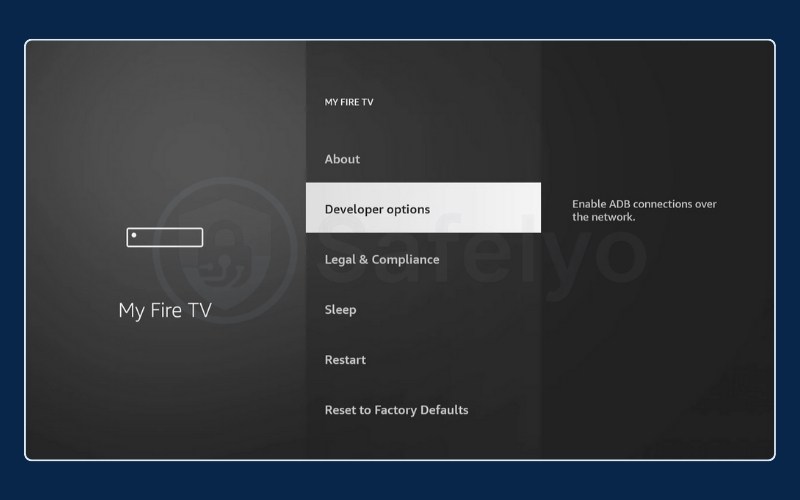
- Press the Back button once. Select the new Developer Options menu.
- Turn on ADB debugging and Apps from Unknown Sources.
5.2. Using the Downloader app
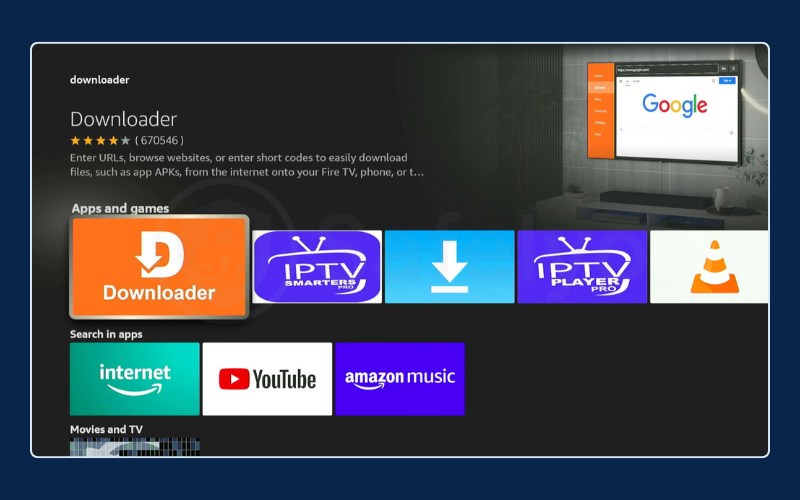
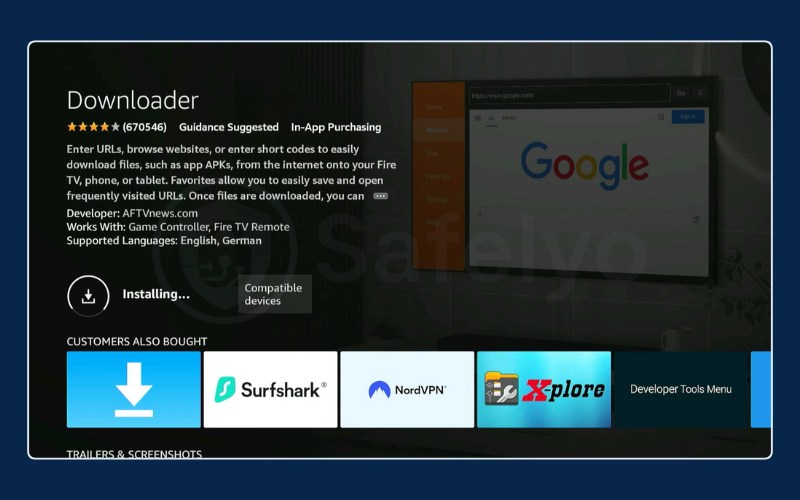
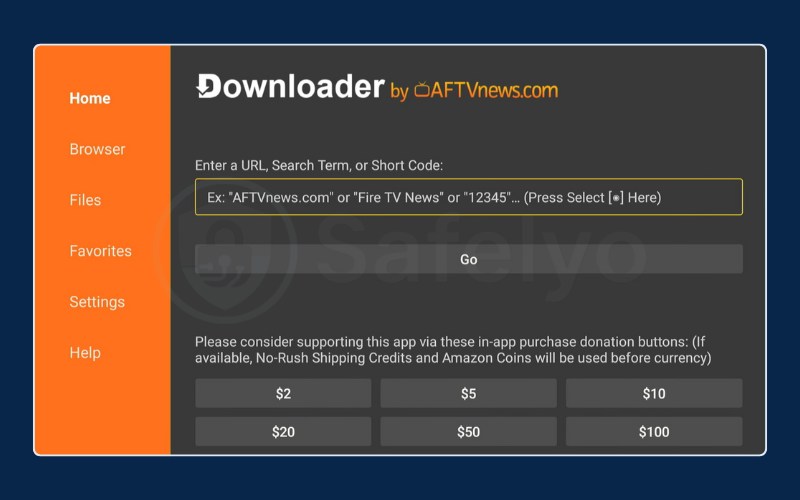
Go to the App Store and install the free app called Downloader (orange icon). Open it and type the direct download link for your VPN’s APK file in the URL bar.
Pro tip: Use your phone as a keyboard
Typing a long URL like https://nordvpn.com/download/android using the Fire TV remote D-pad is tedious and prone to errors. To save time:
- Download the official Amazon Fire TV app on your smartphone (iOS or Android).
- Connect the app to your Firestick (must be on the same Wi-Fi).
- Open the keyboard icon in the app.
- Copy the URL on your phone and paste it directly into the Downloader search bar on your TV.
Once the official file downloads, a prompt will appear asking if you want to install it. Click Install.
Security warning:
Always download the APK file directly from the official VPN provider’s website. Avoid third-party APK repositories like APKMirror or generic download sites. User-uploaded files on these platforms can often contain malware, trackers, or modified code that compromises your security.
Important: How to update sideloaded apps
Unlike apps from the Amazon Appstore, sideloaded apps do not update automatically. If a security vulnerability is patched in a new version, you won’t know until you update manually.
To update a sideloaded VPN, you must repeat the installation process above with the new APK file. The new file will overwrite the old one, keeping your settings intact.
6. Method 3: How to install VPN on router for Firestick (for 1st Gen devices)
If you have a 1st Generation Fire TV Stick, you cannot install VPN apps directly. Your only option is to install the VPN on your Wi-Fi router.
This method protects every device connected to your Wi-Fi, not just the Firestick. However, it is more complex to set up. You will need a router that supports VPN firmware (like ASUS Merlin or DD-WRT).
Crucial compatibility check:
Before proceeding, you must check if your router supports “VPN Client” mode.
- VPN server: Allows you to connect to your home network from outside (Common on many routers). This will not work for Firestick streaming.
- VPN client: Allows the router to connect to a VPN provider like NordVPN or ExpressVPN (Required feature).
Most standard routers provided by ISPs (Internet Service Providers) do not have the VPN Client feature. If your router lacks this, you will likely need to purchase a compatible router or flash custom firmware.
If supported, simply log into your router’s admin panel (usually 192.168.1.1), find the VPN Client tab, and upload the OpenVPN configuration files provided by your VPN service.
You can read more detailed instructions with screenshots in this article: How to set up a VPN on a router
7. Method 4: How to cast VPN to Firestick from Android/PC
If the native app is crashing or you are in a rush, you can run the VPN on your phone or laptop and “mirror” the screen to your TV.
- Connect your Android phone or Windows PC to the same Wi-Fi as your Firestick.
- Open the VPN app on your phone/PC and connect to a server.
- On your Firestick, go to Settings > Display & Sounds > Enable Display Mirroring.
- On your phone (Quick Settings) or PC (Action Center), select Cast or Smart View and choose your Fire TV.
The video quality might not be perfect, but it is a reliable backup when other methods fail.
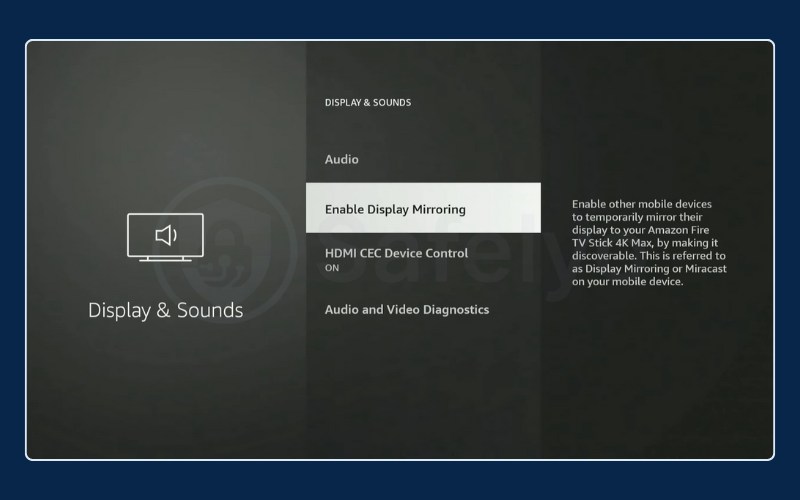
Important limitation:
This native mirroring feature is designed primarily for Android and Windows devices (Miracast).
If you are using an iPhone, iPad, or Mac, you cannot mirror directly to the Firestick using this method because Apple devices use AirPlay. To mirror an iOS device, you must first install a third-party receiver app (such as AirScreen) on the Firestick to bridge the connection.
8. How to check if your VPN is actually working on Firestick
Installing the app is only the first step. You need to verify that your location is actually hidden before you start streaming.
8.1. Visual indicators
Most VPN apps (like ExpressVPN or Surfshark) will show a green light or a “Connected” status on their home screen. You might also see a small key icon in the top notification bar of your Fire TV interface, though this depends on the OS version.
8.2. The IP address test
This is the only 100% sure way to know.
- Open the Silk Browser (or the browser inside the Downloader app).
- Visit whatismyip.com.
- Look at the location displayed. If you selected a UK server, the website should say you are in the United Kingdom. If it still shows your real city, the VPN is not working.
Tip: If you used Method 2 and still have Downloader open, select the ‘Browser’ tab on the left menu. This allows you to visit the site immediately without opening a separate browser.
8.3. The streaming test
Open the Netflix app.
If you connected to a UK server, do you see the “Top 10 in the UK today” row? If you search for a UK-exclusive title (like certain BBC shows), does it appear?
If yes, your VPN is successfully unblocking content.
9. Troubleshooting: Fix common Firestick VPN issues
Even with a perfect setup, things can go wrong. Here is how to fix the most common annoyances.
9.1. Fix: VPN connected but Netflix says proxy error
If you see the error “You seem to be using an unblocker”, Netflix has identified your VPN IP address.
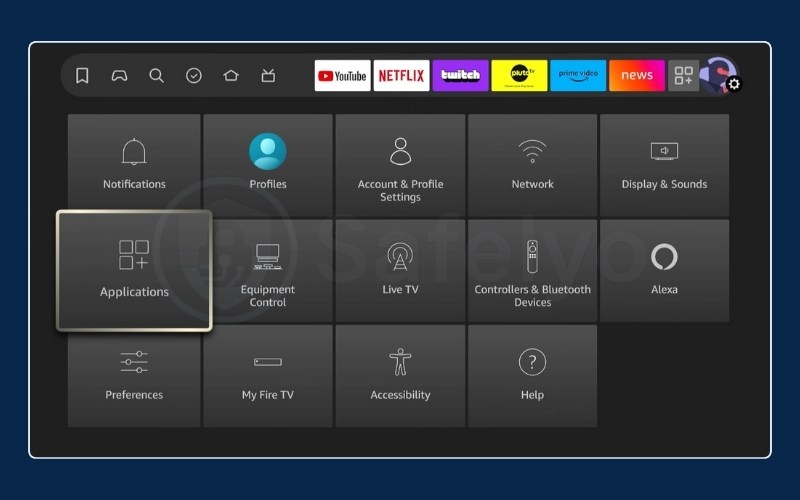
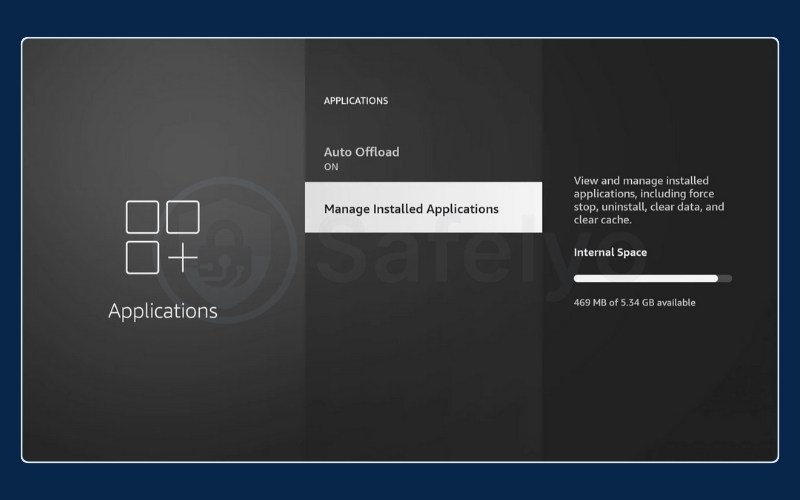
- Clear cache: Go to Settings > Applications > Manage Installed Applications > Netflix. Click Force Stop and then Clear Cache.
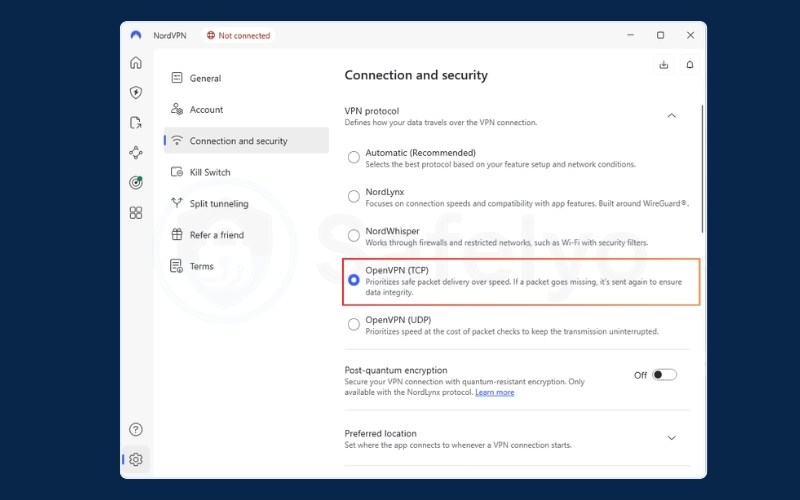
- Switch protocol: Open your VPN app settings. Change the protocol from UDP (speed focused) to TCP (reliability focused). TCP is harder for streaming services to detect.
- Change server: Disconnect and choose a different city in the same country.
9.2. Fix: Slow speeds & buffering
If your video is stuttering:
- Use a lightweight protocol: If your VPN supports WireGuard (or proprietary versions like NordLynx or Lightway), use it. It is significantly faster than OpenVPN on the Firestick’s limited hardware.
- Pick a closer server: If you just need privacy, connect to the city closest to you. If you need to unblock US content from Europe, choose a US East Coast server (like New York) rather than West Coast (LA) to reduce latency.
9.3. Fix: App crashes or glitches (uninstall & reinstall)
Sometimes the installation file gets corrupted. Go to Settings > Applications > Manage Installed Applications, find your VPN, and select Uninstall. Restart your Firestick by unplugging it for 10 seconds, then reinstall the app fresh from the store.
9.4. Fix: Firestick remote not working in VPN app
Some sideloaded VPN apps are designed for touchscreens (phones), not TV remotes. You might find you cannot click the “Connect” button or access the server list. To fix this, you need an app called Mouse Toggle.
This tool creates a virtual mouse cursor on your screen that you can control with your remote’s D-pad. Since it is not always easy to find on the main store, here is how to get it:
- Open the Downloader app (from Method 2).
- In the URL bar, type a shortcode for a trusted APK site (e.g., 25628 for the FireStickTricks repository) or type bit.ly/mousetoggle directly.
- Install and open the Mouse Toggle for Fire TV app.
- Enable the services (Turn on “Enable the mouse service”).
How to use: Double-press the Play/Pause button on your remote. A circle cursor will appear. Use the directional keys to move it and the Select button to click those stubborn VPN buttons.
9.5. Fix: Restart modem and router
If you are experiencing persistent connection drops, the issue might be your network hardware rather than the Firestick. Unplug both your modem and wireless router from the power source. Wait for at least 30 seconds before plugging them back in.
This clears the network cache and can resolve underlying connectivity conflicts that a simple device restart misses.
10. How to uninstall or reset a VPN on Firestick
If your VPN is crashing constantly or you want to switch providers, simply deleting the icon from your home screen isn’t enough. You need to properly remove the app to free up space and memory.
- Navigate to Settings on the far right of your home menu.
- Select Applications.
- Scroll down to Manage Installed Applications.
- Find your VPN app in the list (e.g., NordVPN) and click it.
- Option A (reset): Click Force Stop, then Clear Data. This resets the app to its default state without uninstalling it, great for fixing login glitches.
- Option B (remove): Click Uninstall. Confirm your choice to permanently remove the app and its data from your device.
11. How to use VPN on Firestick for IPTV & Kodi
A VPN is essential for anyone using Kodi or IPTV services to ensure their connection remains safe and private.
11.1. The importance of a kill switch
When streaming via unofficial add-ons, you never want your real IP address exposed, even for a second.
Ensure your VPN has a Kill Switch enabled in its settings. This feature cuts your internet connection completely if the VPN drops, preventing your ISP from seeing your activity during the disconnection window.
11.2. Stopping ISP throttling
ISPs often monitor for high-bandwidth traffic from specific sources like IPTV servers. If they detect this, they throttle your speed, causing buffering. Using a VPN encrypts your traffic, making it look like meaningless data gibberish. Your ISP cannot throttle what they cannot identify.
12. Using split tunneling (watch Netflix & local news simultaneously)
You do not always want everything on your Firestick to go through the VPN. For example, you might want to watch US Netflix (via VPN) while checking your local news app (which requires your real location).
Split tunneling solves this.
- Open your VPN app Settings.
- Find Split tunneling (or App control).
- Select the apps you want to Bypass VPN.
- Add your local apps (like local news or delivery apps) to this list. Now, the VPN will only affect the apps you did not select, giving you the best of both worlds.
13. Best VPNs for Firestick in 2026: Comparison
Not all VPNs work well with the Firestick remote or maintain speed for 4K. Here is how the top contenders stack up.
13.1. NordVPN: Fastest option & all-rounder
NordVPN is currently the fastest option thanks to its NordLynx protocol. The Fire TV app is intuitive and easy to navigate with a remote. It is excellent for unblocking diverse Netflix libraries and offers reliable obfuscated servers if you are in a restrictive network.
13.2. Surfshark: Best value & unlimited devices
If you have multiple Firesticks in your house, Surfshark is the winner. It allows unlimited simultaneous connections, meaning one account covers every TV, phone, and computer you own. It also features CleanWeb, which blocks ads and trackers directly on the Firestick.
13.3. ExpressVPN: Best stability
ExpressVPN is famous for its “it just works” reputation. The Lightway protocol is extremely lightweight, which is perfect for older Firesticks with weaker processors. While slightly more expensive, it offers the most consistent unblocking of stubborn apps like Hulu and BBC iPlayer.
13.4. Best free VPN options for Firestick
Can you use a free VPN? Yes, but with limits.
- Proton VPN Free: Offers unlimited data (rare for free VPNs) but only connects to 3 countries (US, NL, JP) and usually does not unblock Netflix. Good for privacy, bad for streaming.
- Windscribe: Offers 10GB of data per month. Great for occasional use, but you will run out of data after watching just 3-4 movies in HD.
Read more:
14. FAQs about how to use VPN on a Fire TV Stick
Can I get a free VPN on Firestick?
Yes, but most “free” VPNs are dangerous or useless for streaming. Reputable options like Proton VPN Free are safe but block streaming services. Avoid generic “Free VPN” apps in the store, as they often sell your data.
Can a VPN improve Firestick streaming?
Yes, specifically when an ISP throttles the connection. By hiding activity, a VPN can bypass these restrictions and increase speed. Note that it will not improve a slow base internet connection.
How do I activate a VPN?
After installing the app and logging in, simply click the large “Connect” or “Power” button on the main screen. Wait for the status to change to “Connected” before opening your streaming apps.
Which VPNs work best with Firestick?
NordVPN, Surfshark, and ExpressVPN are widely considered the best because they have dedicated Fire TV apps, fast speeds for 4K, and reliable unblocking capabilities.
Is using a VPN on Firestick legal?
Yes, using a VPN is perfectly legal in the US, UK, Canada, and most of Europe. However, check the laws in your specific jurisdiction and the terms of service of your streaming providers.
While the tool itself is legal, using it to bypass copyright restrictions or access prohibited content may violate user agreements or local regulations.
Do I need to keep the VPN on all the time?
It is recommended to keep it on for privacy. However, if you are just watching local content and want the fastest possible speed, you can turn it off.
15. Conclusion
Mastering how to use VPN on Firestick is a significant upgrade to your streaming setup.
Whether you choose the simple Appstore method or the advanced sideloading route, the result is the same: a liberated, private, and buffer-free entertainment experience. We recommend starting with Method 1 as it is the fastest way to get secure.
For more detailed tutorials on securing your digital life, check out our other VPN Guides category. You can also find more safety tips at Safelyo.
Ready to start? Download your chosen VPN and reclaim your streaming freedom today.