
Seeing Netflix error code M7111-5059 means Netflix thinks you’re using a VPN, proxy, or unblocker to watch shows. You’ll usually see this specific alert on your computer’s web browser, while smart TVs and phones show equivalent codes like E106 or M7037-1111 instead.
The good news is that your Netflix account is completely safe, and you won’t get banned or lose your profile over this warning. It only pauses your video stream, and fixing it comes down to two simple paths: tweaking your settings if you’re using a VPN, or clearing a false alarm if you’re just using your normal home Wi-Fi.
Key takeaways:
- Code M7111-5059 appears only on desktop web browsers, while Netflix support pages and smart TV apps use codes E106 and M7037-1111 for the same issue.
- Seeing code M7111-1331 on its own points to a normal browser glitch or plan limit, but the longer string M7111-1331-5059 means Netflix detected a proxy.
- This alert simply pauses your video stream, so it won’t ban or close your personal account.
- You can clear the error by deleting cookies and switching servers on a VPN, or by restarting your router on home Wi-Fi.
1. What does Netflix error code M7111-5059 mean?
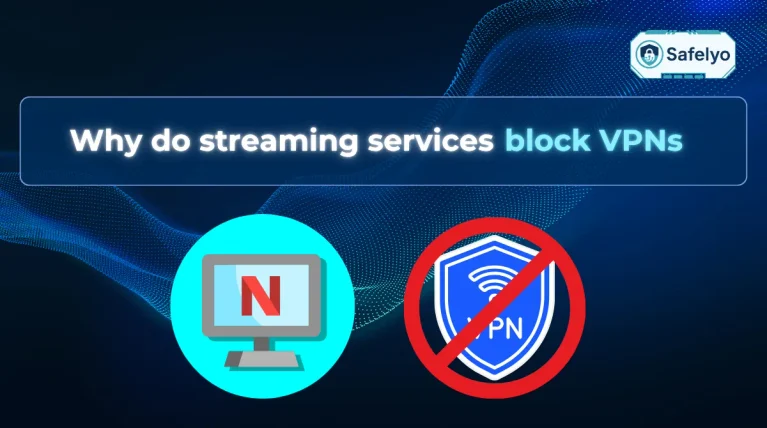
Netflix displays error code M7111-5059 when its automated systems flag your connection as a proxy, VPN, or unblocker.
Whenever you open the Netflix website or click play on a video, Netflix checks your public IP address against commercial location databases like MaxMind and IPinfo. These databases list which company owns each IP address and show whether it belongs to a home internet provider or a commercial data center.
If your IP address matches a cloud server farm instead of a regular home connection, Netflix blocks the video stream right away. The system also watches for crowded servers. When hundreds of accounts stream through the same server IP at the same time, Netflix flags that traffic spike as a VPN and stops playback.
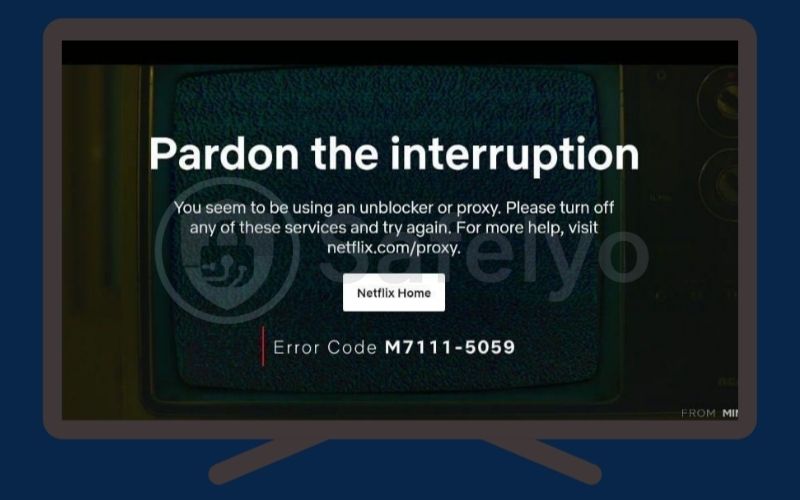
Streaming errors often look alike across different devices, so it helps to know how Netflix labels them. Here is how you can tell these related error codes apart:
- M7111-5059: You’ll see this code on desktop web browsers like Chrome, Firefox, Edge, or Safari when using the web player.
- E106 and M7037-1111: Netflix uses these standardized codes across smart TVs, streaming sticks, mobile apps, and its official help pages.
- M7111-1331: On its own, this code points to an old browser bookmark or a basic plan limit. It only means Netflix spotted a proxy when it shows the full code M7111-1331-5059.
- M7111-5095: This warning means your account has a regional restriction, which often happens if you travel abroad and use an account tied to a different country’s plan.
- E114: This code appears with the message “Your account can’t be used on this device”, usually due to regional restrictions, travel, a VPN, or a household mismatch.
- tvq-pb-101 (1.10.5059): Older smart TVs show this version of the proxy error when their app software flags your connection.
2. How to fix error M7111-5059 if you are using a VPN
You can easily clear this proxy error while using a VPN by cleaning out old site cookies, checking leak protection, and picking a different server.
Follow these five steps to get your stream working again:
- Check your subscription plan: Netflix doesn’t allow any VPN use on its Standard with Ads plan because it must show local ads. If you’re on this ad-supported plan, you’ll need to turn off your VPN or upgrade to an ad-free tier.
- Clear stale cookies and session tokens: Disconnect your VPN first. Next, visit netflix.com/clearcookies or click the padlock icon next to your browser address bar to delete all stored site data for Netflix.
- Check IPv6 leak protection and update protocols: Most modern VPN apps already build in IPv6 leak protection by default, so you might not see a toggle for it. Make sure this feature is turned on if available. Then, switch your protocol to WireGuard or your provider’s custom option (such as Lightway or NordLynx) to stop your real IPv6 address from leaking past the VPN.
- Switch to a different server: Disconnect and reconnect to get a new IP address, or pick a different city within the country you want to unblock (for example, choose New Jersey instead of New York, or Manchester instead of London). This step helps you avoid crowded IP pools with heavy simultaneous traffic (Traffic Clustering) that Netflix filters easily flag.
- Reload your stream: Turn your VPN back on, open Netflix in your browser, and play your video title again.
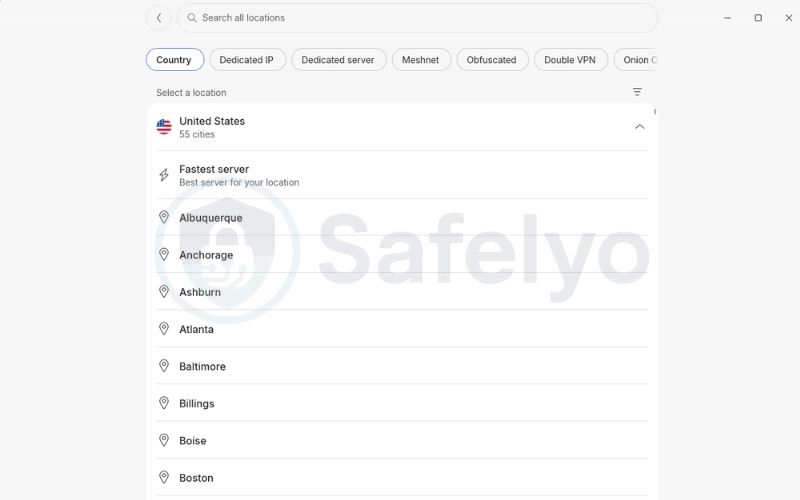
If you test three or four different servers on your VPN and still see the error, that VPN likely doesn’t support that specific region well. If that happens, switch to a VPN provider that refreshes its streaming IP addresses more frequently.
For a deeper breakdown of how these filters operate and which tools reliably unblock libraries, read our guide on the Netflix VPN ban.
3. How to fix error M7111-5059 without any VPN connected
Your regular home internet can trigger this proxy alert even if you’ve never installed a VPN. This false alarm typically traces back to three common network setups:
- Carrier-Grade NAT (CGNAT): Many internet providers share a single public IP address across hundreds of neighborhood homes to save IPv4 addresses. When several neighbors watch Netflix at the same time through that shared IP, Netflix mistakes the heavy traffic for a commercial proxy.
- Hidden privacy tools: Everyday privacy features can secretly reroute your web traffic. Apple’s iCloud Private Relay on Safari, web shields in antivirus software like Avast or Norton, and secure DNS features can all look like proxies to Netflix.
- Unsupported IPv6 tunnel brokers: Some home networks use 6to4 relay tunnels or third-party IPv6 brokers to handle newer web traffic. Netflix doesn’t support these broker tunnels because they work just like commercial unblockers.
You can clear this false alarm on your home Wi-Fi by following these four steps in order:
- Turn off background privacy apps: Turn off iCloud Private Relay in your Apple settings, pause your antivirus web shield for a few minutes, and reset your browser DNS back to its default setting. Disabling these local tools first takes only a few seconds and removes common software conflicts immediately.
- Clear your browser cache and cookies: Clear your browser cookies and site data for Netflix. On Chrome, type chrome://settings/content/all into your address bar, search for netflix, and clear all entries. On other browsers, use the privacy settings menu or click the padlock icon next to the URL.
- Restart your modem and Wi-Fi router: Unplug your modem and router from the wall power outlet for 30 to 60 seconds. This wait helps trigger a new connection session to receive a new dynamic IP on most home networks.
- Check your location on Fast.com: Go to fast.com and click Show more info once the speed test finishes. Look at the Client Country line to confirm that Netflix sees your real home country rather than a misrouted foreign region.
4. How to fix error M7111-5059 equivalents on Smart TVs and Firesticks
On smart TVs and streaming sticks, Netflix won’t show the exact code M7111-5059. Instead, your screen will display equivalent proxy alerts like error code E106 or the older tvq-pb-101 (1.10.5059) message.
These errors often get stuck because putting your TV or Firestick into sleep mode retains the broken network session in its cache. Waking the device simply reloads the old error instead of starting a fresh connection.
Restart your hardware properly to wipe these temporary network glitches:
- Amazon Fire TV Stick: Your Firestick doesn’t have a physical power button. Press and hold both the Select button (the center circle) and the Play/Pause button on your remote for 5 seconds to trigger an automatic hardware reboot.
- Smart TVs (Cold reboot): Unplug your TV power cord from the wall outlet. Press and hold the physical power button on the TV frame for 10 to 15 seconds to drain leftover power, wait 60 seconds, and plug it back in.
If restarting the device doesn't fix the issue, clear the app data directly on your system:
- Fire TV and Android TV: Go to Settings > Applications > Manage Installed Applications > Netflix. Next, select Force Stop > Clear Cache > Clear Data.
- Apple TV (tvOS): Siri Remote > double-press the TV/Control Center button > App Switcher > swipe up on the Netflix app card to force close.
- Samsung smart TVs (Tizen): Go to Settings > Support > Device Care > Manage Storage. Next, highlight Netflix > View Details > Clear Cache (or Clear Data). You can also open the Netflix app, access Get Help > Sign Out (or Reset).
- LG smart TVs (webOS): LG smart TVs (webOS): Home screen > Web Browser > Menu (three dots at top right) > Settings > Clear Browsing Data > Clear Cookies and History.
Check your TV network settings to finish the setup:
- If you don’t use a VPN or Smart DNS: Always set both IP and DNS to Automatic (DHCP) so your TV uses your internet provider’s (ISP) default DNS. Netflix heavily monitors public DNS servers and may trigger a false “Proxy Error” if it detects changes. Only switch manually to trusted public servers like Google (8.8.8.8) or Cloudflare (1.1.1.1) as a temporary test if your provider’s DNS completely fails to connect.
- If you use Smart DNS from a VPN: Don’t change your TV settings to Google or Cloudflare, because that disables Smart DNS immediately. Instead, log in to your VPN account on your phone or computer, find the Smart DNS dashboard, and register your current home IP address.
5. Does triggering error M7111-5059 risk your account?
Triggering this proxy warning won’t get your Netflix account banned, suspended, or closed.
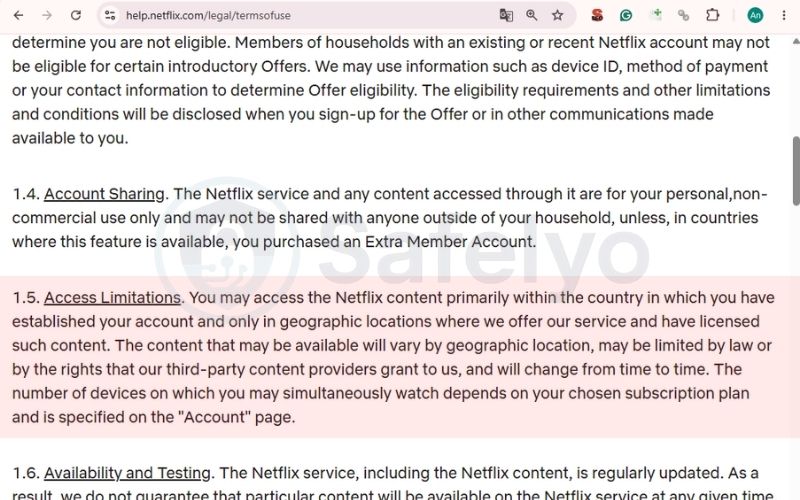
Netflix’s Terms of Use ask subscribers to watch shows within the country where they created their account. Using a VPN to view another region’s library technically goes against this service agreement, but it’s not a crime. Netflix doesn’t hand out legal penalties or ban user profiles for using a VPN.
Instead, Netflix simply stops the video from playing until your connection looks normal again. The company wants to keep you as a paying subscriber, so it only blocks the stream itself. As soon as you turn off your VPN or connect to an unflagged IP address, your shows will play normally.
6. FAQs
What is the fastest way to clear error M7111-5059 in 60 seconds?
The quickest fix is switching your VPN to a different server and visiting netflix.com/clearcookies to reset your session.
Does error code E106 permanently replace M7111-5059?
No, code E106 doesn’t replace M7111-5059 completely. Netflix uses E106 on smart TVs, mobile apps, and in its official help articles. Computer web browsers still show code M7111-5059 whenever they spot a proxy.
Why is error code M7111-1331 frequently confused with M7111-5059?
Netflix builds browser codes in parts, where M7111 points to the web browser and 5059 signals a proxy detection. When Netflix spots a VPN in your browser, it shows the combined code M7111-1331-5059.
If you only see code M7111-1331 by itself without the 5059 ending, you’re dealing with a simple browser glitch or an old bookmark rather than a proxy block.
Why does Netflix stream properly on mobile data while failing on home Wi-Fi?
If your phone streams fine on cellular data, your Netflix account is working properly and the issue lies with your home Wi-Fi. Mobile carriers give phones dynamic IP addresses from clean consumer pools that rarely get flagged.
In contrast, your home broadband might be stuck on a shared address that Netflix mistakenly marked as a proxy.
7. Conclusion
Fixing your stream comes down to knowing whether you’re using a VPN on purpose or dealing with a home network glitch. If you’re on a VPN, clear your cookies and pick an uncrowded server in your target country. If you’re on home Wi-Fi, restart your router to get a fresh IP address from your provider.
Understanding how Netflix error code M7111-5059 works saves you time and stops you from buying a new VPN when a quick settings reset is all you need. For more helpful fixes and network advice, browse our VPN Guides category and visit Safelyo for our latest privacy guides.