Have you recently moved or traveled, only to find your match queue completely stuck in your old city? Because the app does not update automatically, knowing how to change location on Facebook Dating is essential to avoid irrelevant profiles and missed connections.
At Safelyo, our tech team regularly tests social platforms to help users solve frustrating usability bugs. We confirmed that relying on the app to refresh your position often results in annoying position mismatches and zero local matches.
This comprehensive 2026 guide outlines the exact steps to update your dating radius manually. We will also explore advanced features such as Match Anywhere and show you how to resolve stubborn GPS tracking issues instantly.
-
Open Facebook Dating
Open the Facebook app, tap the Menu (three lines), and select Dating.
-
Access dating profile
Tap your profile icon at the top right, then choose Dating Profile.
-
Update dating location
-
Open Dating section
Open the Facebook app, go to Dating, and tap your profile icon at the top right.
-
Open location settings
Tap Dating Preferences, then select Dating Location.
-
Add new location
-
Set spoofed location
Connect your iPhone to a PC, open your spoofing software, and set your desired global location.
-
Match VPN location
Download a VPN app on your iPhone and connect to a server in the same city.
-
Open Facebook Dating
-
Enable mock location app
Download a “Fake GPS” app from the Play Store. Go to Settings > Developer Options and set it as your mock location app.
-
Set location and VPN
Open the Fake GPS app and pin your new city. Then connect your VPN to a server in the same location.
-
Open Facebook Dating
1. Can you change location on Facebook Dating?
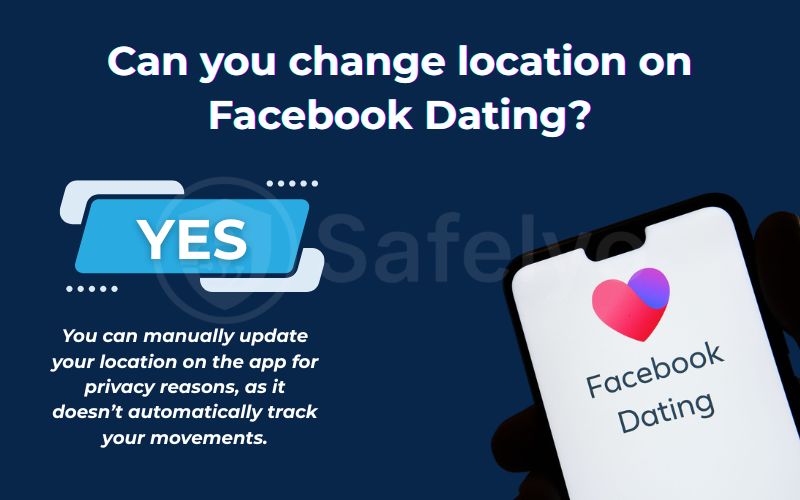
Yes, you can easily update your location in the app, but there are platform-specific limitations. Unlike many modern dating apps, this service does not automatically track your physical movements when you travel or relocate to a new city.
This intentional design choice protects your privacy, ensuring your profile stays visible only in your preferred area. However, you must manually initiate a change whenever you permanently move or want to meet locals on a long trip.
2. How to change location on Facebook Dating
Depending on your goals, whether you are permanently moving, traveling for the weekend, or wanting to explore global matches, there is a specific approach for you. We have tested three reliable methods to modify your dating radius safely.
2.1. Change your primary location manually (Official way)
This is the standard, developer-approved method for users who have permanently relocated. It directly updates your main profile coordinates to reflect your current physical city.
On iPhone
Updating your primary spot on an iOS device takes just a few taps within the main application.
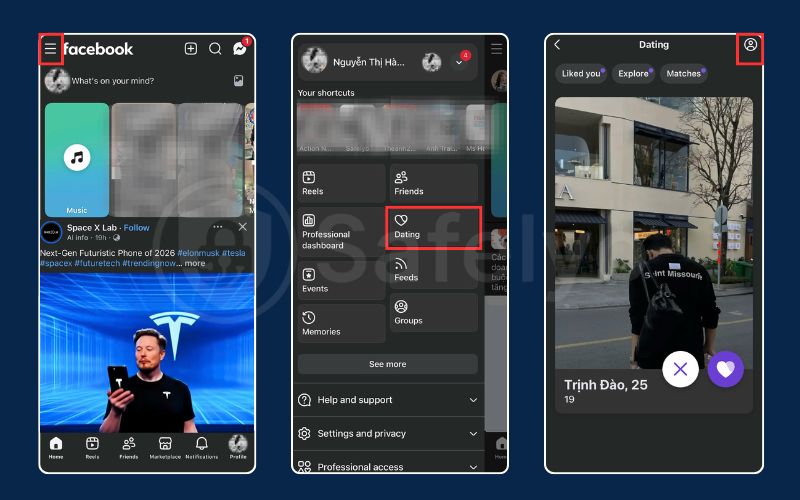
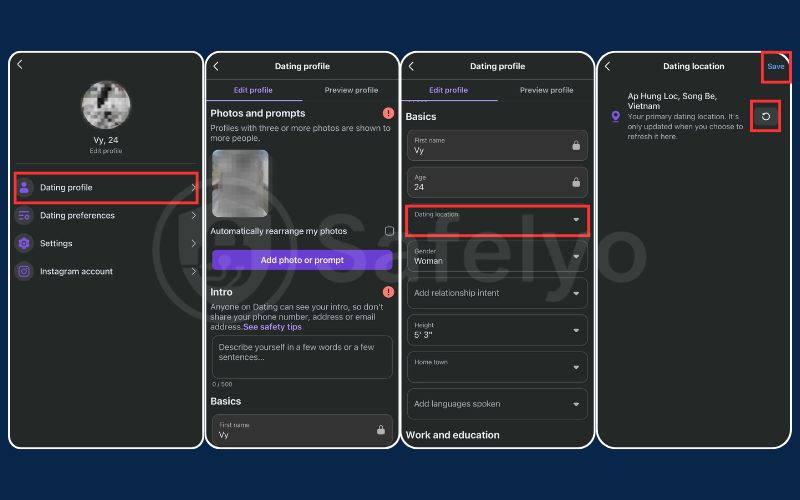
- Step 1: Open the Facebook app, tap the Menu (three lines), and select Dating.
- Step 2: Tap your Profile icon at the top right of the screen, then choose Dating Profile.
- Step 3: Scroll down and tap on Dating Location, tap the refresh button to update your current area, and press Save.
On Android
The process for Android users is nearly identical to iOS, ensuring a quick transition when you move.
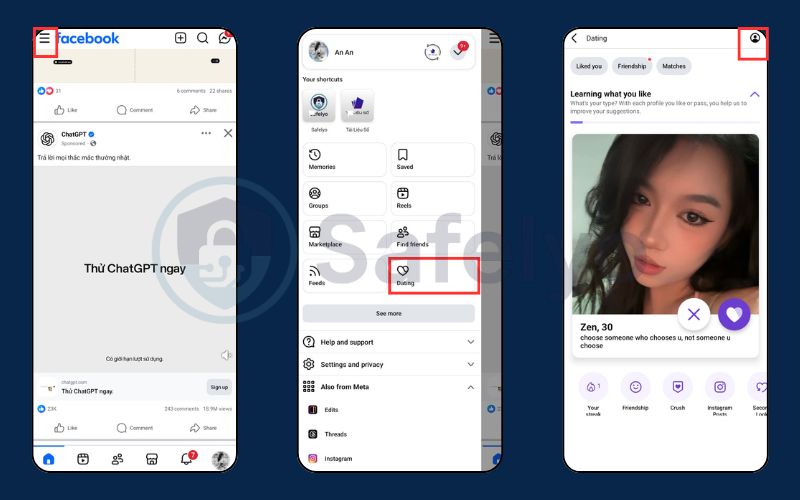
- Step 1: Launch the Facebook app, tap the menu, and tap the Dating section.
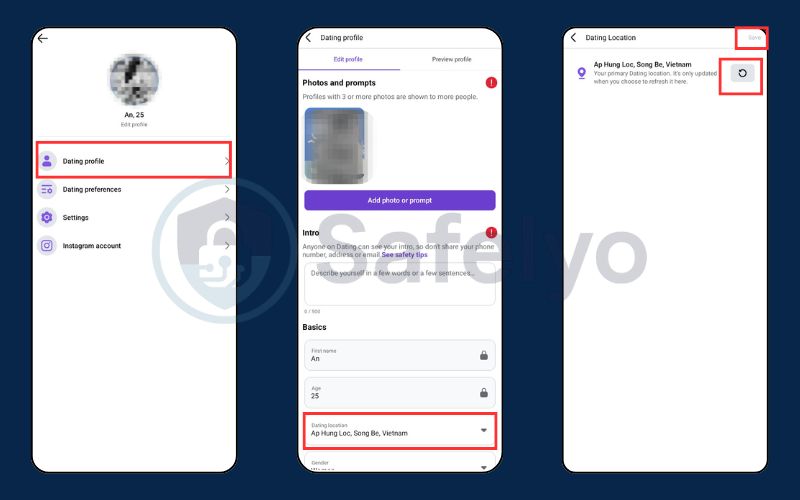
- Step 2: Tap your Profile icon and navigate to the Dating Profile menu.
- Step 3: Select Dating Location, update your location and tap Save.
Why this method works best
This is the safest route because it directly updates your profile’s core data without triggering security flags. The platform’s algorithm prioritizes your primary city, ensuring you receive the most stable and relevant local matches without facing frustrating mismatch errors.
2.2. Use the Match Anywhere feature
Facebook introduced “Match Anywhere” so users can look for connections outside their current zip code. This is perfect if you do not want to alter your main profile setup permanently.
On iPhone
iOS users can easily add temporary locations directly within the dating settings menu.
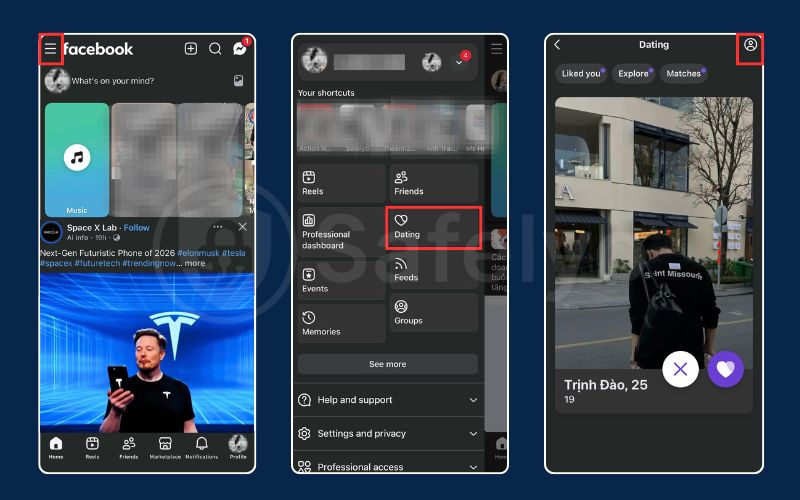
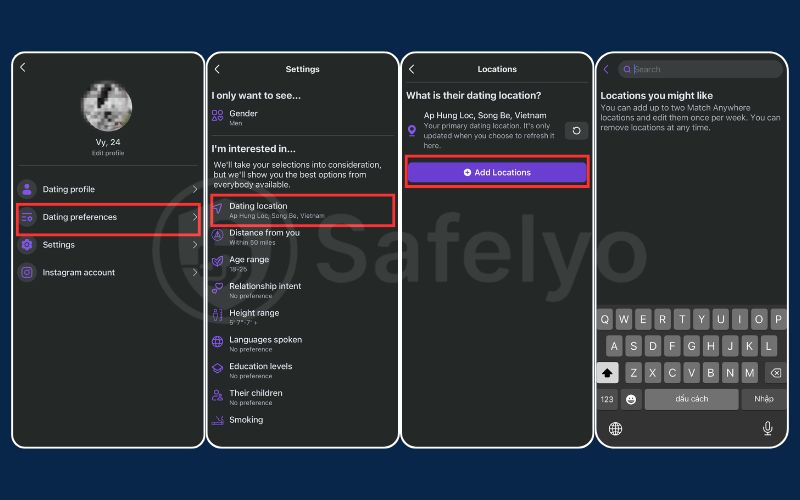
- Step 1: Open the Facebook app, navigate to Dating, and tap your Profile icon at the top right.
- Step 2: Tap on Dating Preferences and choose Dating Location
- Step 3: Choose Add Locations and then enter your address and Save
On Android
The Android process is just as seamless, allowing you to quickly expand your dating pool.
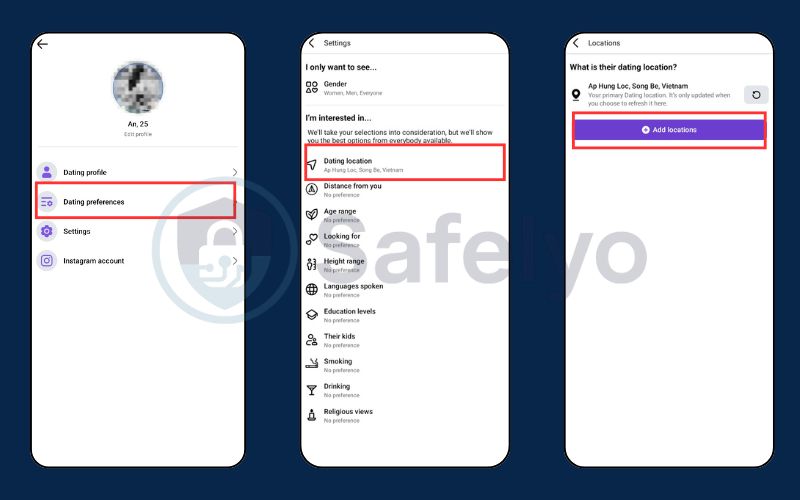
- Step 1: Launch the Facebook Dating interface and tap the Settings gear icon.
- Step 2: Scroll down and select the Match Anywhere option.
- Step 3: Type your desired cities into the search bar, confirm the additions, and return to your match queue.
Limitations
This feature is incredibly convenient but comes with strict platform restrictions to prevent spamming behavior. You can only update or change your secondary locations once per week, and these temporary spots do not replace your primary saved location.
When you should use it
This native tool is perfect for frequent business travelers, college students, or anyone planning a weekend getaway. It allows you to safely explore a new area and start swiping before you actually arrive, without disrupting your main local match queue.
2.3. Change location with GPS spoofing and VPN
If you want to bypass regional limits entirely, advanced users can employ third-party tools. This effectively tricks the platform into believing you are physically standing in a different country.
On iPhone (Requires PC)
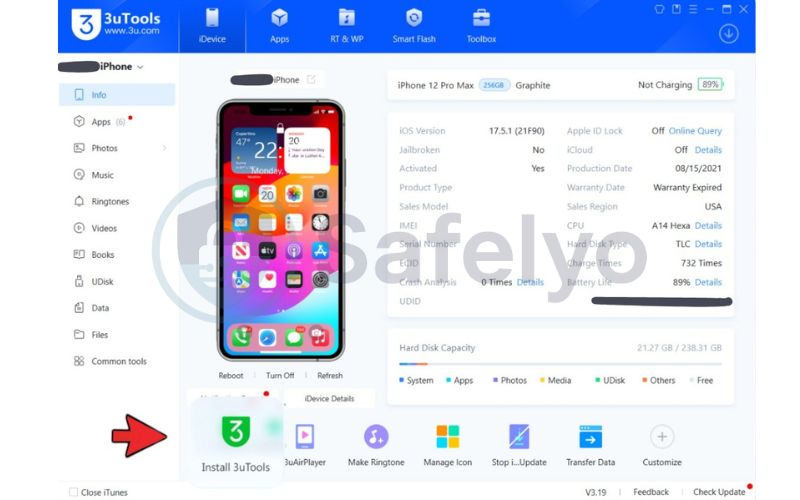
Apple’s strict security makes spoofing difficult. You must use desktop software (like 3uTools or iAnyGo) to modify your GPS coordinates.
- Step 1: Connect your iPhone to a PC, open your spoofing software, and set your desired global location.
- Step 2: Download a reliable VPN app on your iPhone and connect to a server in that exact same city.
- Step 3: Open Facebook Dating. The app will now read your modified GPS and VPN IP, showing you international matches.
On Android (Mock Locations)
Android users have a built-in advantage thanks to the hidden Developer Options menu.
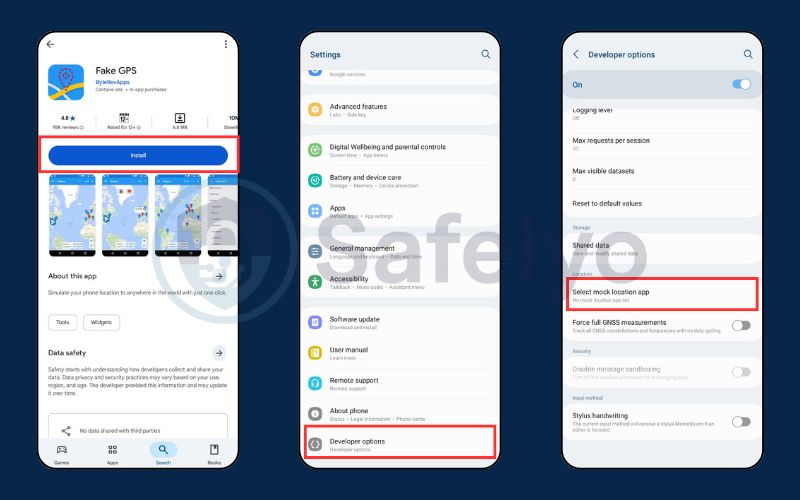
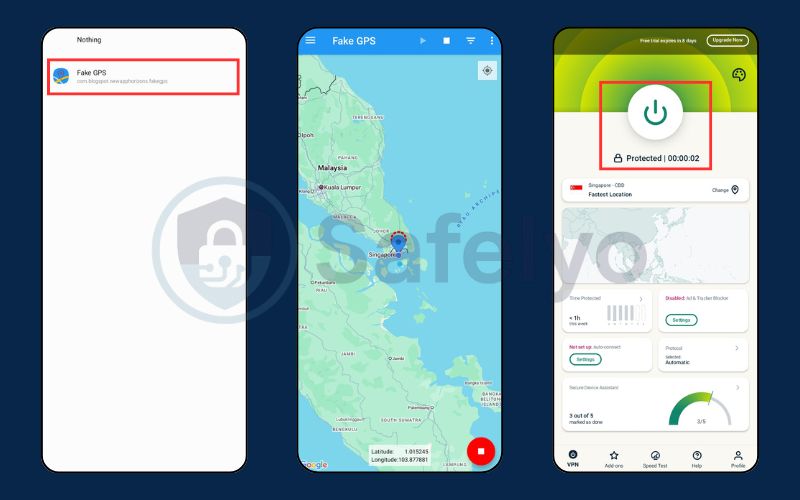
- Step 1: Download a “Fake GPS” app from the Play Store. Go to Settings > Developer Options and set it as your Mock Location app.
- Step 2: Open the Fake GPS app and pin your new city. Then, open your VPN and connect to a server matching that city.
- Step 3: Launch Facebook Dating to start swiping in your newly spoofed region.
When it works
This aggressive method only succeeds when your fake GPS coordinates and your VPN server IP address are perfectly synced. If your spoofed GPS says London but your internet IP shows New York, the security algorithm will immediately block your access.
Limitations and risks
Using third-party spoofing tools carries significant risks, including severe location mismatch errors. If the system detects unnatural jumping between continents, your profile may stop loading matches entirely, or your account could be temporarily restricted.
3. How Facebook Dating location works (GPS vs IP vs saved location)
To prevent frustrating app glitches, you must understand how the platform verifies your physical presence. The system relies on a strict combination of your saved primary location, your device’s active GPS signal, and your current internet IP address.
The algorithm heavily prioritizes the primary city you manually saved in your profile settings. It uses this specific data point to generate your daily match queue, largely ignoring temporary IP address fluctuations caused by cellular networks.
A location mismatch error occurs when your saved profile city drastically differs from your phone’s live GPS coordinates. The app’s security system flags this discrepancy to prevent fake accounts, often temporarily hiding your profile until the data aligns.
4. Why your Facebook Dating location is not updating
Seeing the same old profiles after moving is a frequent technical stall reported by many users in 2026. This issue usually stems from a conflict between your device’s current physical environment and the app’s internal data storage.
- Location mismatch: Your phone’s GPS indicates a new city, but your profile is still manually locked to your old home, causing a security block.
- Corrupted app cache: The app often stores “static” location data to save battery, which can get stuck and refuse to refresh until cleared.
- Disabled GPS permissions: If you recently updated your phone’s OS, the app may have lost the necessary permission to access your high-accuracy location sensors.
- Network IP conflict: Unstable public Wi-Fi or certain mobile networks can report incorrect IP data, confusing the app’s regional verification system.
5. How to fix Facebook Dating location issues
If your match queue is frozen, you do not necessarily need to delete your profile and start over. These four targeted fixes can restore your local swiping experience in just a few minutes.
5.1. Fix 1 – Resolve location mismatch
This is the most frequent cause of “no matches found” errors. To fix this, you must ensure that your profile’s saved city aligns perfectly with your device’s live coordinates.
- Step 1: Go to your Dating settings and verify the “Primary Location” entry.
- Step 2: If it shows your old city, update it to your current town immediately and tap Save.
- Step 3: Force close the Facebook app and restart it to sync the new coordinates across the platform.
5.2. Fix 2 – Refresh location services
Sometimes the connection between your phone’s hardware sensors and the app becomes unresponsive. Toggling your device’s global settings can jumpstart the location reporting process for all social applications.
- Step 1: Go to your phone’s system Settings and turn Location Services completely OFF.
- Step 2: Wait ten seconds, then turn it back ON, ensuring “High Accuracy” or “Precise Location” mode is enabled.
- Step 3: Re-open the app and grant permission if prompted to “Allow while using app.”
5.3. Fix 3 – Switch network sources
A glitchy Wi-Fi connection can provide the app with outdated or incorrect geolocation data based on an old router IP. Switching to a direct cellular signal often provides a more precise verification for the platform.
- Step 1: Disable Wi-Fi in your phone’s quick settings menu.
- Step 2: Enable Mobile Data (4G/5G) and wait for a stable signal indicator.
- Step 3: Refresh your dating profile; the app will now read your location from your mobile carrier’s tower instead.
5.4. Fix 4 – Reinstall the Facebook app
If all other methods fail, your local app installation files may be corrupted. A fresh installation removes persistent bugs and forces the dating algorithm to recalibrate your profile location from scratch.
- Step 1: Delete the Facebook app from your device (don’t worry, your dating profile data will remain safe in the cloud).
- Step 2: Download the latest version from the App Store or Google Play Store.
- Step 3: Log in and re-verify your location when the app asks for the initial setup permissions.
Read more:
6. Can you fake your location on Facebook Dating?
Technically, you can simulate a new position using external tools, but the platform has become very efficient at detecting these attempts. Successfully faking your location requires perfect synchronization of your device’s internal sensors and your internet data to avoid security flags.
6.1. Mechanisms for detecting fake locations
The platform’s security algorithm is designed to identify location mismatch discrepancies between your IP address and GPS coordinates. If you use a fake GPS app but forget to activate a matching VPN, the app will instantly flag your account as suspicious behavior.
Furthermore, Facebook monitors the speed of your movement across the map. If you “teleport” from London to Tokyo in just a few seconds, the system knows you are using a spoofing tool, which often leads to a temporary freeze on your swiping queue.
6.2. Risks of using spoofing software
Using third-party manipulation tools carries significant risks beyond just technical errors. If the system identifies persistent spoofing, your profile may be shadowbanned, meaning your account stays active but your profile is never shown to other real users.
In extreme cases, frequently jumping between locations can lead to a permanent account suspension. We recommend using the official Match Anywhere feature instead of risky software to ensure your dating profile remains in good standing and visible to others.
7. How often can you change your location on Facebook Dating?
The frequency with which you can update your whereabouts depends entirely on which feature you are using. Facebook allows for permanent moves while placing strict caps on temporary exploration to prevent users from spamming multiple regions.
- Primary location: There is currently no official limit on how many times you can update your primary city. However, frequently changing this every few hours may trigger security alerts, so it is best to only update it when you actually relocate.
- Match Anywhere: This feature is much more restricted, allowing you to change your temporary locations only once every seven days. This week-long cooldown ensures that the feature is used for genuine travel rather than mass-swiping across different time zones.
8. Does Facebook Dating track your location?
The app requires access to your coordinates to function, but it does not monitor your every move 24/7 unless you grant specific system permissions. Understanding these tracking behaviors is vital for maintaining your digital privacy while using discovery tools.
8.1. How to control location permissions
You can manage exactly how much data the app collects by adjusting your smartphone’s system-level privacy settings. Most modern devices offer three distinct levels of access for social media applications.
- While using the app: This is the recommended setting, as it only allows Facebook to see your position when the app is actively open on your screen.
- Always allow: Avoid this setting if you value privacy, as it lets the app track your movements in the background even when you are not swiping.
- Never: Selecting this will completely disable the dating feature, as the algorithm cannot function without knowing your general vicinity.
8.2. Why the app needs location access
The platform requires this data primarily to ensure you are connecting with real people within a reasonable dating distance. By verifying your GPS and IP data, Facebook can effectively filter out bot accounts and scammers who operate from distant international locations.
Additionally, accurate location data helps the algorithm provide more relevant “Lucky Pick” matches and event-based suggestions. This ensures that the people you see in your feed are actually available for a potential in-person meeting in your area.
9. Frequently asked questions
Can I change location without physically moving?
Yes, you can manually update your primary city in the “Edit Profile” menu at any time. However, to see new matches, you must ensure your distance settings are wide enough to include that new city, or the app might show an empty queue.
Can I use Facebook Dating without enabling location?
No, the dating feature requires active GPS and location permissions to function. Since the entire swiping algorithm is based on connecting people within a specific radius, the app will block access until you enable your device’s location sensors.
Why am I getting matches from another country?
This usually happens if you have the Match Anywhere feature active or if your “Distance” settings are set to the maximum limit. Occasionally, the app’s “Lucky Pick” algorithm may suggest highly compatible profiles slightly outside your designated search area.
Does Facebook update my dating location automatically?
No, unlike other dating apps that refresh your spot every time you open the app, Facebook Dating relies on your saved manual location. You must explicitly change your city in the settings if you want your profile to appear in a new region.
Can a VPN alone change my dating location?
In most cases, no. While a VPN changes your IP address, the app also checks your phone’s internal GPS data. Without a matching GPS spoofing tool, the resulting location mismatch will likely prevent you from seeing any new profiles.
Can Facebook detect if I am using a fake location?
Yes, the platform is very effective at spotting discrepancies between your network data and hardware coordinates. Using unverified spoofing tools can lead to your profile being flagged for suspicious activity or receiving a temporary shadowban.
12. Conclusion
Learning how to change location on Facebook Dating ensures you are always swiping in the correct city after moving or traveling. For the best stability, manually update your primary location in the profile settings or use the native “Match Anywhere” feature to explore new regions safely. Maintaining consistency between your profile city and your device’s active GPS data is the essential key to avoiding annoying “no matches found” errors.
If your match queue remains stuck, a quick refresh of your system permissions or a simple app reinstall will typically resolve the technical conflict. To find the best tools for secure browsing and more social media privacy tips, dive into our comprehensive VPN Guides at Safelyo. Our expert resources are designed to help you navigate the digital world with ease and absolute confidence.