NordVPN Meshnet is a completely free feature that links your computers, phones, and other devices into a private, encrypted network over the internet. Instead of needing to be in the same room on the same Wi-Fi, your devices can communicate securely no matter where you are in the world.
Many people see Meshnet built into the NordVPN app but are not entirely sure how to use it. In reality, it acts like a secure virtual local area network (LAN) that can solve many everyday tech frustrations.
This guide breaks down exactly what NordVPN Meshnet does, its most useful features, and its technical limits. We will also compare it to alternatives like Tailscale so you can decide if it is the right fit for your daily routine.
Key takeaways:
- Meshnet is completely free and requires only a free NordVPN account to operate.
- Meshnet connects up to 60 devices total, including 10 personal devices and 50 external devices.
- Connections use NordLynx encryption with no middle server data storage.
- Use cases include remote LAN gaming, file sharing, remote device access, joint projects, traffic routing, and network security.
- Traffic routing requires the host device to remain powered on and connected to the internet.
- Apple users cannot use traffic routing on the Mac App Store version of NordVPN.
- NordVPN reversed its December 2025 shutdown decision, keeping Meshnet active and free.
1. What is NordVPN Meshnet?
NordVPN Meshnet is a free feature that connects your devices into a private, encrypted network. Meshnet works similarly to a physical local area network (LAN) but routes the connection across the wider internet.
Meshnet uses NordLynx encryption to create direct device-to-device connections. This architecture means there is no middle server storage handling or holding your data.
Many users wonder if Meshnet is simply a standard virtual private network. A traditional VPN routes all your internet traffic through corporate servers to mask your IP address. Meshnet does not perform this masking function.
Instead, Meshnet creates a private perimeter between specific trusted devices you manually select. Those linked machines then behave as if they are sitting on the same local network. NordVPN and Meshnet are two different products designed for distinct operational jobs.
NordVPN launched Meshnet in June 2022 and made Meshnet free for all users in March 2023. By utilizing this peer-to-peer encrypted network, you can establish a reliable virtual LAN without paying for premium subscriptions.
2. How does NordVPN Meshnet work?
Meshnet relies on an identification system to link hardware across different locations. Each device that joins Meshnet receives a unique Nord name, such as secret.millie-andes.nord, along with an internal IP address. Computers and mobile phones use these identifiers to find and connect to each other over the internet.
All traffic between linked hardware travels over NordLynx encrypted tunnels. Because the data passes directly from one machine to another, no files or activity logs sit on a NordVPN middle server. Connected devices communicate directly, making files, background services, and local resources accessible without complex network configuration protocols.
One of the main advantages of this peer-to-peer setup is the ability to bypass carrier-grade NAT (CGNAT). Many internet service providers (ISPs) share a single public IP address among multiple customers using this method. This ISP practice blocks port forwarding attempts and makes home networks unreachable from the public internet.
If you have ever tried to host a game server from home and hit a dead end, CGNAT is usually the reason. Meshnet bypasses CGNAT by establishing direct peer connections. You do not need to configure port forwarding or adjust router firewall rules to establish a connection.
3. What can you use NordVPN Meshnet for?
Meshnet covers six distinct use cases, ranging from casual multiplayer gaming to managing self-hosted development workflows.
3.1. Remote LAN gaming
Many multiplayer games require players to be in the same physical location to use local game servers. Meshnet acts as a bridge, allowing you to create private servers for friends anywhere in the world. Because the architecture allows devices to communicate directly, you do not need complicated port forwarding on your router.
You can easily set up private sessions for popular titles like Minecraft, Stardew Valley, Team Fortress 2, or Factorio. Meshnet also supports remote game-streaming servers like Moonlight.
Just keep in mind that while Meshnet makes cross-internet LAN sessions possible, it does not reduce game latency. Your connection speed still depends entirely on the physical distance between the players.
3.2. Secure file sharing
Sending large documents usually involves uploading them to a third-party cloud service first. Meshnet provides a direct alternative by letting you securely transfer files of any type and size between linked devices. Because the file-sharing feature functions on a peer-to-peer basis, your data exchanges do not pass through a centralized server.
This ensures that nobody but you and your intended recipients can view the data. You can transfer up to 1,000 files per single batch, making this setup ideal for moving heavy media folders directly between a phone and a desktop.
3.3. Remote device access
Keeping all your files accessible is challenging when you travel. Meshnet allows you to reach files on your home PC or network-attached storage (NAS) drive securely from a laptop or phone with just a few clicks.
When you add an external device to Meshnet, you maintain control over its access through four permission settings:
- Allow remote access: Makes your device visible to the network.
- Allow receiving files: Accepts incoming direct file transfers.
- Allow traffic routing: Lets peers access the internet using your IP address.
- Allow local network access: Allows peers to reach smart home devices or printers connected to your physical router.
3.4. Joint projects and remote work collaboration
Working on self-hosted projects usually means that only people on your local network can access the environment. Meshnet solves this problem by letting remote teammates join your virtual network and contribute as if they were sitting in the same office. You do not need to configure VPN connections or pay for expensive cloud hosting.
Meshnet supports various cooperative development workflows and collaboration tools:
- Development: NGINX web servers, tmux for pair programming, and Visual Studio Code servers.
- Collaboration: Nextcloud for file syncing and Focalboard for project management.
- Communication: Private servers using Mumble and Rocket.Chat.
3.5. Traffic routing (turn your device into a VPN server)
While commercial VPN servers improve general privacy, sometimes you need access to your personal home IP address to bypass local restrictions. Meshnet’s traffic routing feature lets you turn your desktop into a personal VPN server. By routing your mobile traffic through your home computer, you access the internet using your home IP address.
You can also deploy this setup using a virtual private server (VPS) through cloud providers like DigitalOcean, Microsoft Azure, AWS, Google Cloud, Linode, or Hetzner. Note that routing works only while the host device is powered on and connected to the internet.
3.6. Network security and smart home access
People often rely on firewalls or ad-blockers to protect their home networks, but maintaining that security on the go is difficult. By linking your devices through Meshnet’s encrypted network tunnels, you can use your home network solutions remotely.
If you run a custom ad-blocker like Pi-hole or AdGuard Home on a local server, Meshnet lets you apply that protection to your mobile device anywhere in the world. You can also securely access self-hosted Whoogle search engines or custom DNS servers without exposing them to the public internet.
4. Is NordVPN Meshnet free?
Yes, NordVPN Meshnet is completely free for everyone. You only need a standard NordVPN account to access Meshnet, and creating that account requires an email address without submitting a credit card. A free account gives you full access to Meshnet’s capabilities.
A paid premium plan adds traditional VPN server access for global IP masking, Threat Protection Pro, and the Dark Web Monitor. Meshnet itself carries no costs regardless of your subscription tier.
5. How to set up NordVPN Meshnet (step-by-step)
Setting up Meshnet takes under five minutes on any supported desktop or mobile platform. Here are the core steps to get your devices connected.
Quick setup guide:
- Download and open the NordVPN app (or create a free account at nordvpn.com).
- Log in to your NordVPN account.
- Navigate to the Meshnet tab.
- Toggle Meshnet on.
- Invite other devices by entering the owner’s NordVPN account email.
5.1. Enable Meshnet on your device
The setup process is nearly identical across Windows, macOS, Linux, iOS, Android, and Android TV. For Windows users, Meshnet requires Windows 10 (64-bit edition) or later.
- Open the NordVPN application and log in if prompted.
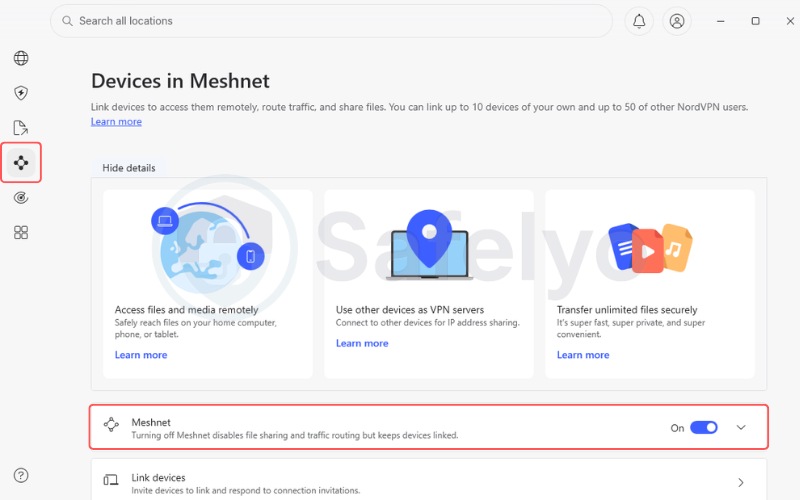
- Select the Meshnet tab located in the left-side navigation menu.
- Toggle the switch to the “On” position.
Once activated, your device receives a unique Nord name and an internal IP address. You can use these details to connect from your other hardware.
For other platforms, the interface shifts slightly:
- Android: Navigate to Products, select Meshnet, and tap Manage devices.
- iOS or iPad: Navigate to Products, open the Meshnet section, and tap Turn On.
- Android TV: Find the Meshnet toggle directly inside the main tab.
- Linux: Manage Meshnet via the command line interface using nordvpn set meshnet on.
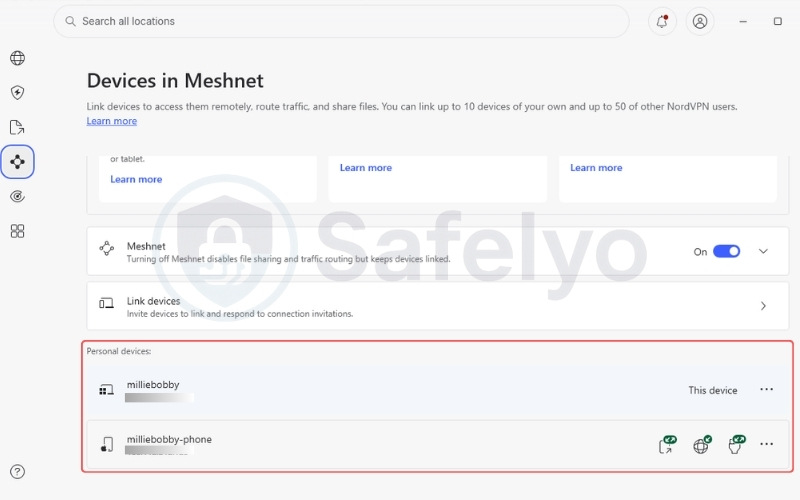
5.2. Link your personal devices
To add your own hardware to the network, simply install the NordVPN app on each device. You must log in with the same NordVPN account credentials across all devices.
Once you toggle Meshnet on, the devices will connect to each other automatically. The system allows you to link a maximum of 10 personal devices under a single account.
5.3. Invite external devices
Adding hardware owned by friends or colleagues requires sending an email invitation. You can connect up to 50 external devices to your network.
- Open the NordVPN app and navigate to the Meshnet tab.
- Go to the Manage devices or Linked devices menu.
- Select Link external device.
- Enter the target user’s NordVPN account email address.
- Set the specific access permissions for that device.
- Click Send invitation.
Pending invitations expire automatically after 72 hours. If you send an invite by mistake, you can navigate to the Sent Invitations tab and click Cancel to withdraw the request.
5.4. Practical setup: Transfer unlimited files securely
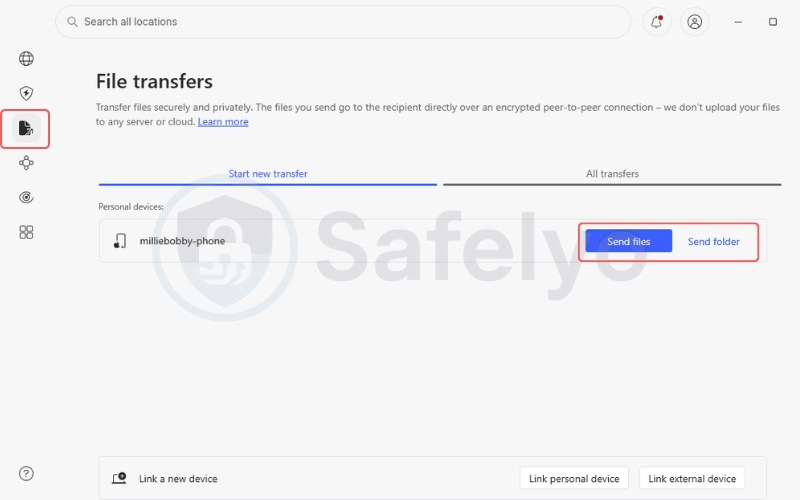
Once your devices are linked, you can easily send heavy media files or folders directly to a peer without uploading them to a cloud server first. Here is how to execute a direct transfer using the desktop application.
- Step 1: Open the NordVPN desktop application and navigate to the File transfers tab located on the left sidebar.
- Step 2: Look under the Start new transfer section to locate the peer device you want to send data to.
- Step 3: To send specific items, click the Send files button, highlight the documents in your file explorer, and click Open.
- Step 4: To share an entire directory, click the Send folder button, select the target folder, and hit OK.
- Step 5: Alternatively, you can skip the file explorer by simply dragging and dropping your files directly onto the peer device’s name inside the app.
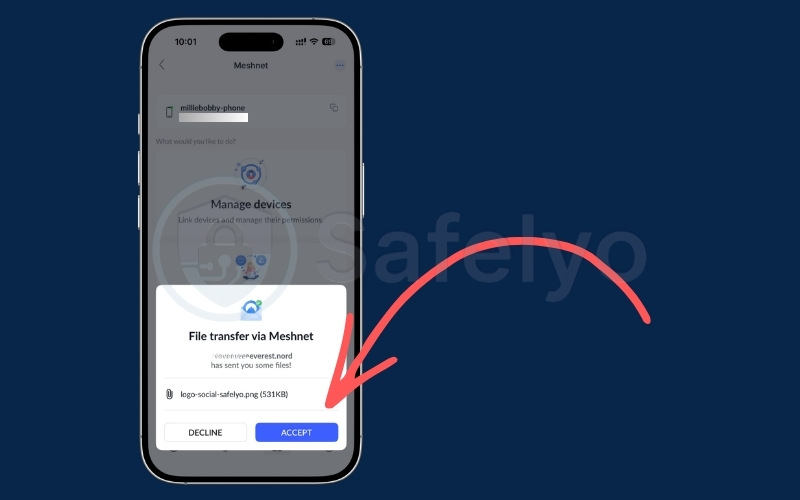
- Step 6: The transfer will begin as soon as the recipient accepts the download request on their screen.
6. NordVPN Meshnet limitations and known issues
While Meshnet offers powerful networking utility, users must understand its technical boundaries. These are the main limitations documented by the provider.
- Traffic routing requires an always-on host device: The machine you route traffic through must remain awake and connected to the internet.
- Traffic routing does not work on the macOS App Store version: If you installed NordVPN from the Mac App Store, traffic routing is unavailable due to platform restrictions. To use this function, you need to switch to the sideloaded version downloaded directly from the official NordVPN website.
- External devices do not always appear online immediately: The network synchronization can sometimes stall. The documented workaround is to toggle Meshnet off and back on while confirming the NordLynx protocol is active.
- No native router-level client: You cannot install Meshnet directly onto a physical router to cover an entire household automatically. Meshnet must run on individual end-user devices.
- Not a traditional VPN replacement: Meshnet does not route your internet traffic through commercial data centers. Meshnet links specific devices rather than masking your identity from internet service providers.
- Invitations expire after 72 hours: If an invited user misses the 72-hour window, the sender must generate a new invitation request.
7. NordVPN Meshnet vs. Tailscale: Which one should you use?
Choosing between these two virtual network options depends on your technical expertise and the size of your user group.
Both services offer peer-to-peer connections, but their underlying architectures and target audiences differ.
| Criteria | NordVPN Meshnet | Tailscale |
| Price | Free (no credit card) | Free (up to 6 users) |
| Device limit | 10 own + 50 external = 60 total | Unlimited |
| Encryption | NordLynx (WireGuard-based) | WireGuard (native) |
| Setup difficulty | Beginner-friendly (app toggle) | Moderate (client on each device + account required) |
| Router support | No native router client | Yes, via subnet router |
| Open source | No (proprietary) | Yes (open-source client) |
| Traffic routing | Yes (host device must stay on) | Yes (exit nodes) |
| File transfer | Built-in | Built-in |
| Platform support | Windows, macOS, Linux, iOS, Android, Android TV | Same platforms + TV/NAS clients |
| Best for | NordVPN users, gamers, casual users | Developers, homelabbers, teams |
Meshnet stands out in overall simplicity. The setup requires no subnet routing, access control lists, or DNS adjustments. Meshnet works seamlessly inside an application that many users already have installed.
Tailscale targets advanced users. The open-source client offers router-level support and detailed access control rules. This makes Tailscale more powerful for developer environments and self-hosted homelabs. For the average remote worker or gamer, Meshnet provides a frictionless starting point.
Review your networking goals before committing to a platform.
Choose Meshnet if:
- You already use NordVPN or want a free account with no credit card requirement.
- Your main use case is LAN gaming, direct file transfers, or simple remote device access.
- You want a toggle-on solution with no routing or configuration knowledge required.
- You are not managing team access policies or need router-level network control.
Choose Tailscale if:
- You are a developer, sysadmin, or self-hoster who needs fine-grained access control (ACL rules).
- You want to configure subnet routing directly at the router level.
- Your group has more than 3 users who all need shared network access.
- You prefer open-source software or need native NAS client support beyond standard desktop apps.
8. Is NordVPN cancelling Meshnet?
No. NordVPN initially announced a shutdown of Meshnet scheduled for December 1, 2025. Following this announcement, users expressed a strong desire to keep Meshnet available.
In response to this community feedback, NordVPN reversed the shutdown decision. Meshnet remains active and free, showing that NordVPN adjusted its product plans directly based on user needs.
9. Troubleshooting: When Meshnet devices don’t show up
Connection issues occasionally disrupt the workflow. Most visibility problems stem from permission errors or platform restrictions rather than actual network failures.
9.1. Devices not appearing in your external devices list
If an invited machine fails to appear, run through this diagnostic checklist:
- Verify the exact email address you entered when sending the invitation, as a typo prevents delivery.
- Confirm the recipient accepted the invitation inside their own NordVPN application interface.
- Ensure multi-device acceptance is complete. If the recipient uses NordVPN on a phone and a PC, they must accept the invite individually on both devices.
- Check the 72-hour window. Invitations expire automatically, so you may need to resend the request.
- Toggle Meshnet off and back on to force a network refresh.
- Confirm the NordLynx protocol is selected and active in the application settings.
- Run the manual refresh command (nordvpn meshnet peer refresh) if you are operating a Linux machine.
9.2. Why traffic routing doesn’t work on the macOS App Store version
Apple users frequently encounter routing failures due to strict ecosystem policies. NordVPN documents this as a platform restriction rather than a bug.
If you installed NordVPN directly from the Mac App Store, traffic routing will not work. Follow these two steps to fix the issue:
- Uninstall the Mac App Store version of the application completely from your system.
- Download and install the sideloaded version directly from the official NordVPN website. Your free or paid account details will carry over automatically.
10. FAQs about NordVPN Meshnet
What does Meshnet do on NordVPN?
Meshnet creates an encrypted private network (virtual LAN) between up to 60 devices globally. Meshnet enables secure file sharing, remote device access, and traffic routing for free. Meshnet uses NordLynx encryption and connects devices directly, with no data stored on a middle server.
Is NordVPN Meshnet actually free?
Yes. Meshnet is completely free for any account holder, including free accounts. Creating an account requires only an email address. The system does not ask for a credit card or mandate a paid subscription.
Is NordVPN cancelling Meshnet?
No. NordVPN did announce a shutdown effective December 1, 2025, but quickly reversed the decision following community pushback. Meshnet remains operational and free to use.
How many devices can I connect with NordVPN Meshnet?
You can connect up to 60 devices in total. This limit includes 10 personal devices registered under your own account and up to 50 external devices belonging to invited peers.
Does NordVPN Meshnet work on Linux?
Yes. Meshnet fully supports Linux environments through specific command-line inputs. You can send invites, list peers, and refresh network connections directly from the terminal.
Can I use NordVPN Meshnet without a paid subscription?
Yes. A free account is the only requirement. You do not need to purchase a paid VPN plan to access or operate Meshnet.
11. Conclusion
If you regularly share large files, host private game servers, or need remote access to your home computer, enabling Meshnet is a highly practical move. For existing NordVPN users, utilizing this feature makes perfect sense.
Meshnet requires no financial cost, takes minutes to configure, and resolves issues like carrier-grade NAT blocks or file size limits during direct file transfers.
For non-users comparing free network options, Tailscale likely offers greater flexibility if you manage complex developer projects or require router-level configurations.
However, if you prioritize a clean interface and familiar app ecosystem over advanced routing rules, NordVPN Meshnet is worth the simple email registration. Users who only want traditional VPN capabilities, like hiding their IP address from internet service providers to stream geo-blocked content, should skip Meshnet.
To test Meshnet, visit the official site and create your free account. Discover exactly how NordVPN Meshnet can streamline your remote workflow and gaming sessions today.
You can read more about network security and optimizations in our VPN Guides category on the Safelyo homepage.