McAfee VPN is built directly into your existing McAfee Total Protection or McAfee+ app. You do not need to download separate software or configure complex networking rules to hide your IP address. Simply open your dashboard, locate the VPN tile, and turn it on to instantly secure your data on any public or private network.
This guide shows you how to activate the VPN across all your devices, manage network settings, and fix common connection issues.
-
Open the McAfee app
Launch the McAfee Security or Total Protection app on your Windows, Mac, or mobile device.
-
Access the VPN tab
Tap on the “Secure VPN” tile or find the privacy section in the main dashboard.
-
Turn on the connection
Toggle the switch to “On” to encrypt your internet traffic immediately.
-
Choose a virtual location
Leave it on “Fastest Location” for speed, or manually select a specific country to bypass regional blocks.
-
Verify your status
Look for the key or shield icon in your status bar to confirm the VPN tunnel is active before browsing.
1. How to set up McAfee VPN on any device
You can activate McAfee VPN directly inside your existing McAfee app dashboard without downloading a separate networking application. The installation process requires you to grant specific system permissions depending on whether you use Windows, Android, iOS, macOS, or ChromeOS. Follow the platform-specific steps below to configure your secure connection properly.
1.1. How to use McAfee VPN on Windows
Windows users can access the VPN directly through the main McAfee dashboard or the system taskbar. We have identified three primary methods to activate the connection on your PC.
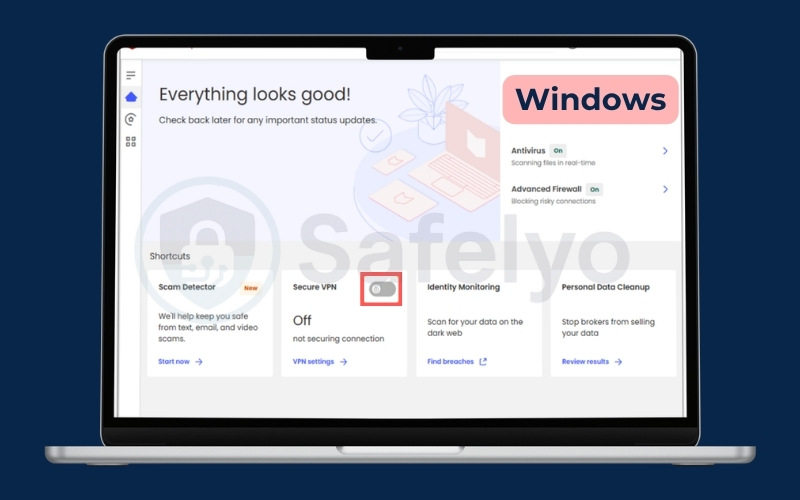
Option 1: Through the Home tab
- Open the McAfee app and navigate to the Home tab.
- Locate the Secure VPN tile and click the toggle switch to turn it on or off.
Option 2: Through the My Protection menu
- Click the My Protection icon on the left sidebar of the McAfee dashboard.
- Select Secure VPN under the Web category.
- Click the toggle switch to activate your secure connection.
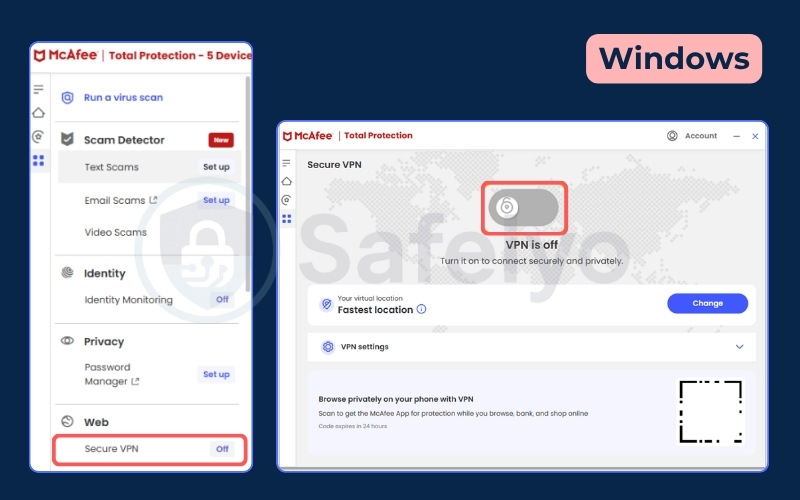
Option 3: Using the Windows taskbar
- Click the Show hidden icons arrow on the bottom right of your Windows taskbar.
- Right-click the McAfee app icon.
- Select Turn on/off VPN from the context menu.
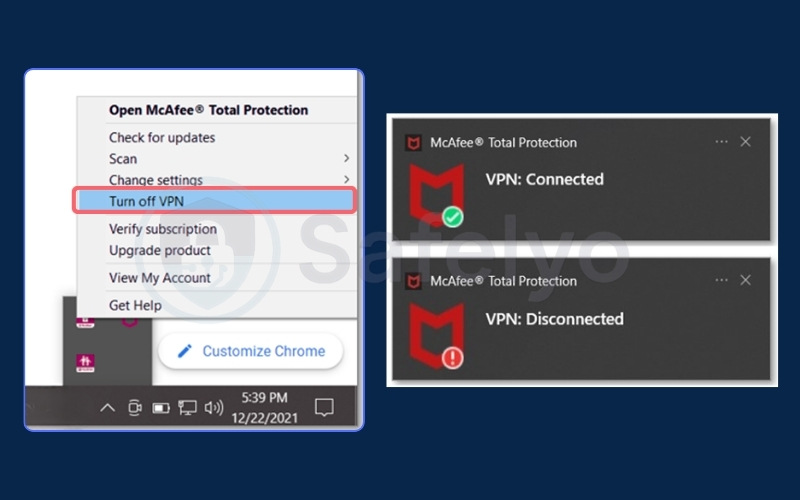
If Windows Defender flags the installer during the initial software setup, you can resolve this by adding the McAfee installation folder to the Windows Defender exclusions list.
Tip: Enable auto-connect for untrusted networks so McAfee VPN stays active in the background.
1.2. How to use McAfee VPN on Android
Android users must use the dedicated McAfee Security app to manage their secure connection.
- Open the McAfee Security app on your Android device.
- Scroll down the Security Center menu to find the Secure VPN section.
- Tap the Turn on button.
- Tap Set up VPN during your initial configuration.
- Tap OK when the Android operating system displays a Connection request message. This grants the app permission to route your internet traffic securely.
- Turn on the toggle switch to enable Secure VPN for your browsing session.
1.3. How to use McAfee VPN on iPhone and iPad
iPhones and iPads share the exact same setup process using the primary McAfee Security app.
- Open the McAfee Security app on your iOS device.
- Scroll down the main home page to locate the Secure VPN section.
- Tap the Turn on button.
- Tap Set up VPN to begin the configuration.
- Tap Allow when the system prompt asks to add VPN configurations, then enter your iPhone passcode to confirm.
- Turn on the toggle switch to enable Secure VPN for your browsing session.
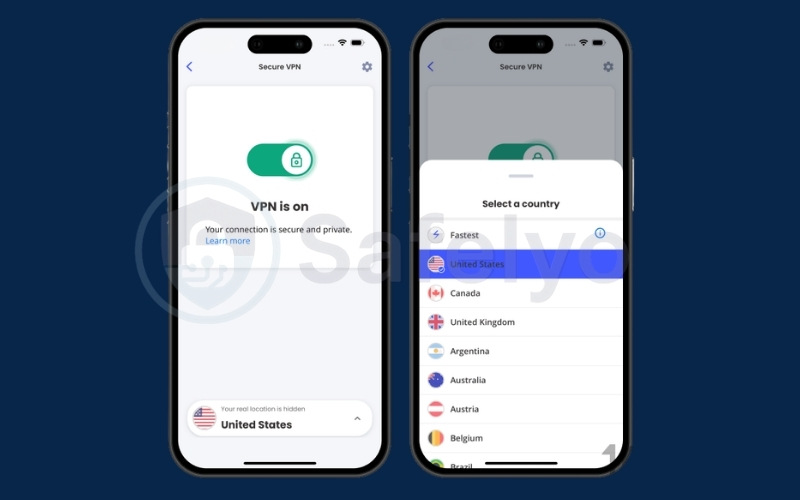
Tip: iOS strictly requires you to grant VPN configuration permissions during the very first setup. The VPN will fail to connect if you skip this system prompt.
1.4. How to use McAfee VPN on Mac
Installing and running McAfee VPN on macOS requires the McAfee Total Protection app.
- Download McAfee Total Protection from your account at mcafee.com.
- Install and launch the application.
- Click VPN in the left sidebar.
- Grant necessary permissions: You must approve system extension prompts and network configuration permissions in System Settings > Privacy & Security. This step is especially critical for macOS Ventura, Sonoma, and Sequoia.
- Click Turn VPN On to connect.
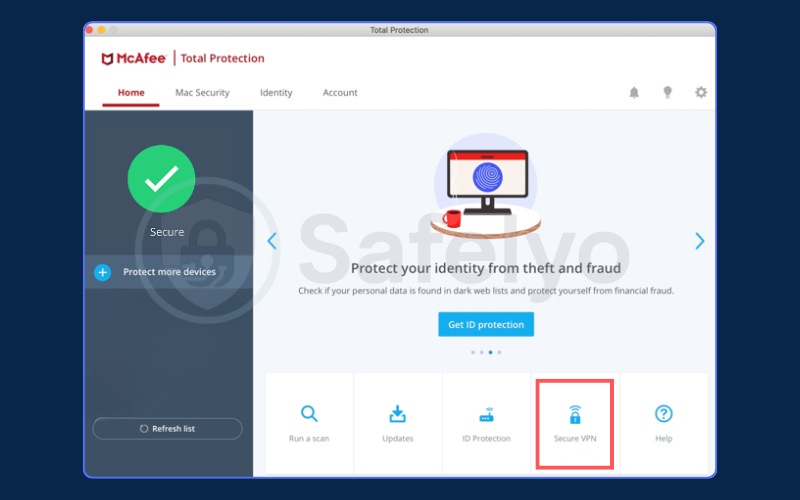
If you cannot find the Secure VPN tile on your macOS application, you might have installed the McAfee software on more devices than your subscription allows. You must release a license by completely uninstalling the McAfee app from a device you no longer use.
Please note that it can take a few hours for the license change to reflect on your Mac. Additionally, McAfee has disabled VPN services for users physically located in India, which will also cause the VPN tile to disappear from your dashboard.
Once connected, McAfee VPN encrypts your traffic and hides your IP address. You can also enable auto-connect for unsecured networks, choose from multiple host sites, and view recent activity. After configuration, the VPN runs quietly in the background without affecting system performance.
1.5. How to use McAfee VPN on Chromebook
Chromebooks support the McAfee Security Android app, which includes Secure VPN, Identity Protection, Wi-Fi Scan, Safe Browsing, and Personal Data Cleanup. The application requires ChromeOS version 102.0.5005 or newer.
- Open the Google Play Store on your Chromebook.
- Search for McAfee Security.
- Click Install, then accept the terms to continue.
- Sign in with your McAfee credentials.
- Grant VPN network permissions when prompted by ChromeOS.
- Tap Connect or Turn On to start secure browsing.
2. Everyday use: Connections, locations and split tunneling
Managing your daily VPN usage requires configuring auto-connect rules, selecting the most efficient geographic servers, and isolating specific app traffic through split tunneling. Read through the following sections to master these essential network controls.
2.1. How to turn McAfee VPN on and off safely
You can manage your McAfee VPN connection directly from the main dashboard of your respective application.
- Windows and macOS: Open the McAfee app and click the VPN toggle switch on the sidebar.
- Android and iOS: Tap the shield icon or VPN toggle inside the McAfee app home screen.
You can automate this process by enabling Smart Protection (also known as Auto-Protect). This feature automatically turns on the VPN when your device detects an unsecured public Wi-Fi network. You can also configure a Trusted Network list. Adding your home Wi-Fi to this list ensures the VPN stays off when you are on a safe network.
Forgetting to whitelist your home Wi-Fi can block local device communication, such as wireless printing. Adding your home router to the Trusted Network settings immediately resolves this issue.
2.2. How to change server locations
McAfee VPN supports connections to almost 50 different countries globally. Changing your server location can improve connection speeds or help bypass regional restrictions.
Mobile apps (Android and iOS):
- Open the McAfee Security app and tap the Secure VPN section.
- Tap the location indicator at the bottom of the screen (often labeled Fastest Country or Fastest Location).
- Scroll through the list and select a specific country to update your virtual location.
Desktop apps (Windows and macOS):
- Open the McAfee app and click the Secure VPN tile.
- Click the Change button inside the Virtual Location dialog box.
- Select your preferred country and confirm the switch.
Switching to a distant server provides access to region-locked media but often increases latency. Connecting to a closer server provides much faster video playback, proving that server proximity directly impacts your internet speed.
2.3. How to use split tunneling in McAfee VPN
Split tunneling allows you to bypass the VPN connection for specific applications or websites. This ensures your local apps run smoothly without network interference, and the feature is available across Windows, Android, and iOS devices.
Windows instructions:
- Open the McAfee app and navigate to the Home tab.
- Go to the Secure VPN tile and click VPN settings.
- Click VPN settings again to expand the menu.
- Locate the Split tunneling section.
- Select the supported apps or websites that limit VPN access to route them through your regular internet connection instead.
Android instructions:
- Open the McAfee Security app and locate the Secure VPN section under Device.
- Tap the toggle to turn the VPN on.
- Tap the Settings gear icon in the top right corner.
- Tap Split tunneling.
- Clear the checkbox next to any app name to disable the VPN for that specific application.
- Tap Save at the bottom, then tap Restart to apply the changes.
You can also turn on the toggle next to Bypass suggested apps. This setting automatically excludes a predefined group of applications that traditionally conflict with virtual private networks, such as streaming services or banking tools. Please note that the option to add custom website URLs is not supported on Android devices.
iOS instructions:
- Open the McAfee Security app and ensure Secure VPN is enabled.
- Tap the Settings gear icon at the top right of the screen.
- Tap Split tunneling.
- Turn on the toggle next to Bypass suggested sites to automatically exclude recommended websites.
- Tap the plus icon next to Add a website to manually type a site URL, then tap Add.
The Add a Website feature is exclusively available on iOS devices. If you are using macOS or Android, this specific website exclusion tool will not appear in your settings menu.
Tip: Do not exclude too many applications. Every bypassed app routes data through your unprotected local network.
2.4. How to manage Auto-connect, Safe reconnect, and Trusted networks on Windows
The Windows application provides granular control over your network preferences. You can access these advanced controls by clicking VPN settings directly on the Secure VPN tile from the Home tab.
- Auto connect: This setting dictates exactly when your device automatically engages the VPN. You can select Auto-connect to VPN on every network (which is recommended to keep traffic secure even if the main toggle is off), choose to connect only on networks with weak security, or select Never connect automatically if you prefer full manual control.
- Safe reconnect: This feature operates exactly like a kill switch. It automatically pauses your internet connection whenever your VPN is disrupted, ensuring your real IP address or data does not leak during a sudden drop in connection.
- Trusted networks: This option prevents the VPN from activating when you are in a secure environment. Click See networks, then click + Add the network I’m on to register your secure home or office Wi-Fi router. The VPN will remain disabled whenever connected to these saved locations.
3. What McAfee VPN does (and does not do)
McAfee VPN secures your digital footprint by building an encrypted tunnel for your internet traffic, but it operates distinctly from traditional virus scanning software. Understanding these differences will help you set realistic expectations for your network security.
3.1. How McAfee VPN protects your connection
A VPN tunnel is an encrypted connection between your device and a remote server. McAfee VPN provides three core protections:
- Encrypts your internet traffic so hackers and internet service providers cannot read your data.
- Hides your real IP address by replacing it with the IP address of the VPN server.
- Automatically secures your connection when you join unsecured public Wi-Fi networks.
3.2. What McAfee VPN cannot replace
McAfee VPN only protects your network connection and does not scan your device for malware. The VPN serves as a complementary layer of security, not a replacement for McAfee Antivirus.
| Feature | McAfee VPN | McAfee Antivirus |
| Primary function | Encrypts internet traffic and hides IP address | Scans for and removes malware or viruses |
| Device protection | Does not block malicious files | Blocks ransomware, trojans, and phishing links |
| Public Wi-Fi safety | Prevents data interception on open networks | Warns about unsafe downloads on any network |
4. Plans, devices and requirements
McAfee VPN operates exclusively as an integrated feature within McAfee’s premium subscription tiers and supports all major desktop and mobile operating systems. Review the plan details below to ensure your current subscription covers all your personal devices.
4.1. McAfee plans that include VPN
McAfee VPN comes bundled inside most McAfee security suites, meaning you do not need a separate app if you already use one of their core security products. For standard home users, a plan like McAfee Essential covers enough devices for a small household.
| Plan Name | Device Limit | VPN Included |
| McAfee Basic | 1 device | Yes |
| McAfee Essential | 5 devices | Yes |
| McAfee+ Premium | Unlimited devices | Yes |
| McAfee+ Advanced | Unlimited devices | Yes |
| McAfee+ Ultimate | Unlimited devices | Yes |
Note: Previously, McAfee offered a standalone version called McAfee Safe Connect VPN. However, this standalone service is now fully integrated into the main McAfee Security and McAfee Total Protection applications. According to official announcements, after August 15, 2026, McAfee Safe Connect will no longer be accessible.
4.2. Supported devices and operating systems
McAfee VPN supports a wide range of operating systems for desktop and mobile users.
- Windows: Windows 10 and Windows 11.
- macOS: Supported on recent macOS versions.
- Android: Supported via the Google Play Store app.
- iOS: Supported via the Apple App Store app.
- ChromeOS: Supported exclusively through the Android app, not as a native browser extension.
5. McAfee VPN privacy and security: What to know
McAfee VPN secures your traffic using AES-256 bank-grade encryption but operates under United States data retention jurisdictions. The details below clarify exactly what information the software protects and what it retains.
5.1. Encryption standard and VPN protocols
McAfee VPN utilizes AES-256 encryption. Financial institutions and government agencies rely on this same standard to protect highly classified data. The software also provides multiple VPN protocols to manage how your data travels. Protocol selection is currently limited to Windows and Android platforms.
| Protocol | Speed performance | Best use case |
| WireGuard | Very high | Streaming and fast browsing due to low CPU load. |
| IKEv2 | Moderate to high | Mobile devices switching between Wi-Fi and cellular networks. |
| Auto | Variable | General use where the app selects the optimal protocol. |
5.2. No-log policy and data McAfee collects
McAfee adheres to a no-log policy regarding your internet traffic. This means the company does not record your browsing history or track the websites you visit. However, the official privacy policy states that McAfee collects specific metadata to keep the service operational.
McAfee collects:
- Device identifiers
- Connection timestamps
- Diagnostic data
McAfee does not log:
- Visited web pages
- Downloaded files
- Search queries
To verify these privacy claims, McAfee’s VPN technology is independently reviewed and audited. This ensures that your sensitive information stays secure and provides an extra layer of trust for users.
5.3. Five Eyes jurisdiction: What it means for you
McAfee operates out of the United States, placing the company under the jurisdiction of the Five Eyes intelligence-sharing alliance. If presented with a valid legal warrant, McAfee could be forced to hand over user data to US authorities. Because the company does not log browsing activity and undergoes independent audits, the actual risk to casual users remains extremely low.
We recommend this VPN for general public Wi-Fi security, but individuals who require absolute digital privacy might still prefer a provider based outside of the Five Eyes alliance.
6. Advanced settings for better performance
You can maximize your VPN’s performance and verify its operational integrity by running DNS leak tests, switching networking protocols, and manually adjusting server configurations. Apply the optimization techniques below to ensure a fast and stable connection.
6.1. Test for DNS and IP leaks
You can verify that McAfee VPN is effectively hiding your identity by running a leak test immediately after setup. We recommend using free diagnostic tools like ipleak.net or dnsleaktest.com.
When reviewing the results, the IP address on the screen must match your selected VPN server location. The DNS servers listed must belong to the VPN provider rather than your real internet service provider. Running a standard leak test will confirm that no data leaks occur during your browsing session.
6.2. Switch VPN protocols for speed or stability
Selecting the right protocol can resolve performance issues on Windows and Android devices. You can change this setting in the preferences menu.
| Protocol | Best for | Platform availability |
| WireGuard | Maximum speed and minimal lag | Windows, Android |
| IKEv2 | Stability when switching networks | Windows, Android |
| Auto | Hands-off connection management | Windows, Android |
6.3. Speed optimization tips
You can improve your connection speeds by adjusting your usage habits and software settings.
- Always choose the Fastest Server option instead of manually connecting to geographically distant countries.
- Avoid running the VPN simultaneously with bandwidth-heavy background applications, such as cloud backup software.
- Advanced users can tweak the MTU size to reduce packet fragmentation, though this requires technical networking knowledge.
- If you experience a sudden speed drop, restart your device or connect to a different virtual location.
7. Troubleshooting McAfee VPN: Common fixes
You can resolve the most common McAfee VPN failures, such as handshake errors, captive portal blocks, and geo-restriction detection, by cycling your network connection or clearing background app conflicts. Check the solutions below to quickly fix any service interruptions.
7.1. Fixing connection errors
Follow these steps if McAfee VPN refuses to connect or drops frequently:
- Verify your baseline internet connection without the VPN active.
- Ensure no conflicting proxy services or secondary VPNs are running in the background.
- Restart your computer or smartphone to refresh the system processes.
- Toggle Airplane Mode on and off if you are using a mobile device.
- Disable custom Private DNS settings on Android devices.
A persistent handshake error on an Android device can often be fixed instantly by disabling the Private DNS feature in the network settings.
7.2. Getting through captive portals
A captive portal is a web page that requires you to accept terms or log in before accessing public Wi-Fi. Captive portals often block VPN traffic initially.
- Disconnect McAfee VPN.
- Open a web browser and complete the captive portal login process.
- Reconnect the VPN once the network grants you full internet access.
7.3. Bypassing streaming geo-blocks
Streaming platforms frequently update their systems to block VPN IP addresses.
- Switch your server location to a different city within the same target country.
- Clear your browser cache and cookies to remove stored location data.
- Open a private browsing or incognito window.
- Disconnect and reconnect the VPN to obtain a fresh IP address.
Note that McAfee VPN is not specifically optimized for streaming bypasses, so unblocking foreign content libraries is not guaranteed.
Read more:
7.4. How to confirm no IP or DNS leaks
Use this quick checklist if you suspect your real location is exposed during an active session:
- Visit ipleak.net to check your current status.
- Ensure the displayed IP matches your VPN server country.
- Verify that the DNS results do not show your real internet service provider.
If the results show your real location, disconnect the VPN, reconnect it, and retest.
8. FAQs about how to use McAfee VPN
Is McAfee VPN free?
McAfee VPN is not completely free. It comes bundled with paid plans like McAfee Basic, Essential, Total Protection, and McAfee+. If you use the 30-day free trial for McAfee Total Protection, the VPN feature is included but capped at 500 MB of data per month.
Should I activate VPN on McAfee?
You should activate McAfee VPN whenever you connect to an unsecured public Wi-Fi network. The encryption protects your sensitive data from interception at coffee shops or airports. See Section 3 for detailed security benefits.
How many devices can I use McAfee VPN on?
Device limits depend directly on your subscription tier. McAfee Basic covers 1 device, and McAfee Essential covers up to 5 devices. Upgrading to McAfee+ Premium, Advanced, or Ultimate grants you coverage for an unlimited number of devices.
Does McAfee VPN work for torrenting?
No. McAfee VPN does not support P2P traffic or torrenting. The application may actively throttle or block P2P connections to comply with acceptable use policies. Users seeking torrenting support should explore alternative providers.
Will McAfee VPN work with Netflix?
McAfee VPN can occasionally bypass regional restrictions, but the results vary significantly by server. The software is not built specifically for streaming evasion, making Netflix access inconsistent.
Does McAfee VPN slow down my internet?
All VPNs reduce internet speed slightly because the data requires time for encryption. Selecting a geographically close server location and utilizing the WireGuard protocol minimizes this speed reduction.
Can McAfee VPN be trusted?
Yes. McAfee VPN uses robust AES-256 bank-grade encryption. Furthermore, its underlying VPN technology undergoes independent third-party audits to ensure your sensitive information remains secure.
Can I use McAfee VPN in countries like China?
We do not recommend using McAfee VPN in regions with heavy digital censorship, such as China. The application lacks obfuscation features necessary to bypass Deep Packet Inspection (DPI) technology.
What’s McAfee’s refund or cancellation policy?
Subscriptions that include McAfee VPN generally offer a 30-day money-back guarantee. You can process cancellations or request refunds directly through your McAfee account dashboard or by contacting customer support.
9. Conclusion
McAfee VPN provides an excellent, easy-to-use security layer for individuals who already subscribe to the McAfee ecosystem. Backed by independent security audits and robust encryption, it successfully protects casual users from data theft on public Wi-Fi networks.
Based on your specific needs, we recommend the following approaches:
- Current McAfee Total Protection users: Turn on the VPN directly inside your existing app without downloading additional software.
- Heavy streamers and torrenters: Consider dedicated VPN providers like NordVPN or Surfshark, which offer P2P support and better geo-unblocking.
- Large households: Upgrade to a McAfee+ Premium plan to secure an unlimited number of devices under one subscription.
If you have followed this guide and still experience connection issues, visit the McAfee Support Community or run a diagnostic DNS leak test at ipleak.net to ensure your traffic remains secure.
For more practical privacy guidance and software recommendations, explore our VPN Guides category or visit the Safelyo homepage to learn more about how to use McAfee VPN efficiently.